1. Features
  2. Checkout
  3. Checkout questions

Get Every Answer Your Team Needs Before the Day

Your caterer needs the meal choices, your access team needs the requests, your sponsor wants to know which companies are coming and your licence says nobody under 18. With Ticket Fairy, you add your own questions to checkout and choose which details every buyer must enter, from a phone number to a date of birth. Checkout turns away under-age buyers before they pay, every buyer accepts your refund policy and house rules, and each ticket carries your directions and door times to the venue.

  • Every answer collected before buyers pay
  • Under-age buyers turned away at checkout
  • Your terms accepted and your directions on every ticket
Ticket Fairy Create Custom Field dialog with where the answer belongs, the question type, the label and the display switches

Ask the Questions Your Event Depends On

Ask for a meal choice, an access request, a company name, a T-shirt size or anything else your team plans around. Buyers enter their own answer in a short or a long text box, give a phone number, or pick from a fixed list of choices with one ready selected. Ask for an image upload when you need a picture with the order, such as a photo for a pass, and put the questions in the order buyers should read them.

Make an answer required when your door or fulfilment team cannot work without it, and the buyer cannot finish checkout until they give it. Leave the rest optional, so checkout stays quick for buyers who have nothing to add.

  • Text answers: a short line or a longer note
  • Choices: one choice or several from your own list
  • Image upload: a picture with the order
  • Required: checkout waits until it has the answer
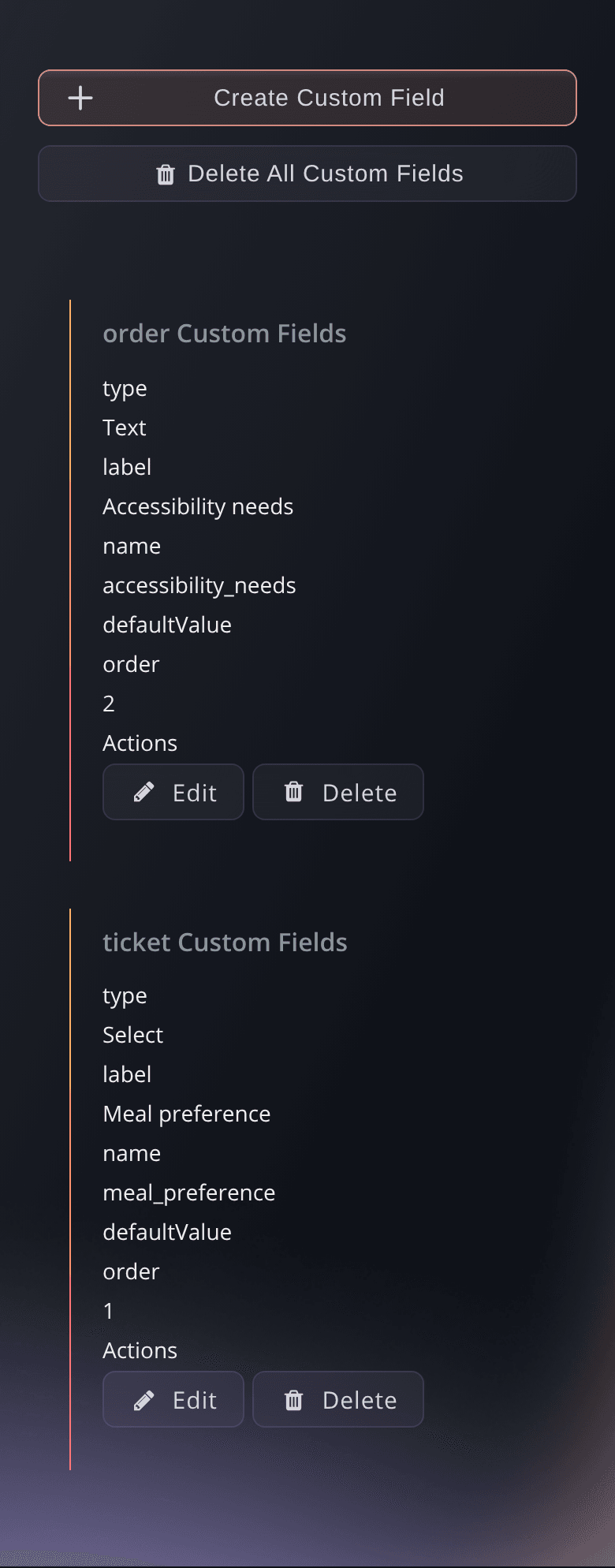
Ticket Fairy event settings with custom checkout questions grouped under the order and each ticket

Collect One Answer per Order, Ticket Holder or Add-On

Choose Order when the buyer gives one answer for the whole purchase, such as their company name. Choose Ticket when each guest can answer differently, such as a meal choice for every seat at a gala table. Choose Add-On when the answer belongs to something the buyer added, such as the size of a festival T-shirt. Every answer stays with the order, ticket or add-on it belongs to.

Choose where each answer appears: on the buyer's ticket in My Tickets, on the ticket PDF and on the scan view in the door app. Your door team then sees an access request or a meal choice the moment a guest's ticket scans, without a separate list to check. At a conference registration desk, the answer to a company or job title question prints on each delegate's name badge.

  • Per order: one answer for the whole purchase
  • Per ticket holder: an answer from every guest
  • On the scan view: in front of your door team at entry

Get the Details You Need From Every Buyer

Decide which details every buyer must enter before they can pay: a phone number, a nationality, an Instagram handle or a date of birth. Checkout refuses a phone number that is not a real one, offers a list for nationality, and takes an Instagram handle that starts with @ or a link to the buyer's profile. Each buyer's phone number is in their order whenever you need to reach them on the day.

New events start with the phone number, nationality and date of birth questions turned on, and you can change any of them while you create the event or at any time after. Turn a question off and checkout stops asking from the next order, with the details already given kept on their orders.

  • Phone number: a real number from every buyer
  • Nationality: chosen from a list
  • Instagram handle: a handle or a link to the buyer's profile
Ticket Fairy Ticket Settings card with the phone number, nationality, Instagram handle and date of birth switches turned on

Turn Away Under-Age Buyers Before They Pay

Choose the youngest age you admit, and checkout asks for the buyer's date of birth and works out their age on the day your event starts. A buyer who turns 18 the week before your 18+ night can still buy, and a buyer who is too young is told in plain words that they must be your minimum age or over to attend. Your door team has fewer people to send home on the night.

Choose All Ages to collect dates of birth and turn nobody away, which suits an event that needs the ages for its own reports or its licence. For an age check at the door as well, turn on ID required in your anti-scalping settings and attendees show ID with their ticket.

  • Minimum age: checked against the age on the day of your event
  • A clear message: the buyer sees your minimum age and why
  • All Ages: dates of birth collected, nobody turned away

Put a Name on Every Ticket

Turn on Names required, and every attendee's name is collected when the tickets are bought, not only the buyer's. Turn on Name checks, and your door team checks those names at entry. A group booking then arrives as a list of real people, and a ticket bought to resell has a name on it that the tout does not share.

For anything else you need from each guest, such as their email address or a dietary need, add a checkout question answered once per ticket. Names, name checks and ID at the door sit together in the Anti-Scalping/Fraud Settings for the event.

  • Names required: a name for every attendee at purchase
  • Name checks: names checked at the door

Put Your Refund Policy and House Rules in Front of Every Buyer

Buyers who never saw your refund policy ask for refunds you do not offer. Give each part of your terms its own section, such as Refund Policy, Code of Conduct or Participation Rules, with headings, lists and links in your own wording. Each section name becomes a link in the agreement sentence at checkout, so a buyer opens the section, reads it and ticks to accept before they pay.

What buyers see at checkout shows the agreement sentence exactly as your buyers will read it. Edit the sentence to match your own voice, rename a section when your policy changes, and select Reset to default to rebuild the sentence from your current sections. Buyers who start from the checkout on your own website continue on the full checkout page when your event has custom terms, so every buyer reads every section before they pay.

  • Terms sections: a refund policy, code of conduct or any rules you set
  • A link to each section: buyers open every part before they accept
  • Required agreement: buyers tick to accept before they pay
Ticket Fairy Add Terms & Conditions section dialog with the Name and Content fields

Print Directions and Door Times on Every Ticket

Your door team stops repeating how to get to the venue, which entrance to use, when doors open and what ID to bring, because the answers are on the ticket. Ticket Fairy prints your words on every ticket PDF for the event, with bold text, headings and links, so each buyer carries the answers to the venue. A ticket downloaded after you change the text carries the new words.

A camping ticket needs wristband collection directions, a VIP ticket needs the hospitality entrance and a parking ticket needs the car park address. Give any ticket type its own text and only that text prints on its tickets, while every other ticket type keeps the event's text. Hide the date on a ticket type that covers several dates, so its tickets never show the wrong day. You can also set the event's ticket text from Advanced options while you create the event.

  • Text on the ticket PDF: directions, entrance, door times and what to bring
  • Text for each ticket type: camping, VIP, parking or any ticket you sell
  • Hide the date: for a ticket type that covers several dates
Ticket Fairy Ticket Settings card with directions, the entrance and door times in the ticket PDF text box

Set It All Up by Asking Fai

Tell Fai, the assistant inside your dashboard, what you need to ask, such as a required meal choice for every ticket holder with vegetarian and vegan options. She shows you the question, its type and where the answer belongs, and adds it once you approve. Ask her which questions an event already has, and she lists them.

Fai can also turn the phone number, nationality, Instagram and date of birth questions on or off, set the minimum age, change the words printed on every ticket or on one ticket type's tickets and hide the date on a ticket type. She shows you each change and saves nothing until you approve it.

  • Asked in a sentence: Fai sets the type, label and choices
  • Buyer details and age: switched on or off by Fai
  • You approve each change: nothing changes on checkout until you say so

How Organisers Use Checkout Questions

  • A Gala Dinner With Table Bookings

    A required meal choice is asked once per ticket, with vegetarian and vegan options. The caterer gets a count for every table before the night, and each guest's choice shows on the scan view as they arrive.

  • An 18+ Club Night

    The promoter sets a minimum age of 18 and requires a phone number. Under-age buyers are turned away at checkout, and the team has a number for every buyer when a set time changes on the night.

  • A Festival With Camping Tickets

    Camping tickets carry their own wristband collection directions on the PDF, and an add-on question asks for each camper's T-shirt size. Every buyer accepts the festival's refund policy and code of conduct before paying.

  • A Trade Conference

    Order questions ask for the company name and ticket questions ask each delegate for their job title. The registration desk prints both on every name badge as delegates check in.

  • A Fun Run With Participation Rules

    Every runner accepts the participation rules at checkout and gives an emergency contact number as a required ticket question. Names required puts each runner's own name on their ticket.

Get this page as a PDF Read it later or share it with your team. We email you a link to the PDF.
What to put in your PDF

We will email you this deck. We may also email you now and then about Ticket Fairy features that can help your events. You can unsubscribe at any time with one click.

Questions About Checkout Questions and Attendee Details

Checkout questions

Text, Text Area, Phone, Radio, Select and Multiple Select. Image uploads are for questions answered once per order. You need an owner or admin role for the event to add questions.

Each question is saved on one event. Add it to every event that needs it, and check on each one whether the answer belongs to the order, a ticket or an add-on.

Answers already given stay on the orders, tickets and add-ons they belong to. New checkouts stop asking the question.

No. Only the buyer, the person paying, gives a date of birth, and the age check uses it. To collect a detail from each ticket holder, add a checkout question answered once per ticket. Checkout records those answers but does not check a ticket holder's age against them.

Yes. Checkout still shows the phone number field, and the buyer can leave it empty. Turning the switch on makes it one they must fill in, and Hide phone number of buyer field removes it altogether.

The nationality question is set for you on that event, so it stays on. Hover over the switch to read why, and ask us if you need it changed.

A ticket bought through a QR quick-buy link skips the phone number and date of birth questions, so check ID at the door for an age-limited event. Buyers who go through your normal checkout get every question you turned on.

Yes. Your event keeps its embed on your website. When custom terms are on, buyers who start there continue on the full checkout page, so they see the complete agreement. Terms sections take text, headings, lists and links, and videos and other embedded content are removed.

The ticket type's own text, and only that, so repeat anything from the event's text those buyers still need. Tickets from Download for Ticket Printer print without the text, and it does not appear on your event page.

A ticket PDF downloaded after you save shows the new words. A PDF already attached to an email keeps the words it was sent with, so resend the tickets if buyers need the new text.

Sell more tickets. Build the crowd that comes back.

Start Selling Tickets Online

Sign up without a credit card and build a test event before you commit. Go on sale in minutes when you are ready.

No monthly subscription required for ticketing
Start selling tickets immediately
Ticketing tools included in the service fee
Get Started Talk to Fai Now

Ask Fai, our AI assistant, about Ticket Fairy’s features, pricing and how it could work for your event.

No credit card required

Book a demo call

See the referral model that drives 20% more ticket sales on average, learn which campaigns sell tickets, answer buyers faster and keep queues moving.

45-Minute Video Call
Pick a Time That Works for You