1. Features
  2. Orders, refunds & resale
  3. Support inbox

Answer Every Ticket Buyer Faster as a Team

Buyers ask about their tickets by website chat, email, text message and Instagram or Messenger, and the answers end up spread across personal inboxes and phones. The Support Inbox brings every buyer conversation for your brand together, so your team sees who is waiting, what has already been said and whether a conversation is with your team or with Ticket Fairy. Reply to the buyer, leave a note only your teammates read, hand a conversation to Ticket Fairy support when you need help, and mark it resolved when the buyer has their answer.

  • Every buyer question answered from the same inbox
  • Your whole team working from the same conversations
  • Ticket Fairy support a message away

See Every Buyer Question as Soon as It Arrives

A question your website chat cannot answer, an email, a web form, a text message and an Instagram or Messenger message all arrive as conversations in the Support Inbox. Each one shows the buyer's name, email address and phone number, the channel it came in on and when it was opened, so you know who you are talking to before you read a word.

A short summary at the top of each conversation tells you what the buyer needs, so you can pick the urgent ones from a long list without opening each. Show more opens the full summary when the conversation is long.

Leave the inbox on Live and new conversations and replies appear without reloading the page. Switch it to Paused to hold the list still while you work through it, then switch back when you are done.

  • Chat, email, text and social: every channel your buyers use, as one list
  • Contact details: the buyer's name, email and phone beside the conversation
  • Conversation summary: what the buyer needs, before you open it

Let Your Concierge Answer First and Hand Over the Rest

Your AI ticket concierge answers the common questions on your website from the knowledge base you give it: door times, age limits, parking, refund terms. When it cannot help, it hands the buyer over and the conversation lands in the Support Inbox with a summary of what the buyer asked and the contact details they gave, so your team starts from the question and not from "how can I help?".

You decide where those handovers go, under When the AI can't help: to your brand inbox, to Ticket Fairy support, or to Ticket Fairy first and then your team when Ticket Fairy cannot resolve it. A buyer who is signed in to their Ticket Fairy account arrives with their name, email address and phone number already filled in.

  • Concierge answers first: from the knowledge base you give it
  • Send escalations to: your team, Ticket Fairy, or Ticket Fairy then your team
  • Handover summary: what the buyer asked, ready for your team
Ticket Fairy concierge knowledge base with the question and answer entries the assistant replies from

Reply to the Buyer or Leave a Note for Your Team

Every conversation lets you answer with Reply to customer, or tell a teammate what you checked and what happens next with an Internal note. The buyer never sees a note. When a buyer replies to your email, their answer lands back in the same conversation, so the whole exchange stays together however long it runs.

Instagram and Messenger messages open in Social, so you reply inside the window those apps allow and the fan sees your answer in the app they wrote from. An internal note on the conversation tells your team what you said.

When a buyer's email keeps sending automatic answers, such as an out-of-office message, the inbox pauses automatic replies on that conversation so the two systems do not answer each other forever. Resume automatic replies brings them back once the buyer is back.

  • Reply to customer: the buyer gets your answer by email
  • Internal note: for your team only, never shown to the buyer
  • Open in Social: answer Instagram and Messenger messages where they arrived
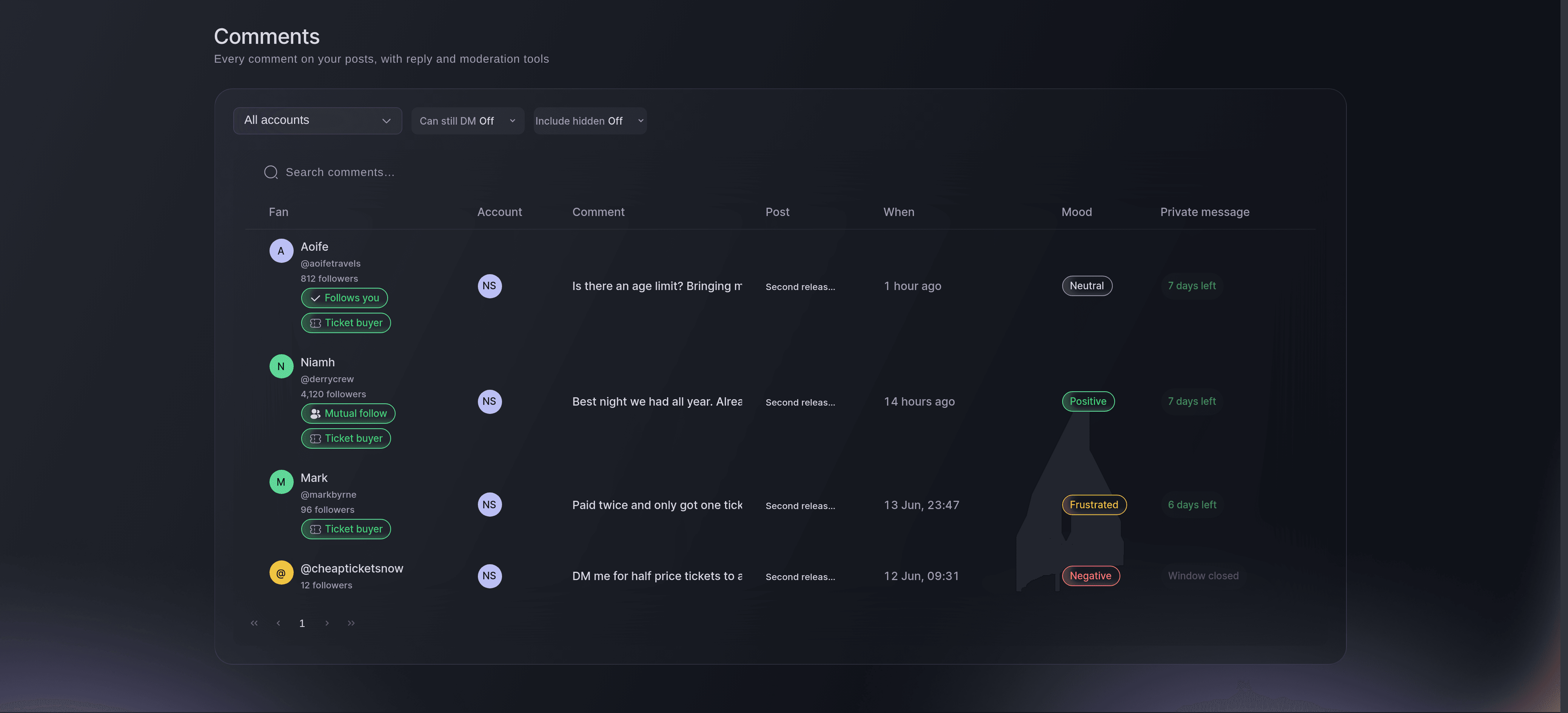
Ticket Fairy social Comments list showing each fan with a Ticket buyer badge, their comment, the post, the mood and the private message window

Know What Is Waiting and What Is Done

Every conversation carries a status your team can read at a glance: Open, Waiting, Resolved or Reopened, with High priority and Urgent marked. Mark a conversation waiting when the ball is in the buyer's court, resolved when they have their answer, and reopen it when they come back. Nothing slips because two people each thought the other had replied.

Filter by status, by channel or by whether a conversation is with your team or Ticket Fairy, and search by name, email address or subject to find the buyer who just called. The Activity trail on each conversation shows who opened, reassigned, noted, marked waiting or resolved it, and when.

If a teammate changes a conversation while you have it open, the inbox tells you and shows you their change before you act, so nobody's reply or status change is lost. Export any conversation as a transcript when you need a copy for a chargeback, a complaint or your records.

  • Status on every conversation: Open, Waiting, Resolved or Reopened
  • Filters and search: status, channel, who it is with, name, email or subject
  • Activity trail: who did what to each conversation, and when
  • Export: a transcript of any conversation

Find the Order Behind the Question

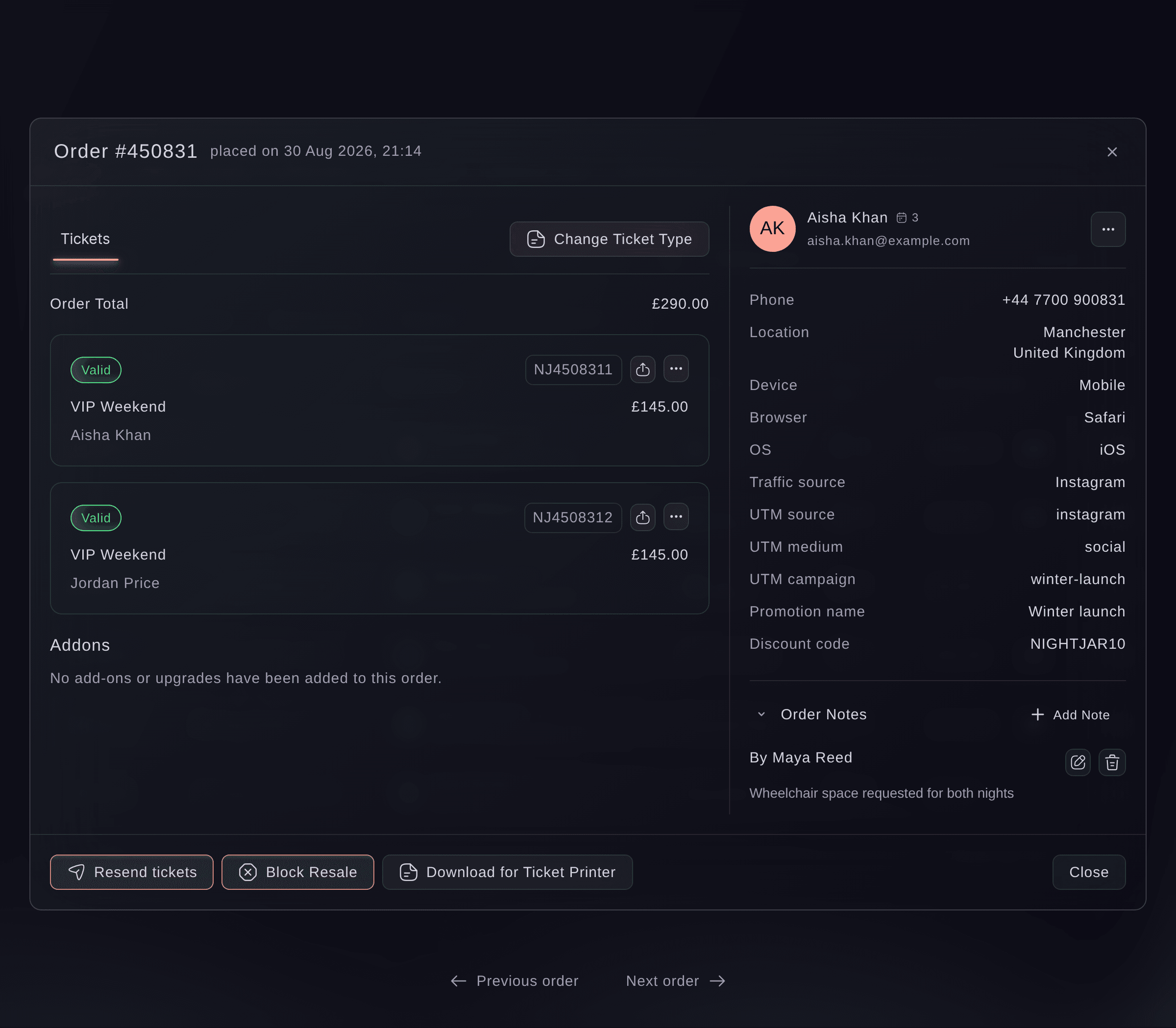
Most buyer questions end with an order: missing tickets, a wrong name, a refund. The buyer's email address sits beside the conversation, so the order is one search away on your event's Orders page, with every ticket, its holder and where it went. Resend the tickets, correct the name or refund the order, and reply in the same conversation with what you did.

Leave a note on the order as well as on the conversation, so whoever opens the order next sees what you agreed with the buyer, whichever way they reached you.

  • Order search: by the email address in the conversation
  • Fix and reply: resend, correct or refund, then answer the buyer
  • Notes on both: the order and the conversation tell the same story
Ticket Fairy order window with two valid VIP Weekend tickets, the buyer's phone, location, device and traffic source, and a note in Order Notes

Bring In Ticket Fairy Support Without Leaving the Inbox

Get help sends a request to the Ticket Fairy support team from the inbox, with the priority you set. Their reply arrives in your Support Inbox as a conversation of its own, next to your buyers' questions. When a buyer's problem needs Ticket Fairy, such as a payment question or a partial refund, pass the conversation from Your team to Ticket Fairy, and it moves across with everything already said.

Each conversation shows whether it is with your team or with Ticket Fairy, so nobody waits on an answer that is already on its way. Set your brand's escalation and point of contact addresses on the Contacts page, so Ticket Fairy support knows who to reach about each event.

  • Get help: a request to Ticket Fairy support from the inbox
  • Your team or Ticket Fairy: move a conversation to whoever can answer it
  • Event contacts: who Ticket Fairy support reaches about each event
Ticket Fairy event Contacts page with Use Brand Contacts on and the brand's escalation and point of contact addresses listed

Answer Buyers From Your Phone

The same conversations are in the Ticket Fairy Promoter app for when you are away from your desk. Reply to the buyer or add a note, mark a conversation waiting or resolved, move it between your team and Ticket Fairy, and send Ticket Fairy a request for help from the app.

Owners, admins and support team members on your brand get an email when a new conversation arrives for your team, when a conversation is passed to your team, and when a note is added, so a question asked late at night is not sitting unseen until morning.

  • Promoter app: the Support Inbox on your phone
  • Email alerts: new conversations, handovers and notes

Ask Fai to Work Through the Inbox With You

Ask Fai, the assistant inside your dashboard, which conversations are waiting on your team, or what a buyer asked and what has been said so far. She reads the conversation, its notes and its activity trail, and can export a transcript for you.

Ask her to reply to a buyer, add a note, mark a conversation waiting or resolved, reopen it, pass it to Ticket Fairy or back to your team, or open a support request with Ticket Fairy. She shows you exactly what she will send or change and waits for your approval before anything happens.

  • Ask in a sentence: which conversations are waiting, and what each buyer needs
  • Replies and notes: drafted in your words, sent once you approve
  • You approve each change: nothing moves until you say so

How Teams Use the Support Inbox

  • A Festival in Its Final Week

    Questions about camping, parking and lost tickets arrive by chat, email and Instagram. The concierge answers the common ones, and the rest land in the Support Inbox with a summary. Two team members split the list by channel and mark each conversation resolved, so nobody answers the same buyer twice.

  • A Club Brand With Weekly Nights

    The promoter answers buyer messages from the Promoter app on the way to the venue, adds notes for the door manager and marks conversations waiting when the buyer needs to send a screenshot. By the time doors open, every question has a status.

  • A Venue Box Office

    Box office staff take a call, search the inbox by the caller's email address and see the email they sent yesterday and the note a colleague left. They resend the tickets from the order and reply in the same conversation.

  • An Agency Running Several Brands

    A buyer reports a double charge. The agency passes the conversation to Ticket Fairy with everything already said, and Ticket Fairy support replies in the same inbox, so the agency can see where it stands without chasing.

Get this page as a PDF Read it later or share it with your team. We email you a link to the PDF.
What to put in your PDF

We will email you this deck. We may also email you now and then about Ticket Fairy features that can help your events. You can unsubscribe at any time with one click.

Questions About the Support Inbox

Support inbox

You need an owner or admin login on the brand. If you cannot see Support Inbox in your brand menu, ask an owner or an admin to open it for you.

Questions handed over from your website chat, emails, web form messages, text messages, Instagram and Messenger direct messages, and the requests you send to Ticket Fairy support.

No. An internal note is for your team only. The buyer sees only what you send with Reply to customer.

You can read them, add internal notes and change their status in the inbox. Replies go through Open in Social, which sends your answer within the time those apps allow for replies.

The inbox tells you that someone else updated the conversation and shows you the latest version, so nobody's reply or status change is lost.

When a buyer's email keeps sending automatic answers, such as an out-of-office message, the inbox pauses automatic replies on that conversation. Resume automatic replies brings them back once the buyer is back.

A new reply from you to the buyer reopens a resolved conversation, and it shows as Reopened so your team sees it again. When a buyer comes back to your website chat with a new question after their last one was resolved, it starts a new conversation.

Owners, admins and support team members on your brand get an email when a conversation arrives for your team, is passed to your team or gets a new note. Stats and promoter logins are not emailed.

You do, in your concierge settings under When the AI can't help. Choose your brand inbox, Ticket Fairy support, or Ticket Fairy first and then your team.

Sell more tickets. Build the crowd that comes back.

Start Selling Tickets Online

Sign up without a credit card and build a test event before you commit. Go on sale in minutes when you are ready.

No monthly subscription required for ticketing
Start selling tickets immediately
Ticketing tools included in the service fee
Get Started Talk to Fai Now

Ask Fai, our AI assistant, about Ticket Fairy’s features, pricing and how it could work for your event.

No credit card required

Book a demo call

See the referral model that drives 20% more ticket sales on average, learn which campaigns sell tickets, answer buyers faster and keep queues moving.

45-Minute Video Call
Pick a Time That Works for You