1. Features
  2. Social media
  3. Publishing & inbox

Run Your Event Socials Next to Your Ticket Sales

The posts that sell tickets go out at the on-sale minute, and the questions that decide a sale arrive under those posts and in direct messages. Connect your Instagram accounts and Facebook Pages to Ticket Fairy, plan and schedule every post for each event, and answer every comment and message as a team, with the fans who have bought from you marked. Then see which followers buy tickets and how each account performs, beside the sales they bring in.

  • A full posting calendar for every event
  • Ticket buyers answered first, by the right teammate
  • Followers matched to the customers who bought
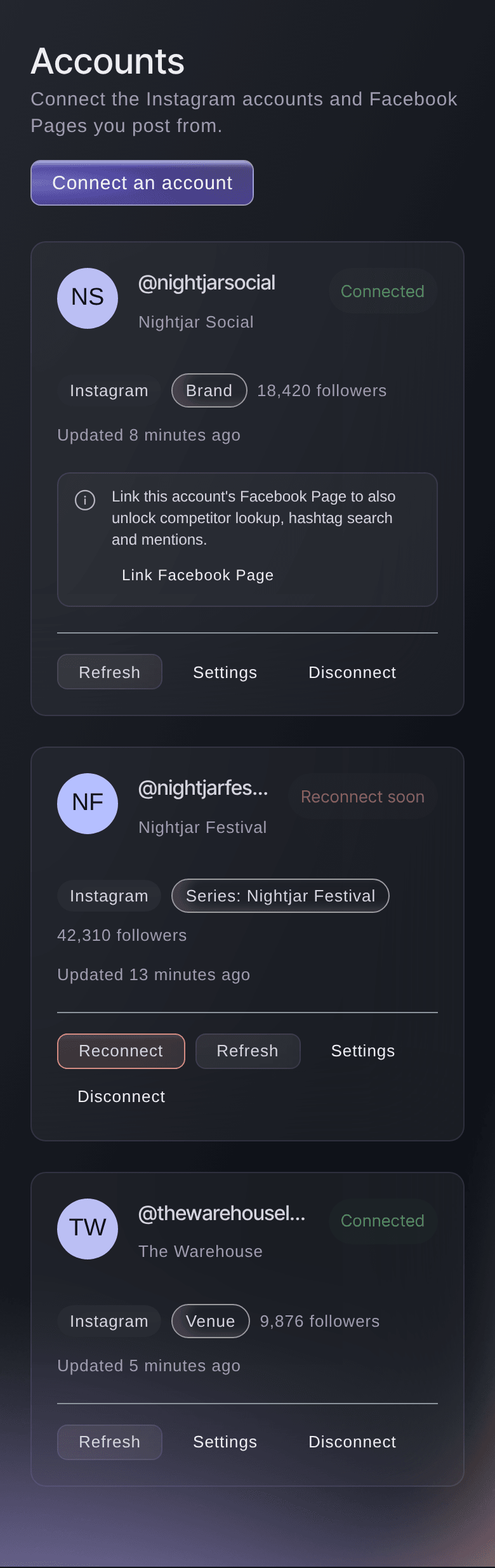
Ticket Fairy Social account cards for a brand account, a festival series account marked Reconnect soon and a venue account

Bring Every Account That Promotes Your Events Into Ticket Fairy

A festival account beside a club-night account, or a venue with its own Instagram, each talks to a different crowd. Connect each account once and say whether it promotes your whole brand, a venue, a recurring event series or one event. Posts, comments, messages and presales then land with the right account, and your team runs them beside your ticket sales.

Connect with Instagram for most accounts. Connect through a Facebook Page and one Facebook sign-in brings in every Instagram account linked to the Pages you manage, each with competitor lookup, hashtag search and mentions. Link an Instagram account's Facebook Page later from its card to add the same. Add your TikTok Business Account beside them.

  • Instagram: signed in directly, the choice for most teams
  • Through a Facebook Page: every linked Instagram account in one sign-in
  • What each account is for: your brand, a venue, a series or one event
Ticket Fairy Connect an account dialog asking what the account is for, with A recurring event series chosen and a suggested series to create

Choose How Each Account Answers Fans and Posts

Every account has its own settings, so each one works the way its audience needs. Show its direct messages in your inbox, choose whether automatic replies are off, suggested as drafts for your team to review or sent straight away for common questions, and pick the event whose details guide those replies. Choose which concierge answers its messages, and turn on Ask before posts go live so every scheduled post waits for a yes from an owner or admin.

Each card shows whether the account is Connected and marks it Reconnect soon before its sign-in runs out. Reconnect it and the account keeps what it is for, its history and its settings. Sync now brings in the latest posts and comments straight away. Disconnect stops posting and messaging from an account, and the comments, messages and stats you already have stay in Ticket Fairy.

  • Automatic replies: off, suggested drafts or answered straight away
  • Your concierge: answers the account's messages in its own voice
  • Ask before posts go live: scheduled posts wait for approval
  • Reconnect soon: a warning before the sign-in runs out
Ticket Fairy Settings dialog for a connected Instagram account, with what the account is for, messages, automatic replies and posting approval

Plan Each Event's Campaign Before You Post

Big on-sales are won by a run of posts: the announcement, the line-up reveal, the on-sale, the last chance. Plan a campaign from what it should achieve, its dates, the event and the accounts it covers, and let Build the plan with AI lay out the ideas, or add your own. You review every idea before anything is drafted or scheduled.

Each idea carries its planned date, its phase from Announce to Follow up, the post format, what the team should create, the message and call to action, the assets it uses and an owner. Move an idea from Idea to Ready, Drafted, Scheduled and Published as the work happens. If a teammate changes the same idea first, you see their version before you save.

The Calendar tab shows the posts planned and published on each day. Choose an event or an event series to see its own publishing plan, and the Calendar tells you when nothing is planned for the coming week, so a close event never goes quiet.

  • Build the plan with AI: campaign ideas from your brief, event and assets
  • Owner for each idea: with its status from Idea to Published
  • Calendar: planned and published posts by day, for one event or series

Schedule One Post to Instagram and Facebook Together

Choose the accounts a post goes to and the same post goes out to each one. Post photos, videos, carousels, reels and stories on Instagram, and text posts on a Facebook Page. Invite collaborators to co-author an Instagram post, then publish now, schedule it or save a draft. On an account that asks for approval, the post goes to an owner or admin first.

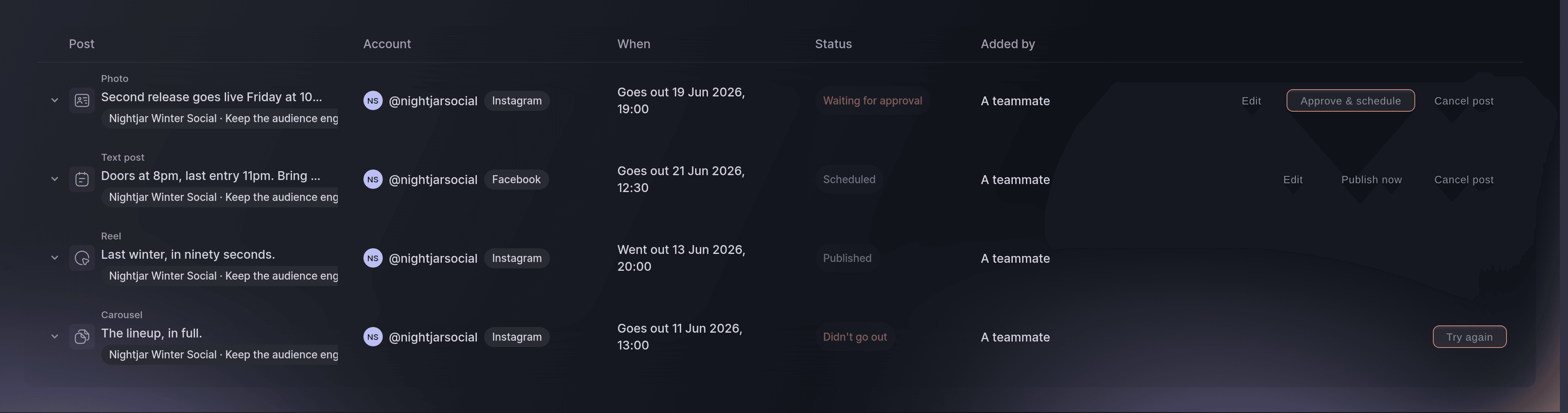
The Queue tab lists every post with its account, when it goes out, who added it and its status: Draft, Waiting for approval, Scheduled, Published or Didn't go out. Approve & schedule books a waiting post in at the time it already carries. A post that did not go out says what went wrong, with Try again beside it.

  • Several accounts at once: the same post on each account
  • Every kind of post: photos, videos, carousels, reels and stories
  • Approve & schedule: approve and book in a post together
  • Try again: send a post again once the cause is fixed
Ticket Fairy social publishing queue listing posts with their account, send time and status, including one waiting for approval and one that did not go out

Get Help Writing and Timing Every Post

Help me write sits inside every new post. Choose an event, say what the post is about and pick a tone, and Draft 3 captions uses your brand guidance and the event's real name, date, venue, city and line-up, with hashtags if you want them. Suggest 3 ideas gives you starting points for a goal, and Improve this makes your own caption shorter, adds energy or adds a clear next step.

Find good times asks what the post is for and what it should achieve, from an announcement to last-chance urgency. Ticket Fairy looks at how the account's recent posts performed, the event countdown and your team's calendar, and each suggested time says why it suits and how strong the evidence is. Nothing changes and nothing is scheduled until you choose. Ask Fai, the assistant inside your dashboard, to draft a last-chance post for your event and schedule it, and she shows you the post and asks before she schedules it.

  • Draft 3 captions: from your brand and your event details
  • Improve this: shorter, more energy or a clear next step
  • Find good times: suggested times, each with its reason

Answer Every Comment and Message as a Team

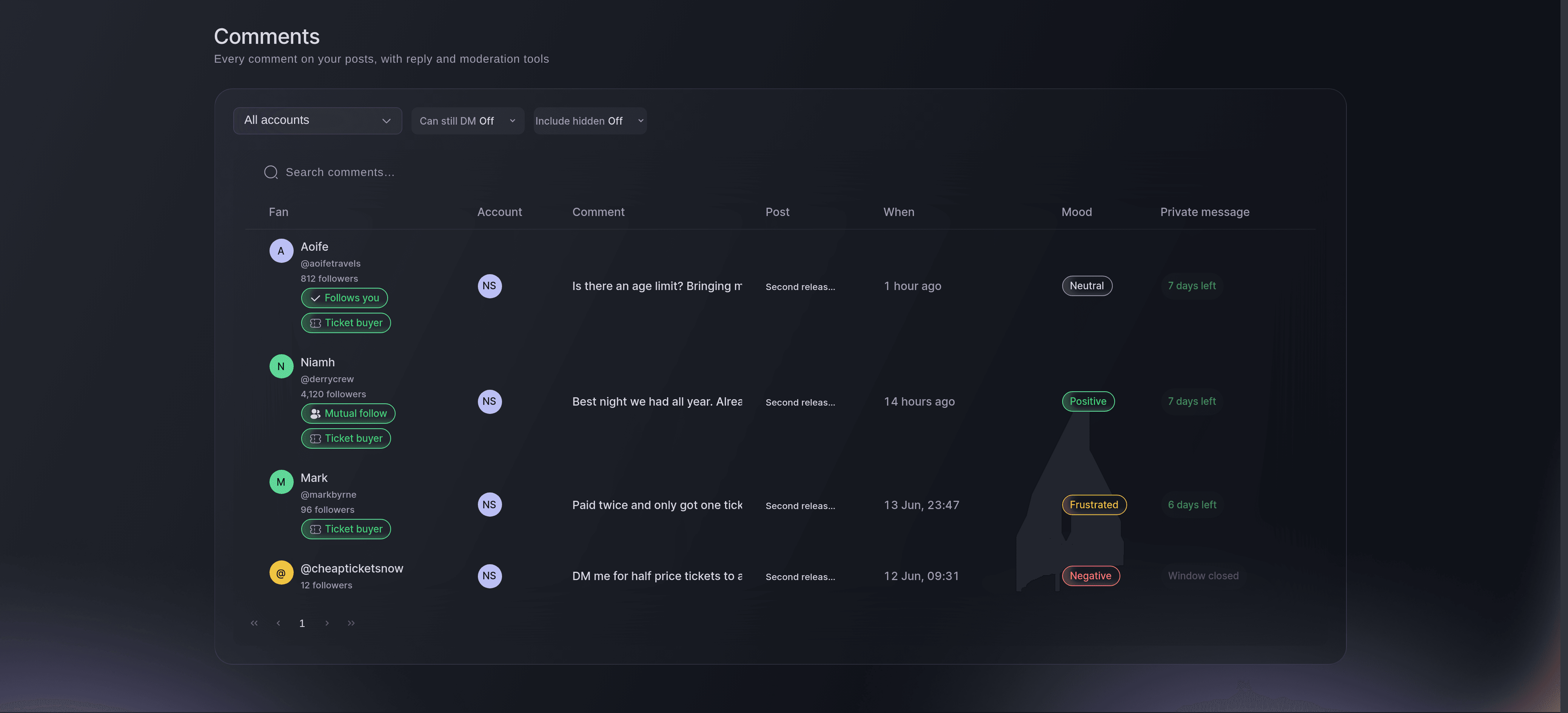
The question that decides a ticket sale is usually asked under your post or in a direct message. Comment moderation lists every comment on your connected accounts with the fan, the post, a reading of its mood and a Ticket buyer badge for fans who have ordered from you. Reply in public so one answer helps every reader, or send a private message for an order question only the fan should see.

Hide a tout's comment and it stays visible only to its author, which draws less attention than deleting it. Include hidden brings hidden comments back into view so you can unhide any of them, and Delete removes a comment from the post for good after you confirm. Can still DM narrows the list to comments you can still message about.

Messages brings your Instagram and Messenger conversations together, with the time left to reply above the box. Use a saved message from Quick replies, take a suggested reply, react with a heart, and read the notes your team left. View fan story opens everything a fan has done with you: comments, messages, campaign responses, orders and check-ins.

  • Ticket buyer badge: fans who have ordered from your brand
  • Send private message: an answer only the fan sees
  • Hide: only the author still sees the comment
  • Fan story: comments, messages, orders and check-ins together
Ticket Fairy social Comments list showing each fan with a Ticket buyer badge, their comment, the post, the mood and the private message window

Share the Work So Nothing Waits Too Long

The Work queue lists everything your team still has to handle across every connected account: comments, messages, mentions, posts that need approval and campaign alerts. Each item shows its priority and why it matters, such as a frustrated fan, a big spender or an event that starts within hours. Assign an item to a teammate, snooze it until later or mark it done, and filter by priority, type, account or owner.

Needs attention sums up what is open, urgent, overdue and awaiting approval, so a team lead sees the backlog at a glance. If two teammates act on the same item, the second sees the latest version first, so nobody undoes another person's work.

Ask Fai, the assistant inside your dashboard, which questions under your posts need an answer today. She drafts an answer and posts it in public or sends it privately, hides several touts at once, assigns an item and leaves a note for your team. She asks before every reply or hide, because fans see the result.

  • Work queue: everything still to handle, by priority
  • Assign: one teammate on each item
  • Snooze: back on the queue at the time you pick
  • Ask Fai: answers and hides after you approve

See Which Fans Buy and How Each Account Performs

Your followers and your ticket buyers are often the same people. Fans links a fan to a customer when their Instagram username matches the profile on that customer's record, and suggests buyer matches for you to review. Audiences groups fans by what they do on social and what they have bought, and Send to email list adds everyone linked to a customer to an email list for your next on-sale.

Analytics shows the people reached, views, interactions and followers for each account against the period before, your audience by age, gender, city and country, your top posts and the stories live now. Compare your account with another public Instagram business account, and see what people post under your event hashtag in Event buzz.

Fan mood reads your comments and messages, from positive to frustrated, and raises an alert when fans turn more negative than usual, one post's comments turn unhappy or several fans raise the same urgent issue. Mark it I'm on it, then Resolved, so your team knows who is handling it.

  • Buyer matches: suggested customers for you to review
  • Audiences: fans grouped by what they do and buy
  • Analytics: reach, views, interactions and followers
  • Fan mood: alerts when fans turn unhappy

How Organisers Run Their Socials

  • A Club Night Promoter

    A promoter plans a four-week campaign for a headline show with Build the plan with AI, then schedules the on-sale post to the club's Instagram and Facebook Page for the on-sale minute. Nobody needs to be at a keyboard when it goes out.

  • A Festival Team

    A festival connects its brand account and a series account for each edition. Three teammates share the Work queue on line-up day, each assigned the comments for their stage, and the frustrated fans reach the top of the list.

  • A Venue With an Approval Rule

    A venue turns on Ask before posts go live for its main account. Promoters on its team draft and schedule posts, and the marketing manager approves each one in the queue before it goes out.

  • A Support Team on On-Sale Day

    A support agent filters comments to Can still DM and moves every payment question into a private message. The rest of the thread sees one public answer about the on-sale time.

  • An Agency Winning Back Followers

    An agency builds an audience of fans who comment often but have not bought anything yet, sends it to an email list and uses it for the presale email of its next event.

Get this page as a PDF Read it later or share it with your team. We email you a link to the PDF.
What to put in your PDF

We will email you this deck. We may also email you now and then about Ticket Fairy features that can help your events. You can unsubscribe at any time with one click.

Questions About Social Publishing and the Social Inbox

Publishing & inbox

A professional (business or creator) Instagram account, directly or through the Facebook Page it is linked to, and a TikTok Business Account. Scheduled posts, replies to comments and follower presales run from your Instagram accounts and Facebook Pages. A brand can connect up to 25 accounts.

Owners and admins see every part of Social. With a support role you can work in the Work queue, Messages and Comment moderation. With a curator role you can work in the Work queue and Comment moderation and draft and schedule posts. Promoters and team members with a stats login can see the Work queue and Fans.

Up to 10 accounts, with the same words on each. A carousel takes 2 to 10 items, a caption runs to 2,200 characters, you can invite up to 3 collaborators, and an Instagram story shows no caption.

Yes, Instagram sets one. With one Instagram account chosen, the New post dialog says how many more posts it can publish today, and asks you to schedule the post for tomorrow once the limit is reached.

The post is marked Didn't go out with the reason, such as a connection that needs reconnecting. Fix the cause and select Try again.

From how the account's recent posts performed, your event's countdown and the posts already planned in your team's calendar. An account with few recent posts gets early guidance, and calendar spacing counts for more until it posts more.

Instagram and Facebook let you reply within 24 hours of the fan's last message, and the line above the reply box counts it down. After that you can still send a personal reply for up to 7 days after their last message.

The networks allow one private message per comment, for 7 days after the comment is left. The column beside each comment shows the days left, and a comment that has already had its private message no longer offers one.

Only when the fan's Instagram username matches the Instagram profile on one of your customers' records. A match from an email address or a name is a suggestion, and nothing is linked until you select Yes, link them.

Ticket Fairy starts collecting numbers within an hour of connecting an Instagram or Facebook account, and you can view the last 7, 28 or 90 days. Comparing with another account and Event buzz work once the Instagram account's Facebook Page is linked.

Sell more tickets. Build the crowd that comes back.

Start Selling Tickets Online

Sign up without a credit card and build a test event before you commit. Go on sale in minutes when you are ready.

No monthly subscription required for ticketing
Start selling tickets immediately
Ticketing tools included in the service fee
Get Started Talk to Fai Now

Ask Fai, our AI assistant, about Ticket Fairy’s features, pricing and how it could work for your event.

No credit card required

Book a demo call

See the referral model that drives 20% more ticket sales on average, learn which campaigns sell tickets, answer buyers faster and keep queues moving.

45-Minute Video Call
Pick a Time That Works for You