
Fai, your co-pilot
Add your ticket concierge to your website
Festival, club and venue teams get the most from a concierge on the pages buyers already read before they buy. The Install tab gives you one line of code for your site, lets you say which sites may show the chat, and sends the questions it can't answer to the right people on your team.
Add your concierge to the website where buyers find your event, so it answers ticket questions and sells tickets in a chat on your own pages, and choose who takes the questions it passes on.
This is the Install tab within giving ticket buyers an AI concierge. You can return to the concierge guide once the chat shows on your site. Give ticket buyers an AI concierge
- For
- Getting your concierge onto the website your ticket buyers use
- Takes
- 7 minutes
Before you start
- You need an owner or an admin login on the brand to open the concierge builder.
- The concierge is on your brand's plan. If you can't find Concierge under Intelligence, ask your Ticket Fairy account manager to turn it on.
- You have created a concierge widget and saved it at least once, because the code for your site appears after the first save.
- You can change the code on your website, or you know who looks after it for you.
-
Open the Install tab
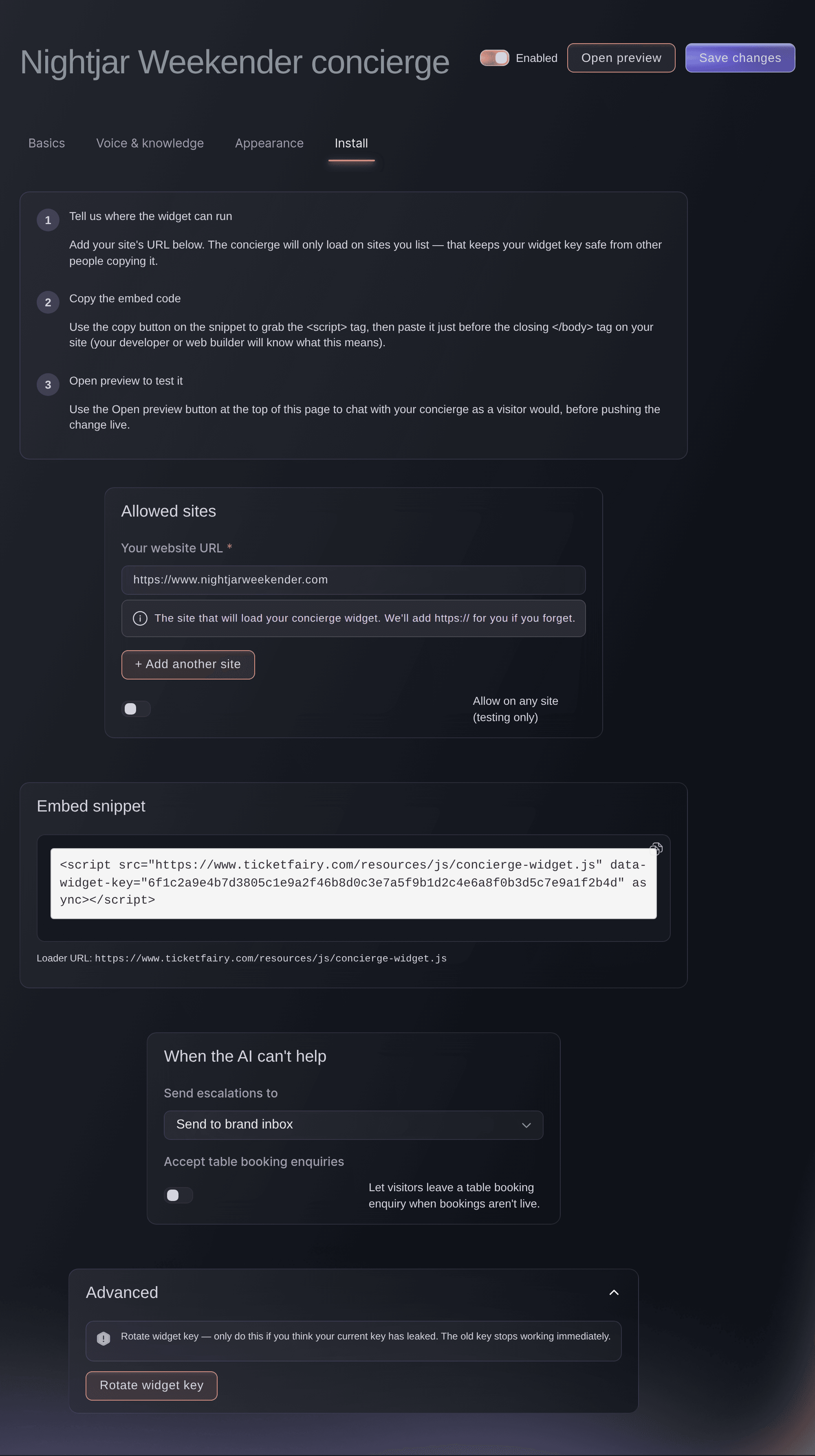
Open your brand, select Concierge under Intelligence, select Edit on your widget, then select the Install tab.
A concierge widget, Install tab. -
Enter your website address
Enter the address buyers open in Your website URL, such as https://www.yourfestival.com.
Note: The chat loads only on the sites you list. An address with www and the same address without it count as two sites, so add both if your site opens on both.
-
Add your other sites
Optional: Select + Add another site and enter each other site that should show the chat, such as a separate site for one event.
-
Choose who takes the questions it can't answer
Choose where a buyer's question goes when the concierge passes it to a person, in Send escalations to.
-
Turn on table booking enquiries
Optional: Turn on Accept table booking enquiries to let buyers leave a table enquiry for an event that has no tables to book.
Note: The concierge asks for the party size, a date and a way to reach the buyer, and the enquiry goes where you sent questions in the step before.
-
Save the widget
Select Save changes at the top of the page.
-
Copy the embed snippet
Select the copy icon at the top right of Embed snippet. The icon's label changes to
Snippet copied
once the code is on your clipboard.Tip: Copy snippet on the list of widgets copies the same code without opening the widget.
-
Paste the snippet into your site
Paste the snippet right before the closing body tag of every page where buyers should see the chat, or send it to the person who looks after your site.
Note: A site builder usually has one place for code that runs on every page, which puts the chat on all of them at once.
-
Check the chat on your site
Open your site in a new browser window and select the chat bubble at the bottom of the page. The concierge greets you with your welcome message.
Note: The bubble sits bottom right and reads Chat with us unless you changed it on the Appearance tab.
Try these steps on your own event
Create a free account, build your event and follow the steps above in your own dashboard. It takes a few minutes and you do not need to book a sales call.
No setup fees. No required monthly ticketing fee. No credit card required.
Or have it done for you
Fai can open your concierge widgets so you can copy the snippet. Choose the sites the chat loads on and where hand-offs go in the dashboard, then add the snippet to your own site.
In your dashboard, with Fai
Open the concierge widgets for <BRAND NAME> so I can copy the snippet for our website
Let Fai do it for you
Fai works inside your Ticket Fairy dashboard. Create your account, open Fai and paste the prompt above.
No setup fees. No required monthly ticketing fee. No credit card required.
Change the snippet after a key leak
-
Select Rotate widget key
On the Install tab, select Rotate widget key under Advanced.
Note: A new key is for a snippet you think another site has copied. The old snippet stops working at once.
-
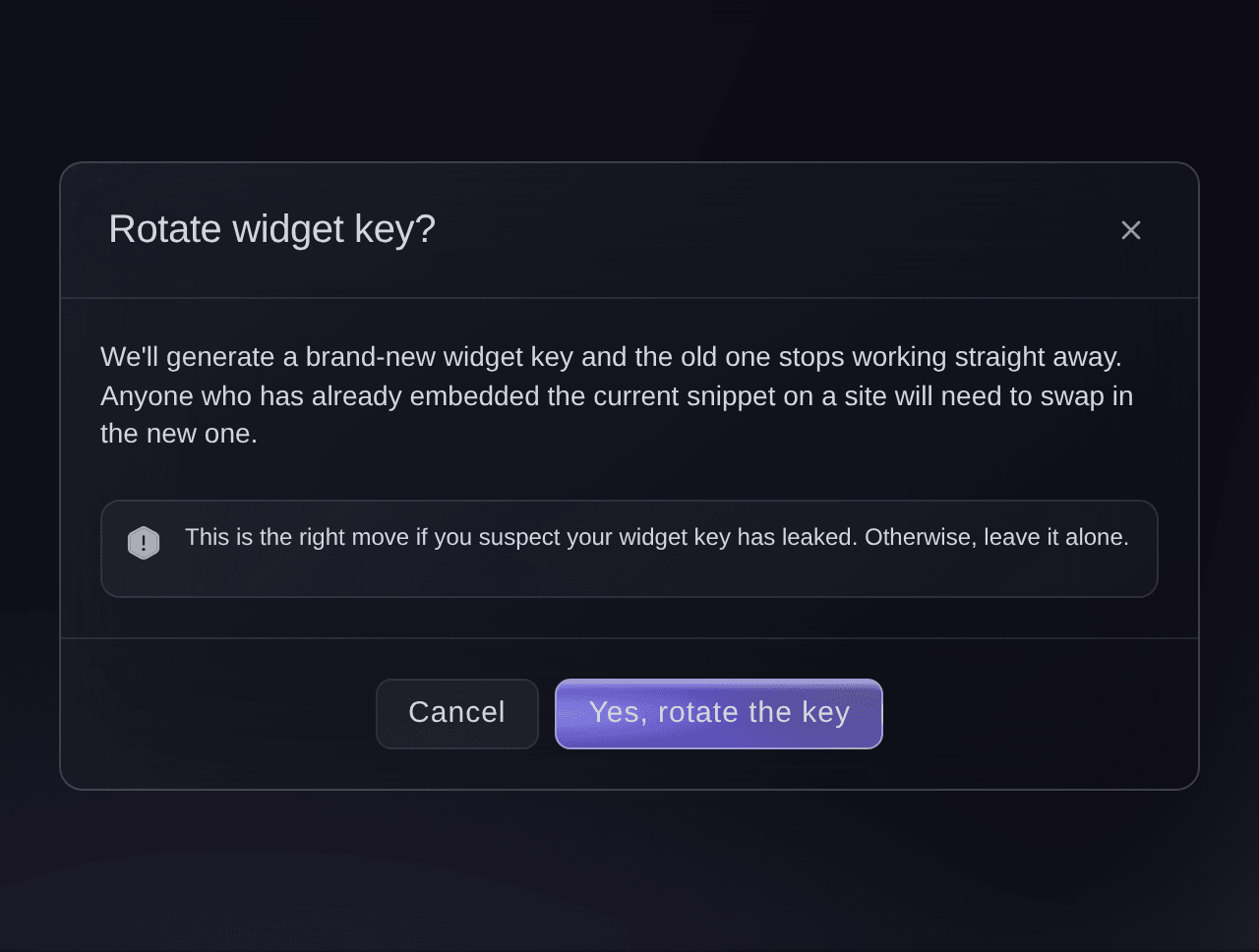
Confirm the new key
Select Yes, rotate the key.
Warning: The chat stops working on every site that still has the old snippet, until you replace it.
Rotate widget key, confirmation. -
Replace the snippet on your sites
Copy the new Embed snippet and paste it over the old one on every page that shows the chat.

Fai can open your concierge widgets for you. Rotating the key and replacing the snippet are done in the dashboard and on your own site.
In your dashboard, with Fai
Open the concierge widgets for <BRAND NAME>
Questions you might have
- Can buyers buy tickets without leaving the chat?
- Yes. When a buyer picks a ticket and says they want it, the concierge puts it in their basket and opens checkout on your page, where they pay as they would on your event page.
- Which currency does the concierge quote prices in?
- The same currency your event page shows that buyer. If your event sells in more than one currency, a buyer can ask for prices in any of them, and the checkout the chat opens keeps that currency.
- Why doesn't the chat show on my site?
- Check that the address in Your website URL matches the one in your browser, www included, that the snippet is on that page, and that the switch beside the widget's name reads Enabled. A disabled widget answers no site at all.
- Can I try the concierge on a test site first?
- Yes. Add the test site's exact address with + Add another site, and remove it when you go live.
- Can I put the same concierge on more than one website?
- Yes. List each site under Allowed sites and paste the same snippet on each one. Give an event with its own website its own widget when its answers differ.
- What does a buyer see when the concierge hands them to a person?
- The chat tells them their request is logged. The concierge never promises a reply time, so answer the email quickly and reach the buyer on the contact details they gave.
Still have a question?
Book a demo and we will answer it on a call, on your kind of event. Or create your account and see it for yourself.
No setup fees. No required monthly ticketing fee. No credit card required.
Related guides
Do this on your own event
Create your account, build your event and follow the steps in your own dashboard. You do not need to book a sales call.