
Running the production
Choose how your event emails look
Promoters, festivals and venues send advance requests, offers, hire lists, day sheets and feedback surveys from their event, and every one of those emails carries their brand. How your emails look shows you the email before anyone gets it, and lets a festival with its own identity use its own logo and colour.
See a real email from your event exactly as agents, suppliers, crew, approvers and attendees receive it: sent in your brand's name, with your logo, colour and font from your brand kit. Give one event its own logo or colour when it needs a different look, and change it back in one step.
- For
- Making the emails your event sends look like your brand
- Takes
- 3 minutes
Before you start
- You are an owner, admin or producer on the event. The event's Operations page opens for those roles only.
- Your brand kit carries your logo and main colour. Every event follows it unless you change the look for one event.
-
Open How your emails look
Open the event, select Operations, select Set up, then select How your emails look.
Note: The preview is a real email for this event. Choose Plain text to see the version every email also carries.
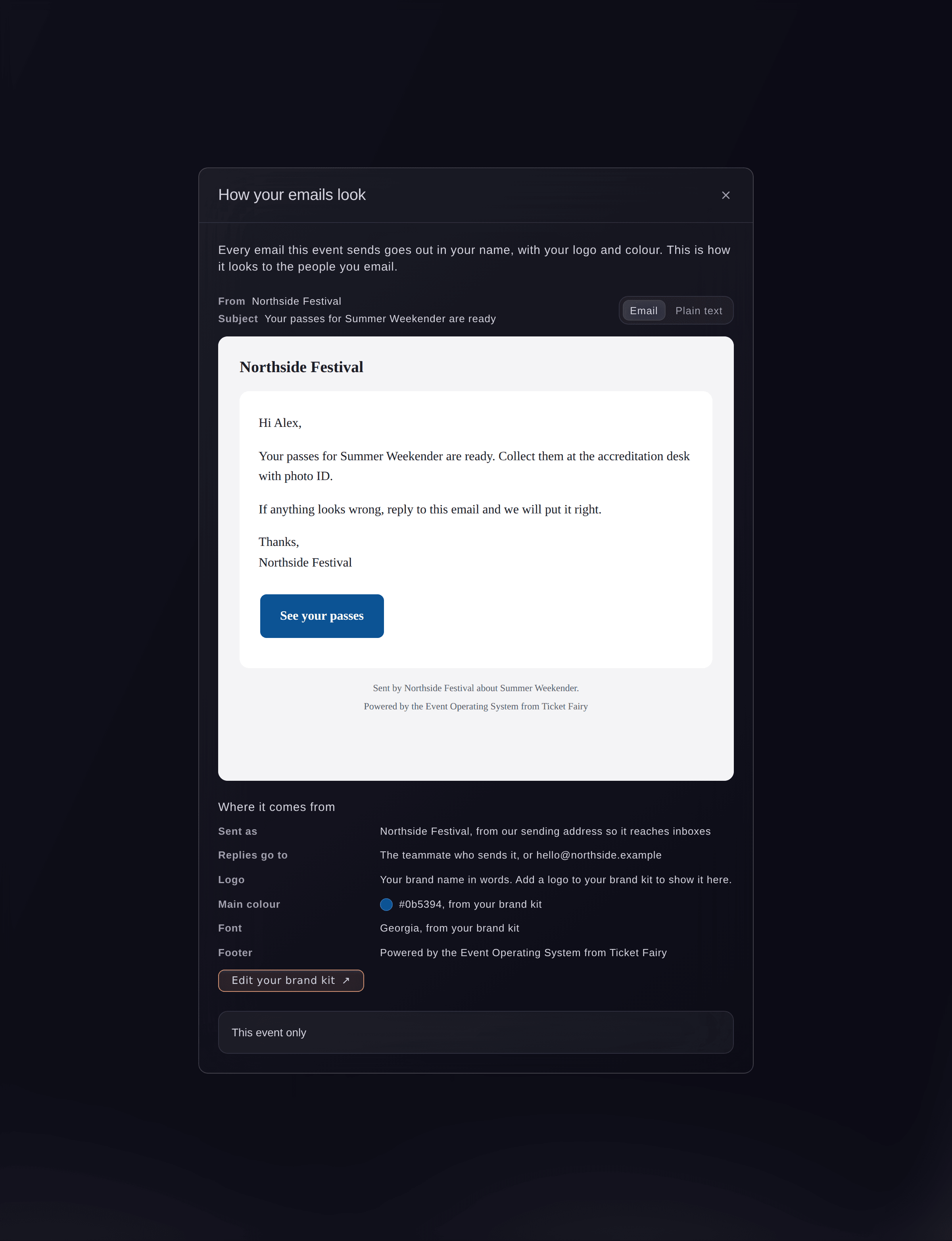
A real email for the event, and where its look comes from. -
Check where each part comes from
Read Where it comes from under the preview.
Note: Emails go in your brand's name from our sending address so they reach inboxes, and replies go to the teammate who sent them. Select Edit your brand kit to change the logo, colour or font for every event.
-
Give this event its own logo
Optional: open This event only and choose another logo in Logo.
Note: Choose one of your brand kit's logos, or Another image and enter its address in Image address. A wide logo on a transparent background looks best.
-
Give this event its own colour
Optional: turn on Use a different main colour for this event, then choose the Main colour.
Note: The preview updates as you change it. When the colour is too light to read on a button, the buttons use a dark colour instead and the panel says so.
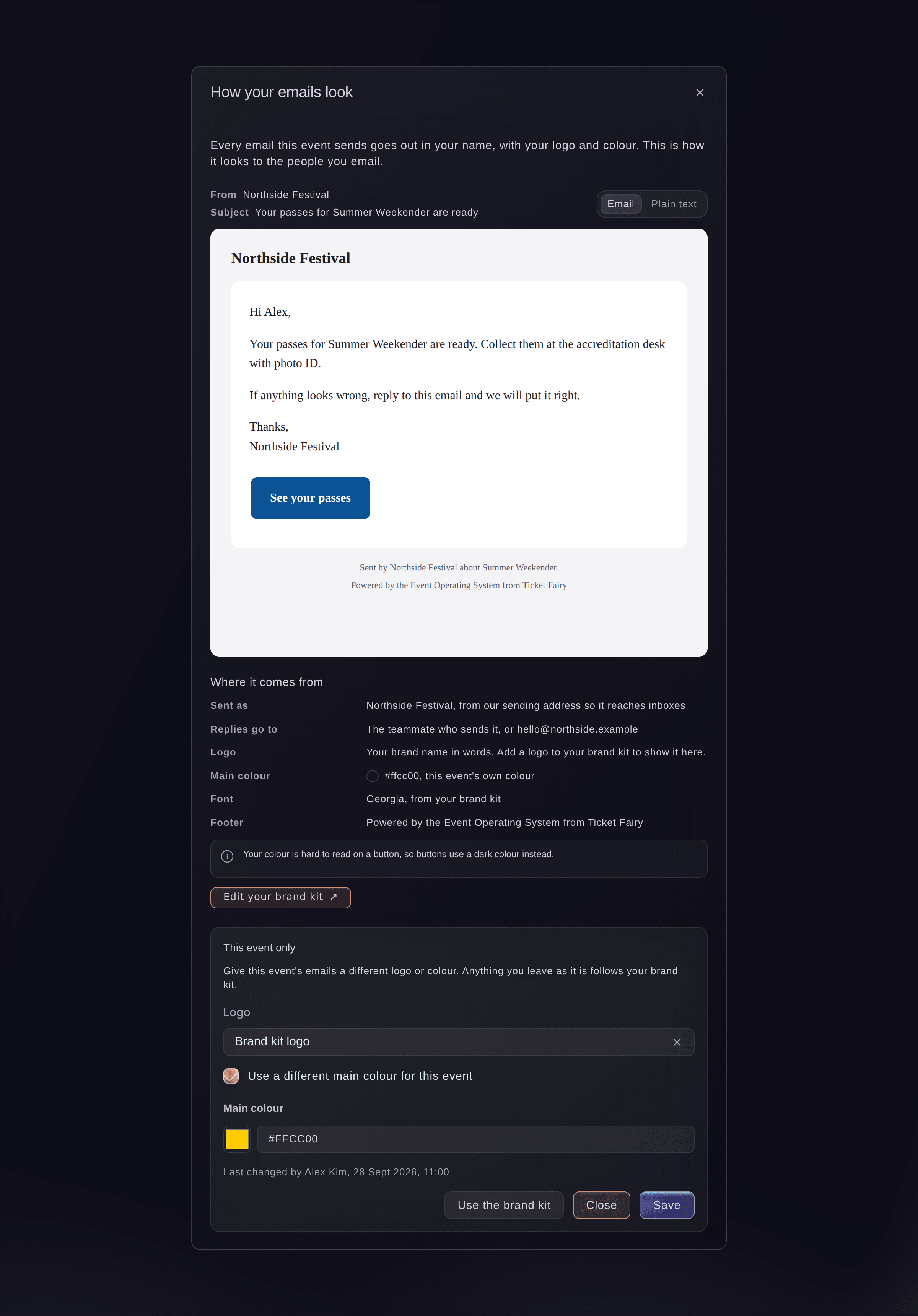
An event with its own main colour. -
Save the look
Select Save.
Note: New emails for this event use the look from now on. Emails already sent stay as they were.


Try these steps on your own event
Create a free account, build your event and follow the steps above in your own dashboard. It takes a few minutes and you do not need to book a sales call.
No setup fees. No required monthly ticketing fee. No credit card required.
Or have it done for you
Fai tells you how your event's emails look and where each part comes from, and gives an event its own logo or main colour, or sets it back to your brand kit. She shows you the change and waits for your yes first.
In your dashboard, with Fai
Use our festival logo and the colour #1a73e8 for the emails <EVENT NAME> sends
Let Fai do it for you
Fai works inside your Ticket Fairy dashboard. Create your account, open Fai and paste the prompt above.
No setup fees. No required monthly ticketing fee. No credit card required.
Go back to the brand kit
-
Use the brand kit again
Open How your emails look, select Use the brand kit, then confirm.
Note: This event's emails go back to your brand kit's logo and colour. You can give it its own look again at any time.
Fai sets an event's emails back to your brand kit when you ask, after you confirm.
In your dashboard, with Fai
Put the emails for <EVENT NAME> back on our brand kit
Questions you might have
- Which emails use this look?
- Every email the event sends from the Event Operating System: advance requests, offers, contracts, purchase orders, hire lists, day sheets, shift and volunteer emails, approver emails, messages to the people working on the event and the feedback survey. Ticket and order emails to buyers follow your brand's email settings.
- Why do the buttons not use my colour?
- The colour is too light for white words on a button, so buttons use a dark colour to stay readable. Choose a darker main colour to use it on buttons.
- What does the footer say?
- Each email names who sent it and which event it is about, then a credit line. The panel shows the footer your emails carry under Where it comes from.
- What if a teammate changes the look at the same time?
- The second save does not overwrite the first. The panel loads your teammate's change, so you check it and save again.
Still have a question?
Book a demo and we will answer it on a call, on your kind of event. Or create your account and see it for yourself.
No setup fees. No required monthly ticketing fee. No credit card required.
Related guides
Do this on your own event
Create your account, build your event and follow the steps in your own dashboard. You do not need to book a sales call.