
Checkout and orders
Choose which details checkout asks your ticket buyers for
Club promoters, festival teams and venues often need more from each ticket buyer than a name and an email address. You choose whether your event's checkout also asks for a phone number, a nationality, an Instagram handle or a date of birth, and a buyer cannot finish the order without the ones you choose. The date of birth also lets checkout turn away ticket buyers under your event's minimum age.
Make every ticket buyer at your event's checkout enter a phone number, nationality, Instagram handle or date of birth before they can pay, and turn away buyers under your event's minimum age.
- For
- Collecting a phone number, nationality, Instagram handle or date of birth from every ticket buyer
- Takes
- 5 minutes
Before you start
- You're an owner or an admin on this event. If Tickets is missing from your event menu, ask an owner or an admin to do this for you.
-
Open the ticket settings
Open your event, select Tickets, then select the Settings tab. The switches for buyer details are in the Ticket Settings card.
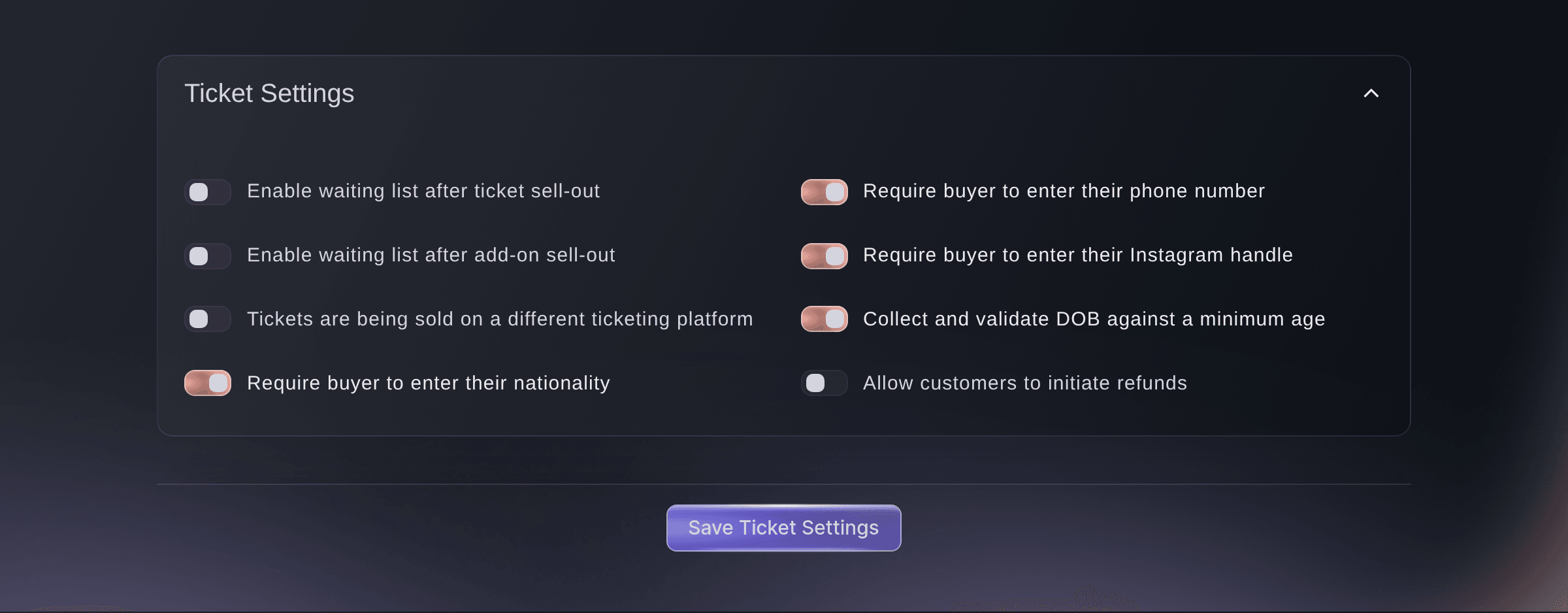
Event, Tickets, Settings, Ticket Settings. -
Turn on the details checkout asks for
Turn on the switch for each detail that every buyer must enter, and turn off any you do not need.
Note: An event you create starts with the phone number, nationality and date of birth questions turned on, unless you turned them off under Advanced options. A greyed nationality switch is set for you on this event, and hovering it says why.
-
Save the ticket settings
Select Save Ticket Settings. The dashboard shows
Successfully updated ticket settings
.Note: The questions apply to orders placed from now on. Buyers who have already ordered are not asked again.
-
Set the minimum age
If you turned on the date of birth, open the event's Details page, choose the youngest age you admit in Minimum age, then select Save.
Note: Checkout works out the buyer's age on the day your event starts, so a buyer who turns 18 before the night can buy for an 18+ event. With All Ages chosen, checkout asks for the date of birth and turns nobody away.
-
Check checkout as a buyer
Open your event page in a private browser window, add a ticket and go to checkout. The details you turned on appear with the buyer's own details, and the order cannot be placed until they are filled in.

Try these steps on your own event
Create a free account, build your event and follow the steps above in your own dashboard. It takes a few minutes and you do not need to book a sales call.
No setup fees. No required monthly ticketing fee. No credit card required.
Or have it done for you
Fai, the assistant inside your dashboard, can turn each of these questions on or off for an event and set its minimum age, and she shows you the change and asks you to approve it first. These checkout settings are changed in the dashboard or through Fai.
In your dashboard, with Fai
On <EVENT NAME>, make checkout ask every buyer for their <PHONE NUMBER, NATIONALITY, INSTAGRAM HANDLE OR DATE OF BIRTH>, set the minimum age to <AGE>, and show me the change before you save it
Let Fai do it for you
Fai works inside your Ticket Fairy dashboard. Create your account, open Fai and paste the prompt above.
No setup fees. No required monthly ticketing fee. No credit card required.
Questions you might have
- Can checkout ask a question that is not on this list?
- Yes, with a custom checkout question. You enter your own question, such as a company name, a meal choice or an access request, and choose whether it is answered once per order, once per ticket or once per add-on. The custom checkout questions guide covers every step.
- Does every ticket holder give a date of birth, or only the buyer?
- Only the buyer, the person paying, and the age check is made against their date of birth. To collect a detail from each ticket holder, add a custom checkout question answered once per ticket. Checkout records those answers but does not check a ticket holder's age against them.
- A buyer says checkout will not take their order. What does it tell them?
- Checkout names the missing detail. A buyer under your minimum age sees
You must be aged 18 or over to attend this event.
, with your own age in it. A buyer who skips a required phone number seesThis event requires your phone number to purchase tickets.
- Is the phone number optional when the switch is off?
- Yes. Checkout still shows the phone number field, and the buyer can leave it empty. Turning the switch on makes it one they must fill in.
- Where do I see a buyer's phone number?
- Open the order from Orders. The phone number the buyer entered is in the order's contact details.
- Why is the nationality switch greyed out?
- The nationality question is set for you on that event, so it stays on and cannot be changed there. Hover the switch to read why, and ask us if you need it changed.
- Do buyers at the door get the same questions?
- A ticket bought through a QR quick-buy link skips the phone number and date of birth questions, because your door team checks ID there. Buyers who go through your event's normal checkout get every question you turned on.
- Can I turn a question off again?
- Yes, at any time. Turn the switch off and select Save Ticket Settings. Checkout stops asking from the next order, and details already given stay on the orders that carry them.
- Can I set these while I create the event?
- Yes. When you create an event, the nationality, phone number and date of birth questions are under Advanced options, and all three start turned on. The Instagram question is on the ticket settings described here.
Still have a question?
Book a demo and we will answer it on a call, on your kind of event. Or create your account and see it for yourself.
No setup fees. No required monthly ticketing fee. No credit card required.
Related guides
Do this on your own event
Create your account, build your event and follow the steps in your own dashboard. You do not need to book a sales call.