
Setting up an event
Choose who Ticket Fairy support contacts about your event
Festival teams, venues and promoters who hand an event to its own production or ticketing team want Ticket Fairy support to reach that team rather than the brand office. Each event can carry its own escalation address and point of contact, so a question about one event reaches the people running it.
Give Ticket Fairy support two email addresses for one event, the one buyer escalations go to and your team's point of contact, in place of your brand's, or send the event back to your brand's addresses.
- For
- Pointing Ticket Fairy support at the team that runs one event
- Takes
- 3 minutes
Before you start
- You're an owner or an admin for the event. If you can't see Contacts in the event menu, ask an owner or an admin to do this part.
- You have both email addresses: one for buyer questions that only your team can answer, and one for Ticket Fairy support to reach your team.
-
Open Contacts
Open your event and select Contacts in the event menu. While the event uses your brand's addresses, Use Brand Contacts is on and Brand Contacts lists them.
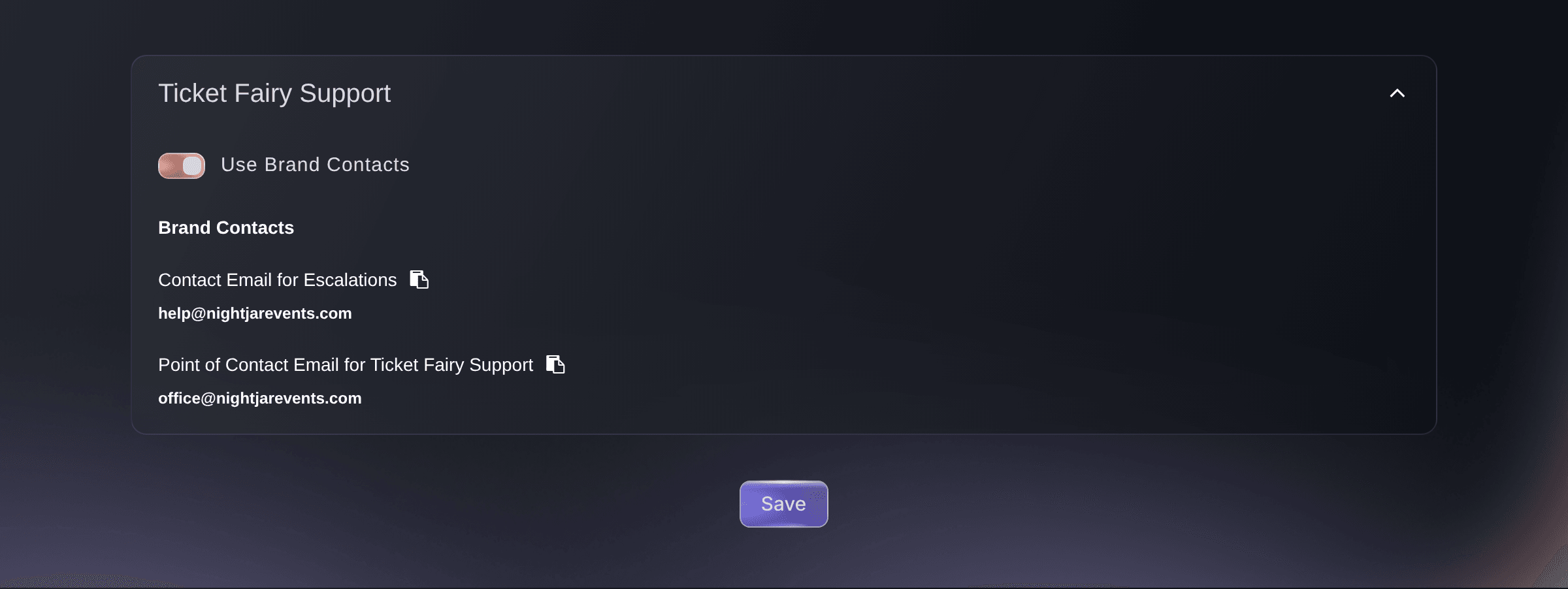
Event, Edit, Contacts. -
Turn off Use Brand Contacts
Turn off Use Brand Contacts. Two fields for the event's own addresses appear above it, and your brand's addresses stay listed below for reference.
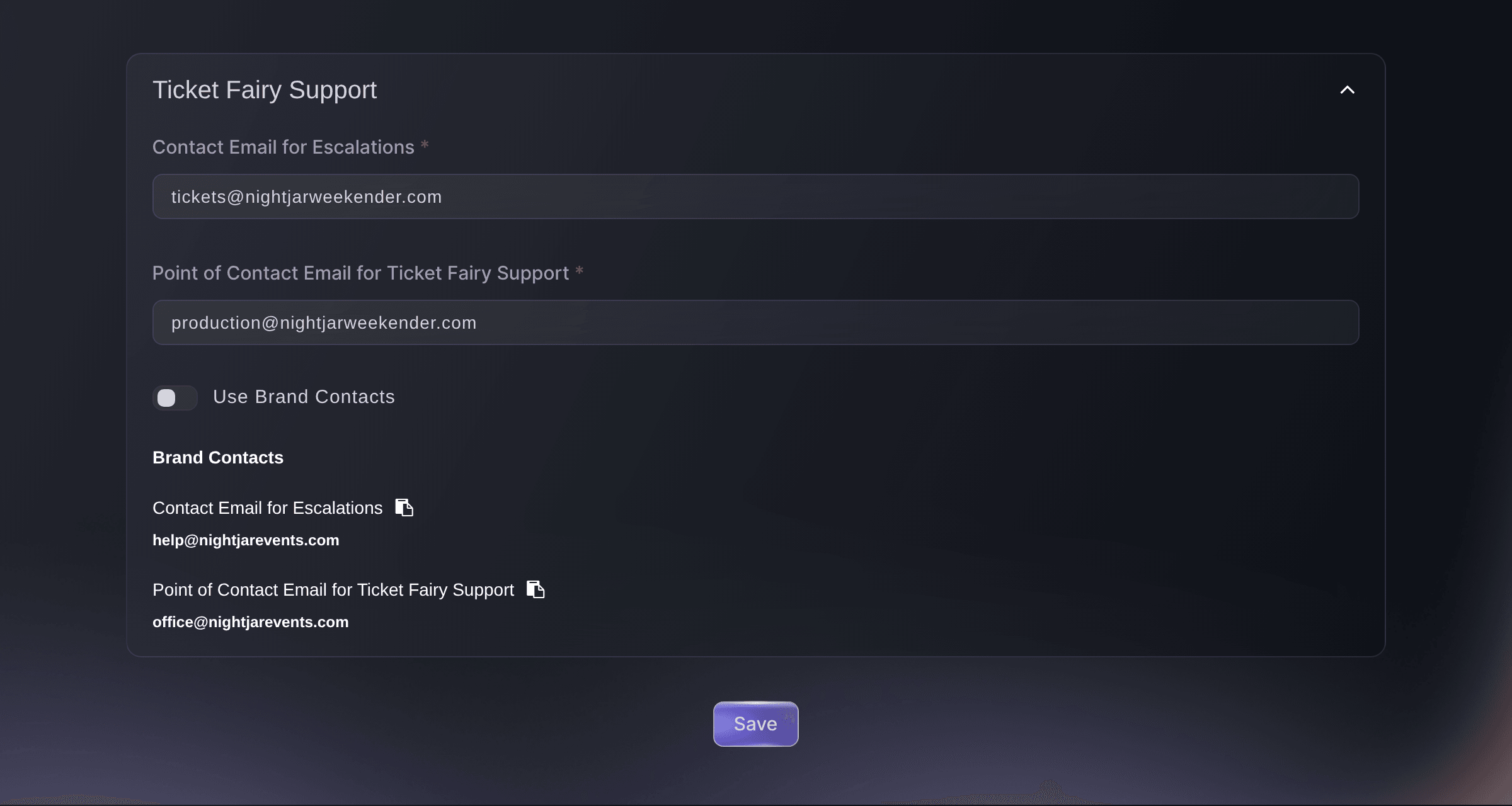
Event, Edit, Contacts, with Use Brand Contacts off. -
Enter the escalation address
Enter the address for buyer questions that only your team can answer in Contact Email for Escalations.
Note: The dashboard marks this address for giving to buyers, so use an inbox your team answers, such as a ticketing or box office address.
-
Enter your team's point of contact
Enter the address Ticket Fairy support uses to reach your team about this event in Point of Contact Email for Ticket Fairy Support.
Note: The dashboard marks this address for internal use only. It can be a person or a shared inbox for the event's production team.
-
Save the addresses
Select Save below the card. The dashboard confirms the save with
Success
.Note: The event takes both addresses together. If a field shows
Required
orPlease enter a valid email address.
, correct it and select Save again. -
Check the addresses the event keeps
Open Contacts again. Use Brand Contacts is off, and the two fields show the addresses you saved.


Try these steps on your own event
Create a free account, build your event and follow the steps above in your own dashboard. It takes a few minutes and you do not need to book a sales call.
No setup fees. No required monthly ticketing fee. No credit card required.
Or have it done for you
Fai, the assistant inside your dashboard, can set both addresses on one event. She shows you the change and asks you to approve it before she saves it. The command line sets the same two addresses through an event update.
In your dashboard, with Fai
For <EVENT NAME>, set the contact email for escalations to <ESCALATION EMAIL> and the point of contact email for Ticket Fairy support to <TEAM EMAIL>, then show me the change before you save it
From your terminal
Install the CLI from our CLI page, sign in with ticketfairy auth login, and choose the brand you are working on with ticketfairy brand use <BRAND_ID>. ticketfairy brand list and ticketfairy event list show the IDs the other commands use.
Use the same login with the command line that you use in the dashboard, as an owner or an admin for the event. Send both addresses in one update, because the event takes the two together.
Sets the event's escalation address and its point of contact for Ticket Fairy support, in place of the brand's
ticketfairy event update <EVENT_ID> --body '{"externalSupportEmail":"<ESCALATION_EMAIL>","internalSupportEmail":"<TEAM_EMAIL>"}'
Let Fai do it for you
Fai works inside your Ticket Fairy dashboard. Create your account, open Fai and paste the prompt above.
No setup fees. No required monthly ticketing fee. No credit card required.
Go back to your brand's addresses
On Contacts, turn on Use Brand Contacts, then select Save. The event's own addresses are removed, and the event uses the addresses under Brand Contacts again.
Fai can remove the event's own addresses, so the event uses your brand's again. She shows you the change and asks you to approve it first. The command line does the same with an event update that clears both addresses.
In your dashboard, with Fai
For <EVENT NAME>, remove the event's own support contact addresses so it uses the brand contacts again, and show me the change before you save it
From your terminal
Use an owner or admin login for the event. Clear both addresses in one update.
Removes the event's own addresses so the event uses the brand's again
ticketfairy event update <EVENT_ID> --body '{"externalSupportEmail":null,"internalSupportEmail":null}'
Questions you might have
- What is the difference between the two addresses?
- Contact Email for Escalations is the address for buyer questions that need your team, and the dashboard marks it for giving to buyers. Point of Contact Email for Ticket Fairy Support is where Ticket Fairy support reaches your team about the event, and the dashboard marks it for internal use only.
- Do buyers see these addresses on my event page or tickets?
- No. Your event page, checkout and tickets do not print either address. Ticket Fairy support sees both beside the event's orders when it looks one up for a buyer.
- Why is Use Brand Contacts on when I open the page?
- The event has no addresses of its own yet, so it uses your brand's. The page shows the switch on until the event has both of its own addresses saved.
- Why does Brand Contacts say Not provided?
- Your brand has no address of that kind saved. Turn off Use Brand Contacts and enter the event's own addresses, so Ticket Fairy support has an address for your team about this event.
- I entered support addresses when I published. Where did they go?
- The Support Information section of the publish dialog saves them. If your brand had addresses and this event had none of its own, the addresses you entered replaced your brand's, for every event that uses brand contacts. If your brand had none, they were saved for this event only. Use this page to give one event its own addresses without changing the brand's.
- Do the addresses copy when I duplicate the event?
- Only if you turn on Contacts in the Duplicate Event dialog. It starts turned off, so a copy uses your brand's addresses until you give it its own.
Still have a question?
Book a demo and we will answer it on a call, on your kind of event. Or create your account and see it for yourself.
No setup fees. No required monthly ticketing fee. No credit card required.
Related guides
Do this on your own event
Create your account, build your event and follow the steps in your own dashboard. You do not need to book a sales call.