
Advertising your event
Connect advertising pixels to your ticket sales
Knowing which campaign got the click is not the same as knowing which campaign led to the ticket sale. A promoter spending money on Meta, TikTok, Google or any other ad network connects each one once at brand level, and the network then records views, checkout starts and completed sales from every event page and checkout under your brand.
Connect Meta and your other advertising networks at brand level so you can see which campaigns led to ticket sales.
- For
- Buying ads for an event
- Takes
- 10 minutes
Before you start
- You're an owner, an admin or on the marketing team for this brand. If you can't open Integrations, ask an owner or an admin to do this part or to give you access.
- You have the complete tracking snippet for any network you want to add with Import Tracking Pixel. Meta is different because you sign in rather than paste code.
-
Open Integrations for your brand
Open the brand you sell under, then go to Integrations.
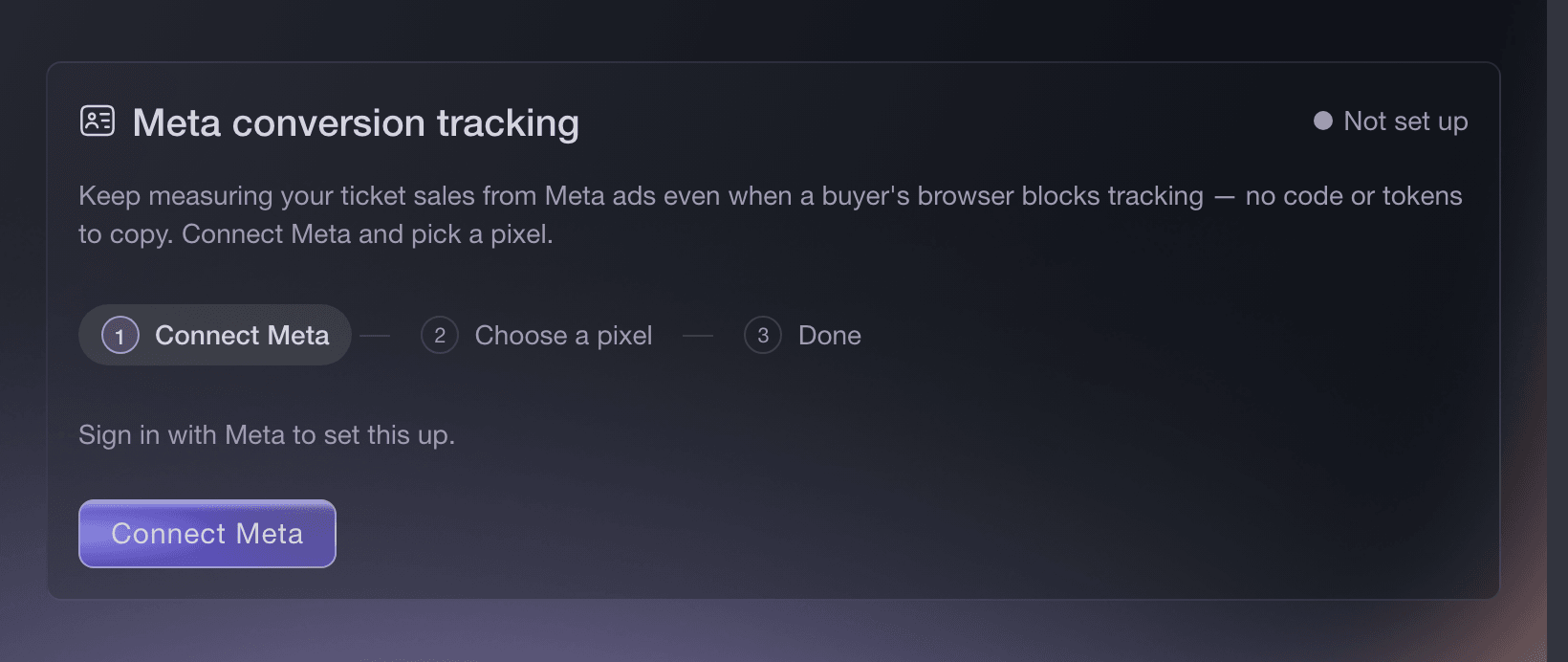
Brand settings, Integrations, Meta conversion tracking. -
Sign in to Meta
In Meta conversion tracking, select Connect Meta and sign in with the Facebook account that has access to your ads.
Note: Meta works differently from the other networks: there is no ID to paste.
-
Pick the ad account and the pixel
Choose the ad account you use for your event ads, then the pixel your sales should report to.
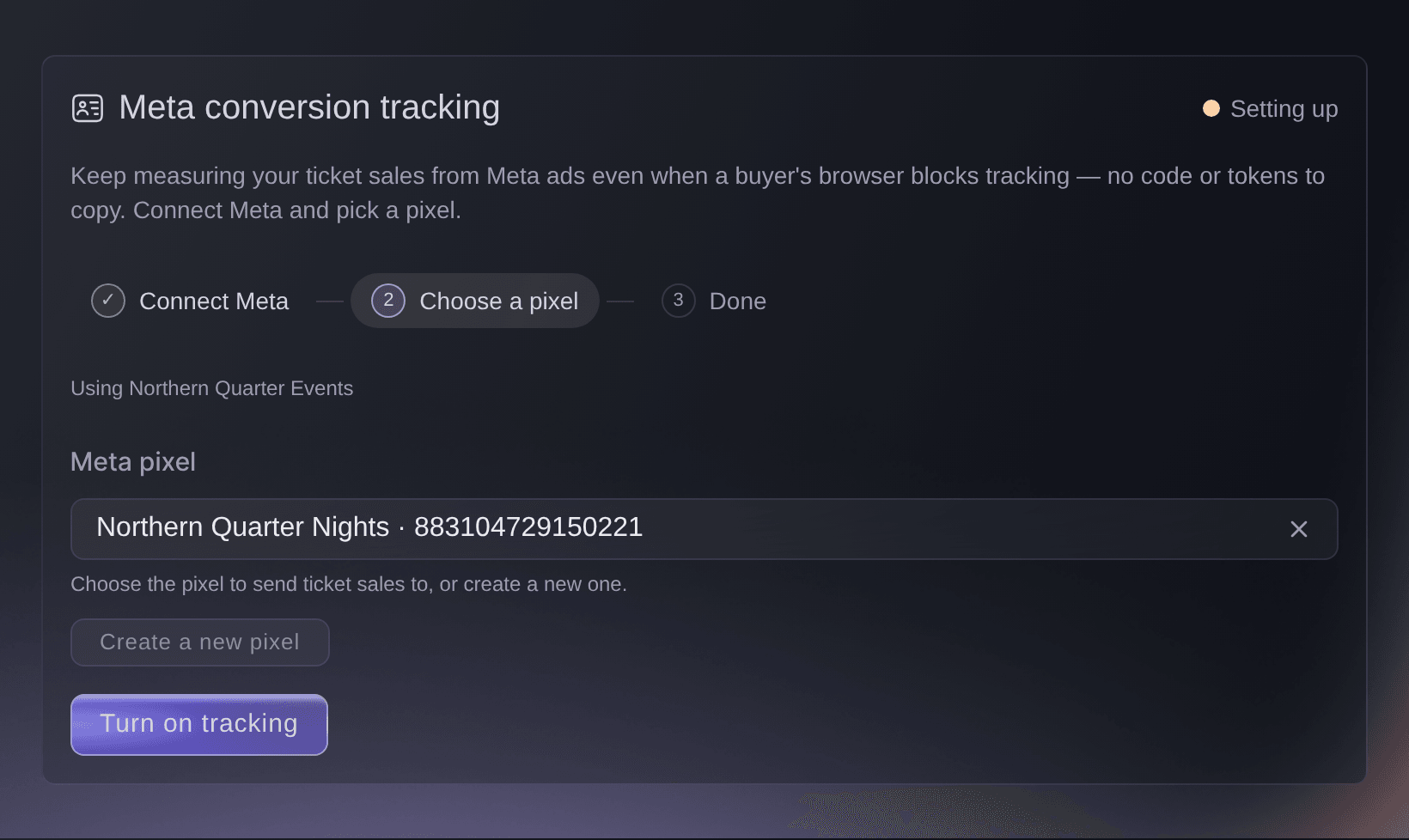
Brand settings, Integrations, Meta conversion tracking. -
Turn Meta tracking on
Select Turn on tracking.
Note: This gives Meta another way to match ticket sales to your ads when browser tracking is blocked.
-
Add the other networks you advertise on
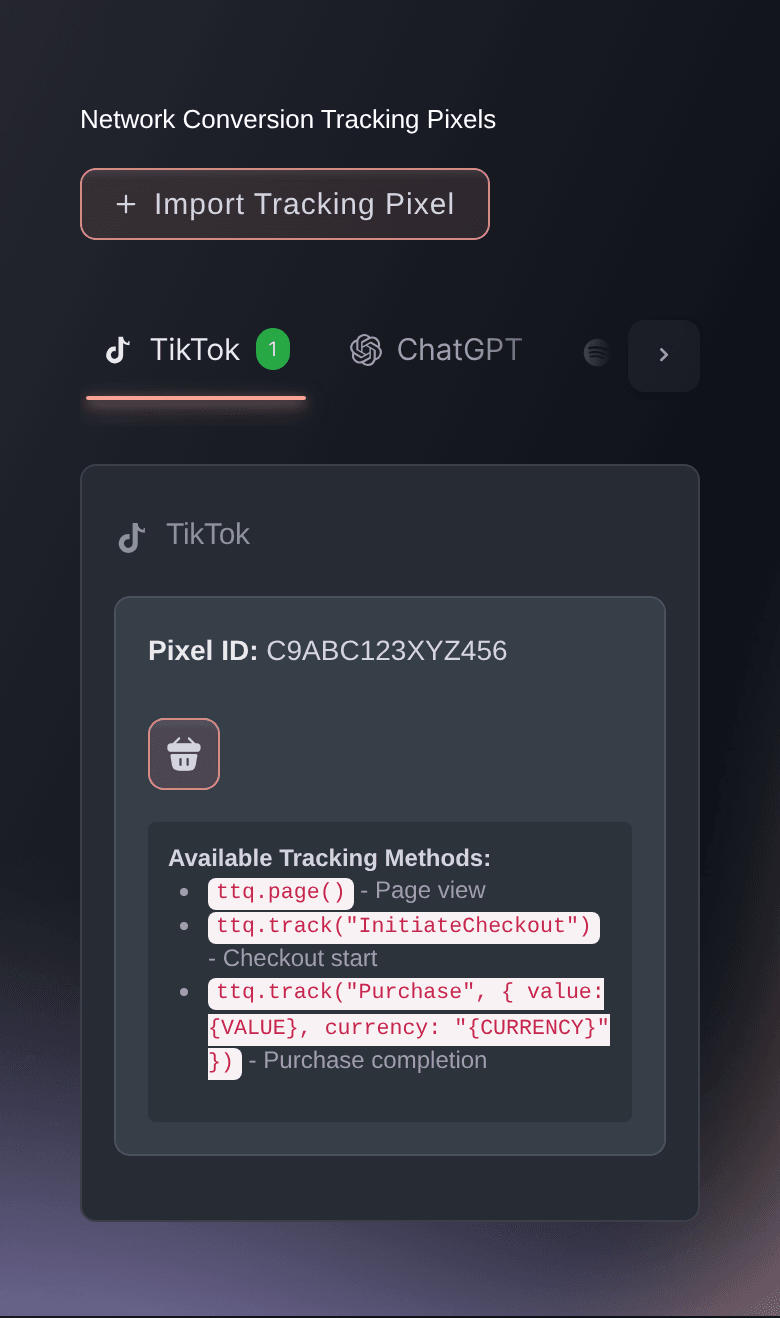
Open Network Conversion Tracking Pixels, select Import Tracking Pixel, paste the complete snippet under Paste complete pixel code, check the detected network and ID, then select Import Pixel. Each advertising or measurement network you use needs its own import.
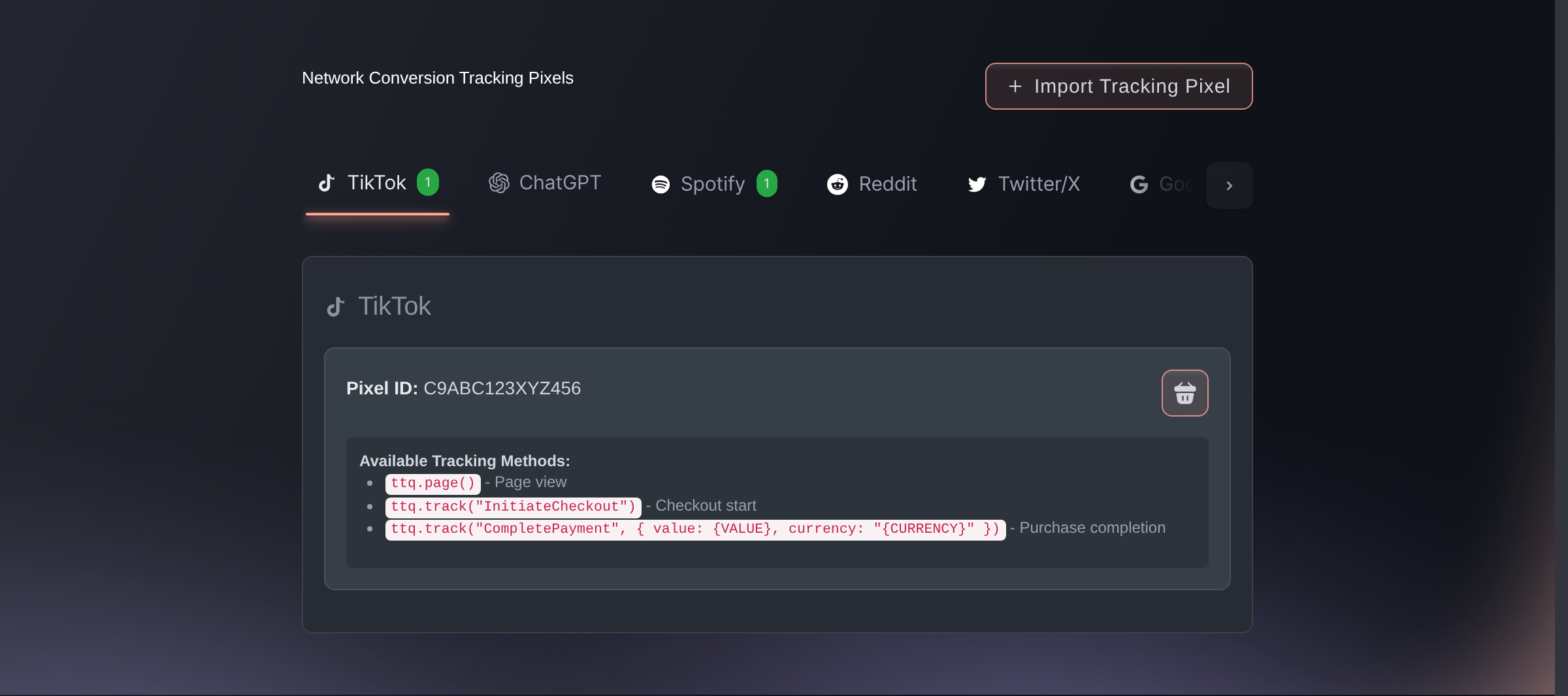
Brand settings, Integrations, Tracking pixels. -
Check that each network records a sale
Buy a ticket on your own event, or use a test order. The purchase then appears in that network's own reporting, such as Meta Events Manager.
Note: When the purchase appears, the pixel is connected to your checkout.


Try these steps on your own event
Create a free account, build your event and follow the steps above in your own dashboard. It takes a few minutes and you do not need to book a sales call.
No setup fees. No required monthly ticketing fee. No credit card required.
Or have it done for you
Complete the Meta sign-in in your browser, then ask Fai, the assistant inside your dashboard, to turn on Meta tracking and add your other advertising pixels. She asks you to approve each change before she makes it. You can also add them in the dashboard.
In your dashboard, with Fai
Show me which tracking pixels this brand has, then turn Meta conversion tracking on for the pixel we advertise with and add our TikTok pixel <your TikTok pixel ID>
Let Fai do it for you
Fai works inside your Ticket Fairy dashboard. Create your account, open Fai and paste the prompt above.
No setup fees. No required monthly ticketing fee. No credit card required.
Add a pixel to one event only
Use this when one event runs its own campaign, for example for a co-promoter or a sponsor. Pixels you connect for the brand already track every event under it, and the event's Settings page lists them for you.
-
Open the event's pixel cards
Open the event and go to its Settings page. The Meta Pixels and Tracking Pixels cards are above Advanced Options, below a list of the pixels your brand already has.
Note: You need to be an owner or an admin of the event.
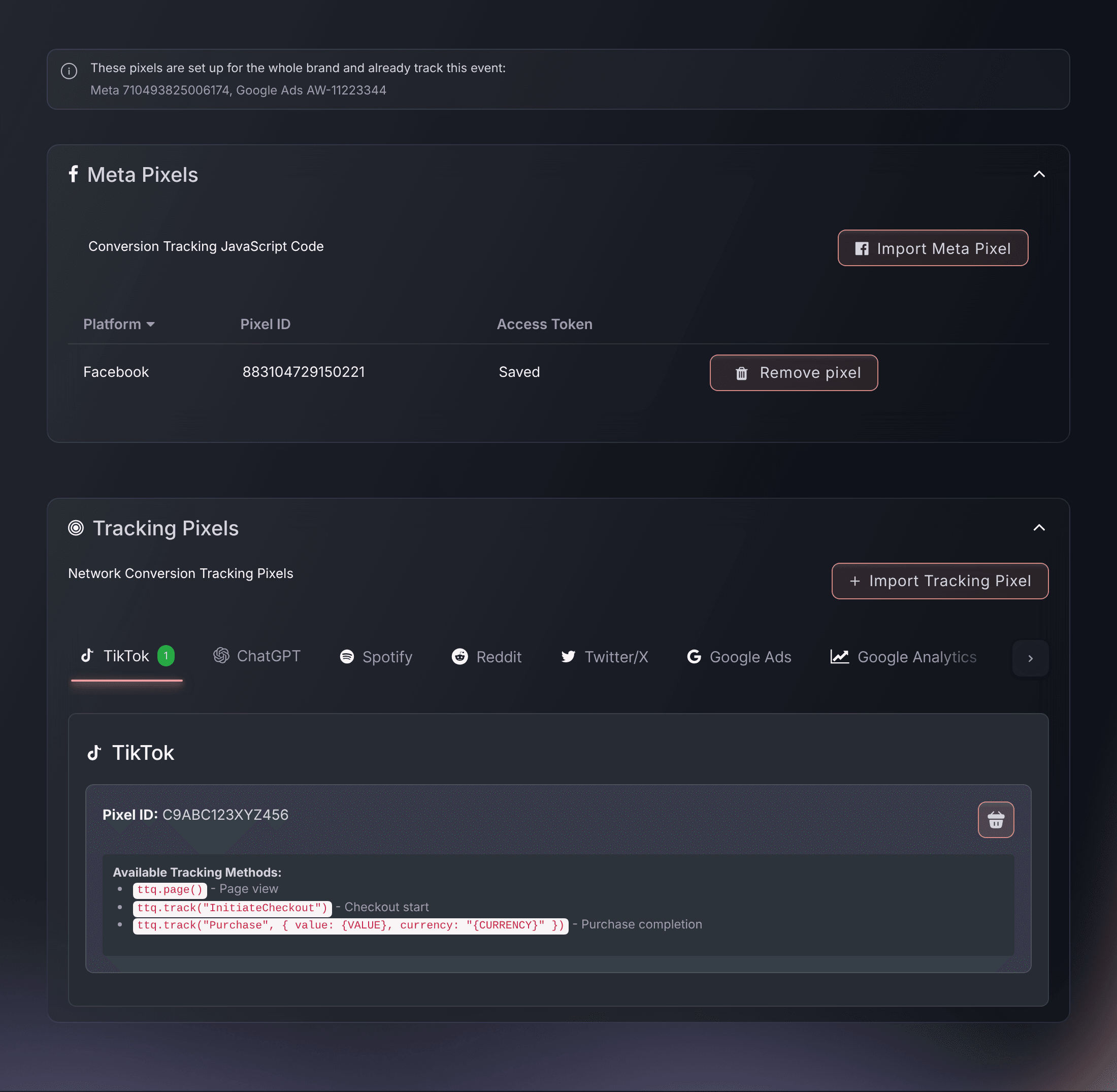
Event Settings, Meta Pixels and Tracking Pixels. -
Import a Meta pixel
In Meta Pixels, select Import Meta Pixel, sign in to Facebook, then pick the pixel from your Meta ad accounts. Optional: enter an access token so that Ticket Fairy also reports sales to Meta from our servers.
Note: The pixel is saved when you pick it. The access token helps preserve campaign attribution when browser tracking is blocked.
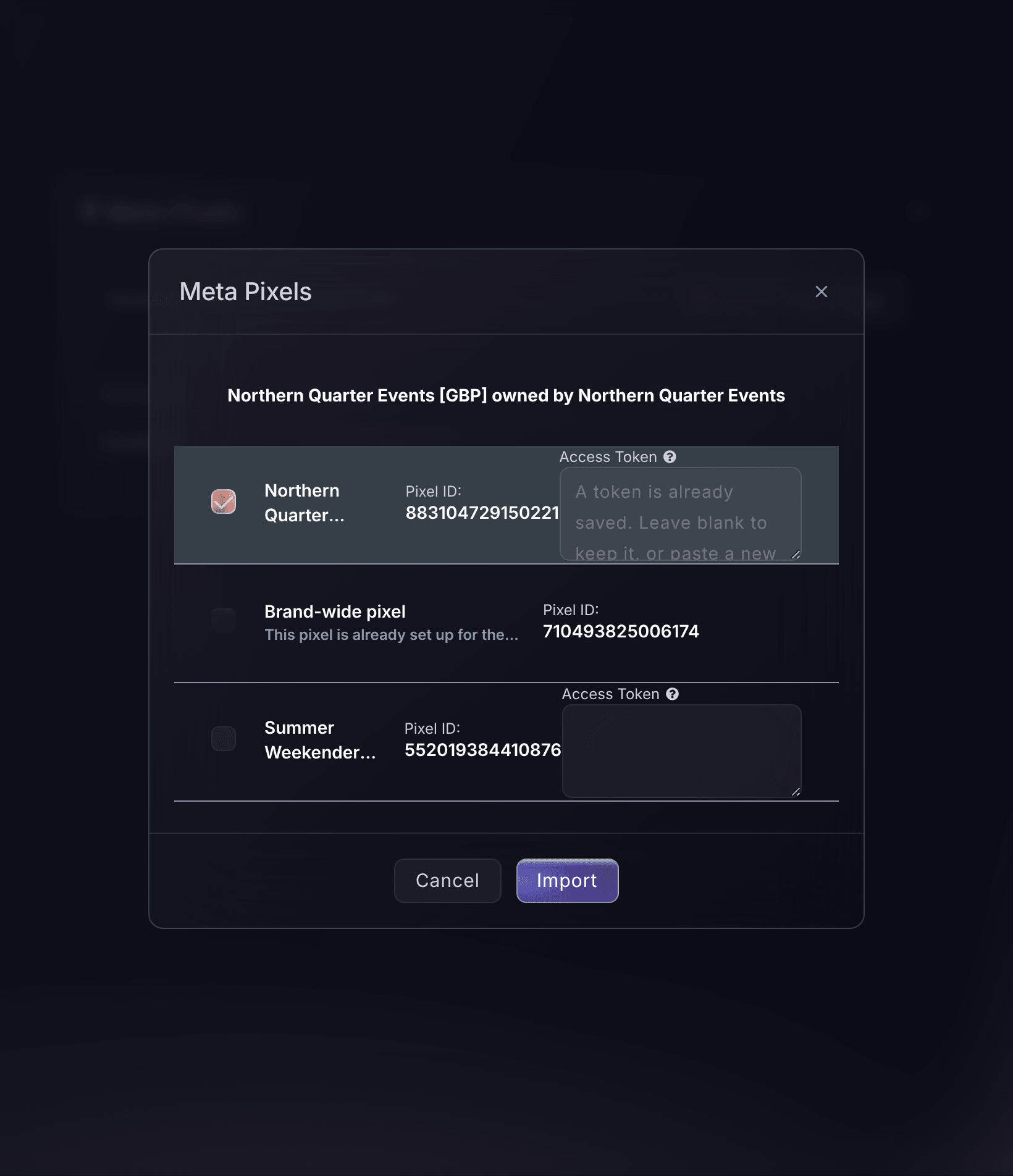
Event Settings, Meta Pixels, Import Meta Pixel. -
Import a pixel from another network
In Network Conversion Tracking Pixels, select Import Tracking Pixel, paste the complete code from TikTok, Google Ads, Snapchat or another network, check the detected network and ID, then select Import Pixel.
Note: The pixel is saved straight away. If the brand already has the same pixel, the page says so, because that pixel already tracks this event.
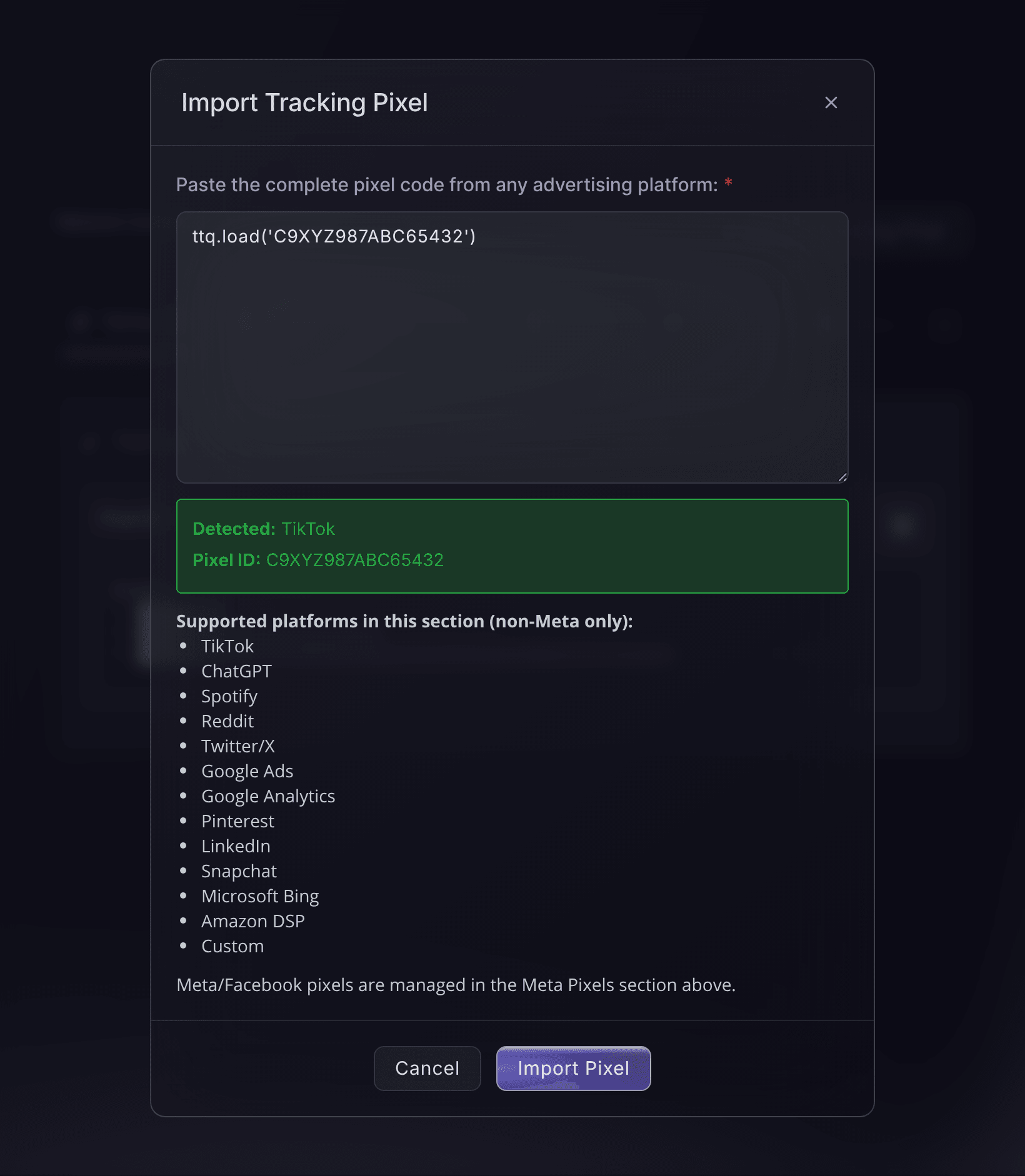
Event Settings, Tracking Pixels, Import Tracking Pixel.


Fai, the assistant inside your dashboard, can list, add, change and remove the pixels for one event, and asks you to approve each change. Picking a pixel from your Meta ad accounts needs your Facebook sign-in, so give Fai the Meta pixel ID or use the dashboard for that part.
In your dashboard, with Fai
Show me the tracking pixels on <EVENT NAME>, including the brand pixels that already track it, then add our TikTok pixel <TIKTOK PIXEL ID> to this event only
Questions you might have
- Where do I put my Meta pixel in Ticket Fairy?
- In your brand settings, under Integrations. Meta has a guided setup of its own, above the other networks: you connect Meta, pick the ad account and the pixel, and turn tracking on. There is no ID to copy and no token to paste.
- Which advertising networks can I track, besides Meta?
- TikTok, Spotify, Reddit, X, Google Ads, Google Analytics, Pinterest, LinkedIn, Snapchat, Microsoft Bing, Amazon DSP and ChatGPT can report activity and sales. There is also a custom option for another network you use.
- Can I add more than one pixel for the same network?
- You can add more than one for every listed network except Spotify and Microsoft Bing. For either of those, use the pixel for the ads account that runs this brand's campaigns.
- Can I add a pixel for one event only?
- Yes. Open the event's Settings page. The Meta Pixels and Tracking Pixels cards are above Advanced Options. Use Import Meta Pixel to pick a pixel from your Meta ad accounts, or Import Tracking Pixel to paste another network's code. That pixel tracks this event only. Pixels you connect for the brand already track every event under it, so you do not add those again.
- Why does an event say this pixel is already set up for the whole brand?
- The brand already has that pixel, and a brand pixel tracks every event under the brand. Adding it to the event as well would count each view and sale twice. You do not need to do anything: the pixel already tracks the event.
- Where are the boxes for my own event tracking code?
- On the event's Settings page, in Advanced Options, under Custom tracking code, below the two pixel cards. Use them only for code the pixel cards cannot add. The code runs when someone views the event, starts checkout or completes a purchase.
- Will tracking still work when buyers check out on my website?
- Yes. The embedded checkout sends the same events to the same pixels as the hosted checkout, so the networks you connected receive sales from your own site the same way.
Still have a question?
Book a demo and we will answer it on a call, on your kind of event. Or create your account and see it for yourself.
No setup fees. No required monthly ticketing fee. No credit card required.
Related guides
Do this on your own event
Create your account, build your event and follow the steps in your own dashboard. You do not need to book a sales call.