
Email, SMS and marketing
Connect your own web address to your event website
Festivals and venues print their own web address on posters and tickets, and fans expect it to open the event website. Connecting that address keeps your name in front of buyers while the website stays in your dashboard.
Put your event website on a web address you already own, such as www.yourfestival.com, so ticket buyers find you under your own name. You add the records the dashboard shows at your domain provider, and you choose which address is the main one.
- For
- Putting your event website on your own domain
- Takes
- 10 minutes
Before you start
- You are an owner or an admin of the brand, and you have a website in the dashboard, as in the guide to building a website for your events.
- You can sign in to the company where you bought your domain, often called your domain provider or registrar, to add records to it.
- Your plan includes connecting your own domain. Without it, the Web address section says Want to use your own domain? instead of the connect box; contact us to add it.
-
Open Web address
Open the website in the editor, then select Web address. Your free address is listed with Primary, the address visitors are sent to.
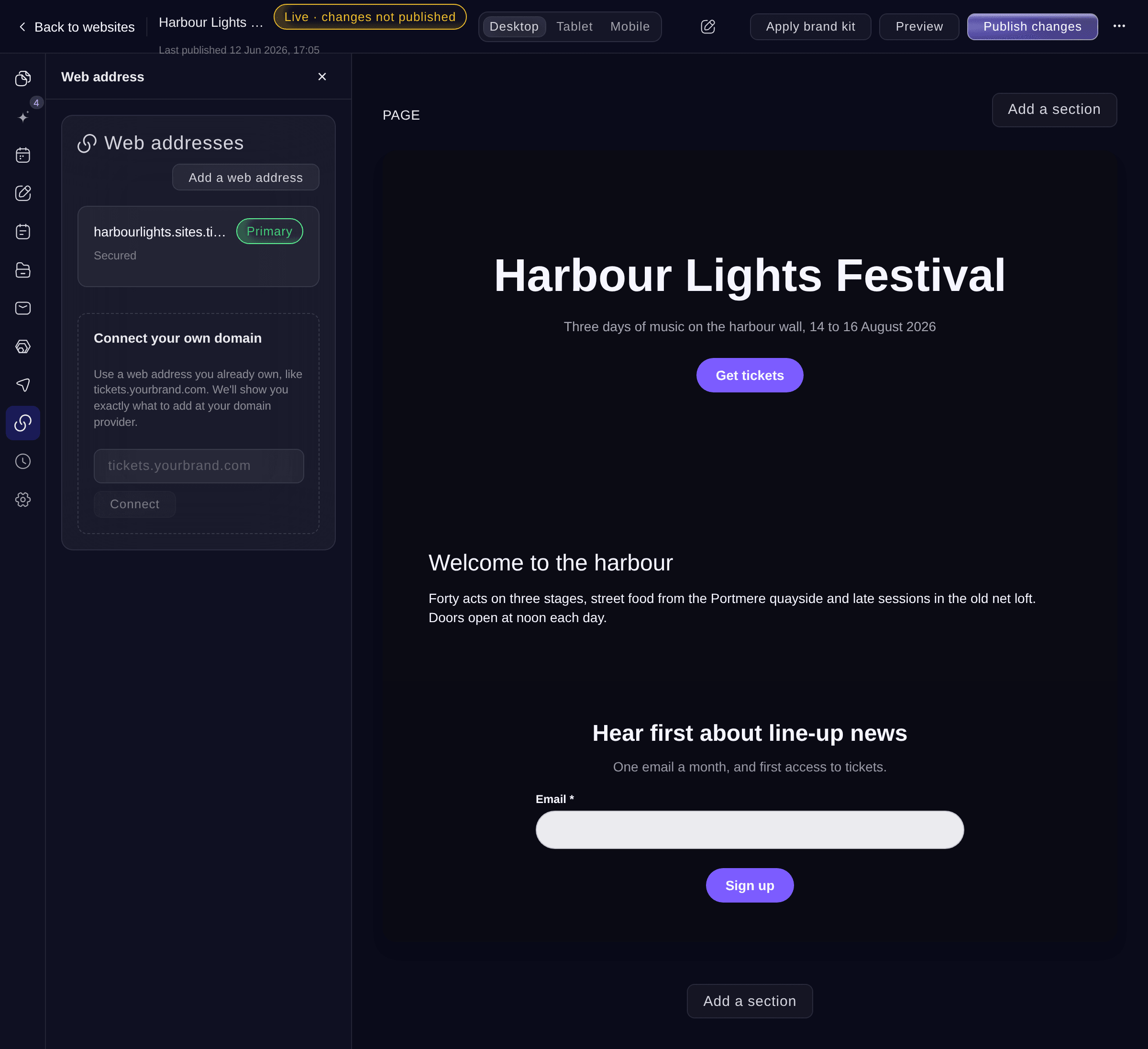
Web address. -
Enter your domain
Under Connect your own domain, enter the address, such as www.yourfestival.com or tickets.yourbrand.com, then select Connect.
Tip: Use an address that starts with www or another word before your domain. Many domain providers cannot point a bare domain, such as yourfestival.com, at a website.
-
Add the records at your domain provider
At your domain provider, add each record the dashboard lists with the same Type, Name / host and Value. Copy beside each name and value copies it exactly.
Note: Changes at your domain provider can take up to an hour to take effect.
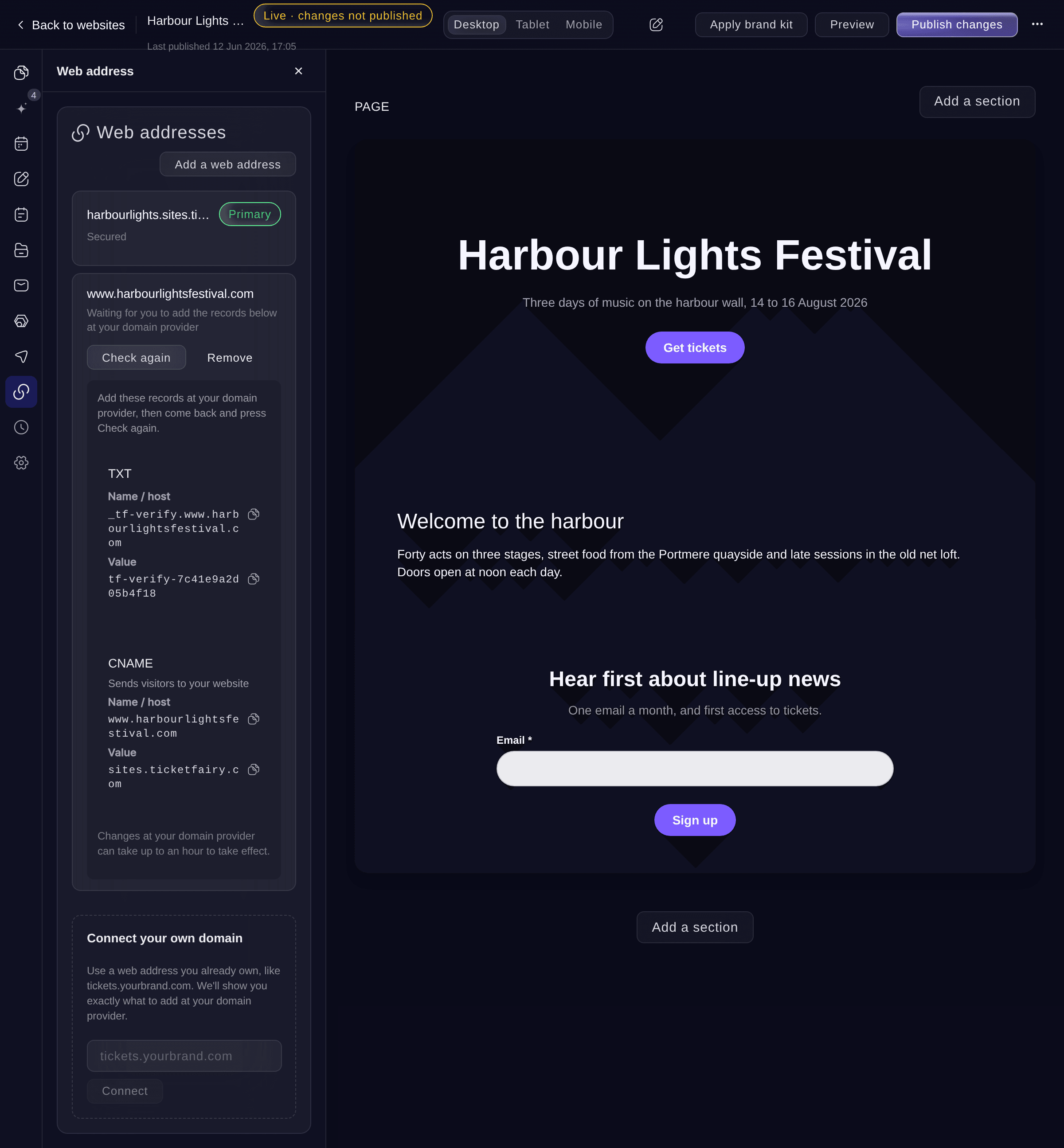
The records to add. -
Check the records
Come back to Web address and select Check again. When the records are found, the address shows
Connected. We are still securing this address, so your Ticket Fairy address stays the main one for now.
Note: If the message says
We can't see the records yet
, check that each name and value matches, wait a little, then select Check again.


Try these steps on your own event
Create a free account, build your event and follow the steps above in your own dashboard. It takes a few minutes and you do not need to book a sales call.
No setup fees. No required monthly ticketing fee. No credit card required.
Or have it done for you
Fai can connect your domain, tell you the records to add, check them again, make an address your main one and disconnect a domain. She asks before each change. You add the records yourself at your domain provider.
In your dashboard, with Fai
Connect www.<YOUR DOMAIN> to my <WEBSITE NAME> website and tell me the records to add at my domain provider
Let Fai do it for you
Fai works inside your Ticket Fairy dashboard. Create your account, open Fai and paste the prompt above.
No setup fees. No required monthly ticketing fee. No credit card required.
When your address can be made secure
-
Add the secure address records
Once we switch secure addresses on, your address shows the step it is at and the records to add: a TXT record that proves you own the domain, a record that lets us issue its security certificate and one that sends visitors to your website. Add each one at your domain provider, then select Check again.
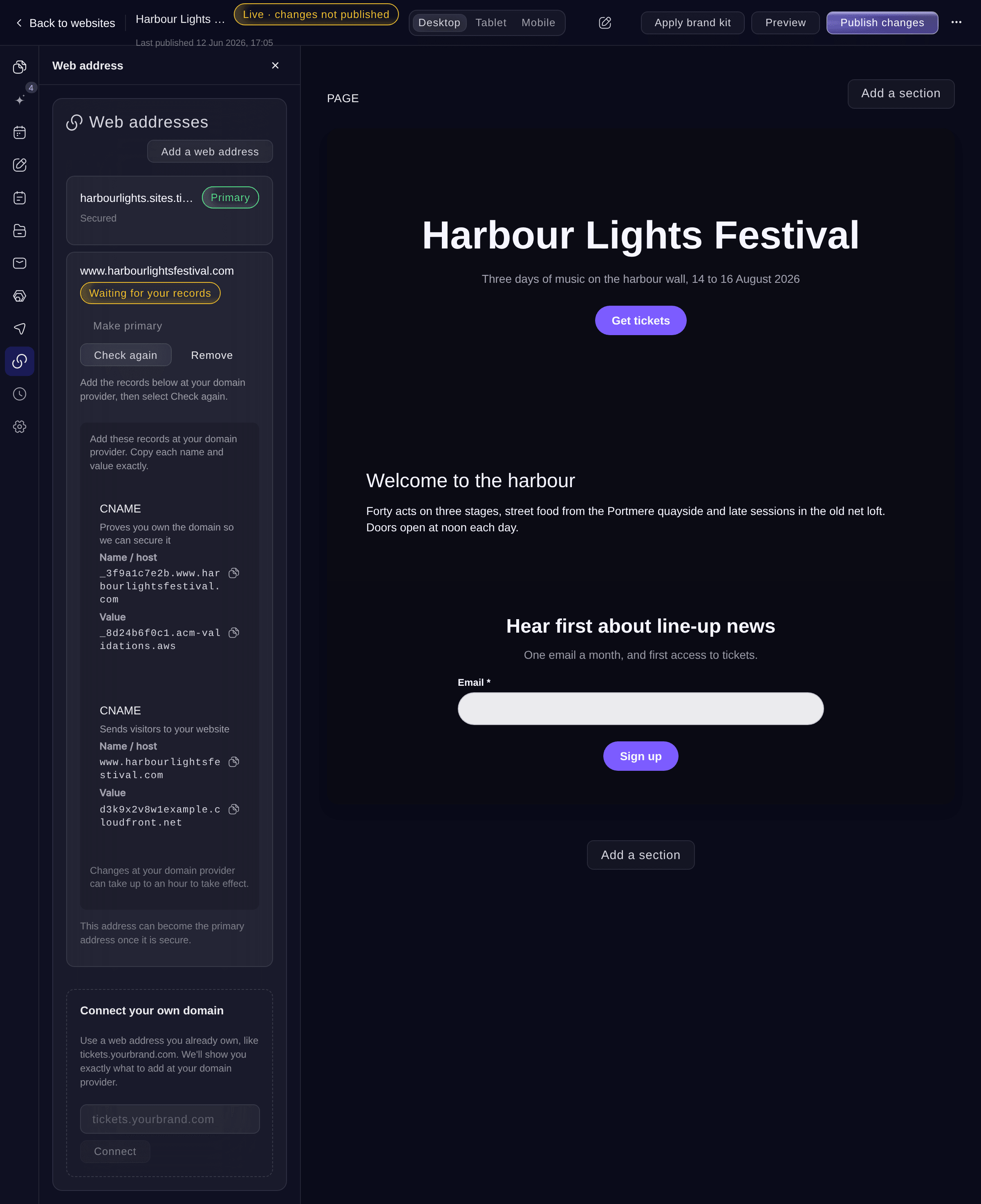
Secure address records. -
Wait for the address to become secure
The address moves through Checking your records and Securing your address to Secure. Each step usually takes a few minutes, and the section checks again by itself.
-
Change the routing record if asked
If the address says Almost done, change the one routing record it lists at your domain provider to the new value. Your address keeps working while you do.
Note: This step appears for an address that already pointed at your website before it was secured, and for a new address whose routing record is not in place yet. For a new address, add the routing record instead of changing it.
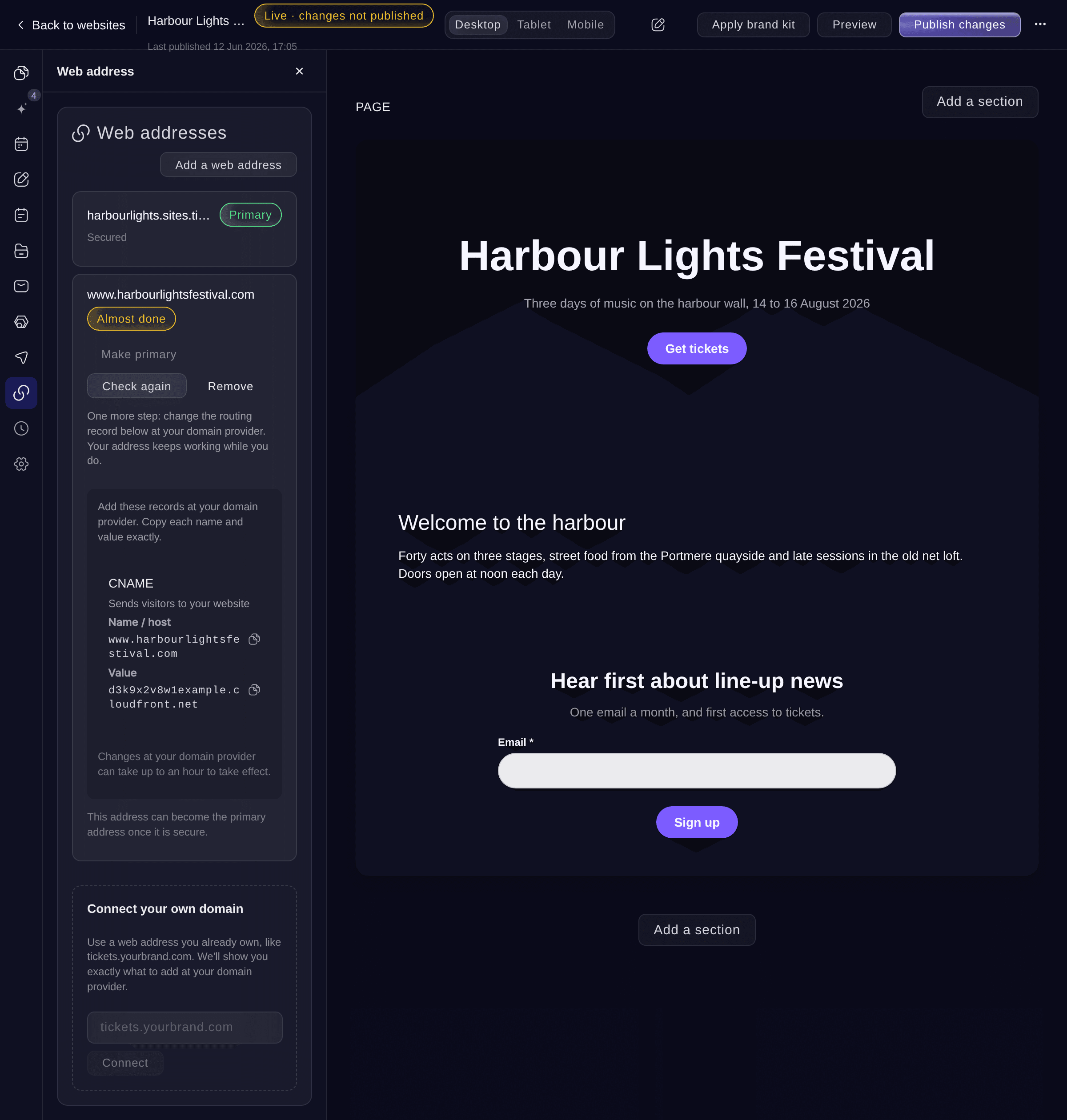
One more step. -
Make your address the primary one
When your address shows Secure, select Make primary on it. Visitors who open your other addresses are sent to this one.
Note: Make primary stays unavailable until the address is secure, so no visitor is sent to an address without https.
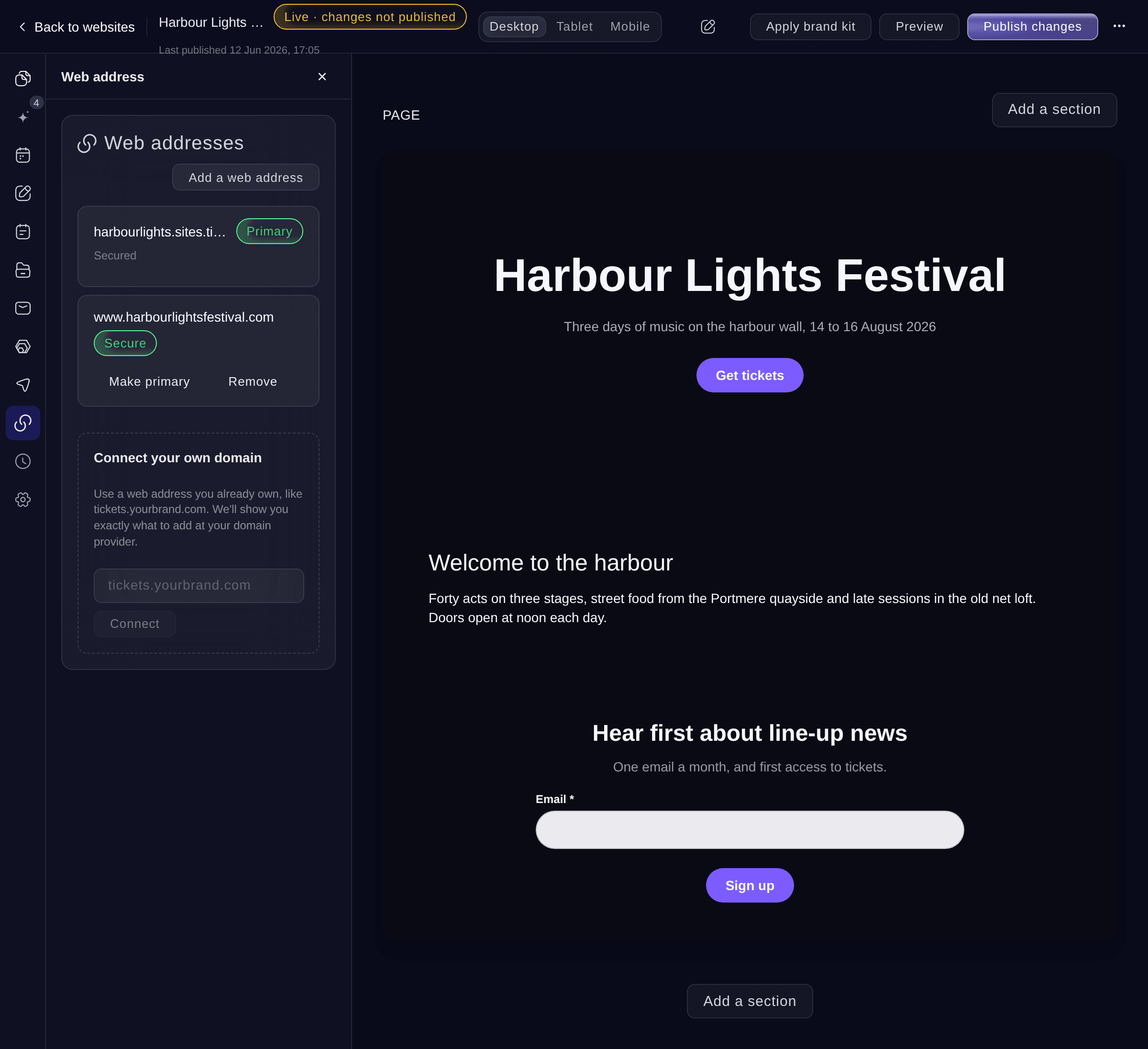
Secure, ready to be primary. -
Check the address in your browser
Open your address in a new browser tab. Your published website opens, with the padlock of a secure address beside it.


Fai checks your records again, tells you the step your address is at and the record to change, and makes it your main address after you confirm.
In your dashboard, with Fai
Is www.<YOUR DOMAIN> secure yet? If it is, make it the main address of my <WEBSITE NAME> website
Add another free address
-
Choose the address
In Web address, select Add a web address, enter the first part under Choose a web address, then select Add web address.
Note: Leave the box empty and we choose an address for you. Make primary on the new address makes it the main one.
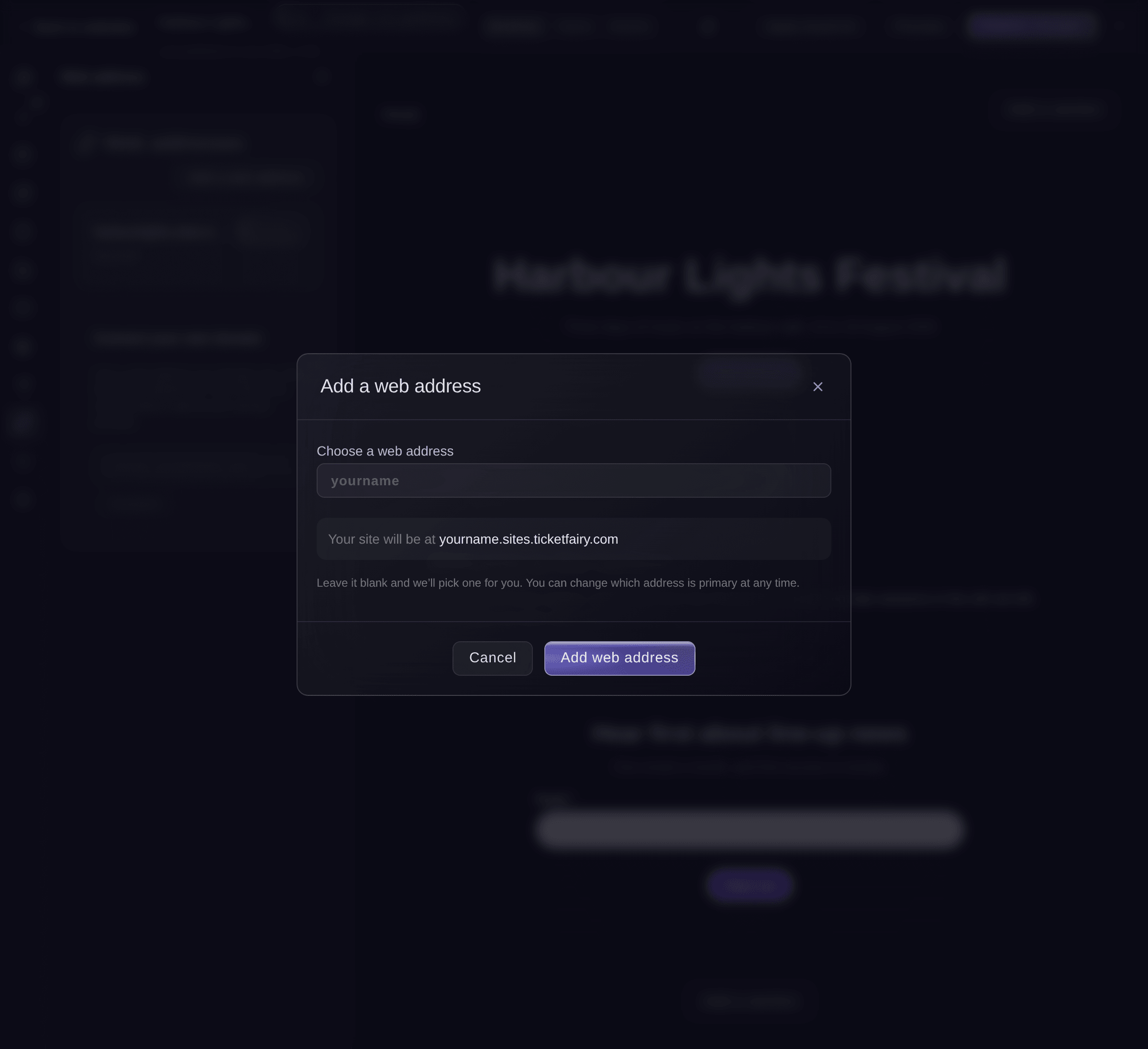
Add a web address.

Fai adds a free web address after you confirm.
In your dashboard, with Fai
Add the free web address <NAME>.sites.ticketfairy.com to my <WEBSITE NAME> website
Disconnect your domain
-
Remove the domain
In Web address, select Remove on your domain, then confirm.
Note: Your website stays online at its other addresses. If the domain was primary, make another address primary first.
Fai disconnects a domain after you confirm.
In your dashboard, with Fai
Disconnect www.<YOUR DOMAIN> from my <WEBSITE NAME> website
Questions you might have
- Why does my address say Not secured?
- The address shows the reason under it, such as a record that blocks the security certificate. Fix what it says at your domain provider, then select Try again. If it lists a record that allows the certificate to be issued, add that record too.
- My domain provider has no ALIAS or ANAME record. What do I do?
- Connect an address that starts with a word before your domain, such as www.yourfestival.com, instead of the bare domain. That address uses a CNAME record, which every domain provider offers.
- Why can I not make my own address primary?
- An address becomes primary only once it is secure, so no visitor is sent to an address without https. Your free Ticket Fairy address stays primary until then, and your website keeps working there.
- Do I need to publish again after I connect my domain?
- No. The address shows your published website as soon as it is connected. Publish only when you change the pages.
- Can one website have several addresses?
- Yes. A website can have several free addresses and your own domains. Only the primary one is the main address, and the others send visitors to it.
Still have a question?
Book a demo and we will answer it on a call, on your kind of event. Or create your account and see it for yourself.
No setup fees. No required monthly ticketing fee. No credit card required.
Related guides
Do this on your own event
Create your account, build your event and follow the steps in your own dashboard. You do not need to book a sales call.