
Your brand and team
Create your Ticket Fairy account and brand to start selling tickets
Promoters, venues and festival teams start selling tickets with an account for themselves and a brand for the name their events go on sale under. You create both in one sign-up, choose how the ticket money reaches you, and land on a dashboard ready for your first event.
Sign up with your email address or Google account, create the brand your events sell under, and choose whether your ticket money is paid out after each event or as tickets sell.
- For
- Signing up to sell tickets for your events for the first time
- Takes
- 8 minutes
- Open the sign-up page
- Select Sign up as an event organizer
- Choose what best describes you
- Enter your email and select Sign up with Email
- Enter your name and a password
- Enter the code from your email
- Enter your brand name and your business name
- Choose your business address from the list
- Select Continue to create your brand
- When to choose each payout mode
- Choose how you get paid
- Enter the bank account we pay you into
- Connect your Stripe account
- Select Get started
- Check that your dashboard opens on Home
Before you start
- You can sign up without an invitation, and you become the owner of the brand you create.
- You can open the inbox of the email address you sign up with, because we email a 6-digit code there to confirm it.
- You have your business's registered name and address to hand, and your bank details if you want to add them now.
-
Open the sign-up page
On the Ticket Fairy sign-in page, select Create an account. The page that opens asks you to select your role.
Note: Signing up from a Ticket Fairy page about selling tickets skips the role choice and opens the sign-up form straight away.
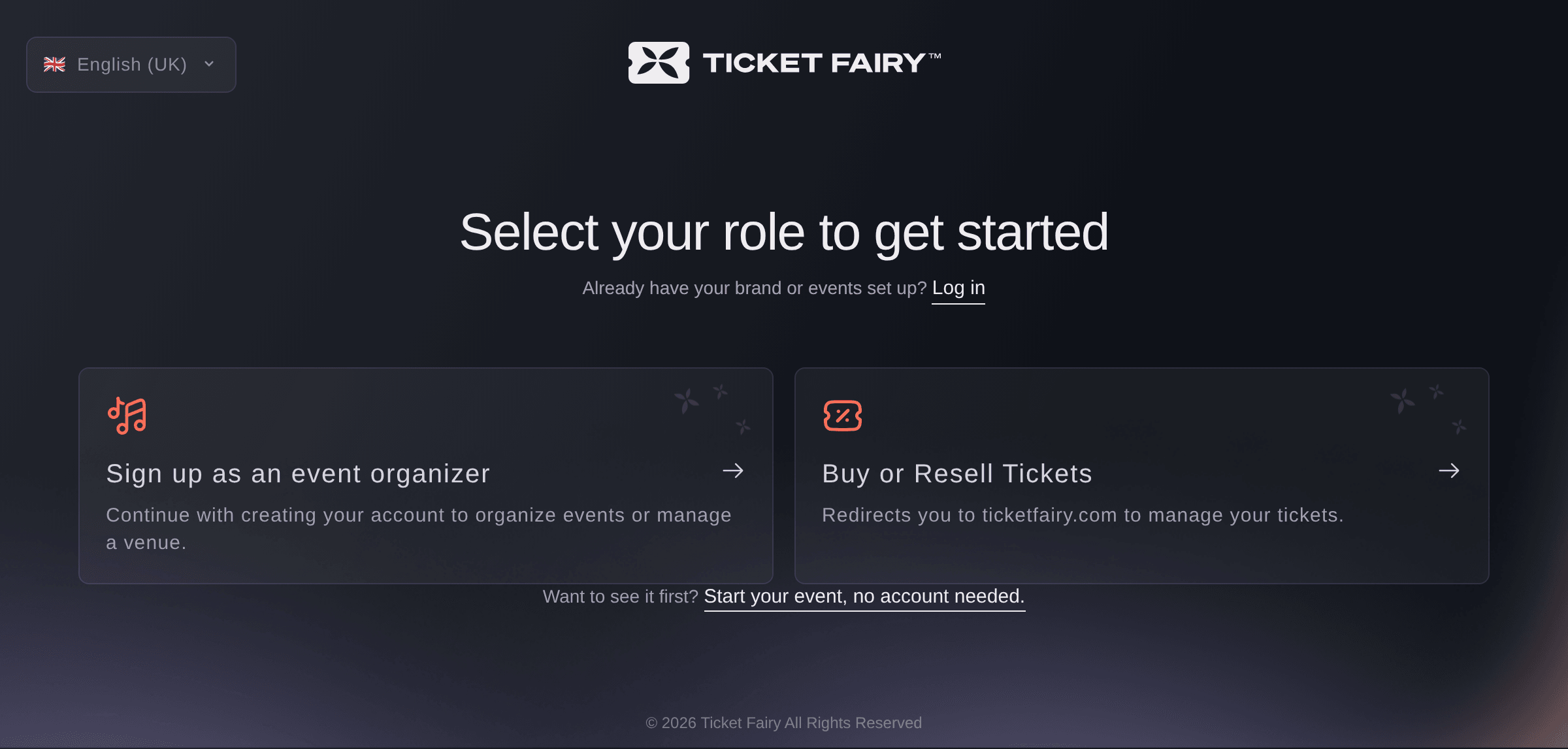
Sign up, Select your role to get started. -
Select Sign up as an event organizer
Select Sign up as an event organizer. Buy or Resell Tickets is for fans and takes them to ticketfairy.com instead.
-
Choose what best describes you
Under What best describes you?, choose the answer that fits you.
Note: Both organiser answers create the same kind of account, with the same dashboard.
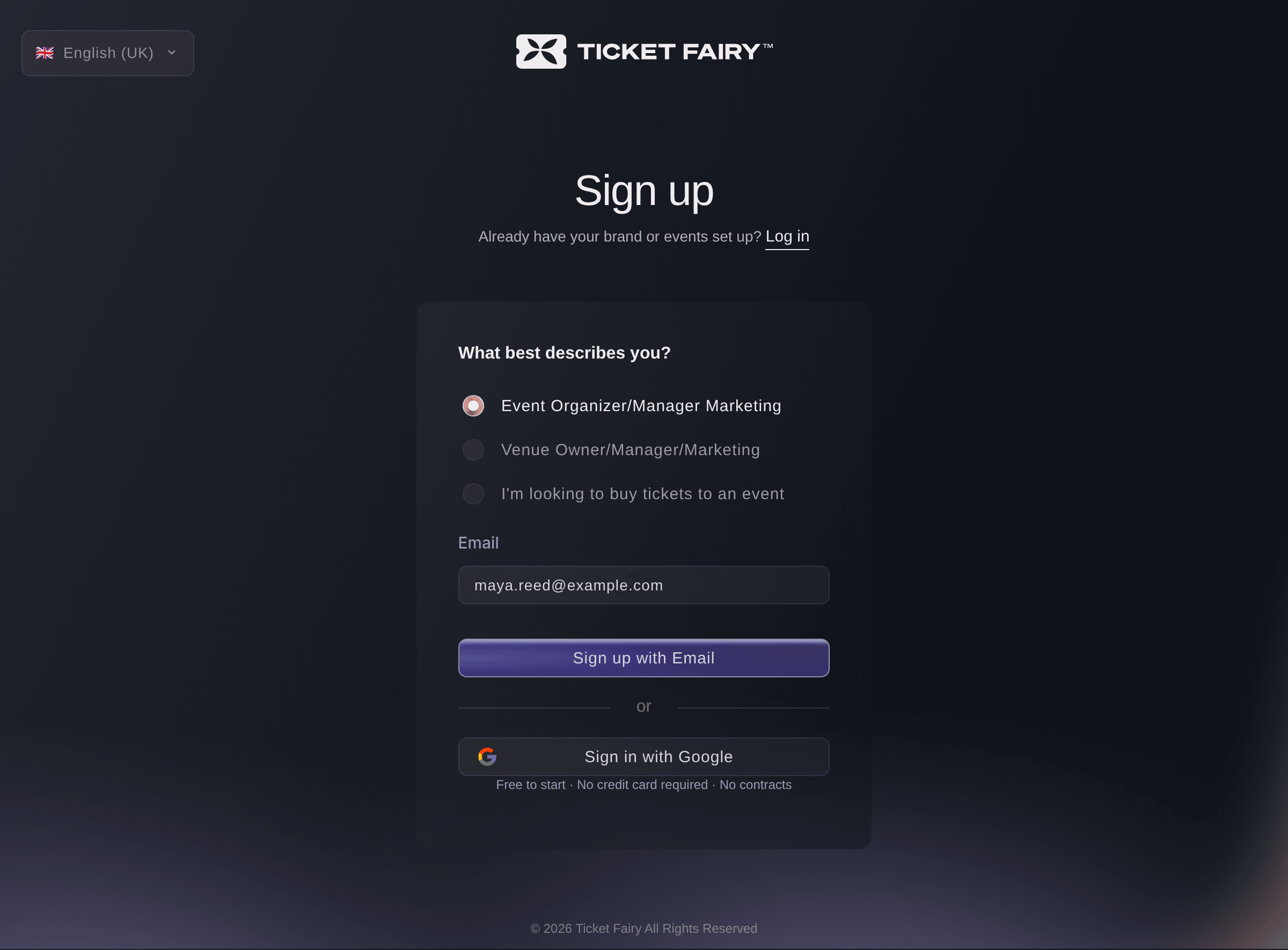
Sign up, What best describes you? -
Enter your email and select Sign up with Email
Enter your email address in Email, then select Sign up with Email. The next page asks for your name and a password.
Note: If the address already has a Ticket Fairy account, from buying tickets for example, the next page signs you in to that account instead of making a new one.
-
Enter your name and a password
Enter your first and last name, enter a password of at least 6 characters in Password and Confirm Password, then select Continue. We email a 6-digit code to your address.
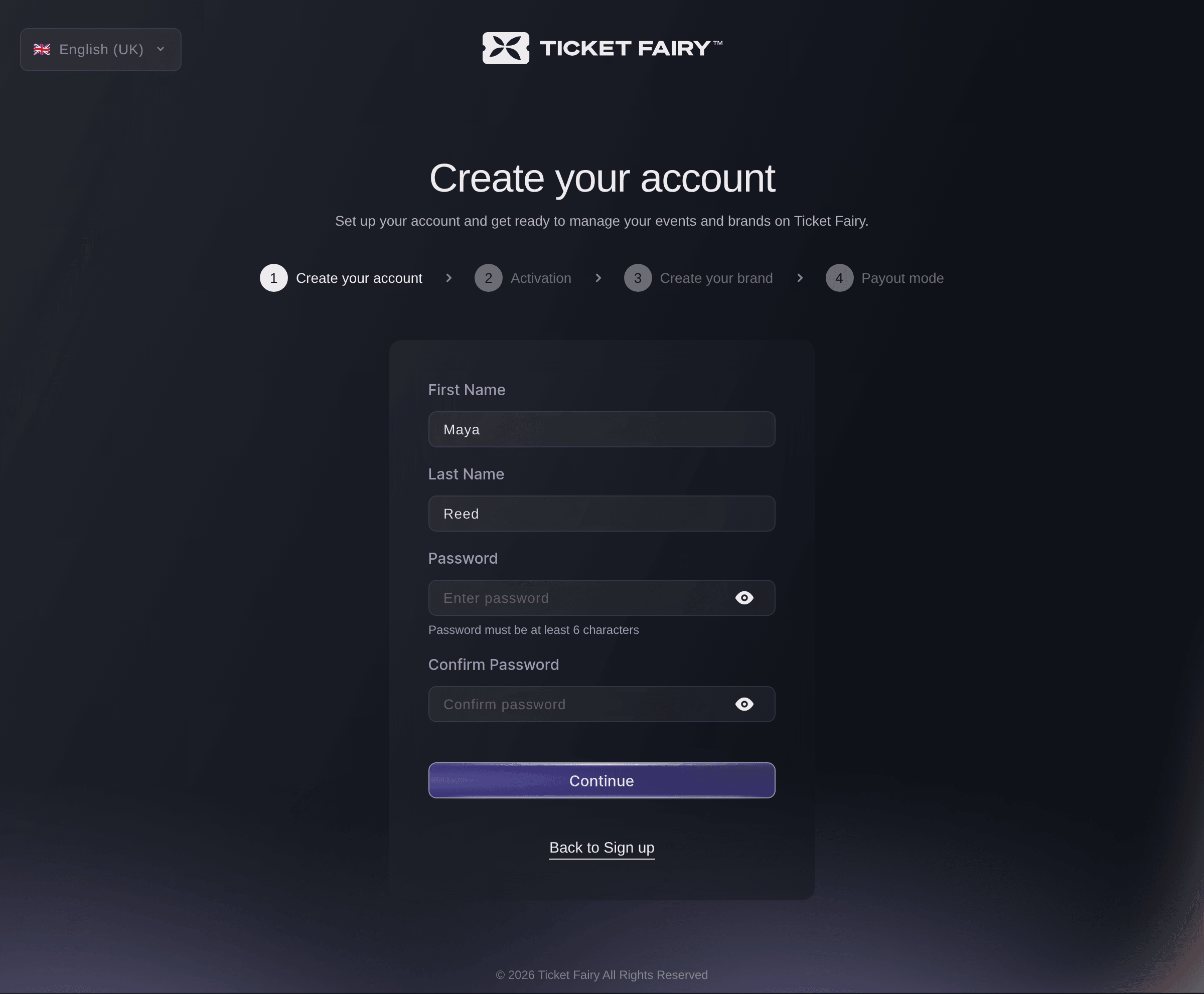
Sign up, Create your account. -
Enter the code from your email
Enter the 6-digit code from the email we sent you and select Continue. Your account is created and the page moves on to your brand.
Note: The code works for 5 minutes. If it has not arrived, select Send a new code once the countdown under the button ends.
-
Enter your brand name and your business name
Enter the name buyers know your events by in Brand Name, and your company's registered name in Business/Legal entity name.
Note: A brand is the name your events go on sale under, such as a promoter, a venue or a festival. Your events, your team and your payouts all belong to it.
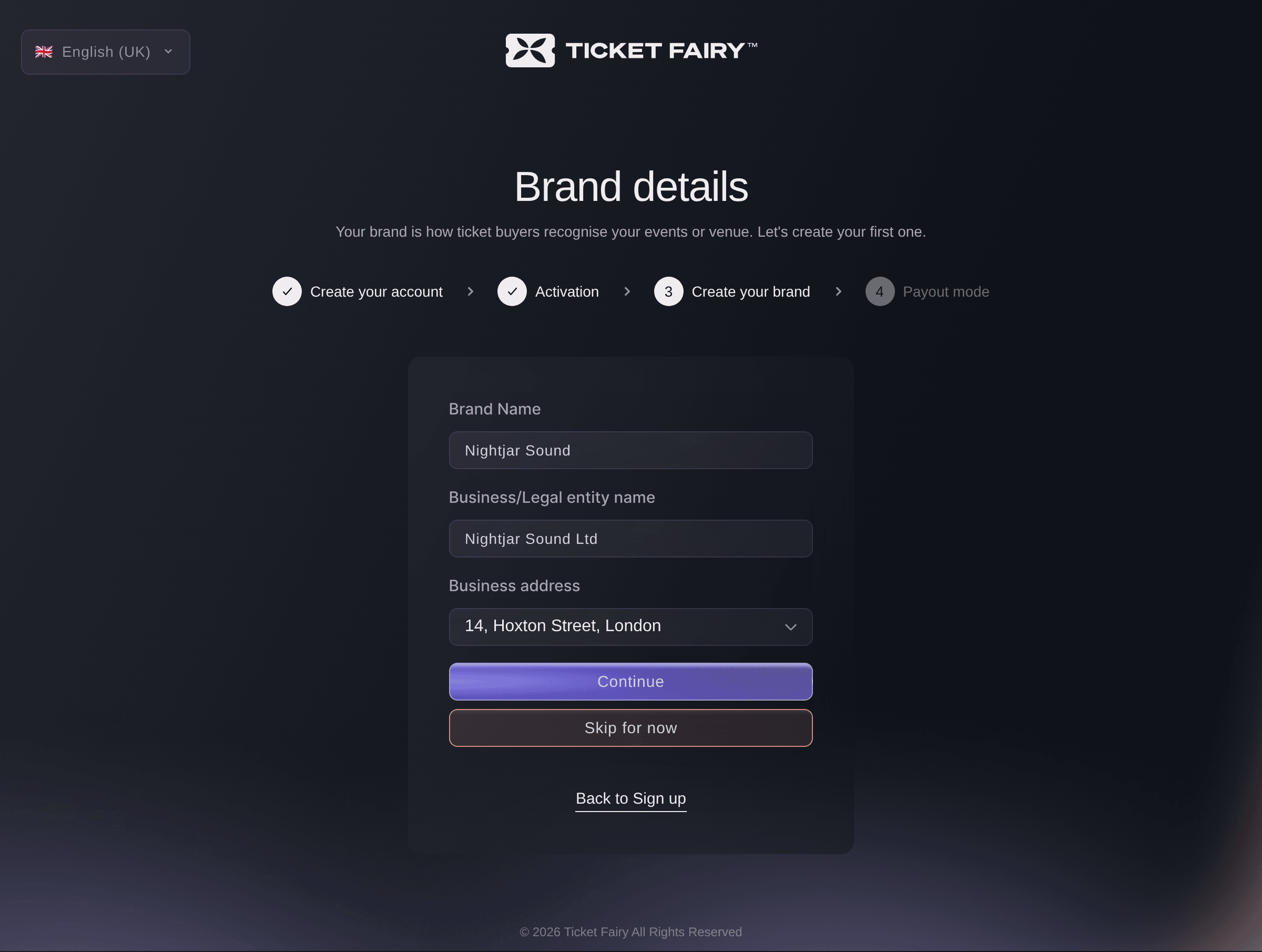
Sign up, Brand details. -
Choose your business address from the list
Start typing your business address in Business address, then select it from the suggestions that appear. If the address has no postcode, a ZIP Code field appears for you to enter it.
Note: The country in this address decides which payout options and bank details the next page offers.
-
Select Continue to create your brand
Select Continue. Your brand is created and the page moves on to Select payout mode.
When to choose each payout mode
Choose Paid out after your event when you want Ticket Fairy to take the card payments and send your ticket money to your bank 10 to 15 business days after each event. Choose Before your event, as tickets sell when you want each payment in your own card payment account as it is made, which needs that account set up and active before tickets go on sale.
-
Choose how you get paid
Choose how you want to be paid for your ticket sales.
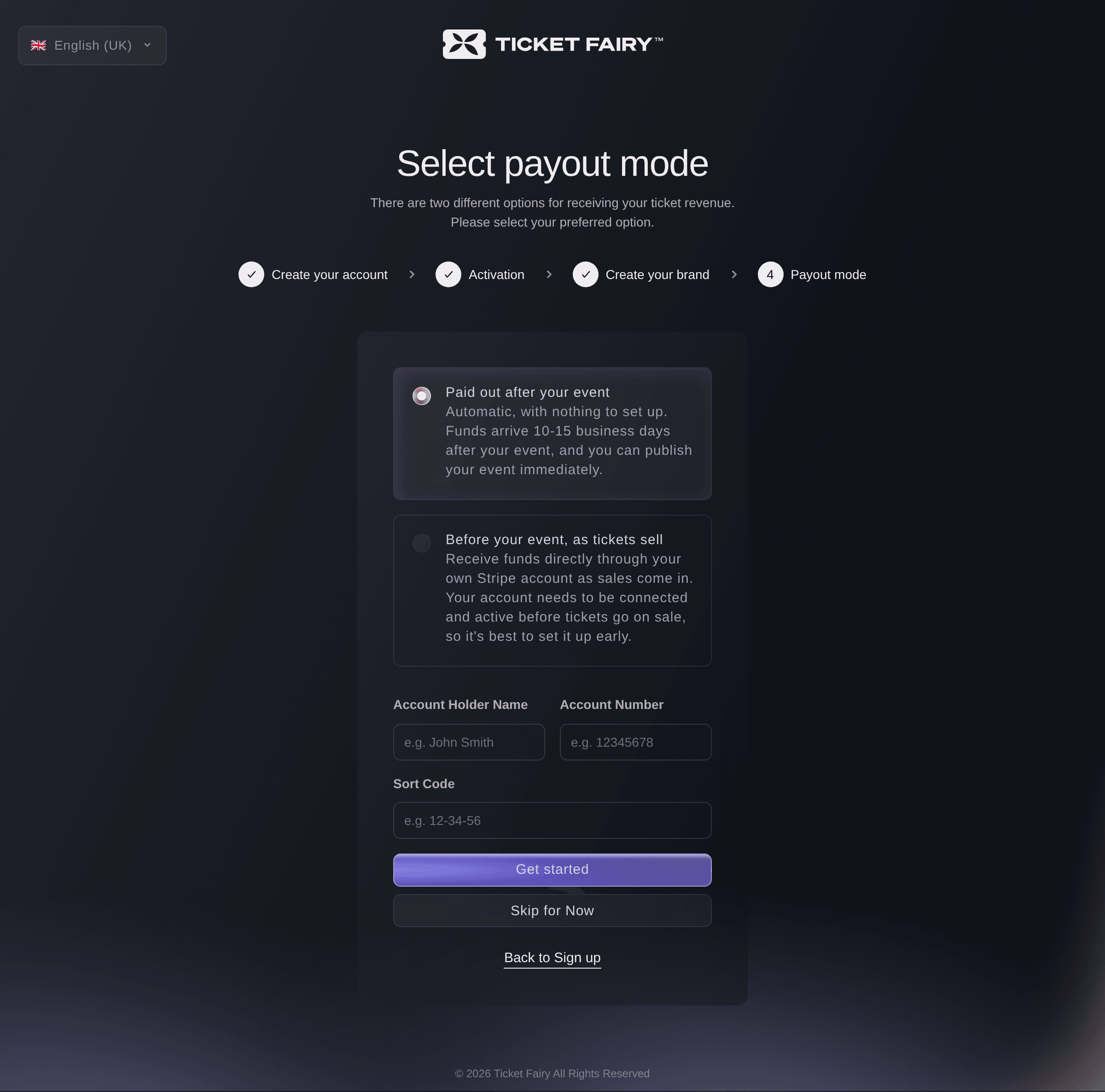
Sign up, Select payout mode. -
Enter the bank account we pay you into
If you chose Paid out after your event, enter the bank account we pay into in the fields under the options, such as Account Holder Name, Account Number and Sort Code for a UK bank. The fields follow the country of your business address.
Note: For a US bank, the account holder's legal first and last name are required. Every other bank field can wait until later.
Tip: You can add or change the account later under Payout Details on your brand's Details page.
-
Connect your Stripe account
If you chose Before your event, as tickets sell, select Connect with Stripe and complete the setup Stripe asks for in the tab that opens. Back on this page, Get started becomes available once the account is linked.
Note: Stripe asks for your identity and your bank account, so have them to hand. The full setup, and what to do if you stop part way, is in the guide to taking ticket money with a payment processing account.
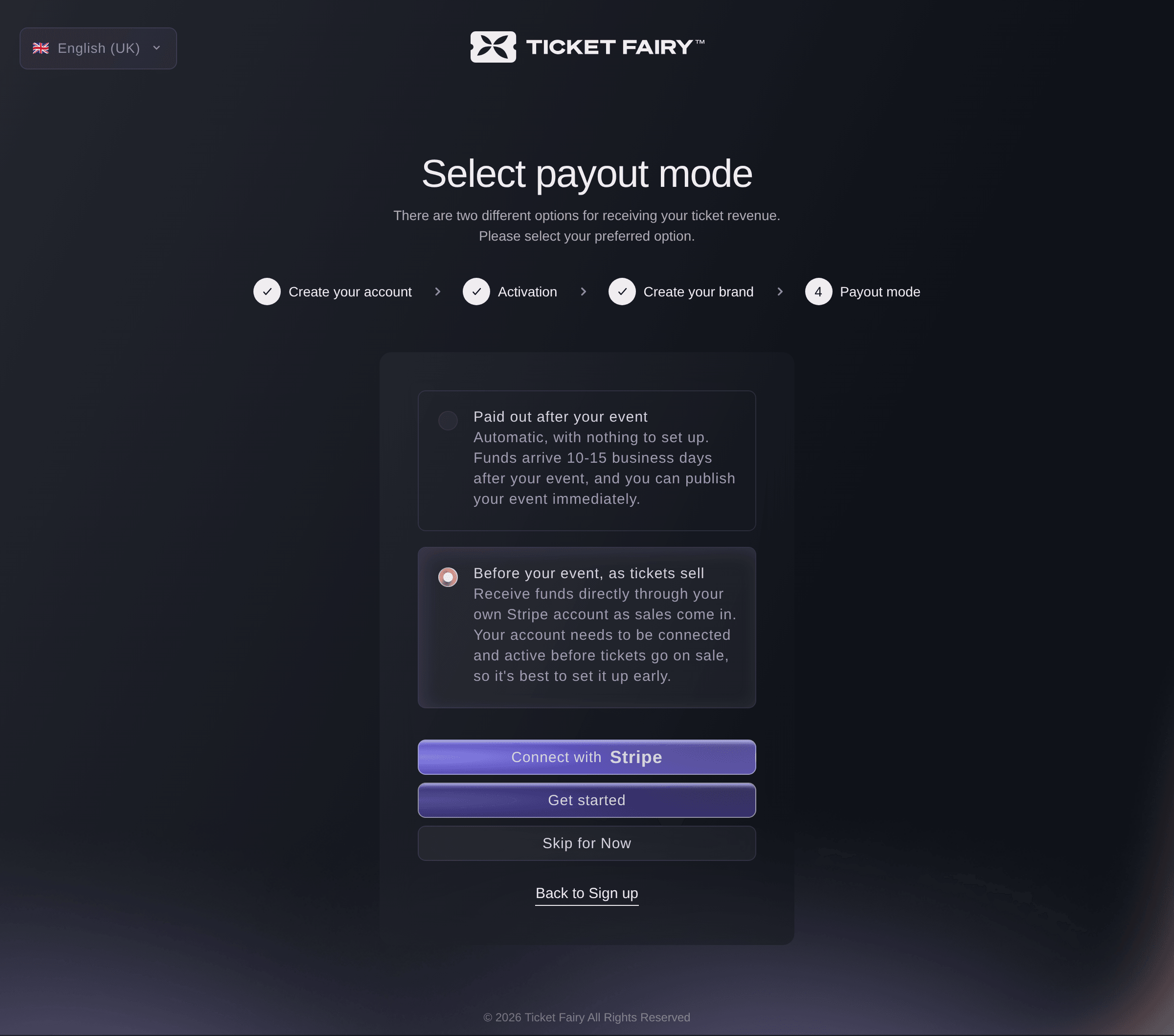
Sign up, Before your event, as tickets sell. -
Select Get started
Select Get started. Ticket Fairy saves your payout choice and opens your dashboard.
Note: If you started an event before signing up, Get started opens that event instead, saved as a draft under your new brand.
-
Check that your dashboard opens on Home
Check that your dashboard opens on Home. For a new account, Your first steps suggests where to start for the kind of events you run.
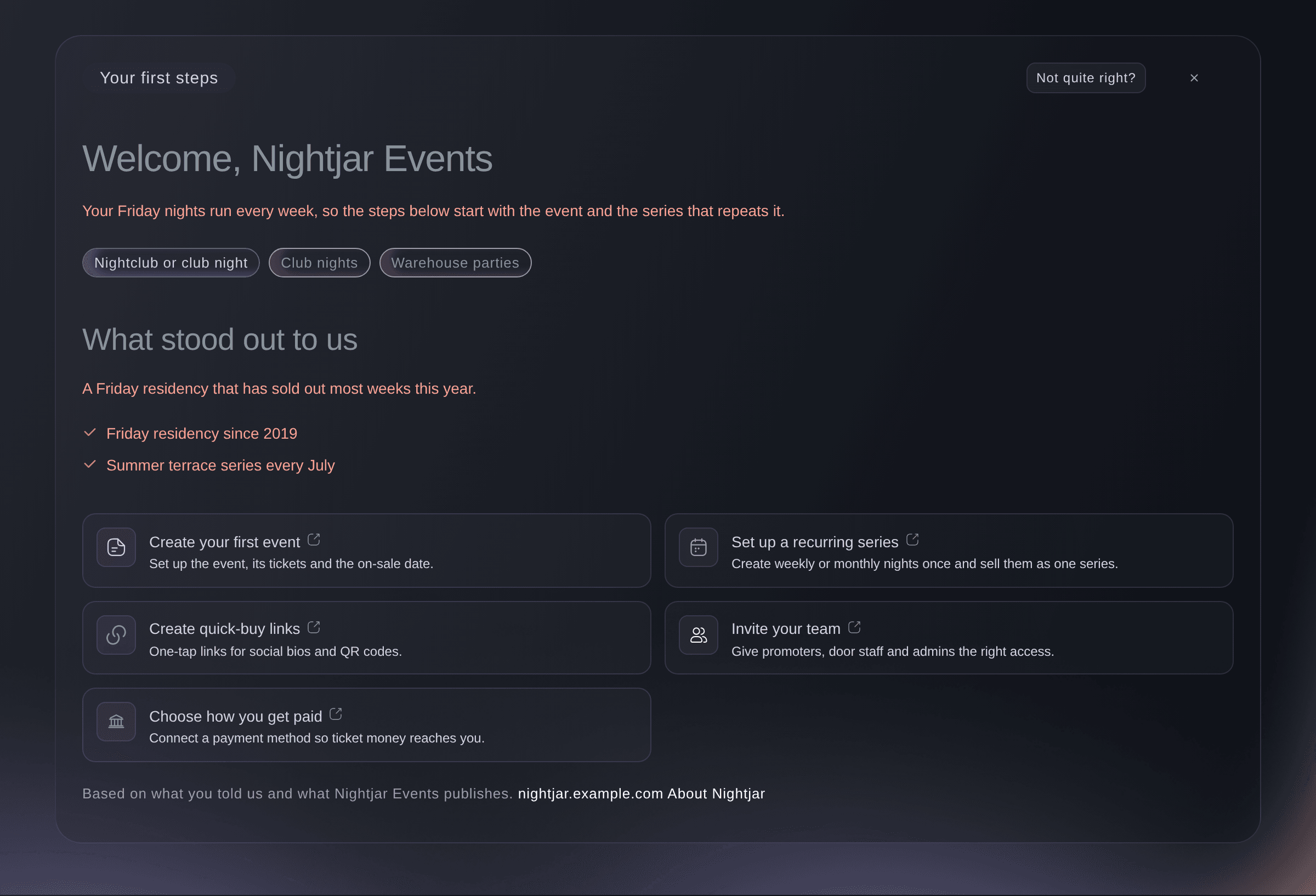
Home, Your first steps.

Try these steps on your own event
Create a free account, build your event and follow the steps above in your own dashboard. It takes a few minutes and you do not need to book a sales call.
No setup fees. No required monthly ticketing fee. No credit card required.
Or have it done for you
The sign-up pages are yours to complete, because Fai, the assistant inside your dashboard, works once you have an account. After you sign up, she can tell you which payment accounts are linked to your brand and whether one still needs its setup finished, and open any page of the dashboard for you.
In your dashboard, with Fai
List the payment accounts linked to <BRAND NAME> and tell me if any of them still needs its setup finished before tickets go on sale
Let Fai do it for you
Fai works inside your Ticket Fairy dashboard. Create your account, open Fai and paste the prompt above.
No setup fees. No required monthly ticketing fee. No credit card required.
Set up payouts later
On Select payout mode, select Skip for Now, then Skip for now in the confirmation. Add your payout details before tickets go on sale, so your money isn't delayed.
Skip the payout step on the page itself. Fai can later list the payment accounts on your brand and start linking one, which the guide to taking ticket money with a payment processing account covers.
In your dashboard, with Fai
Show the payment accounts on <BRAND NAME> and help me connect one for payouts
Create your brand later
On Brand details, select Skip for now, then Skip for now again in the confirmation, and your dashboard opens without a brand. When you are ready, open Brands in the sidebar and select Create Brand to fill in the same brand details and payout pages.
Note: You need a brand before you can publish your first event.
Create the brand in the dashboard, from Brands. Fai reads your brands and switches between them.
Questions you might have
- Can I sign up with my Google account?
- Yes. Choose what best describes you, then select Sign in with Google instead of entering your email and pick your Google account. There is no code or password to enter, and the sign-up goes straight to your brand details.
- What if my email already has a Ticket Fairy account?
- The sign-up form checks the address first. If you have bought tickets with it, or joined someone's team with it, the next page signs you in to that account instead of creating a second one.
- The code has expired or doesn't work. What do I do?
- A code works for 5 minutes and allows five tries. If the page says
That code has expired. Select "Request a new code" to get a fresh one.
, select Send a new code under the button and enter the newest code from your inbox, checking your spam folder too. - Why won't Brand details let me continue?
- The business address has to be one of the suggestions under the field. Type the start of the address again and select it from the list, because an address you type in full without selecting it is not saved.
- Why is only one payout mode offered?
- In some countries, including Sweden and Indonesia, a brand takes card payments in its own account, so only Before your event, as tickets sell is offered. For a brand in Indonesia the button sets up a Xendit account instead, and Xendit emails you an invitation to finish it. On these brands the page has no Skip for Now, so you set up payouts before your dashboard opens.
- Can I change how I get paid after signing up?
- Yes. Enter or change the bank account under Payout Details on your brand's Details page, or link your own card payment account on the brand's Payments page to take payments as tickets sell.
- Can Fai sign me up?
- No. Fai works inside your dashboard, so the sign-up pages are yours to complete. Once you are signed in she can take you to any page and help set up your first event.
- How do I add my team?
- Invite them from your brand's Team page once your brand exists. Each person gets an email to accept, and you choose what each of them can reach.
Still have a question?
Book a demo and we will answer it on a call, on your kind of event. Or create your account and see it for yourself.
No setup fees. No required monthly ticketing fee. No credit card required.
Related guides
Do this on your own event
Create your account, build your event and follow the steps in your own dashboard. You do not need to book a sales call.