
Vault and Capital
Collect table deposits, venue hire and sponsorship for your events with Vault payment links
Club operators, venues and festival teams take money that isn't a ticket: table deposits, hire fees, sponsor instalments, merchandise orders. A Vault payment link is a page the payer opens and pays on, and the money lands in your Vault balance, so you stop chasing bank transfers and matching references by hand.
Create a payment link from Vault for a VIP table deposit, venue hire, a sponsorship instalment, merchandise pre-orders or a group deposit for your event, share it or email it, and see how many times it was paid and what it collected, with the money going straight into your Vault balance.
- For
- Collecting deposits and other payments around your events
- Takes
- 6 minutes
Before you start
- You're an owner or an admin on the brand. Only owners and admins can create, send or turn off payment links.
- Your brand has an active Vault account. The money a link collects goes into your Vault balance in the link's currency.
-
Open Get paid
Open Vault, then select Get paid. Payment links lists every link with its amount, whether it can be paid once or many times, its status and what it Collected.
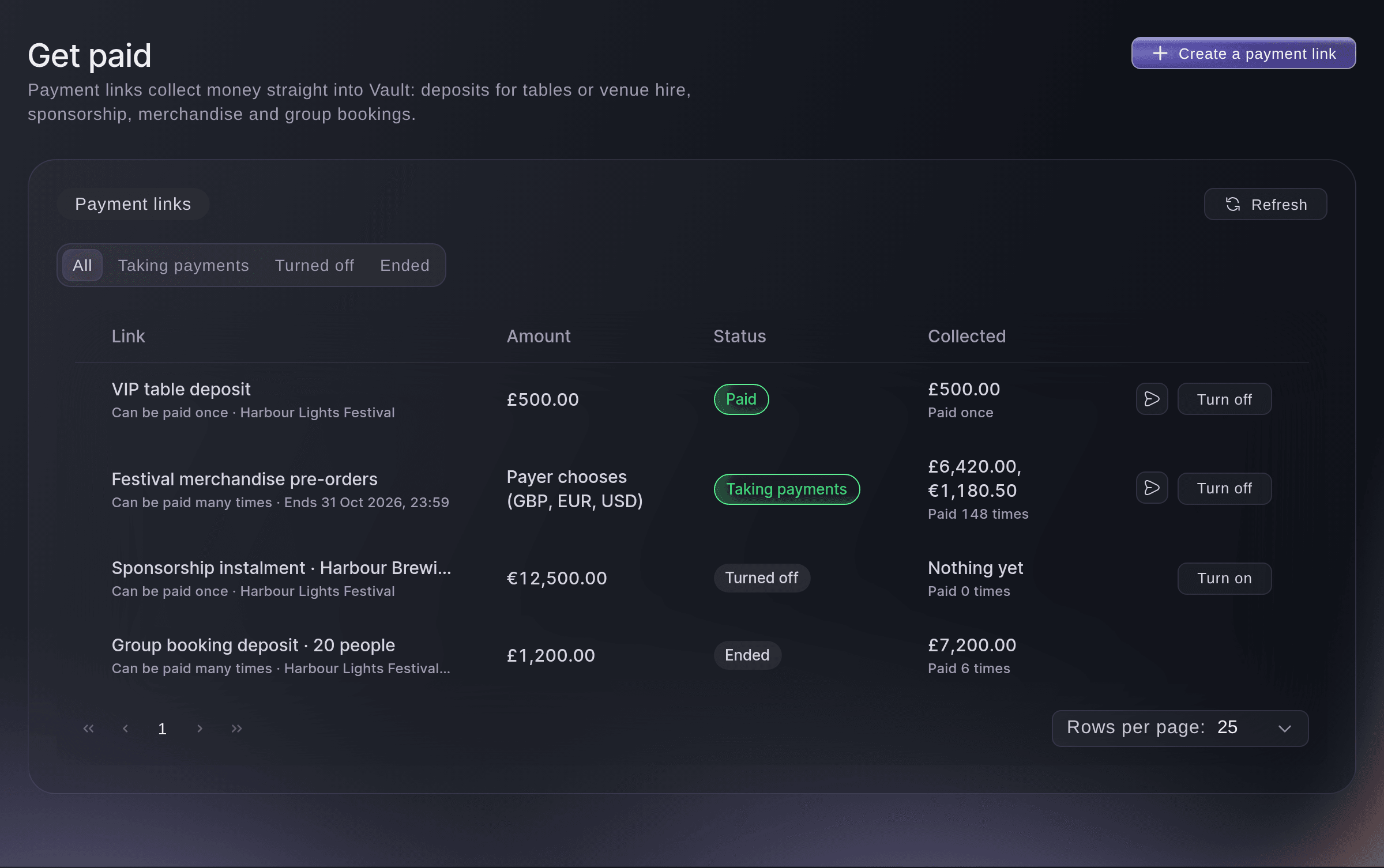
Vault, Get paid. -
Select Create a payment link
Select Create a payment link at the top of the page.
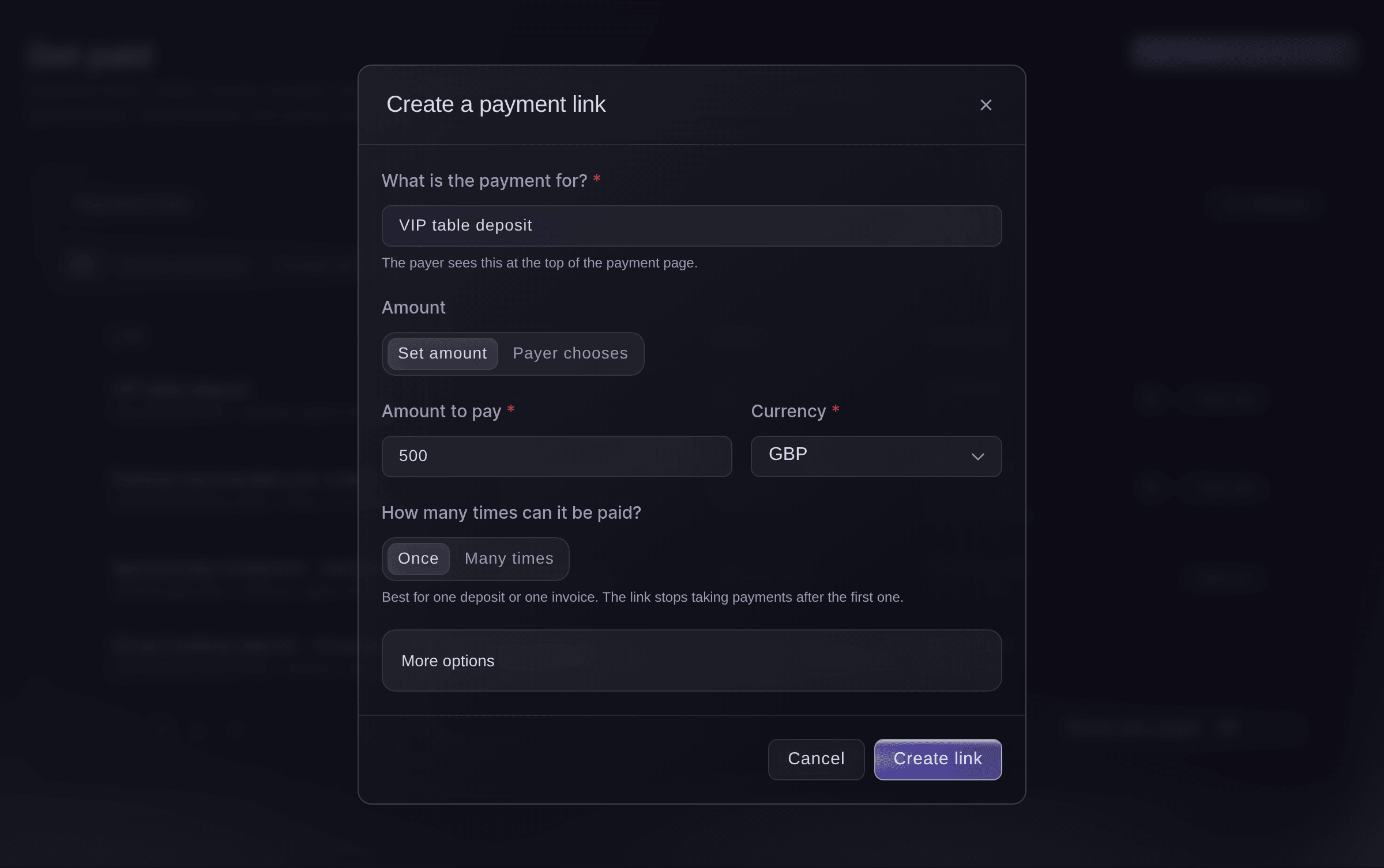
Get paid, Create a payment link. -
Enter what the payment is for
Enter a name the payer will recognise in What is the payment for?, such as VIP table deposit. The payer sees it at the top of the payment page.
-
Choose the amount
Under Amount, choose how much the payer pays.
-
Enter the amount and currency
For a set amount, enter the Amount to pay, then choose the Currency.


A link where the payer chooses
With Payer chooses, the dialog asks for up to 10 Currencies the payer can pay in instead of an amount. This link for merchandise pre-orders takes pounds or euros and can be paid many times.

-
Choose how many times it can be paid
Under How many times can it be paid?, choose Once for one deposit or one invoice, or Many times when everyone pays with the same link, such as table bookings or merchandise.
Note: A link set to Once stops taking payments after the first payment and shows as Paid.
-
Add details, the event and an end date
Optional: Open More options to enter Details for the payer, choose the Event the money is for, and set When does it stop taking payments? to On a date with the last day to pay.
Note: Left as When I turn it off, the link takes payments until you turn it off. An end date can be up to a year ahead.
-
Select Create link
Select Create link. Your payment link is ready shows the link with buttons to copy it, open it or send it by email.
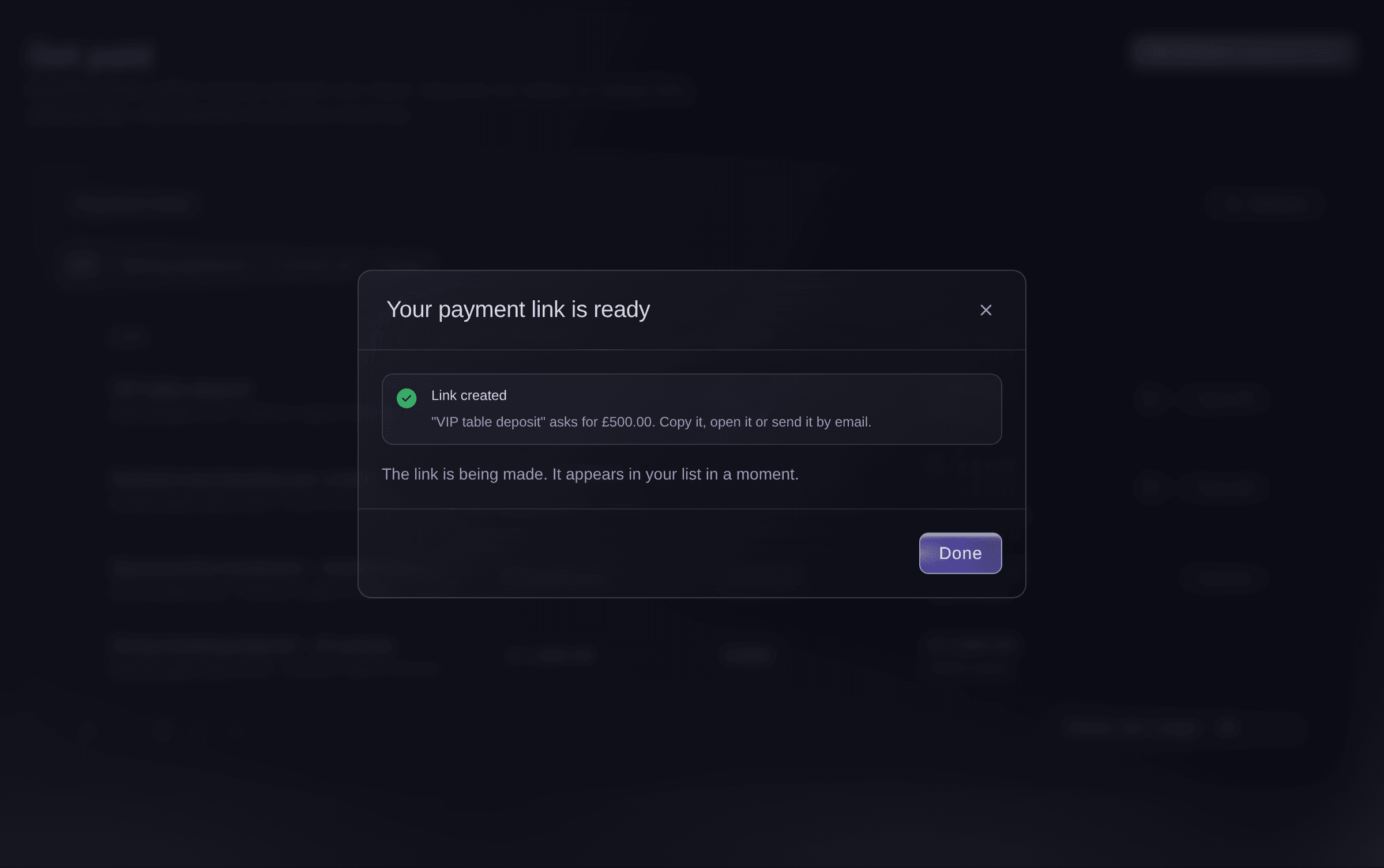
Create a payment link, the link ready to share. -
Share the link
Select Copy link and paste it into a message, an email or your booking confirmation.
Link copied
confirms it.Tip: To email it from your brand instead, follow Send a payment link by email below.
-
Check who paid
Find the link in Payment links. Its row says how many times it was paid and what it Collected, and the money is in your Vault balance in the link's currency.

Try these steps on your own event
Create a free account, build your event and follow the steps above in your own dashboard. It takes a few minutes and you do not need to book a sales call.
No setup fees. No required monthly ticketing fee. No credit card required.
Or have it done for you
Fai, the assistant inside your dashboard, can create a payment link with a set amount or one the payer chooses, list your links with what each one collected, email a link, and turn a link off or back on. She shows you the link's details and asks before each change. MCP and the command line have no payment link commands.
In your dashboard, with Fai
Create a Vault payment link for <BRAND NAME> for a <AMOUNT> <CURRENCY> VIP table deposit at <EVENT NAME> that can be paid once, then email it to <EMAIL>
Let Fai do it for you
Fai works inside your Ticket Fairy dashboard. Create your account, open Fai and paste the prompt above.
No setup fees. No required monthly ticketing fee. No credit card required.
Send a payment link by email
-
Select the send button
On the link's row, select the paper plane button, which opens Send the link by email.
Note: Only a link that is Taking payments can be sent.
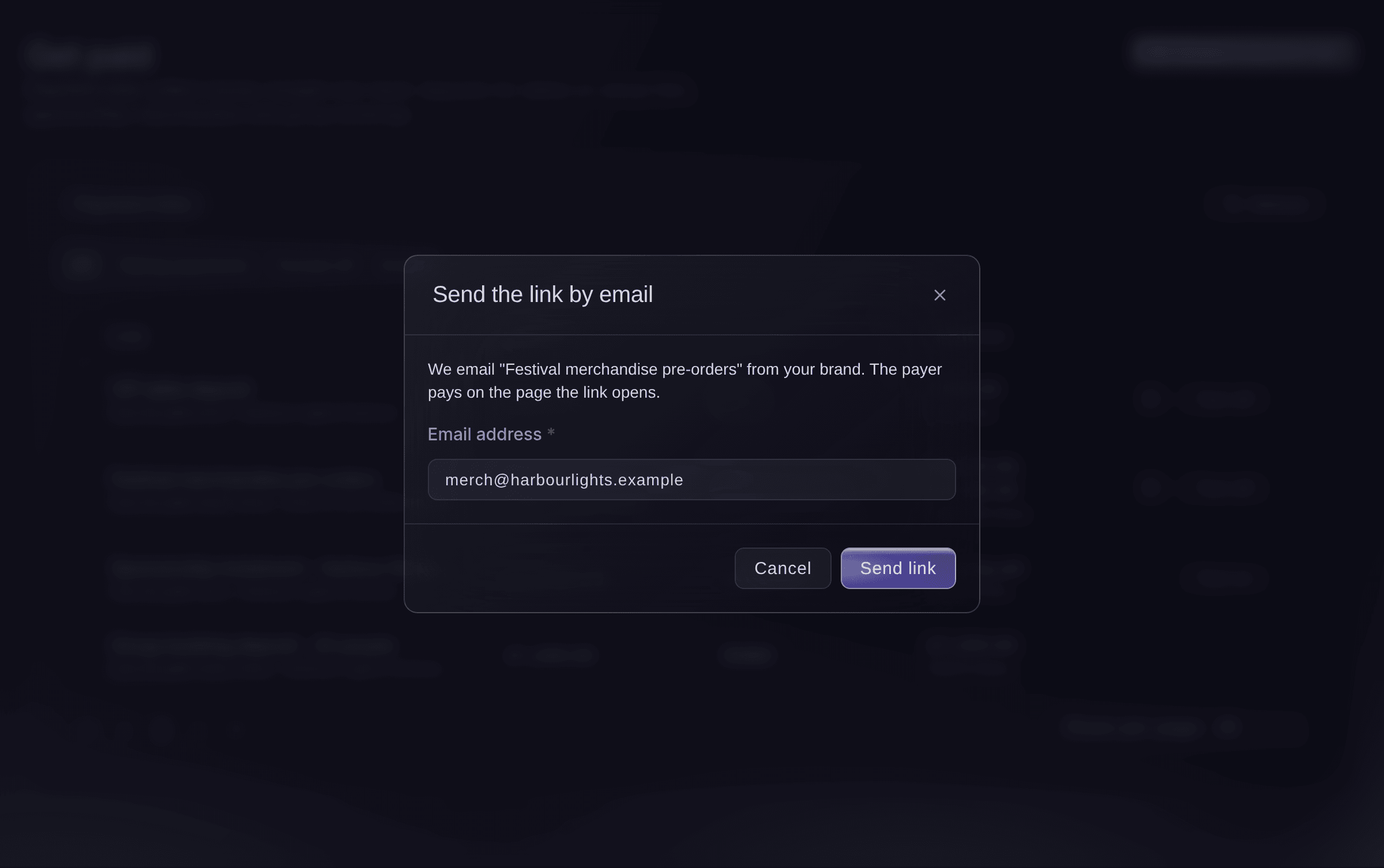
Get paid, Send the link by email. -
Enter the email address
Enter the payer's Email address, then select Send link. We email the link from your brand, and the payer pays on the page it opens.

Fai can email a payment link that is taking payments, after she shows you the link and the address and you agree.
In your dashboard, with Fai
Email the Vault payment link <LINK NAME> to <EMAIL>
Turn a payment link off or back on
-
Select Turn off
On the link's row, select Turn off, then confirm in
Turn this link off?
. People with the link can no longer pay, and the payments already made stay in your balance.Tip: Select Turn on on a link you turned off to take payments with it again.
Fai can turn a payment link off or back on after she shows you which link and you agree.
In your dashboard, with Fai
Turn off the Vault payment link <LINK NAME>, we've had enough deposits
Questions you might have
- What does the payer see?
- A payment page with your brand's name, what the payment is for, the amount or a box to enter it, and any details you added. They pay on that page, and the money reaches your Vault balance.
- What do the statuses mean?
- Taking payments means people can pay. Paid means a link that can be paid once was paid. Turned off means you turned it off, and Ended means its last day to pay has passed.
- Is it safe to share the link?
- Yes. The link opens only the payment page for that one payment, not your dashboard or anything else in Vault.
- Why are the paid counts and totals missing?
- The list loaded without the payment details, so a note above it says the paid counts and totals are missing. The links still work, and Refresh brings the figures back after a minute.
- Should I use a payment link or a Vault invoice?
- Use a payment link when the payer pays on the spot, such as a table deposit or a merchandise order. Use an invoice when a business needs an invoice with line items and a due date, as Invoice sponsors and partners for your event from Vault shows.
- Why can't I create a link?
Only a brand owner or admin can create, send or turn off payment links.
appears when your login is not an owner or admin of the brand. Ask one of them to create it.
Still have a question?
Book a demo and we will answer it on a call, on your kind of event. Or create your account and see it for yourself.
No setup fees. No required monthly ticketing fee. No credit card required.
Related guides
Do this on your own event
Create your account, build your event and follow the steps in your own dashboard. You do not need to book a sales call.