
Running the production
Give your event volunteers their own page and track their hours
Volunteer coordinators spend show week answering "what time am I on?" and "can I swap Sunday?" by text. A private page for every volunteer answers those questions without you, and the hours they work decide who has earned their free ticket.
Send each volunteer you accepted for your event a private page where they pick shifts, ask to swap or drop one, read their day sheet and the induction and add documents, then see hours given against hours worked, give the rewards people earned and download the list with every download recorded.
- For
- Looking after accepted volunteers from their first shift to their reward
- Takes
- 9 minutes
Before you start
- You need an owner, admin or producer role on the event, and an owner or admin login to give rewards, download the hours file or open a volunteer's documents.
- The volunteers are accepted, and their shifts are on the event's rota.
-
Send accepted volunteers their page
In Volunteers, select Send page links, check the email, then select Send the links.
Note: Everyone you accepted who has no working link gets one email with a private link. Nobody gets a second link while their first still works.
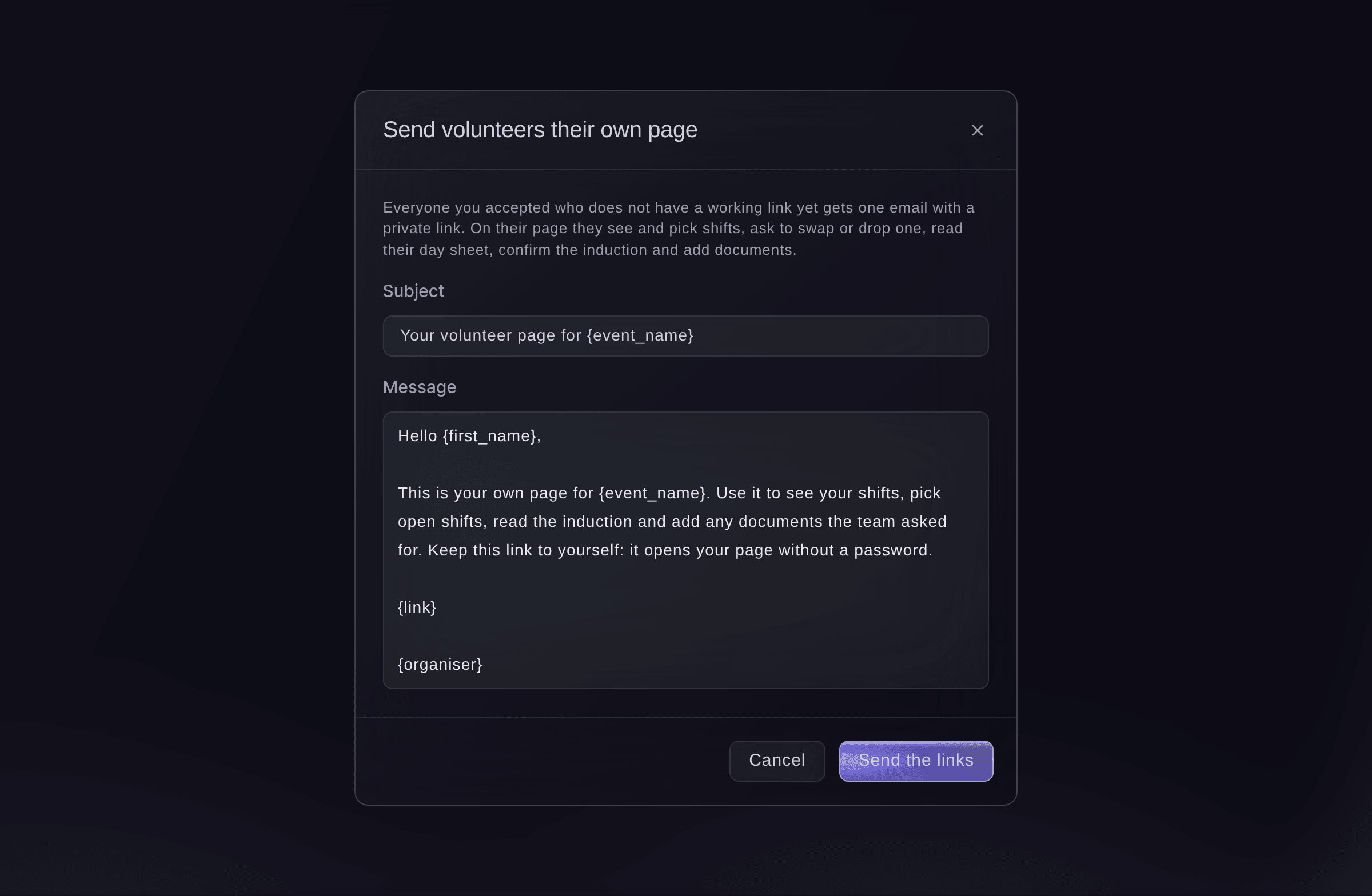
Send volunteers their own page.

The volunteer's own page
The page shows their shifts to confirm, the open shifts they can pick, their day sheet with key times and team leads, the induction to confirm and a place to add documents. They can only pick a shift that keeps your rota rules on rest and hours.

-
Answer shift requests
When the section says a volunteer asked to change a shift, select Review, then Approve or Decline each request.
Note: Approving a swap moves them to the new shift only if it has room and keeps your rota rules. If it does not, you see why and can decline it or change the rota yourself.
-
Open Hours
Select Hours. Each volunteer shows the hours given on the rota, the hours worked from check-in and check-out, their shifts and no-shows.
Note: Someone who checked in and never checked out shows No check-out and is counted to the end of the shift, for you to check.
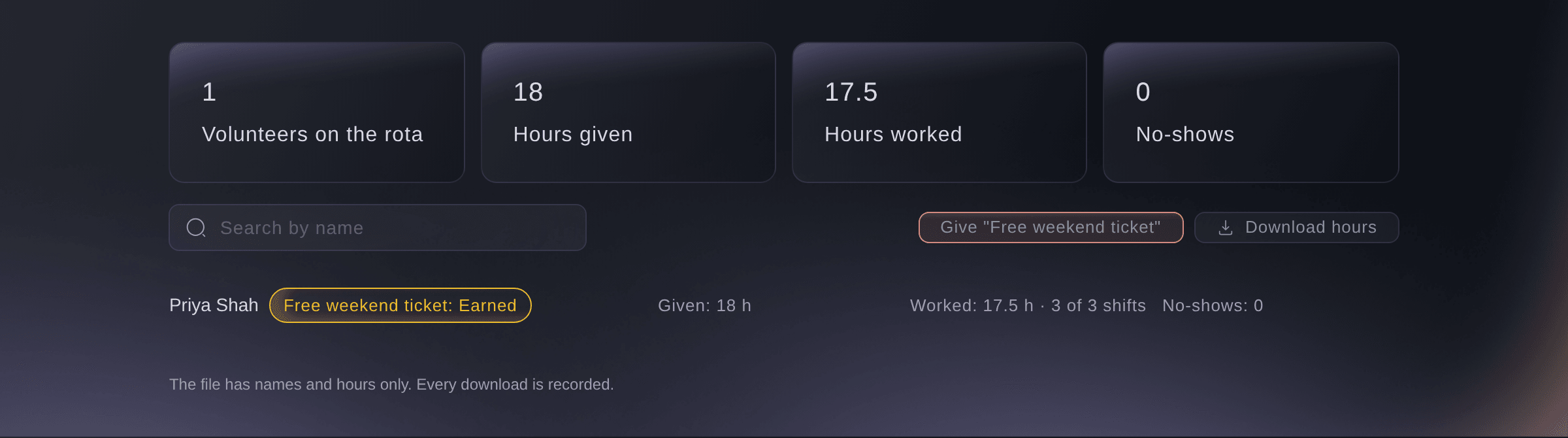
Volunteers, Hours. -
Give the rewards people earned
Select the button named after the reward, such as Give "Free weekend ticket", check who earned it, then select the button that gives the tickets.
Note: Each person gets one free ticket by email as a guest ticket, and nobody gets the same reward twice. Set rewards up under Rewards in the settings.
-
Download the hours
Optional: Select Download hours. The file has names and hours only.
Note: Every download is recorded with your name.

Try these steps on your own event
Create a free account, build your event and follow the steps above in your own dashboard. It takes a few minutes and you do not need to book a sales call.
No setup fees. No required monthly ticketing fee. No credit card required.
Or have it done for you
Fai sends volunteers their page links, answers shift requests, reads hours given and worked and gives the rewards people earned. She asks you before anything is sent, and only an owner or admin can approve rewards.
In your dashboard, with Fai
Send every accepted volunteer on <EVENT NAME> their page link, and tell me who has earned the free weekend ticket
From your terminal
Install the CLI from our CLI page, sign in with ticketfairy auth login, and choose the brand you are working on with ticketfairy brand use <BRAND_ID>. ticketfairy brand list and ticketfairy event list show the IDs the other commands use.
The CLI lists hours given and worked for each volunteer. Page links, shift requests and rewards are in the dashboard or through Fai.
List each volunteer's hours given and worked.
ticketfairy event-os volunteers list <EVENT_ID> --hours
Let Fai do it for you
Fai works inside your Ticket Fairy dashboard. Create your account, open Fai and paste the prompt above.
No setup fees. No required monthly ticketing fee. No credit card required.
Download the volunteer list
-
Download the rows the list shows
On the volunteer list, select Download CSV, choose whether to tick Include contact details and emergency contacts, then select Download.
Note: The file has the rows the list shows, up to 5,000, and the download is recorded with your name. Filter the list and download it in parts if it is longer.
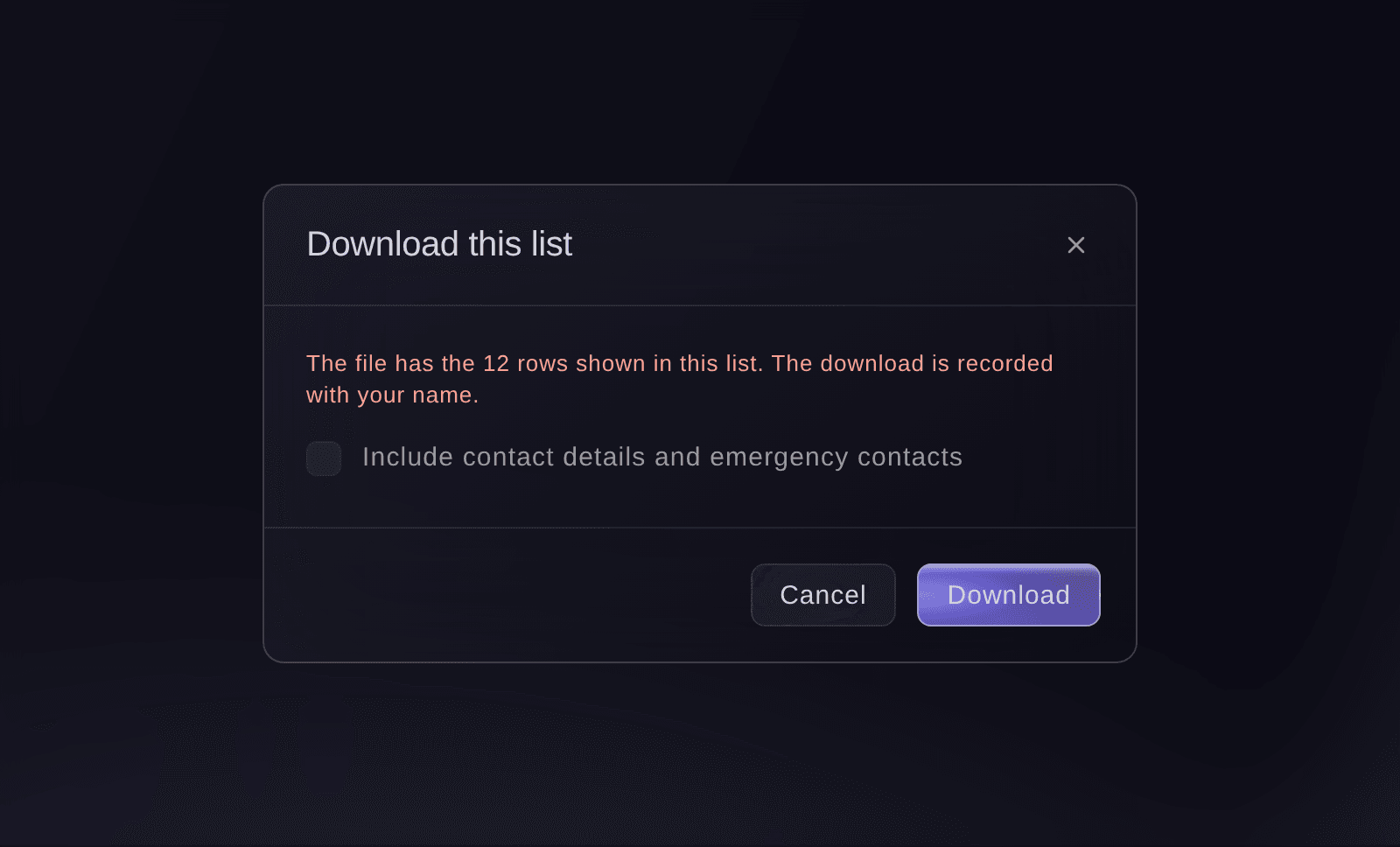
Download this list.

Download the list from the Volunteers section in the dashboard, where the download is recorded with your name.
Turn off a volunteer's link
-
Turn the link off
Open the volunteer's application and select Turn link off.
Note: To give them a fresh link later, select Make a new link and copy it straight away, as it is shown once.
Turn a volunteer's link off or make a new one from their application in the dashboard.
Questions you might have
- Can I stop volunteers picking their own shifts?
- Yes. Turn off Volunteers pick their own shifts in the settings. Their page then says the team has closed shift picking.
- What happens if a shift fills while a volunteer is picking it?
- They are told the shift has been filled and asked to choose another, and nobody is added over the number the shift needs.
- Who can open a volunteer's documents?
- Only the event's owners and admins, and every download is recorded.
- How long does a volunteer's link work?
- The page footer tells the volunteer the date their link works until. When it ends, their page asks them to ask you for a new one.
Still have a question?
Book a demo and we will answer it on a call, on your kind of event. Or create your account and see it for yourself.
No setup fees. No required monthly ticketing fee. No credit card required.
Related guides
Do this on your own event
Create your account, build your event and follow the steps in your own dashboard. You do not need to book a sales call.