
Email, SMS and marketing
Give your promoters artwork to post about your event
Festival and club promoters who sell through a team of promoters want every post to carry the right line-up, at the right size, with a link that credits the sale. Marketing Assets gives your promoters the artwork for each channel, a caption they can paste and their own promoter link on one page, so their posts sell tickets for your event and each sale is credited to the person who shared it.
Keep the flyers, videos and ready-to-paste captions for your event on its Marketing Assets page, where every promoter downloads them beside their own promoter link.
- For
- Getting your promoters posting the right artwork
- Takes
- 6 minutes
Before you start
- You need an owner or an admin login on the event to add and change its assets.
- You have the artwork as files: images, videos, PDFs or ZIP files.
-
Open the Edit tab
Open your event, select Marketing Assets under Marketing, then select the Edit tab.
Note: Marketing Assets opens on Download assets, the tab your promoters see. Only owners and admins get the Edit tab.
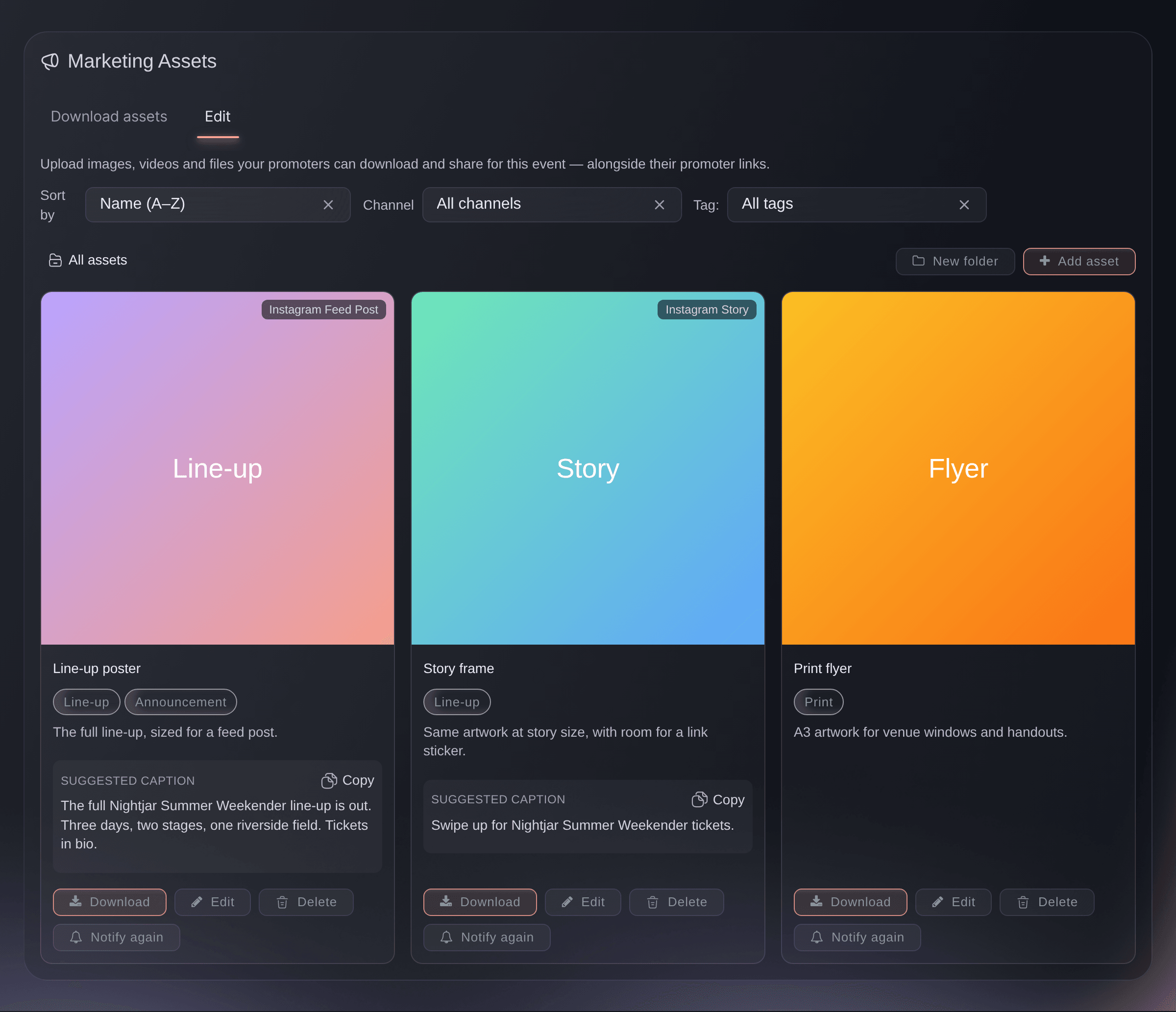
Marketing Assets, Edit tab. -
Select Add asset
Select Add asset at the top right of your assets.
Tip: Open a folder first and the new asset goes straight into it.
-
Add the file
Drag the file onto File, or click the box and choose it.
Note: Images, videos, PDFs and ZIP files are accepted.
-
Enter a name
Enter a Name your promoters will recognise, such as Line-up poster or Story frame.
Note: If you leave it empty, the card shows the file name instead.
-
Choose the channel
Choose the Channel the artwork is sized for, such as Instagram Story or Instagram Feed Post.
Note: Any Channel is the default. Any other channel shows on the asset's card, and promoters can filter the page by channel once your assets use more than one.
-
Enter a suggested caption
Enter the words you want posted with the artwork in Suggested caption.
Tip: Include the hashtags and the handles you want tagged. Promoters copy the caption exactly as you enter it, with Copy on the card.
-
Enter tips for your promoters
Optional: Enter how to use the asset in How to use it, such as Best for Instagram stories.
Note: Your promoters see it on the card, under the asset's name.
-
Add tags
Optional: Enter Tags such as vip or summer, and press Enter after each one.
Note: Promoters can filter the page by tag.
Tip: Choose a Folder in the same window to file the asset with others like it.
-
Choose when promoters see it
Optional: Choose when your promoters can see the asset.
Note: Nobody but an owner or an admin can see or download a hidden or scheduled asset, so you can load the line-up poster before the announcement.
-
Select Save
Select Save. The dashboard shows
Asset added
, and a hidden or scheduled asset is marked Hidden or Scheduled on its card. -
Select Notify promoters
Optional: Select Notify promoters on the asset's card to email your promoters that it is ready to post.
Note: The email goes to everyone with the Promoter role on this event or on your brand. The button appears once the asset is live, and reads Notify again after the first email.
-
Check the Download assets tab
Select Download assets to see the page your promoters see.
Note: It shows only live assets, with your brand library below them and Your promoter link at the top. Each team member sees their own promoter link there, and a sale through it is credited to them.
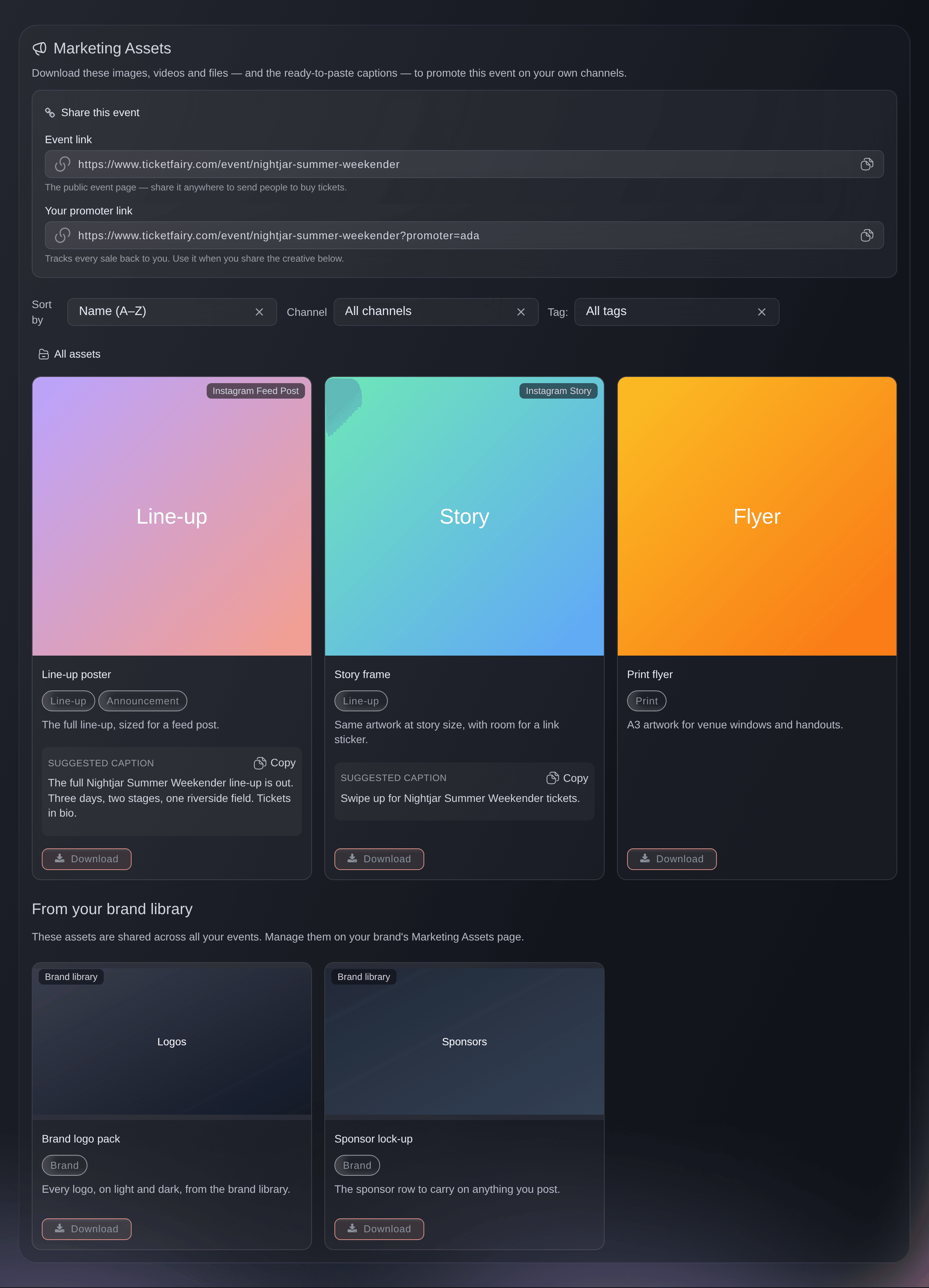
Marketing Assets, Download assets tab.


Try these steps on your own event
Create a free account, build your event and follow the steps above in your own dashboard. It takes a few minutes and you do not need to book a sales call.
No setup fees. No required monthly ticketing fee. No credit card required.
Or have it done for you
Fai, the assistant inside your dashboard, can add an asset from a link to a file that is already online, set its name, channel, caption, folder and tags, hide it or schedule when your promoters see it, email your promoters about it and tell you how often each asset has been downloaded. She asks you to approve every change before she makes it. To add a file from your computer, use Add asset in the dashboard.
In your dashboard, with Fai
Add the line-up poster at <FILE LINK> to the marketing assets for <EVENT NAME>, sized for instagram stories, with a caption our promoters can paste, and keep it hidden from promoters until <DATE AND TIME>
Let Fai do it for you
Fai works inside your Ticket Fairy dashboard. Create your account, open Fai and paste the prompt above.
No setup fees. No required monthly ticketing fee. No credit card required.
Share one set across every event
-
Open your brand's Marketing Assets page
Open your brand, select Marketing Assets, then select the Edit tab.
Note: You need an owner or an admin login on the brand for the Edit tab.
-
Add the asset
Select Add asset and fill in the window the same way as for an event, then select Save.
Note: A brand asset appears on the Download assets tab of every event under the brand, under From your brand library. You change or remove it only on the brand page.
Fai adds and changes brand assets the same way when you name the brand instead of an event, and asks you to approve each change. She needs a link to a file that is already online.
In your dashboard, with Fai
Add our logo pack at <FILE LINK> to the brand marketing assets so every event gets it
Questions you might have
- Who can download the assets?
- Your promoters and curators can, and so can anyone with a Stats, Limited Stats or Customer Support login on the event. You need an owner or an admin login to add, change, hide or remove assets.
- Can I see which promoters downloaded an asset?
- You can see how often, not who. The Edit tab shows a count such as
Downloaded 4 times
under each asset, which includes downloads by you and the rest of your team, and a brand asset's count covers every event it appears on. - Do I have to upload the event flyer?
- No. Your event's main image appears on the Download assets tab under Event flyer, ready to download, whenever the event has one.
- What is the difference between an event asset and a brand asset?
- An event asset belongs to that one event. A brand asset is added on your brand's Marketing Assets page and appears on every event under the brand, which suits logos and sponsor artwork that do not change.
- Does a sale from a promoter's post get credited to them?
- Yes, when the buyer arrives through that person's promoter link. Each team member sees their own promoter link on the Download assets tab, and the sales it brings in appear against their name under Sales by Promoter. The Event link beside it is the plain event page and credits no one.
- Can I take an asset back after promoters have downloaded it?
- Hide it or delete it and nobody can download it from the page again, but copies already downloaded stay with the promoters who took them. Deleting can't be undone, so hide an asset you may want back.
Still have a question?
Book a demo and we will answer it on a call, on your kind of event. Or create your account and see it for yourself.
No setup fees. No required monthly ticketing fee. No credit card required.
Related guides
Do this on your own event
Create your account, build your event and follow the steps in your own dashboard. You do not need to book a sales call.