
Running the production
Handle lost property at your event
Festival and venue information points take in hundreds of lost phones, keys and jackets over a weekend, and the emails from attendees keep coming for weeks. Lost property gives every item a reference, matches it against what attendees report, and keeps a record of who collected it.
Log every phone, wallet and bag handed in at your event with a photo and a reference, take lost reports from your team or from attendees on a public page, and let Fai spot the found items that may match. Hand each item back with a record of who collected it and how you checked it was theirs.
- For
- Reuniting attendees with what they lost at your event
- Takes
- 9 minutes
Before you start
- You are an owner, admin or producer on the event. The event's Management page opens for those roles only.
-
Open Lost property
Open the event, select Management, then select Lost property in the list of sections.
Note: If Lost property is not in the list, select More sections and open it there. Handed in lists everything kept, with its reference.
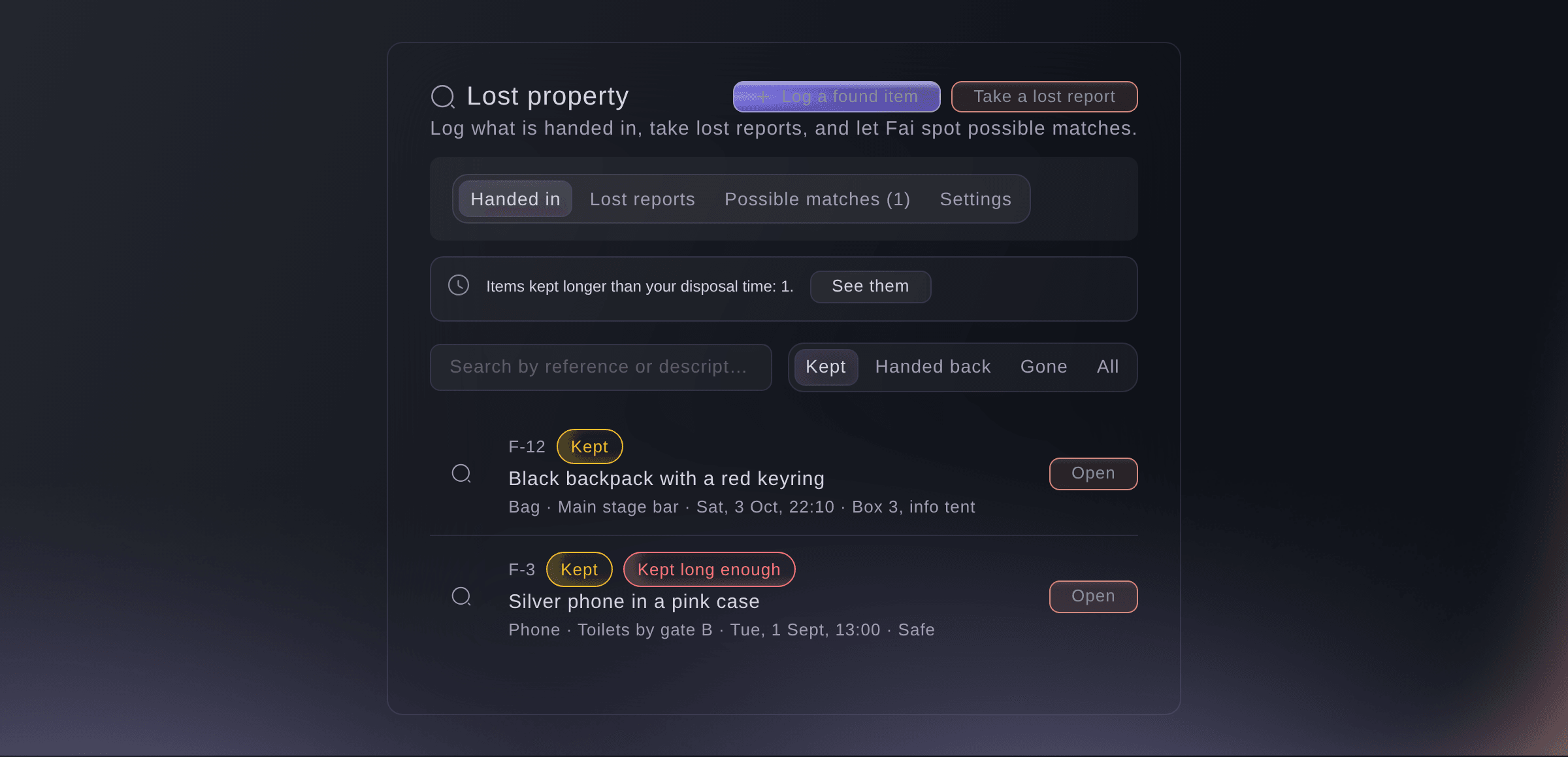
Lost property. -
Log what is handed in
Select Log a found item, enter What was handed in?, Where was it found? and Where is it kept?, then select Log it.
Note: Select Add a photo to help the owner recognise it. The item gets a reference such as F-12 to put on its label.
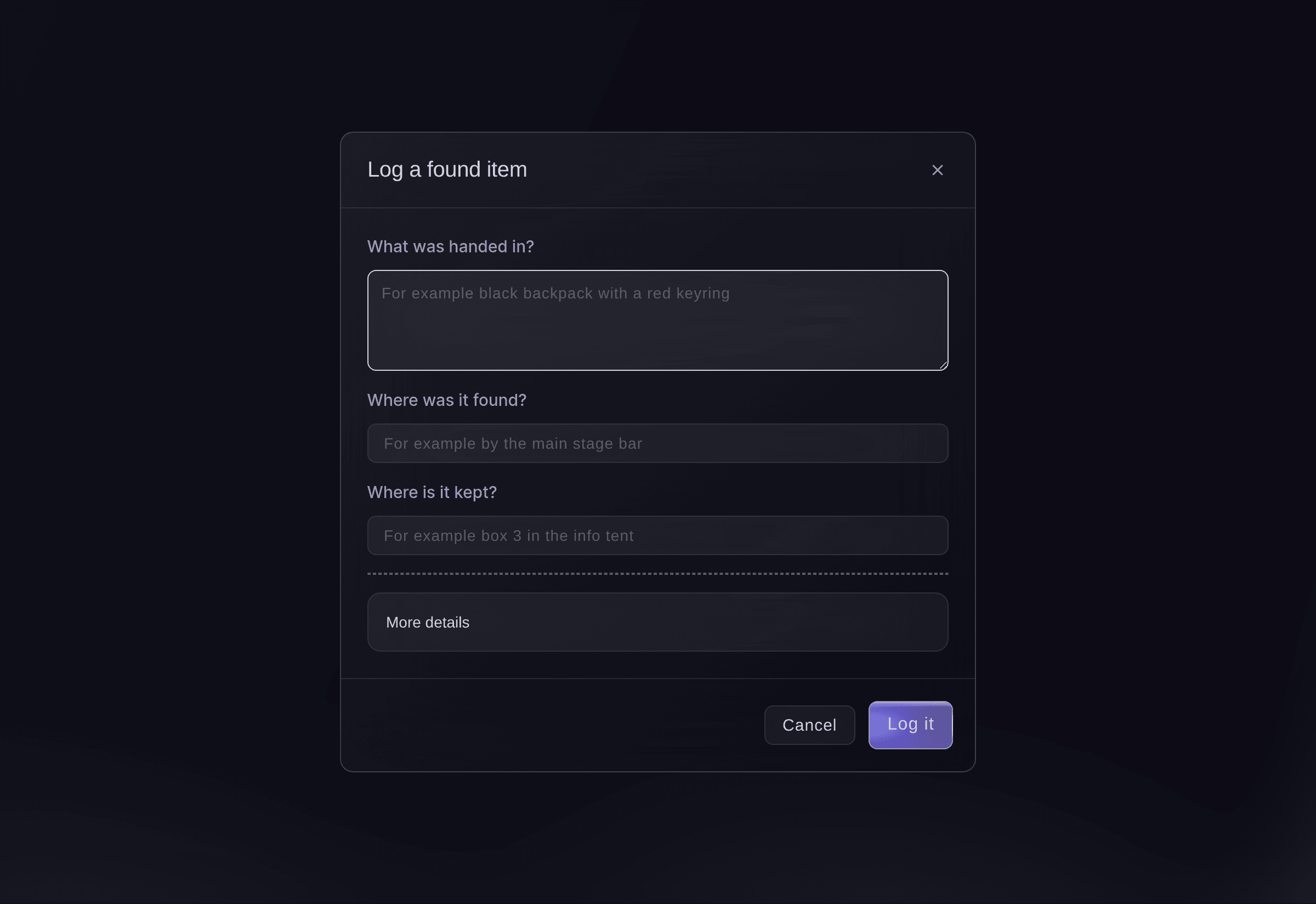
Log a found item. -
Take a lost report
Select Take a lost report, enter What was lost? and how to reach the owner, then select Save the report.
Note: Give the owner the reference, such as L-7, so they can quote it when they collect their item.
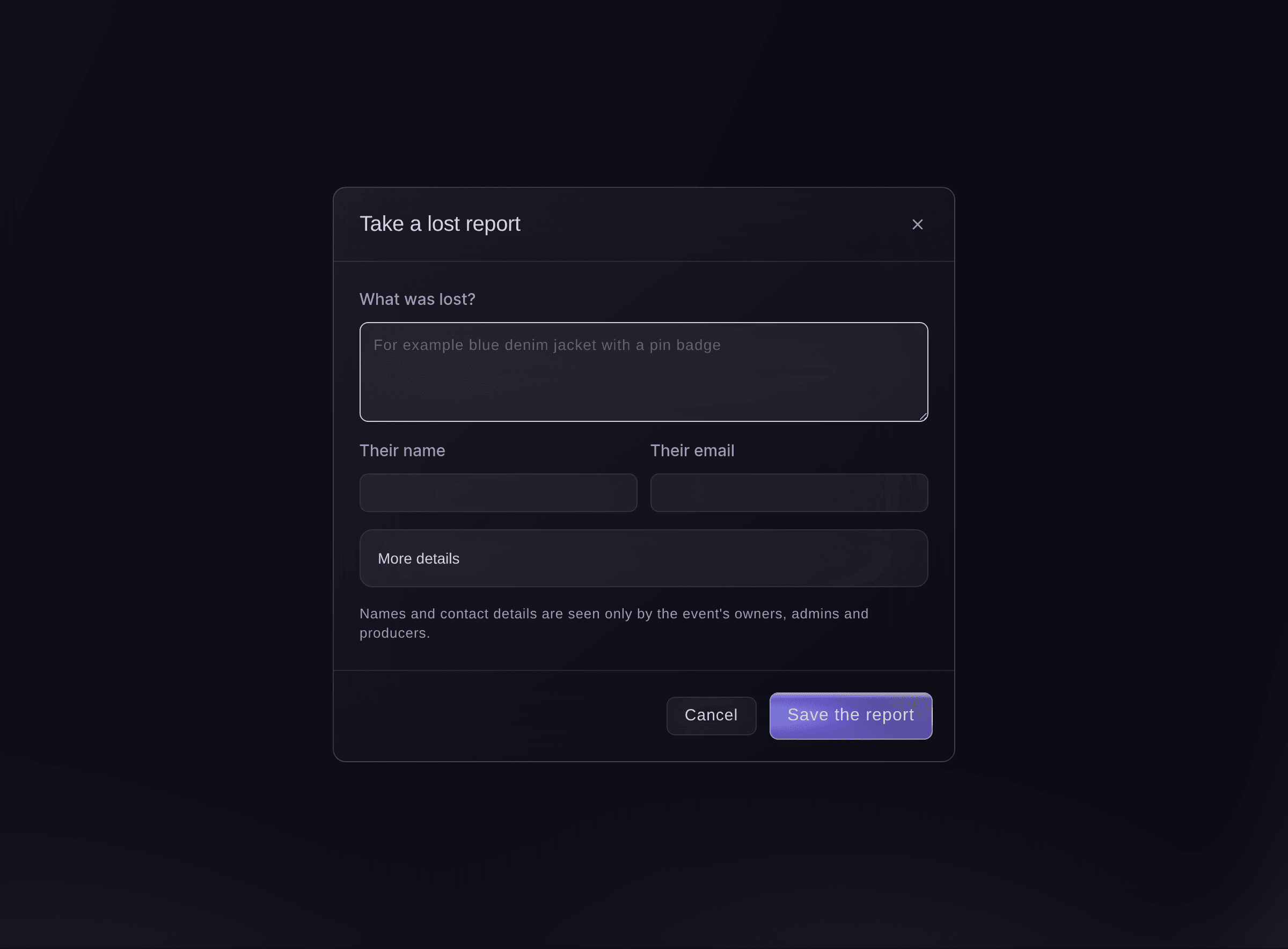
Take a lost report. -
Turn on the public report page
Optional: select Settings, turn on Public “Report something lost” page, then select Copy link.
Note: Attendees report what they lost without signing in, and their reports appear under Lost reports. Share the link on your event page, in emails or on a QR code on site.
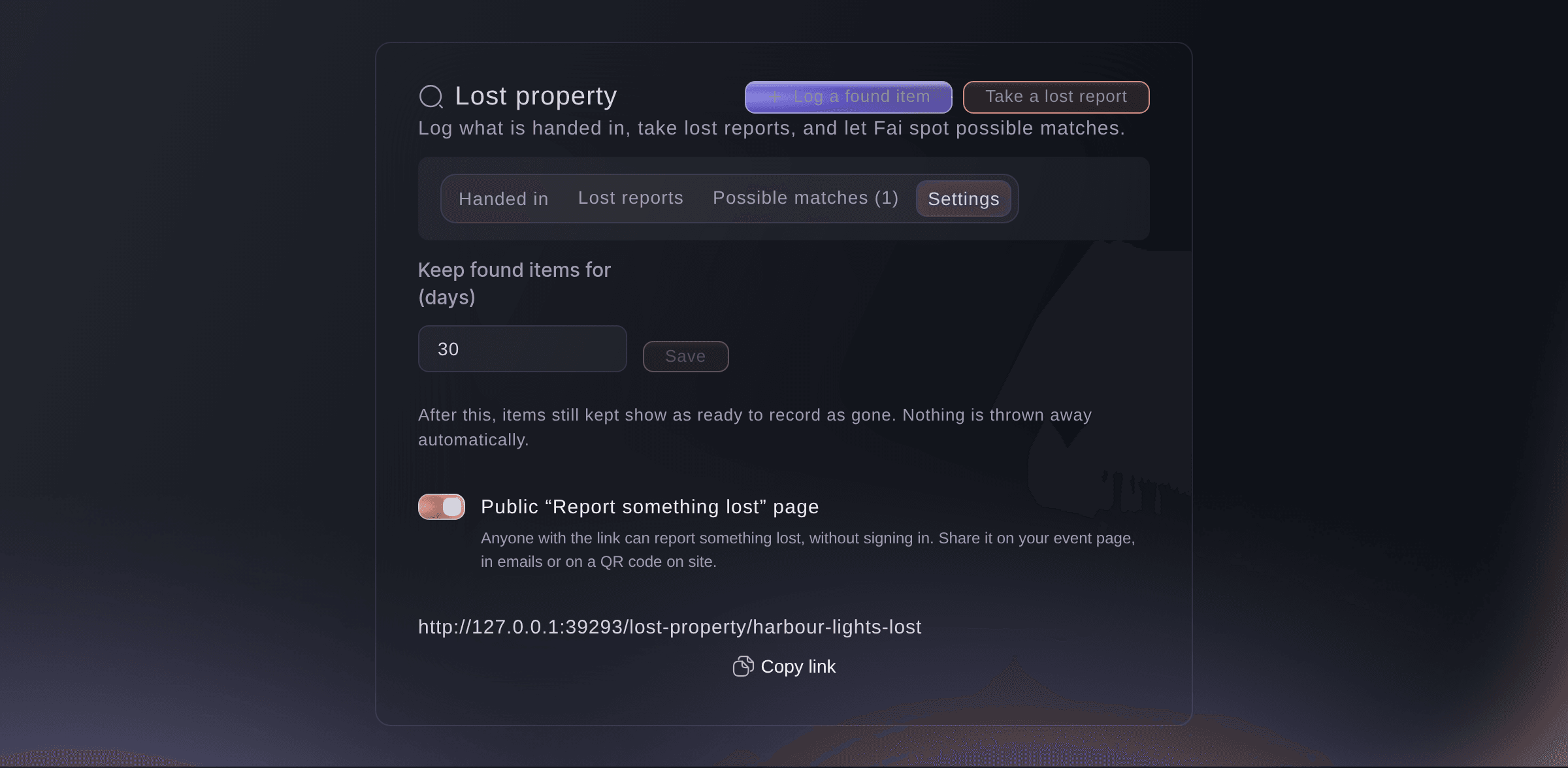
Lost property settings. -
Check Fai's possible matches
Select Possible matches, compare each found item with the lost report, then select It's a match or Not a match.
Note: Fai compares the words, the kind of thing and the place in every report and found item, and says why she thinks they match. When the owner left an email address, she drafts an email telling them, and you approve it on Today before it is sent.
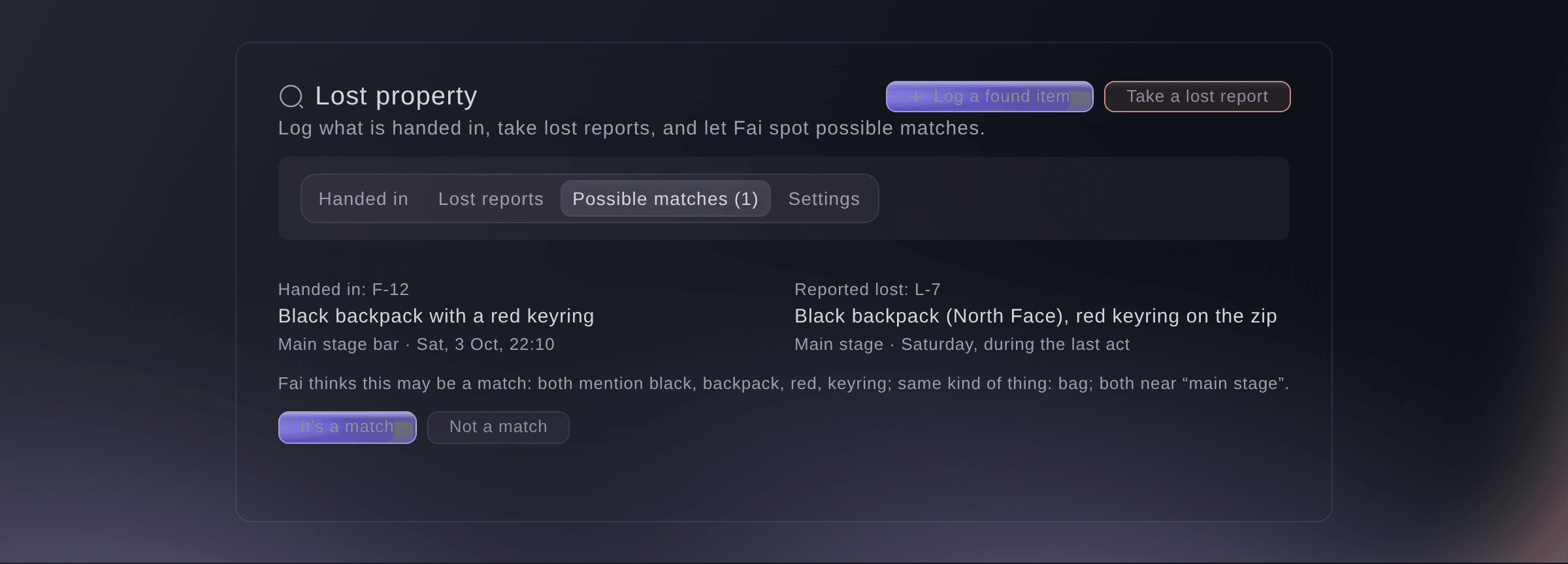
A possible match. -
Hand the item back
Open the found item, select Hand back, enter Who is collecting it? and How did you check it is theirs?, then select Hand it back.
Note: Ask for the reference and photo ID, or a description only the owner would know. The item then shows as Handed back.
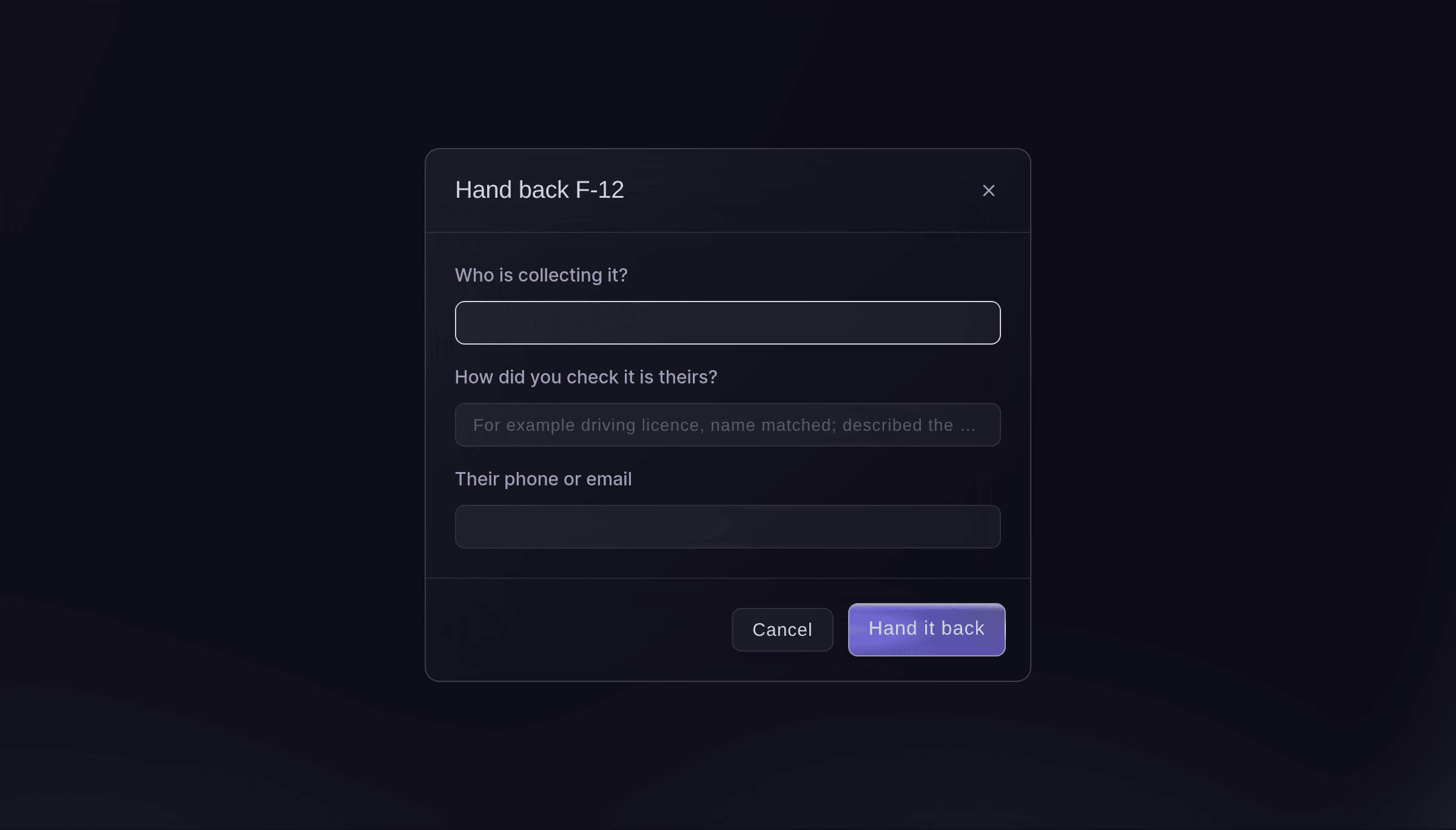
Hand an item back.


Try these steps on your own event
Create a free account, build your event and follow the steps above in your own dashboard. It takes a few minutes and you do not need to book a sales call.
No setup fees. No required monthly ticketing fee. No credit card required.
Or have it done for you
Fai reads what has been handed in, the lost reports and her possible matches, logs a found item or a lost report, hands an item back with a note of how you checked it was theirs, records an item as gone or undoes it, confirms or dismisses a match, and changes the settings. She shows you each change and waits for your yes first. Any member of your event's team can ask Fai to log an item, take a report or hand an item back.
In your dashboard, with Fai
Log a found item at <EVENT NAME>: black backpack with a red keyring, found by the main stage bar, kept in box 3 at the info tent
Let Fai do it for you
Fai works inside your Ticket Fairy dashboard. Create your account, open Fai and paste the prompt above.
No setup fees. No required monthly ticketing fee. No credit card required.
Record items as gone
-
Record them
When the list says items were kept longer than your disposal time, select See them, select the record button, enter What happened to it?, then select Record it.
Note: Nothing is thrown away or deleted by itself. Select Undo and keep it again on an item recorded by mistake.
Fai records items as gone, or keeps one again, when you ask, after you confirm.
In your dashboard, with Fai
Record the unclaimed items at <EVENT NAME> as donated to charity
Questions you might have
- Who can see the owner's and finder's details?
- Only the event's owners, admins and producers, and every time someone opens them it is recorded. The details stay with the item or report, so you can always see who handed an item in and who collected it.
- Can my information point team log items without the Management page?
- Yes. Any member of your event's team can ask Fai to log a found item, take a lost report or hand an item back, and Fai waits for their yes first.
- How long do we keep found items?
- Set Keep found items for (days) in Settings. After that, items still kept show as ready to record as gone.
- Can I link a lost item to an incident?
- Yes. In an incident, select Lost or found item? to log it as found or take a lost report linked to that incident.
Still have a question?
Book a demo and we will answer it on a call, on your kind of event. Or create your account and see it for yourself.
No setup fees. No required monthly ticketing fee. No credit card required.
Related guides
Do this on your own event
Create your account, build your event and follow the steps in your own dashboard. You do not need to book a sales call.