
Vault and Capital
Issue Vault cards to your whole event crew at once
Festival production managers and touring promoters hand out spending money to a crew of runners, buyers and stage managers for every show. Issuing Vault cards to the whole crew at once gives each person their own card with the same limits and dates for the event, so nobody shares a card or waits to be paid back.
Give up to 50 people on your event crew a virtual Vault card each in one go, with one set of controls, the event linked and a name on every card, then see which cards were issued.
- For
- Giving your event crew their own spending cards
- Takes
- 5 minutes
Before you start
- You're an owner or an admin on the brand. Only owners and admins can issue cards.
- Your brand has an active Vault account.
- Everyone who gets a card is already a cardholder, as Let your event team spend with Vault cards shows.
- You have your second factor to hand. Vault may ask you to confirm it's you while it issues the cards.
-
Select Issue several cards
Open Vault, select Cards, then select Issue several cards above the list.
Vault, Cards, Issue several cards. -
Choose who gets a card
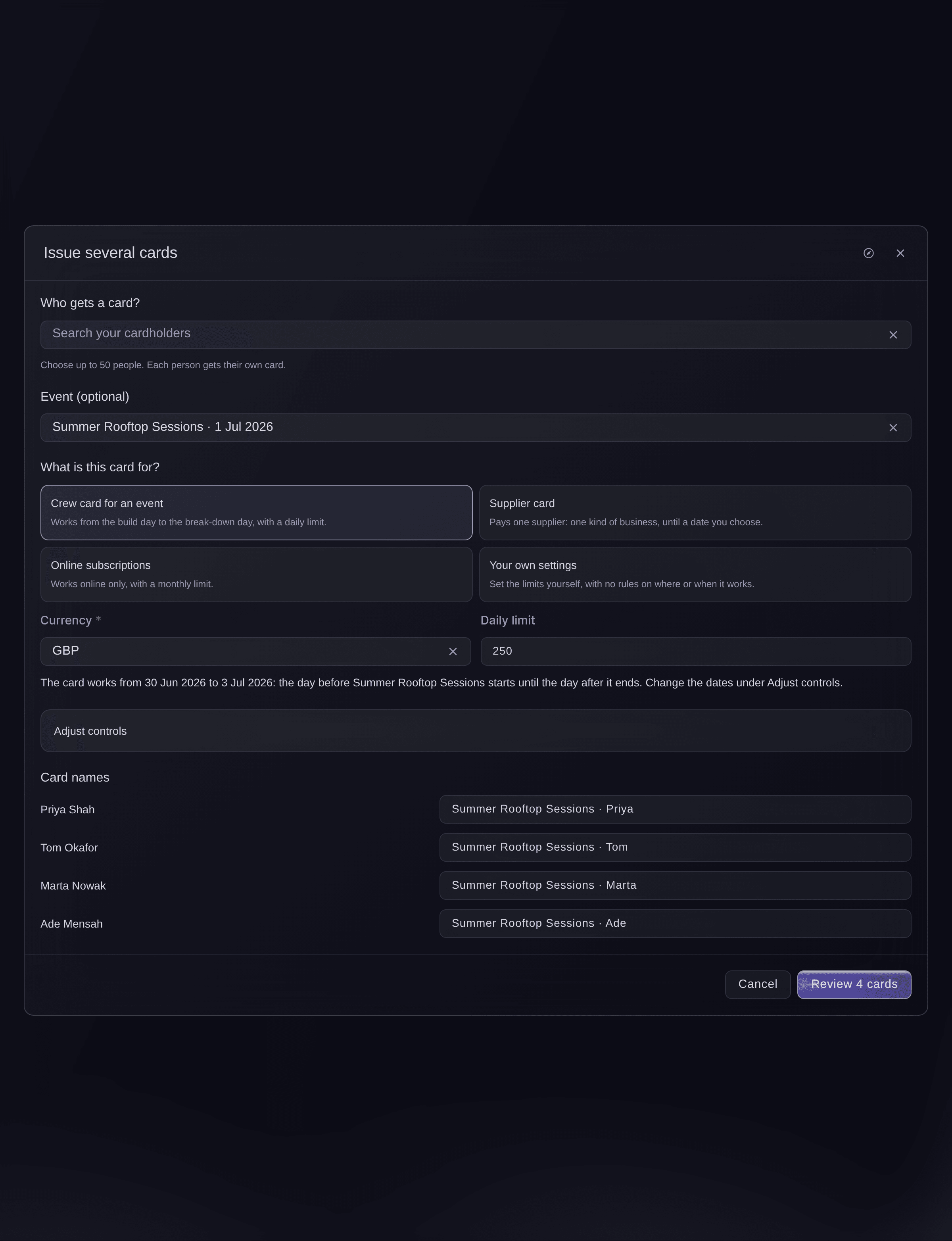
Under Who gets a card?, search for each person and choose them, up to 50. Each person gets their own card.
-
Choose the event
Optional: Choose the event the cards are for in Event (optional).
-
Choose what the cards are for
Under What is this card for?, choose Crew card for an event or another match, then enter its limit.
Note: Every card in this set gets the same controls. Open Adjust controls to change the dates, ways to pay or where the cards work.
-
Check the card names
Under Card names, check the name we suggest for each card and change any of them.
-
Review the cards
Select the button at the foot of the window that reviews the cards, which says how many there are. The review lists each card with its controls and the event.
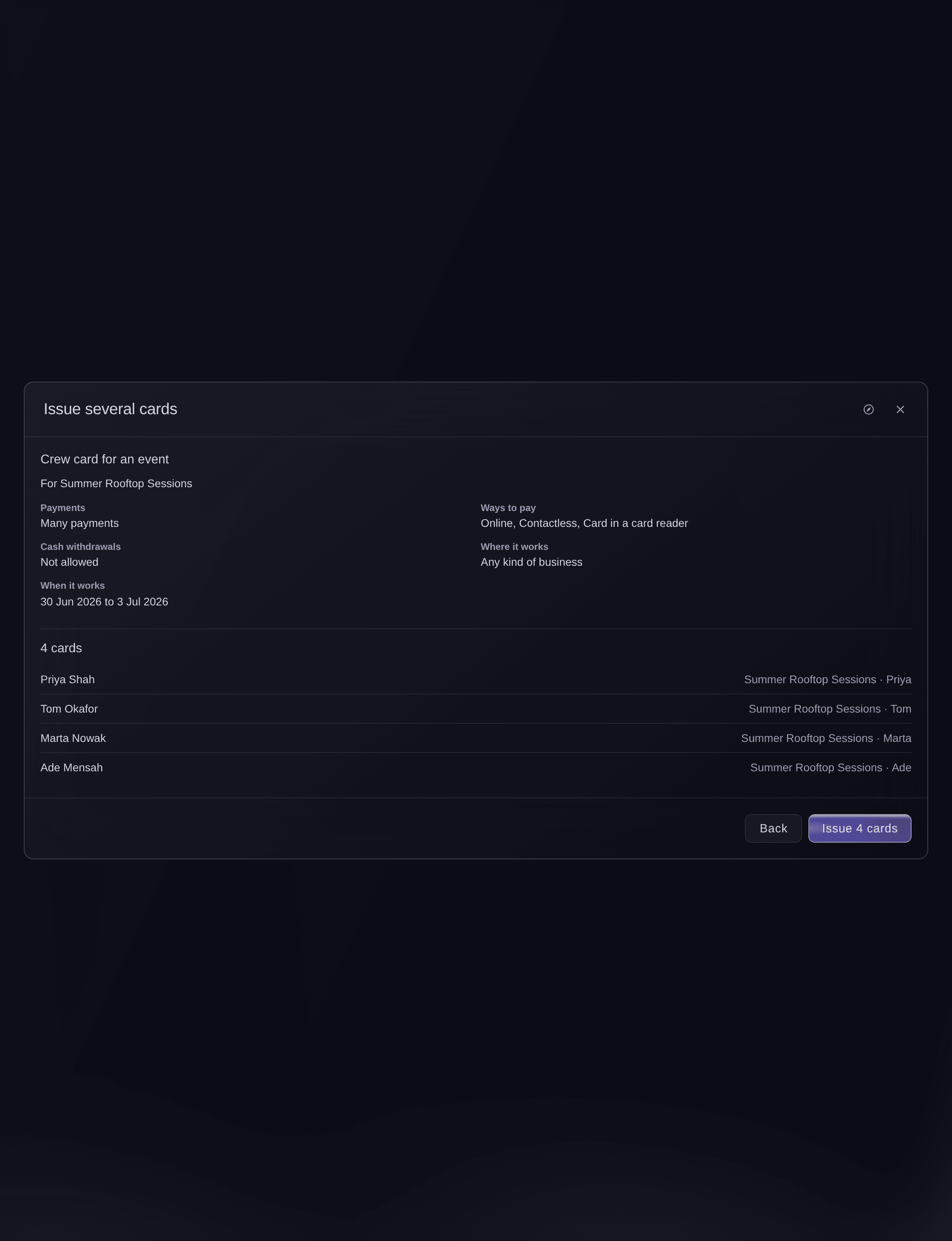
Issue several cards, the review. -
Issue the cards
Select the button that issues the cards, and confirm it's you if Vault asks. Each card shows Issued as it is made.
Note: If Vault stops to check it's you part way, the cards issued so far stay issued. Select Carry on issuing to issue the rest.
-
Check which cards were issued
Each person in the results has one of these.

Issue several cards, the results.


Try these steps on your own event
Create a free account, build your event and follow the steps above in your own dashboard. It takes a few minutes and you do not need to book a sales call.
No setup fees. No required monthly ticketing fee. No credit card required.
Or have it done for you
Fai, the assistant inside your dashboard, can issue up to 50 virtual cards to cardholders you have already added, with one preset, limits and the event. She shows you every card and its controls and asks before she issues them. MCP and the command line have no command for this.
In your dashboard, with Fai
Issue virtual crew cards for <EVENT NAME> to <CARDHOLDER NAME>, <CARDHOLDER NAME> and <CARDHOLDER NAME>, with a daily limit of <AMOUNT>
Let Fai do it for you
Fai works inside your Ticket Fairy dashboard. Create your account, open Fai and paste the prompt above.
No setup fees. No required monthly ticketing fee. No credit card required.
Questions you might have
- Can I retry the cards that weren't issued?
- Yes. The results offer a button that tries the cards that weren't issued again, and Vault never issues a second card to someone who already got one from this set.
- What does We're checking which cards were issued mean?
- Vault didn't get a clear answer, so some cards may already be issued. Select Check again to finish the same set before you change it.
- Can I issue physical cards this way?
- No. Issue several cards makes virtual cards. Issue a physical card to one person at a time with Create card.
- How many cards can I issue at once?
- Up to 50.
You've issued a lot of cards in the last hour. Try again later.
appears if you issue many sets in a short time. - What do I check when Vault asks me to confirm it's me?
- You are approving at the top of the check says Create cards with the number of cards. Continue only if they match what you want to do.
Still have a question?
Book a demo and we will answer it on a call, on your kind of event. Or create your account and see it for yourself.
No setup fees. No required monthly ticketing fee. No credit card required.
Related guides
Do this on your own event
Create your account, build your event and follow the steps in your own dashboard. You do not need to book a sales call.