
At the door
Assign wristbands to each ticket type
Festival and multi-day event teams hand out a different wristband for weekend, VIP, day and camping tickets, and the wrong band at the gate lets an attendee into an area they did not pay for. Setting the bands up against your ticket types before doors means your door team sees which band to fasten on as each ticket scans.
Match each ticket type and add-on to the wristband or badge its holder gets, so the scanning app shows your door team the right band as each ticket is scanned.
- For
- Handing out the right wristband or badge for every ticket at the gate
- Takes
- 6 minutes
- Open Credentials
- Start a new credential
- Enter the band's name
- Choose a wristband or a badge
- Select the ticket types that get this band
- Select add-ons for a band that follows them
- Add the band's artwork
- Save the credential
- Add a credential for every other band
- Check the band on a test scan
- Undo the test scans
- Cancel the test tickets
Before you start
- You're an owner or an admin for the event. If you can't see Credentials in the event menu, ask an owner or an admin to do this part.
- The ticket types and any add-ons that decide who gets which band already exist on the event.
- You have the artwork for each band as an image file, such as the file your wristband printer works from.
-
Open Credentials
Open your event and select Credentials. A credential is one wristband or badge design and the tickets that get it, and a new event starts with none.
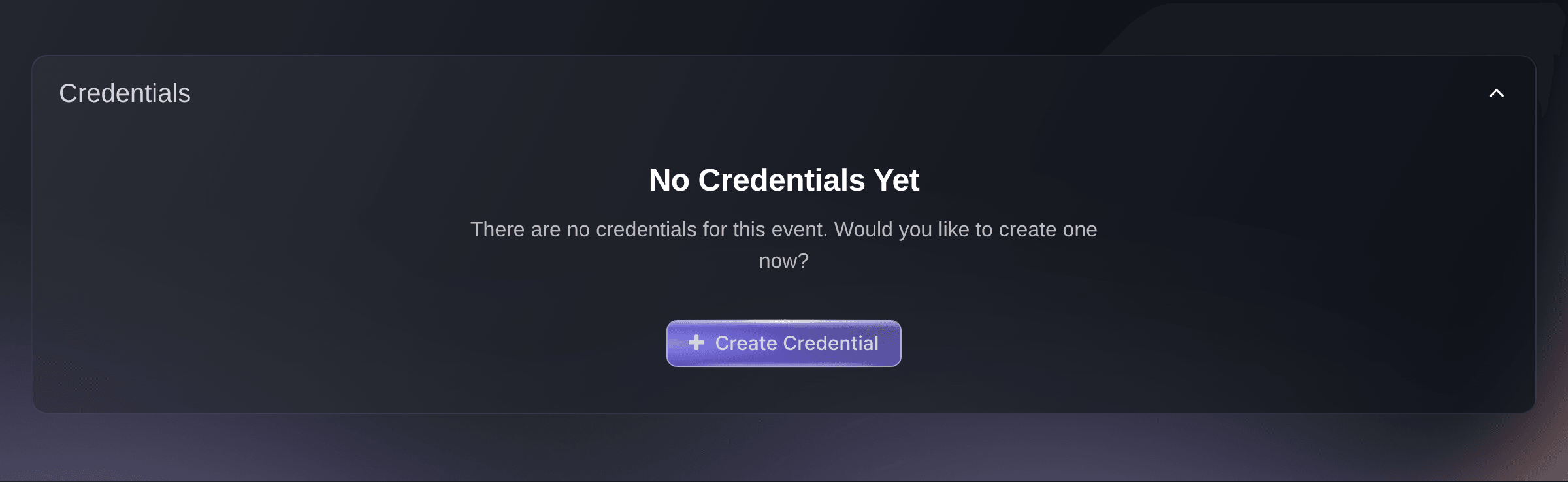
Event, Credentials. -
Start a new credential
Select Create Credential. The Create Credential dialog opens.
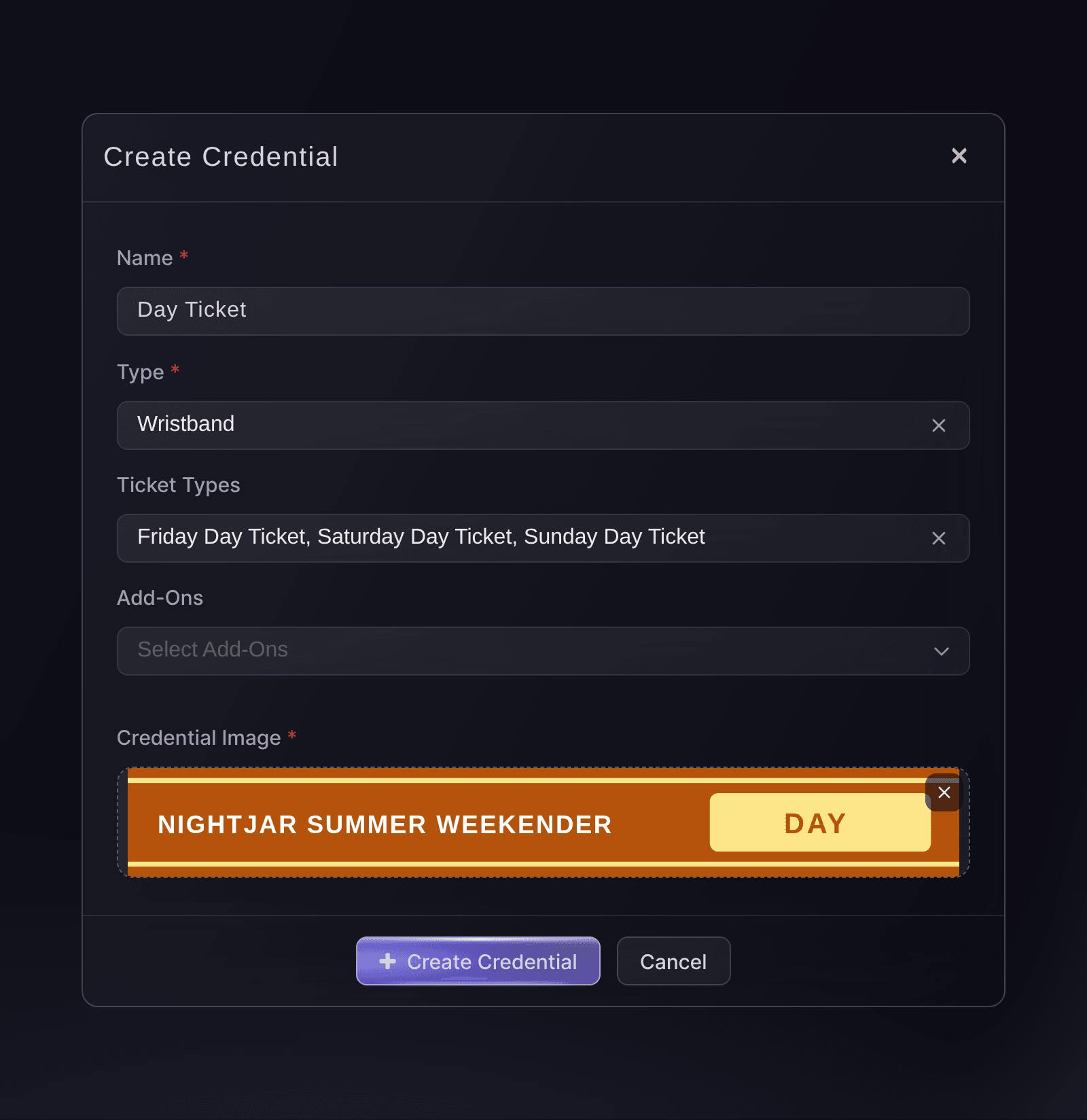
Event, Credentials, Create Credential. -
Enter the band's name
Enter the name your door team uses for the band in Name, such as VIP, Day Ticket or Campsite.
-
Choose a wristband or a badge
Choose what your door team gives the attendee in Type.
Note: Both types are matched to tickets in the same way. The type tells your door team which of the two to give out.
-
Select the ticket types that get this band
Select every ticket type whose holders get this band in Ticket Types. One band can cover several ticket types, such as one day band for Friday, Saturday and Sunday tickets.
Note: A ticket type can be on more than one credential. A ticket that matches two credentials shows both bands when it scans.
-
Select add-ons for a band that follows them
If a band goes with an add-on, such as a campsite band for camping, select those add-ons in Add-Ons.
Note: If you choose ticket types and add-ons on one credential, only a ticket of one of those types that also carries one of those add-ons gets the band. For a band every camper gets whatever their ticket, choose the camping add-ons and leave Ticket Types empty.
-
Add the band's artwork
Drop the artwork file on Credential Image, or select it to choose the file from your computer.
Tip: Use the file your wristband printer works from, so the picture your door team sees matches the band in their hands.
-
Save the credential
Select Create Credential at the bottom of the dialog. The credential joins the list with a Code that Ticket Fairy gives it.
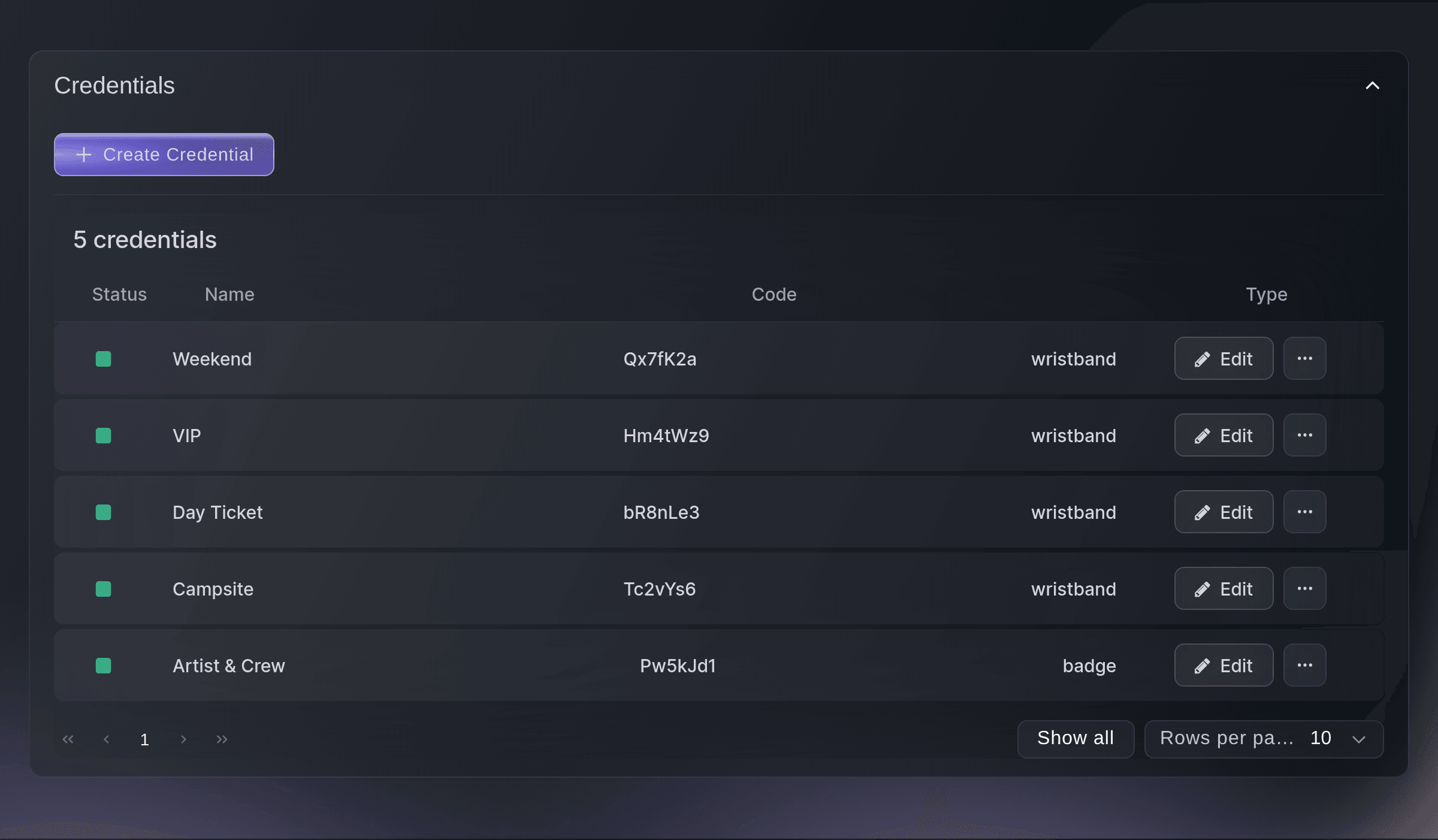
Event, Credentials. -
Add a credential for every other band
Repeat from step 2 for each other wristband or badge, so every ticket type that needs a band has one.
-
Check the band on a test scan
Before doors, send yourself one ticket of each ticket type from Guest Tickets. Scan each one in the scanning app and check the band your door team sees for it.
Note: A band shows when a ticket scans as valid and when a ticket that is already in is scanned again. A refunded or cancelled ticket shows no band, because the app refuses it.
-
Undo the test scans
Open Individual Tickets on the event's Check-In page and select Unscan ticket on each test ticket, so your check-in counts start at zero.
-
Cancel the test tickets
Open Orders, select the Guest tab and select Cancel in the row menu of each test order. The test tickets stop working at the door and go back into the stock of their ticket types.


Try these steps on your own event
Create a free account, build your event and follow the steps above in your own dashboard. It takes a few minutes and you do not need to book a sales call.
No setup fees. No required monthly ticketing fee. No credit card required.
Change which tickets get a band
Select Edit on the credential's row, change Ticket Types or Add-Ons, then select Save Credential. The next scan of each ticket shows the band the new choice gives it.
Fai, the MCP server and the command line have no credential tools, so change a credential on the Credentials page.
Stop handing out a band for now
Open the menu at the end of the credential's row, select Deactivate and confirm. The band stops showing on scans and the credential stays in the list with a red marker, so select Activate in the same menu to bring it back.
Fai, the MCP server and the command line have no credential tools, so deactivate or activate a credential on the Credentials page.
Remove a band
Open the menu at the end of the credential's row, select Delete and confirm. The credential leaves the list and no ticket shows that band on a scan.
Warning: The list has no way to bring a deleted credential back. Deactivate it instead if you might use the band again.
Fai, the MCP server and the command line have no credential tools, so delete a credential on the Credentials page.
Questions you might have
- What happens when one ticket matches two credentials?
- The ticket shows both bands when it scans. That suits a VIP ticket holder who has also bought camping and gets a VIP band and a campsite band. If a ticket should only get one band, keep its ticket type on one credential.
- Why does no ticket get my band?
- A credential gives its band only to tickets that match what you chose on it. Check that it has at least one ticket type or add-on chosen, that it is active in the list, and, where you chose both ticket types and add-ons, that the ticket carries one of those add-ons. A band chosen by add-on follows only an add-on that is still active on that ticket.
- What is the Code on each credential?
- A short reference Ticket Fairy gives each credential when you create it. You can change it in Edit Credential, for example to match the reference on your wristband order. Which tickets get the band comes from the ticket types and add-ons you choose, not from the code.
- Is the Credential ID on Individual Tickets the same thing?
- No. That column shows the ID of a physical wristband or tag linked to that ticket, which cashless payments use, and Not Linked where there is none. The credentials on this page decide which band design a ticket gets.
- Do my credentials copy when I duplicate the event?
- Yes, if you turn on Credentials in the Duplicate Event dialog. Active credentials copy with the ticket types they cover, matched to the new event's copies of those ticket types. Deactivated credentials do not copy.
Still have a question?
Book a demo and we will answer it on a call, on your kind of event. Or create your account and see it for yourself.
No setup fees. No required monthly ticketing fee. No credit card required.
Related guides
Do this on your own event
Create your account, build your event and follow the steps in your own dashboard. You do not need to book a sales call.