
Running the production
Keep rider lists and notes for your event's artists
Promoters and production managers work through dozens of rider lines per artist, from backline to towels to the car from the airport. Keeping each line and the team's notes on the artist's own page means whoever is on shift can see what is still to do.
List what each artist's rider asks for, tick each item off as it is sorted, and keep your team's notes on the artist in the same place, so every rider is sorted before your event.
- For
- Getting every artist's rider sorted before show day
- Takes
- 6 minutes
Before you start
- You are an owner, admin or producer on the event.
- The artist is on the event's line-up.
-
Open the artist's rider
Open the event, select Management, select Artists in the list of sections, select the artist, then select Hospitality Rider. The rider items are under Requirements.
Note: Technical Requirements and Catering work the same way for the stage and food lines of the rider. A conference calls artists speakers, and the page works the same way.
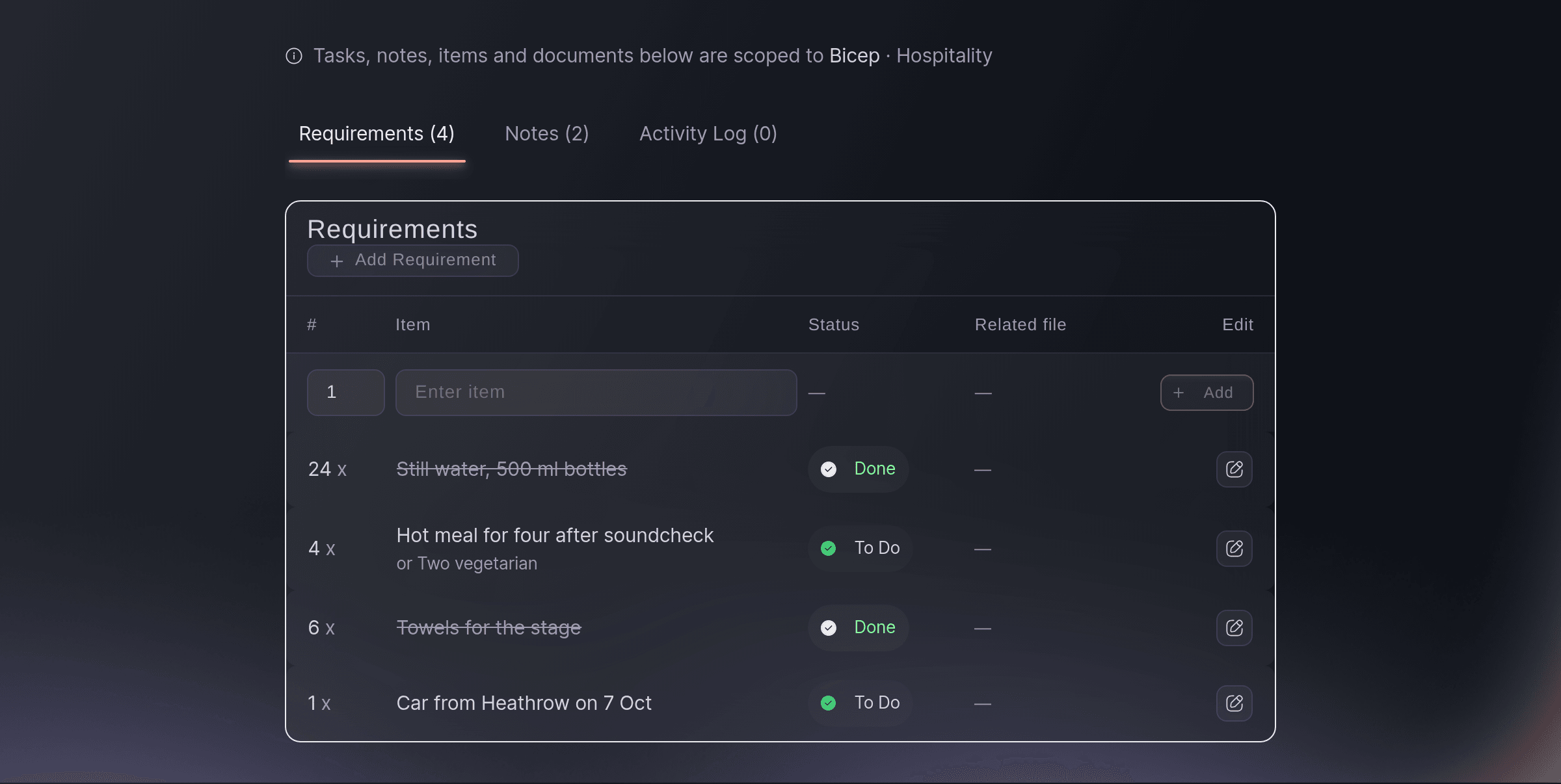
An artist's hospitality rider, item by item. -
Add each rider item
Select Add Requirement, enter how many in the number field, enter the item in Enter item, then select Add.
Note: Once you enter an item, a second field appears for an alternative the artist accepts, such as "or Two vegetarian". Each new item starts as To Do.
-
Tick an item off when it is sorted
Select the item's status and choose Done.
Note: A done item is struck through, so the lines still To Do stand out. Choose To Do again if it comes undone.
-
Add a note for the team
Select Notes, enter it under New note, then select Add note.
Note: Every note shows who added it and when, and your teammates see it straight away. Use the pencil beside a note to change it.
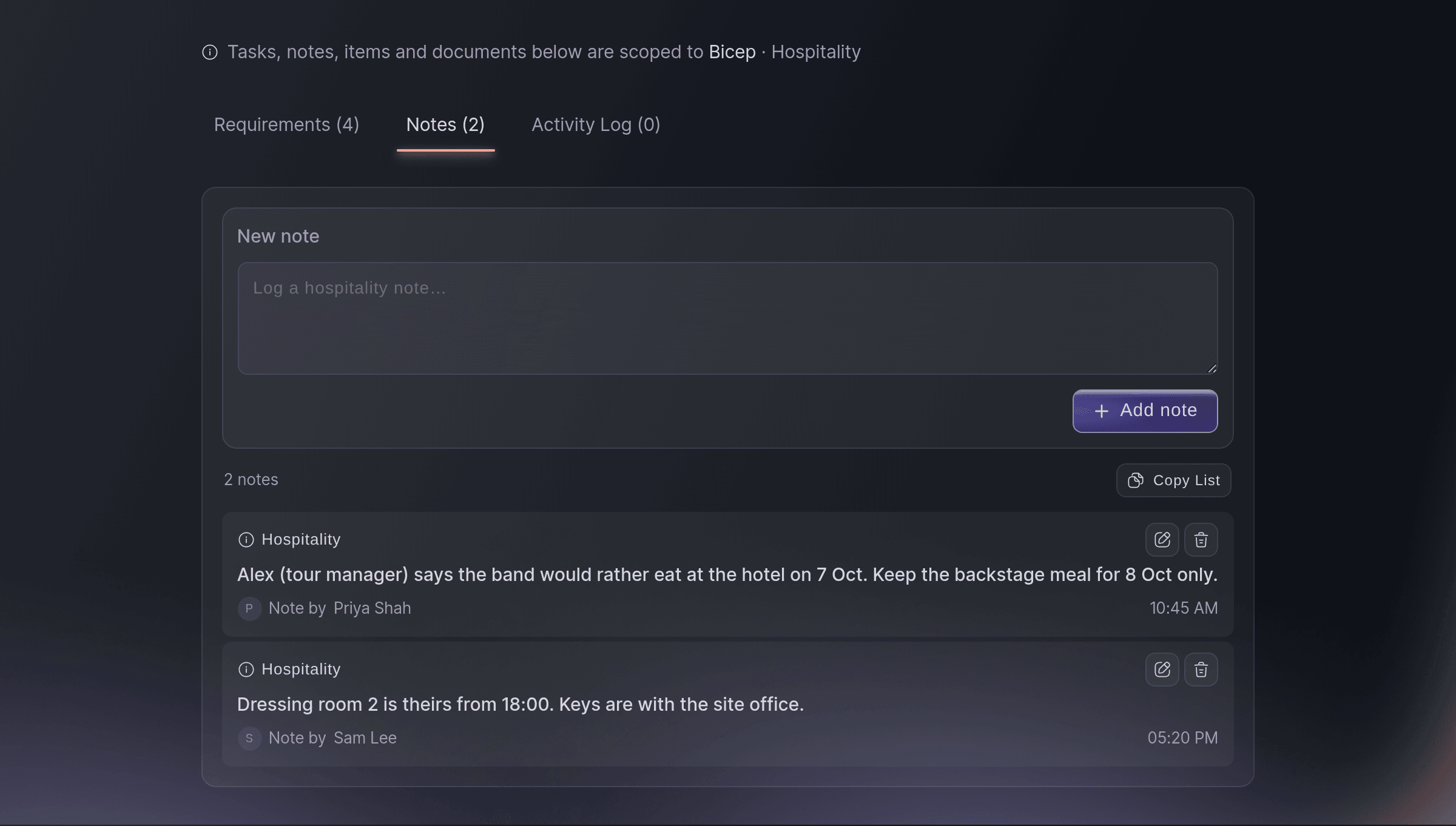
The team's notes on the same artist.

Try these steps on your own event
Create a free account, build your event and follow the steps above in your own dashboard. It takes a few minutes and you do not need to book a sales call.
No setup fees. No required monthly ticketing fee. No credit card required.
Or have it done for you
Fai reads an artist's rider items and notes, adds or ticks off items and adds notes when you ask. She shows you each change and waits for your yes first.
In your dashboard, with Fai
Add "Car from Heathrow on 7 Oct" to Bicep's hospitality rider for <EVENT NAME>, and tell me what on their rider is still to do
Let Fai do it for you
Fai works inside your Ticket Fairy dashboard. Create your account, open Fai and paste the prompt above.
No setup fees. No required monthly ticketing fee. No credit card required.
Add a day to the schedule
-
Add the day and its hours
On Schedule & Timeline, select Add Event Day, choose the Date, set the Start time and End time, then select Add Event Day.
Note: The times are in the event's own time zone. A day that is already on the schedule is not added twice, so two teammates adding the same day end up with one.
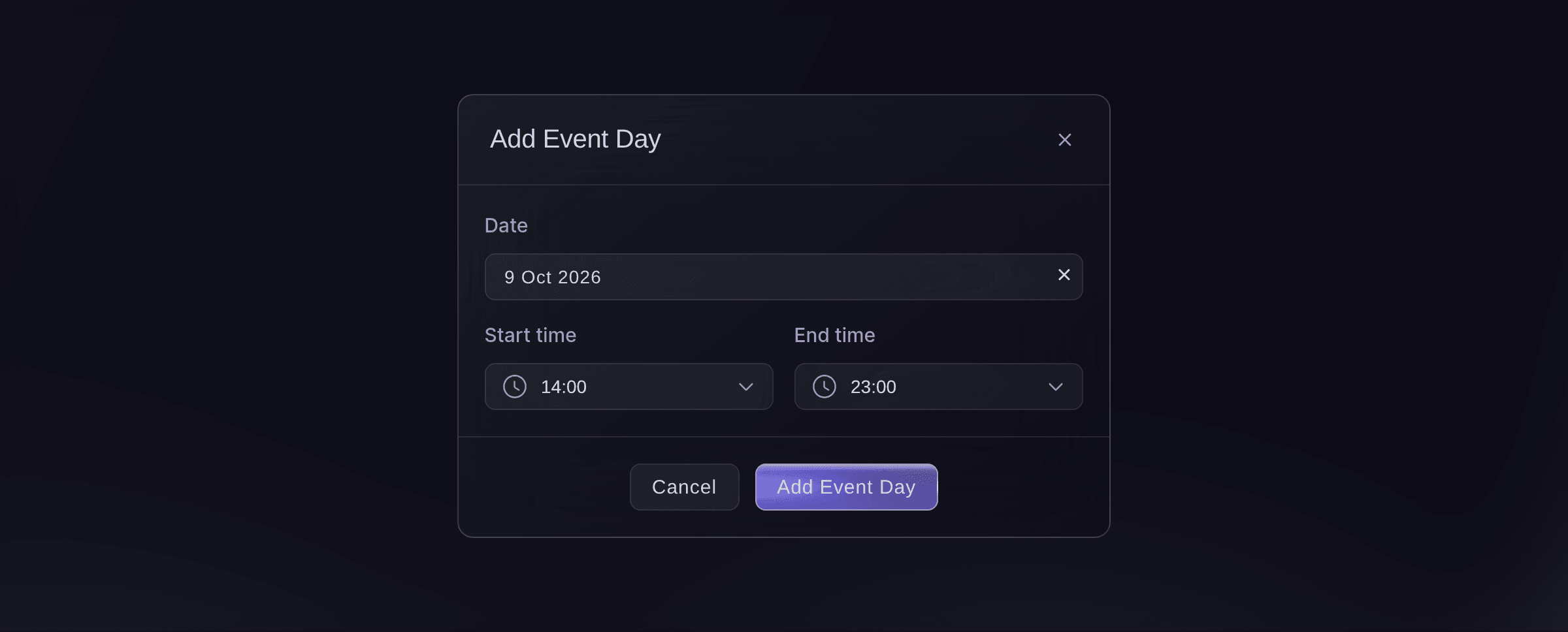
Add Event Day.

Fai adds a day and its opening hours to the event when you ask, after you confirm.
In your dashboard, with Fai
Add Sunday 9 October to <EVENT NAME>, open from 14:00 to 23:00
File a document under an artist
-
Ask Fai to file it
Ask Fai to file the document under the artist and the part of the booking it covers, such as hospitality.
Note: Fai can also archive a document you no longer need and restore it later; archiving keeps the file.
Fai files a document under the artist and part of the booking it belongs to, archives it or restores it, after you confirm.
In your dashboard, with Fai
File the rider I uploaded for Bicep under their hospitality on <EVENT NAME>
Questions you might have
- Why can I not choose a date for a set?
- A set's date is chosen from the event's days, so add the day first. Add Event Day is on Schedule & Timeline while the list in front of you has no performances in it, such as on a new event.
- Can Fai fill in the rider for me?
- Fai reads the riders you upload and picks out what they ask for, and you can ask her to add the items you name to the list.
- What happens if two of us change the same item at once?
- The second save does not overwrite the first. The dashboard loads your teammate's version and offers Keep their version or Re-apply my changes.
- Who can add items and notes?
- Owners, admins and producers on the event. Other roles on the team can read them.
Still have a question?
Book a demo and we will answer it on a call, on your kind of event. Or create your account and see it for yourself.
No setup fees. No required monthly ticketing fee. No credit card required.
Related guides
Do this on your own event
Create your account, build your event and follow the steps in your own dashboard. You do not need to book a sales call.