
Email, SMS and marketing
Let Fai improve your event website
Promoters and venue teams rarely have time to proofread every page or add each new show to the website. Fai does that checking for you and hands each change over as a suggestion, so the website keeps up with your events while you stay in charge of what visitors read.
Fai checks your event website and suggests what to fix next, drafts missing text, rewords what you have, suggests a look from your logo and, if you switch it on, lists new events by herself. You decide what goes on the website, and every change can be undone.
- For
- Keeping your event website current with Fai
- Takes
- 10 minutes
Before you start
- You are an owner or an admin of the brand, and you have a website in the dashboard, as in the guide to building a website for your events.
- Fai drafting your text, Fill my site and themes from your logo are part of some plans. Without them the dashboard says your plan does not include it yet; contact us to add it. Fai's other ideas work on every plan.
-
Open Fai’s ideas
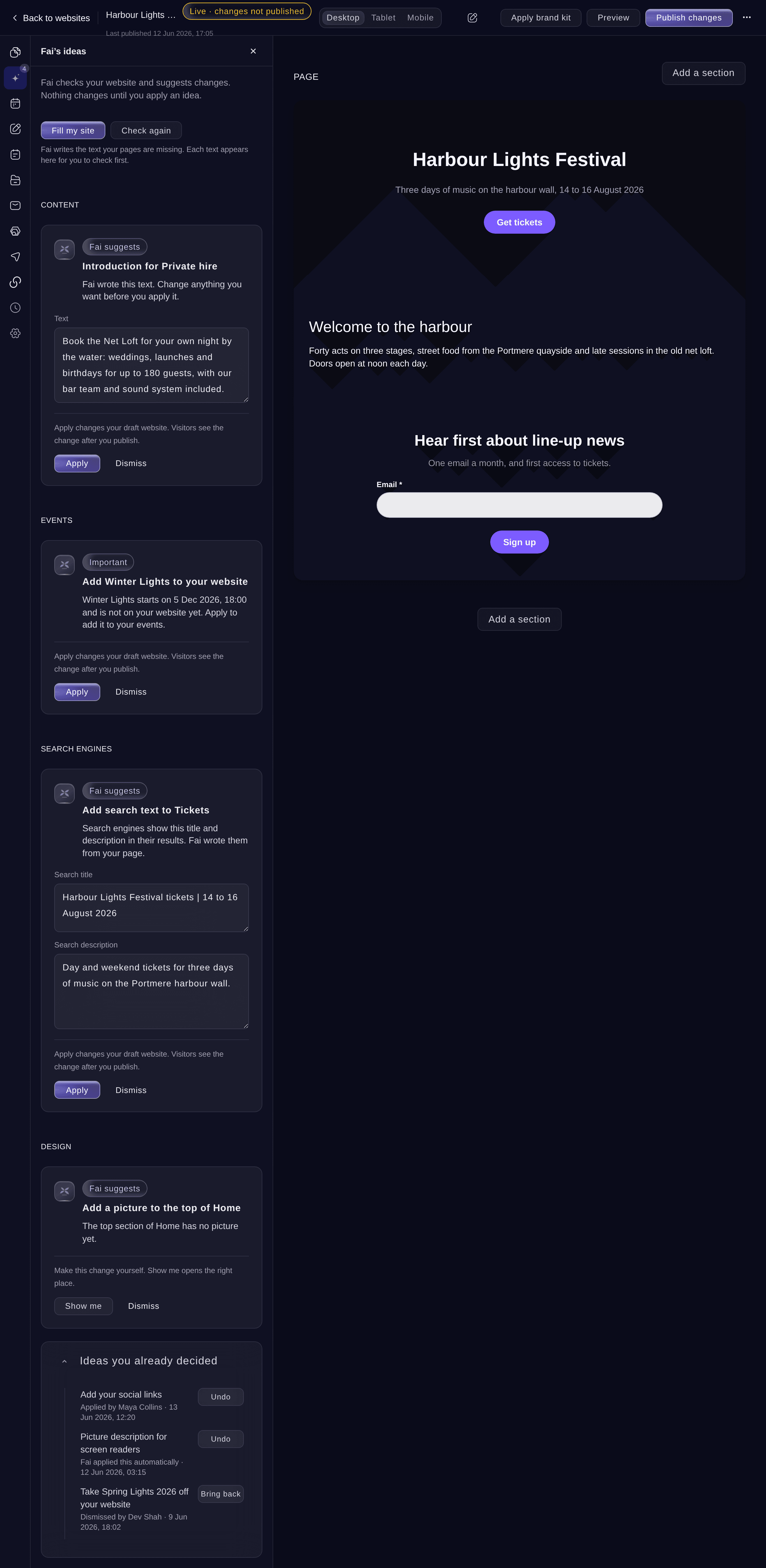
Open the website in the editor, then select Fai’s ideas. Each idea says what Fai suggests and why, and the most important are marked Important.
Note: Fai checks your website again after you publish, and every night once your website is live. Select Check again to ask her now.
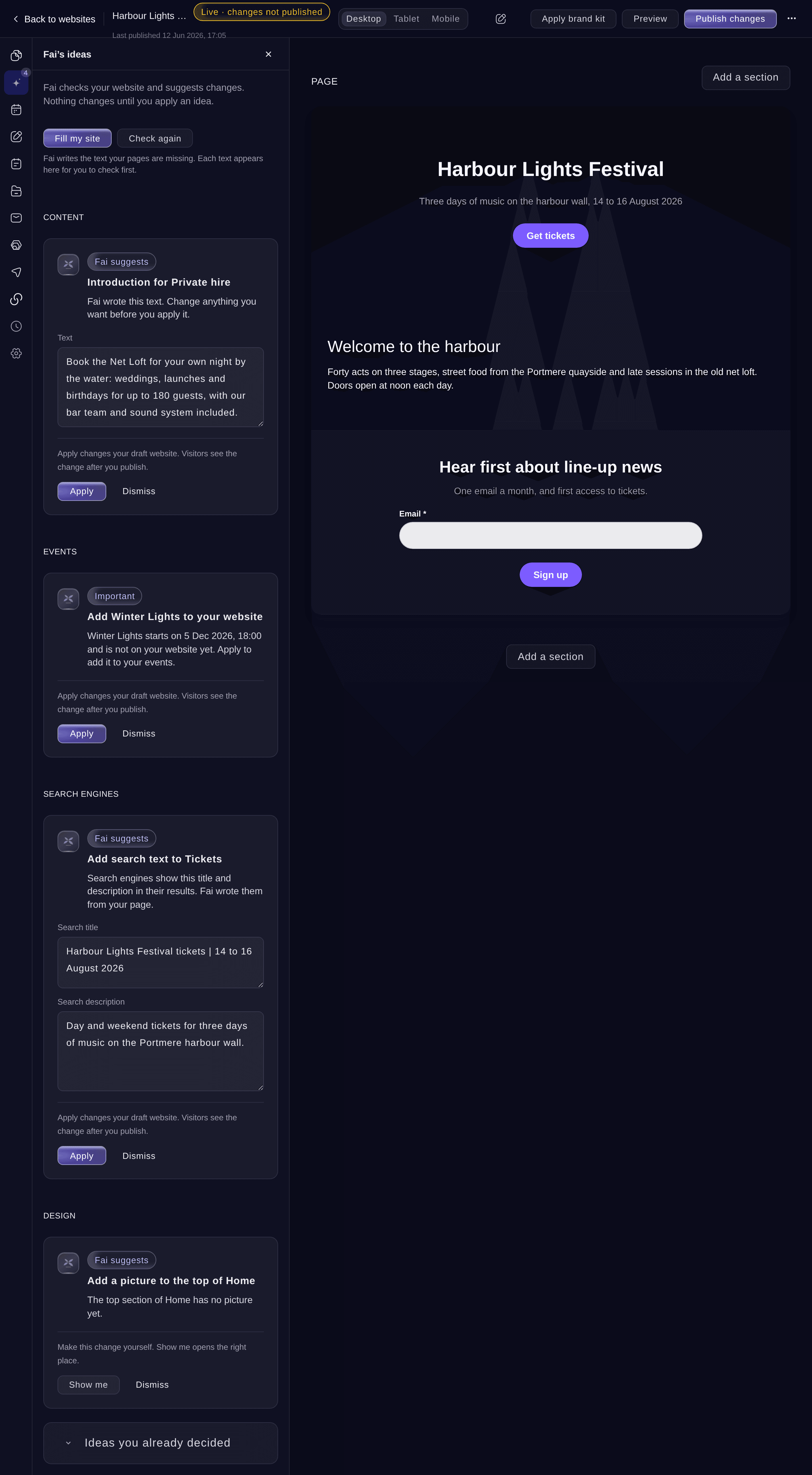
Fai’s ideas. -
Change Fai’s text if you want
Optional: on an idea with text, change the words in the box before you apply it.
Note: An idea with an empty box cannot be applied until you enter the text you want.
-
Apply or dismiss each idea
Select Apply to make the change on your draft website, or Dismiss to leave it.
Note: Visitors see an applied change after you publish. An idea with Show me is one you make yourself, and the button opens the right place.
-
Let Fai draft the missing text
Select Fill my site. Fai drafts the headings, introductions, search text and descriptions your pages are missing, and each text arrives as an idea for you to check.
Tip: Select Apply all of Fai’s text to put every text on your draft at once, exactly as Fai drafted it.
-
Ask Fai to draft one field
Select a section on the page, select Draft with Fai under a text field, then choose what Fai does, such as Make it more energetic.
Note: Tell Fai what to change lets you enter your own instruction, such as mention the free parking.
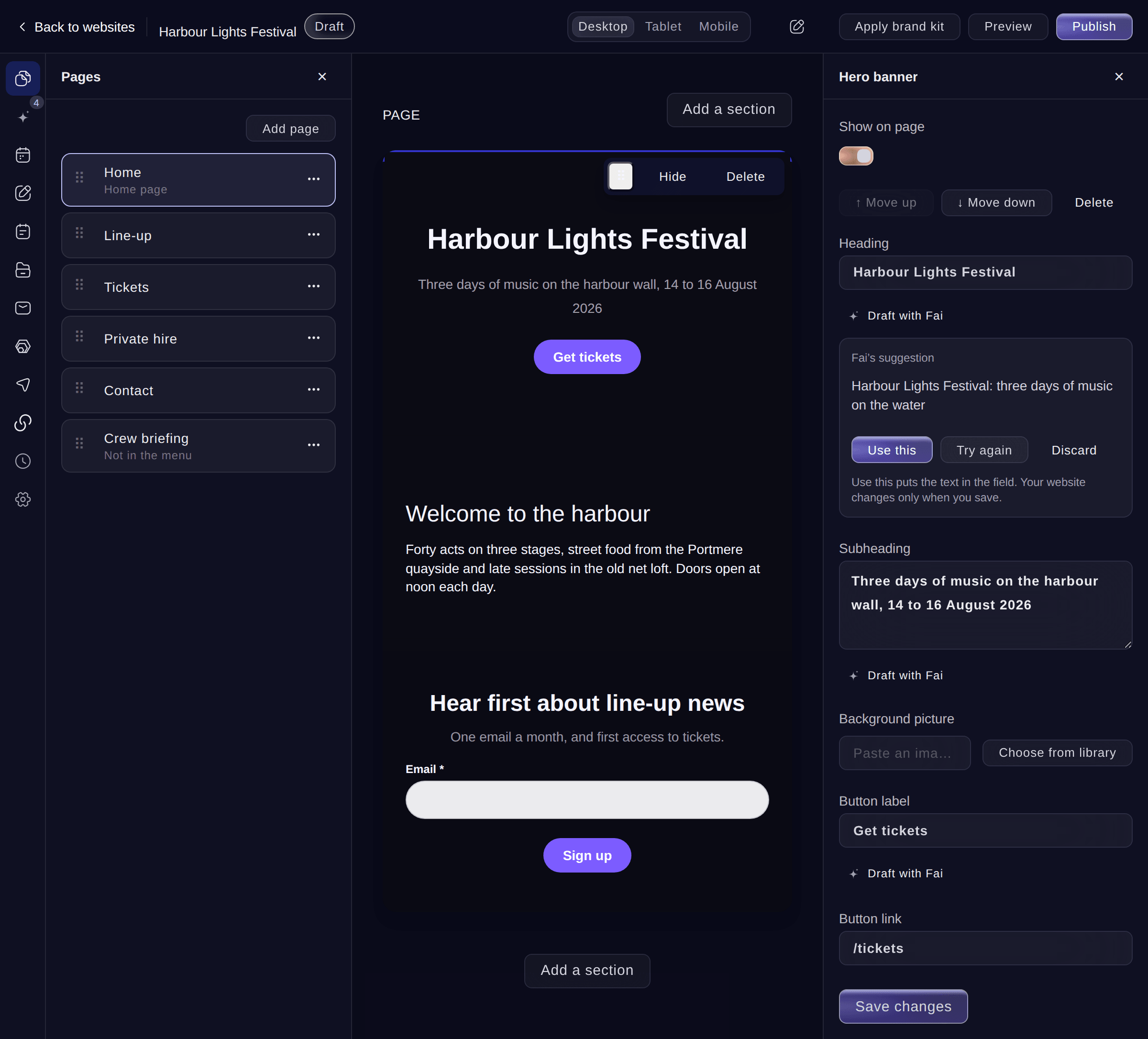
Fai’s suggestion for one field. -
Use Fai’s suggestion
Select Use this to put Fai's text in the field, then select Save changes.
Note: Nothing changes until you save. Try again asks Fai for another version, and Discard keeps your own text.
-
Get a theme from your logo
Select Design, choose your logo or describe the look you want under Theme from your logo, then select Make my theme with Fai.
Note: Fai's colours, fonts and corners show on your page first. Select Save changes to keep them, or Reset to go back.
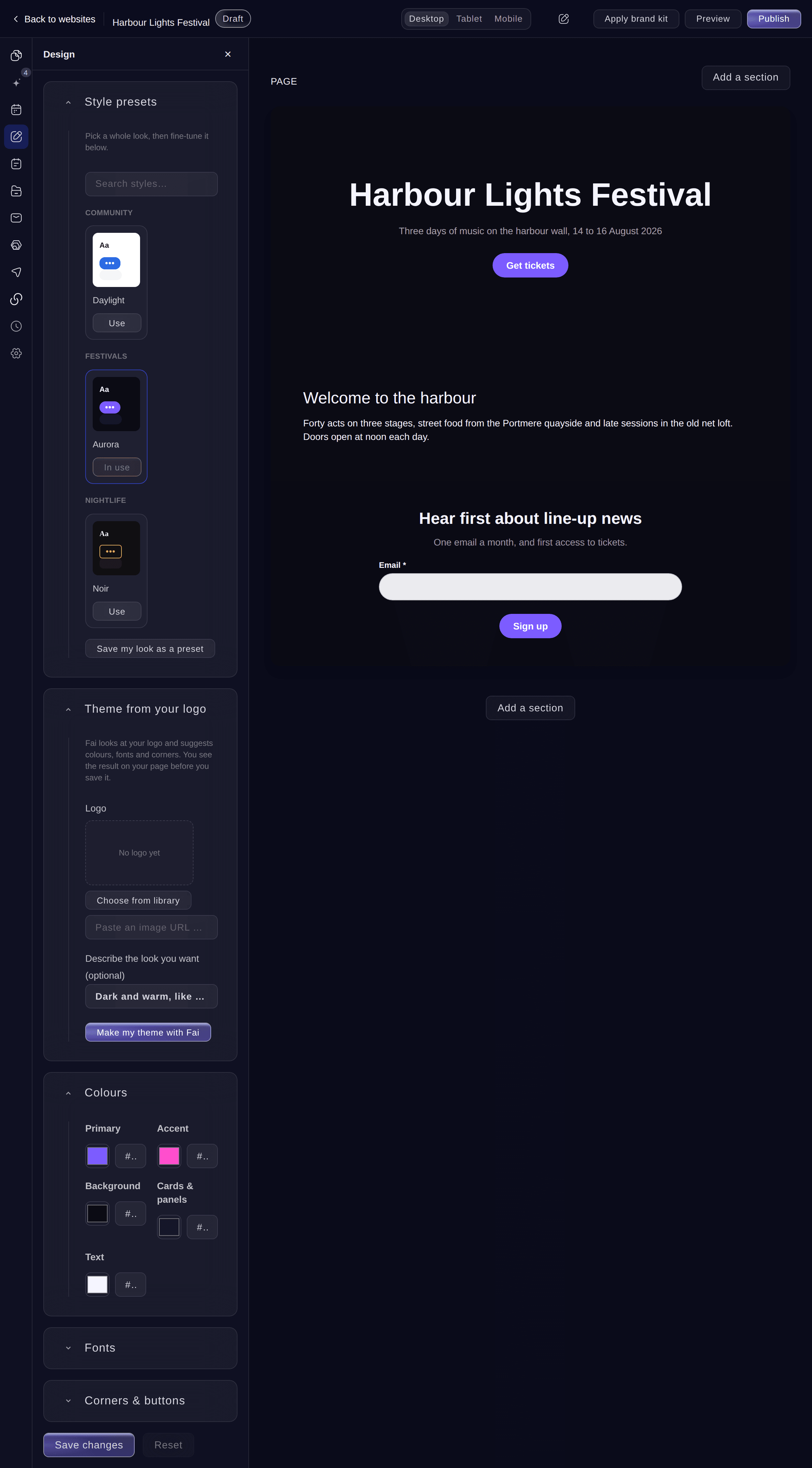
Theme from your logo. -
Switch on autopilot for the jobs you choose
Optional: select Settings, turn on the jobs under Fai autopilot, then select Save changes.
Note: Fai does each job the next time she checks your website: after you publish, and every night once your website is live. Both start switched off.
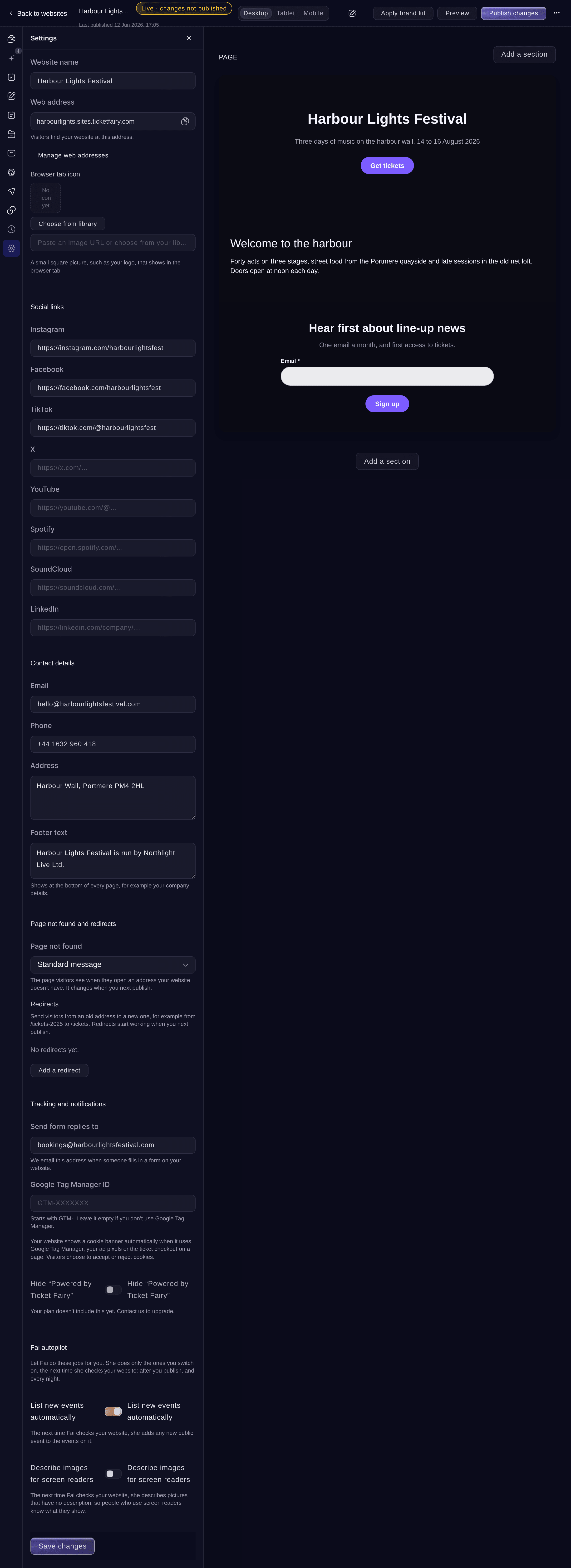
Settings, Fai autopilot.


Try these steps on your own event
Create a free account, build your event and follow the steps above in your own dashboard. It takes a few minutes and you do not need to book a sales call.
No setup fees. No required monthly ticketing fee. No credit card required.
Or have it done for you
Fai can list her ideas for a website, apply, dismiss, undo or bring back each one, check the website again, draft the missing text, reword text and suggest a theme. She asks before each change to your website.
In your dashboard, with Fai
What are your ideas for my <WEBSITE NAME> website? apply the ones about events and show me the text ones first
Let Fai do it for you
Fai works inside your Ticket Fairy dashboard. Create your account, open Fai and paste the prompt above.
No setup fees. No required monthly ticketing fee. No credit card required.
Undo an idea you applied
-
Open the ideas you decided
In Fai’s ideas, select Ideas you already decided. Each one says who applied or dismissed it and when, including changes Fai made on autopilot.
Ideas you already decided. -
Undo the change
Select Undo on the idea, then confirm. Your draft goes back to how it was, and the idea opens again.
Note: Select Bring back on a dismissed idea to put it back in your list. If a teammate changed the same part since, Undo says so and changes nothing.

Fai undoes an applied idea, or brings back a dismissed one, after you confirm.
In your dashboard, with Fai
Undo the last idea applied on my <WEBSITE NAME> website
Questions you might have
- Does Fai ever publish my website by herself?
- No. Fai changes only your draft, and only when you apply an idea or switch on an autopilot job. Visitors see a change after you publish.
- What kinds of ideas does Fai have?
- Fai suggests adding a new event, taking a past event off, a banner for an event that is nearly sold out, pictures and bios for your line-up, search text for pages, descriptions for pictures, contact details and social links, answers to questions visitors keep asking, and a ticket section for a busy page with no tickets.
- Why are no ideas showing?
No ideas right now
means Fai found nothing to suggest at her last check. She checks again after you publish, every night once your website is live, and when you select Check again.- Why does Fai offer Add below on a text with links?
- Fai returns plain text. On a field with links, lists or headings, Use this would remove the formatting, so Fai offers Add below, which keeps your text and adds hers after it.
- Can I undo a change Fai made on autopilot?
- Yes. Changes Fai made on autopilot are under Ideas you already decided with Undo, like the ones you applied.
Still have a question?
Book a demo and we will answer it on a call, on your kind of event. Or create your account and see it for yourself.
No setup fees. No required monthly ticketing fee. No credit card required.
Related guides
Do this on your own event
Create your account, build your event and follow the steps in your own dashboard. You do not need to book a sales call.