
Vault and Capital
Let Fai prepare the finance work after your events
Promoters settling a busy season spend hours working out artist percentage deals, matching invoices and chasing payments. Fai does that work in the background and leaves each result on your Vault Overview with her working shown, so you check and approve instead of starting from a blank spreadsheet.
Let Fai, the assistant built into Ticket Fairy, prepare the routine finance work around your events in Vault: who to pay after a show, percentage deal fees with her working shown, payment batches, invoice reminders and card spend on event budgets. You accept, change or dismiss each one, and Fai never sends money on her own.
- For
- Getting help with the finance work that follows every event
- Takes
- 8 minutes
Before you start
- You're an owner or an admin on the brand. Owners and admins accept, change, dismiss and undo what Fai prepared, and only the brand owner changes Fai's finance help.
- Vault is switched on for your brand and your Vault account is active.
-
Open Prepared for you
Open Vault on Overview and find Prepared for you. Waiting for you lists what Fai prepared, and Fai did these for you lists what she did on her own.
Note: Fai checks every 15 minutes. An event's own money page shows the suggestions for that event under Fai suggests for this event.
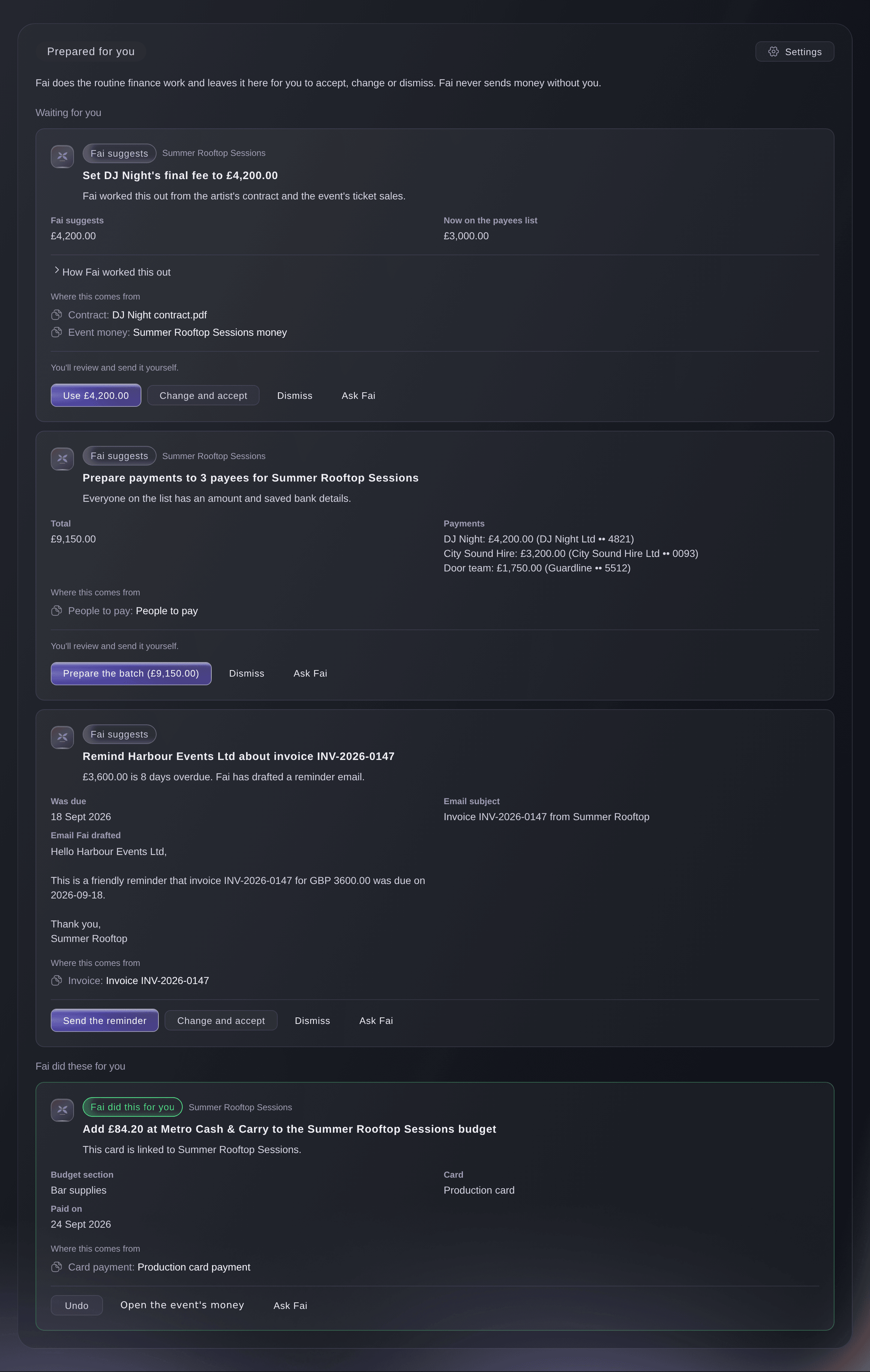
Vault, Overview, Prepared for you. -
Open How Fai worked this out
On a suggestion, select How Fai worked this out. Each step of the sum is listed, such as the Guaranteed fee, the Break-even point, the Artist's percentage and the Final fee.
Note: Where this comes from links to the contract, the event's money or the booking Fai read.
Fai isn't sure about this one. Check it before you accept.
appears on a suggestion she is less sure of.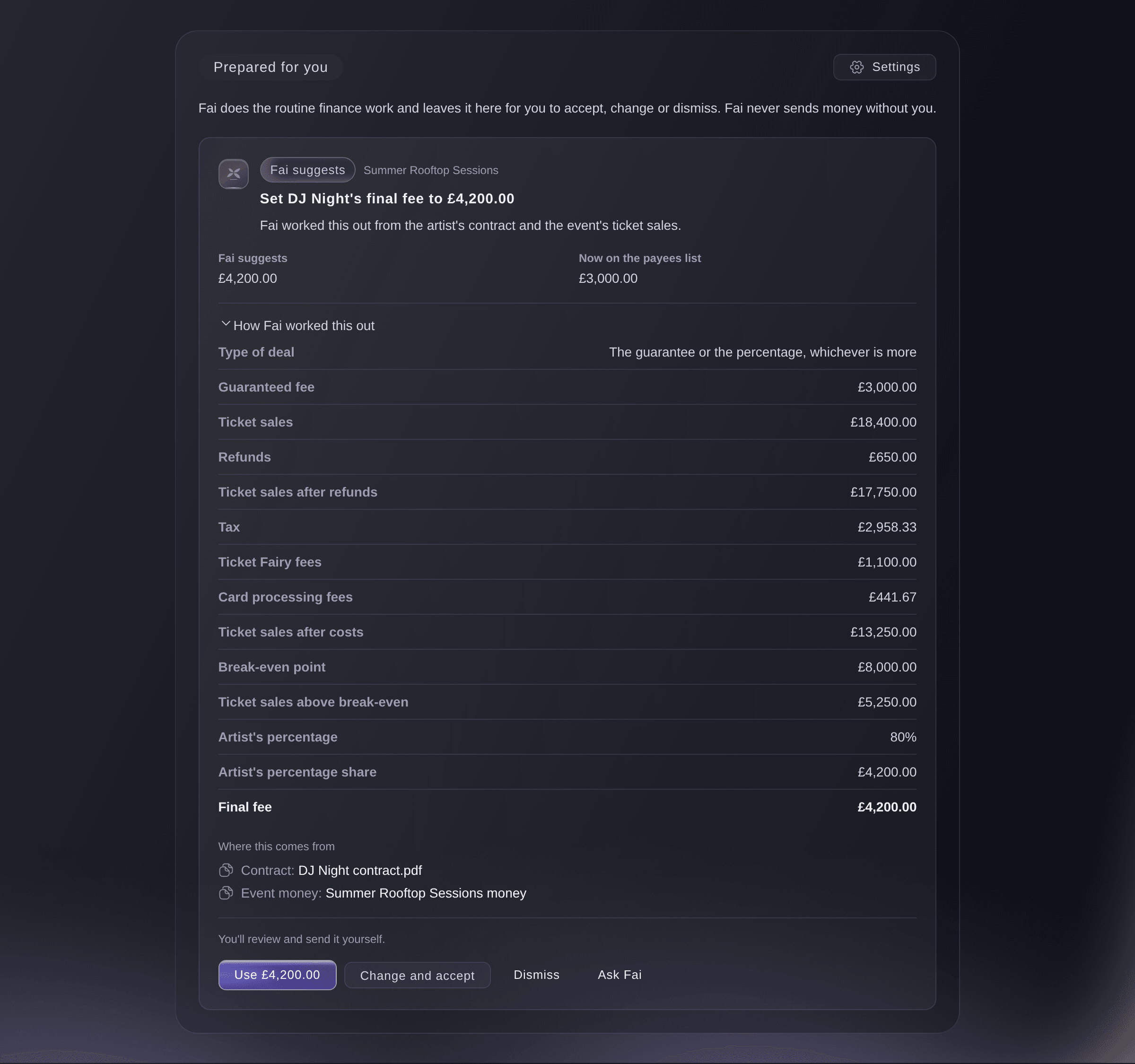
Prepared for you, How Fai worked this out. -
Accept the suggestion
Select the first button on the suggestion, which names what happens, such as Use £4,200.00.
Done:
and the suggestion's title confirm it, with a link to what Fai prepared.Note: Accepting a money suggestion only prepares something, such as a payee on the event's list or a payment batch Ready to send. You or a teammate still review it and send it.
-
Change it before you accept
Optional: Select Change and accept to change the amount, the recipient or the budget section first, then select the button at the foot of the dialog.
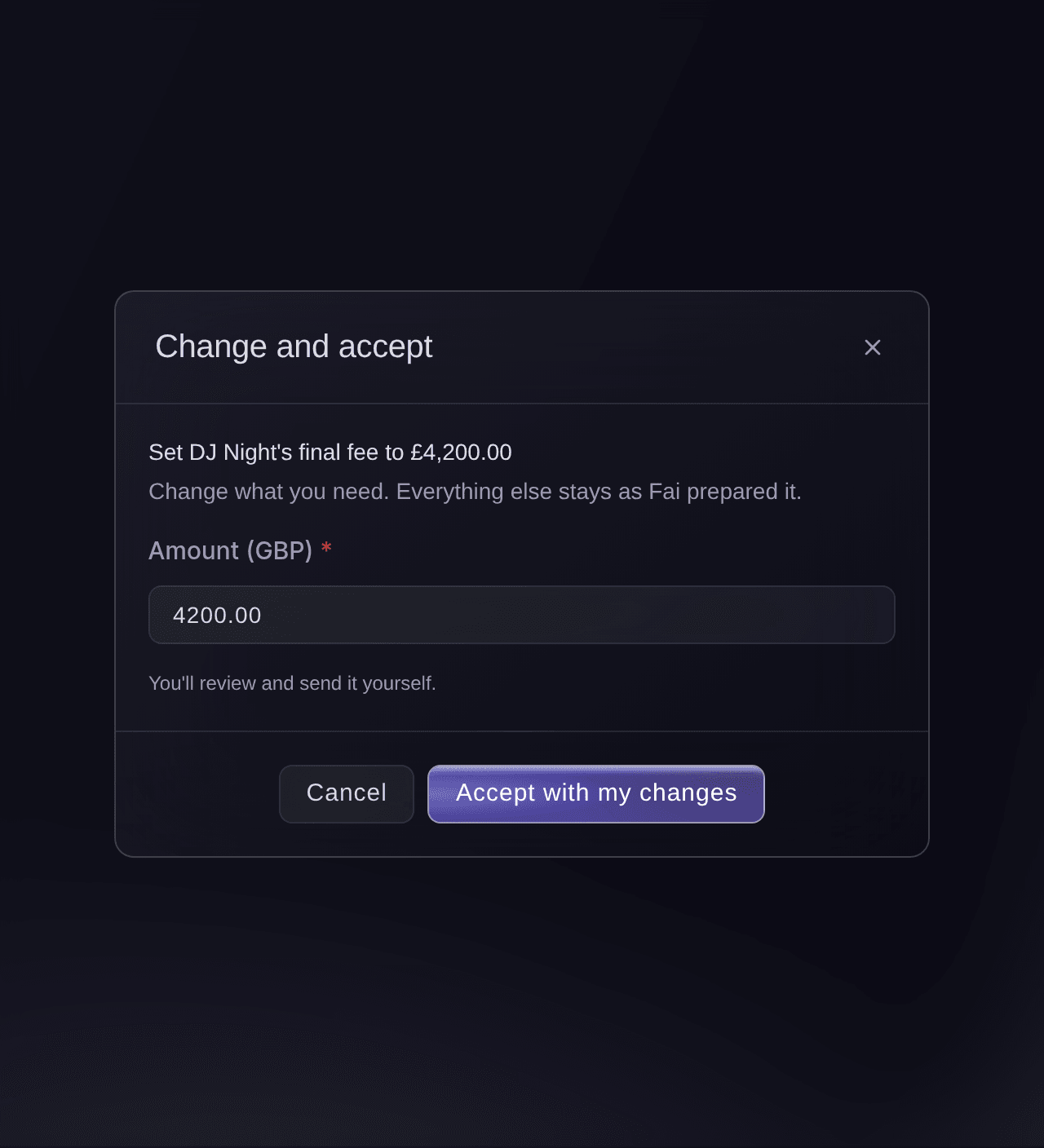
Prepared for you, Change and accept. -
Dismiss what you don't want
Optional: Select Dismiss, enter why in the box that asks why you are dismissing it, then select Dismiss in the dialog.
Note: Fai won't suggest the same thing again unless its details change.
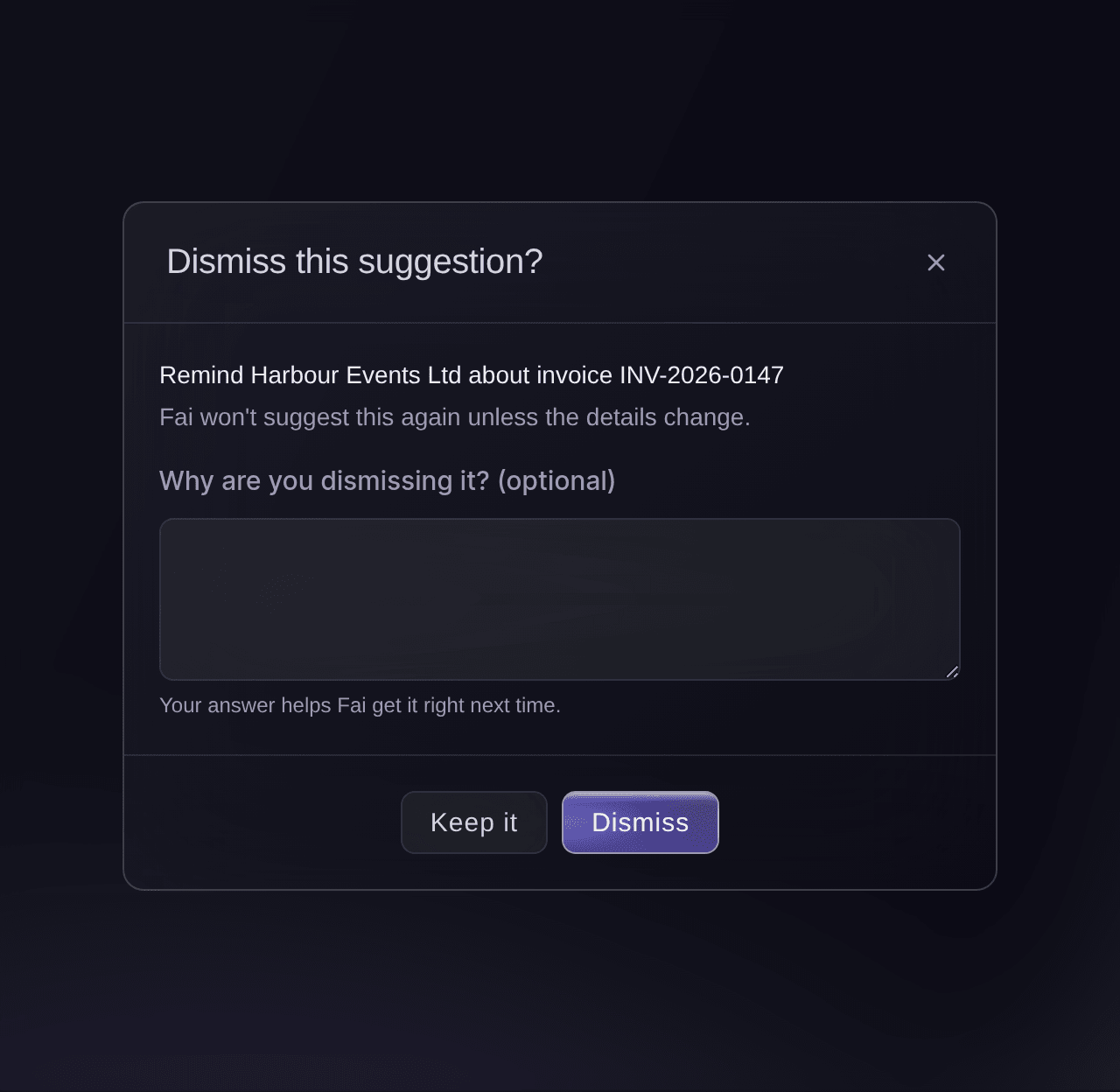
Prepared for you, Dismiss.


Try these steps on your own event
Create a free account, build your event and follow the steps above in your own dashboard. It takes a few minutes and you do not need to book a sales call.
No setup fees. No required monthly ticketing fee. No credit card required.
Or have it done for you
You can ask Fai in chat what she prepared and how she worked any of it out, from the same facts, working and sources the card shows. She accepts, dismisses or undoes a suggestion only after she shows you what will happen and you agree, and a money suggestion only prepares a payment that a person on your team sends. MCP and the command line have no commands for this.
In your dashboard, with Fai
What have you prepared in Vault for <BRAND NAME>, and how did you work out <ARTIST NAME>'s fee?
Let Fai do it for you
Fai works inside your Ticket Fairy dashboard. Create your account, open Fai and paste the prompt above.
No setup fees. No required monthly ticketing fee. No credit card required.
Choose what Fai does for you
-
Open Settings
On Prepared for you, select Settings. Fai's finance help lists each kind of finance work with what Fai does for it now.
Note: The same list is on Pay several people, under Transfers.

Prepared for you, Settings. -
Choose Off, Suggest or Do it for me
For each kind of work, choose what Fai does.

Fai can change what she does for each kind of work for a brand owner, after she shows you the change and you agree. She can't set a kind that moves money to Do it for me.
In your dashboard, with Fai
Stop suggesting invoice reminders for <BRAND NAME>, and add card spend to event budgets for me automatically
Undo something Fai did for you
-
Select Undo
Under Fai did these for you, select Undo on the card.
Undone:
and the card's title confirm it, and Fai takes the change back out.
Fai can undo a card payment she added to an event budget on her own, after you agree.
In your dashboard, with Fai
Undo the card payment you added to the <EVENT NAME> budget
Questions you might have
- Can Fai send money on her own?
- No. Accepting a suggestion that involves money only adds people to an event's list or prepares a payment batch. A person on your team sends it, after confirming it's them, and a second person does when your team has payment approvals on.
- What does Fai prepare?
- Who to pay after an event ends, from your bookings; the final fee of a percentage deal, from the contract and the ticket sales; matching payees to saved bank details; payment batches when everyone has an amount and bank details; deposits and balances due within a week; supplier invoices you upload to an event; card spend on event budgets; payments that match your invoices; reminders for invoices 3 or more days overdue; low balances before a batch; and unusual card spend.
- How does Fai work out a percentage deal?
- She reads the deal from the artist's contract and the event's ticket sales, takes off refunds, tax and fees, compares the result with the break-even point and applies the artist's percentage. How Fai worked this out shows each figure, and nothing changes until you accept it.
- Why can't I accept a suggestion?
Only an owner or admin can accept this. You can still ask Fai about it or dismiss it.
appears when your login is not an owner or admin of the brand. Ask an owner or admin to decide on it.- Someone else accepted it at the same time. What happens?
- The first decision wins. Vault tells you that someone else changed the suggestion, shows you the latest version, and the list shows where it stands.
- Why did a suggestion disappear?
- It was accepted or dismissed by a teammate, or Fai replaced it with a newer one because its details changed.
This is no longer available. Fai may have replaced it with a newer suggestion.
appears if you act on one that has gone. - What does Ask Fai do?
- It opens Fai with the suggestion, so she can explain the facts, how she worked it out, where the figures come from and what accepting it does.
- Does an invoice reminder go without me?
- No. Fai drafts the email, and it goes from your brand only after you accept it and confirm
Send this reminder?
. You can change the wording with Change and accept first. - What do I check when Fai asks me to confirm it's me?
- When something Fai prepared moves money, You are approving at the top of the check names the action, the exact amount and who the money goes to. Continue only if they match what you want to do.
Still have a question?
Book a demo and we will answer it on a call, on your kind of event. Or create your account and see it for yourself.
No setup fees. No required monthly ticketing fee. No credit card required.
Related guides
Do this on your own event
Create your account, build your event and follow the steps in your own dashboard. You do not need to book a sales call.