
Email, SMS and marketing
List your events on your website
Venues with a busy calendar and promoters running a season want every show on their website the moment it goes on sale, and gone once it has happened. Your website lists your events from the same records you sell tickets from, so dates, prices and sold-out labels stay right without retyping.
Show your upcoming events on your event website with live dates, prices and sold-out labels: every public event automatically or only the ones you choose, events sold on other websites, a What's on calendar, and events from partner brands that say yes.
- For
- Showing your events on your website
- Takes
- 11 minutes
Before you start
- You are an owner or an admin of the brand, and you have a website in the dashboard, as in the guide to building a website for your events.
- The events you want to show are public. Your website lists an event only while it is public.
-
Open Events
Open the website in the editor, then select Events.
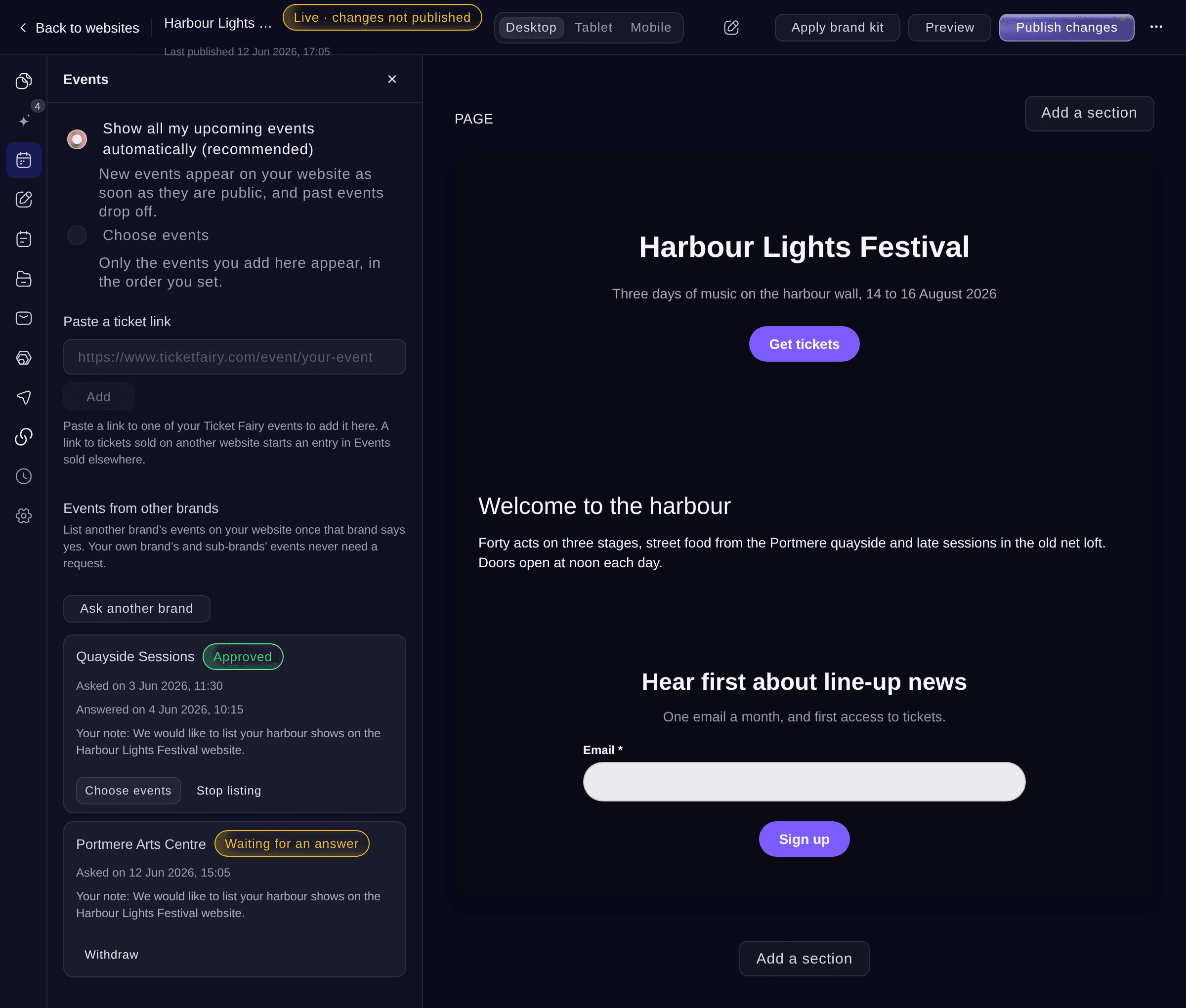
Events. -
Choose which events your website lists
Choose how your website picks its events.
-
Add the events you want
If you chose Choose events, select Add events, enter part of an event's name, select each event to add, then select Done adding.
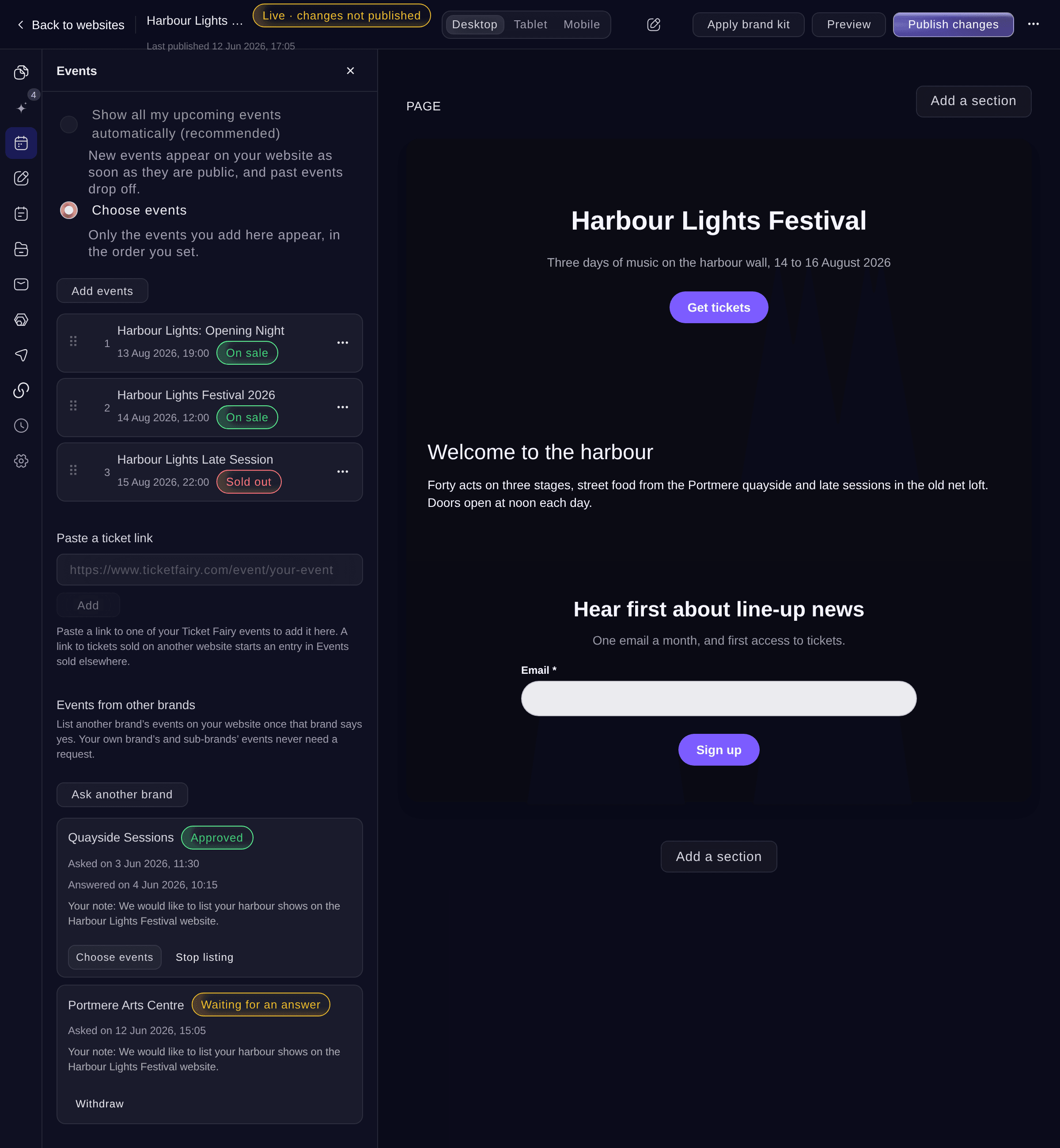
Chosen events. -
Put the events in order
Drag an event by its handle, or open its menu and select Move to the top, Move to position… or Move to the bottom.
Note: Remove in the same menu takes an event off your website. The event itself is not changed.
-
Add an event from its ticket link
Optional: under Paste a ticket link, paste the link to one of your Ticket Fairy event pages, then select Add.
-
Add an event sold on another website
Optional: paste a link to tickets sold on another website, then select Add. The first time, select Make the list; then enter the event's name and date in the new entry and save it.
Note: Events sold elsewhere show among your own events in date order, and their button opens the other website in a new tab.
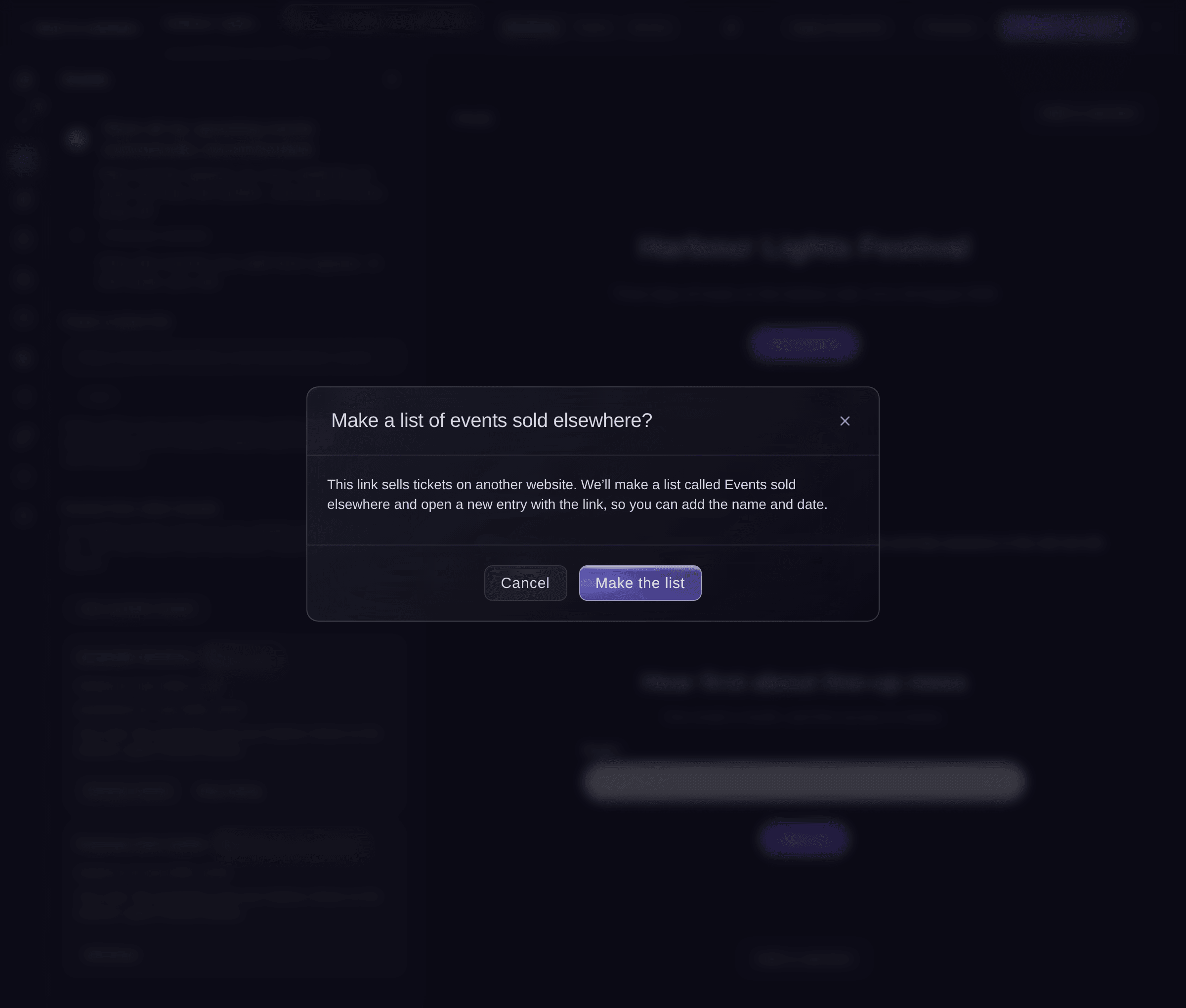
Make a list of events sold elsewhere. -
Show a What’s on calendar
Optional: on a page, select Add a section and choose What’s on calendar, then select the section and choose its settings.
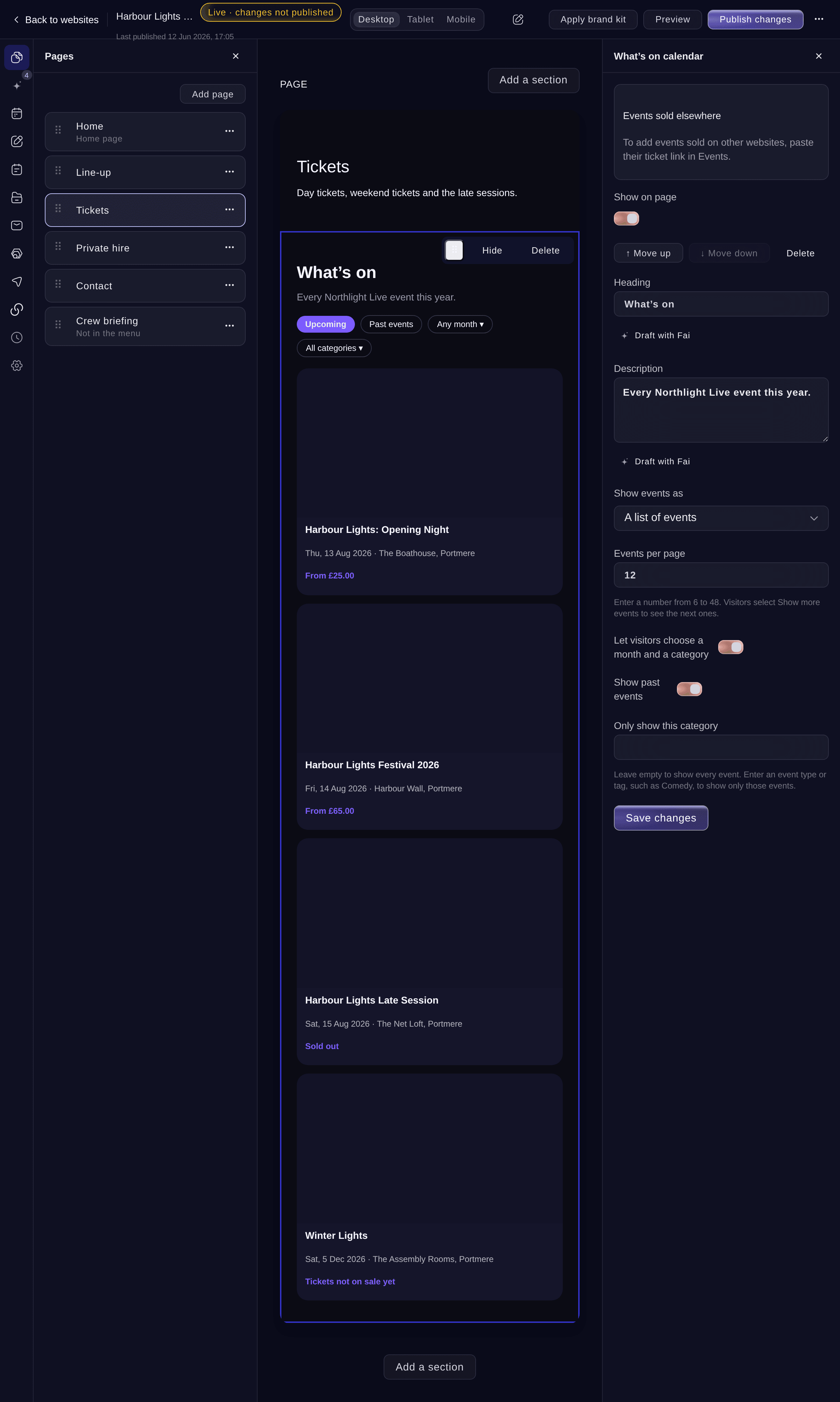
What’s on calendar. -
Publish the change
Select Publish changes at the top, then Publish changes. Your published website shows the events with their dates, venues, prices and labels such as Sold out.
Note: On automatic events, a new public event shows on your live website without publishing again.


Try these steps on your own event
Create a free account, build your event and follow the steps above in your own dashboard. It takes a few minutes and you do not need to book a sales call.
No setup fees. No required monthly ticketing fee. No credit card required.
Or have it done for you
Fai can switch your website between automatic and chosen events, add an event from its ticket link, change the order, add a What's on calendar, and ask another brand to let you list its events. She asks before each change.
In your dashboard, with Fai
Show only our summer festival events on my <WEBSITE NAME> website, with the opening night first
Let Fai do it for you
Fai works inside your Ticket Fairy dashboard. Create your account, open Fai and paste the prompt above.
No setup fees. No required monthly ticketing fee. No credit card required.
List events from another brand
-
Ask the brand
In Events, select Ask another brand, paste a link to one of the brand's event pages or choose one of your own brands, add a Note to the brand (optional), then select Send request.
Note: Your own brand's and sub-brands' events never need a request. The request shows Waiting for an answer until the brand's admins answer it.
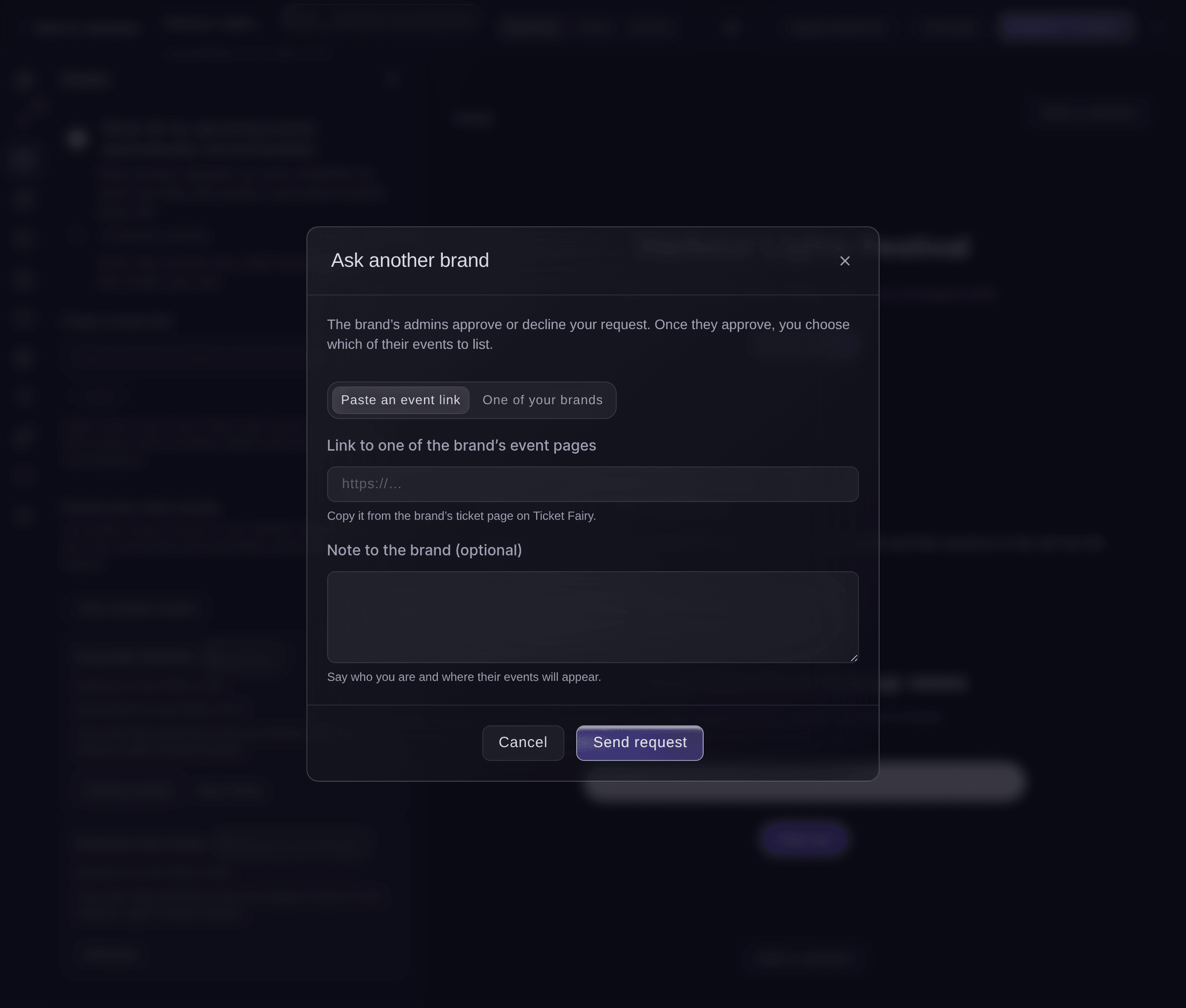
Ask another brand. -
Choose their events
When the request shows Approved, select Choose events, select Add on each event to list, then Done.
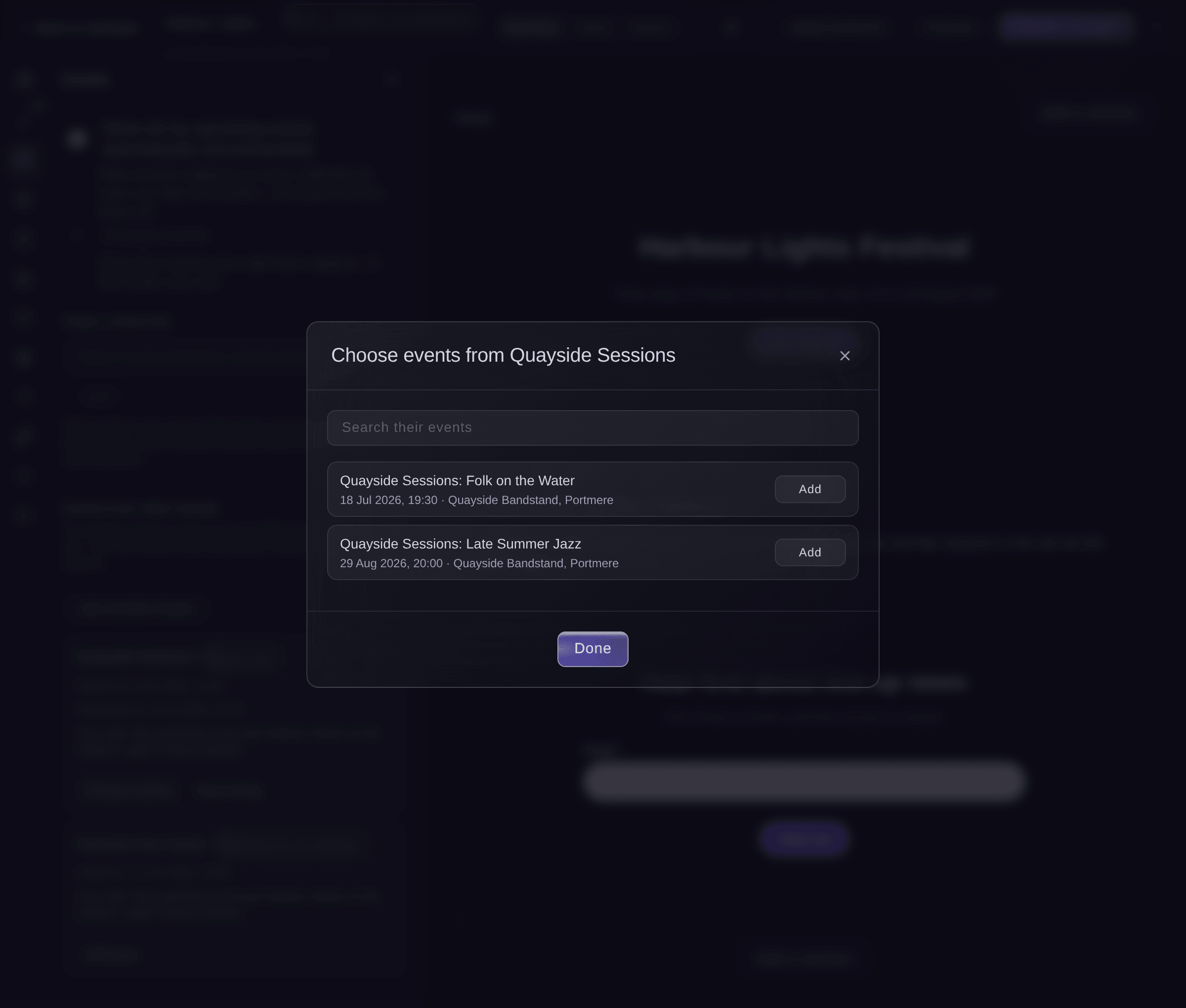
Choose events from another brand.


Fai asks a brand for you from a link to one of its events, and lists its events once the brand approves. She asks before each change.
In your dashboard, with Fai
Ask the brand behind <EVENT LINK> if we can list their events on my <WEBSITE NAME> website
Answer a request to list your events
-
Open the requests
Open your brand and select Details. Under Requests to list your events, each request names the brand, its website and its note.
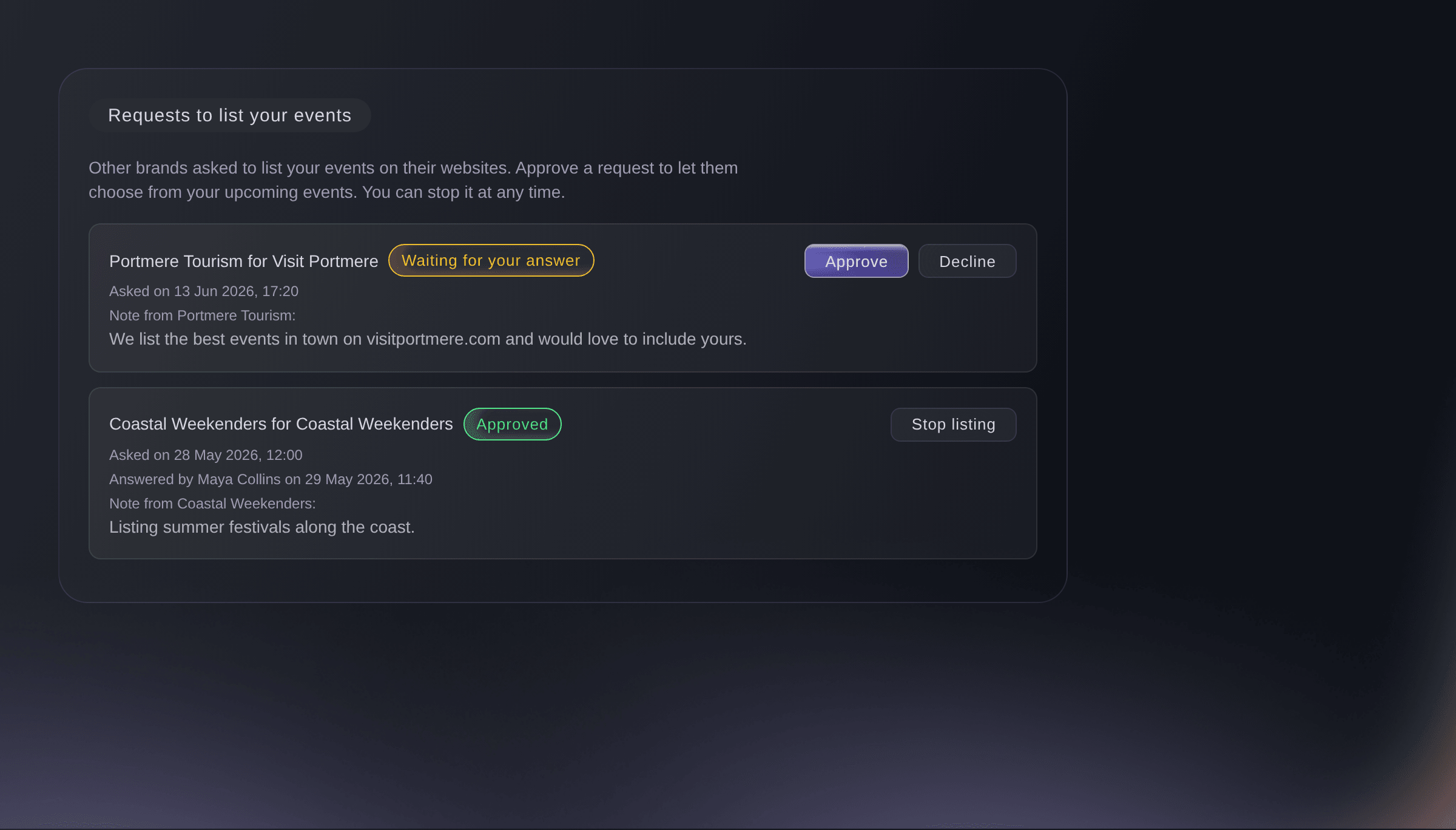
Requests to list your events. -
Approve or decline
Select Approve or Decline, enter a Reason (optional), then confirm.
Note: A declined brand can ask again after 7 days. Stop listing on an approved request takes your events off their website straight away.

Fai lists the requests to list your events and approves, declines or stops one after you confirm.
In your dashboard, with Fai
Which websites asked to list our events? approve the one from <BRAND NAME>
Questions you might have
- Why is one of my events missing from the website?
- Your website lists an event only while it is public and has not ended. On Choose events, add it with Add events. A password-protected or switched-off event leaves the website within a few minutes.
- Do prices and sold-out labels update by themselves?
- Yes. Event cards read the date, venue, lowest price and whether tickets are on sale, sold out or past from the event itself, and your website shows changes within a few minutes.
- Why can I not ask another brand?
- Listing events from other brands is part of some plans. Without it, Events from other brands says your plan does not include it yet; contact us to add it.
- Can I stop listing a brand's events?
- Yes. Select Stop listing on the approved request and confirm. Their events come off your website straight away. To list them later, ask again: when the brand approves, their events show again where you placed them.
- Can a What's on calendar show events sold elsewhere?
- Yes. Choose your list under Events sold elsewhere in the section's settings, and those events show with yours in date order.
Still have a question?
Book a demo and we will answer it on a call, on your kind of event. Or create your account and see it for yourself.
No setup fees. No required monthly ticketing fee. No credit card required.
Related guides
Do this on your own event
Create your account, build your event and follow the steps in your own dashboard. You do not need to book a sales call.