
Running the production
Make an offer to an artist's agent for your show
Promoters and venue bookers send dozens of offers a season, each with its own guarantee, percentage and radius clause. Keeping every offer, counter and past fee together lets your team price the next show from what the last one earned, and move an accepted deal straight into advancing.
Build an offer for a performer from a template or your last deal, see what you paid them before and the fee Fai suggests, email it to their agent, record their counter-offers and book the artist on your event once they accept.
- For
- Sending offers to agents and turning the accepted ones into bookings
- Takes
- 10 minutes
- Open Offers
- Start the offer
- Enter the performer and choose a template
- The suggested fee
- Set the guarantee
- Choose the show date and event
- Choose how the fee is worked out
- Add costs, wording and the agent
- Save the draft
- Prepare and send the email
- Send the offer
- Record the agent's answer
- Answer a counter-offer
- Check the artist is booked on your event
- Mark the offer as contracted
Before you start
- You need an owner, admin or producer role on the brand. Other roles do not see offers or fees.
- Add the rooms and stages you book in Event Operations first, as the hold guide shows, if you want the offer tied to a space.
-
Open Offers
In the sidebar, select your brand, then Event Operations, then Offers. The list shows each offer's performer, show date, deal and status, with your Offer templates under it.
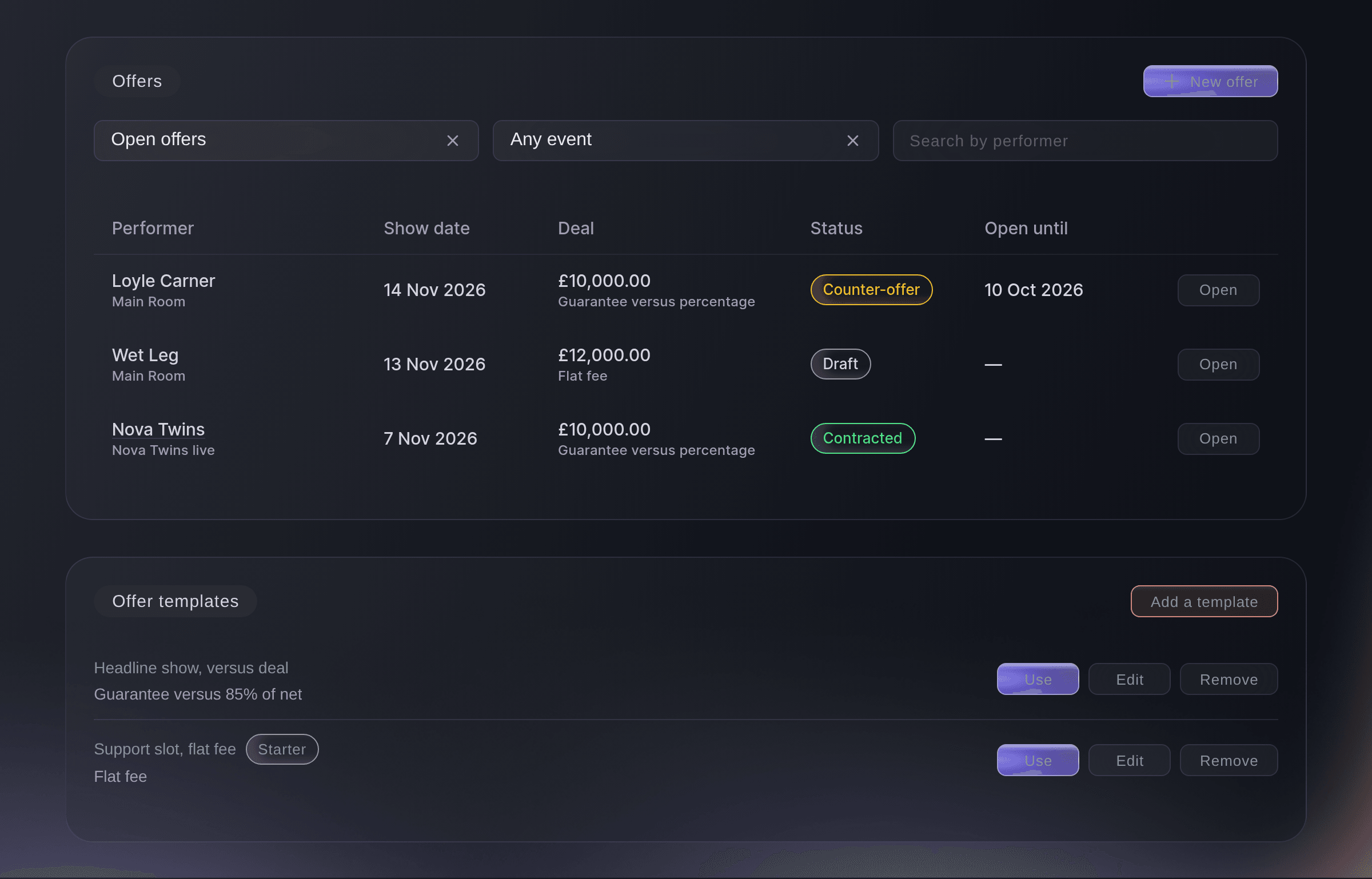
Event Operations, Offers. -
Start the offer
Select New offer at the top of the page. To make an offer for a date you already hold, open the hold and select Make an offer instead.
Note: An offer started from a hold is filled in with the performer, the space and the dates. Use on a template starts a new offer from that template.
-
Enter the performer and choose a template
Enter the name in Performer, then optional: choose a template in Start from a template to fill in the deal and the wording.
Note: Once the name is entered, What you paid them before appears beside the form with each past show, the fee and how many tickets it sold.
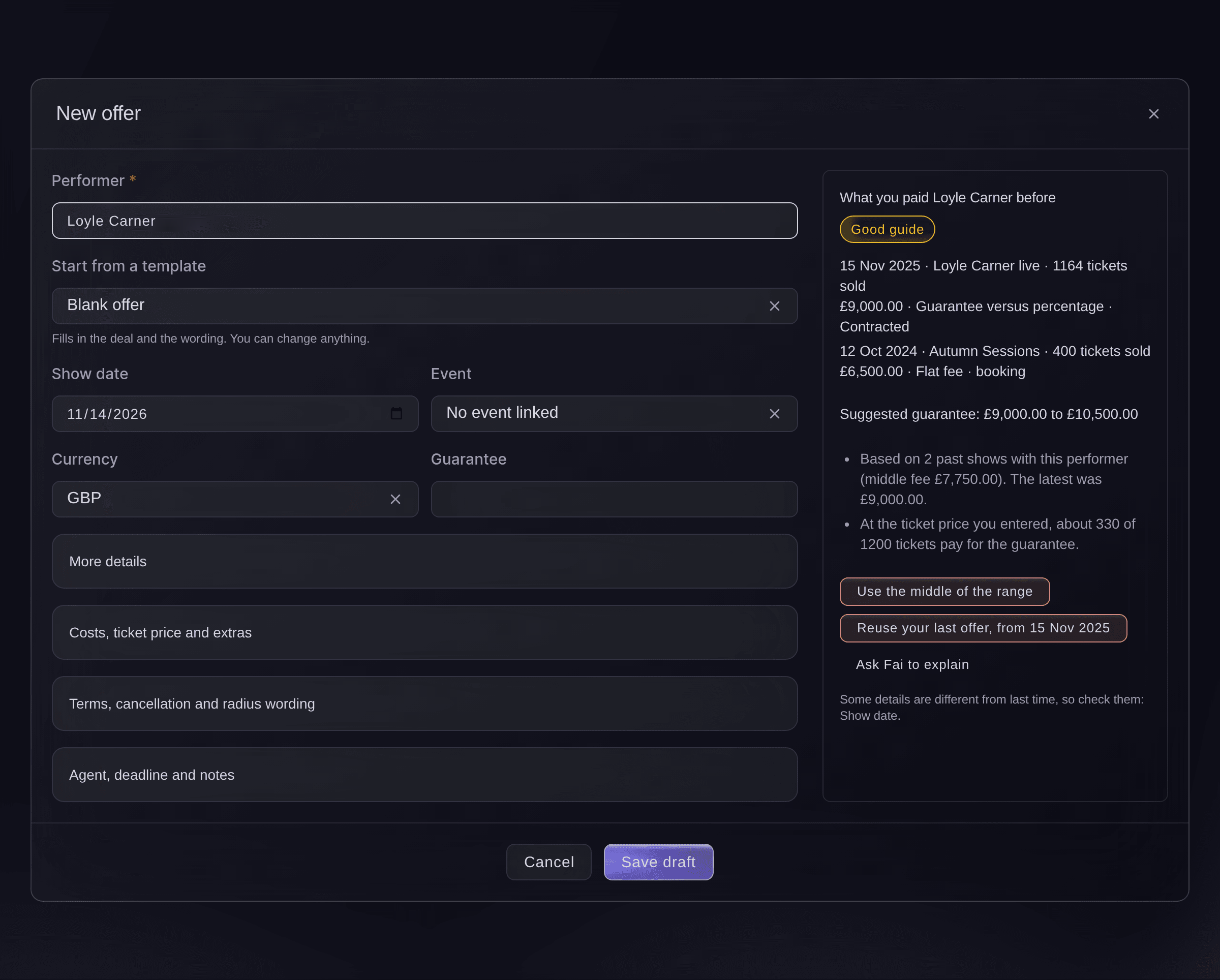
New offer, with what you paid before.


The suggested fee
Fai works out the suggested guarantee range from your own past shows with the performer, adjusted for the capacity, or from shows of a similar size when you have none. The badge says how much history it rests on, from Not enough history to Strong guide, and Ask Fai to explain puts the reasons into words.
-
Set the guarantee
Enter the Guarantee, or select Use the middle of the range or Reuse your last offer.
Note: Reusing your last offer copies its deal and wording but not its date, space or event. The line under the buttons names anything that differs from last time.
-
Choose the show date and event
Choose the Show date, and choose the Event if the show already has one.
Note: Linking the event lets the offer book the artist on it when they accept. You can link it later by editing the offer.
-
Choose how the fee is worked out
Select More details, then choose How the fee is worked out.
Note: For a percentage, enter the Percentage and choose what it is Percentage of. Deal in words is what the agent reads, such as £9,000 versus 85% of net.
-
Add costs, wording and the agent
Optional: Open Costs, ticket price and extras, Terms, cancellation and radius wording and Agent, deadline and notes, and fill in what the deal needs.
Note: Set Open until for a deadline: Fai reminds you before it, and the offer closes if there is no answer by then. Notes for your team are never sent to the agent.
-
Save the draft
Select Save draft. The offer joins the list as Draft.
-
Prepare and send the email
Open the offer and select Prepare and send. Fai drafts the email to the agent with the offer set out in full.
Note: Fai finds the agent on the offer, on the performer's booking or on your last offer to them, and the line above To says which. Change anything you like in Subject and Message.
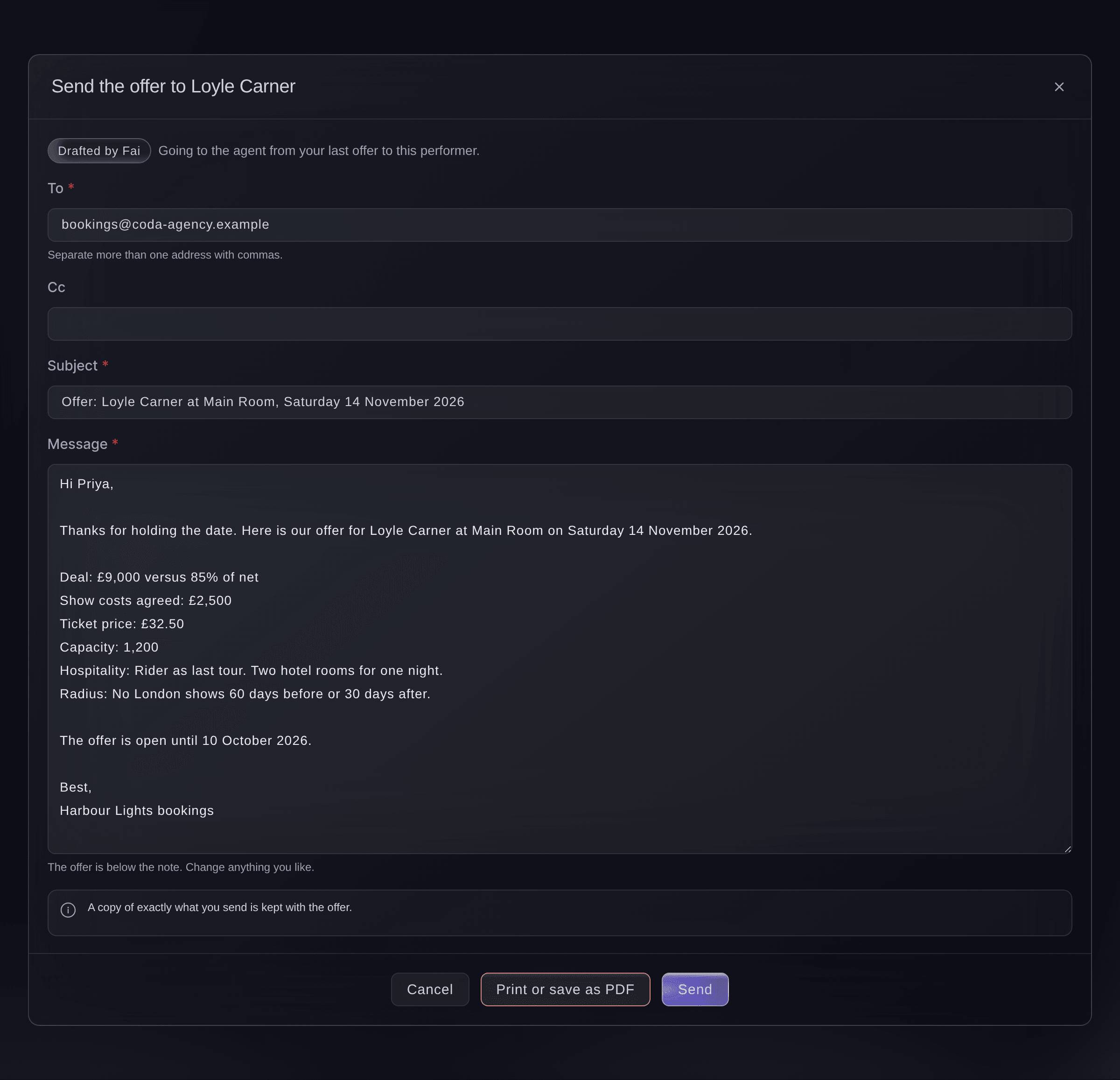
Send the offer. -
Send the offer
Select Send, check the addresses in the confirmation, then select Send again. The offer shows Sent.
Note: The email goes from your connected mailbox when you have one, or from Ticket Fairy with your address to reply to. A copy of exactly what you sent is kept with the offer.
Warning: You cannot unsend an email. If you change your mind, withdraw the offer and tell the agent.
-
Record the agent's answer
When the agent replies, open the offer, select Record their answer, choose what they said, then select Record answer.
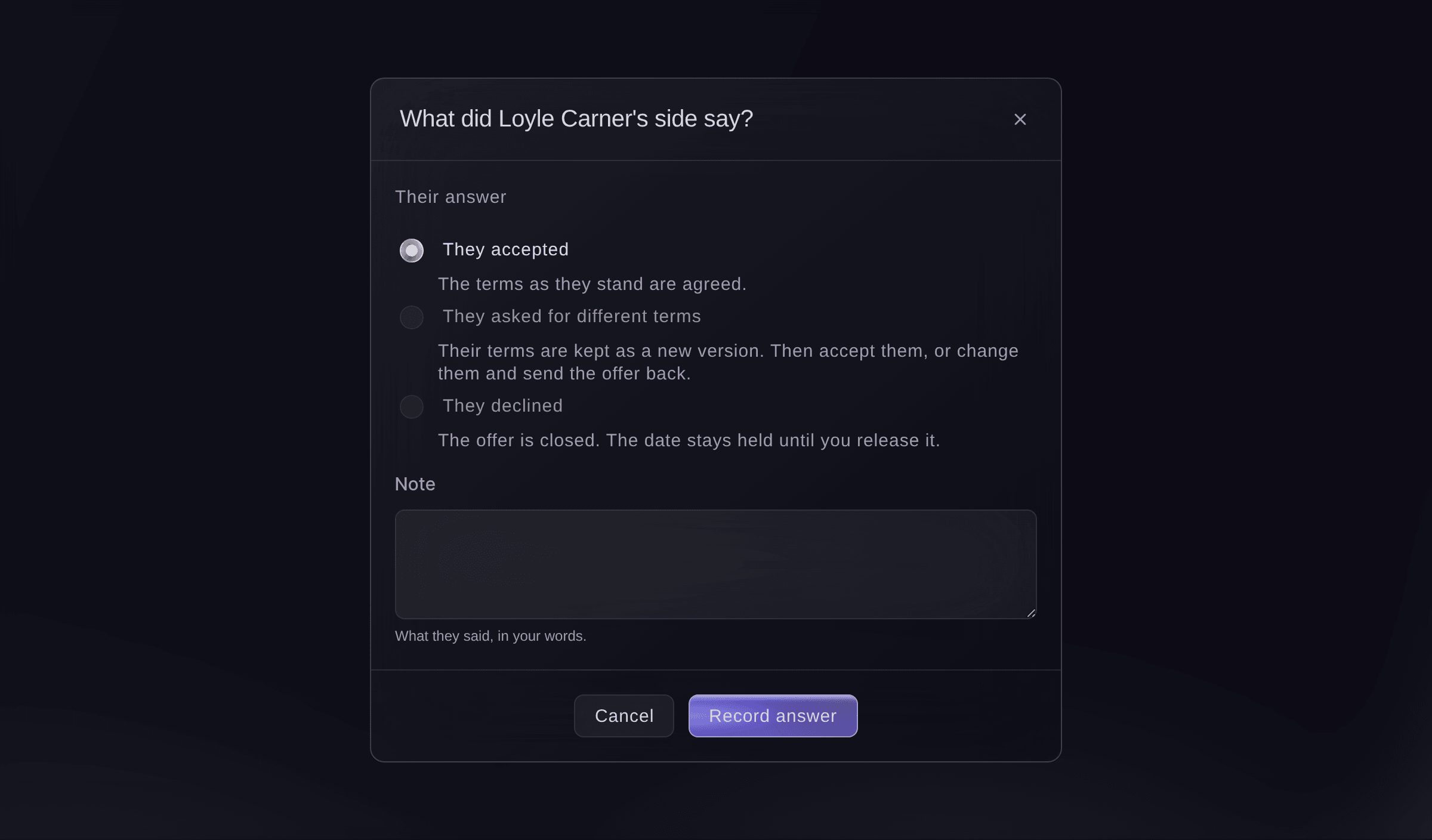
Record their answer. -
Answer a counter-offer
Open the offer to see each version under Versions. To take their terms, record their answer again as They accepted; to reply with your own, select Edit, change the terms and Prepare and send again.
Note: If you change the terms after their counter, you send them before you can record an acceptance, so the agent always agrees to what they saw.
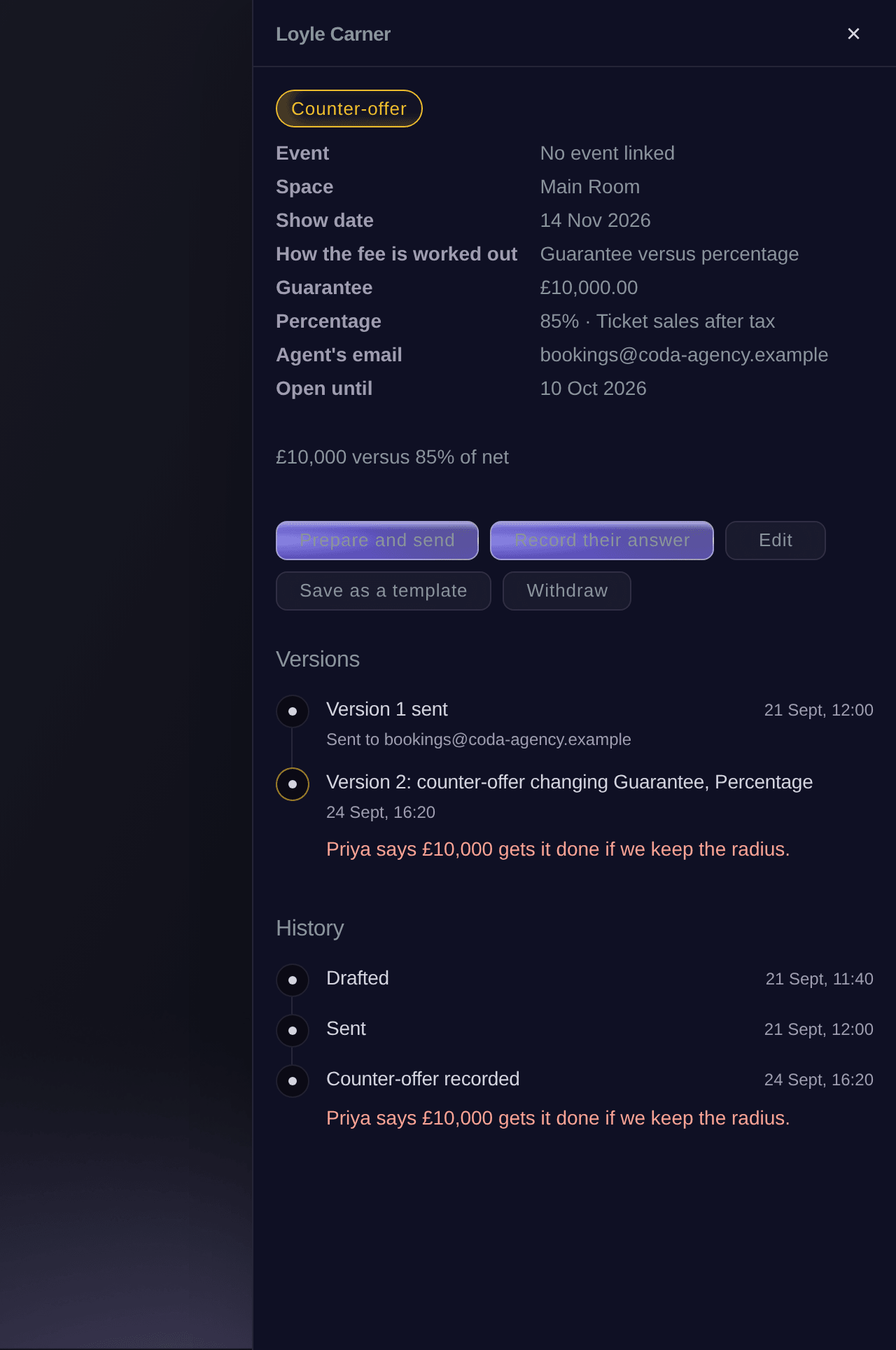
An offer after a counter-offer. -
Check the artist is booked on your event
When you record an acceptance on an offer linked to an event, you see
Booking added
with an Undo button, and the artist is on the event's Artists list with the agreed fee.Note: For an accepted offer with no event yet, choose the event with Edit, then select Book on the event. Advancing then starts from the event's Management page.
-
Mark the offer as contracted
Once the contract is signed, open the offer, select Mark as contracted, then confirm.
Warning: A contracted offer cannot change after this.


Try these steps on your own event
Create a free account, build your event and follow the steps above in your own dashboard. It takes a few minutes and you do not need to book a sales call.
No setup fees. No required monthly ticketing fee. No credit card required.
Or have it done for you
Fai creates an offer from a template, a hold or your last deal, drafts the email to the agent, sends it once you have read it, and records their answer, counter-offer included. She asks you before each change and before anything is sent.
In your dashboard, with Fai
Make an offer to <ARTIST NAME> for Saturday 14 November in the Main Room, start from what we paid them last time, and show me the email to their agent before you send it
From your own assistant, over MCP
Connect your assistant to our MCP server and ask it:
The copied MCP configuration includes --read-only. Remove --read-only only when you want your assistant to make changes. Routine changes run when requested; destructive actions ask you in a compatible client. If your client cannot ask, make the change in your dashboard.
Pick the brand, create a draft offer to <ARTIST NAME> for 2026-11-14 with a guarantee of <AMOUNT>, draft the email to their agent and show it to me. Ask me before you send it
From your terminal
Install the CLI from our CLI page, sign in with ticketfairy auth login, and choose the brand you are working on with ticketfairy brand use <BRAND_ID>. ticketfairy brand list and ticketfairy event list show the IDs the other commands use.
Use the CLI to create a draft offer, get the email Fai drafts for it, send it and record the agent's answer. Amounts are in the smallest unit of the currency, so £2,500 is 250000. Offer templates and the fee history are in the dashboard and through Fai. You need an owner, admin or producer login on the brand.
Create a draft offer. Nothing is sent.
ticketfairy event-os venue offers create --brand <BRAND_ID> --performer "<ARTIST NAME>" --show-date 2026-11-14 --space <SPACE_ID> --terms '{"currency":"GBP","guarantee_cents":900000}'
Get the email Fai drafts for the offer: recipient, subject and message. Nothing is sent.
ticketfairy event-os venue offers draft-email <OFFER_ID> --brand <BRAND_ID>
Email the offer to the agent. This sends an email and asks you first unless you add --force.
ticketfairy event-os venue offers send <OFFER_ID> --brand <BRAND_ID> --to <AGENT_EMAIL> --subject "<SUBJECT>" --message "<MESSAGE>"
Record that the agent asked for different terms, as a new version.
ticketfairy event-os venue offers record-reply <OFFER_ID> --brand <BRAND_ID> --reply countered --terms '{"guarantee_cents":1000000}'
Record that the agent accepted. On an offer linked to an event, this also books the artist on it.
ticketfairy event-os venue offers record-reply <OFFER_ID> --brand <BRAND_ID> --reply accepted
Let Fai do it for you
Fai works inside your Ticket Fairy dashboard. Create your account, open Fai and paste the prompt above.
No setup fees. No required monthly ticketing fee. No credit card required.
Save an offer as a template
-
Save the offer's deal for next time
Open the offer, select Save as a template, enter the Template name, then select Save.
Note: The template keeps the deal and the wording. Dates and the event are not kept.
Fai saves an offer as a template, and adds, changes or removes templates, after you confirm.
In your dashboard, with Fai
Save the offer to <ARTIST NAME> as a template called <TEMPLATE NAME>
Withdraw an offer
-
Withdraw it
Open the offer, select Withdraw, add a reason if you want one, then select Withdraw in the dialog.
Note: The offer is closed on your side and the agent is not told, so let them know. A withdrawn offer cannot be sent again; start a new one instead.
Fai withdraws an offer after she shows you which one and you say yes.
In your dashboard, with Fai
Withdraw our offer to <ARTIST NAME> for <DATE>
Questions you might have
- What does "Closed, no answer" mean?
- The offer passed its Open until date with no answer. You can still send it again: choose a new date, or leave it empty so it stays open.
- Can I undo the booking an acceptance made?
- Yes. Select Undo on the message. The link is removed, and so is the booking when the offer made it and nobody has changed it since; a booking that was already there stays.
- Where does the fee history come from?
- From your brand's own offers and artist bookings for that performer, with the tickets each show sold. An offer that was never agreed is shown for context and marked not agreed, for context only.
- Who can see offers and fees?
- Owners, admins and producers of the brand. Other roles see the calendar and holds only.
- What if the email did not go?
- The offer stays a draft and its history says the email could not be sent, so you can send it again. If we could not confirm it went, check your sent mail before you send it again.
Still have a question?
Book a demo and we will answer it on a call, on your kind of event. Or create your account and see it for yourself.
No setup fees. No required monthly ticketing fee. No credit card required.
Related guides
Do this on your own event
Create your account, build your event and follow the steps in your own dashboard. You do not need to book a sales call.