
Checkout and orders
Move a buyer to a different ticket type or seat
Box office and support teams move buyers when they bought the wrong ticket, an upgrade has been agreed or a group needs to sit together. You can change the ticket type on a whole order at once or give one ticket holder a different seat. The buyer keeps their order and, when the whole order moves, their barcodes too.
Change every ticket on a buyer's order to another ticket type in one go, move one ticket on its own, or give a ticket holder a different seat on your seat map, without the buyer placing a new order.
- For
- Moving a buyer to the right ticket or seat after they have bought
- Takes
- 5 minutes
Before you start
- To change ticket types you're the owner, an admin, a support login or a limited support login on the event. A Stats login can open the order but its change is refused.
- To change seats you're the owner or an admin, and the event sells reserved seats from its seat map.
- You have agreed with the buyer what they are moving to. Moving tickets charges and refunds nothing, so settle any difference in price with them first.
-
Open the buyer's order
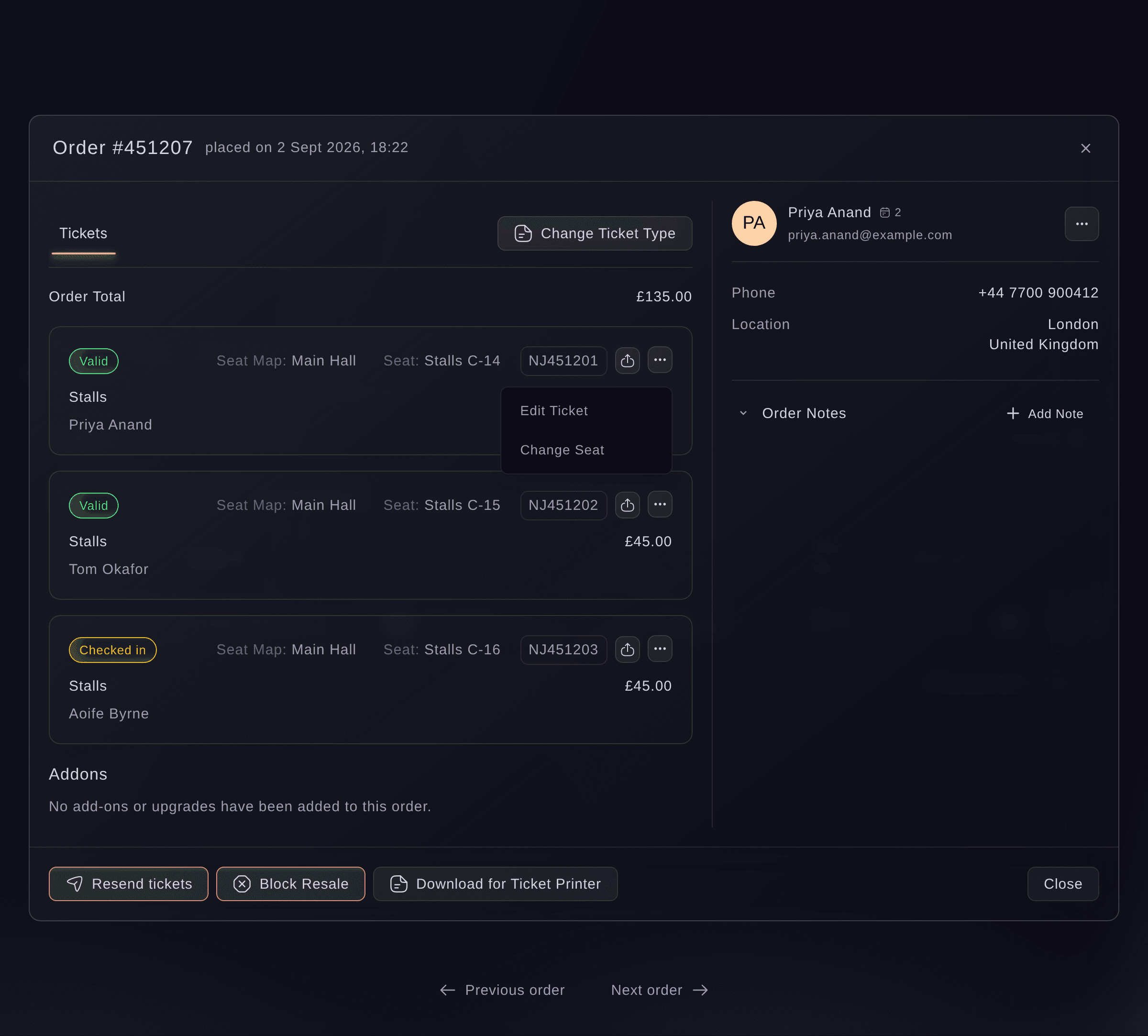
Open your event, select Orders, search for the buyer and open their order. Each ticket shows its ticket type and holder, and on a seated event its seat.
Event, Orders, order. -
Select Change Ticket Type
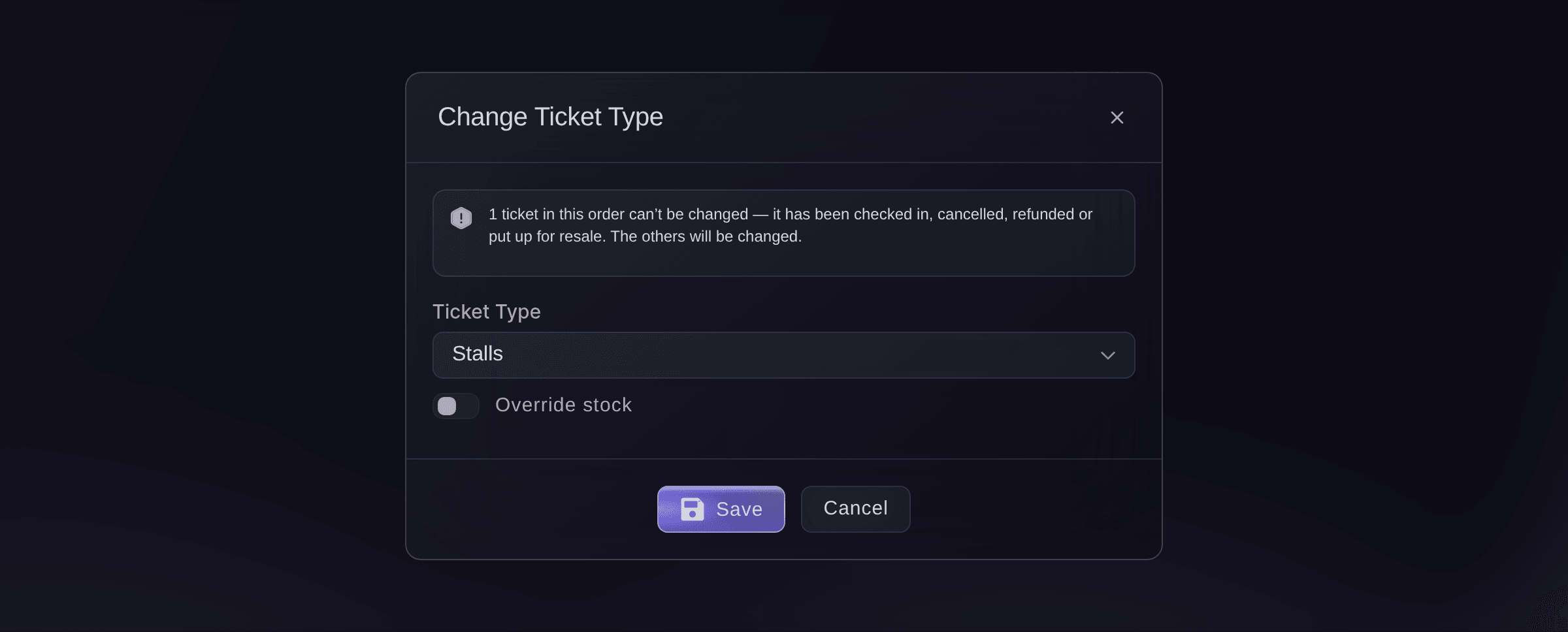
Select Change Ticket Type above the tickets. The dialog opens on the ticket type the order has now, and says so first when some of its tickets cannot move.
Note: On an event that sells time slots, the button is Change Time Slot and the dialog asks for a Date and a Time as well.
Event, Orders, order, Change Ticket Type. -
Choose the new ticket type
Choose the ticket type the buyer is moving to from Ticket Type. A ticket type you have turned off shows as unavailable and cannot be chosen.
Note: If the new ticket type has sold out, the dialog says so and Save stays greyed out until you turn on Override stock.
-
Save the change
Select Save.
Successfully updated!
confirms it, and every ticket on the order that was still valid now carries the new ticket type.Warning: Tickets already checked in, cancelled, refunded or up for resale keep their ticket type, and the dialog tells you how many before you save.


What the buyer notices
Nothing is emailed to the buyer, and their barcodes stay the same, so the tickets they already have still scan. We charge nothing more for a dearer ticket type and refund nothing for a cheaper one, and the order keeps the total they paid.
-
Check the tickets on the order
Look at the ticket cards in the order. Each ticket that moved shows the new ticket type name, and a ticket that could not move still shows the old one.
-
Open Change Seat on the ticket
If the buyer needs a different seat, open the menu beside that ticket's code and select Change Seat. A ticket with no seat yet offers Assign Seat instead.
-
Pick the new seat and save
Select the new seat on your seat map, then select Save.
Seats updated successfully!
confirms it, and the ticket shows its new seat.Note: The old seat goes back on sale, and the ticket keeps its barcode. Only seats that are free can be selected.
Try these steps on your own event
Create a free account, build your event and follow the steps above in your own dashboard. It takes a few minutes and you do not need to book a sales call.
No setup fees. No required monthly ticketing fee. No credit card required.
Or have it done for you
Fai, the assistant inside your dashboard, finds the order and reads out each ticket's type, holder and state, before and after you move it. Changing the ticket type and changing a seat are yours to do on the page, because she cannot do either. MCP and the command line have no command for either change.
In your dashboard, with Fai
For order <ORDER NUMBER> on <EVENT NAME>, list each ticket with its ticket type, holder and state, and tell me which of them are checked in or up for resale
Let Fai do it for you
Fai works inside your Ticket Fairy dashboard. Create your account, open Fai and paste the prompt above.
No setup fees. No required monthly ticketing fee. No credit card required.
Move one ticket rather than the whole order
-
Open Edit Ticket
In the order, open the menu beside the ticket's code and select Edit Ticket.
-
Change the ticket type and save
Change Ticket Type, then select Save. This cancels the ticket and issues a replacement with a new barcode, so resend the order's tickets if the buyer does not have the new one.
Note: On a timed entry event where we charge for a change of slot, the buyer receives a link and the change happens only once they follow it.
Fai reads the ticket afterwards so you can confirm which one is now valid. Making the change is yours to do on the page.
In your dashboard, with Fai
For order <ORDER NUMBER> on <EVENT NAME>, list its tickets with the type, barcode and state of each
Questions you might have
- Why is Change Ticket Type greyed out?
- Your event is linked to a performance on another ticketing system, and hovering the button says
Change Ticket Type is not available for DET events.
Move each ticket on its own with Edit Ticket instead. - Does the buyer pay the difference when I move them to a dearer ticket type?
- No. Moving tickets charges nothing and refunds nothing, and the order keeps the total the buyer paid. Agree any difference with the buyer before you move them.
- Do the buyer's tickets still work after I change the ticket type on the order?
- Yes. Change Ticket Type keeps each ticket's barcode, so a ticket already printed or saved to a phone still scans. Moving one ticket with Edit Ticket is different: that issues a new barcode.
- Why is Save greyed out?
- Either the new ticket type has sold out, in which case turn on Override stock, or no ticket on the order can move because each one is checked in, cancelled, refunded or up for resale. A ticket part way through a resale unlocks once that resale completes.
- Why isn't Change Seat in the ticket's menu?
- It appears on tickets for reserved seats picked from the event's seat map, and only for the owner or an admin. If your event has reserved seats and you have one of those logins, ask your Ticket Fairy contact which seat map the event uses.
- Is the buyer told about the change?
- Not by us. Changing the ticket type on the order or changing a seat sends no email, so tell the buyer yourself, or resend their tickets from the order so they have an up-to-date copy.
- Can Fai move a buyer for me?
- Not yet. She finds the order and reads out each ticket's type, holder and state, and the change itself is yours to do on the page.
Still have a question?
Book a demo and we will answer it on a call, on your kind of event. Or create your account and see it for yourself.
No setup fees. No required monthly ticketing fee. No credit card required.
Related guides
Do this on your own event
Create your account, build your event and follow the steps in your own dashboard. You do not need to book a sales call.