
Vault and Capital
Open a Vault account for event money with the older setup form
Your brand can hold its event money in Vault using the account form offered on Overview. The account card then opens secure business and identity verification.
Open an account for your event money when Vault offers Create new account instead of Financial setup. Enter the business and its people, then complete secure verification from the account card.
- For
- Opening the account your brand holds its event money in
- Takes
- 10 minutes
- Open Vault for the brand
- Select Create new account
- Check the business details
- Choose the business structure
- Choose the country
- Enter the authorised person
- Enter the legal representative
- Enter the controlling person
- Enter the beneficial owner
- Select Create account
- Select Start setup
- Answer the verification questions
- While Vault checks your account
- Check the account is active
Before you start
- You are a brand owner, and Vault offers Create new account instead of a Financial setup link. If you have a Financial setup link, use [the current account-opening guide](/guides/open-a-vault-account).
- Vault is switched on for your brand. Ask Ticket Fairy support to switch Vault on for your brand if it isn't.
- You know how your business is registered, and the names of the people who act for it, represent it, control it and own it.
-
Open Vault for the brand
Pick the brand, then open Vault. A brand with no account yet shows Open a Vault account.
Note: If the page says
Vault is not enabled for this brand
, ask Ticket Fairy support to switch Vault on for your brand.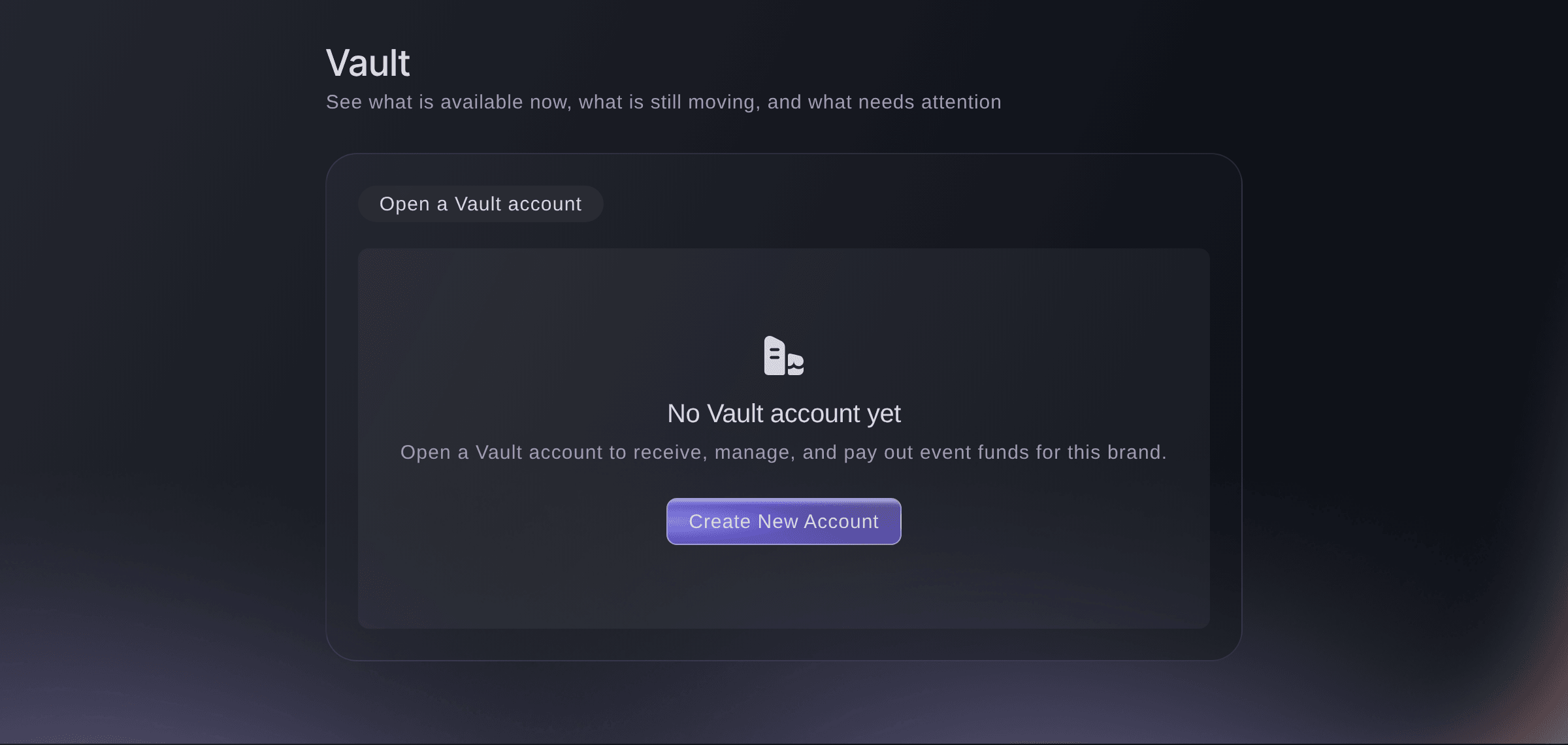
Brand, Vault, before the account exists. -
Select Create new account
Select Create new account. The form opens with your brand's email, name, city and country already filled in.
Tip: Cancel closes the form without keeping what you entered, so finish it once you start.
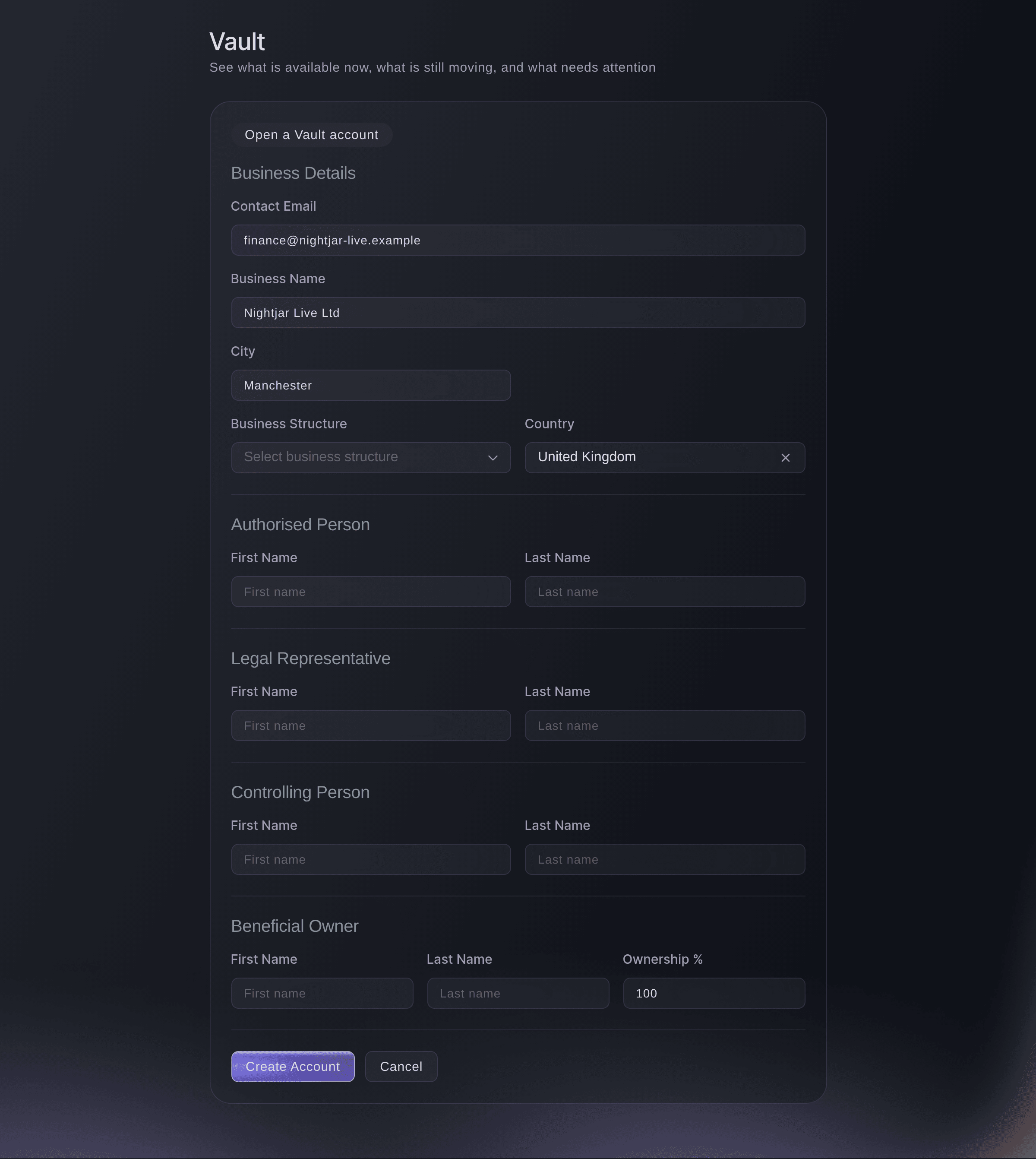
Brand, Vault, Create new account. -
Check the business details
Under Business details, check Contact email, Business name and City against your business's own records, and correct any that differ.
-
Choose the business structure
Choose how the business is set up from Business structure.
-
Choose the country
Choose the country the business is based in from Country. The list starts on your brand's country and offers every other country too.
-
Enter the authorised person
Under Authorised person, enter the first and last name of the person who acts for the business on this account.
-
Enter the legal representative
Under Legal representative, enter the name of the person who represents the business legally, such as a director.
-
Enter the controlling person
Under Controlling person, enter the name of the person who has control of the business, such as its managing director.
-
Enter the beneficial owner
Under Beneficial owner, enter the name of the person who owns the business, then their share in Ownership %.
Note: Ownership % starts at 100 and takes a whole number from 1 to 100. One person can appear in every section when they run and own the business.
-
Select Create account
Read and accept any required account agreements shown, then select Create account.
Account created successfully!
confirms it, and the Vault account card takes the form's place with the status Created.Note: For a field error, correct the highlighted details before trying again.
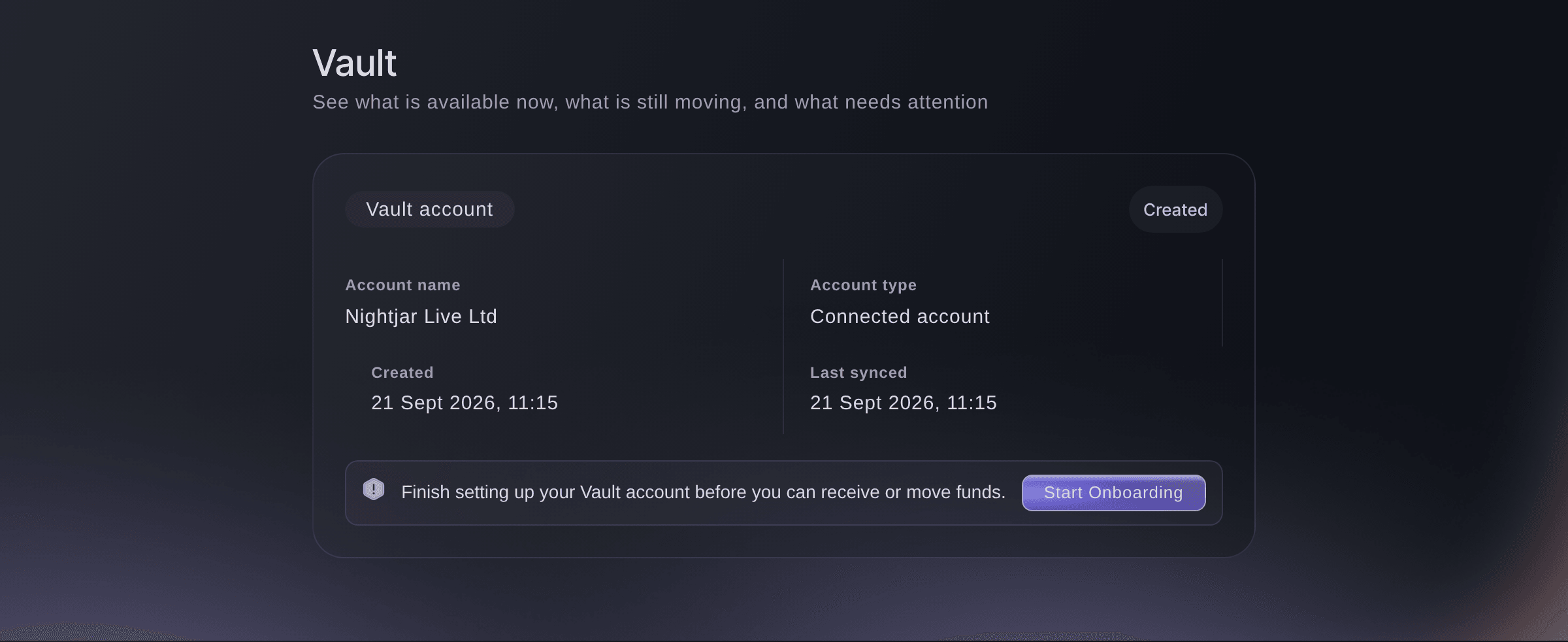
Brand, Vault, straight after the account is created. -
Select Start setup
On the Vault account card, select Start setup. The Finish setting up your account window opens Vault's secure verification.
Note: If the window asks you to continue securely instead, select Continue account setup and finish in the tab it opens.
-
Answer the verification questions
Answer each question about the business and the people behind it, then submit the last page.
Your details have been sent. We will tell you when your account is approved.
confirms it and the window closes.


While Vault checks your account
The Vault account card says Submitted while the check runs, and Vault shows only Overview, Events and Action Centre. If the card changes to Action required, Vault needs more from you: select Continue setup and answer what it asks.
-
Check the account is active
Open Vault again. The Vault account card says Active, your balances show above it, and Cards, Transfers and Accounts appear under Vault.
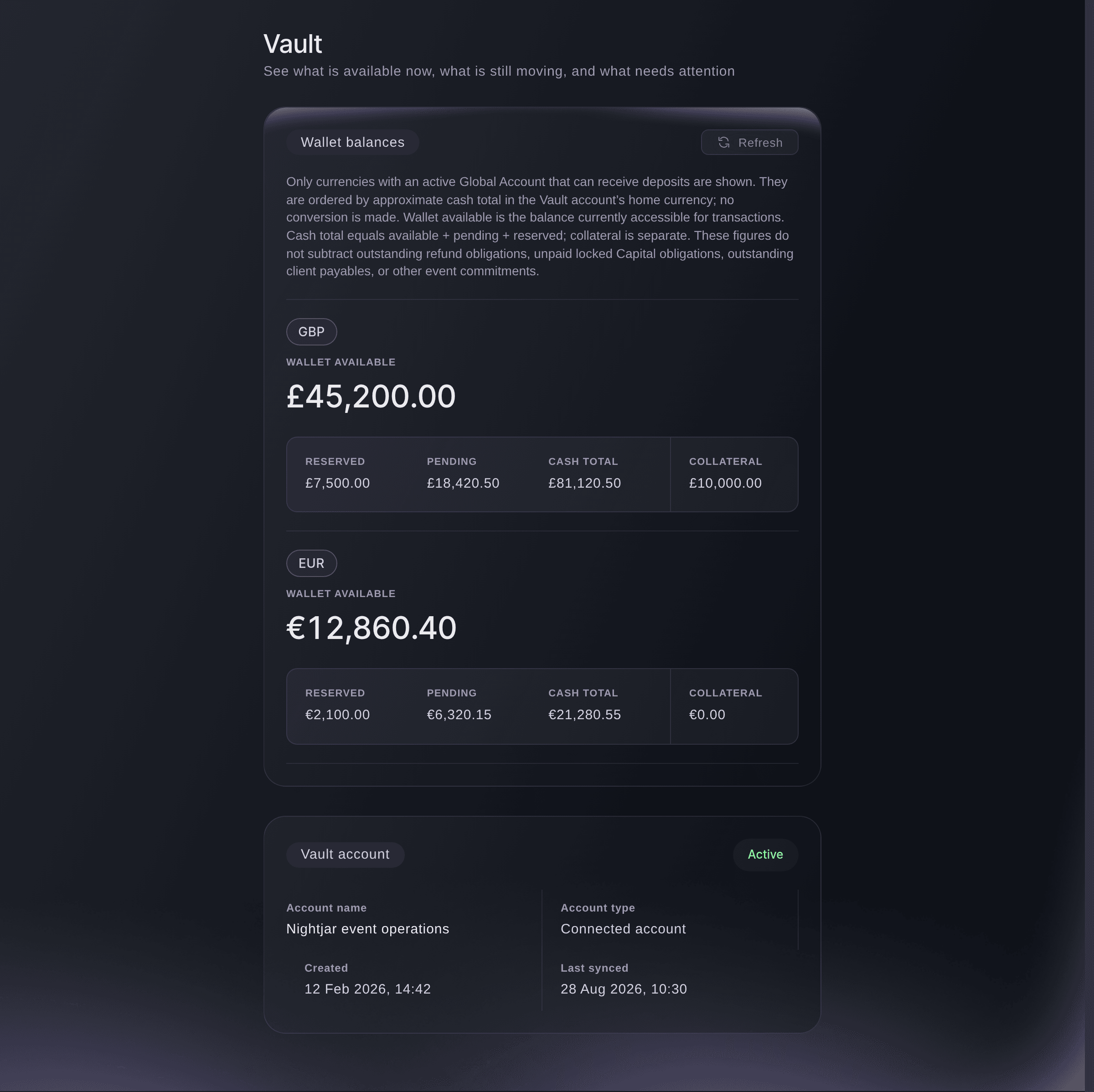
Brand, Vault, once the account is active.

Try these steps on your own event
Create a free account, build your event and follow the steps above in your own dashboard. It takes a few minutes and you do not need to book a sales call.
No setup fees. No required monthly ticketing fee. No credit card required.
Or have it done for you
Fai, the assistant inside your dashboard, opens Vault for you. Creating the account and answering the verification questions are yours to do on the page, because they are about you and your business. MCP and the command line read the account and its status while you wait for the check, and create nothing.
In your dashboard, with Fai
Open Vault for <BRAND NAME> so I can open an account
From your own assistant, over MCP
Connect your assistant to our MCP server and ask it:
Keep --read-only in your MCP configuration. This task only reads data, so your assistant does not need tools that make changes.
Pick the brand <BRAND NAME> and tell me the status of its Vault account
From your terminal
Install the CLI from our CLI page, sign in with ticketfairy auth login, and choose the brand you are working on with ticketfairy brand use <BRAND_ID>. ticketfairy brand list and ticketfairy event list show the IDs the other commands use.
The command line reads the brand's Vault account and its status. You need an owner login for the brand. It cannot create the account or finish its setup, which happen in the dashboard.
List the brands you can act for, with the id each one uses
ticketfairy brand list
Print the brand's Vault account as JSON. Its metadata.status reads ACTIVE once the check has passed
ticketfairy vault account --brand <BRAND_ID> --output json
Let Fai do it for you
Fai works inside your Ticket Fairy dashboard. Create your account, open Fai and paste the prompt above.
No setup fees. No required monthly ticketing fee. No credit card required.
Questions you might have
- What if Vault asks me to use Financial setup or cannot load the agreements?
- If Vault asks you to use Financial setup, refresh the page and follow [the current account-opening guide](/guides/open-a-vault-account). If the required agreements are unavailable, wait until they are available or ask Ticket Fairy support; do not keep submitting the same form.
- Can I open a Vault account for one event?
- No. Vault belongs to the brand, and a brand has one Vault account, so money from every event the brand runs arrives in the same place.
- Why can't I see Vault in my brand menu?
- Vault shows to owners of a brand that has it switched on. If you're an owner and it isn't there, ask Ticket Fairy support to switch Vault on for your brand.
- What does Action required mean on my account?
- Vault needs more information before it can activate the account. Select Continue setup on the Vault account card and answer what the window asks.
- Can a colleague finish setting up the account for me?
- A colleague with an owner role can finish opening the account. They need the business and identity details to hand; account creation and the secure verification questions stay in the dashboard.
- Can I change the details after I create the account?
- The dashboard has no form to change them once the account exists. Contact Ticket Fairy support if a detail you entered is wrong.
- My account says Suspended. What now?
- A suspended account can neither receive nor move money. Contact Ticket Fairy support, who can review the restriction and tell you what is needed to restore it.
- Which countries can a business set up Vault from?
- The available setup path depends on the business and its country. Follow the questions and account status offered to your brand, and ask Ticket Fairy support if setup is unavailable.
Still have a question?
Book a demo and we will answer it on a call, on your kind of event. Or create your account and see it for yourself.
No setup fees. No required monthly ticketing fee. No credit card required.
Related guides
Do this on your own event
Create your account, build your event and follow the steps in your own dashboard. You do not need to book a sales call.