
Start to finish
Prepare your door team for event day
Promoters, venue managers and production teams hand the door to a team who scan tickets from the moment the doors open. With logins, the guest list and the entry rules settled the day before, your queue keeps moving and you can see who is inside from your own phone.
Give everyone on your event door their own scanning login, send the guest list its tickets, set what each ticket may do at the door, test a ticket on every phone, then follow arrivals and find a guest by name once the doors open.
- For
- Getting a door team ready for the day of an event
- Takes
- 15 minutes
- Invite everyone who scans as Door Staff
- Put the scanning app on every phone
- Send the guest list their tickets
- Let a ticket back in when its holder leaves
- Give a ticket type its own door times
- Match each ticket type to its wristband
- Scan a test ticket on every phone
- Undo the test scan
- Follow arrivals once the doors open
- Find one guest at the gate
Before you start
- You're an owner or admin on the event, or on the brand that runs it, so you can invite the door team, send guest tickets and change ticket types.
- You have the email address of everyone who scans on the day, and each of them has a phone that can install an app.
- You have a name and an email address for each guest on the list, and a ticket type for them to come in on.
- Every entrance your door team uses has an internet connection, which the scanning app needs.
-
Invite everyone who scans as Door Staff
Open Team on your brand, select Add Team Member, then enter the address of everyone who scans, choose Door Staff and select Send Invitation. That login opens the Entry Fairy scanning app and nothing else in your dashboard.
Note: Invite someone who works this one event from the Team page of that event instead, so their access covers only that event.
Invite your team to your events and choose what each person can do
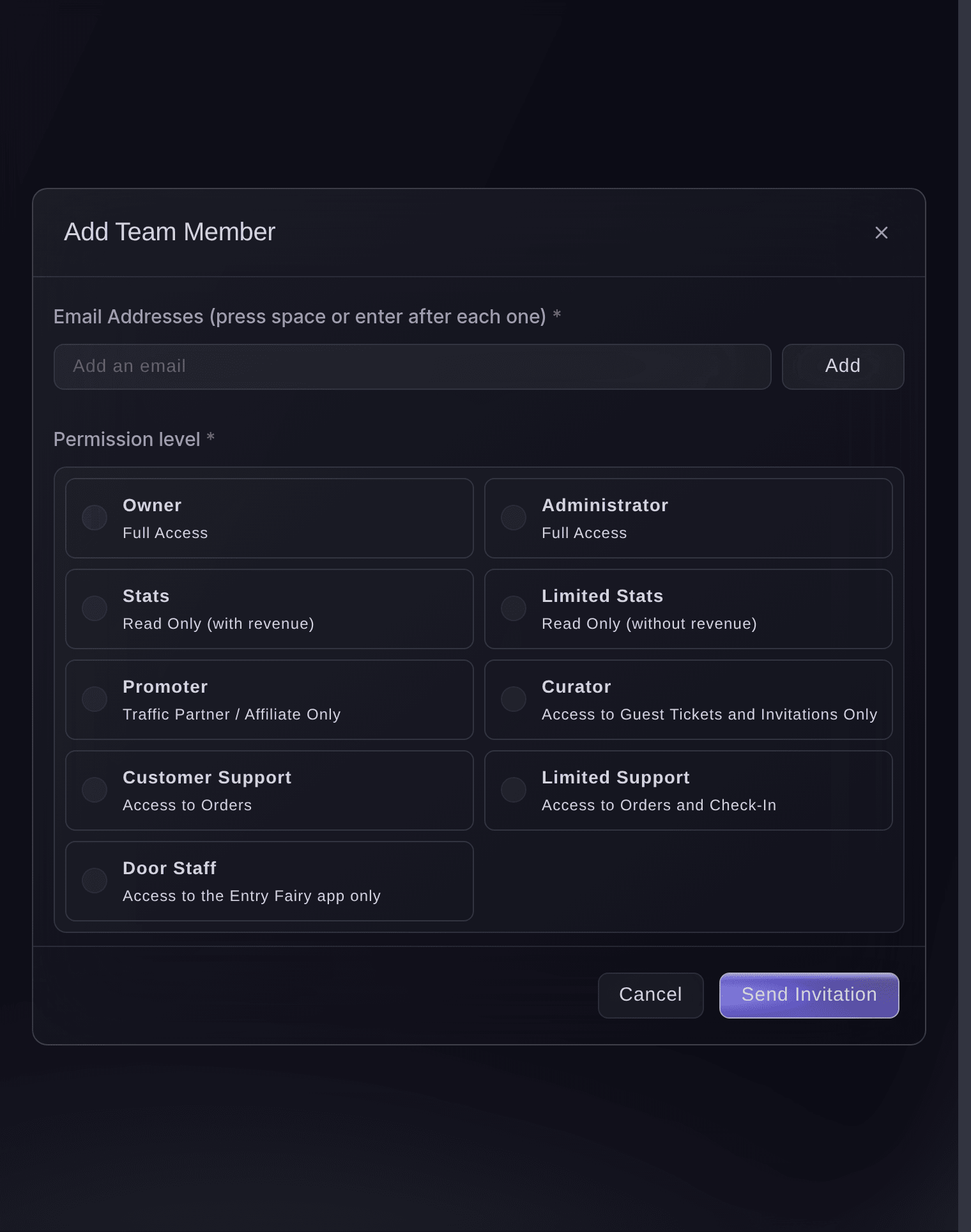
Brand, Team, Add Team Member. -
Put the scanning app on every phone
Open Check-In and select Download App for the Entry Fairy links on both app stores. Each person signs in to the app with their own login once they accept the invitation.
Tip: Install the app the day before, while each phone has a good connection.
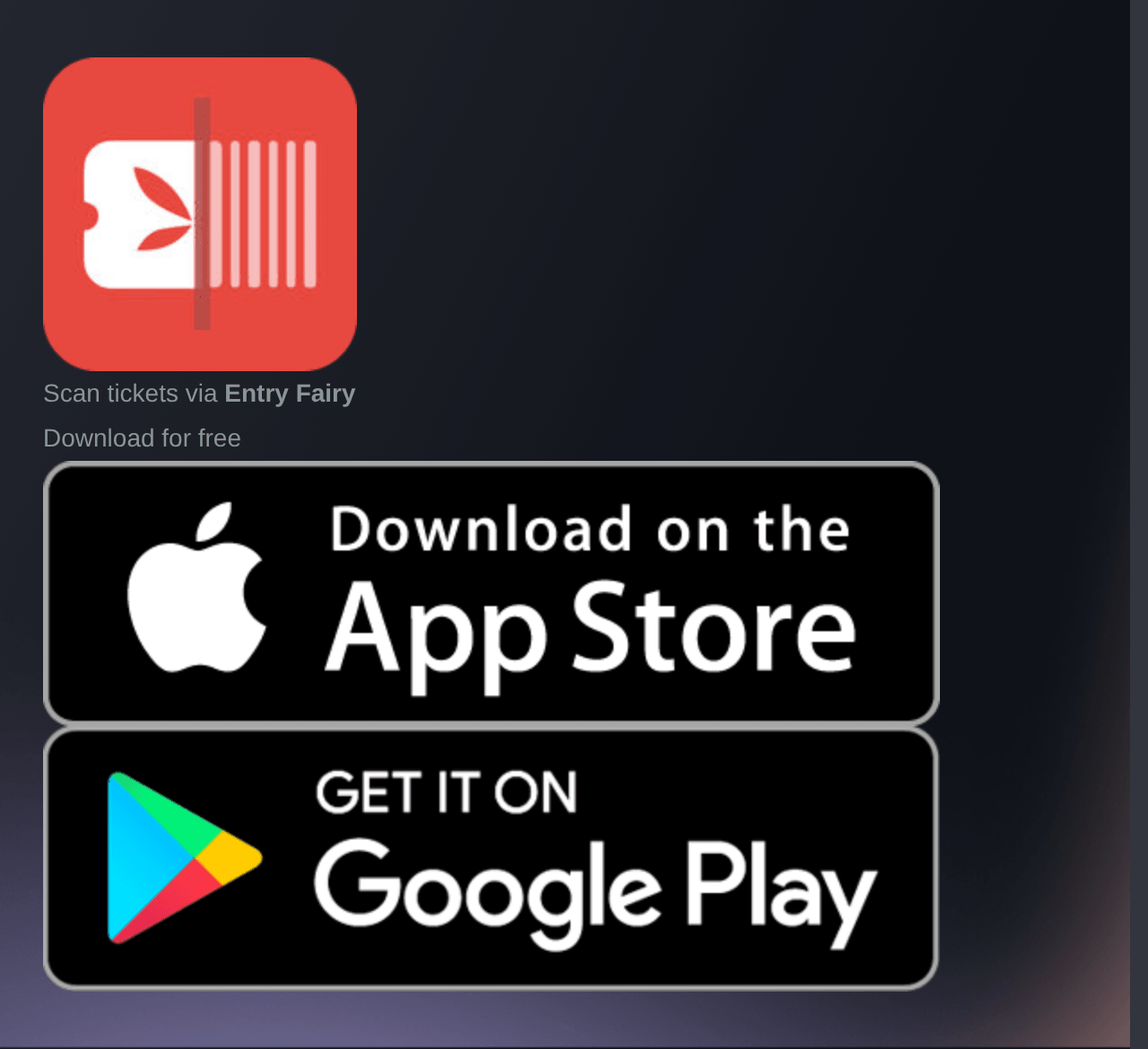
Event, Check-In, Download App. -
Send the guest list their tickets
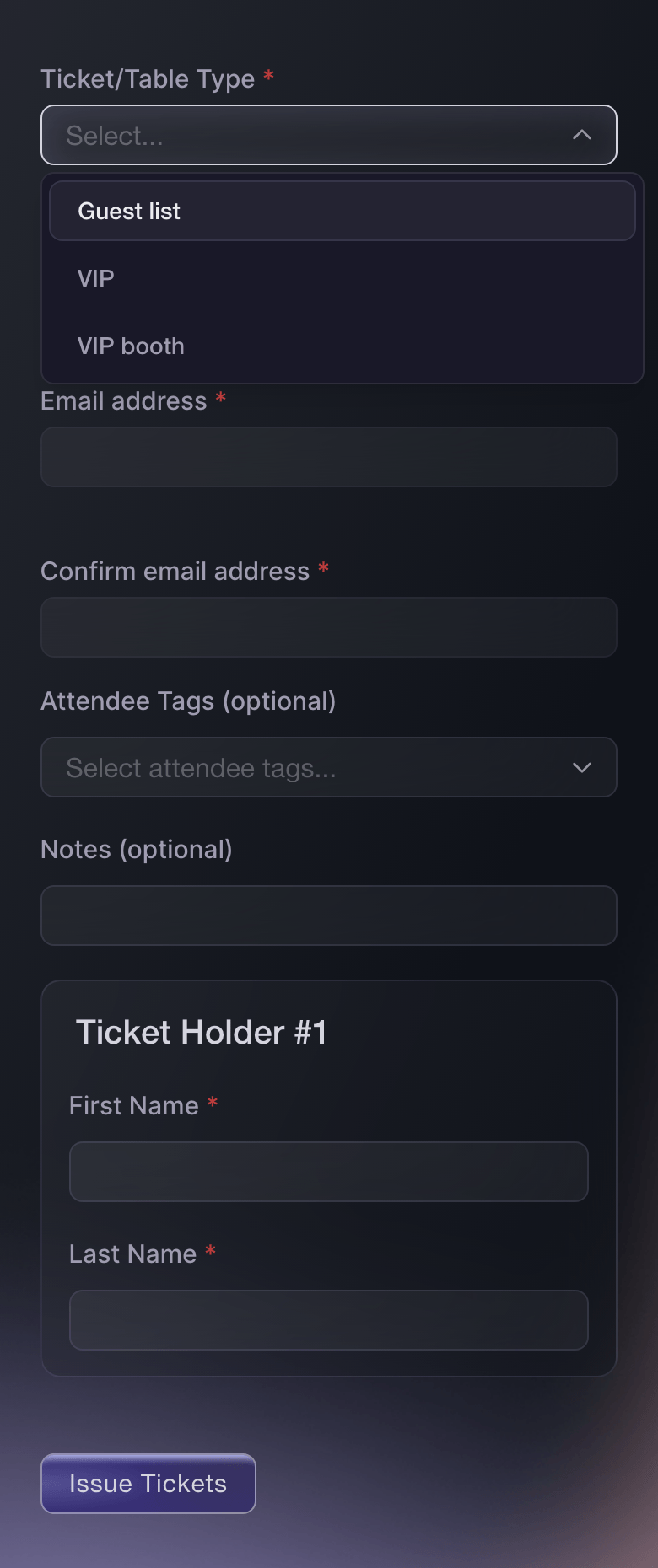
Open Guest Tickets, select Send Guest Tickets, then choose the ticket type and enter each guest's name and email address. Each guest ticket carries its own barcode and the guest's name, so your door team scans it like any other ticket.
Tip: Use a Guest list ticket type with its own allocation, so the comps stay apart from your paid tickets at the door and in your reports.
Send free tickets to your guest list
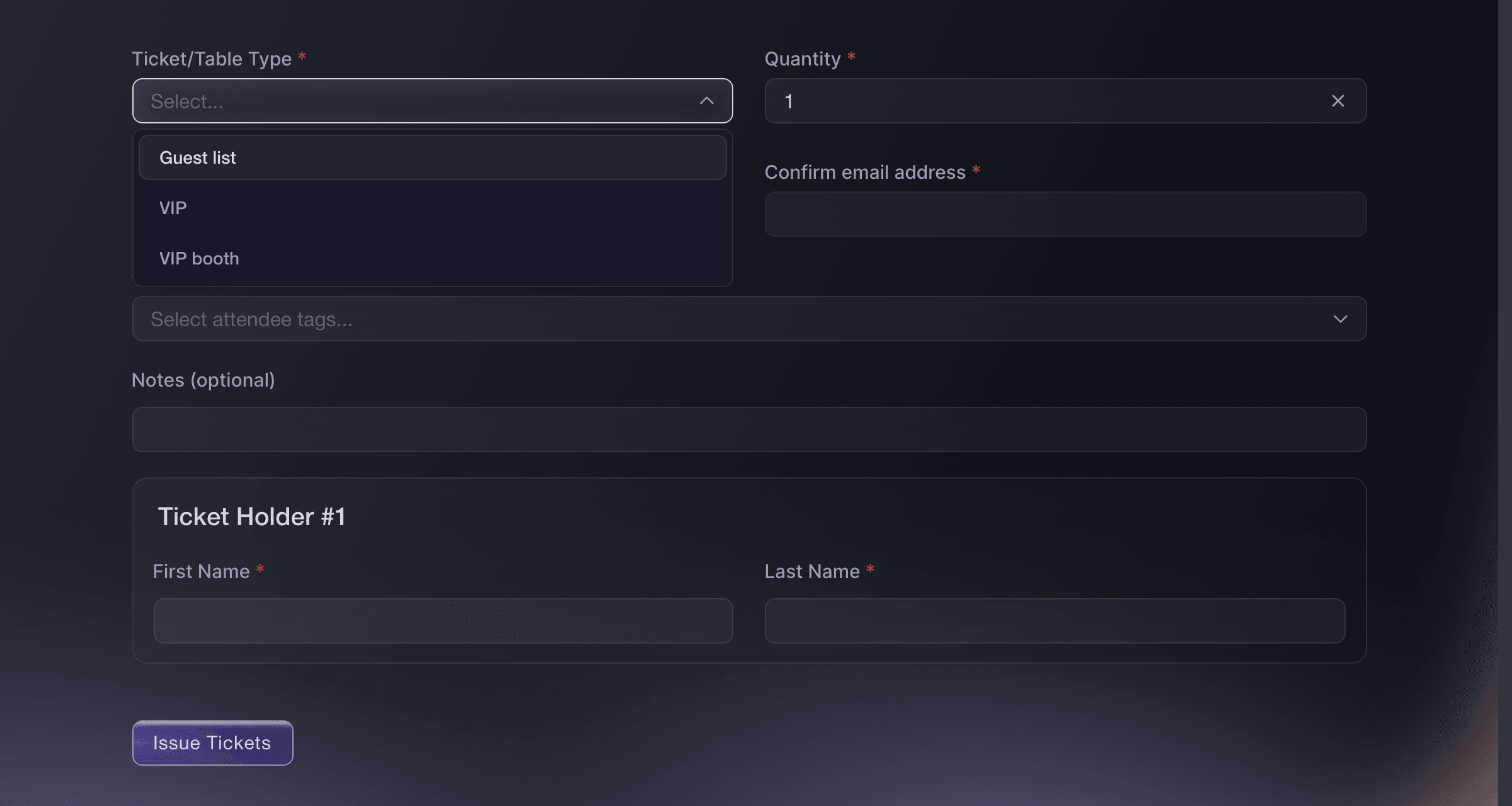
Event, Guest Tickets, Send Guest Tickets. -
Let a ticket back in when its holder leaves
Optional: Open the ticket type on Tickets and, under Ticket Rules, turn on Tickets can be scanned multiple times per event. With the switch off, the ticket admits its holder once and a second scan is refused as already checked in.
Note: Each rule belongs to one ticket type, so a weekend pass can let its holder back in while a day ticket admits once.
Set ticket entry and repeat-scan rules
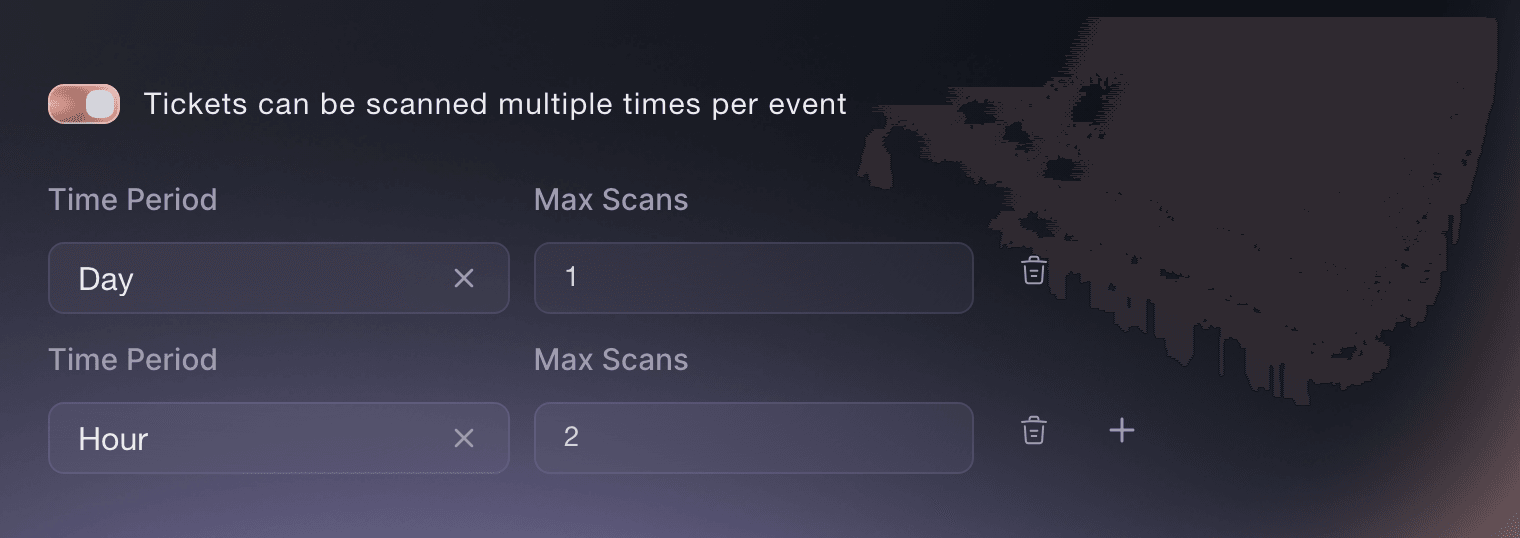
Event, Tickets, ticket type, Ticket Rules. -
Give a ticket type its own door times
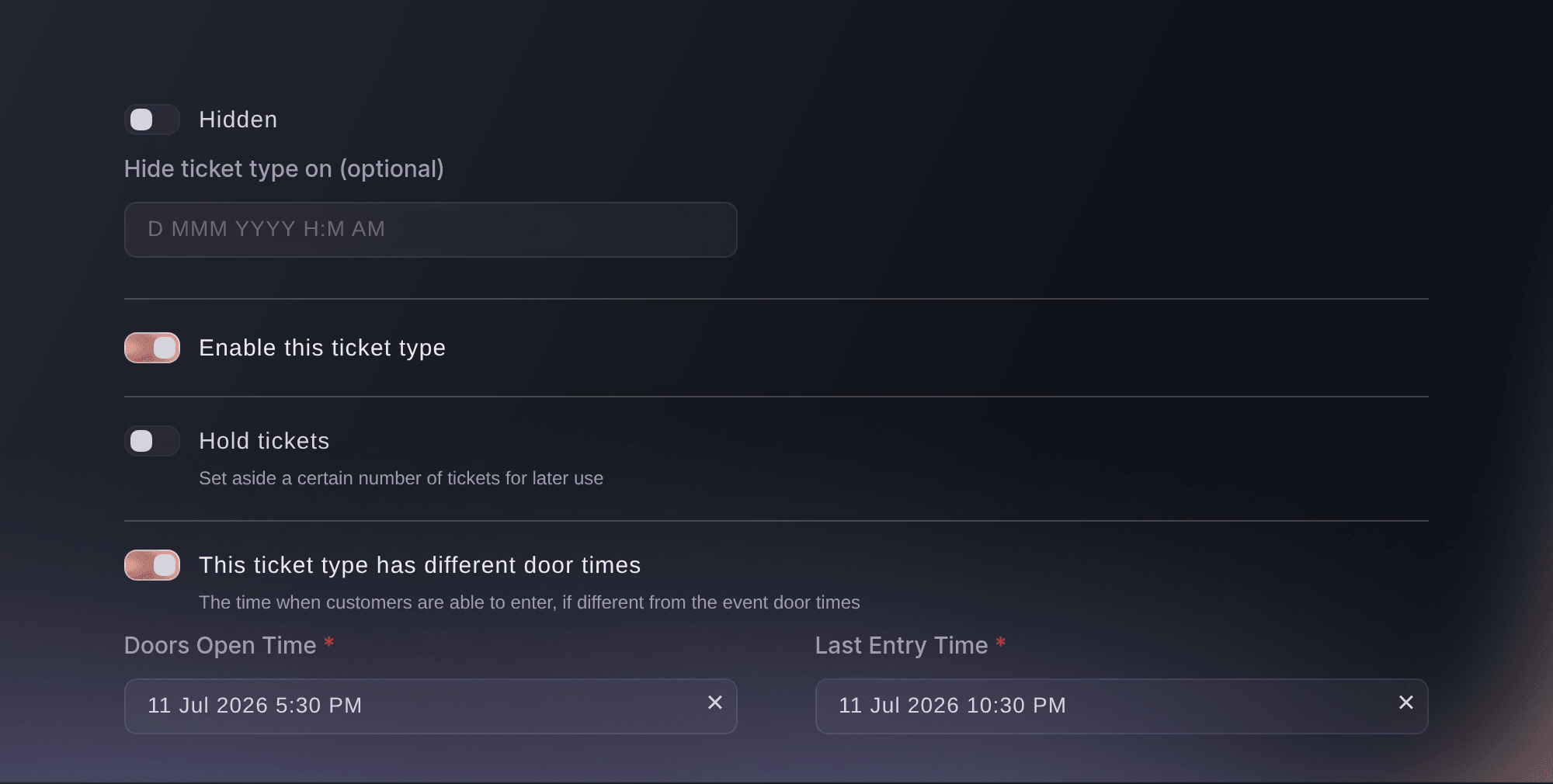
Optional: On a ticket type that enters at a different time from the event, such as VIP or the guest list, turn on This ticket type has different door times and enter the Doors Open Time and Last Entry Time. The scanning app admits that ticket only between those two times.
Note: A ticket scanned outside its times is refused, so a guest list that closes at midnight turns late arrivals away at the door.
Event, Tickets, Edit Ticket Type, ticket type options. -
Match each ticket type to its wristband
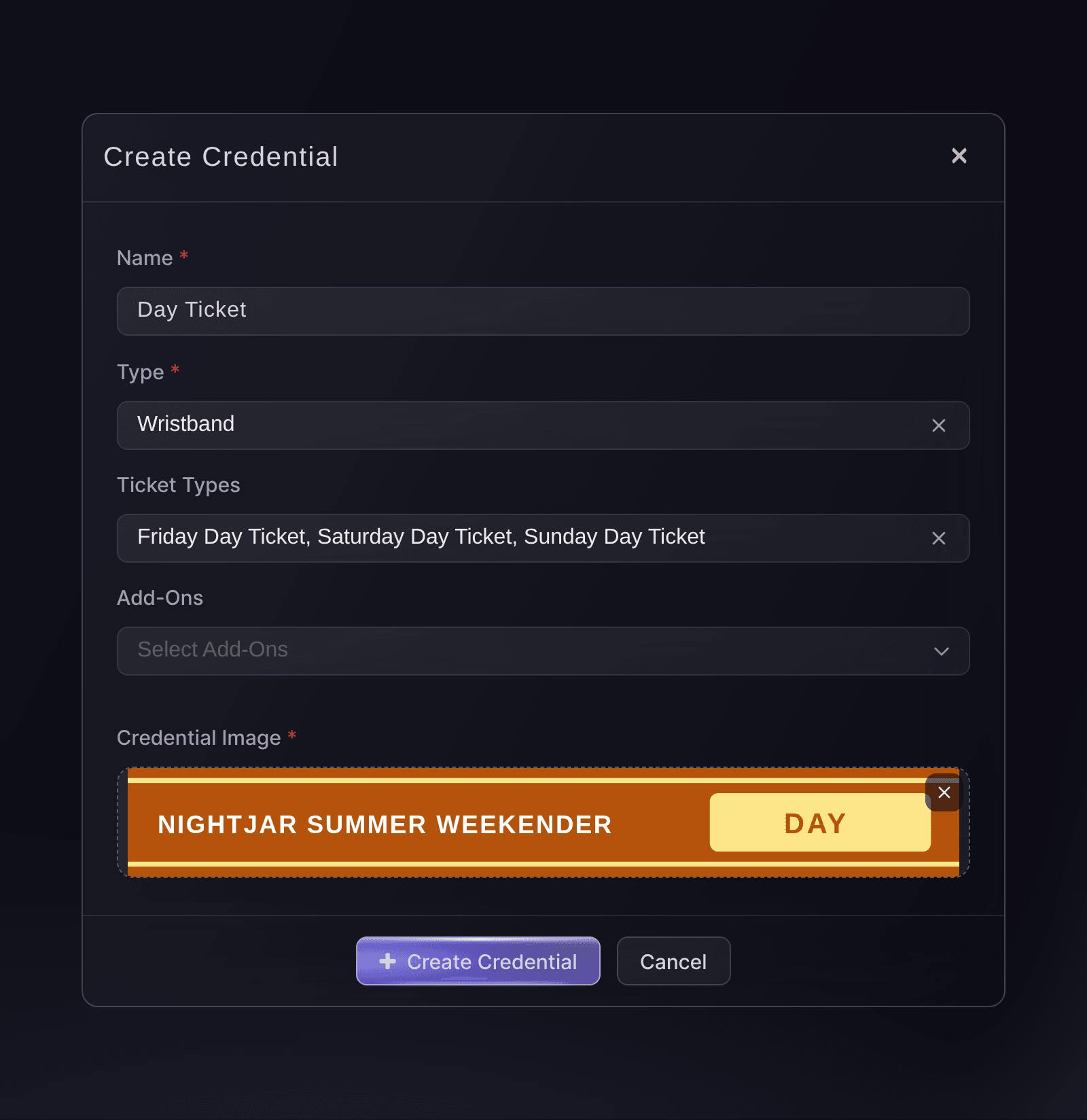
Optional: Open Credentials, select Create Credential for each wristband or badge, and choose the ticket types that get it. The scanning app then shows your door team which band to give each guest as their ticket scans.
Assign wristbands to each ticket type
Event, Credentials, Create Credential. -
Scan a test ticket on every phone
Send yourself one guest ticket on a ticket type that admits once, then scan it on each phone before the doors open. The first phone admits it, and every other phone shows it as already checked in with the time and the name of whoever scanned it.
Note: A phone that shows neither result is not signed in or has no connection, so fix it before the doors open.
-
Undo the test scan
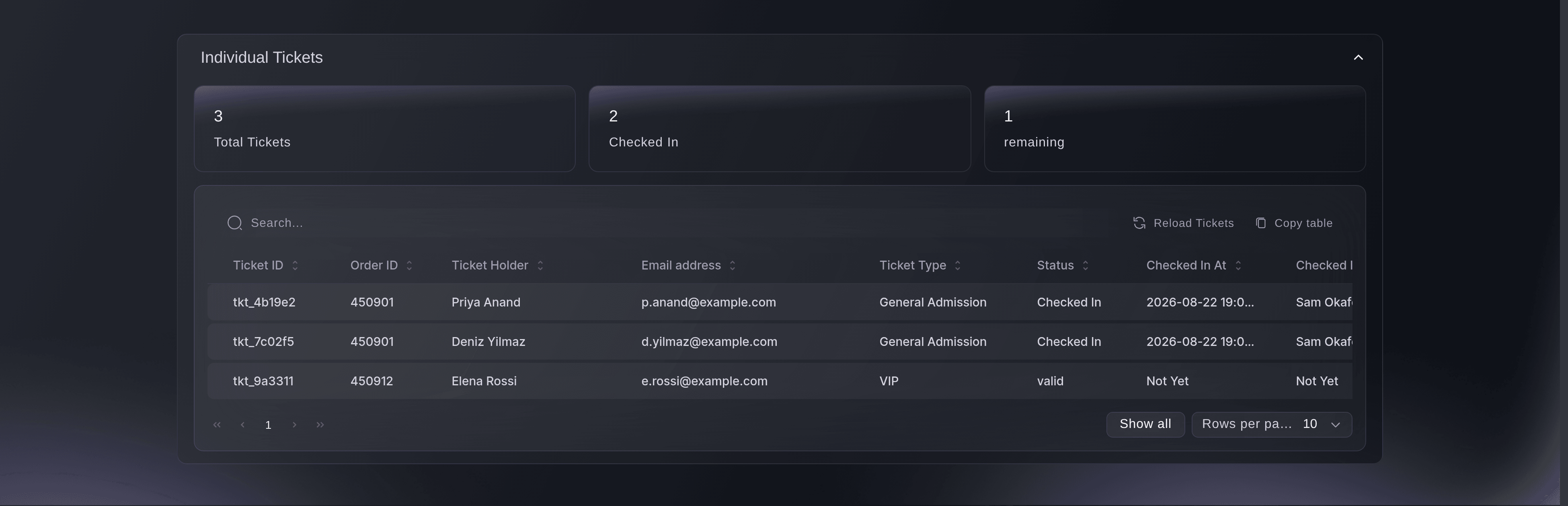
Open Individual Tickets on Check-In, find your test ticket and select Unscan ticket. Your check-in count then starts from the first real guest.
Tip: Select Cancel on the test order under Guest in Orders as well, so the test ticket stops working at the door.
Event, Check-In, Individual Tickets. -
Follow arrivals once the doors open
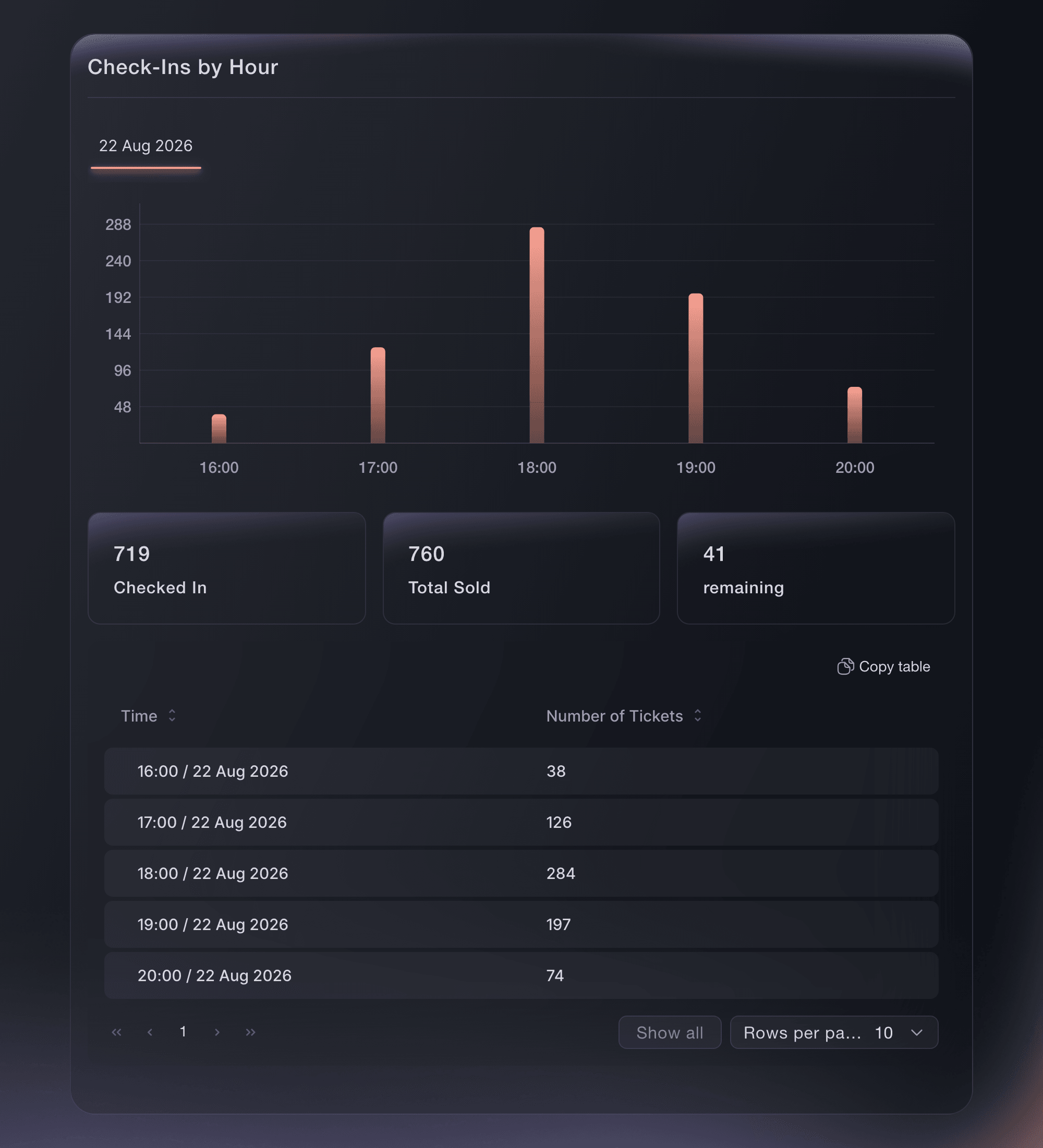
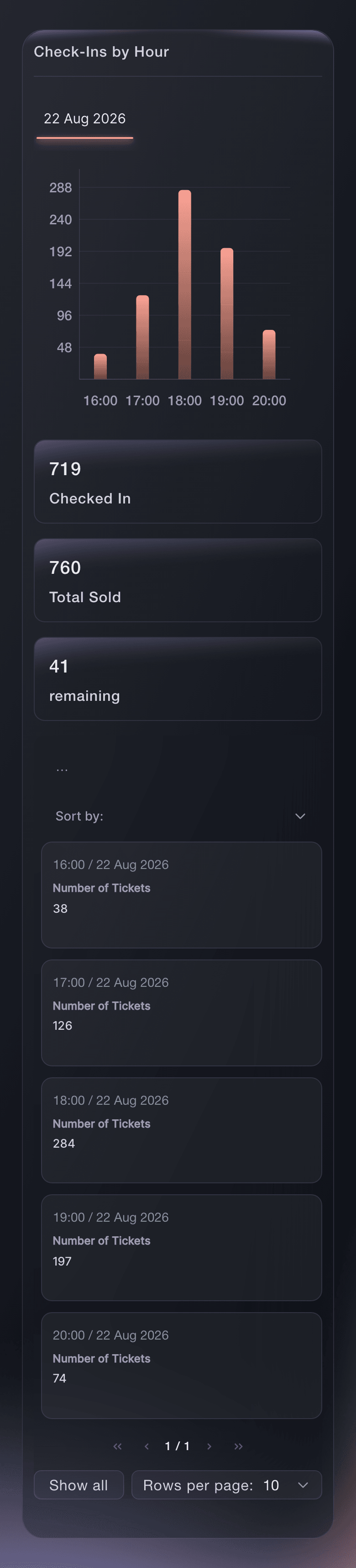
Open Check-In and select Hourly while your door team scans. The report shows how many came in each hour against the tickets sold, so you can see when the queue builds and when the rush has passed.
Event, Check-In, Hourly. -
Find one guest at the gate
Search Individual Tickets by name or email address when a guest at the front of the queue is told they are already inside. Checked In At and Checked In By on their row show when the ticket went in and who scanned it.




Try these steps on your own event
Create a free account, build your event and follow the steps above in your own dashboard. It takes a few minutes and you do not need to book a sales call.
No setup fees. No required monthly ticketing fee. No credit card required.
Or have it done for you
Fai can invite your door team as Door Staff, send the guest list their tickets, set a ticket's repeat-scan rules, report arrivals and find one guest's ticket. She shows you each invitation, ticket and change and asks you to approve it before anything is sent or saved. Wristbands, door times and undoing a test scan are set up in the dashboard.
In your dashboard, with Fai
Get the door ready for <EVENT NAME>: invite <EMAIL ADDRESSES> to the event as Door Staff, send guest list tickets to the names I paste below, and let <TICKET TYPE NAME> holders back in once a day, showing me each change before you make it
From your terminal
Install the CLI from our CLI page, sign in with ticketfairy auth login, and choose the brand you are working on with ticketfairy brand use <BRAND_ID>. ticketfairy brand list and ticketfairy event list show the IDs the other commands use.
Use the CLI to read arrivals while the doors are open. Invite the door team, send the guest list, set the entry rules and wristbands, and test a ticket in the dashboard or with Fai.
Read how many have checked in against the tickets sold.
ticketfairy checkin status <EVENT_ID>
Read arrivals for each ticket type, such as the guest list against general admission.
ticketfairy checkin status <EVENT_ID> --breakdown ticket-types --output json
Let Fai do it for you
Fai works inside your Ticket Fairy dashboard. Create your account, open Fai and paste the prompt above.
No setup fees. No required monthly ticketing fee. No credit card required.
Add a name to the guest list on the night
Send the late guest a ticket from Guest Tickets the same way as the rest of the list. The ticket arrives with its own barcode, and the door team scans it from the guest's phone.
Fai can send one more guest ticket while you stand at the door. She shows you the name, the ticket type and the count and asks you to approve before she sends it, because a sent ticket cannot be unsent.
In your dashboard, with Fai
Send a Guest list ticket for <EVENT NAME> to <NAME> at <EMAIL ADDRESS>, show me the ticket type and the count before you send it
Check whether one guest has arrived
Ask Fai from your phone rather than searching the table, and she reads the guest's ticket and the time it went in.
Fai reads the check-in totals and one guest's ticket. Undoing a scan is done in the dashboard.
In your dashboard, with Fai
For <EVENT NAME>, how many have checked in so far, and has <GUEST NAME> arrived
From your terminal
The CLI reads the check-in totals. Finding one guest is done in the dashboard or with Fai.
Read how many have checked in against the tickets sold.
ticketfairy checkin status <EVENT_ID>
Questions you might have
- Should my door team be on the brand team or the event team?
- Put your regular door staff on the brand team, and their login carries to every event the brand runs. Put someone who works one event on that event's team, and their access covers only that event.
- Can a Door Staff login see my sales or my guest list?
- No. Door Staff opens the scanning app and nothing in your dashboard, which is what makes it safe to hand to casual staff for one event.
- Can two phones scan the same ticket?
- On a ticket that admits once, the first scan lets the guest in, and a later scan of the same ticket on any phone is refused as already checked in, with the time and who scanned it.
- How do my artists and crew get in?
- Send each of them a guest ticket on a Crew or Artist ticket type that you keep hidden from your public event page, and turn on repeat scanning for it so they can come and go through load-in and the show.
- What does my door team see when a refunded ticket is scanned?
- The app says the ticket is refunded and not valid, and nobody is admitted on it. The same holds for a cancelled ticket, including your cancelled test ticket.
Still have a question?
Book a demo and we will answer it on a call, on your kind of event. Or create your account and see it for yourself.
No setup fees. No required monthly ticketing fee. No credit card required.
Related guides
Do this on your own event
Create your account, build your event and follow the steps in your own dashboard. You do not need to book a sales call.