
Running the production
Recruit volunteers for your event
Festivals, charity events and community shows run on volunteer stewards, bar staff and information-point teams, often hundreds of them. A form that fills your Volunteers list, with Fai's reading of each person, turns a spreadsheet of applications into decisions you make in a few minutes.
Open a volunteer application form for your event that people fill in on their phone, let Fai read each application against the roles you need, accept, waitlist or decline people in batches with one email each, and invite back last year's volunteers with their answers already filled in.
- For
- Recruiting and choosing the volunteers who work your event
- Takes
- 10 minutes
Before you start
- You need an owner, admin or producer role on the event to open applications and decide on them.
-
Open Volunteers
Open the event, select Management, then select Volunteers in the list of sections. The section opens on Applications.
Note: If Volunteers is not in the list, select More sections and open it there.
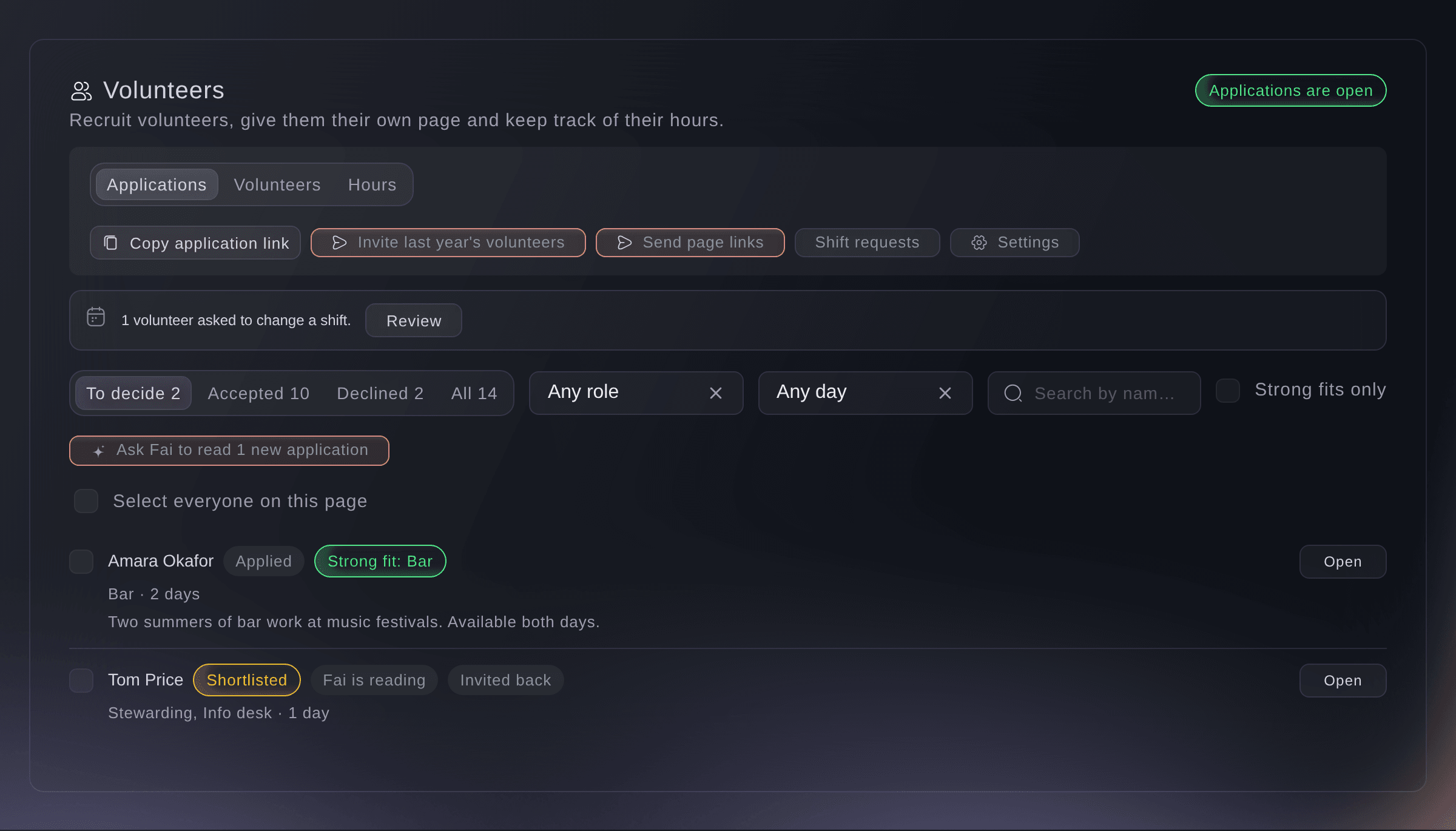
Management, Volunteers, Applications. -
Set up the application form
Select Open applications, or Settings once the form exists, then add the Roles you need and your Welcome text.
Note: Name, email, phone, days, emergency contact and consent are always asked. Select Use your rota teams to copy your rota's teams as the roles.
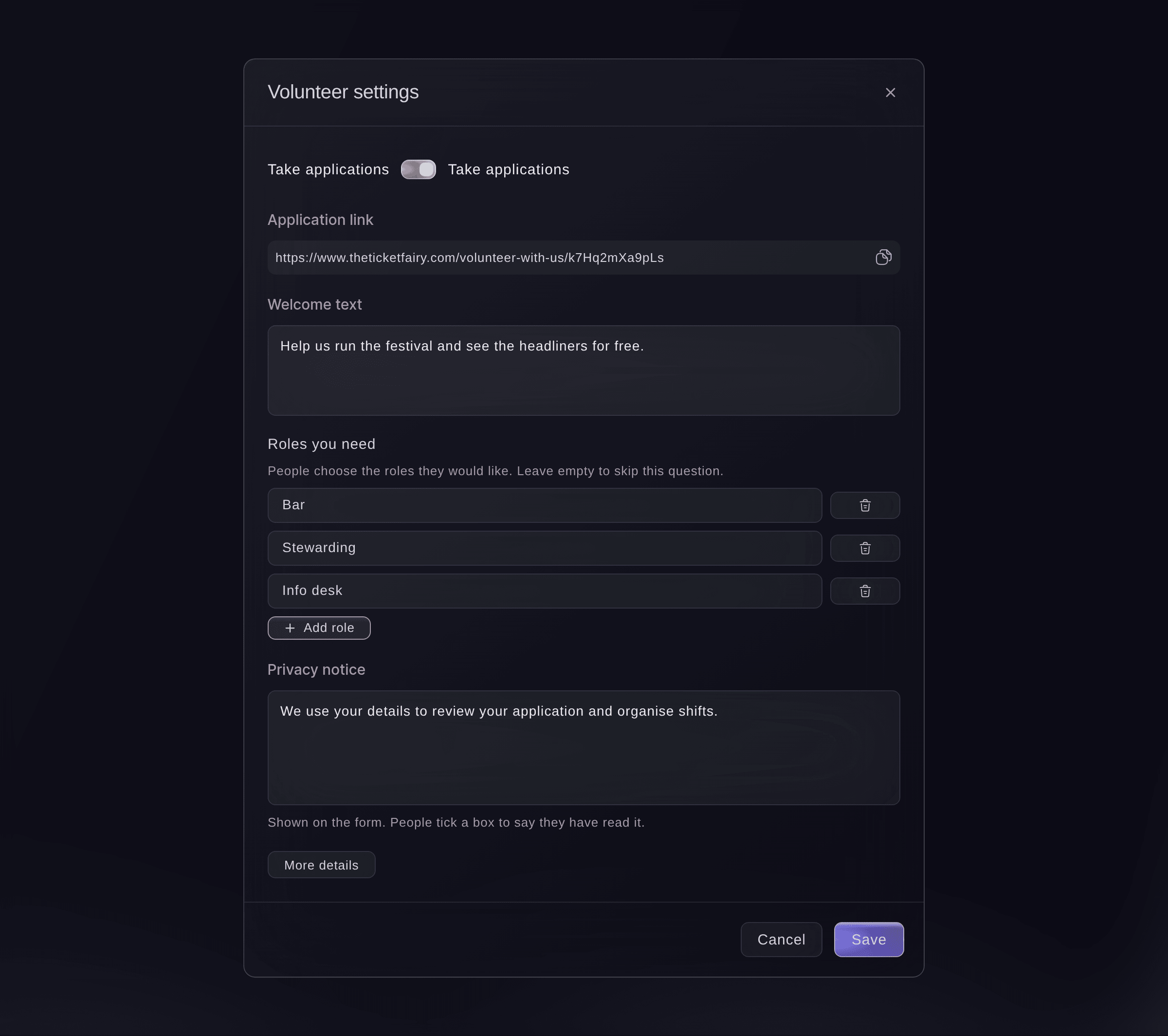
Volunteer settings. -
Add your own questions and a minimum age
Optional: Select Add question for each question of your own, and enter the Minimum age.
Note: The minimum age starts at 16. Someone under 18 is asked for a parent or guardian's name, phone number and agreement.
Tip: Turn on Don't send the answers to Fai for a question about health or anything else private.
-
Check the privacy notice and turn on applications
Check the Privacy notice, turn on Take applications, then select Save.
Note: Applicants tick a box to say they have read the notice.
-
Share the application link
Select Copy application link and share it on your website and social media. People apply from their phone with no account.
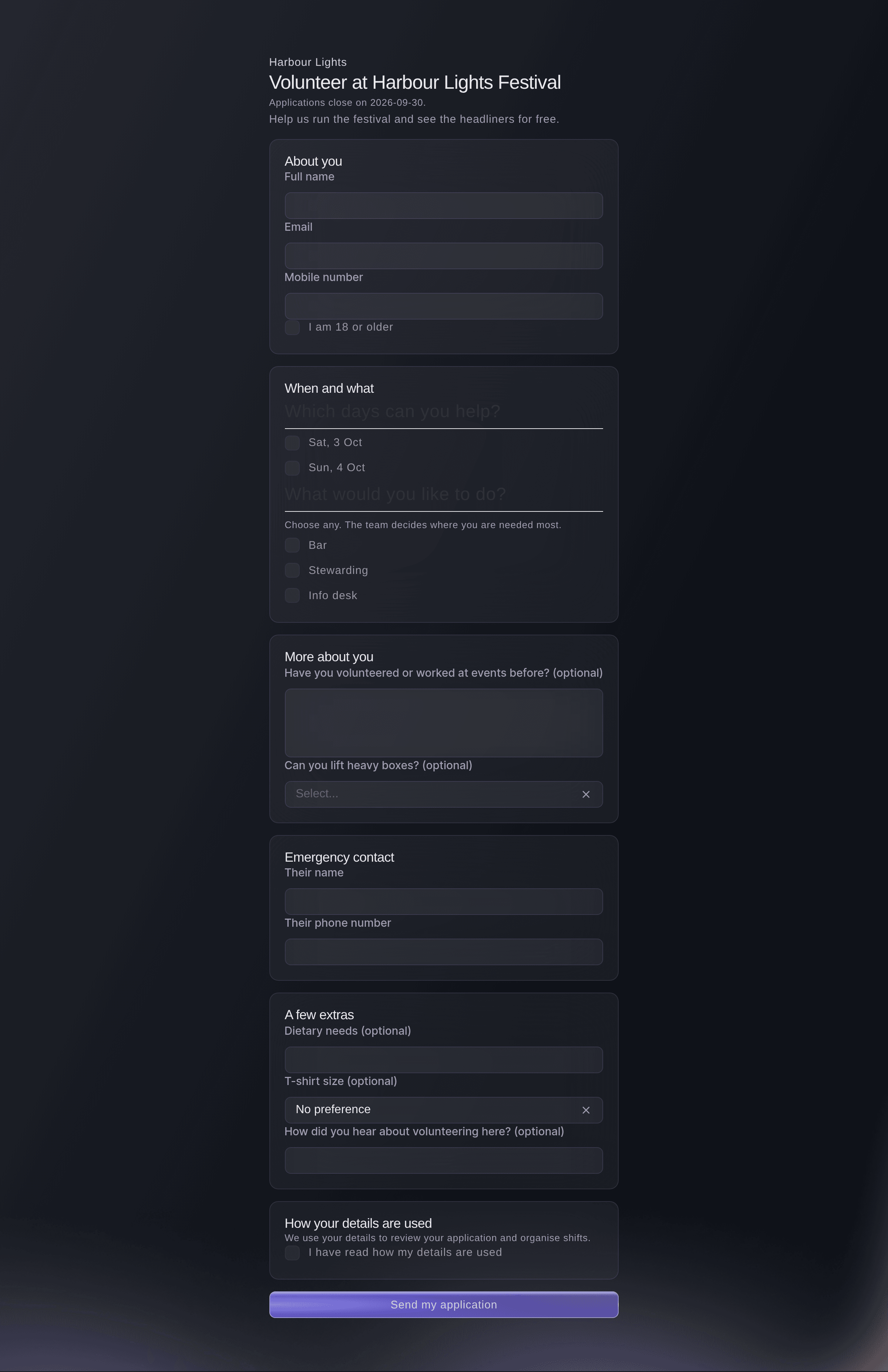
The form a volunteer fills in. -
Read an application
Select Open on a row to read Fai's reading, the days and roles they chose, their experience and your questions.
Note: Fai marks each person a strong, possible or unlikely fit for a role, with her reason. Fai suggests; you decide.
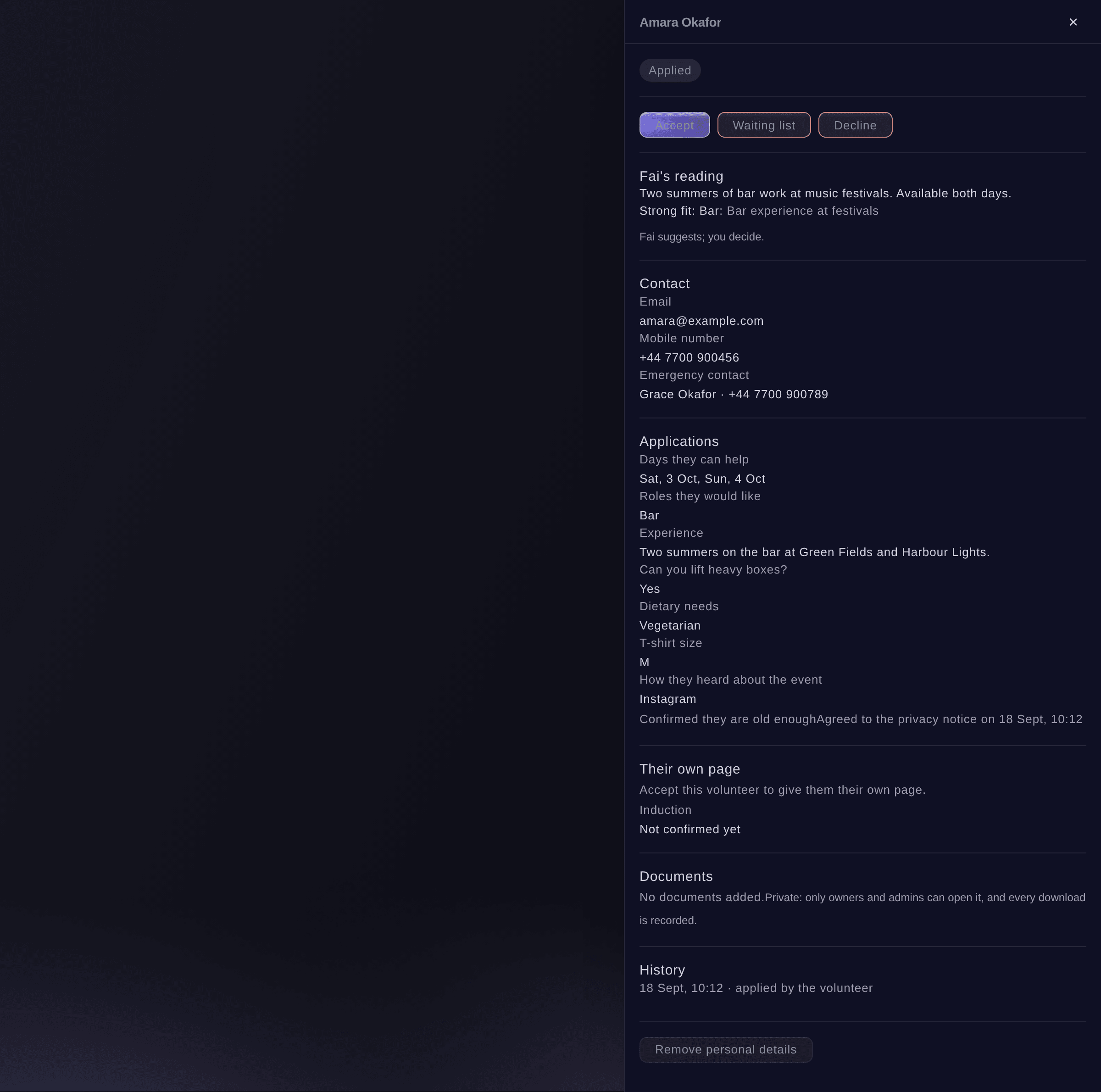
One application. -
Choose the people to decide on
Tick each person on To decide, or narrow the list first with the role, day or Strong fits only.
Tip: If some applications have not been read yet, select Ask Fai to read with the number beside it.
-
Accept, waitlist, decline or shortlist them
Select Accept, Waiting list, Decline or Shortlist, check the email, then select the button that confirms and emails them.
Note: Each person gets one email from you and replies come to you; untick Email each person the decision to change the status without emailing. A shortlist is your team's note and emails nobody.
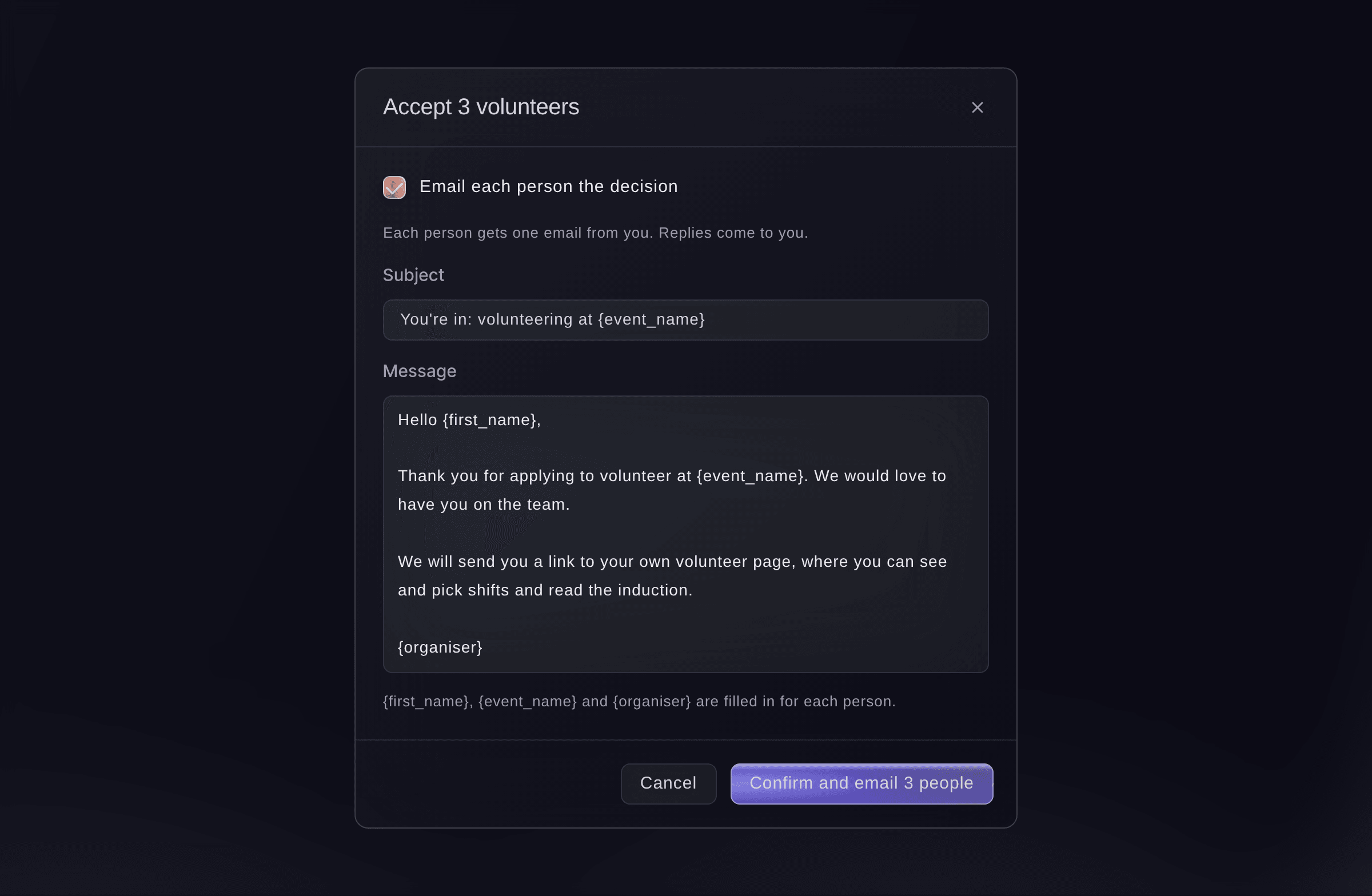
Accept volunteers. -
Check the statuses
Select Accepted. The people you accepted are listed there, and you see
Done. The statuses are updated.
Note: If someone was changed by a teammate at the same moment, the message says they were left as they are.


Try these steps on your own event
Create a free account, build your event and follow the steps above in your own dashboard. It takes a few minutes and you do not need to book a sales call.
No setup fees. No required monthly ticketing fee. No credit card required.
Or have it done for you
Fai sets up the volunteer form, lists applications with her reading of each, accepts, waitlists, declines or shortlists people, and invites back last year's volunteers. She shows you who gets which email and waits for your yes.
In your dashboard, with Fai
Show me the volunteer applications for <EVENT NAME> that are a strong fit for the bar, and accept them with the usual email
From your own assistant, over MCP
Connect your assistant to our MCP server and ask it:
The copied MCP configuration includes --read-only. Remove --read-only only when you want your assistant to make changes. Routine changes run when requested; destructive actions ask you in a compatible client. If your client cannot ask, make the change in your dashboard.
Find my event <EVENT NAME>, list the volunteer applications still to decide with Fai's reading of each, and ask me before you accept or decline anyone
From your terminal
Install the CLI from our CLI page, sign in with ticketfairy auth login, and choose the brand you are working on with ticketfairy brand use <BRAND_ID>. ticketfairy brand list and ticketfairy event list show the IDs the other commands use.
Use the CLI to list applications and decide on them. The form, its settings and inviting last year's volunteers are in the dashboard or through Fai. You need an owner, admin or producer login on the event.
List the applications still to decide that Fai rates a strong fit, with each person's id and version.
ticketfairy event-os volunteers list <EVENT_ID> --status undecided --strong-fit
Accept people and email them the decision. Use id:version pairs from the list. This asks you first unless you add --force.
ticketfairy event-os volunteers decide <EVENT_ID> --decision accept --volunteers <VOLUNTEER_ID>:<VERSION>
Let Fai do it for you
Fai works inside your Ticket Fairy dashboard. Create your account, open Fai and paste the prompt above.
No setup fees. No required monthly ticketing fee. No credit card required.
Invite last year's volunteers back
-
Choose last year's event
Select Invite last year's volunteers and choose the event under Which event?.
Note: Each person shows the shifts they worked and Fai's reason, such as Worked every shift. Applications must be open, so the invitation has a form to fill in.
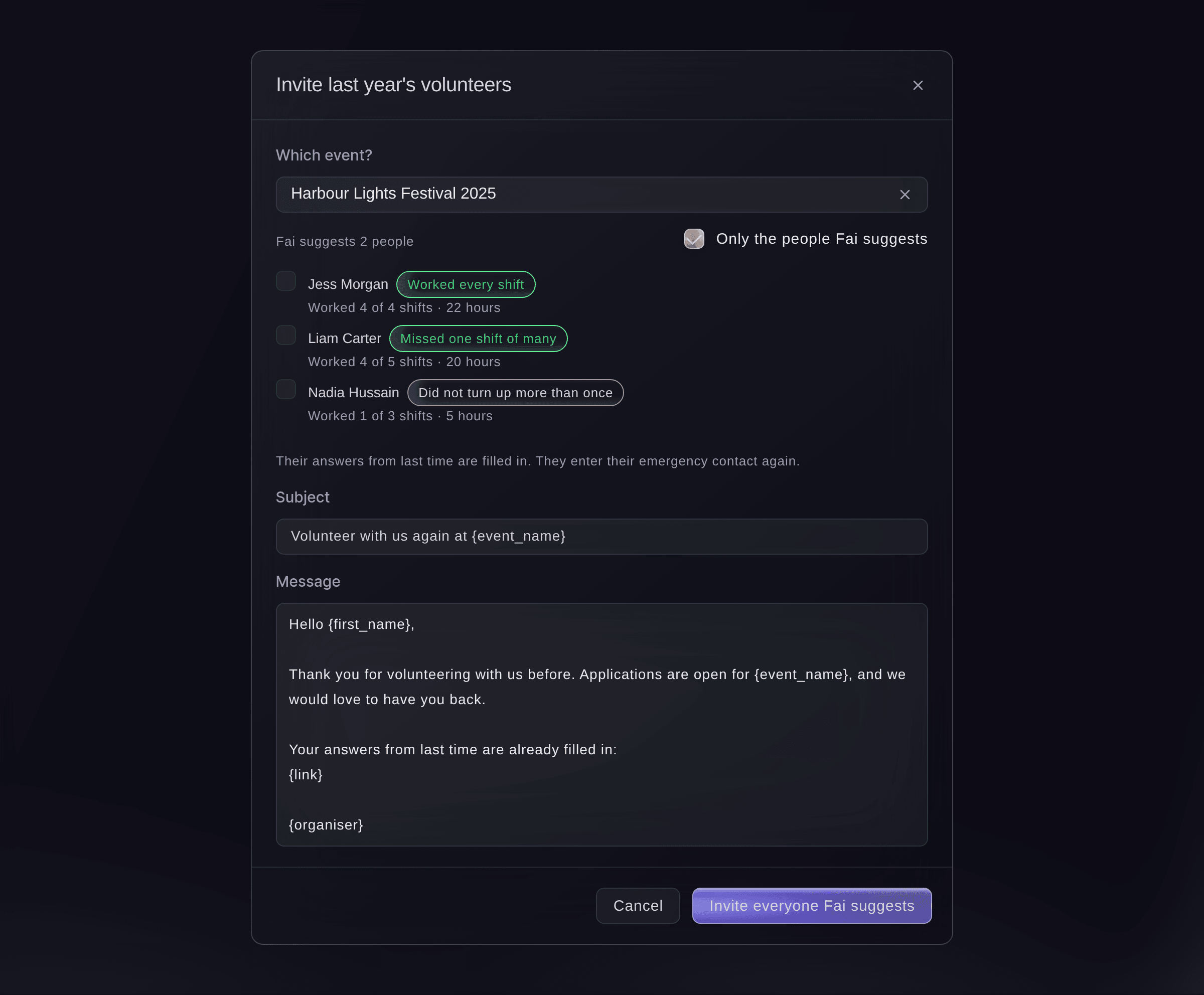
Invite last year's volunteers. -
Send the invitations
Select Invite everyone Fai suggests, or tick people and select the invite button with the number beside it.
Note: Their answers from last time are filled in, and they enter their emergency contact again.

Fai suggests who to invite back from an earlier event, from the shifts they worked, and sends the invitations after you confirm.
In your dashboard, with Fai
Invite back the volunteers from last year's <EVENT NAME> who worked every shift
Questions you might have
- Can I change a decision later?
- Yes. You can accept someone on the waiting list or shortlist, and decline someone you accepted. A declined person stays declined in the list.
- What happens if someone applies twice?
- A second application from the same email address updates the first, and the applicant sees
We already had your application, so we have updated it with these answers.
- Why does it say "Saved as a suggestion on Today"?
- The emails did not go straight away, so the decision is waiting on the event's Today page for an owner or admin to approve.
- Can I remove a volunteer's personal details?
- Yes, with an owner or admin login. Open the application, select Remove personal details, enter the reason and confirm. Their name, contact details, emergency contact, answers and files go for good; their status, shifts and hours stay.
- Can I use my own event form for volunteers instead?
- Yes. A form on the event can add each person who sends it to your volunteers as applied.
Still have a question?
Book a demo and we will answer it on a call, on your kind of event. Or create your account and see it for yourself.
No setup fees. No required monthly ticketing fee. No credit card required.
Related guides
Do this on your own event
Create your account, build your event and follow the steps in your own dashboard. You do not need to book a sales call.