
Vault and Capital
Report a problem with an event supplier's Vault card payment and follow the dispute
A supplier charges the production card for your event twice, or the staging never turns up. Instead of phoning a bank, the person who looks after the card reports the problem from the payment itself, and Vault raises it with the card network and shows where it stands.
Report a Vault card payment for your event that was charged twice, never arrived or that you don't recognise, in your own words and with evidence, then follow the dispute under Disputes in Card activity until the card network decides.
- For
- Getting money back for a card payment that went wrong
- Takes
- 4 minutes
Before you start
- You're an owner or an admin on the brand. Ticket Fairy support can see your disputes but can't report a problem for you.
- The payment is a purchase or a hold on one of your brand's Vault cards. A refund can't be disputed.
- Ask the supplier first where you can. A refund from them is quicker than a dispute.
-
Open the payment
Open Vault, select Card activity, then select the merchant on the payment's row.
-
Select Report a problem
Select Report a problem with this payment at the foot of the payment's details.
-
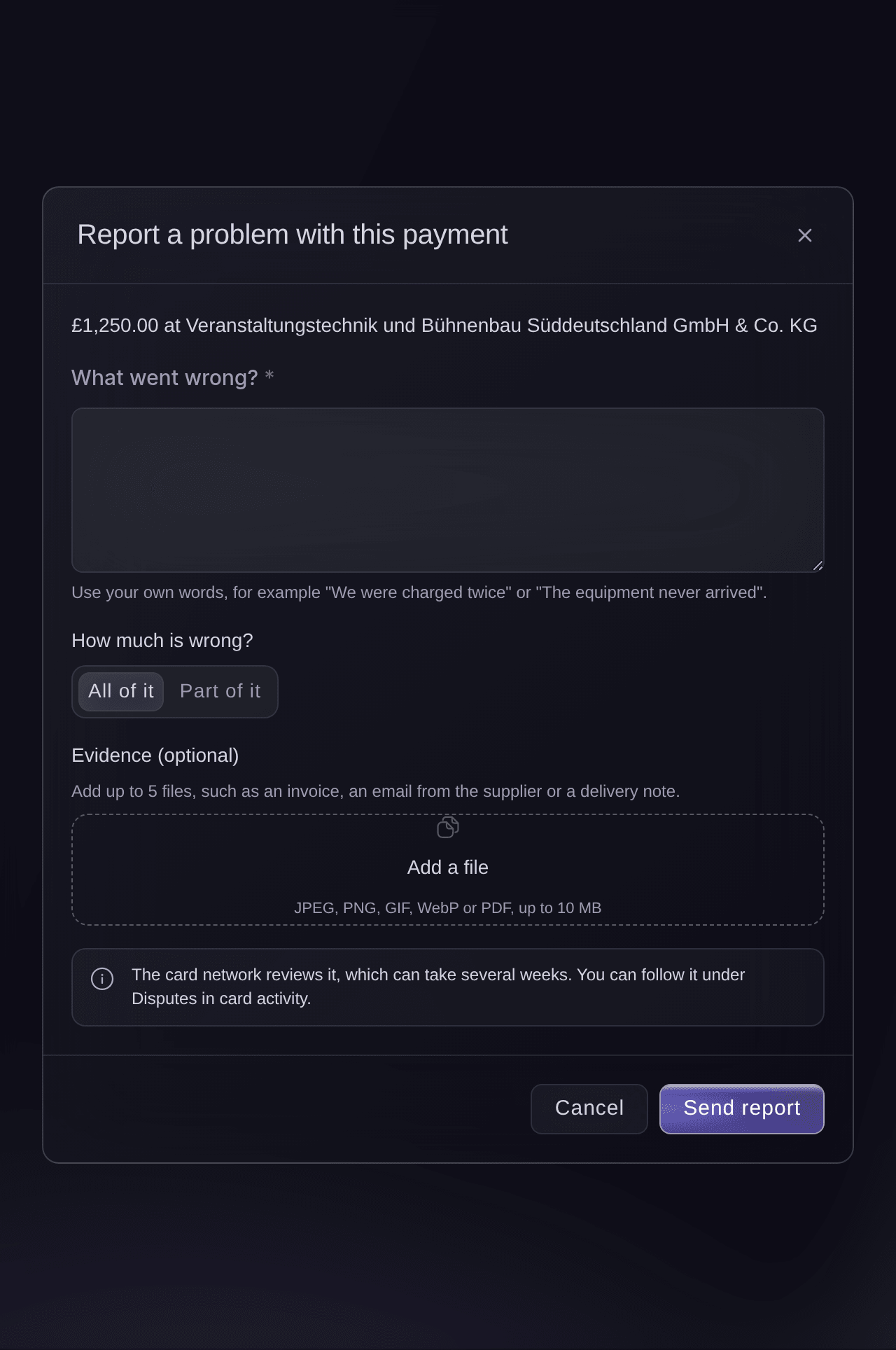
Say what went wrong
Enter what happened in your own words in What went wrong?, for example "We were charged twice".
Card activity, Report a problem with this payment. -
Choose how much is wrong
Under How much is wrong?, choose All of it, or choose Part of it and enter the amount.
-
Add your evidence
Optional: Select Add a file to add up to 5 files, such as an invoice, an email from the supplier or a delivery note.
-
Select Send report
Select Send report, and confirm it's you if Vault asks.
Problem reported. Follow it under Disputes.
confirms it. -
Follow the dispute
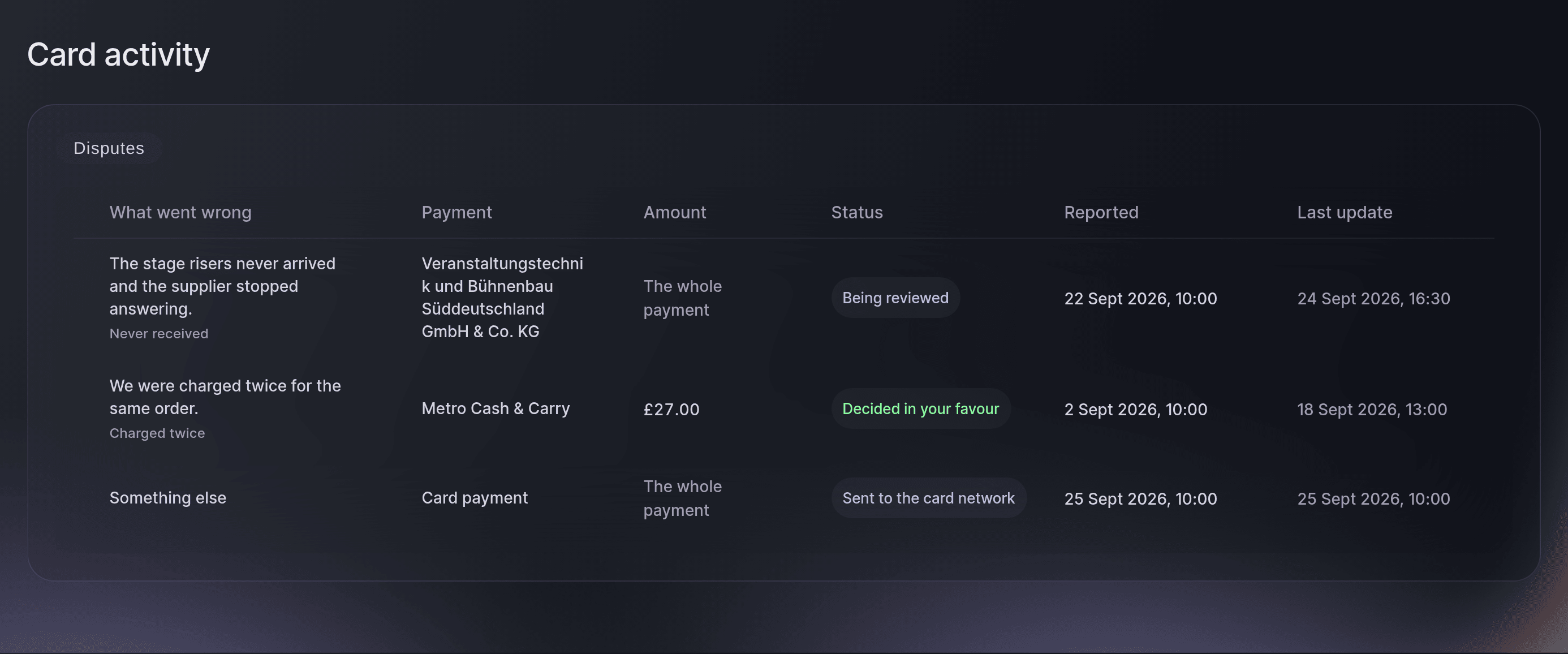
On Card activity, choose Disputes in Show. Each dispute shows what went wrong, the payment, the amount, its status and when it last changed.
Card activity, Disputes.


Dispute statuses
A new dispute shows Sent to the card network, then Being reviewed. It ends as Decided in your favour, Decided against you, Not accepted, Withdrawn or Closed without a decision. The card network's review can take several weeks.
Try these steps on your own event
Create a free account, build your event and follow the steps above in your own dashboard. It takes a few minutes and you do not need to book a sales call.
No setup fees. No required monthly ticketing fee. No credit card required.
Or have it done for you
Fai, the assistant inside your dashboard, can report a problem with a card payment in your own words, for the whole payment or part of it, with documents you have already added as evidence. She shows you the report and asks before she sends it, and you may need to confirm it's you in Vault. She also lists your disputes and where each one stands. MCP and the command line change nothing here.
In your dashboard, with Fai
Dispute the Vault card payment of <AMOUNT> at <MERCHANT>, we were charged twice
Let Fai do it for you
Fai works inside your Ticket Fairy dashboard. Create your account, open Fai and paste the prompt above.
No setup fees. No required monthly ticketing fee. No credit card required.
Questions you might have
- Can I report a second problem with the same payment?
- Not while one is in progress.
This payment already has a problem report in progress. Follow it under Disputes.
appears. Once that dispute ends you can report the payment again. - Why don't I see Report a problem with this payment?
- The button shows to owners and admins on a purchase or a hold. A refund or a released hold has nothing to dispute.
- Do I have to choose a reason from a list?
- No. Enter what happened in your own words, and Vault gives the card network the reason that fits. The Disputes list shows that reason, such as Charged twice or Never received.
- What happens if I send the report twice?
- Vault sends one dispute. If the first try reached the card network, the second finds it and doesn't open another.
Still have a question?
Book a demo and we will answer it on a call, on your kind of event. Or create your account and see it for yourself.
No setup fees. No required monthly ticketing fee. No credit card required.
Related guides
Do this on your own event
Create your account, build your event and follow the steps in your own dashboard. You do not need to book a sales call.