
Running the production
Review act and talk applications for your event with your team
Festival bookers and conference programme teams read hundreds of applications to play and talk proposals, then retype the chosen ones into the line-up and the agenda. A shared review with scores, Fai's notes and a one-click accept keeps the whole panel on one list and turns a yes into a booking straight away.
Collect applications to play and proposals for talks for your event in one list, with Fai's notes on each and a score from every reviewer on your panel, who score from their own link with no sign-in and, if you choose, without seeing names. Accepting an act or a talk adds it to your event with a draft offer or an agenda session, and starts their advance.
- For
- Choosing the acts and speakers for your event with a review panel
- Takes
- 10 minutes
Before you start
- You are an owner, admin or producer on the event. The event's Operations page opens for those roles only, and so does Applications.
- A form on the event sends its answers to Applications, such as one started from Apply to play or Submit a talk.
-
Open Applications
Open the event, select Operations, then select Applications in the list of sections.
Note: Applications sit under New, Reviewing, Accepted and Declined. With none yet, select Start an apply-to-play form or Start a call for talks.
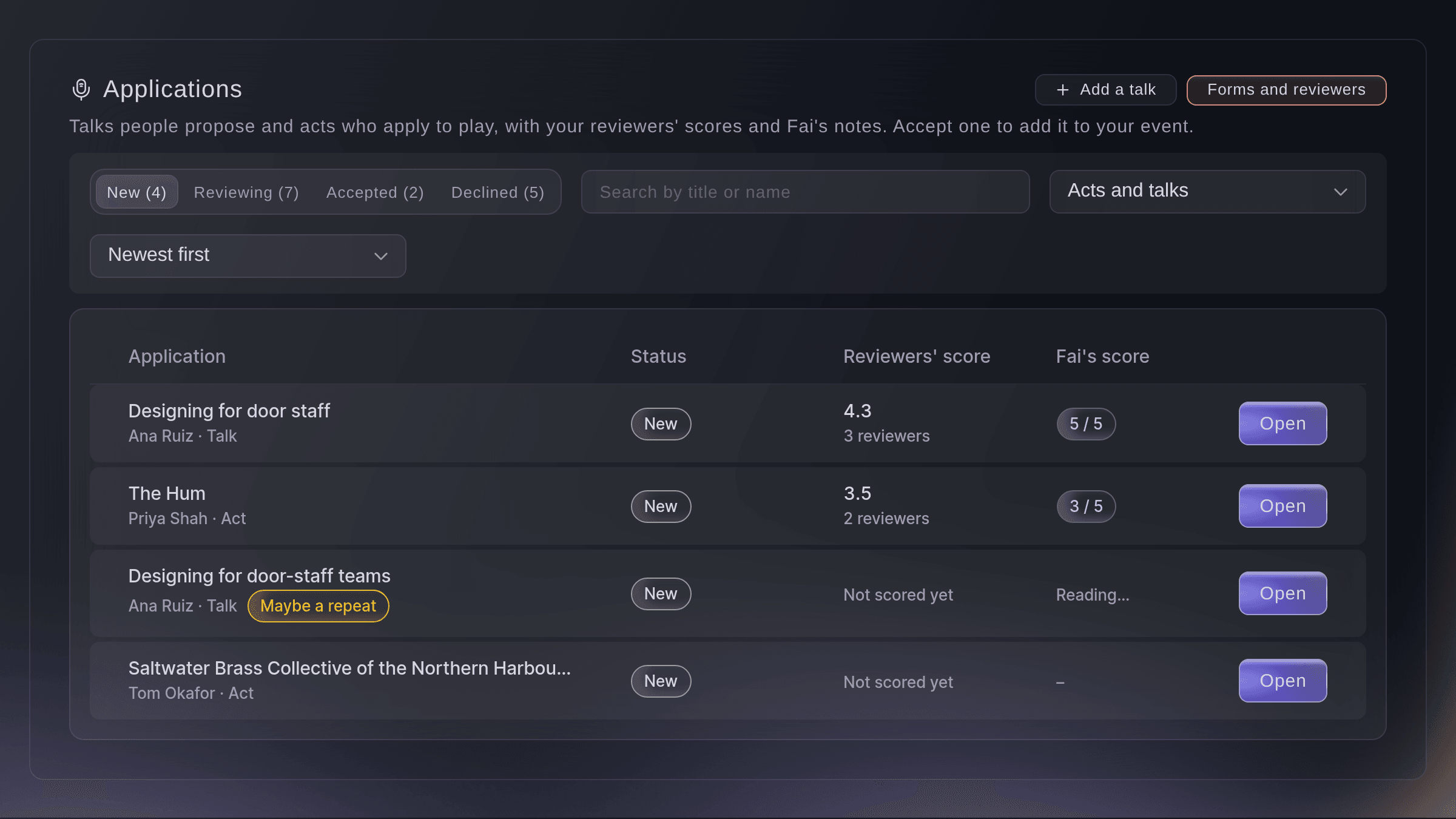
Talk and act applications. -
Choose how reviewing works
Select Forms and reviewers, then choose what Reviewers see names and enter a Note for reviewers.
Note: Names are hidden on talks and shown on acts unless you change it. With names hidden, reviewers see what was proposed but never who sent it, their email or phone number.
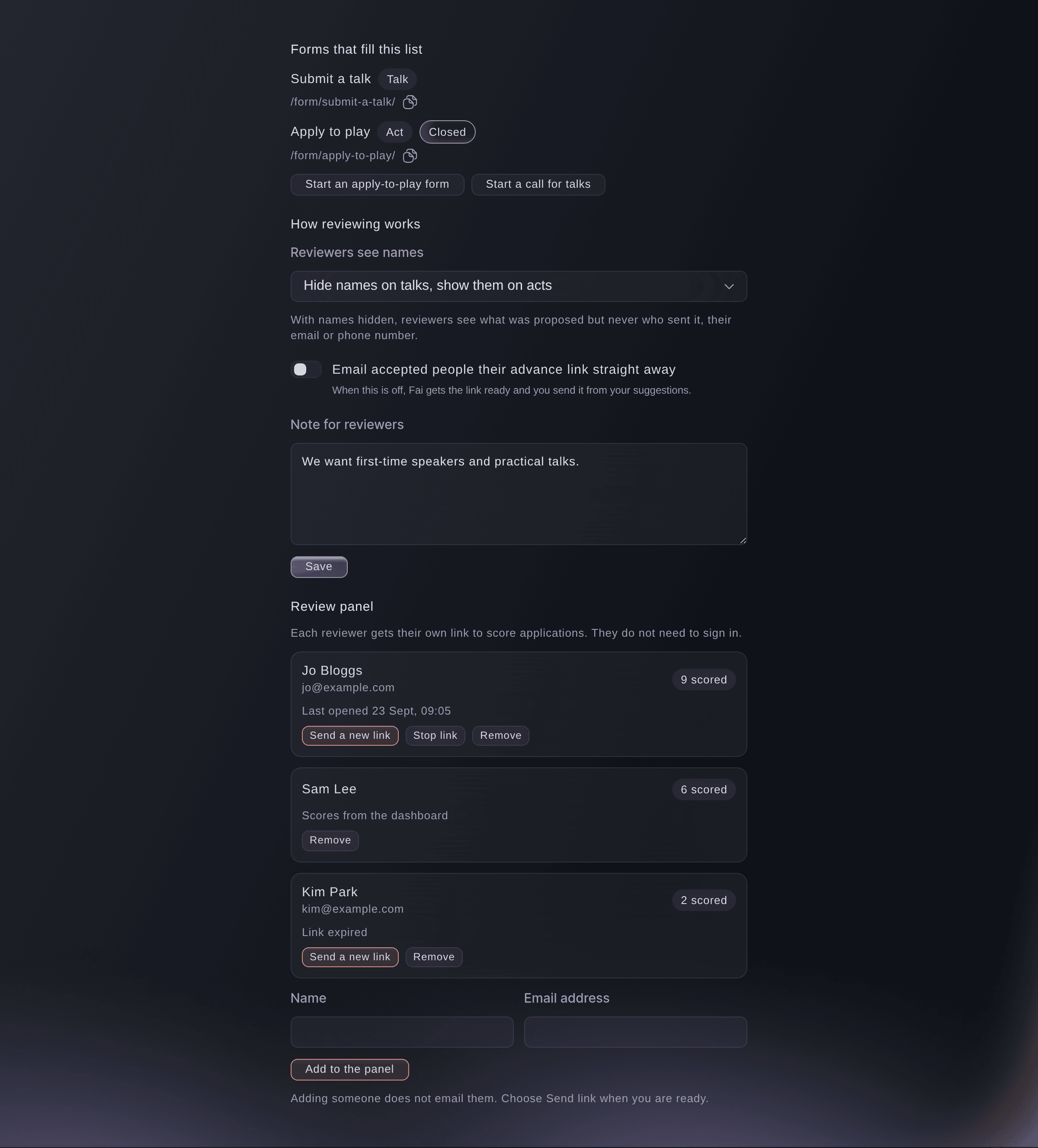
Forms and reviewers. -
Add reviewers to the panel
Under Review panel, enter the reviewer's Name and Email address, then select Add to the panel.
Note: Adding someone does not email them. Your teammates on the event can also score from the dashboard.
-
Send each reviewer their link
Select Send link beside the reviewer.
Note: Their link works for 60 days. The panel shows when it was sent, when they last opened it and how many they have scored.


A reviewer's page
The reviewer opens their link with no sign-in and sees your note and every open application, with how many they have scored. They give each one a score from 1, not for us, to 5, must have, with a comment if they want, and can change a score later. Only you and your team see the scores, and reviewers never see Fai's notes.

-
Open an application
Select an application in the list, then read what they sent and Fai's notes.
Note: Fai gives each application from a form a summary, a score out of 5 with her reasons and, for an act, what they did at your earlier events. Maybe a repeat marks one that shares an email or a title with another, with a link to open the other one.
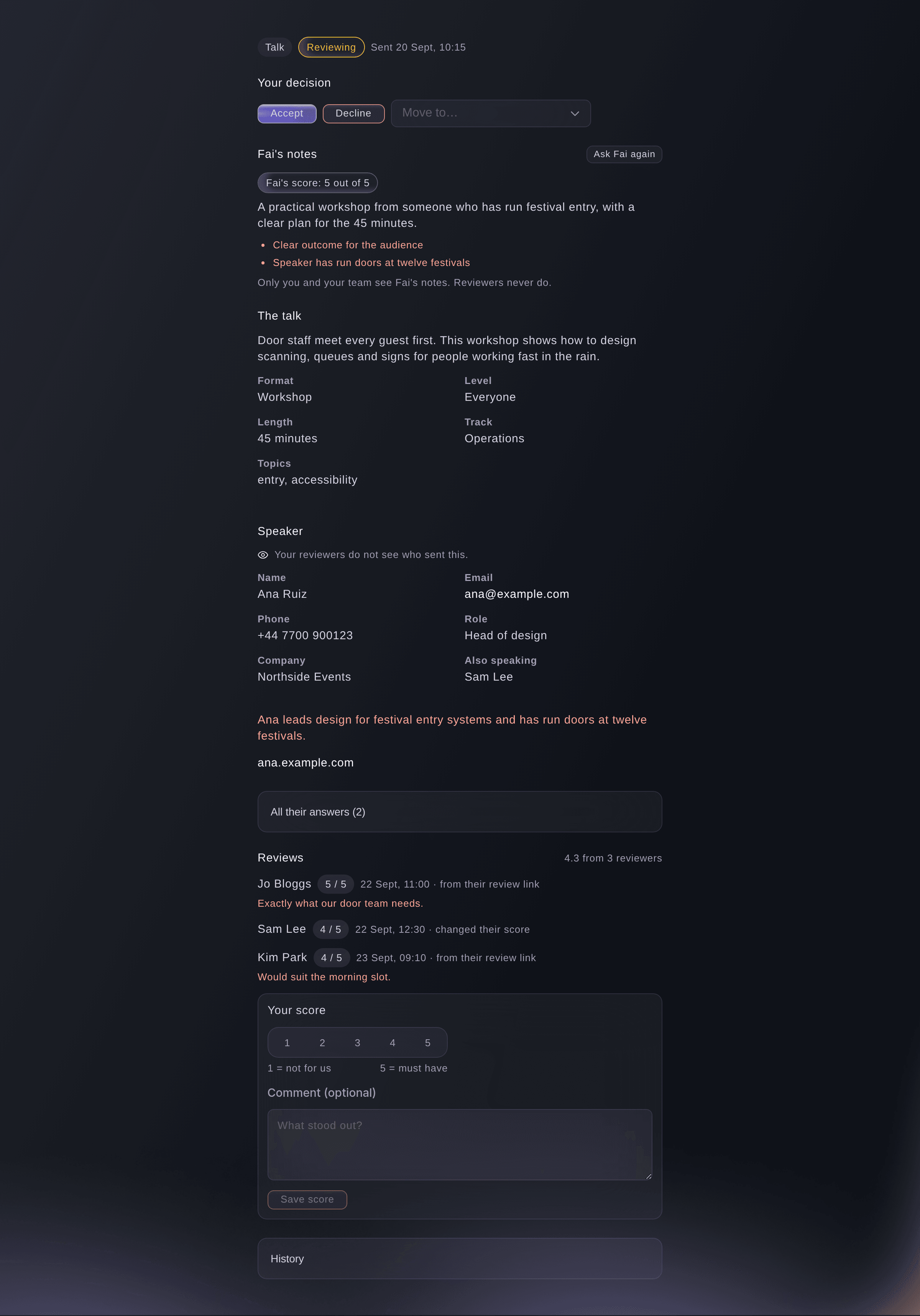
One application with its reviews. -
Give your own score
Optional: under Your score, choose a score from 1 to 5, enter a comment if you want, then select Save score.
Note: Reviews shows the average and says Reviewers disagree when the scores are far apart. Each changed score is kept in the history.
-
Sort by the best scores
In the list, choose Best reviewer score or Best Fai score under Sort applications.
-
Accept an application
Open the application, select Accept, check what it will add, then select Accept in the dialog.
Note: An act is added to Artists with a draft offer in Contracts for the fee they asked and an advance started. For a talk, choose when the Session starts, its Length in minutes and the Room or stage, and the speaker is added with a session on the agenda.
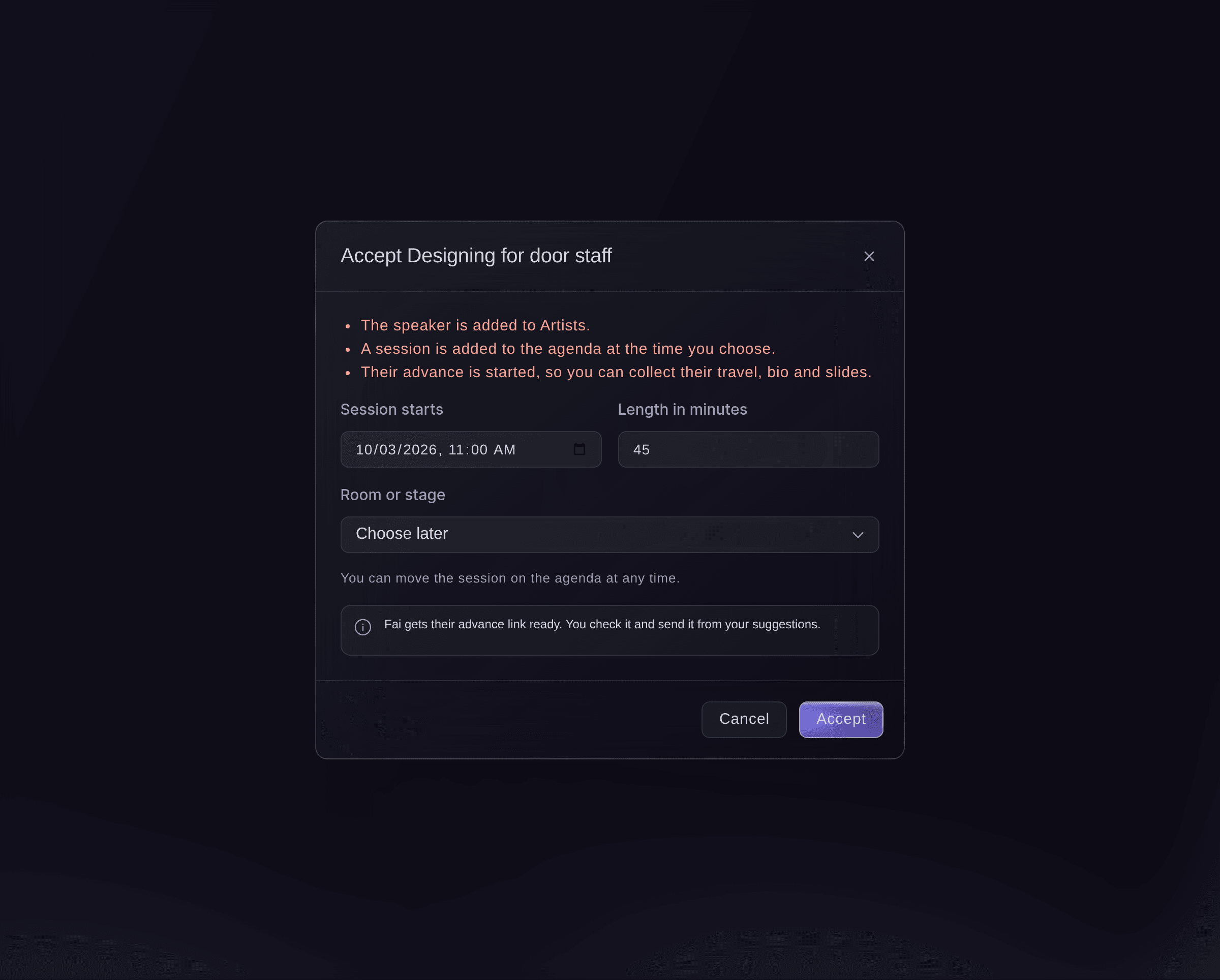
Accept a talk. -
Check what was added
Read Added to your event on the accepted application.
Note: It links to the act or speaker in Artists, the offer or the session and the advance. If a step did not finish, select Finish adding; nothing is added twice.
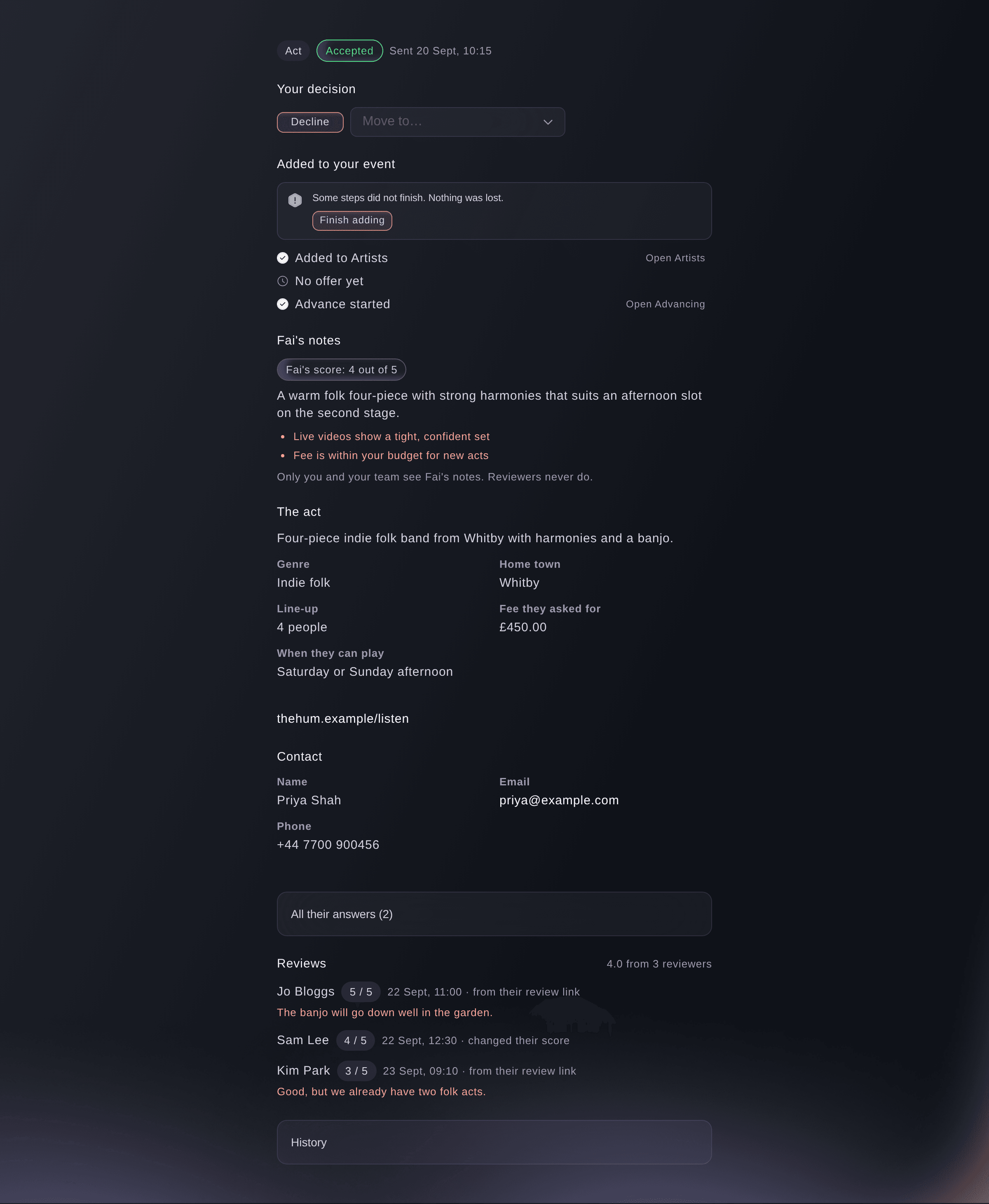
What accepting added to your event.


Try these steps on your own event
Create a free account, build your event and follow the steps above in your own dashboard. It takes a few minutes and you do not need to book a sales call.
No setup fees. No required monthly ticketing fee. No credit card required.
Or have it done for you
Fai lists the applications with her notes, the reviewers' scores and possible repeats, scores one for you, moves or declines one, accepts one, and adds, emails, stops or removes a reviewer's link. She shows you each change first and waits for your yes, and she never shows a reviewer's link in the conversation.
In your dashboard, with Fai
Which talk proposals for <EVENT NAME> have the best reviewer scores, and accept Designing for door staff for Saturday at 11 in the Main Hall
Let Fai do it for you
Fai works inside your Ticket Fairy dashboard. Create your account, open Fai and paste the prompt above.
No setup fees. No required monthly ticketing fee. No credit card required.
Decline or move an application
-
Decline it
Open the application, select Decline, enter a reason for your team if you want, then select Decline in the dialog.
Note: Nobody is emailed, and you can move it back to Reviewing later. Choose Put on the waiting list or Mark as withdrawn under Move to… instead.
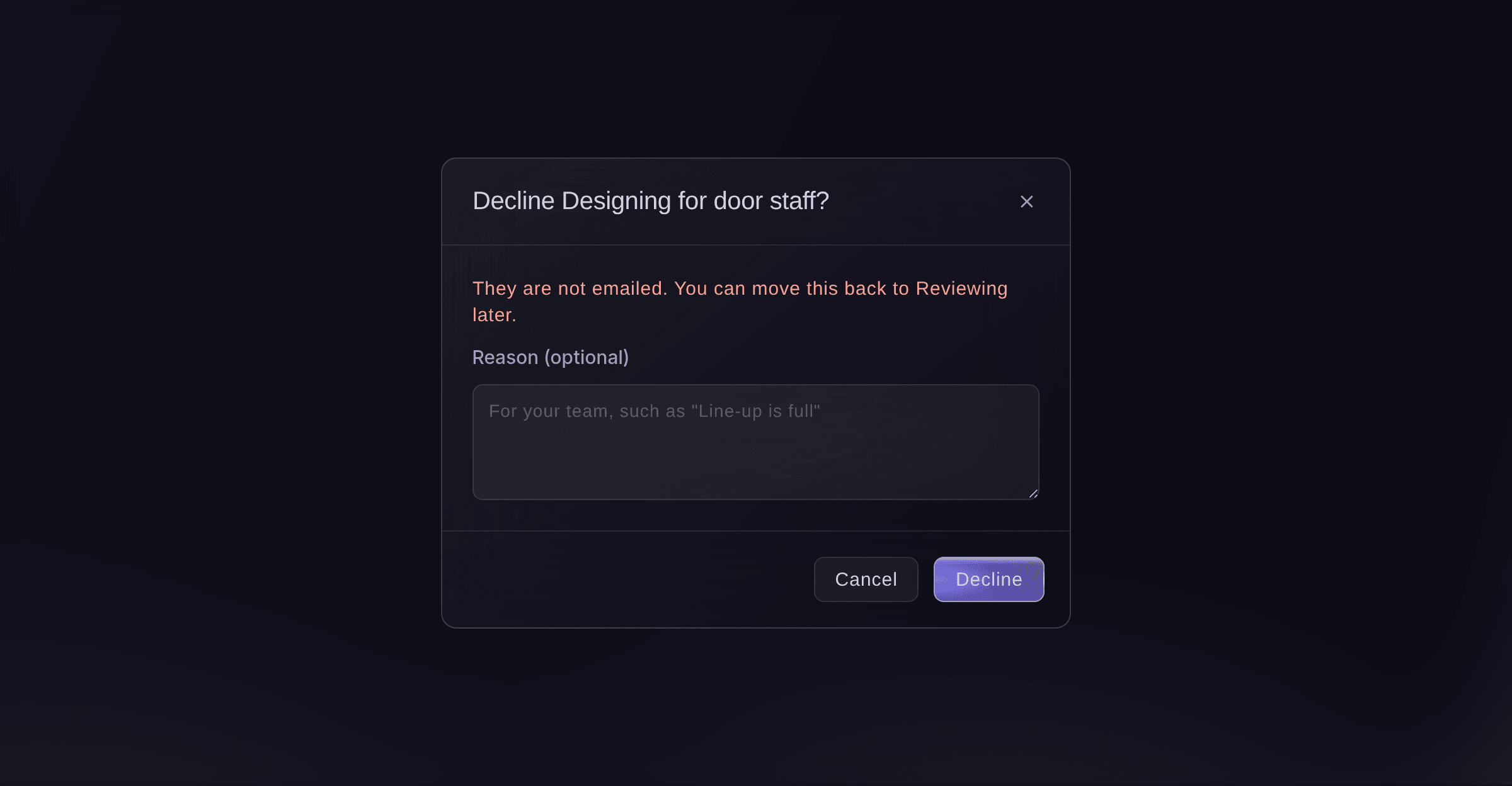
Decline an application.

Fai declines or moves an application with your reason, after you confirm. Nobody is emailed.
In your dashboard, with Fai
Decline the lightning talk about ticket scanning for <EVENT NAME>, we already have one on that
Stop a reviewer's link
-
Stop it
In Forms and reviewers, select Stop link beside the reviewer, then confirm.
Note: The link stops working at once, and their scores stay. Select Send a new link to let them back in, or Remove to take them off the panel.
Fai stops, sends again or removes a reviewer's link, after you confirm.
In your dashboard, with Fai
Stop Sam Lee's review link for <EVENT NAME>
Questions you might have
- Do reviewers need a Ticket Fairy account?
- No. Each reviewer opens their own link with no sign-in. Teammates on the event can score from the dashboard as well.
- Is the applicant emailed when I accept or decline?
- Not about the decision. When you accept, Fai gets their advance link ready for you to send from your suggestions; turn on Email accepted people their advance link straight away to send it at once.
- Can an applicant change what they sent?
- Yes, when the form lets people change their answers. They use the private link from their email until you accept or decline them, and an application that is new or being reviewed takes the new answers.
- Does Fai read talks I add by hand?
- No. Fai reads the applications that arrive from a form, and checks those for repeats. Score a talk you added with Add a talk yourself.
- What if I accept the same application twice?
- Nothing is added twice. The booking, offer or session and the advance are made once, and a second accept only finishes a step that did not finish.
- Who can see applications?
- Owners, admins and producers on the event. Each time someone opens the list or an application, it is recorded.
Still have a question?
Book a demo and we will answer it on a call, on your kind of event. Or create your account and see it for yourself.
No setup fees. No required monthly ticketing fee. No credit card required.
Related guides
Do this on your own event
Create your account, build your event and follow the steps in your own dashboard. You do not need to book a sales call.