
Playbooks by event type
Run ticketing for a university or campus event
Students' unions, societies and university events teams sell a cheaper ticket to students and a full-price one to everyone else, and need to know that each student ticket went to a student. You can check every student order before it is confirmed, and see which society rep sold the most tickets for your ball, freshers' night or careers day.
Sell a student ticket that only students can unlock, ask each student for their student number, approve their orders before tickets go out, ask for photo ID at the door, take applications from societies and stallholders, and credit each society rep with the tickets they sell.
- For
- Students' unions, societies and university events teams selling tickets to campus events
- Takes
- 20 minutes
- Start from the template closest to your event
- Add a student ticket
- Let only students unlock the student ticket
- Ask each student for their student number
- Hold every student order for your approval
- Check the student number on each waiting order
- Approve the orders that check out
- Ask everyone to bring photo ID
- Take applications from societies and stallholders
- Invite each society rep as a Promoter
- Send each rep their link when you publish
- Get the students on the door ready
Before you start
- You're an owner or admin on the event, or on the brand that runs it. You can create the event, its tickets, its checkout questions and its access codes, and approve orders.
- You know your student and standard prices, how many student tickets you can sell and what you accept as proof that a buyer is a student.
- You have the email address of each society rep who sells tickets for you and of each student running the door.
-
Start from the template closest to your event
Select Create Event and choose where to start.
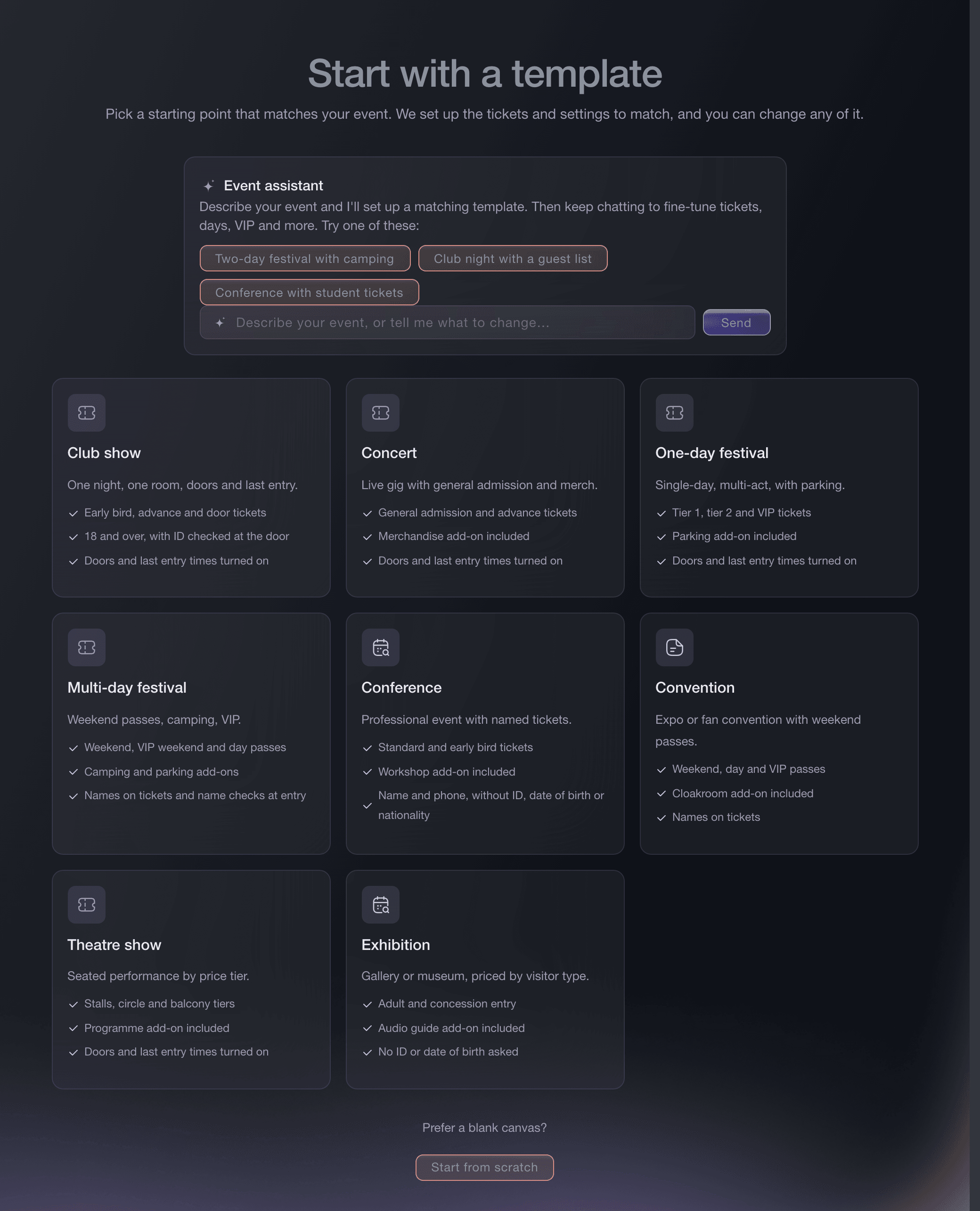
Create Event, template gallery. -
Add a student ticket
Add a ticket type named Student to the template's ticket list, with your student price and the number of student places, before you select Use this template. On the Conference template, Add a student ticket adds a discounted Student ticket for you.
Note: For an event you have already created, add the Student ticket type on Tickets instead, with its own allocation so students and full-price buyers together never exceed the room.
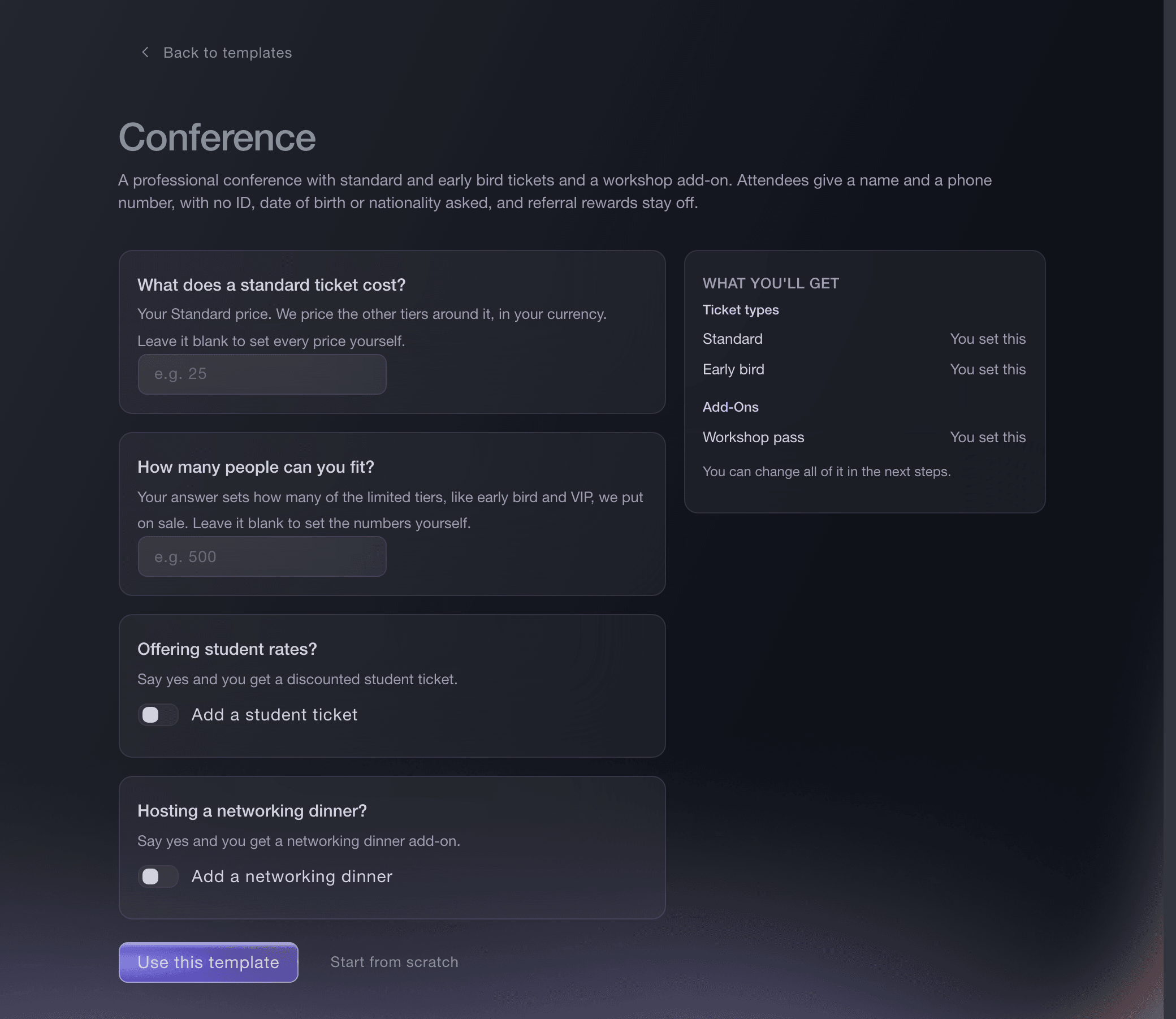
Create Event, Conference template. -
Let only students unlock the student ticket
On the Student ticket, turn on Hidden and choose Always hidden, then attach it with no discount to an access code under Promotions. The Student ticket then appears only to a buyer who enters the code, which you share through your union, society and course channels.
Note: Anyone with the code can buy the ticket, so the approval in the next steps is what confirms each buyer is a student.
Unlock hidden tickets with an access code
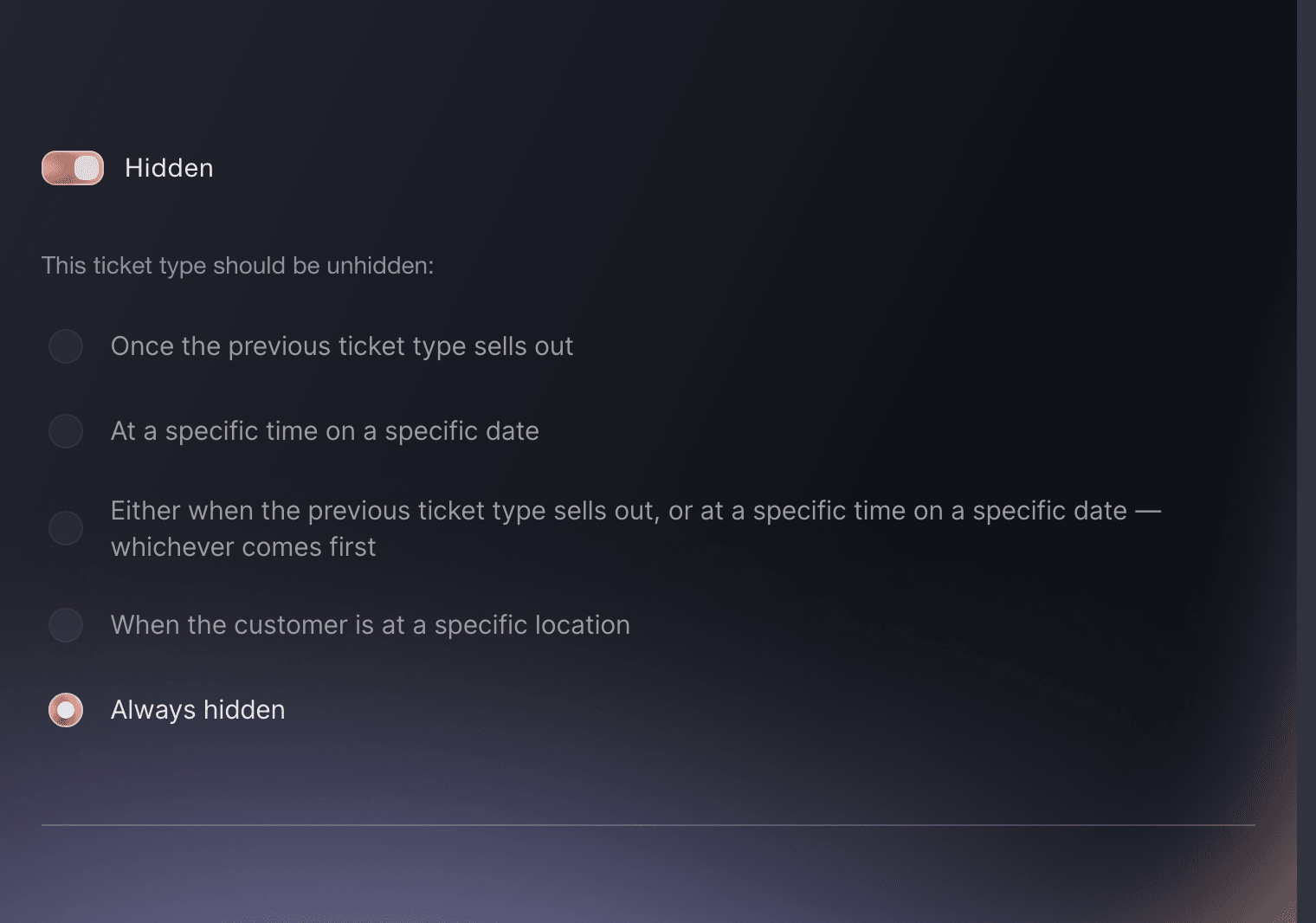
Event, Tickets, ticket type, Hidden. -
Ask each student for their student number
Open Settings on the event, select Create Custom Field and choose Order under Append to, with a label such as Student number (Student tickets only). Each order then carries the buyer's answer in its details.
Note: The question appears on every order, because a custom field cannot be limited to one ticket type. Leave Required off, so a buyer of full-price tickets can skip it.
Add custom questions to your event checkout

Event, Settings, Custom Fields, Create Custom Field. -
Hold every student order for your approval
On the Student ticket, turn on Require order approval for this ticket type and Hold payment until approved, then save the ticket. An order with a Student ticket then waits for your decision, while full-price tickets sell as normal.
Note: With Hold payment until approved on, a supported payment method reserves the amount at checkout and we collect it only when you approve.
Approve orders before buyers receive tickets
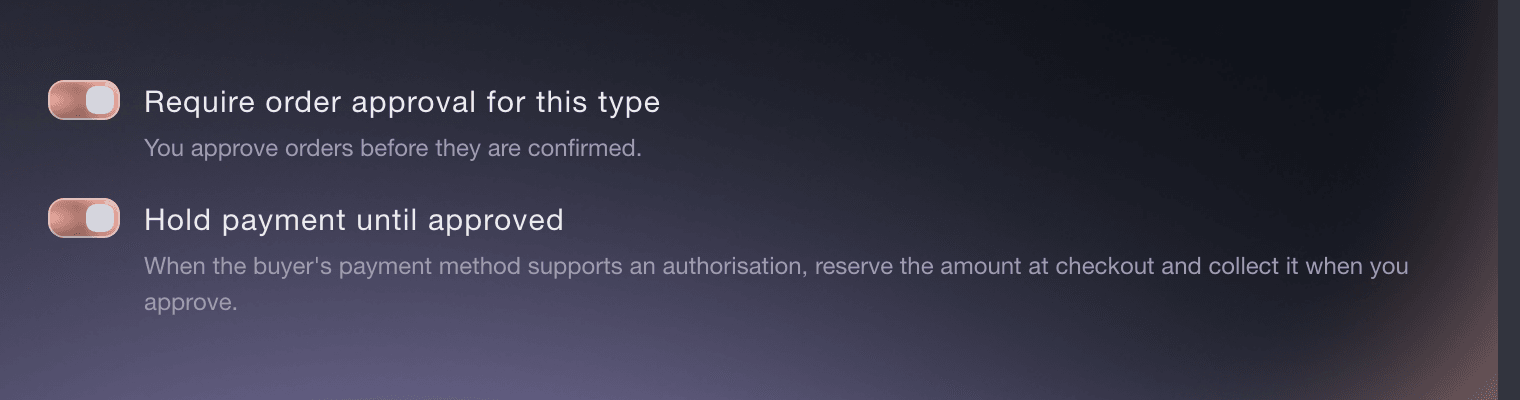
Event, Tickets, ticket type, order approval. -
Check the student number on each waiting order
Open Orders, select Needs Approval and select View on an order. The student number is in the order's contact details, beside the buyer's name and email address.
Note: Check the numbers against your own membership or student list before the payment hold on the order expires. An order carries one number, so the ID check at the door covers each Student ticket holder.
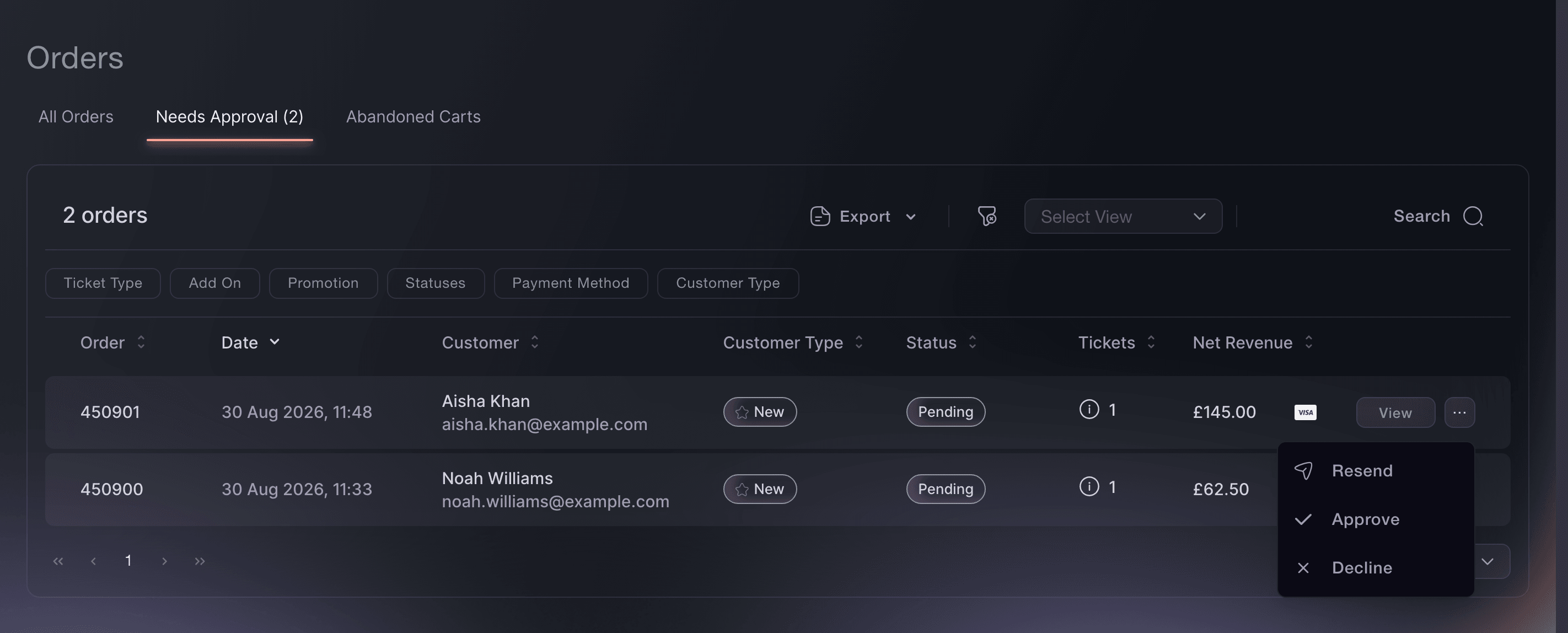
Event, Orders, Needs Approval. -
Approve the orders that check out
Select ... on the order, then Approve, and confirm Approve. We collect a held payment and issue the student's tickets.
Note: Select Decline instead for a number that does not check out, and the whole order closes.
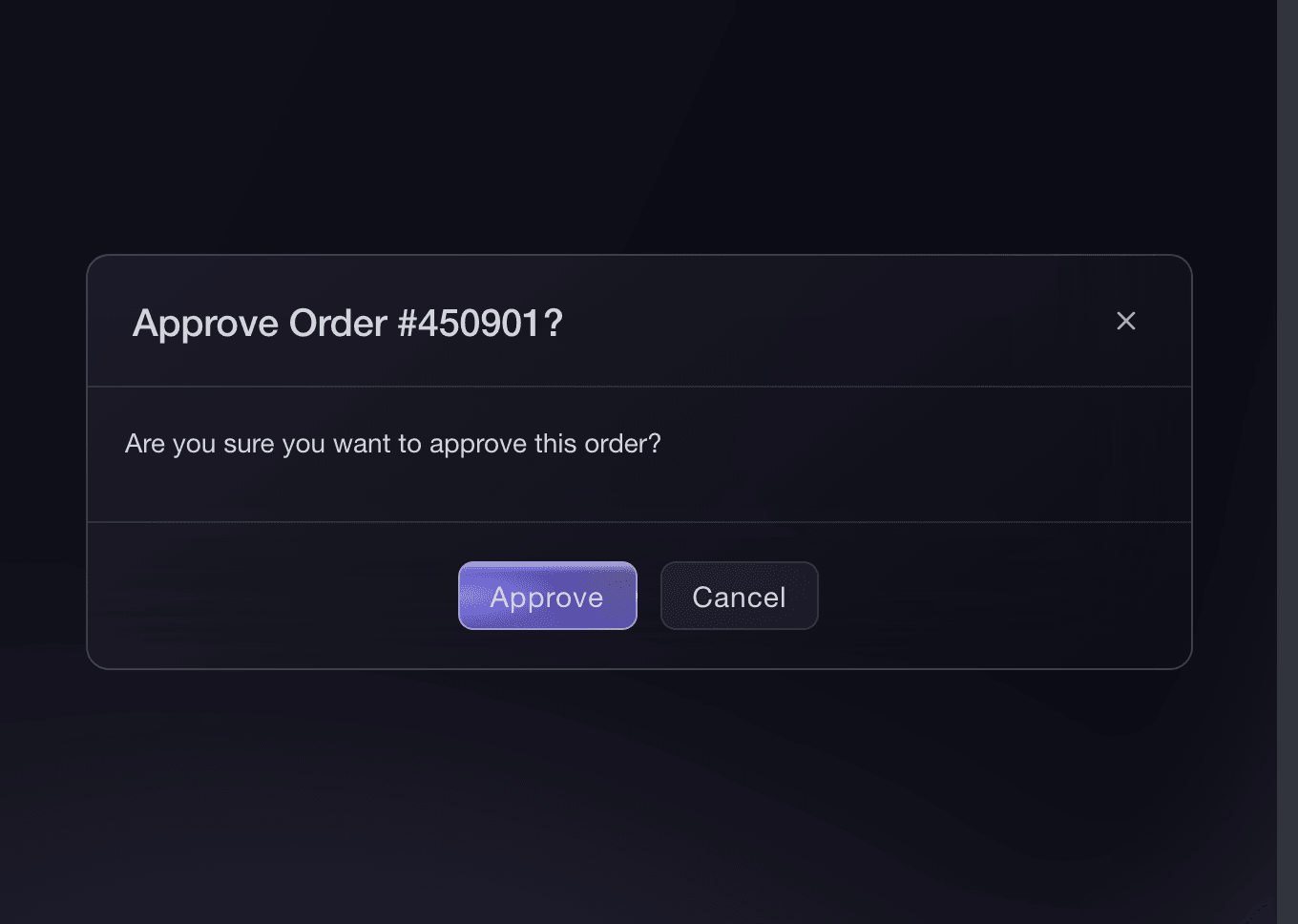
Event, Orders, Needs Approval, Approve. -
Ask everyone to bring photo ID
On Tickets, open Settings, select Settings under Anti-Scalping/Fraud Settings, then turn on Names required and ID required. Each ticket then carries its holder's name, and the confirmation email asks every buyer to bring a valid photo ID with their tickets.
Note: Your door team compares the name on the ticket with the student card or other ID in front of them.
How do you keep touts and bots off your tickets?
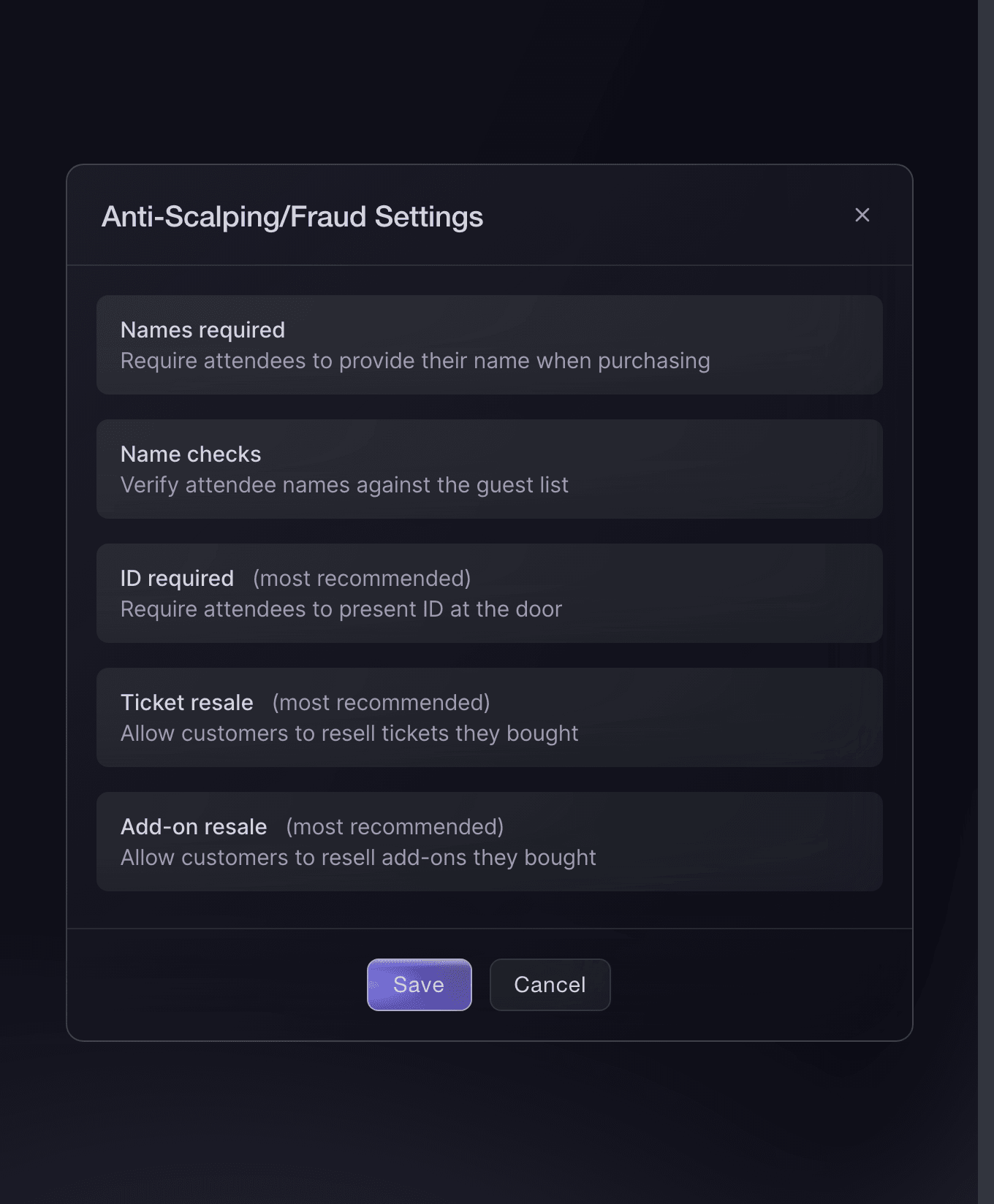
Tickets, Settings, Anti-Scalping/Fraud Settings. -
Take applications from societies and stallholders
Optional: Open Forms and select Add New Form, or Create Form once the event has forms, for the societies, performers or stallholders who want a place at your event. You read every application in one list and accept or decline each one.
Take act and trader applications for your event
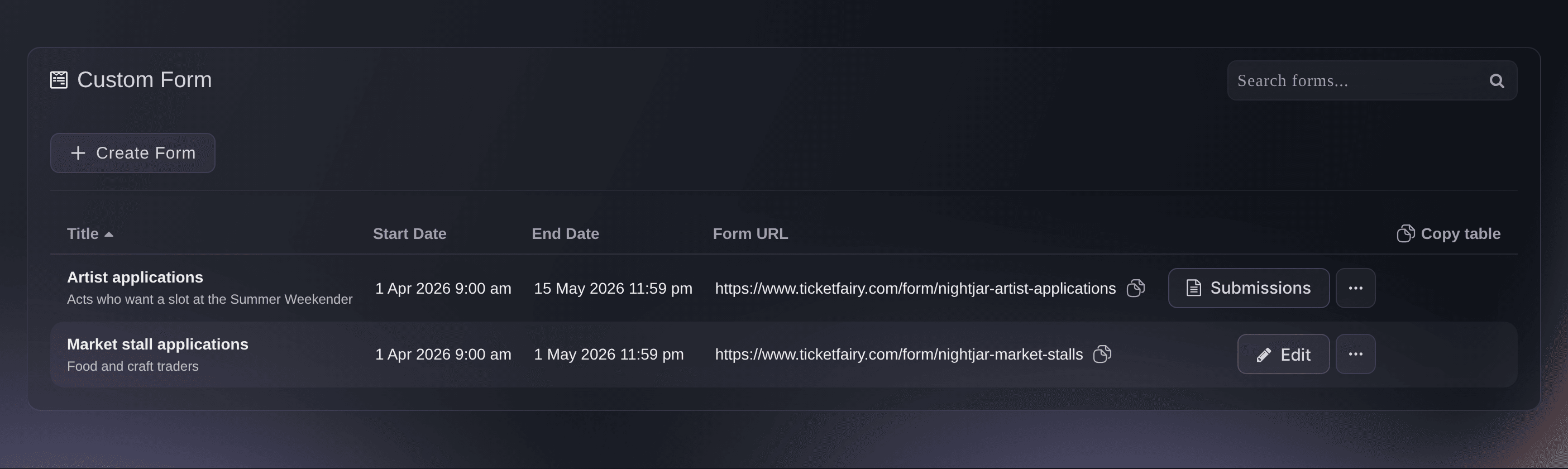
Event, Forms. -
Invite each society rep as a Promoter
On the Team page of the event, select Add Team Member, enter each rep's email address and choose Promoter. Each rep gets a promoter link of their own, and the tickets sold through it are credited to them.
Note: Event-team access covers only this event, so next term's event starts with a clean list.
Invite your team to your events and choose what each person can do
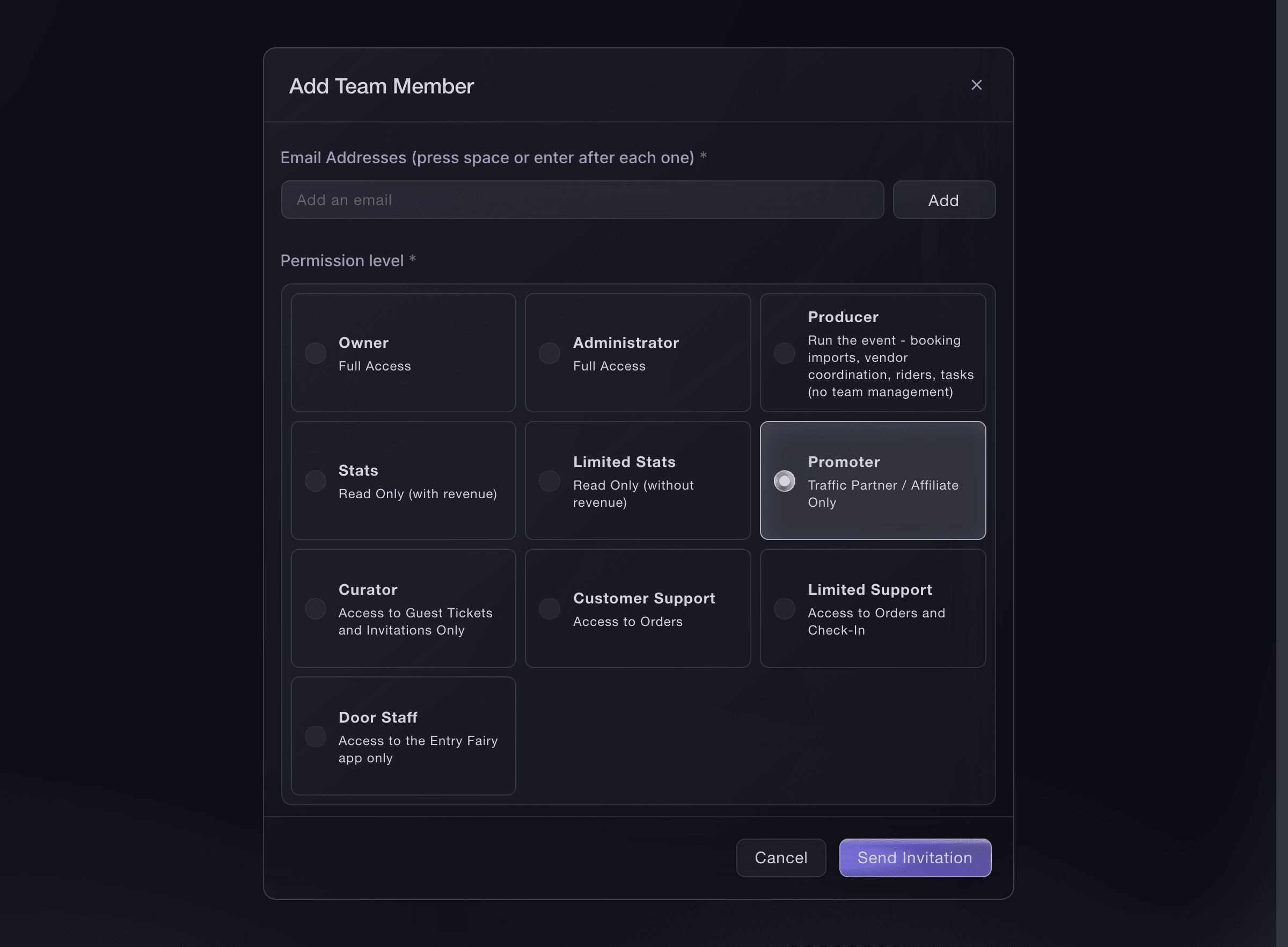
Event, Team, Add Team Member. -
Send each rep their link when you publish
When you publish the event, tick Send Promoter Links under Promoters, and each rep gets an email with their own link. Sales by Promoter then shows which society sold the most.
Note: A scheduled publish does not send promoter links, so send them separately if you schedule the on-sale.
See which team members sell your tickets
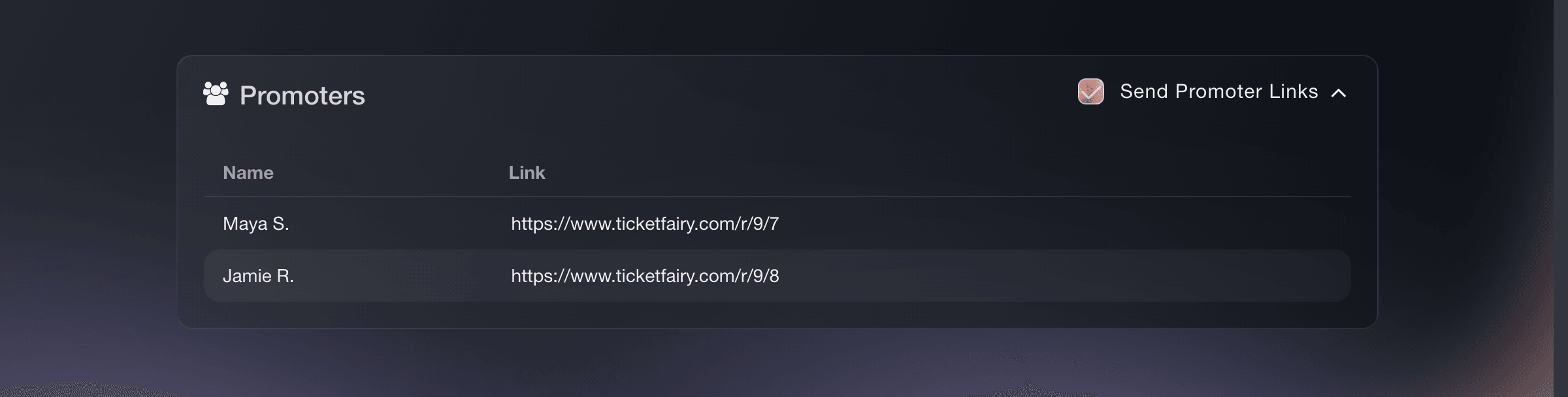
Event, Publish, Promoters. -
Get the students on the door ready
Invite the students running the door to the event as Door Staff, so each of them scans tickets with the Entry Fairy app on their own phone. The door team guide takes you from their logins through the guest list to a test scan before the doors open.



Try these steps on your own event
Create a free account, build your event and follow the steps above in your own dashboard. It takes a few minutes and you do not need to book a sales call.
No setup fees. No required monthly ticketing fee. No credit card required.
Or have it done for you
Fai can build the event from a template with a student ticket, hide that ticket behind a no-discount access code, add the student number question, turn on order approval and ID at the door, approve or decline a waiting order, invite your society reps and door team, and read the applications on your forms. She shows you each change and asks you to approve it before she makes it, and asks again before she approves or declines an order.
In your dashboard, with Fai
Help me set up <EVENT NAME> on <DATE> for our students' union; ask me about the student and standard prices, how many student tickets there are, the access code for students, the student number question and whether I approve each student order, then show me the proposed setup before changing anything
From your terminal
Install the CLI from our CLI page, sign in with ticketfairy auth login, and choose the brand you are working on with ticketfairy brand use <BRAND_ID>. ticketfairy brand list and ticketfairy event list show the IDs the other commands use.
Use the CLI to create the hidden student ticket and the standard ticket, publish the event and read arrivals. The access code, the student number question, order approval, the ID setting, forms and team invitations are set up in the dashboard or with Fai.
Create a Student ticket that never shows on your public event page until a buyer enters its access code.
ticketfairy ticket create <EVENT_ID> --name "Student" --price 8 --max-inventory 400 --hidden --hiding-option always_hidden
Create the full-price ticket.
ticketfairy ticket create <EVENT_ID> --name "Standard" --price 20 --max-inventory 200
Publish the event.
ticketfairy event publish <EVENT_ID>
Read arrivals for each ticket type on the night.
ticketfairy checkin status <EVENT_ID> --breakdown ticket-types --output json
Let Fai do it for you
Fai works inside your Ticket Fairy dashboard. Create your account, open Fai and paste the prompt above.
No setup fees. No required monthly ticketing fee. No credit card required.
Questions you might have
- How do I keep the student ticket for students only?
- Hide the Student ticket behind an access code that you share only with students, ask for a student number at checkout, and require approval for the Student ticket. You then approve each student order after checking the number, and a buyer whose number does not check out gets no ticket.
- Is a student charged while I check their order?
- With Hold payment until approved on, a payment method that supports it reserves the amount at checkout and we collect it only when you approve. Other payment methods charge the student at checkout and refund them if you decline the order.
- Can a society sell tickets without a login to our dashboard?
- A rep invited as a Promoter has a login that sees their own link and their own sales rather than your whole event. To let a society hand out a fixed number of free tickets without a login, give them a delegation instead, which works from a link you send them.
- Can I run a free event that students register for?
- Yes. Set the Student ticket's price to zero, and keep the access code and approval if the places are for students only. The Freefund RSVP template adds a refundable deposit that students earn back at check-in, for a free event where no-shows are a problem.
- How do I see which society sold the most tickets across the year?
- Open Promoters on your brand. It adds up every rep's visits, tickets and revenue across all your events, and you can narrow it to a period or to specific events.
Still have a question?
Book a demo and we will answer it on a call, on your kind of event. Or create your account and see it for yourself.
No setup fees. No required monthly ticketing fee. No credit card required.
Related guides
Do this on your own event
Create your account, build your event and follow the steps in your own dashboard. You do not need to book a sales call.