
Playbooks by event type
Run ticketing for a venue and the promoters who hire it
Venue teams put on their own nights and hand others to the promoters who hire the room. Your venue's page tells buyers how to get in, your permanent team keeps its access across every event, and each hiring promoter works on the one night they booked. After the doors close you can see the ticket sales every promoter brought to your venue side by side.
Put your venue's page under your brand, give your own team and each hiring promoter the access their job needs, hand partners their ticket allocations, get your door team scanning and compare the ticket sales each promoter brings to your venue.
- For
- Venue owners and venue teams who put on their own nights and hire the room to outside promoters
- Takes
- 15 minutes
- Claim your venue's page
- Add the venue to the brand you already run
- Tell buyers how to get in
- Invite your permanent venue team
- Give your booker the venue's page on its own
- When to give a promoter a seat or an allocation
- Add the promoter to that night's team
- Give a partner their own allocation
- Hold back tickets for the promoter's guest list
- Hand the night's setup to the promoter
- Put the scanning app on your door team's phones
- Compare what each promoter sold at your venue
Before you start
- You're a brand owner or admin. You can look after the venue's page, invite your team and add a promoter to one event's team.
- You have agreed with each hiring promoter who builds the night's tickets, who runs the guest list and who hands the scanners over at the door.
- You know each room's capacity and which entrances your door team uses.
-
Claim your venue's page
If your venue has no brand on Ticket Fairy yet, open the venue's page on ticketfairy.com and select Send me a code to prove an address at the venue's own domain.
Note: Claiming the page creates your account and a brand of your own to run the venue from.
-
Add the venue to the brand you already run
If you already run a brand, open Venues and select Add a venue instead.
Add a venue page to the brand you already run

Brand, Venues. -
Tell buyers how to get in
Open the venue from Venues and select Add the first section for getting there, the rooms and what to expect at the door. Every promoter's buyers read the same page.
Change what your venue's page says

Venues, a venue page with nothing on it yet. -
Invite your permanent venue team
Open Team on your brand, select Add Team Member and give each person the role their job needs, such as Door Staff for the people who scan.
Note: Brand access carries across every event your brand runs at the venue, including the nights a hiring promoter builds on it.
Invite your team to your events and choose what each person can do
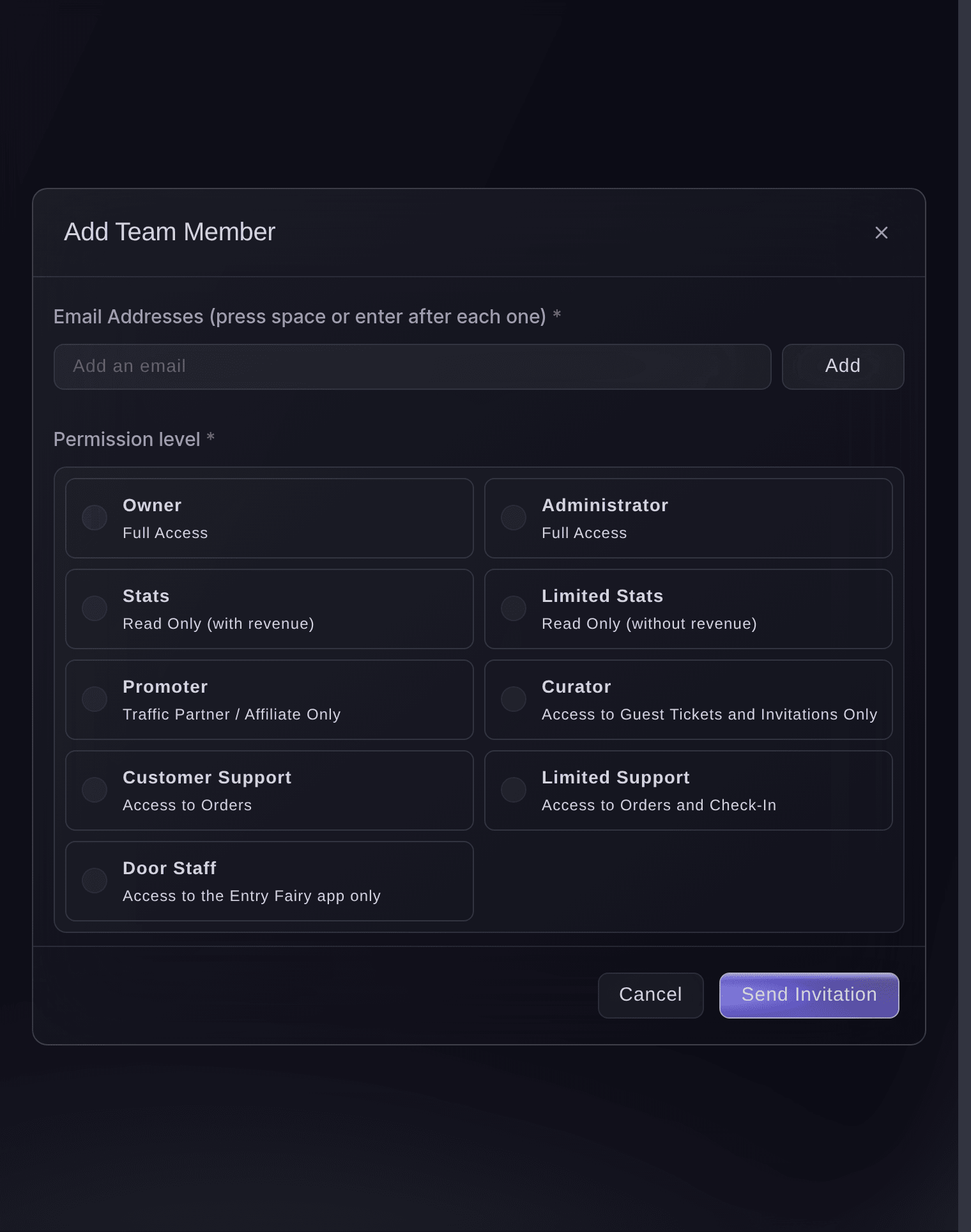
Brand, Team, Add Team Member. -
Give your booker the venue's page on its own
Optional: On the venue, select Invite someone to let a booker or marketing manager keep the venue's page current. Their seat reaches the page and the venue's details, not your events, orders or money.
Ask the venue to help with their page
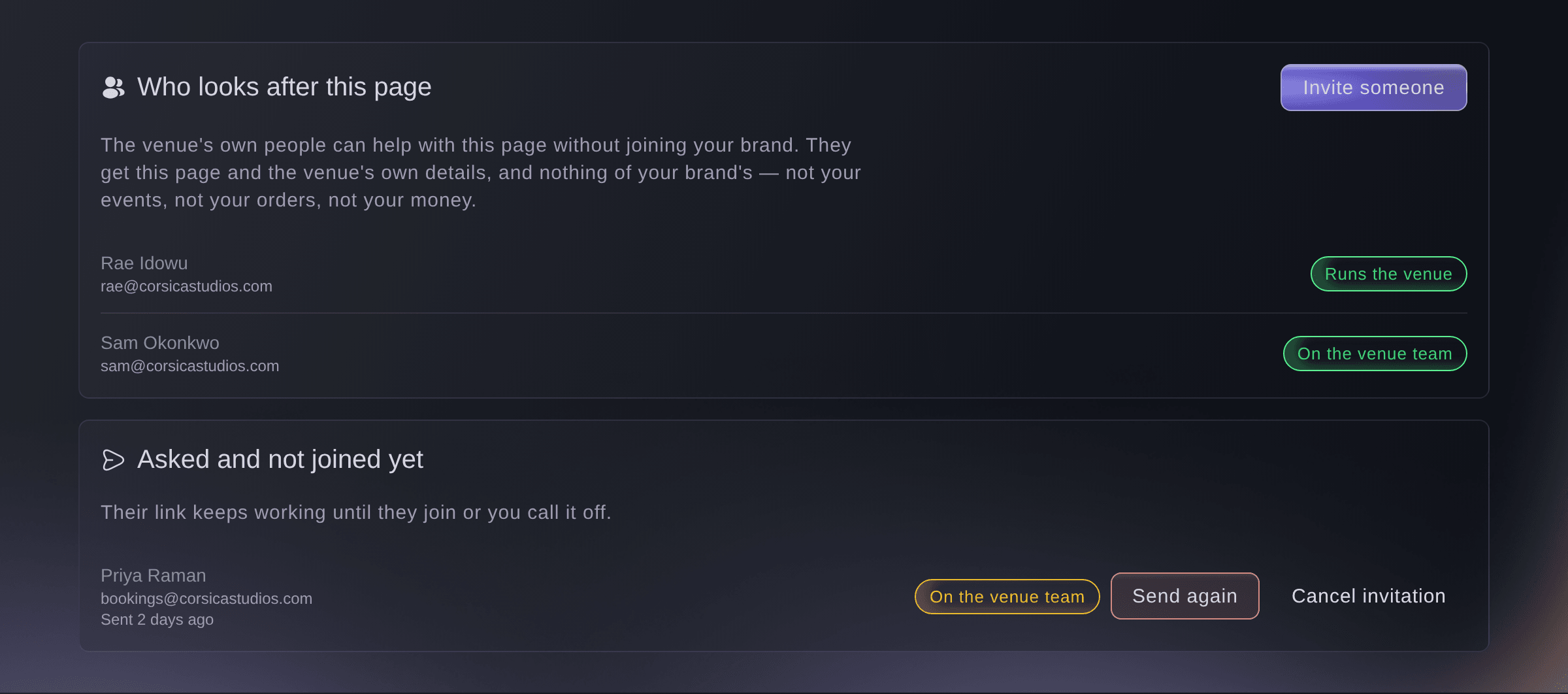
Venues, Who looks after this page.


When to give a promoter a seat or an allocation
When a hiring promoter builds the night themselves, with its tickets, guest list and publishing, you give them Administrator on that event's team. A promoter who sells a night your team builds needs Promoter, which gives them their own promoter link and counts the sales through it as theirs. A partner who only hands out a fixed number of tickets, such as a sponsor or an act's management, needs a delegation rather than a seat, and tickets you keep back from the public on-sale for a guest list are a hold on the ticket type.
Note: Event-team access reaches that one event and ends with it, so a hiring promoter never sees your other nights.
-
Add the promoter to that night's team
Open the event, select Team and Add Team Member, then choose the role you agreed and send the invitation.
Invite your team to your events and choose what each person can do
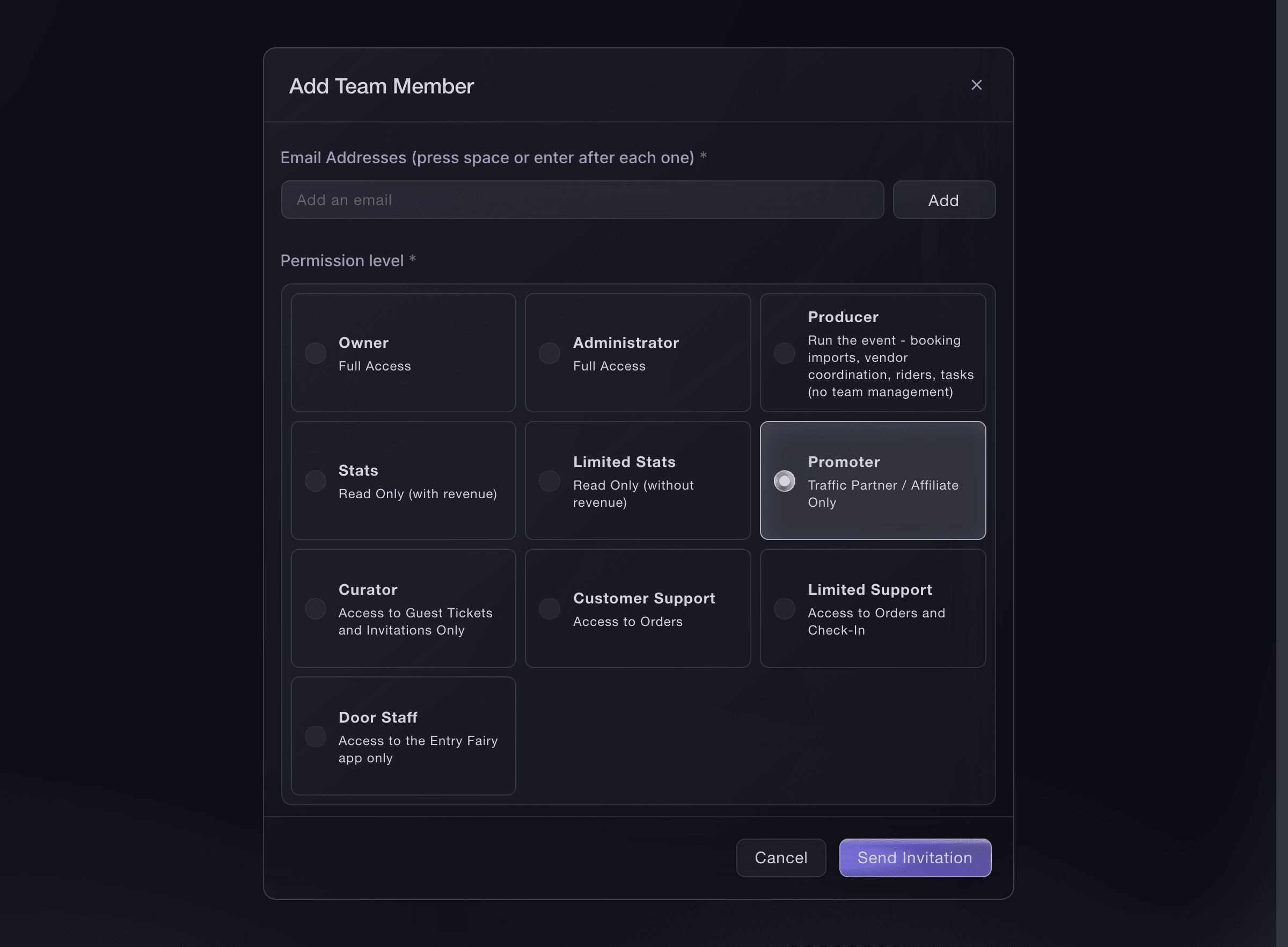
Event, Team, Add Team Member. -
Give a partner their own allocation
Optional: Open Delegations on the event and select Create Delegation for each partner who hands out tickets themselves.
Note: A partner hands out only the ticket types you already sell, up to the number you set for each.
Let a partner hand out their own tickets for your event

Event, Delegations. -
Hold back tickets for the promoter's guest list
Optional: Open the ticket type on Tickets and turn on Hold tickets, then name the reserve after the promoter it is for.
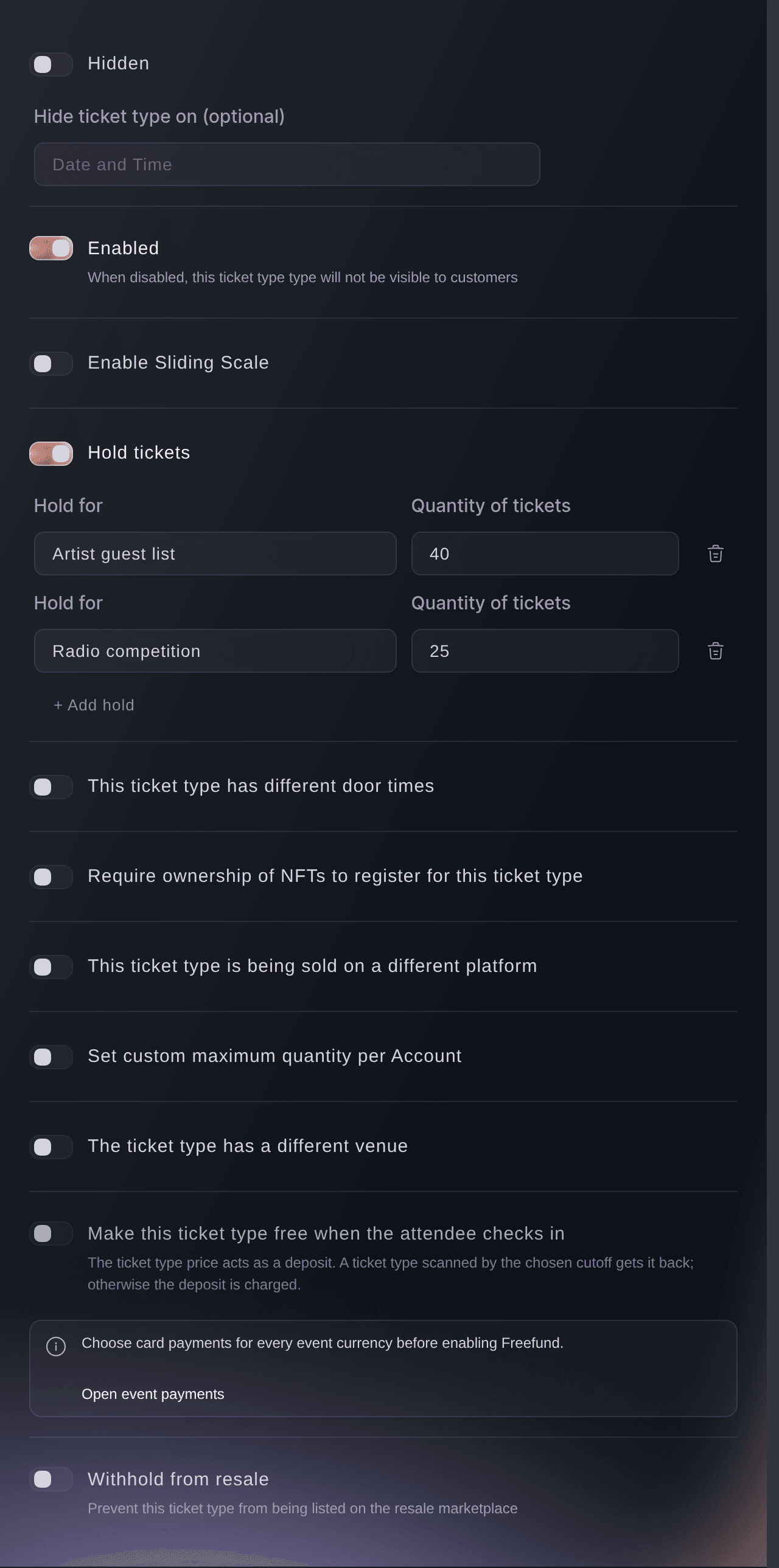
Event, Tickets, ticket type. -
Hand the night's setup to the promoter
Send the promoter the guide to running ticketing for a club night, which takes them through the releases, guest list, tables, promoter links and door times on the event you shared.
Note: A promoter with the Promoter role sells and reads their own sales but cannot change your tickets, so your team builds that night.
-
Put the scanning app on your door team's phones
Ask each door team member to sign in with their own Door Staff login and install the app from Download App under Check-In.
Note: A promoter who brings their own door team adds them to that event's team as Door Staff, so every scan still carries a name.
Event, Check-In. -
Compare what each promoter sold at your venue
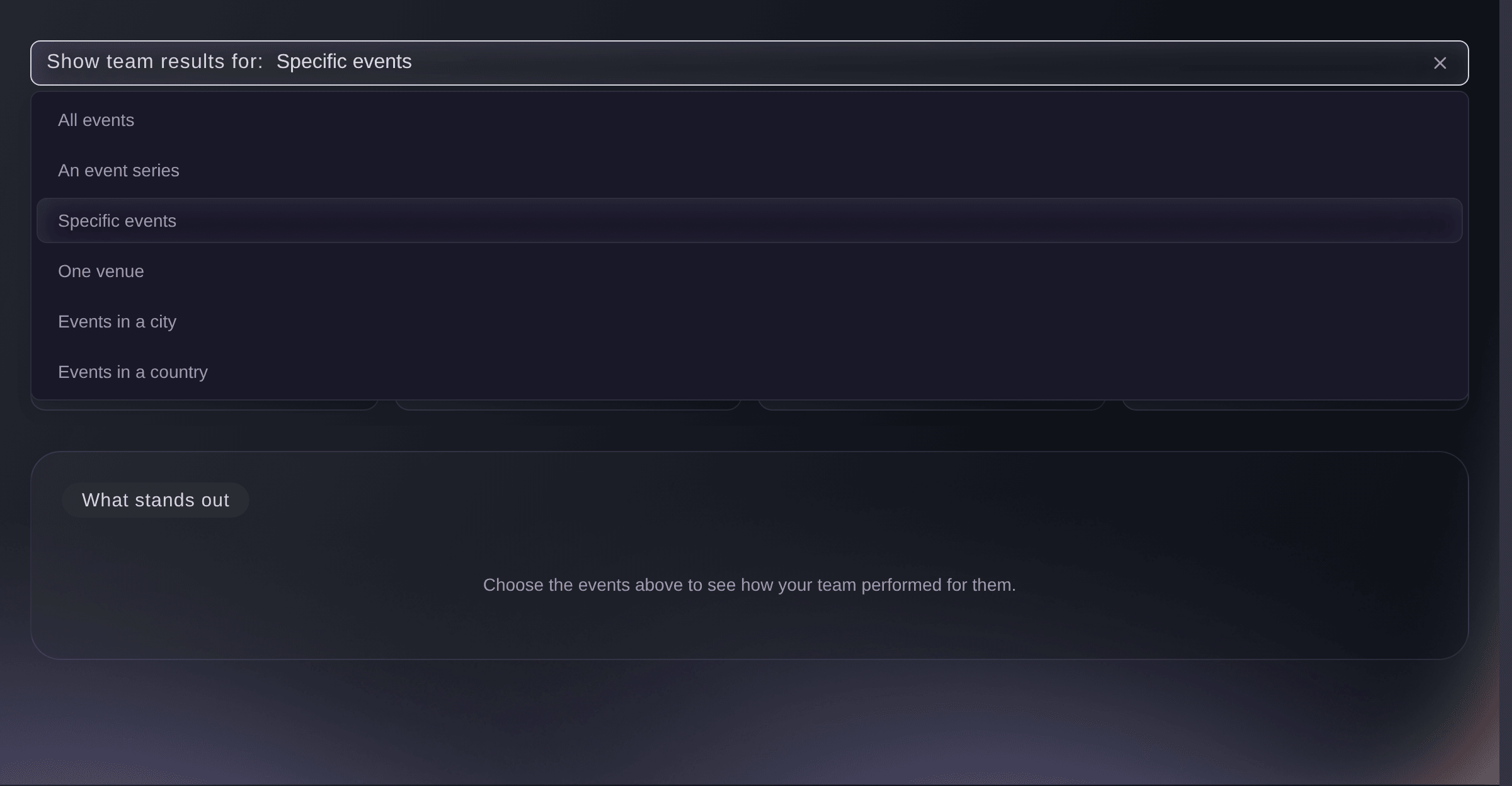
Open Promoters on your brand and choose One venue under Show team results for. The report ranks every brand and event team member by the tickets and revenue their promoter links brought to that venue's nights.
Note: A sale counts for a promoter when the buyer arrived through their promoter link while they were on the team.
See which team members sell your tickets
Brand, Promoters, Show team results for.


Try these steps on your own event
Create a free account, build your event and follow the steps above in your own dashboard. It takes a few minutes and you do not need to book a sales call.
No setup fees. No required monthly ticketing fee. No credit card required.
Or have it done for you
Fai, the assistant inside your dashboard, can add a section to your venue's page, invite your permanent team to the brand, invite a hiring promoter to one night's team, and read the brand Promoters report and the door figures for you. She shows you each invitation and change and asks you to confirm it first. Proving an address at the venue's own domain stays with you, because that code is what gives the venue's page to your brand.
In your dashboard, with Fai
Invite <PROMOTER EMAIL> to the team for <EVENT NAME> as an administrator so they can build their night, and show me the invitation before you send it
From your terminal
Install the CLI from our CLI page, sign in with ticketfairy auth login, and choose the brand you are working on with ticketfairy brand use <BRAND_ID>. ticketfairy brand list and ticketfairy event list show the IDs the other commands use.
Use the command line to publish a hired night with its promoter links and to read the door figures while it runs. Set up the venue's page, your team, allocations and held tickets in the dashboard.
Publish the night and email everyone on its team their own promoter link.
ticketfairy event publish <EVENT_ID> --send-promoter-links
Read the check-in figures while the doors are open.
ticketfairy checkin status <EVENT_ID> --output json
Let Fai do it for you
Fai works inside your Ticket Fairy dashboard. Create your account, open Fai and paste the prompt above.
No setup fees. No required monthly ticketing fee. No credit card required.
Questions you might have
- Can a promoter who hires the venue see our other events?
- No. Add them to the one event's team rather than to your brand team, and their access reaches that night only and ends with it. Your permanent team stays on the brand and keeps its access across every night.
- How does a hiring promoter get their own promoter link?
- Publish the night with Send Promoter Links ticked, and everybody on its team gets an email with their own promoter link and a QR code. A promoter can also copy their promoter link from the top of Performance on the event at any time.
- Can a sponsor hand out free tickets without a login to our event?
- Yes. Create a delegation for the sponsor with the ticket types and the number they can hand out, add the person who holds it, and share the access link. They hand out tickets from their own page up to the limit you set.
- Who can change what our venue's page says?
- Owners and admins of your brand, and the people you invite to the venue's page itself. A seat on the venue's page reaches the page and the venue's details and never your events, orders or money.
- Can a promoter's door staff scan at our venue?
- Yes. Add each of them to that night's team as Door Staff. They install the same scanning app, sign in with their own login, and every admission is recorded against their name.
Still have a question?
Book a demo and we will answer it on a call, on your kind of event. Or create your account and see it for yourself.
No setup fees. No required monthly ticketing fee. No credit card required.
Related guides
Do this on your own event
Create your account, build your event and follow the steps in your own dashboard. You do not need to book a sales call.