
Playbooks by event type
Run ticketing for an attraction
Haunted attractions, escape rooms and seasonal attractions sell tickets by the hour, so the space never overfills and the queue outside stays short. Each slot sells to its own capacity, and your regulars can buy a season pass that lets them come back. Your staff have their passes before opening night, and you can follow every slot as visitors arrive.
Sell attraction tickets by date and time slot with a capacity on every slot, add a season pass for visitors who come back, sell extras with the entry, give your staff a pass and follow arrivals slot by slot.
- For
- Selling timed entry to an attraction that opens for a season
- Takes
- 18 minutes
- Start from the Exhibition template
- Choose Season pass on top
- Remove the untimed entry rows and use the template
- Sell each kind of entry by time slot
- Let season pass holders come back once a day
- Sell extras with the entry
- Open bookings at the time you announced
- Make a tracking link for each listing
- Give your staff and performers a pass
- Put the scanning app on the door team's phones
- Follow arrivals slot by slot
Before you start
- You're a brand owner or admin. You can create events, change tickets, add-ons and passes, and publish.
- You have asked Ticket Fairy support to turn on time slots for the event. The ticket form offers time slots only on an event set up for them.
- You know your opening days and hours, how long a visit or a game lasts, how many people each slot can take and what each kind of entry costs.
- You know whether you sell a season pass, which extras you sell beside entry, and who on your staff needs a pass.
-
Start from the Exhibition template
Create an event for your whole season, from the first opening day to the last, and choose Exhibition. The template asks visitors for no ID or date of birth and adds an Audio guide add-on.
Note: A ticket without door times of its own scans inside the event's check-in window, so the season pass works for as long as the event runs.
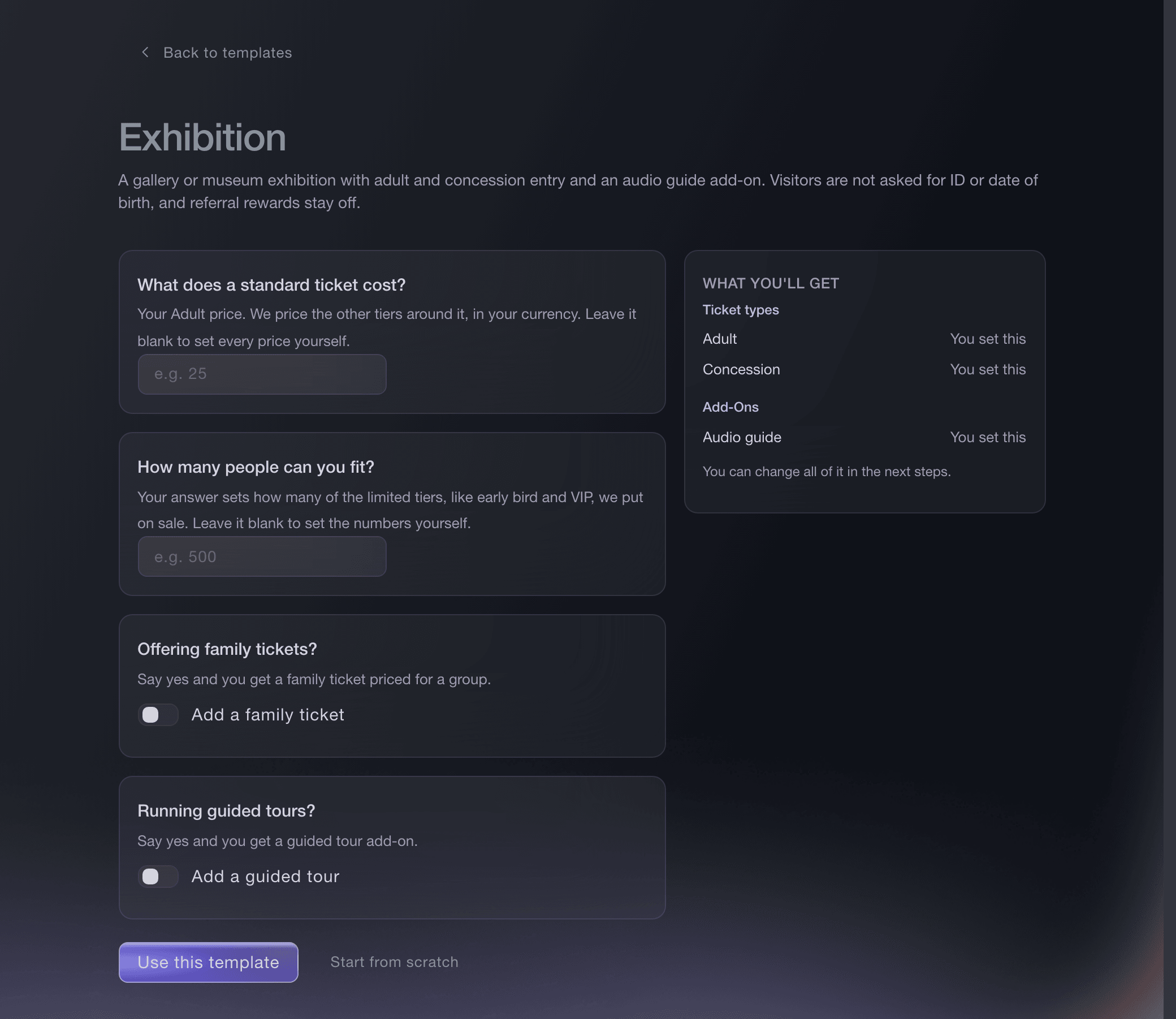
Events, Create Event, Exhibition. -
Choose Season pass on top
Under How do you want to sell?, choose Season pass on top. The template adds a Season pass ticket beside Adult and Concession entry.
Note: Choose Adult and concession when you sell no season pass.
-
Remove the untimed entry rows and use the template
In the ticket list, remove the Adult and Concession rows with the bin beside each, then select Use this template. Entry by the hour is made as time slots on the Tickets page, and the Season pass and the Audio guide stay on your event.
-
Sell each kind of entry by time slot
On Tickets, create a ticket type such as Adult, turn on This ticket type has time slots, select Generate time slots for your opening days and hours with Max sales per slot set to what one slot holds, then save. Each slot sells out on its own count, and the new slots appear on the Tickets page within a minute or two.
Note: Adult and Child are two ticket types, each with its own slots and its own capacity per slot.
Sell timed-entry tickets for an attraction, exhibition or food event
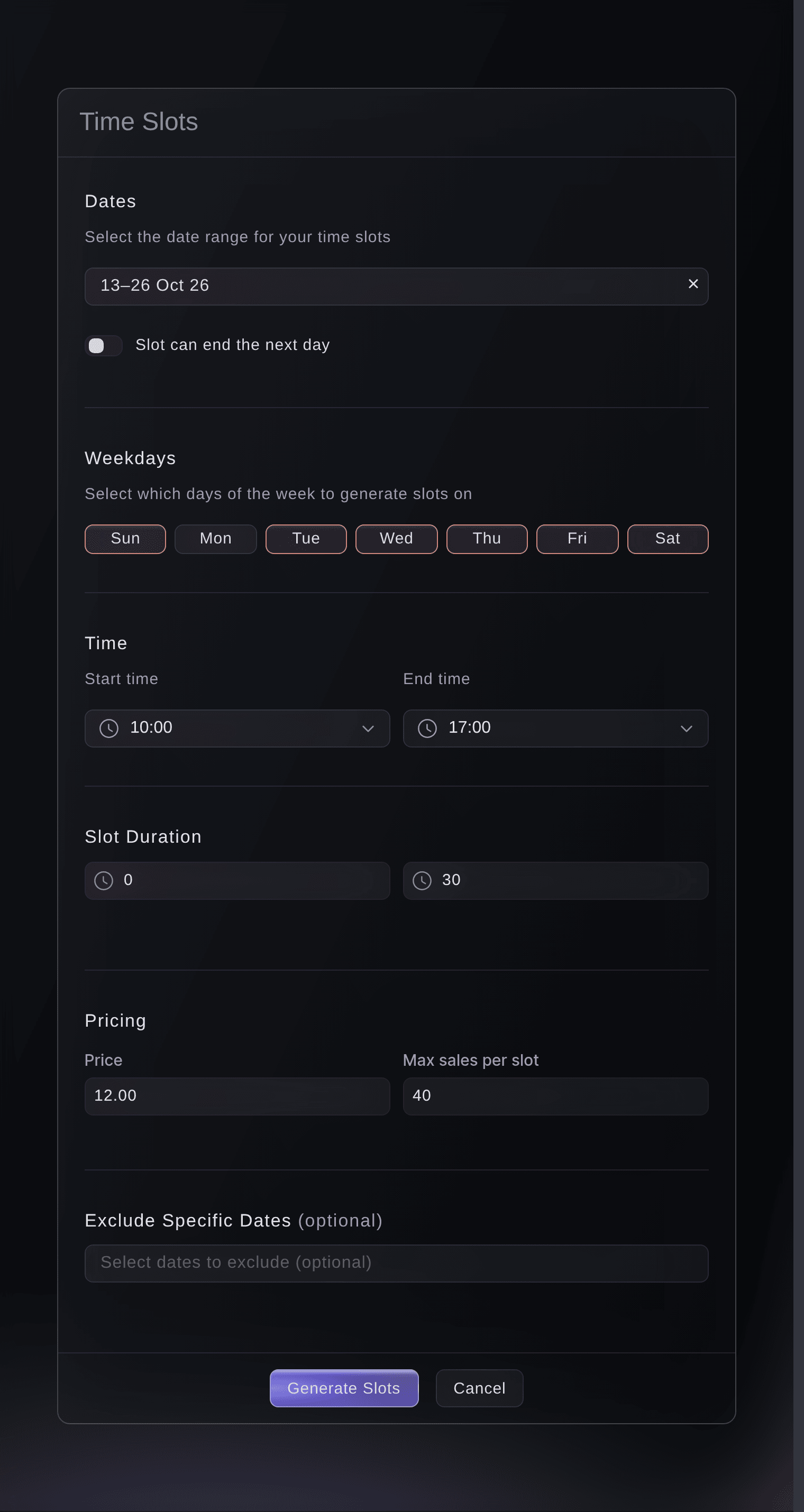
Tickets, Create Ticket Type, Generate time slots. -
Let season pass holders come back once a day
On the Season pass ticket type, turn on Tickets can be scanned multiple times per event, then choose Day in Time Period and enter 1 in Max Scans. A holder can then come in once in any 24 hours for the whole season.
Note: A season pass holder comes in without booking a slot, so their visits come on top of each slot's capacity. Set each slot's capacity below what your space holds, leaving room for the pass holders you expect at one time.
Set ticket entry and repeat-scan rules
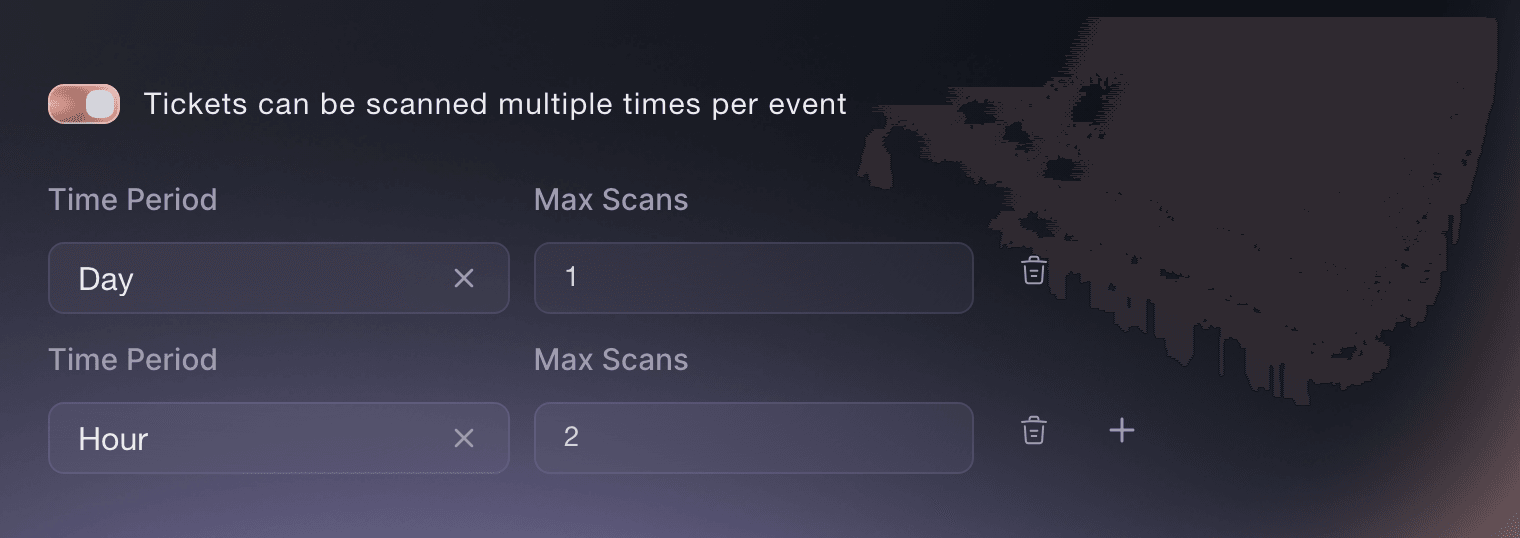
Tickets, ticket type, Ticket Rules. -
Sell extras with the entry
Open Add-Ons and select Create Add-On for each extra, such as a photo package, a guided tour or parking, with its price and Stock. Visitors add them in the same checkout as their slot.
Note: The template's Audio guide is already on the list for you to price or remove.
Sell parking, camping and merchandise with your tickets
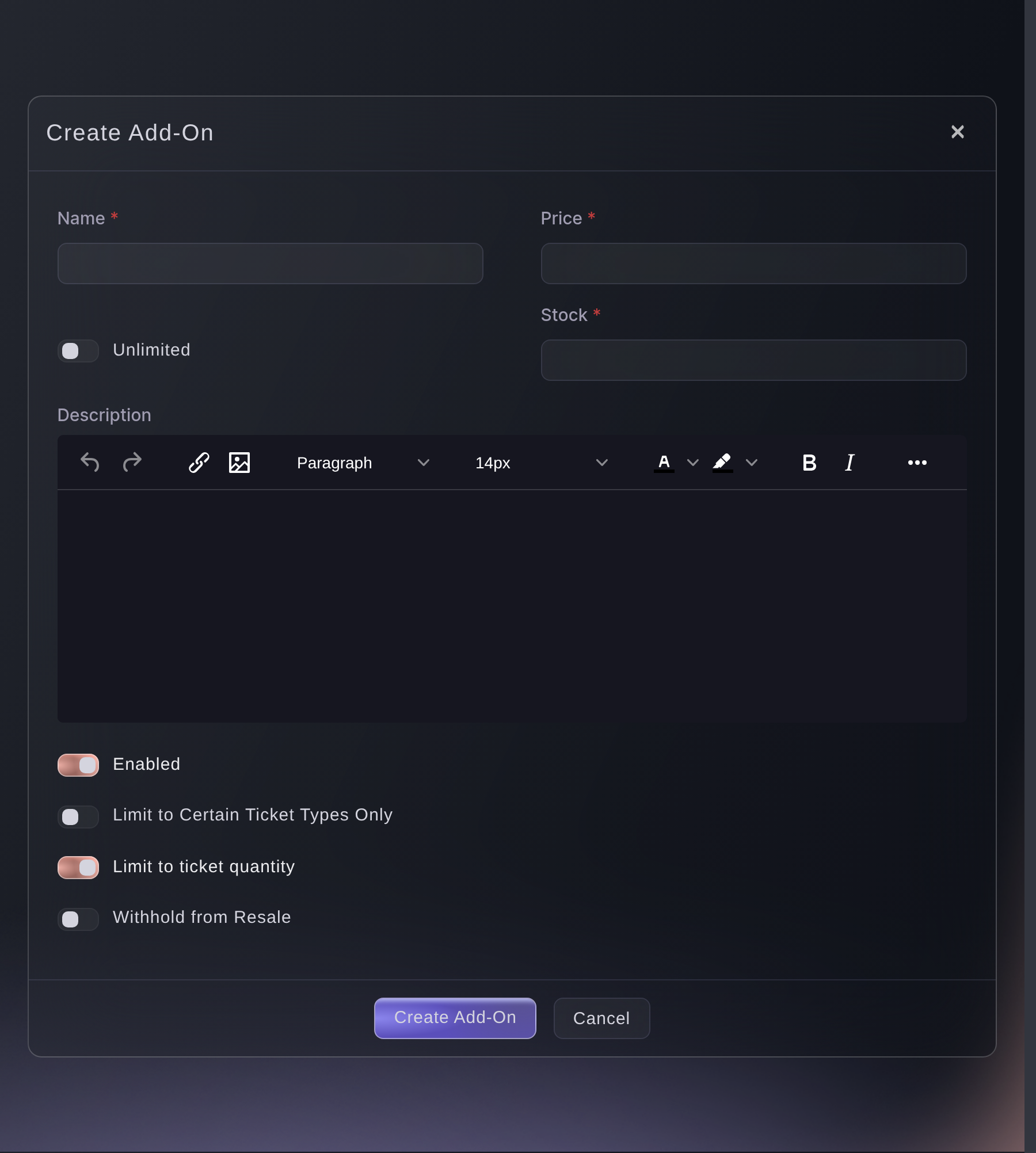
Tickets, Add-Ons, Create Add-On. -
Open bookings at the time you announced
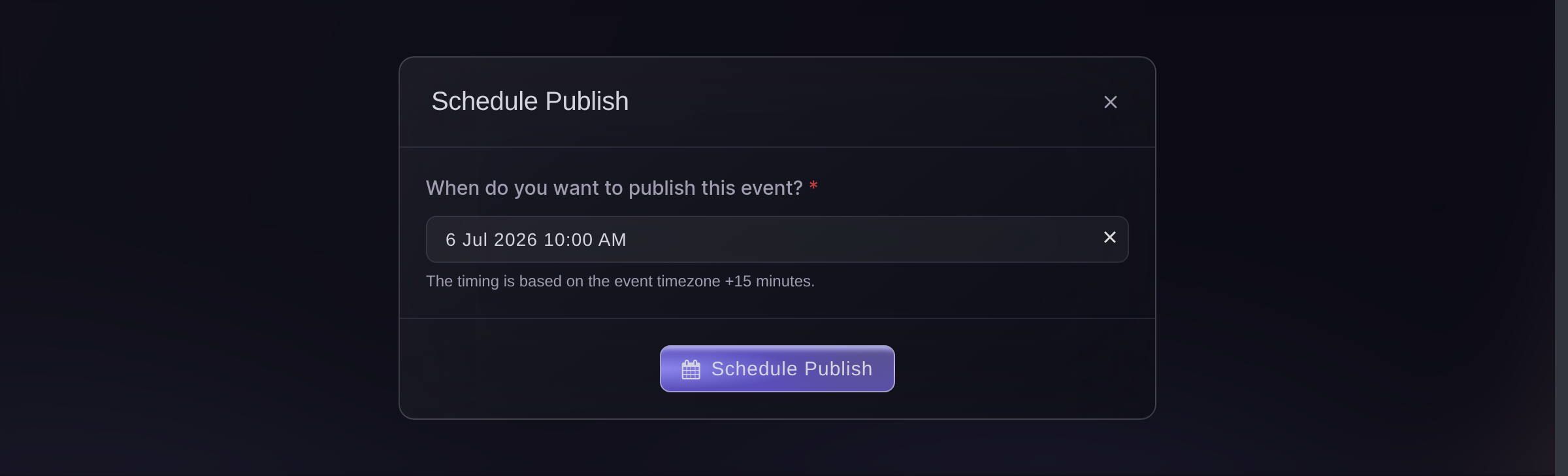
Select Publish, then Schedule Publish, and choose the date and time bookings open. Your event page then shows a calendar of the dates with a slot on sale, and a full time shows greyed out rather than hidden.
Note: The time uses your event's timezone.
Schedule when your event goes live
Publish, Schedule Publish. -
Make a tracking link for each listing
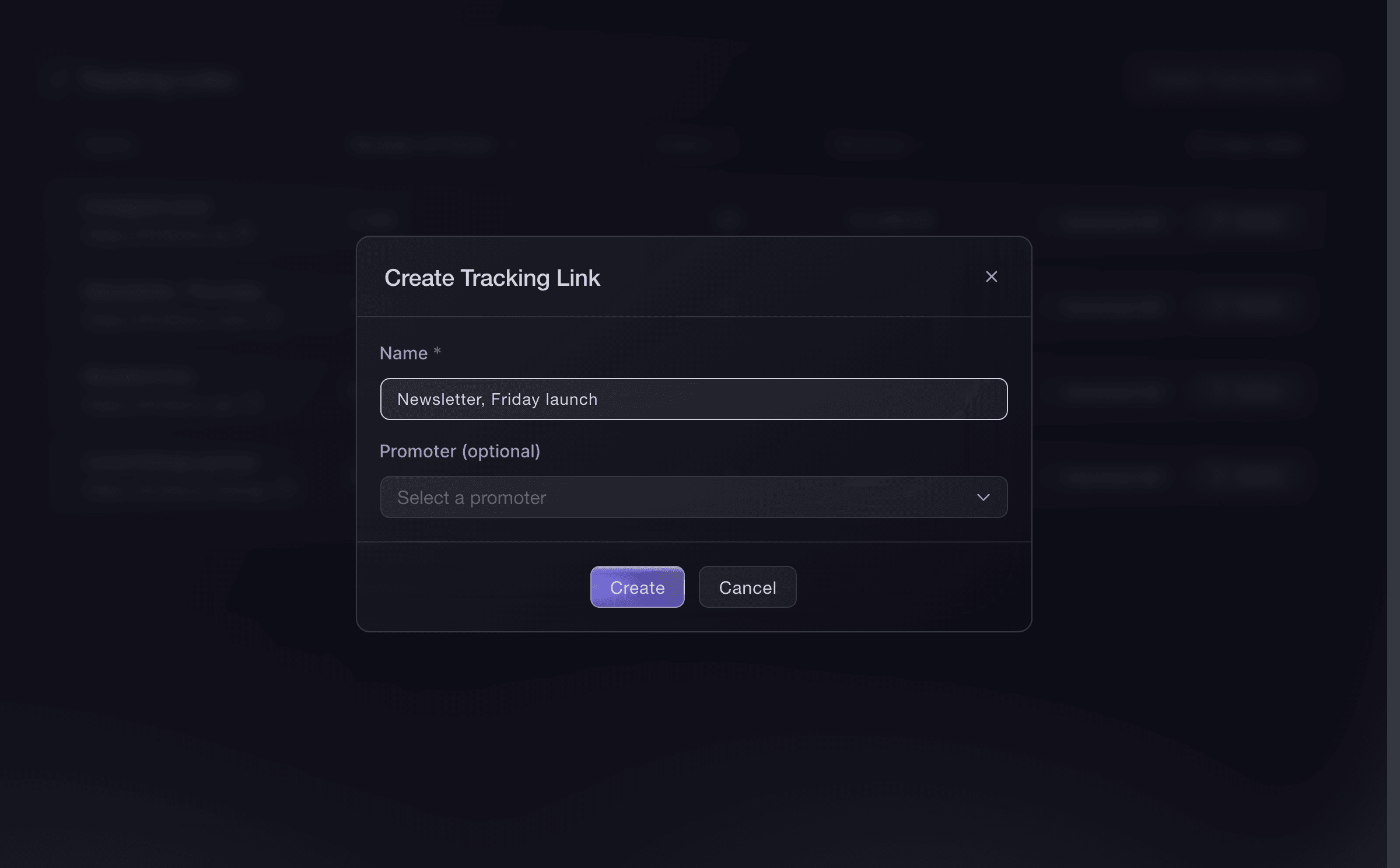
Open Tracking Links under Marketing and select Create Tracking Link for each listing site, hotel partner, social post and printed flyer. The table shows the clicks, orders and ticket revenue each one brought in.
Note: A tracking link measures a placement and does not include a reward.
Track which promotion sells your tickets
Event, Marketing, Tracking Links. -
Give your staff and performers a pass
Open Multi-Entry Passes on your brand, create a pass type such as Staff or Performer, then add each person under Enter Recipient. A pass needs no slot, and it scans in the same app as a ticket.
Note: The maximum number of uses covers the whole event, which is your whole season, so set it high enough for every shift. We turn passes on for a brand, so ask us if the page is not in your menu.
Issue reusable event passes to crew and artists

Brand, Multi-Entry Passes, Create New Pass. -
Put the scanning app on the door team's phones
Open Check-In and select Download App for the Entry Fairy links on both app stores. Each member of your door team signs in with their own Door Staff login, so every admission carries a name.
Note: The app needs an internet connection at each entrance.
Event, Check-In, Download App. -
Follow arrivals slot by slot
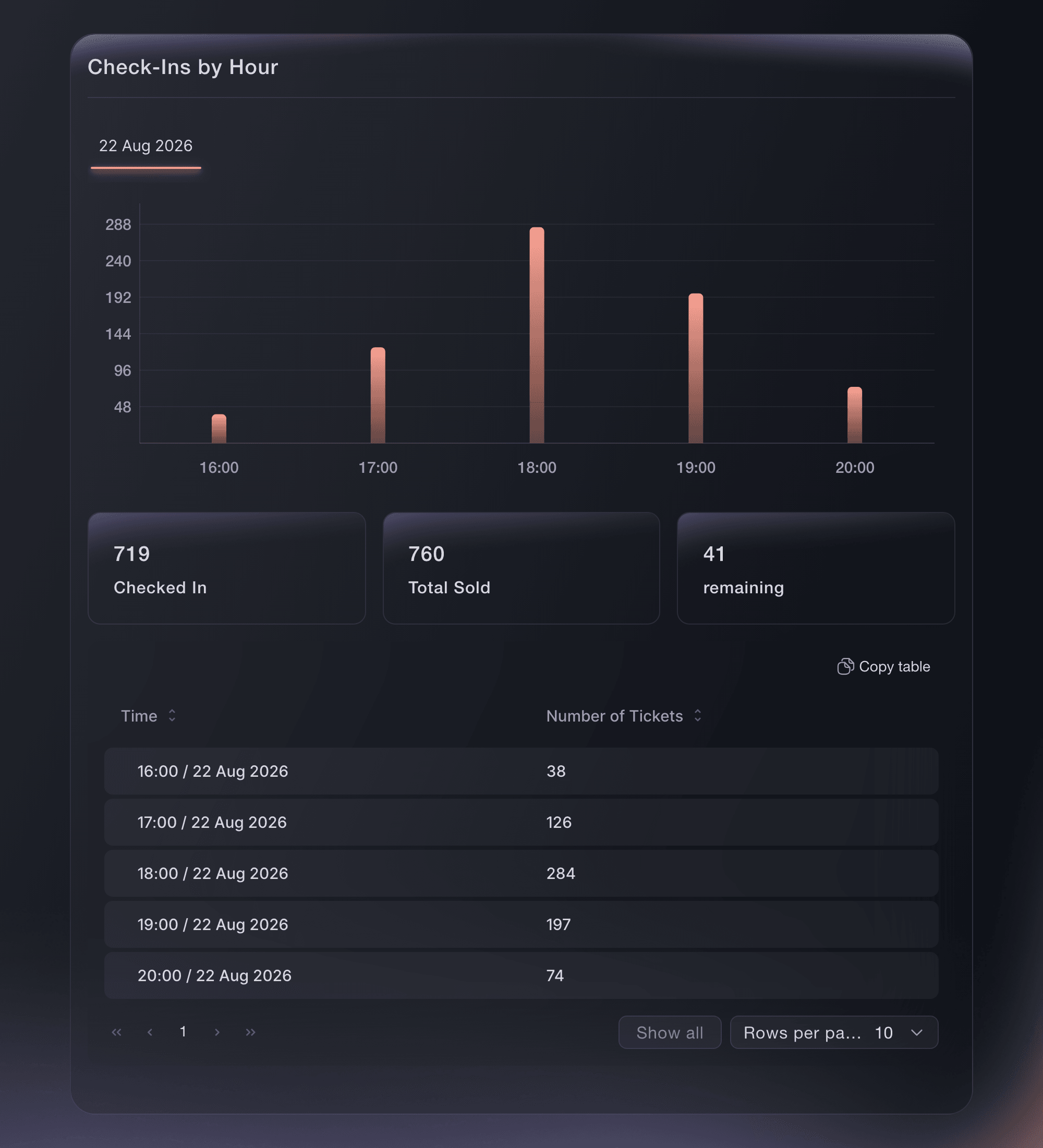
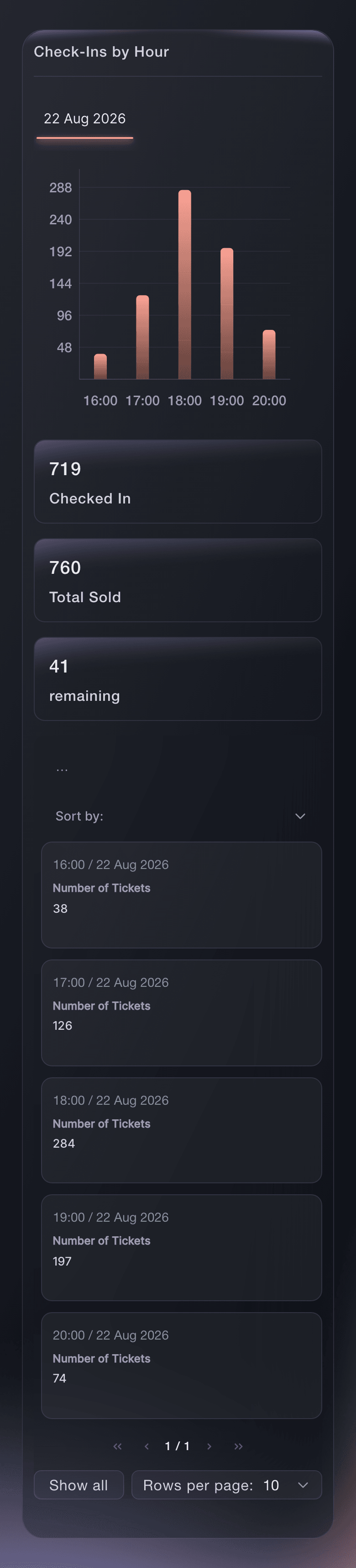
Open Check-In and select Hourly to see arrivals by hour on the day you choose. The Ticket Type tab groups the same arrivals by date, then by slot time, then by ticket type.
Tip: Open Sales by Time Slot under Performance for the sales and revenue of every slot.
Event, Check-In, Hourly.


Try these steps on your own event
Create a free account, build your event and follow the steps above in your own dashboard. It takes a few minutes and you do not need to book a sales call.
No setup fees. No required monthly ticketing fee. No credit card required.
Or have it done for you
Fai can build the event from the Exhibition template, set the season pass so it admits once a day, add the extras, publish on a schedule, create tracking links, issue staff passes and read arrivals slot by slot. Time slots are set up in the dashboard, and Fai tells you so when you ask. She shows you each change and waits for your approval before she makes it.
In your dashboard, with Fai
Help me set up ticketing for <ATTRACTION NAME>, open from <FIRST DAY> to <LAST DAY>; start from the Exhibition template with a season pass that lets holders in once a day, ask me about prices, extras, staff passes and our on-sale time, and show me the setup before changing anything
From your terminal
Install the CLI from our CLI page, sign in with ticketfairy auth login, and choose the brand you are working on with ticketfairy brand use <BRAND_ID>. ticketfairy brand list and ticketfairy event list show the IDs the other commands use.
Use the CLI to create the season pass with its once-a-day entry rule, add the extras, publish the event and read arrivals by slot. The template, the time slots and the staff passes are set up in the dashboard.
Create a season pass that admits its holder once in any 24 hours.
ticketfairy ticket create <EVENT_ID> --name "Season pass" --price 60 --max-inventory 300 --scan-rule "day:1"
Create an extra sold with the entry.
ticketfairy addon create <EVENT_ID> --name "Photo package" --price 12 --quantity 500
Publish the event.
ticketfairy event publish <EVENT_ID>
Read arrivals broken down by time slot.
ticketfairy checkin status <EVENT_ID> --breakdown slots --output json
Let Fai do it for you
Fai works inside your Ticket Fairy dashboard. Create your account, open Fai and paste the prompt above.
No setup fees. No required monthly ticketing fee. No credit card required.
Questions you might have
- Do adult and child tickets share a slot's capacity?
- No. Each timed ticket type has its own slots, and Max sales per slot counts that ticket type's sales alone. Split the room between them, such as 30 adult and 10 child places a slot, or sell one entry ticket type when the room is the only limit.
- How do I sell an escape room game to one group?
- Create a timed ticket type for each room, make the slot the length of a game, set Max sales per slot to 1 and price the slot for the whole group. The group that books a time has the room to itself. To sell places to separate players instead, set Max sales per slot to the number of players the room holds.
- My attraction runs each night as its own event. How do I sell a season pass?
- Sell an event pass from your brand's Event Passes page: a buyer pays once for a number of nights and books the nights they want from their own account. A pass attached to a series also covers nights you have not created yet.
- Can visitors accept a waiver before they pay?
- Yes. Ticket Fairy support adds your waiver to the checkout agreement for the event, and every buyer accepts it before paying. Send us the approved wording and the name of each section.
- Can visitors resell a timed ticket?
- No. Resale is not offered on time-slot events, so a visitor who cannot make their time asks you to move them to another one.
Still have a question?
Book a demo and we will answer it on a call, on your kind of event. Or create your account and see it for yourself.
No setup fees. No required monthly ticketing fee. No credit card required.
Related guides
Do this on your own event
Create your account, build your event and follow the steps in your own dashboard. You do not need to book a sales call.