
Playbooks by event type
Run ticketing for an esports tournament
Esports and gaming tournaments sell seats to spectators while running a separate sign-up for the players who compete. You can keep player places away from the public, give teams, casters and crew their passes, and see how many tickets your stream sells.
Sell spectator passes for an esports or gaming tournament, take player sign-ups with a form, issue player tickets from a place spectators cannot buy, give teams and crew passes, measure the tickets your stream sells, and check everybody in on the day.
- For
- Running an esports or gaming tournament with players and a paying crowd
- Takes
- 20 minutes
- Build the tournament from the Convention template
- Take player and team sign-ups with a form
- Create a Player ticket type spectators cannot buy
- Send each accepted player their ticket
- Sell jerseys and merchandise with the spectator pass
- Give team staff, casters and crew a multi-entry pass
- Give your stream its own tracking link
- Open the on-sale at the minute you announce it
- Put the scanning app on the door team's phones
- Check players and spectators in on the day
Before you start
- You're a brand owner or admin. You can create events, change tickets and add-ons, read applications and publish.
- You know how many player places the tournament has, what you ask each player or team, and what spectator passes cost.
- You have the list of casters, press, production crew and team staff who come in without buying a ticket.
-
Build the tournament from the Convention template
Select Create Event, choose Convention, then rename its weekend, day and VIP passes for your spectators, such as Weekend spectator and Finals day. The template puts a name on every ticket, so each spectator's pass carries their own name.
Note: A one-day tournament keeps the Day pass and removes the Weekend pass. Remove the Cloakroom add-on if you do not run one.
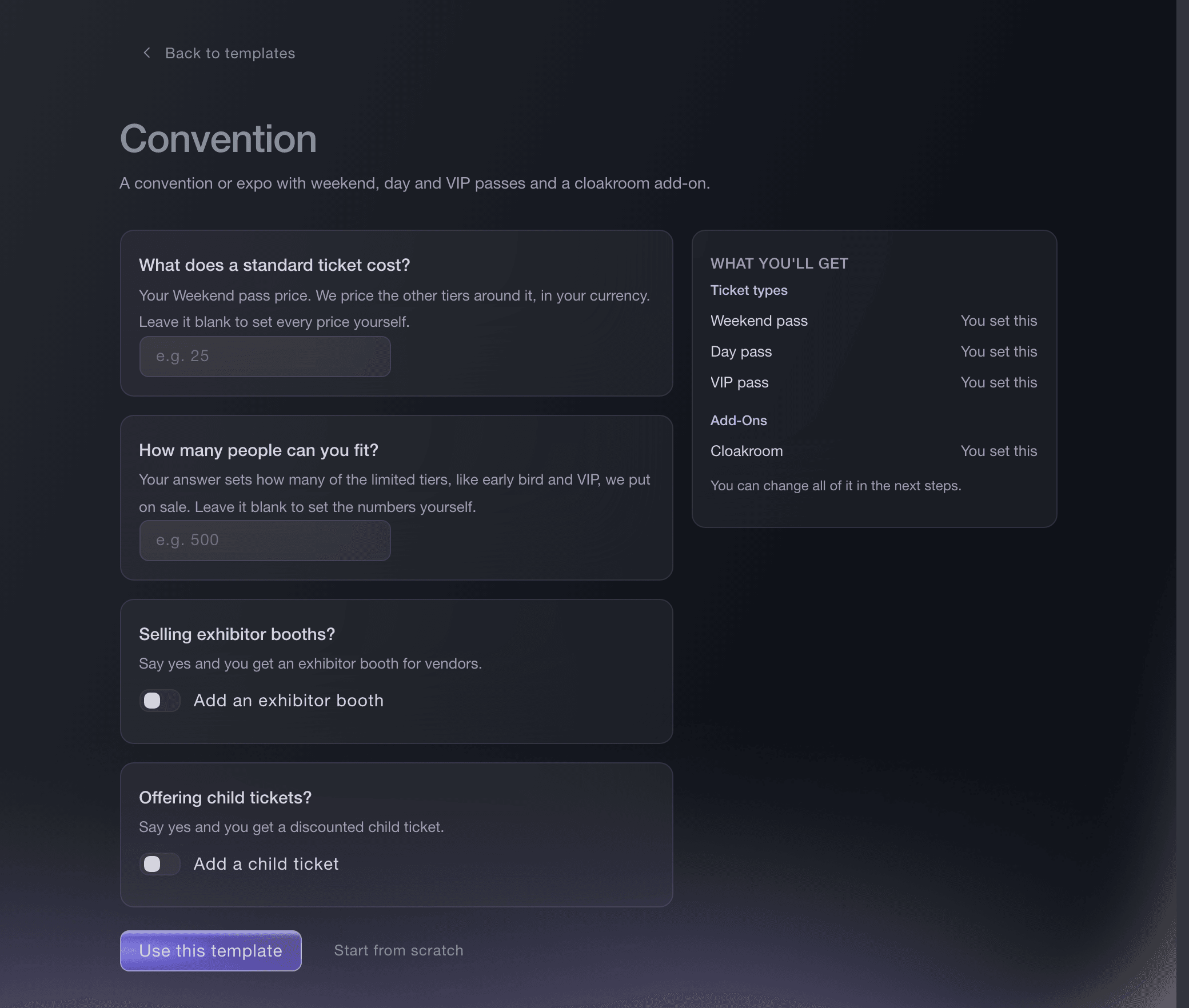
Create Event, Convention template. -
Take player and team sign-ups with a form
Open Forms on the event and select Create Form, asking for each player's gamer tag, team name and the game they enter. Every sign-up arrives in one list with a column for each answer, so you pick the field before anyone gets a place.
Note: Every form starts with an email question you cannot remove, which is where your decision email goes.
Take act and trader applications for your event
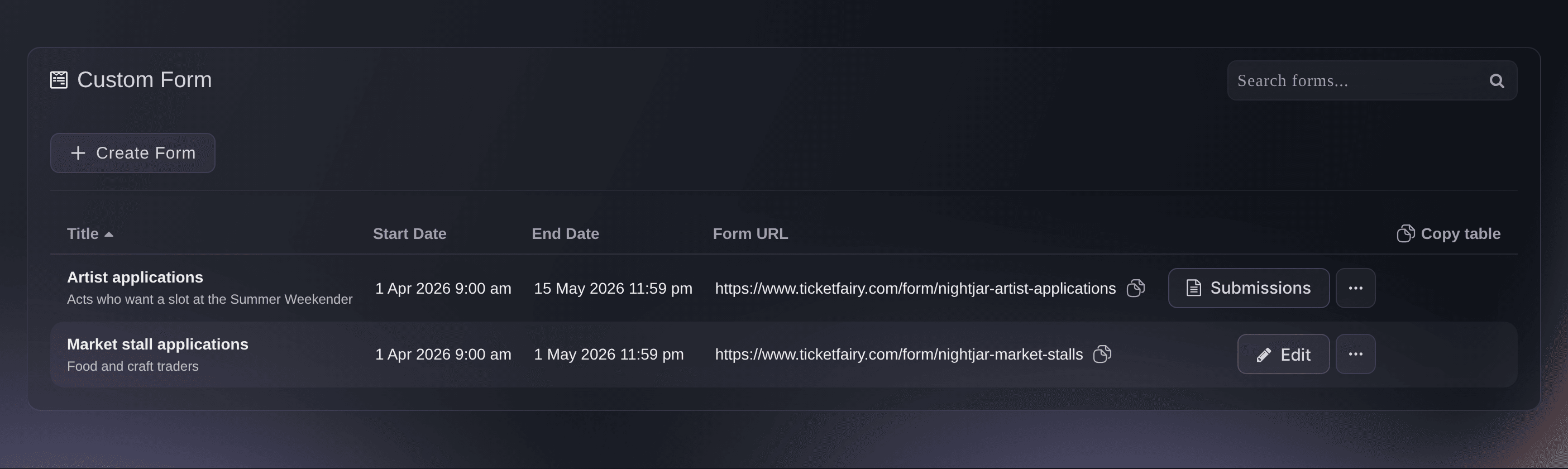
Event, Forms. -
Create a Player ticket type spectators cannot buy
On the event's Tickets page, create a ticket type named Player with your number of player places as its allocation, then turn on Hidden and choose Always hidden. Player places then never appear on your public event page.
Note: Enter 0 as the price for a free tournament. A tournament with an entry fee can leave the Player ticket type visible so players buy their own place.
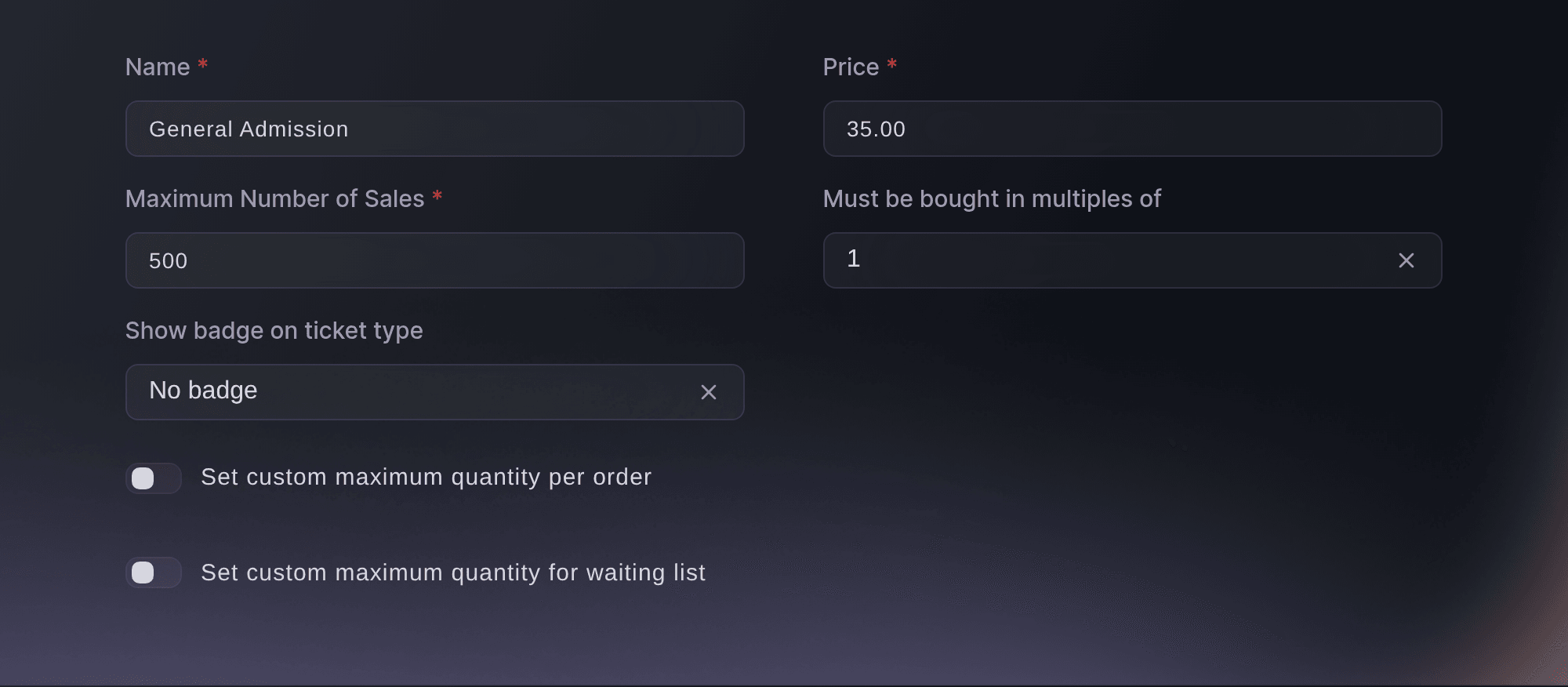
Tickets, Create Ticket Type. -
Send each accepted player their ticket
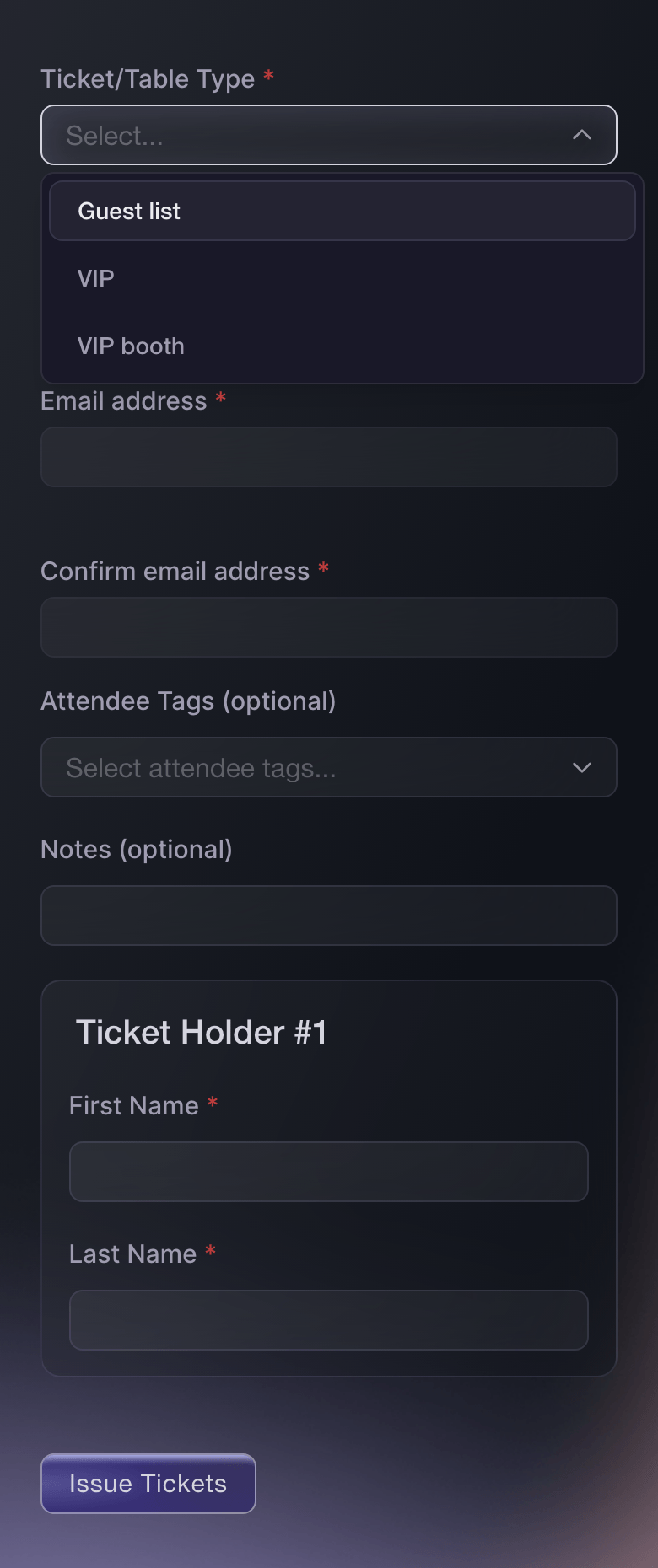
Open Guest Tickets, select Send Guest Tickets and send each player you accepted a ticket on the Player ticket type, with their own name on it. Each player's ticket carries a barcode for the door, and the issued list shows who you have sent.
Note: Press and guest casters get their tickets the same way on a spectator pass. A guest ticket comes out of the stock of the ticket type it is on.
Send free tickets to your guest list
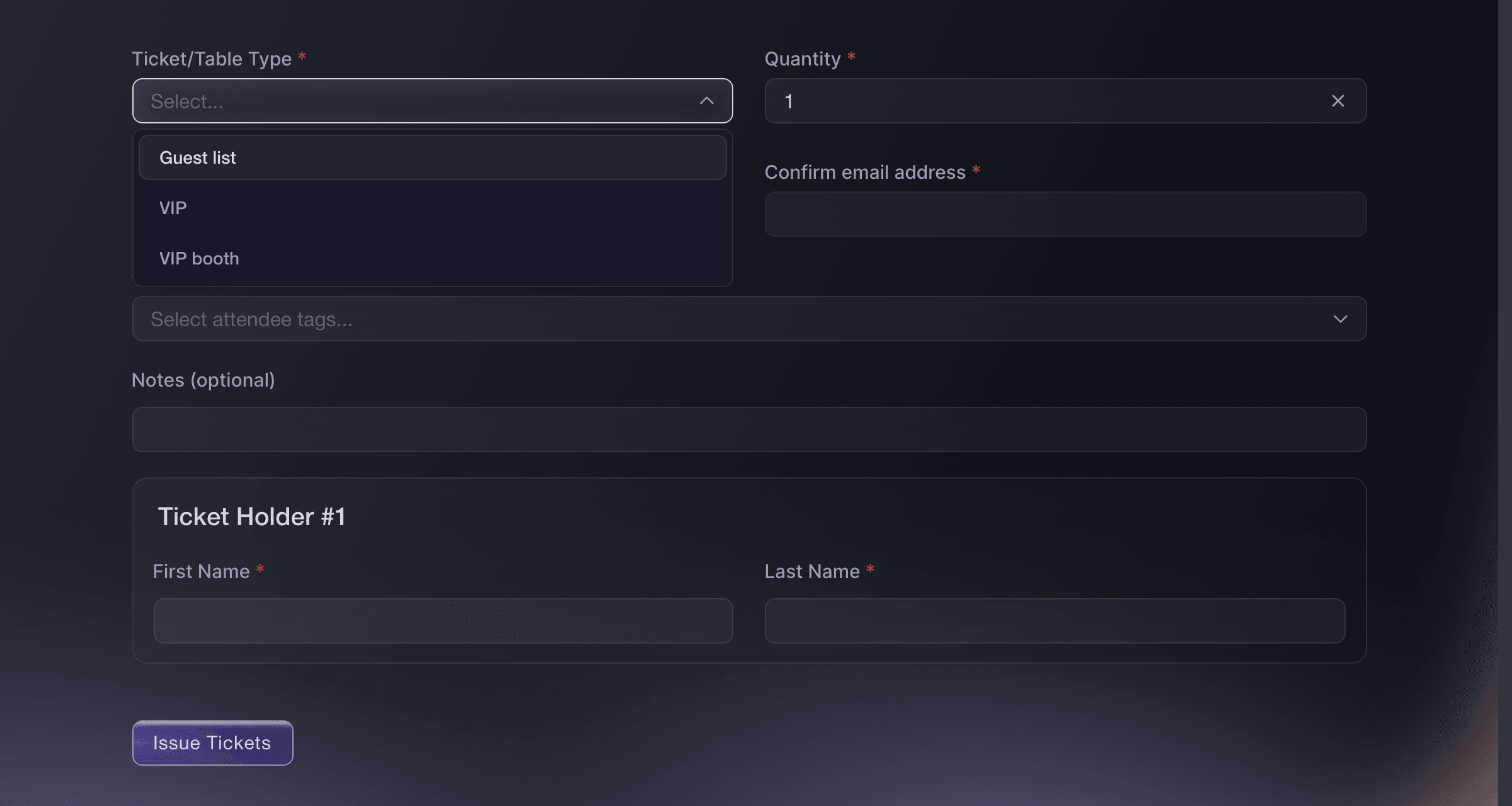
Event, Guest Tickets, Send Guest Tickets. -
Sell jerseys and merchandise with the spectator pass
Under Add-Ons, select Create Add-On for each item, such as a team jersey or a peripheral bundle, with its own price and stock. Spectators add them in the same checkout as their pass.
Note: Limit an add-on to the passes it belongs with, so the Player ticket type is never offered merchandise meant for the crowd.
Sell parking, camping and merchandise with your tickets
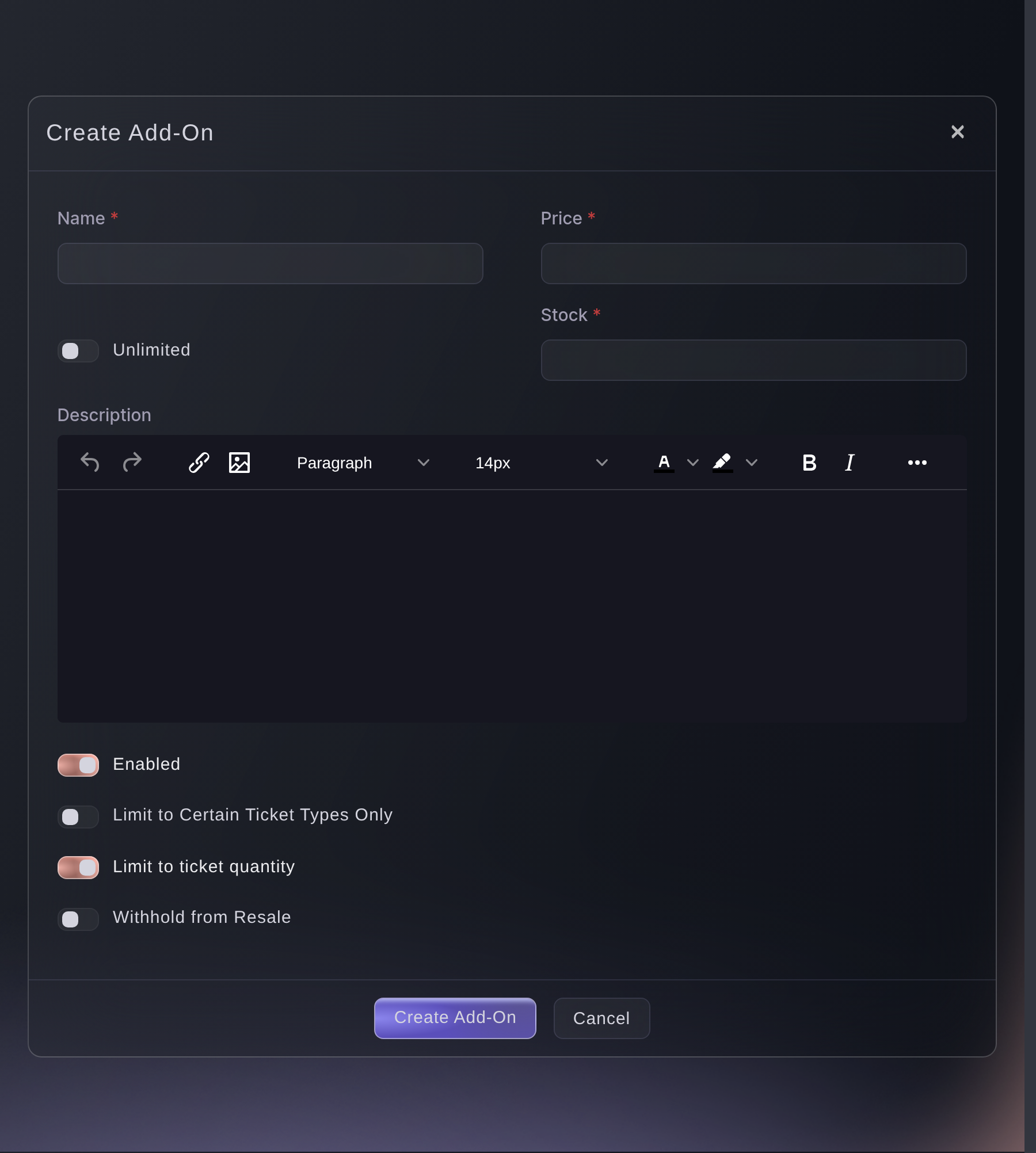
Tickets, Add-Ons, Create Add-On. -
Give team staff, casters and crew a multi-entry pass
Open Multi-Entry Passes on your brand, create a pass type for each group, such as Team staff, Caster and Production, then add each person under Enter Recipient and send the passes. The same app scans passes and tickets, and a pass does not take a ticket out of your allocation.
Note: The maximum number of uses covers the whole tournament rather than one day, so set it high enough for every trip in and out. We turn passes on for a brand, so ask us if the page is not in your menu.
Issue reusable event passes to crew and artists

Multi-Entry Passes, Create New Pass. -
Give your stream its own tracking link
Under Marketing, open Tracking Links and select Create Tracking Link, naming the link after your channel. With the link in your stream panel and chat, the tracking links table shows the clicks, orders and ticket revenue your stream brings in.
Note: A tracking link measures a placement and pays nobody. Make a separate one for each channel, co-streamer or partner you want to compare.
Track which promotion sells your tickets
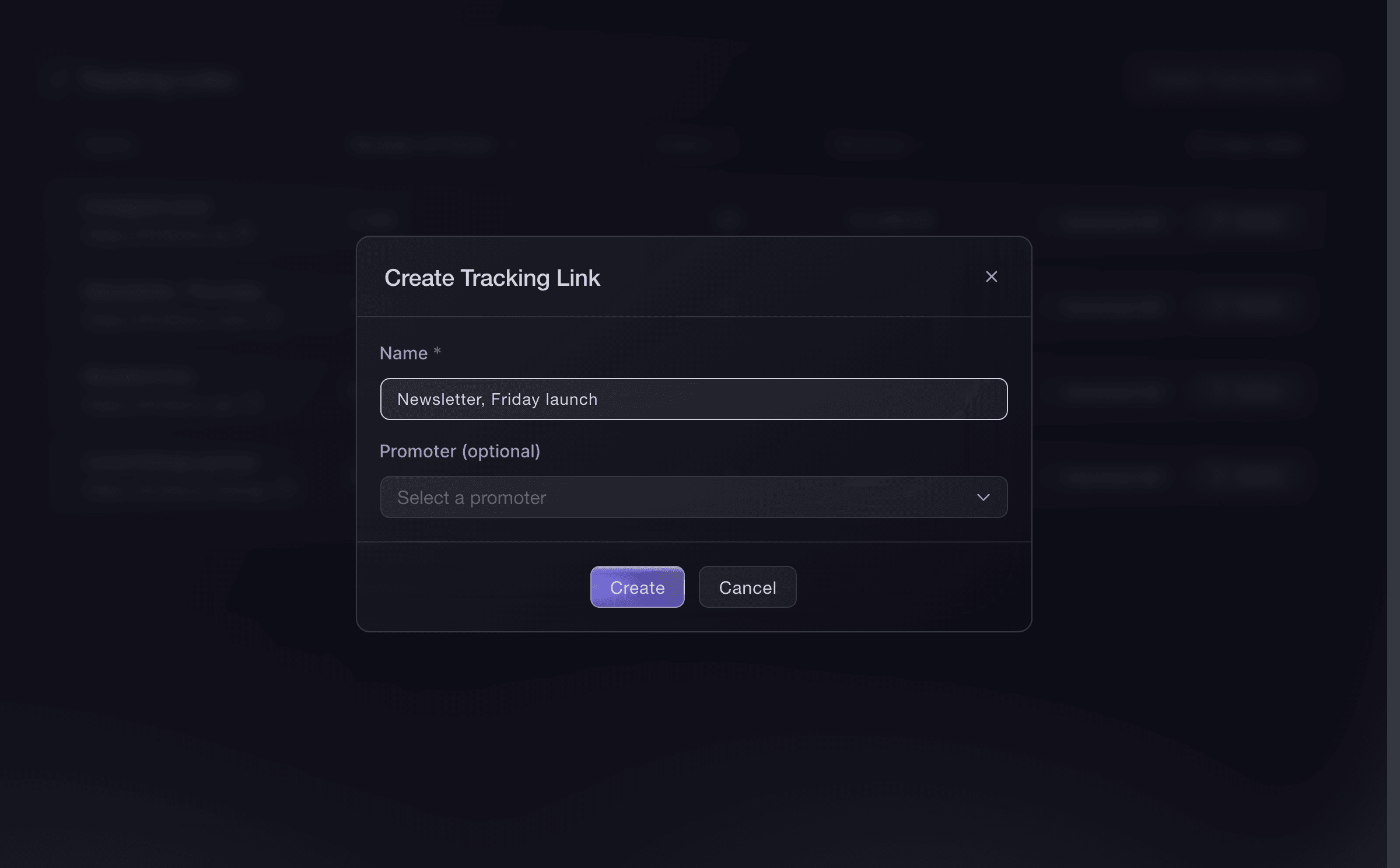
Event, Marketing, Tracking Links, Create Tracking Link. -
Open the on-sale at the minute you announce it
Select Publish, then Schedule Publish, and choose the date and time you announce on stream. The tournament page goes public at that minute in the event's own timezone.
Schedule when your event goes live
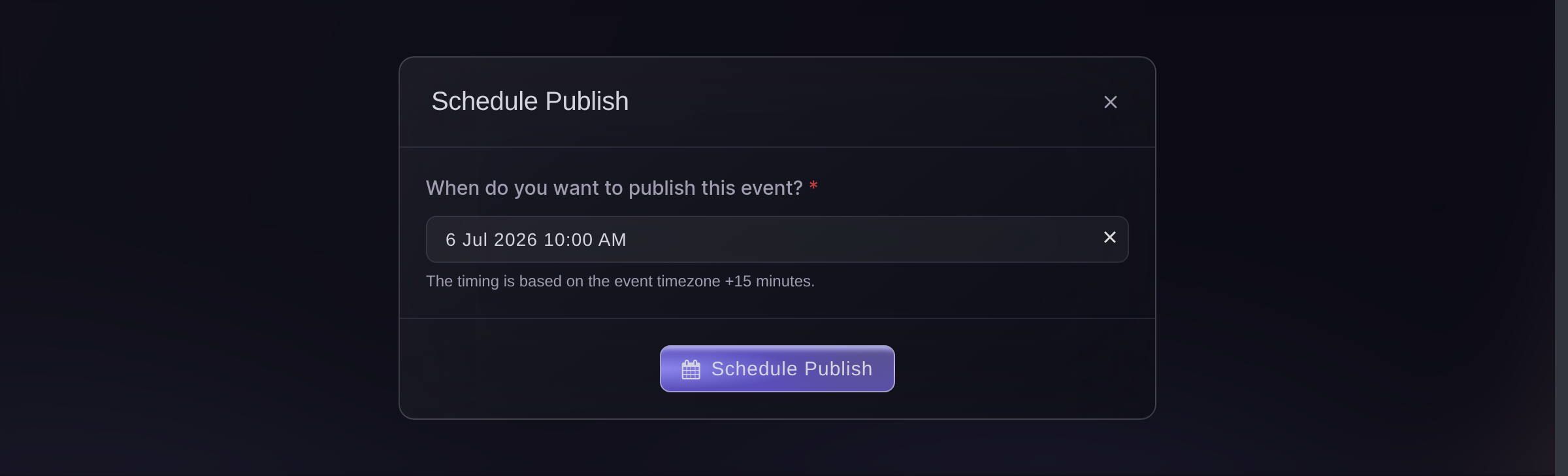
Publish, Schedule Publish. -
Put the scanning app on the door team's phones
Open Check-In and select Download App for the Entry Fairy links on both app stores. Each person on the door signs in with their own Door Staff login, so every admission carries a name.
Event, Check-In, Download App. -
Check players and spectators in on the day
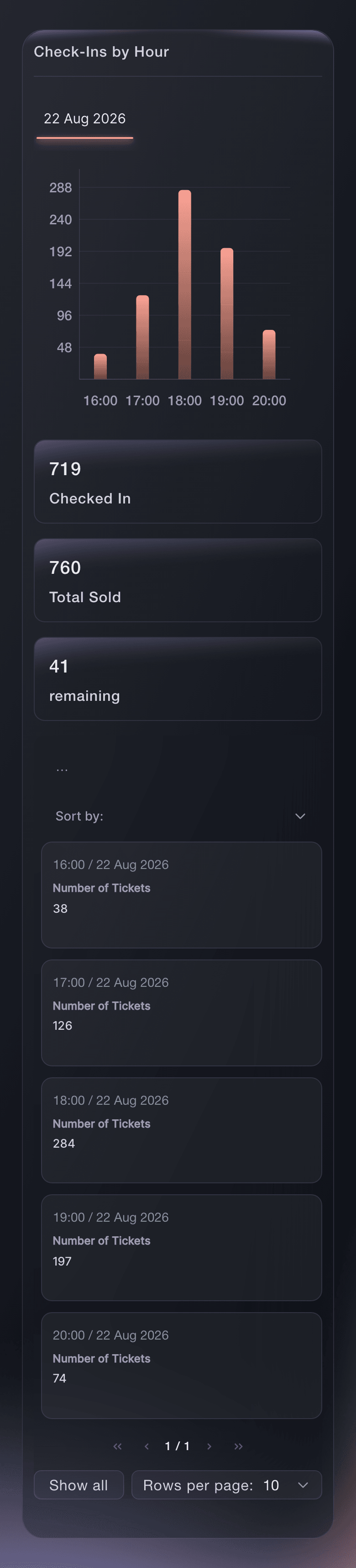
Open Check-In as players and spectators arrive, then select the Ticket Type tab. It counts players apart from spectators, so you know how many players are in before the first match.
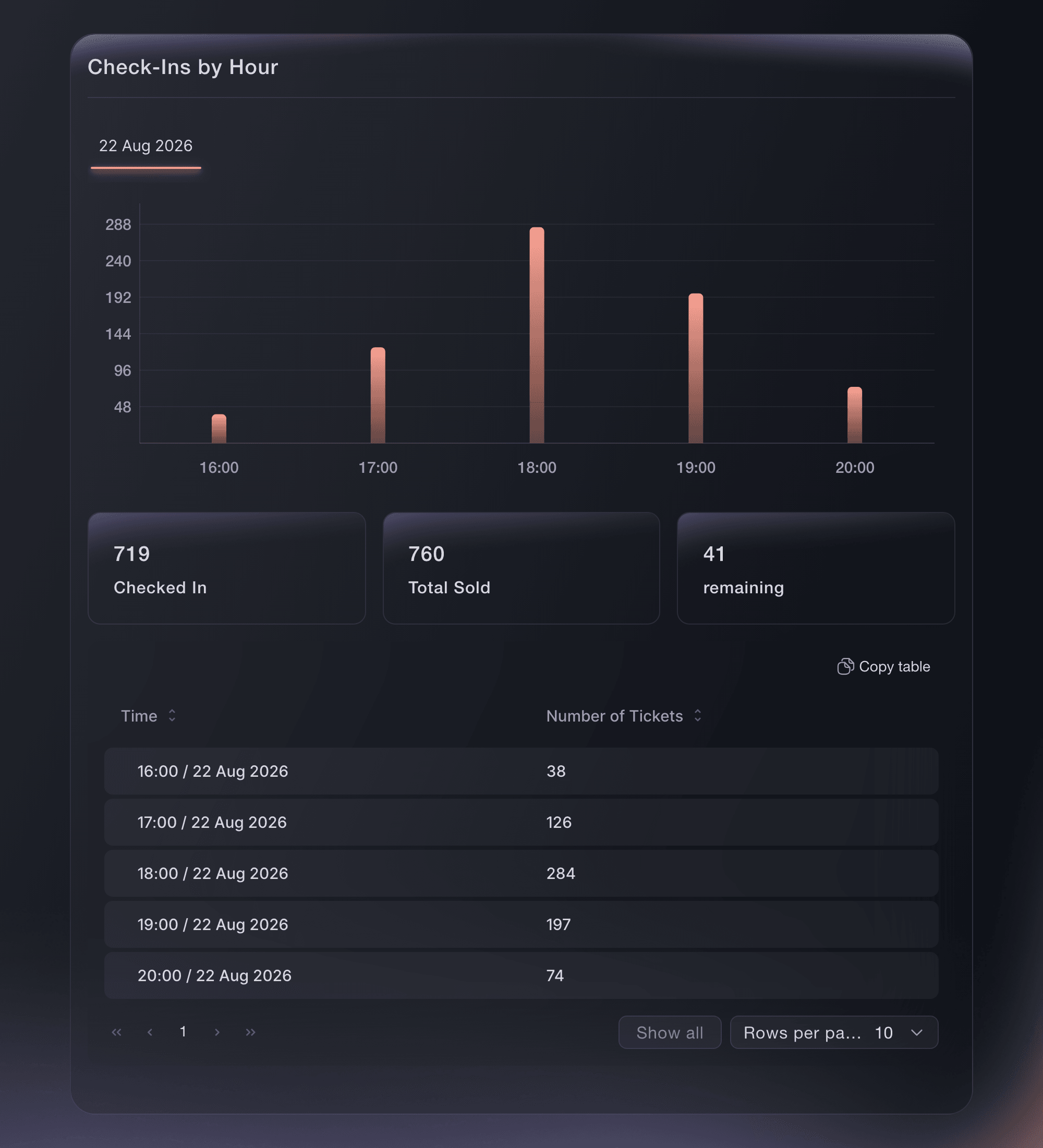
Event, Check-In.




Try these steps on your own event
Create a free account, build your event and follow the steps above in your own dashboard. It takes a few minutes and you do not need to book a sales call.
No setup fees. No required monthly ticketing fee. No credit card required.
Or have it done for you
Fai can build the tournament from the Convention template, create the hidden player ticket type, add merchandise, send player and press tickets, issue and send team and crew passes, create the tracking link for your stream, schedule the on-sale and report arrivals. She shows you each change and asks you to approve it before she makes it. The player sign-up form is set up and read on the Forms page in the dashboard.
In your dashboard, with Fai
Help me set up ticketing for our esports tournament <EVENT NAME>; ask about our player places, spectator prices, merchandise, team and crew passes, press, our stream and our on-sale date, then show me the proposed setup before changing anything
From your terminal
Install the CLI from our CLI page, sign in with ticketfairy auth login, and choose the brand you are working on with ticketfairy brand use <BRAND_ID>. ticketfairy brand list and ticketfairy event list show the IDs the other commands use.
Use the CLI to create the hidden player ticket type and the merchandise, publish the tournament and read arrivals by ticket type. The sign-up form, player and press tickets, passes and the tracking link are set up in the dashboard.
Create a player ticket type that never shows on your public event page.
ticketfairy ticket create <EVENT_ID> --name "Player" --price 0 --max-inventory 64 --hidden --hiding-option always_hidden
Create the merchandise add-on.
ticketfairy addon create <EVENT_ID> --name "Tournament jersey" --price 35 --quantity 300
Publish the tournament.
ticketfairy event publish <EVENT_ID>
Read arrivals for players and spectators separately.
ticketfairy checkin status <EVENT_ID> --breakdown ticket-types --output json
Let Fai do it for you
Fai works inside your Ticket Fairy dashboard. Create your account, open Fai and paste the prompt above.
No setup fees. No required monthly ticketing fee. No credit card required.
Questions you might have
- Can players pay an entry fee?
- Yes. Price the Player ticket type at your entry fee and leave it visible, so each player buys their own place at checkout. A hidden Player ticket type suits a free or invited field, where you send each place yourself.
- How do I register a whole team at once?
- Ask for the team name and every member's gamer tag on the sign-up form, then send the team's tickets on the Player ticket type once you accept them. One email address receives every ticket in a batch, so send each player their own when they arrive separately.
- Can I see which of my spectators came from the stream?
- Yes, through the tracking link you put in your stream panel and chat. The tracking links table counts the clicks, orders and ticket revenue that link brought in.
- Do team staff and casters need a ticket as well as a pass?
- No. A multi-entry pass scans at the same door as a ticket, lets its holder in and out up to its maximum uses, and does not take a ticket out of your allocation.
- Can I run a free tournament with free spectator seats?
- Yes. Enter 0 as the price on the spectator passes and the Player ticket type, and buyers still get a barcode each for the door.
Still have a question?
Book a demo and we will answer it on a call, on your kind of event. Or create your account and see it for yourself.
No setup fees. No required monthly ticketing fee. No credit card required.
Related guides
Do this on your own event
Create your account, build your event and follow the steps in your own dashboard. You do not need to book a sales call.