
Setting up an event
Schedule ticket releases
A release plan helps you open the right ticket at the right moment, whether the next price starts after the previous one sells out or at a date you choose. Each release has its own ticket type, and the final check covers the order, dates and visibility before the event goes on sale.
Plan a clear sequence of ticket releases with the right price, sales dates and hidden reveal rules so buyers see the right choice at the right time.
- For
- Planning when each ticket release becomes available
- Takes
- 7 minutes
Before you start
- You're an owner or admin for the event.
- You have created the event and the ticket types, or you can return to Set up ticket types under Related guides to create them first.
- You know what each release includes, its price, allocation and intended order.
- You know the event's venue time zone and the dates when each release should open and close.
-
Open the ticket list
Open the event, select Tickets, then stay on Inventory.
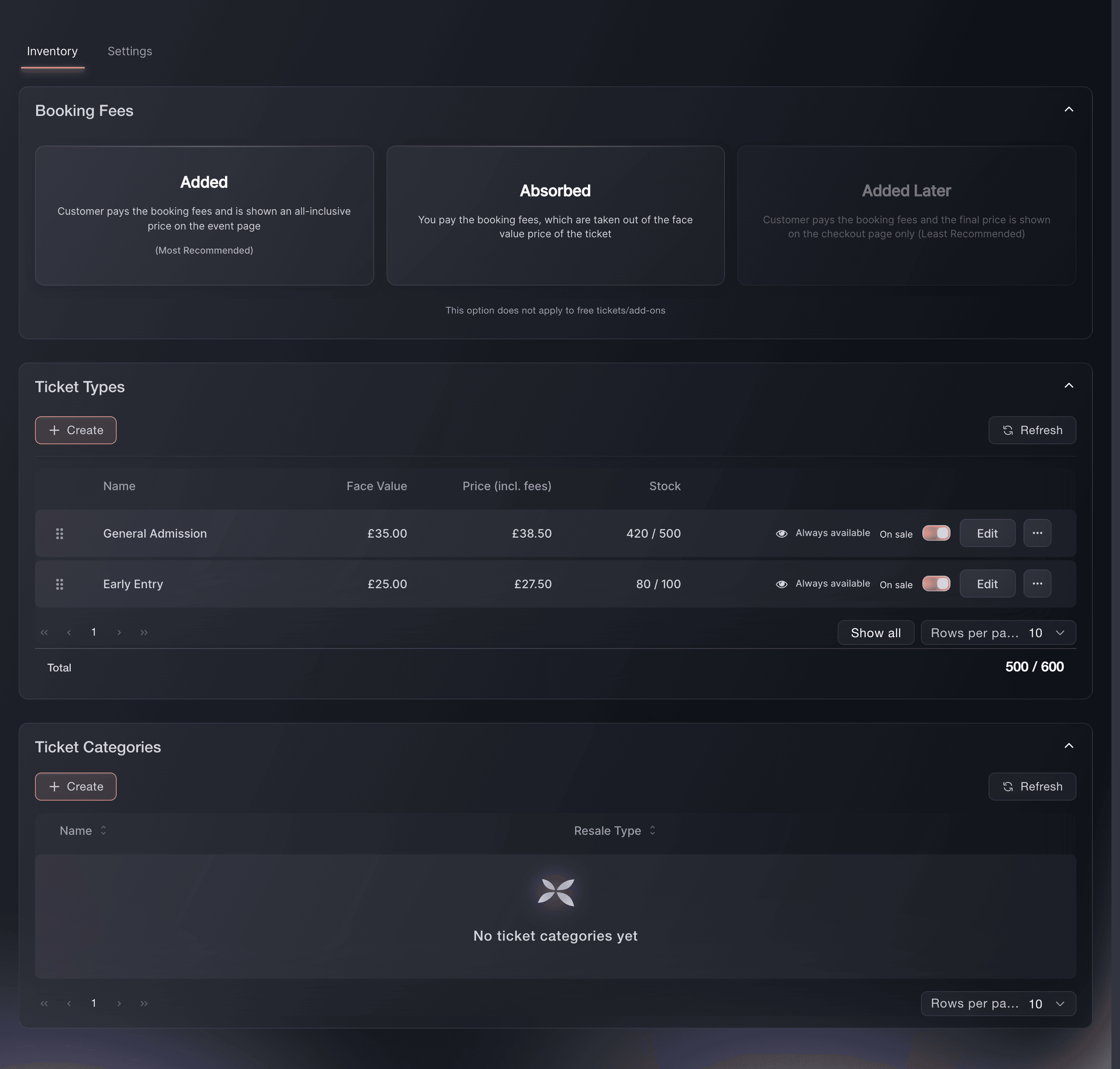
Event, Tickets, Inventory, Ticket Types.

Release plan
Use separate ticket types for Early Bird, First Release and Final Release when they give the same admission at different prices. Use a separate ticket type when the admission changes, such as General Admission to VIP or Friday to Full Weekend.
Note: A release that waits for the previous one looks only at earlier ticket types in its own ticket category, so put the releases for one admission in one category. A ticket name that starts with a group in square brackets, such as [VIP] Early Bird, groups releases by that name instead of by category.
-
Open the release to edit
In Ticket Types, select Edit on the release you want to schedule, or select Create when you are adding the next release. Keep the release name, price and allocation clear before you set its timing.
-
Choose when the release opens
In the ticket type window, under This ticket type should be available:, choose Once the previous ticket type sells out, At a specific time on a specific date, Either when the previous ticket type sells out, or at a specific time on a specific date, whichever comes first, or Always.
Note: Choose At a specific time on a specific date for a date-only release, because it does not wait for the previous release. The previous-release options wait for the nearest earlier release in the same category, skipping disabled and always-hidden ticket types, and the either option opens at whichever of the two moments comes first.
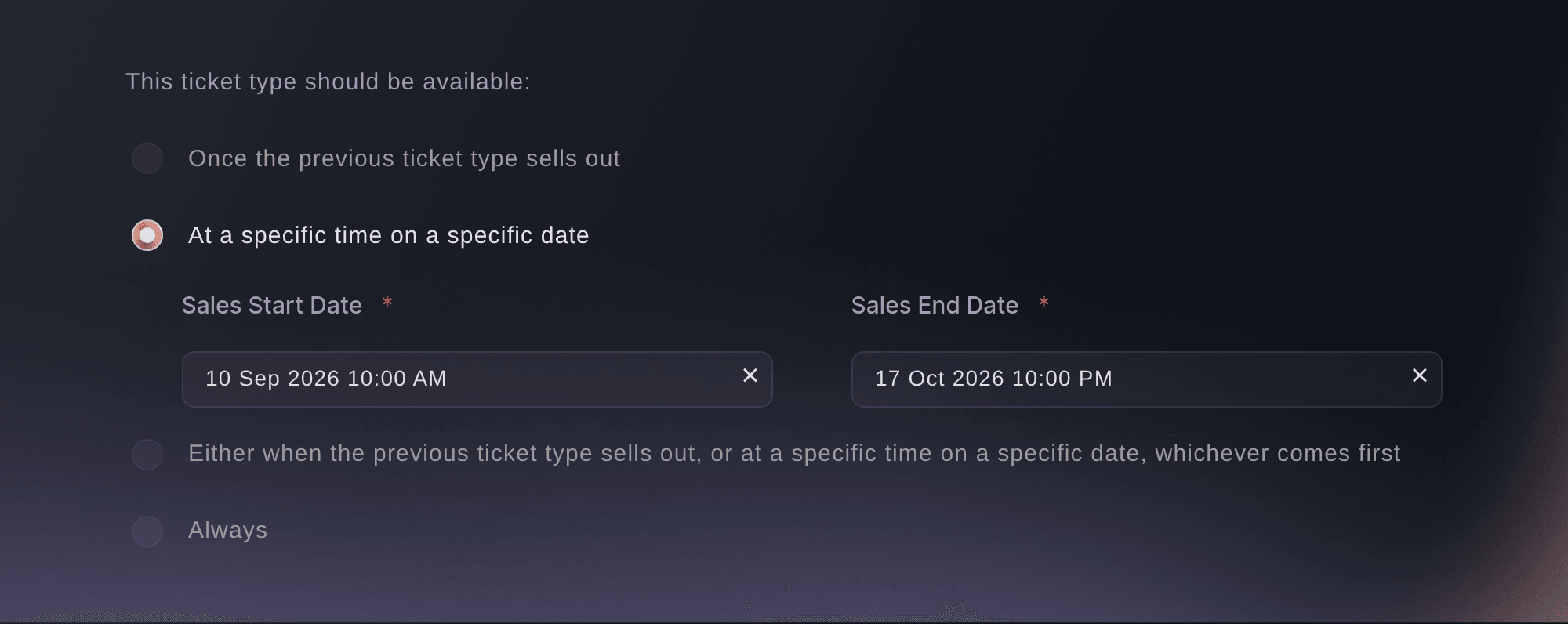
Event, Tickets, Inventory, Edit, This ticket type should be available. -
Enter the sales window
Under the option you chose, enter Sales Start Date and Sales End Date in the event venue's local time.
Note: Both dates are required, and Sales End Date must be after Sales Start Date. A release set to Always follows the event's sales dates, and saving a release with an option that has no dates clears its own sales dates.
-
Schedule a hidden release reveal
Turn on Hidden, then choose Once the previous ticket type sells out, At a specific time on a specific date, Either when the previous ticket type sells out, or at a specific time on a specific date, whichever comes first, When the customer is at a specific location or Always hidden.
Note: Keep Enable this ticket type on so buyers can buy the release once it appears. Turning it off stops ordinary sales of the release whatever its reveal rule says.
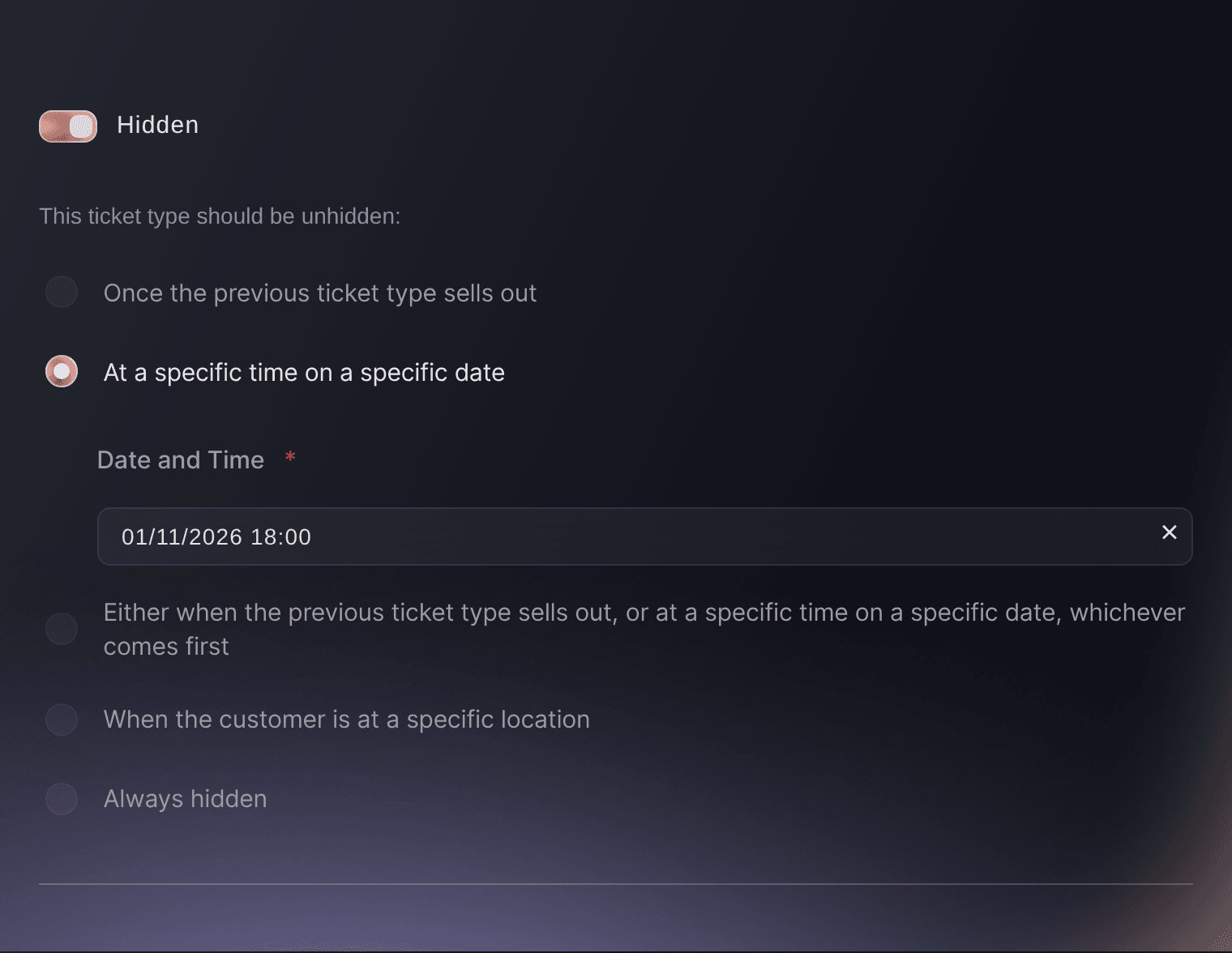
Event, Tickets, ticket type, Hidden. -
Enter the reveal details before saving
Enter the value for the rule you chose: Date and Time for a dated rule, or the countries under Select countries for a location rule.
Note: A date or location rule cannot be saved without its value, and the previous-release and Always hidden rules need none. To hide a visible release at a set time instead, leave Hidden off and enter the time in Hide ticket type on (optional).
-
Save and review the sequence
Select Save for an existing release, or Create Ticket Type for a new one.
Note: Repeat the steps for each release, then check that the names, prices, order, sales windows and visibility match the plan. Reordering the list or moving a release to another category changes which release a previous-release rule waits for.


Try these steps on your own event
Create a free account, build your event and follow the steps above in your own dashboard. It takes a few minutes and you do not need to book a sales call.
No setup fees. No required monthly ticketing fee. No credit card required.
Or have it done for you
Fai can list your releases in their current order with each one's category and sales dates, and she can save a new order after you approve it. Set the availability option, the dates and the Hidden rule for each release on the dashboard: Fai cannot see which availability option a release uses, and a sales window she sets opens at whichever comes first, the date or the previous release selling out. MCP can list the releases but cannot reorder them.
In your dashboard, with Fai
Open the Tickets page for <EVENT NAME> and list the ticket types in their current order with their category and sales dates. If I give you a new order, show me the complete order and ask before saving it. Tell me to set the dates and reveal settings for <TICKET TYPE> on the dashboard
From your own assistant, over MCP
Connect your assistant to our MCP server and ask it:
Keep --read-only in your MCP configuration. This task only reads data, so your assistant does not need tools that make changes.
Find the event <EVENT NAME> and list its ticket types in order. Tell me to use the dashboard to apply this order and enter the dates or reveal settings for <TICKET TYPE>
From your terminal
Install the CLI from our CLI page, sign in with ticketfairy auth login, and choose the brand you are working on with ticketfairy brand use <BRAND_ID>. ticketfairy brand list and ticketfairy event list show the IDs the other commands use.
The CLI creates a release with its own sales window or one that goes on sale when the release before it sells out, and changes a release's sales dates. It does not reorder releases; do that on the dashboard or through Fai.
Create a release that sells between two dates.
ticketfairy ticket create <EVENT_ID> --name "Early Bird" --price 39 --max-inventory 200 --sales-start 2026-11-01T10:00:00Z --sales-end 2026-11-15T23:59:59Z
Create a release that goes on sale when the one before it sells out.
ticketfairy ticket create <EVENT_ID> --name "First Release" --price 49 --max-inventory 500 --available-after-previous
List the event's ticket types with the id each one has.
ticketfairy ticket list <EVENT_ID>
Move an existing release's sales window.
ticketfairy ticket update <EVENT_ID> <TICKET_ID> --sales-start 2026-11-08T10:00:00Z --sales-end 2026-11-22T23:59:59Z
Let Fai do it for you
Fai works inside your Ticket Fairy dashboard. Create your account, open Fai and paste the prompt above.
No setup fees. No required monthly ticketing fee. No credit card required.
Change a release after it is scheduled
Edit the release and change its dates or reveal rule, then save and review the complete sequence again.
Note: Sales End Date must stay after Sales Start Date, so change both dates together when you move the whole window.
Fai can show the release with its category and sales dates. Change its dates or reveal settings on the dashboard, because Fai cannot see which availability option or reveal rule the release uses.
In your dashboard, with Fai
Open the Tickets page for <EVENT NAME> and list the basic details for <TICKET TYPE>. Tell me to select it in the dashboard and change its dates or reveal settings. Do not change anything
From your own assistant, over MCP
Keep --read-only in your MCP configuration. This task only reads data, so your assistant does not need tools that make changes.
Find the event <EVENT NAME> and list the basic details for <TICKET TYPE>. Tell me to select it in the dashboard and change its dates or reveal settings
Questions you might have
- What is a ticket release?
- It is a price or timing step for the same admission, such as Early Bird, First Release and Final Release. In Ticket Fairy, each release is a ticket type, and releases for the same admission can share a ticket category.
- What happens when I choose Once the previous ticket type sells out?
- The release stays unavailable until the nearest earlier release in the same ticket category sells out, skipping disabled and always-hidden ticket types. Keep the release rows in the order buyers should follow.
- Should I choose a date or the previous ticket type?
- Choose At a specific time on a specific date when the release must open at a known time, even if the previous release has not sold out. Choose the previous-ticket option when demand should control the change. Choose the either option when the release should open at the first of those two moments.
- Why is a release not visible?
- If the release is missing from the public ticket list, check Hidden and its reveal rule. If it is shown but cannot be bought, check Enable this ticket type, its allocation and its sales window. A release waiting for the previous ticket type stays unavailable until the earlier release in its category sells out.
- What is the difference between Hidden and Enable this ticket type?
- Hidden keeps an active release off the public ticket list while a direct link or promotion can still reach it. Enable this ticket type controls ordinary sales, so turning it off stops new ordinary purchases until you turn it on again. A resale checkout can still complete for a ticket already offered for resale.
Still have a question?
Book a demo and we will answer it on a call, on your kind of event. Or create your account and see it for yourself.
No setup fees. No required monthly ticketing fee. No credit card required.
Related guides
Do this on your own event
Create your account, build your event and follow the steps in your own dashboard. You do not need to book a sales call.