
Your brand and team
Secure the account that runs your events
Promoters and venue teams keep ticket sales, buyer details and payouts behind one sign-in, and a leaked password shouldn't be enough to reach them. Two-factor sign-in asks for a code from your phone as well as your password, and a passkey lets you sign in to your events with your face, fingerprint or device PIN instead.
Turn on two-factor sign-in so a stolen password alone can't open your events and ticket sales, and add a passkey to sign in with your face, fingerprint or device PIN.
- For
- Keeping the account behind your events safe from a stolen password
- Takes
- 6 minutes
Before you start
- You can do this with any Ticket Fairy dashboard login. It changes how you sign in to your own account, and each person on your team turns it on for their own login.
- You have a phone that receives text messages and has an authenticator app on it, such as Google Authenticator, Microsoft Authenticator or a password manager that stores one-time codes.
- You know your Ticket Fairy password. If you have only ever signed in with Google, enter a new password in Password and Confirm Password at the top of Account Settings and select Update first.
-
Open Account Settings
Select your name at the foot of the sidebar, then Account Settings. The Two-factor authentication and Passkeys cards are further down the page.
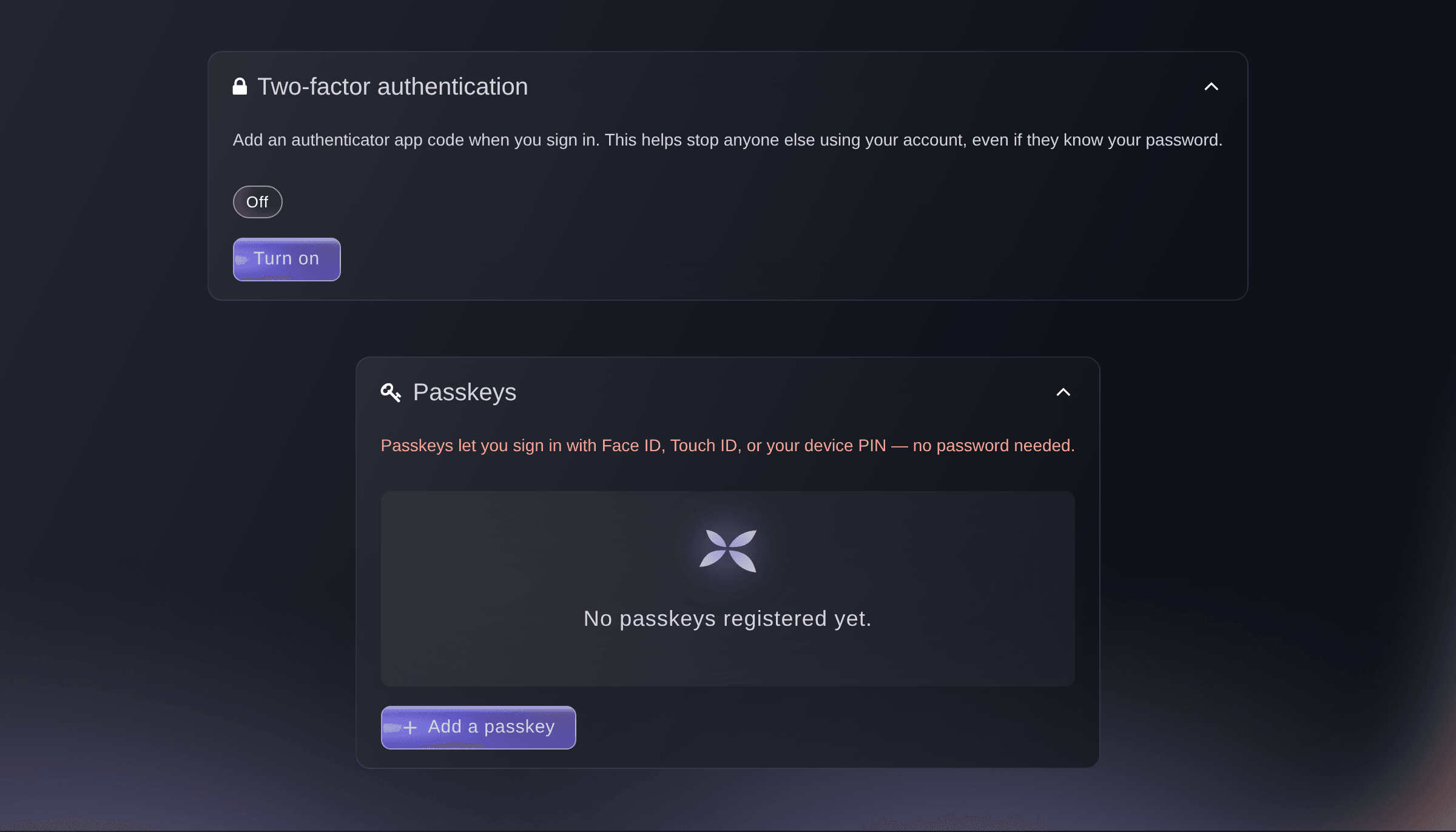
Account Settings, Two-factor authentication and Passkeys. -
Select Turn on
In Two-factor authentication, select Turn on. A dialog opens and asks for a Mobile number first, for backup codes by text message.
Note: If your number is already verified, the dialog skips this page and opens on your password.
Two-factor authentication, Turn on. -
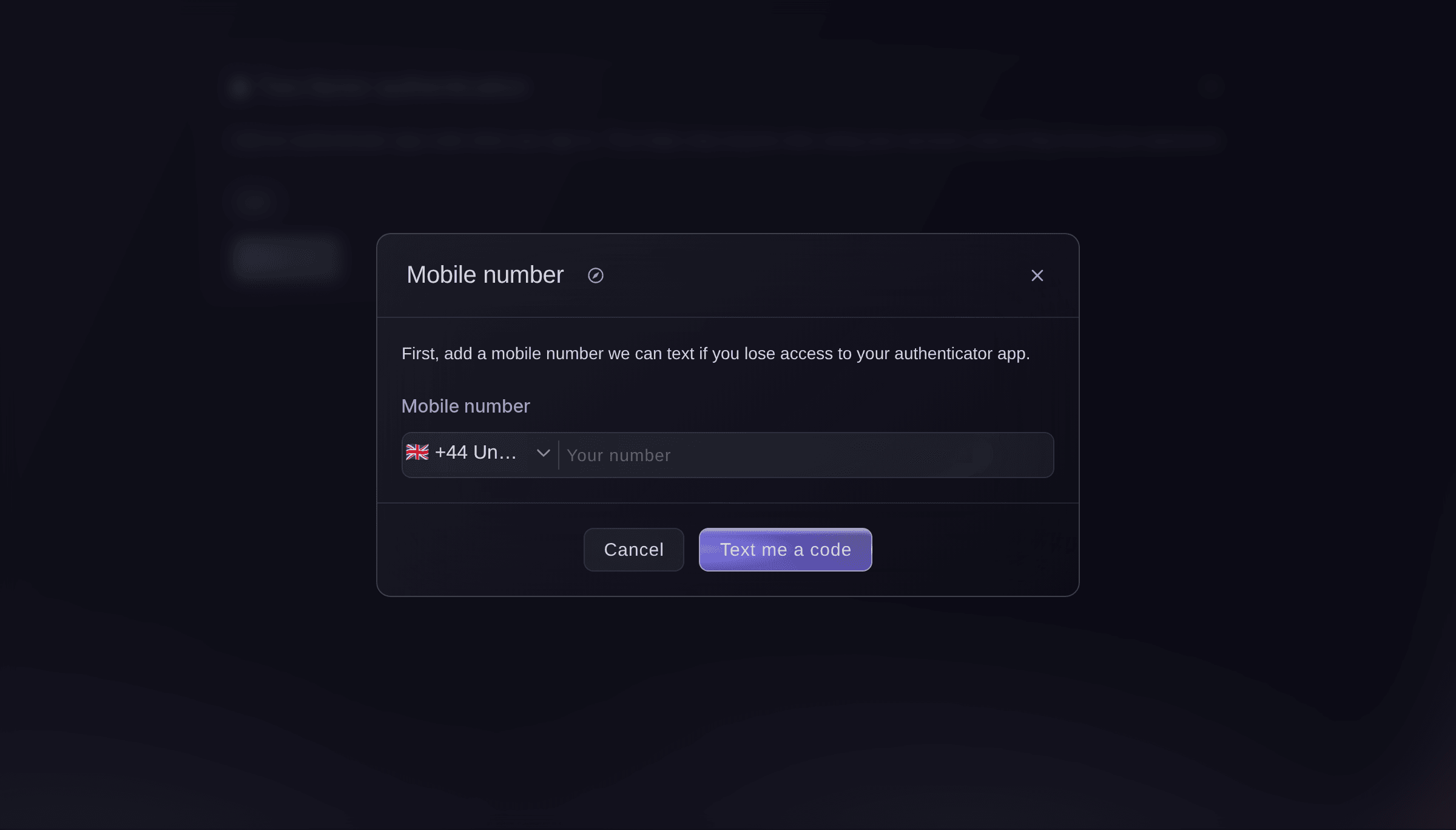
Enter your mobile number
Choose your country, enter your number and select Text me a code. A Code from the text message field appears under the number.
Note: The code works for an hour. Send again sends a new one once a minute has passed since the last.
-
Verify the number
Enter the 6-digit code from the text and select Verify number. The dialog moves on and asks for Your password.
Warning: A verified number stays on your account and can't be changed afterwards, so use the phone you keep with you.
-
Enter your password
Enter your Ticket Fairy password in Your password and select Continue. The dialog shows a code to scan and a key you can enter by hand.
-
Scan the code with your authenticator app
In your authenticator app, add an account and scan the code, or enter the key printed under it. The app then shows a new 6-digit code for Ticket Fairy every 30 seconds.
Tip: Save that key in your password manager. Entering it in an authenticator app on a new phone gives you the same codes again.
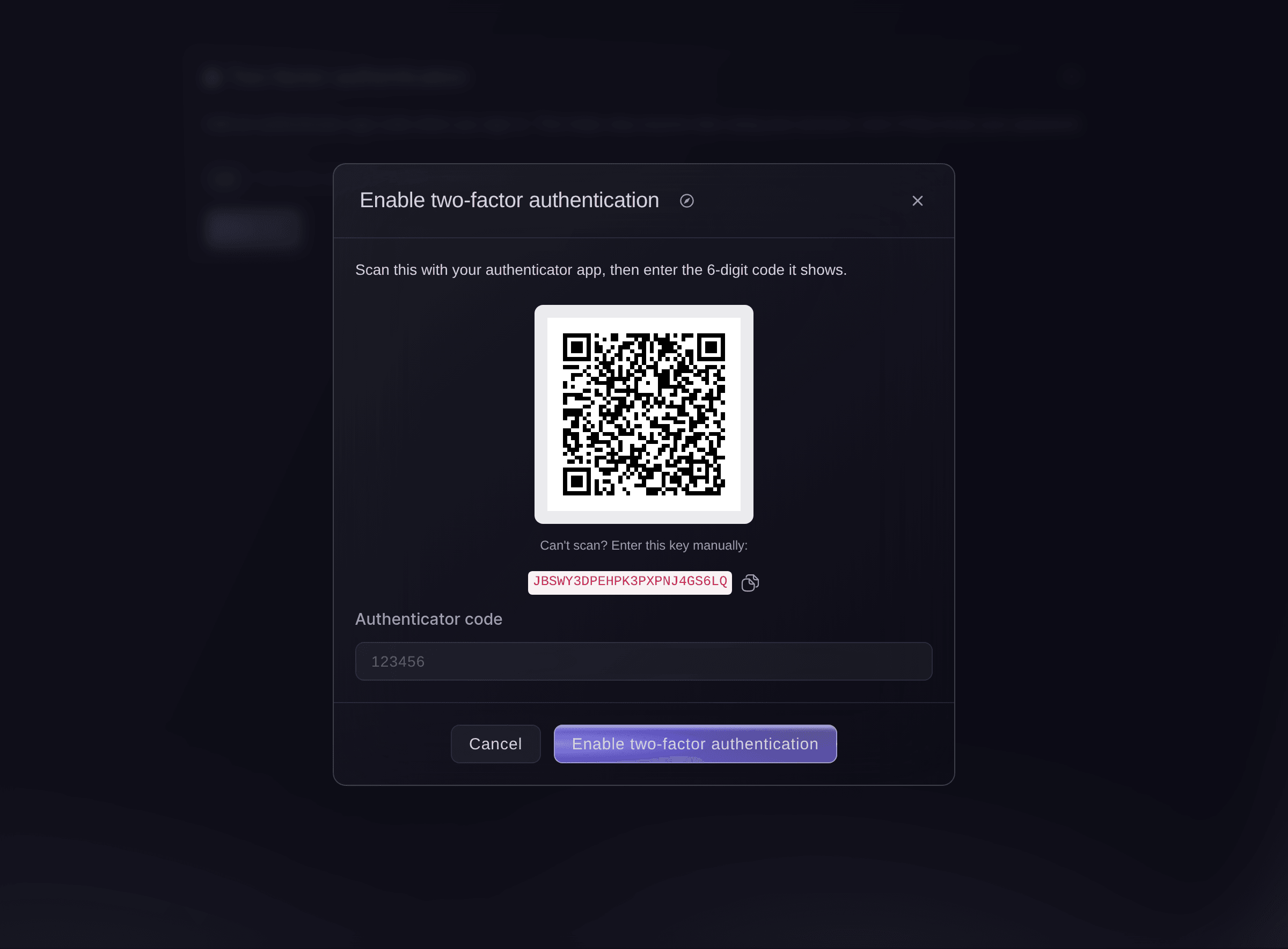
Two-factor authentication, the code to scan. -
Enter the code and turn two-factor on
Enter the code your app shows in Authenticator code and select Enable two-factor authentication.
Note: Any other browser where you are signed in asks for a code the next time you use it.
-
Check that two-factor sign-in is on
Back on Account Settings, check that the card shows On. Beside it are the last four digits of the number your backup codes go to.
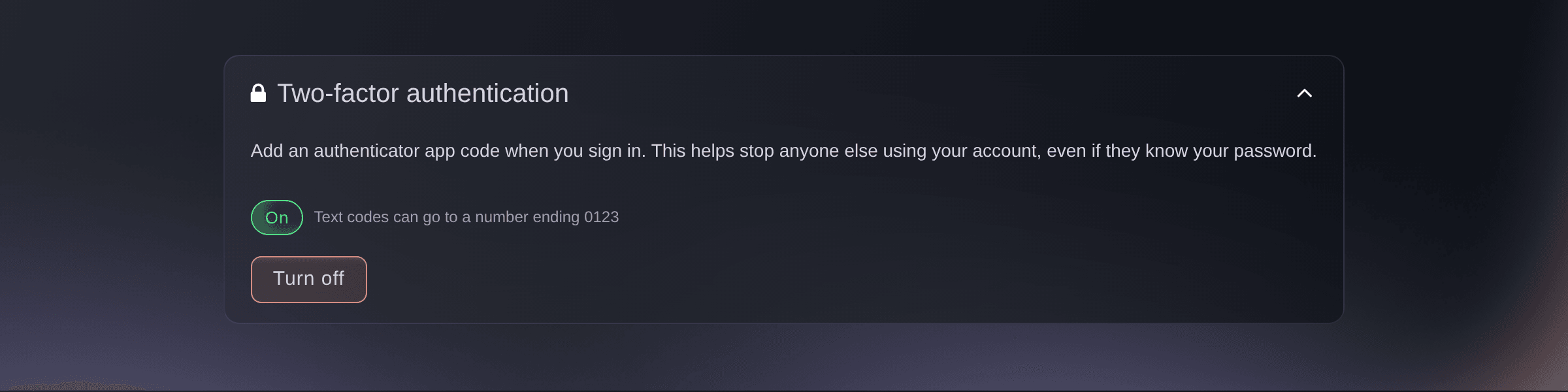
Two-factor authentication, on.


Your next sign-in
After your password, or after signing in with Google, a page headed Check your authenticator asks for the 6-digit code from your app. Text me a code instead sends a code to your verified number, and signing in with a passkey skips the page because a passkey already counts as both steps.

Try these steps on your own event
Create a free account, build your event and follow the steps above in your own dashboard. It takes a few minutes and you do not need to book a sales call.
No setup fees. No required monthly ticketing fee. No credit card required.
Or have it done for you
Fai, the assistant inside your dashboard, can open Account Settings for you. Turning two-factor sign-in on needs your password, your phone and your authenticator app, so you complete the setup yourself in the dashboard.
In your dashboard, with Fai
Open my account settings so I can turn on two-factor sign-in
Let Fai do it for you
Fai works inside your Ticket Fairy dashboard. Create your account, open Fai and paste the prompt above.
No setup fees. No required monthly ticketing fee. No credit card required.
Add a passkey
Under Passkeys, select Add a passkey, then follow your browser's prompt to save it with your face, fingerprint, device PIN or password manager. The passkey joins the list with the date you added it.
Note: Next time, select Sign in with a passkey on the sign-in page instead of entering your password.

Adding a passkey is yours to do in the dashboard, because your own device or password manager saves it. Fai can open Account Settings for you.
In your dashboard, with Fai
Open my account settings so I can add a passkey
Remove a passkey
Under Passkeys, select the bin at the end of the row, then Remove in the confirmation. That device can no longer sign you in with it.
Remove a passkey in the dashboard, under Passkeys in Account Settings.
Turn two-factor sign-in off
In Two-factor authentication, select Turn off, enter Your password and confirm. The card shows Off and signing in asks for your password only.
Turning two-factor sign-in off needs your password, so you do it in the dashboard, in Account Settings.
Questions you might have
- Which authenticator app can I use?
- Any app that scans a setup code and shows 6-digit codes that change every 30 seconds, such as Google Authenticator, Microsoft Authenticator or a password manager that stores one-time codes. If you can't scan, enter the key printed under the code instead.
- What if I lose the phone with my authenticator app on it?
- On the sign-in page, select Text me a code instead and use the code sent to your verified number. On a new phone, enter the key you saved during setup in an authenticator app and it shows the same codes again.
- I entered the wrong code too many times. What do I do?
- After five wrong codes the page says
Too many incorrect codes. Please sign in again.
and signs you out. The count clears 15 minutes after the first wrong code, so wait that long, sign in again and use the newest code your app shows. - Can I change the number my backup codes go to?
- No. Once you verify a number it stays on your account and the field is locked, so verify the phone you keep with you.
- Does turning this on protect everyone on my team?
- No. Two-factor sign-in belongs to one login, so it protects your own account. Each person on your brand or event team turns it on in their own Account Settings.
- Do I still need two-factor sign-in if I use a passkey?
- A passkey sign-in checks your device and your face, fingerprint or PIN, so it skips the code. Two-factor sign-in protects the times you sign in with your password or with Google.
- Why can't I see the Passkeys card?
- Your browser can't save passkeys. Open Account Settings in a current browser on your computer or phone, and the card appears with Add a passkey. In the Ticket Fairy Promoter desktop app the button reads Add a passkey in browser and opens your browser to save it.
- Can Fai turn two-factor sign-in on for me?
- No. Setting it up needs your password, your phone and your authenticator app, so it is yours to do. Ask Fai to open Account Settings and she takes you straight there.
Still have a question?
Book a demo and we will answer it on a call, on your kind of event. Or create your account and see it for yourself.
No setup fees. No required monthly ticketing fee. No credit card required.
Related guides
Do this on your own event
Create your account, build your event and follow the steps in your own dashboard. You do not need to book a sales call.