
Understanding your event reports
See who visits your event website
Promoters and venue teams want to know whether their website sells tickets or only gets looked at. The Visitors section counts page views, ticket clicks and checkouts opened on your website, so you can see which pages and events turn visits into ticket sales.
See how many page views your event website gets, how many visitors select a ticket button and how many open the ticket checkout, day by day, with the pages and events that draw the most interest.
- For
- Checking how your website sells tickets
- Takes
- 6 minutes
Your Visitors page
Before you start
- You are an owner or an admin of the brand, and your website is published. We count visits only on a published website.
-
Visitors, top to bottom
Open the website in the editor and select Visitors. Choose the days under Days to show: Last 7 days, Last 30 days, Last 90 days, or Choose days for up to 366 days. Page views counts each time a visitor opened a published page of your website. Ticket clicks counts each time a visitor selected a ticket button on one of your events, and shows that as a share of page views. Checkouts opened counts each time the ticket checkout opened on your website after a ticket button, as a share of ticket clicks. Most viewed pages and Events with the most ticket clicks list the ten pages and events with the most.
Note: The figures count visits, not people: one visitor who opens three pages adds three page views. Read the share under Ticket clicks first; a page with many views and few ticket clicks is one to give a clearer ticket button.
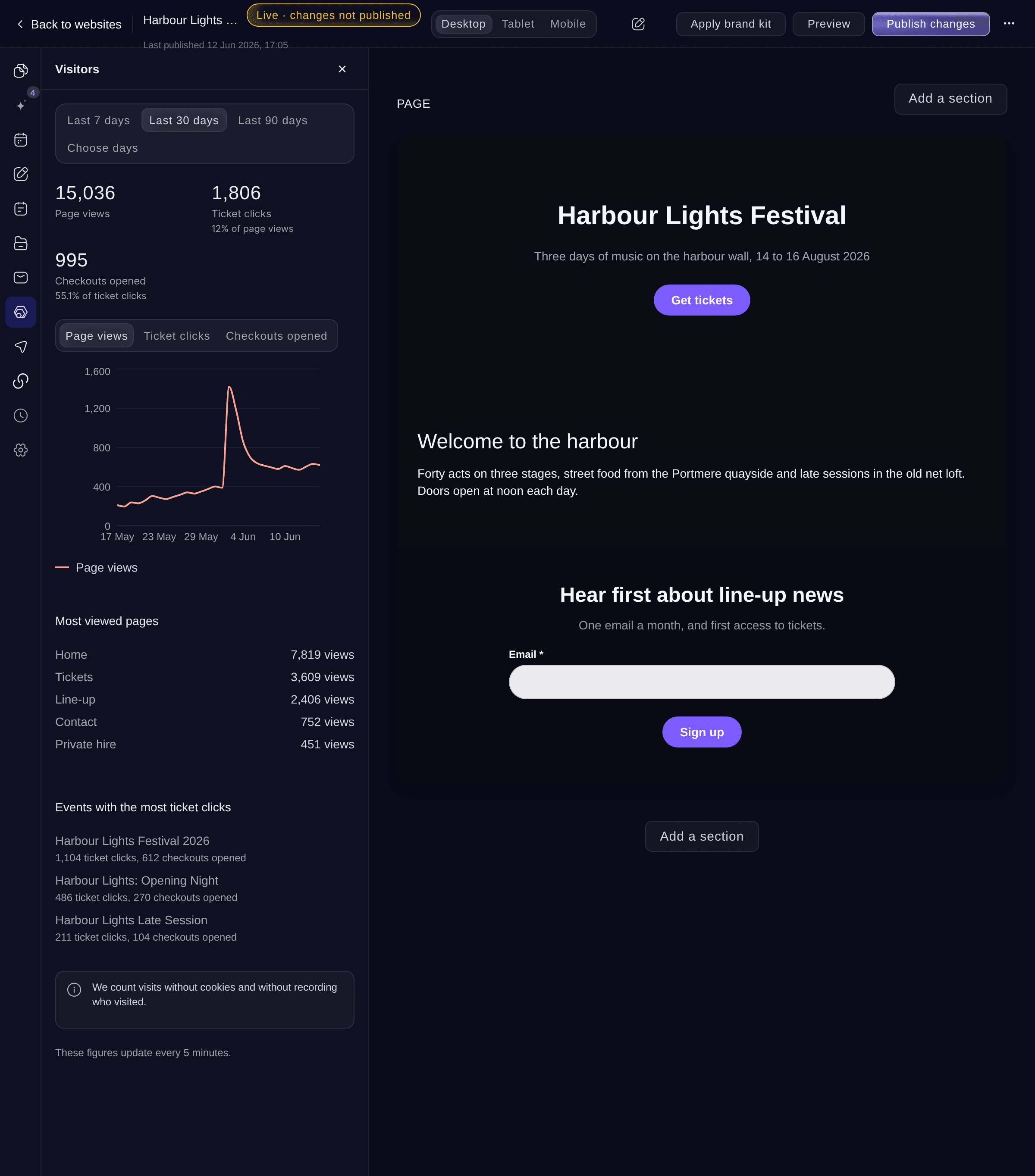
Visitors. -
Day by day
The chart shows one of the three figures for each day in the range. Select Page views, Ticket clicks or Checkouts opened above it to change which.
Note: Look for the days around an announcement or an on-sale. A spike in page views with no rise in ticket clicks means visitors came and did not find a reason to buy.
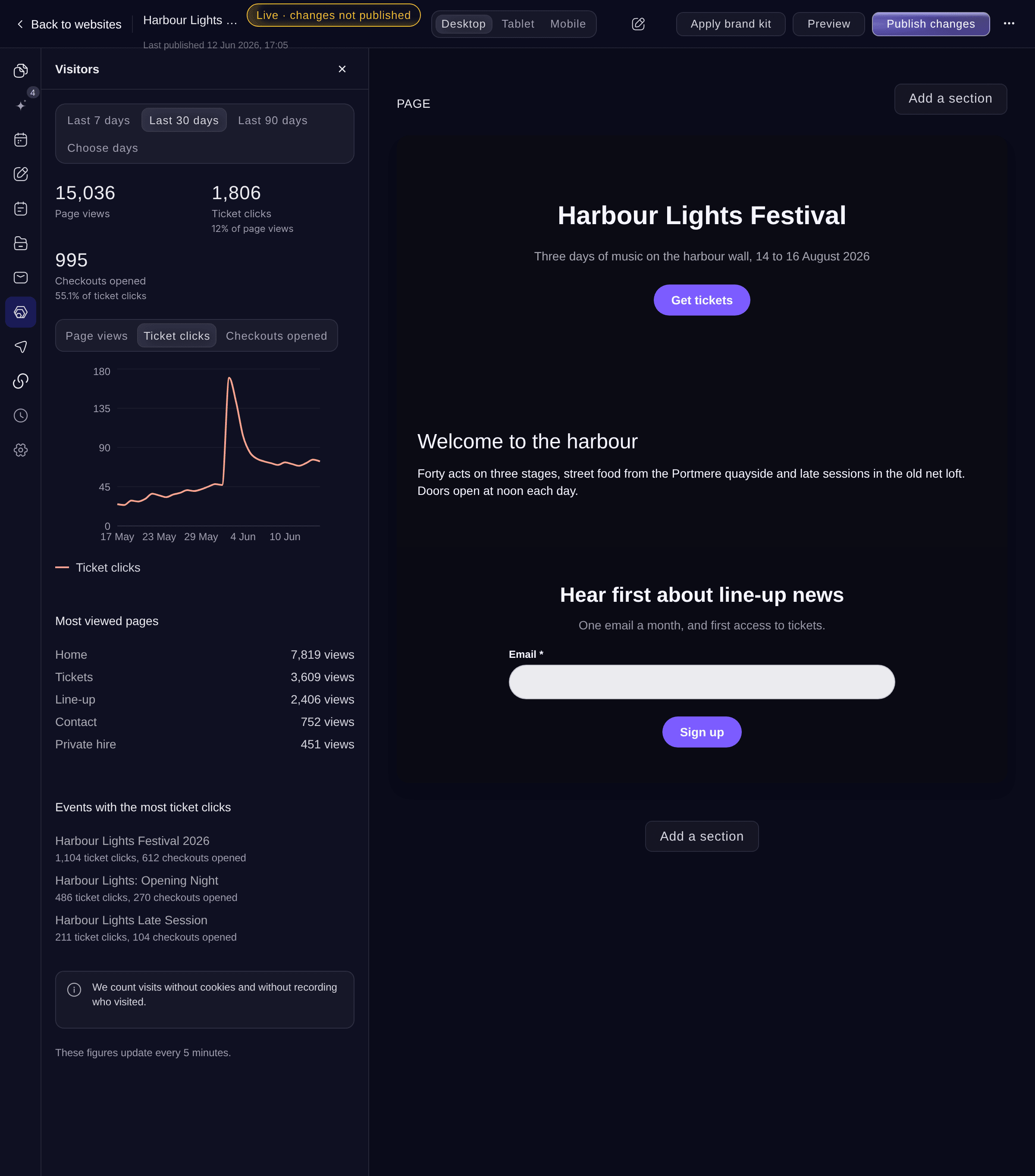
Day by day, Ticket clicks.


See these figures for your own event
Create a free account and this report fills as your tickets sell. You see the same figures for your own event from the first sale.
No setup fees. No required monthly ticketing fee. No credit card required.
Or have it done for you
Ask Fai for the days you want. She reads the same page views, ticket clicks, checkouts opened and top pages and events for your website.
In your dashboard, with Fai
How many people visited my <WEBSITE NAME> website in the last 30 days, and which pages and events did they click on most
Let Fai do it for you
Fai works inside your Ticket Fairy dashboard. Create your account, open Fai and paste the prompt above.
No setup fees. No required monthly ticketing fee. No credit card required.
Questions you might have
- Why does Visitors show no visits?
No visitors on these days
means nobody opened your published website in the days you chose. We count visits only once your website is published, so publish it and share its address.- Why is Checkouts opened zero when I sell tickets?
- Checkouts opened counts the ticket checkout that opens on your website. When your ticket buttons take buyers to your Ticket Fairy event page instead, their purchases are counted on the event's reports, not here.
- Do you use cookies to count visitors?
- No. We count visits without cookies and without recording who visited. Visits from search engine robots are not counted.
- How up to date are the figures?
- The figures update every 5 minutes, and the days are counted in UTC.
Still have a question?
Book a demo and we will answer it on a call, on your kind of event. Or create your account and see it for yourself.
No setup fees. No required monthly ticketing fee. No credit card required.
Related guides
Do this on your own event
Create your account, build your event and follow the steps in your own dashboard. You do not need to book a sales call.