
Integrations
Send your ticket buyers and orders to Hive
Venues and promoters who run their fan marketing in Hive connect it to a brand once. Each ticket buyer then lands in your Hive account with the order they placed, so your next campaign reaches the people who bought.
Connect Hive to a brand with your Hive account ID, and each ticket buyer on that brand's events joins your Hive account with their order, in a Hive segment for one event when you choose one.
- For
- Adding your ticket buyers and their orders to Hive
- Takes
- 5 minutes
Before you start
- You're an owner or admin of the brand. If the Hive card is missing from Integrations, ask an owner or an admin.
- You have a Hive account and know its account ID.
-
Open the Hive card
Open your brand, select Integrations and scroll to Purchase & sign-up capture.
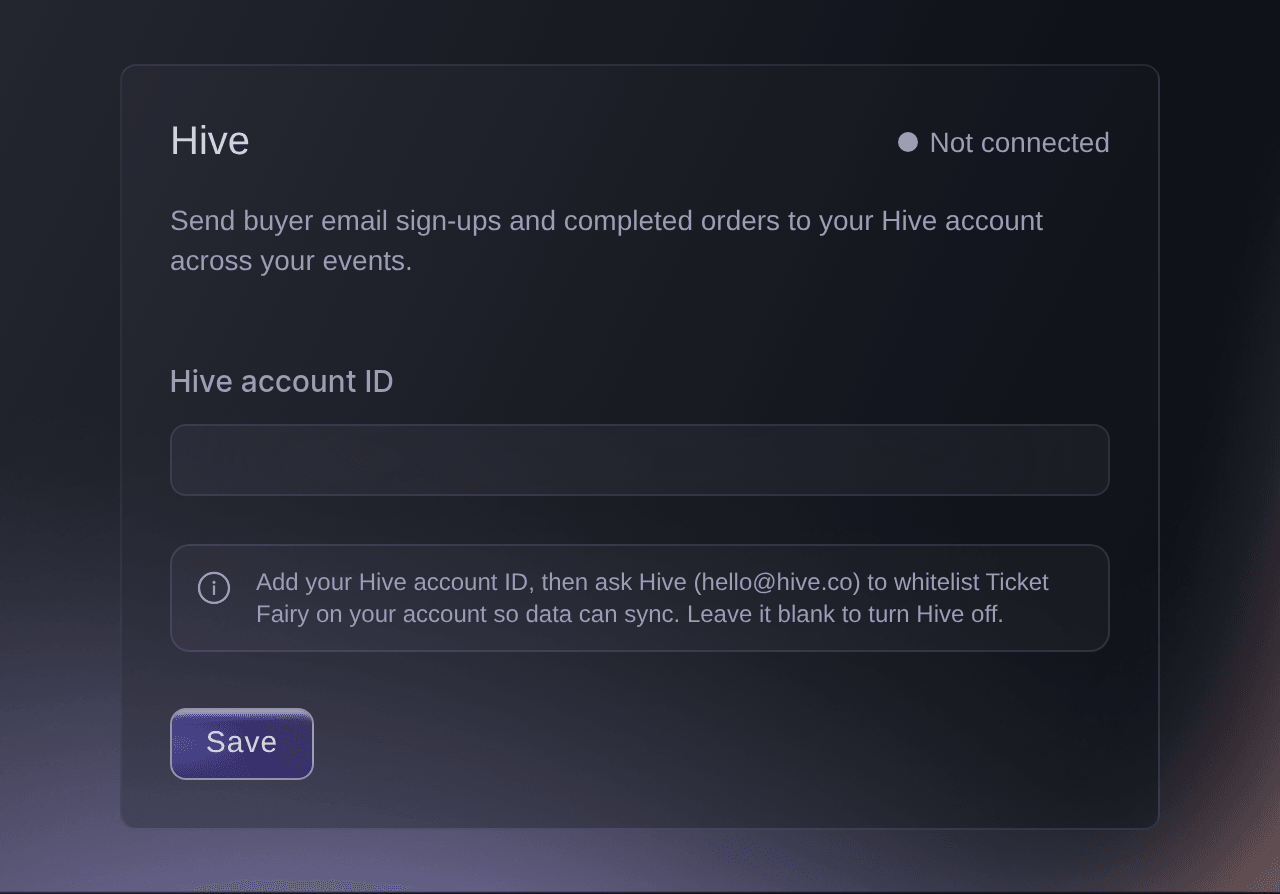
Brand, Integrations, Purchase & sign-up capture. -
Enter your Hive account ID
Enter the ID from your Hive account in Hive account ID.
-
Save the ID
Select Save. The card changes to Connected and
Hive saved.
appears. -
Ask Hive to whitelist Ticket Fairy
Email Hive at [email protected] and ask them to whitelist Ticket Fairy on your Hive account.
Note: Your buyers reach your Hive account once Hive has done this.

The buyer details Hive receives
When a buyer's order confirmation page opens, Ticket Fairy passes the buyer and their order to your Hive account. Hive receives the details the buyer entered at checkout, such as their name, email, phone number and address, with the order number, the amount paid and the event's name, dates, link, artwork and venue.
Note: When you hide the venue from customers, Hive receives the venue's city and country without its name.
-
Check the first buyer arrived
Buy a test ticket with an email address you control, wait for the order confirmation page, then look for that buyer in your Hive account.
Note: Hive receives the buyers whose confirmation page opens after you save the ID, so earlier buyers aren't in it.
Try these steps on your own event
Create a free account, build your event and follow the steps above in your own dashboard. It takes a few minutes and you do not need to book a sales call.
No setup fees. No required monthly ticketing fee. No credit card required.
Or have it done for you
Fai can save the Hive account ID on a brand, and she asks for your approval before she saves it. Asking Hive to whitelist Ticket Fairy is an email you send yourself.
In your dashboard, with Fai
Connect Hive on <BRAND NAME> with the account ID <HIVE ACCOUNT ID>, and ask me before you save it
Let Fai do it for you
Fai works inside your Ticket Fairy dashboard. Create your account, open Fai and paste the prompt above.
No setup fees. No required monthly ticketing fee. No credit card required.
Add one event's buyers to a Hive segment
-
Open the event's Advanced Options
Open the event, select Settings and scroll to Advanced Options.
Note: You need an owner or admin login on the event. If Settings is missing from your event menu, ask an owner or an admin.
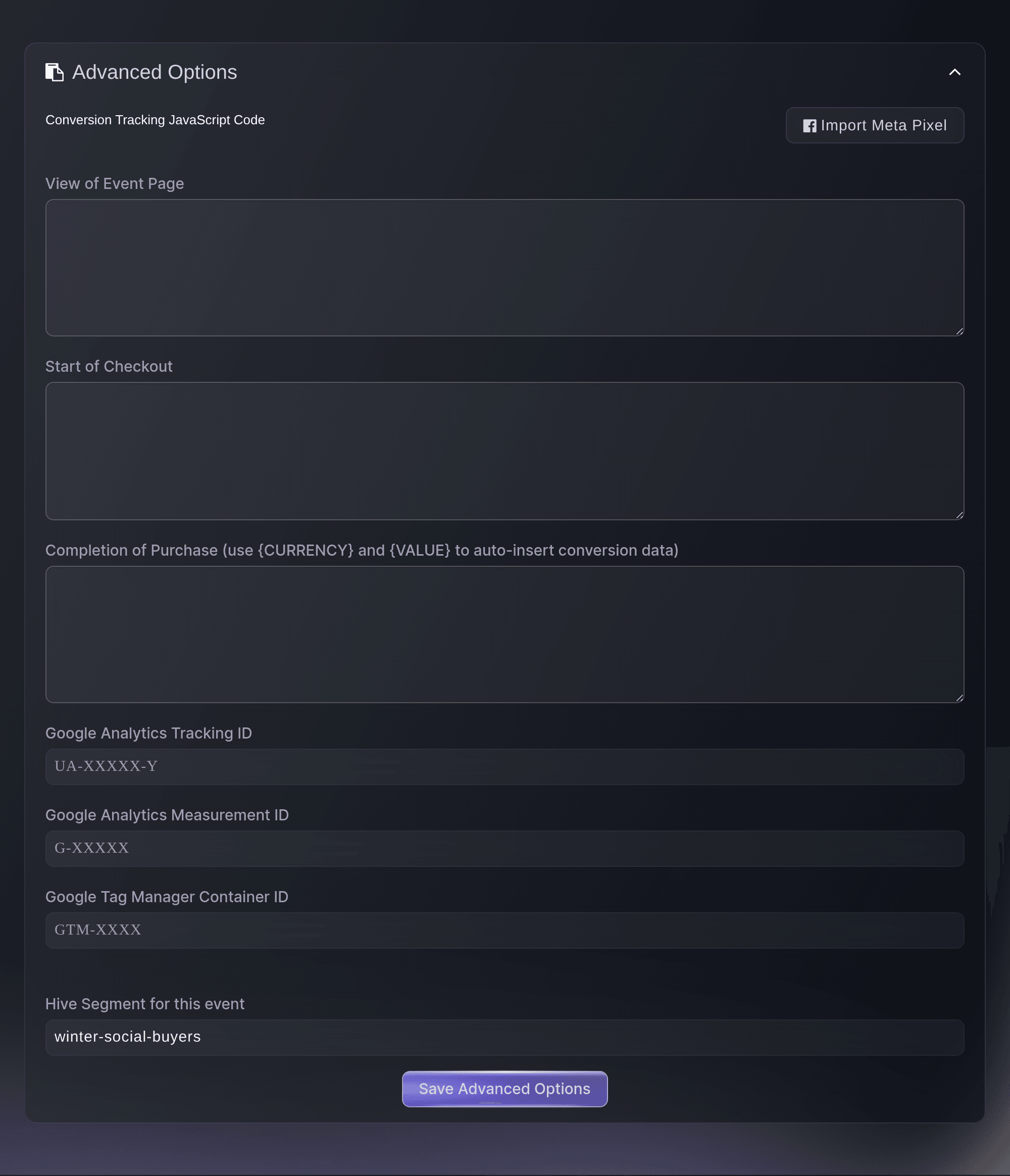
Event, Settings, Advanced Options. -
Enter the segment
Enter the Hive segment in Hive Segment for this event.
Note: The field shows once the brand has a Hive account ID saved.
-
Save the segment
Select Save Advanced Options.
Successfully updated advanced options
appears.Note: Buyers of this event then join that segment in Hive, and every other event on the brand keeps sending buyers without one.

Fai can open the event's Settings page, where you enter the segment.
In your dashboard, with Fai
Open the settings page for <EVENT NAME>
Turn Hive off
-
Clear the Hive account ID
On the Hive card, delete the ID in Hive account ID, then select Turn off.
-
Confirm turning Hive off
Select Turn off in the confirmation. The card changes to Not connected.
Note: Ticket Fairy stops sending new buyers, and the buyers already in Hive stay there. Enter the ID again to turn it back on.
Fai can turn Hive off for a brand after you approve the change.
In your dashboard, with Fai
Turn off Hive on <BRAND NAME>, and ask me before you save it
Questions you might have
- Why are no buyers arriving in Hive?
- Check that Hive has whitelisted Ticket Fairy on your account, and that the ID on the Hive card matches your account ID in Hive. A buyer arrives when their order confirmation page opens, so orders placed before you saved the ID don't appear.
- Can I send one event's buyers to a different Hive account?
- No. Hive is set for the whole brand. To keep one event's buyers apart in that account, give the event its own segment under Advanced Options.
- Why can't I see the Hive card?
- The Hive card shows for brand owners and admins. A marketing team member sees Integrations without it, so ask an owner or an admin to enter the ID.
- Why does the Hive card say someone else changed it?
Someone else changed this while you were editing.
means a teammate saved the Hive card while you had it open. Select Load latest to see what they saved before you save yours.
Still have a question?
Book a demo and we will answer it on a call, on your kind of event. Or create your account and see it for yourself.
No setup fees. No required monthly ticketing fee. No credit card required.
Related guides
Do this on your own event
Create your account, build your event and follow the steps in your own dashboard. You do not need to book a sales call.