
Advertising your event
Set up a Meta pixel to track your ticket sales
Two Facebook campaigns can look equally busy while only one of them sold tickets. A promoter connects their Meta account once for a brand and chooses the ad account and pixel. Meta then records the sales from every event under that brand, from our servers as well as from the browser.
Connect Meta to your brand and choose which pixel records your ticket sales, so you can see which Facebook and Instagram campaigns sold tickets.
- For
- Running Meta ads for an event
- Takes
- 5 minutes
Before you start
- You're an owner, an admin or on the marketing team for this brand. If you can't open Integrations, ask an owner or an admin to do this part or to give you access.
- You can sign in to a Facebook account with access to the ad account you buy event ads on.
-
Open Integrations for your brand
Open the brand you sell under, go to Integrations, and find Meta conversion tracking.
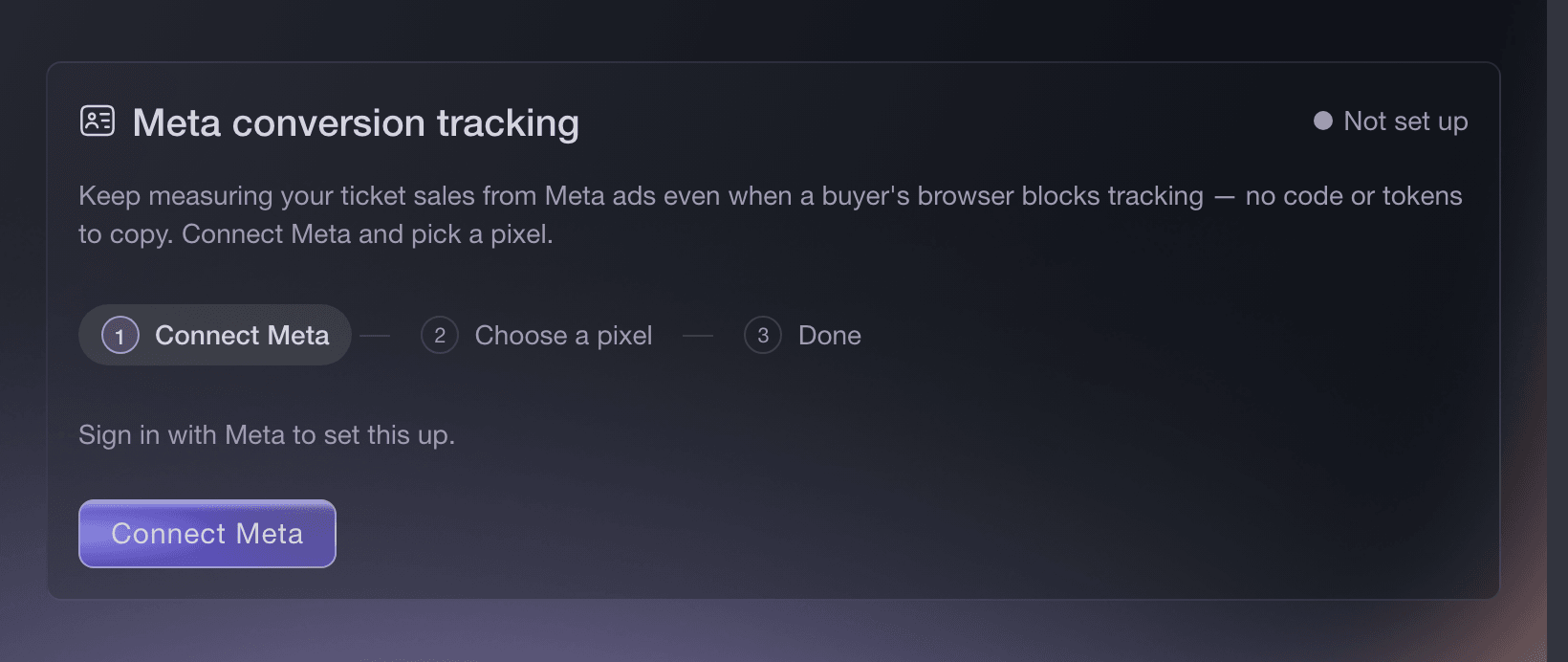
Brand settings, Integrations, Meta conversion tracking. -
Connect Meta
Select Connect Meta and sign in with the Facebook account that has access to your ads. If you manage more than one ad account, pick the one you buy your event ads on.
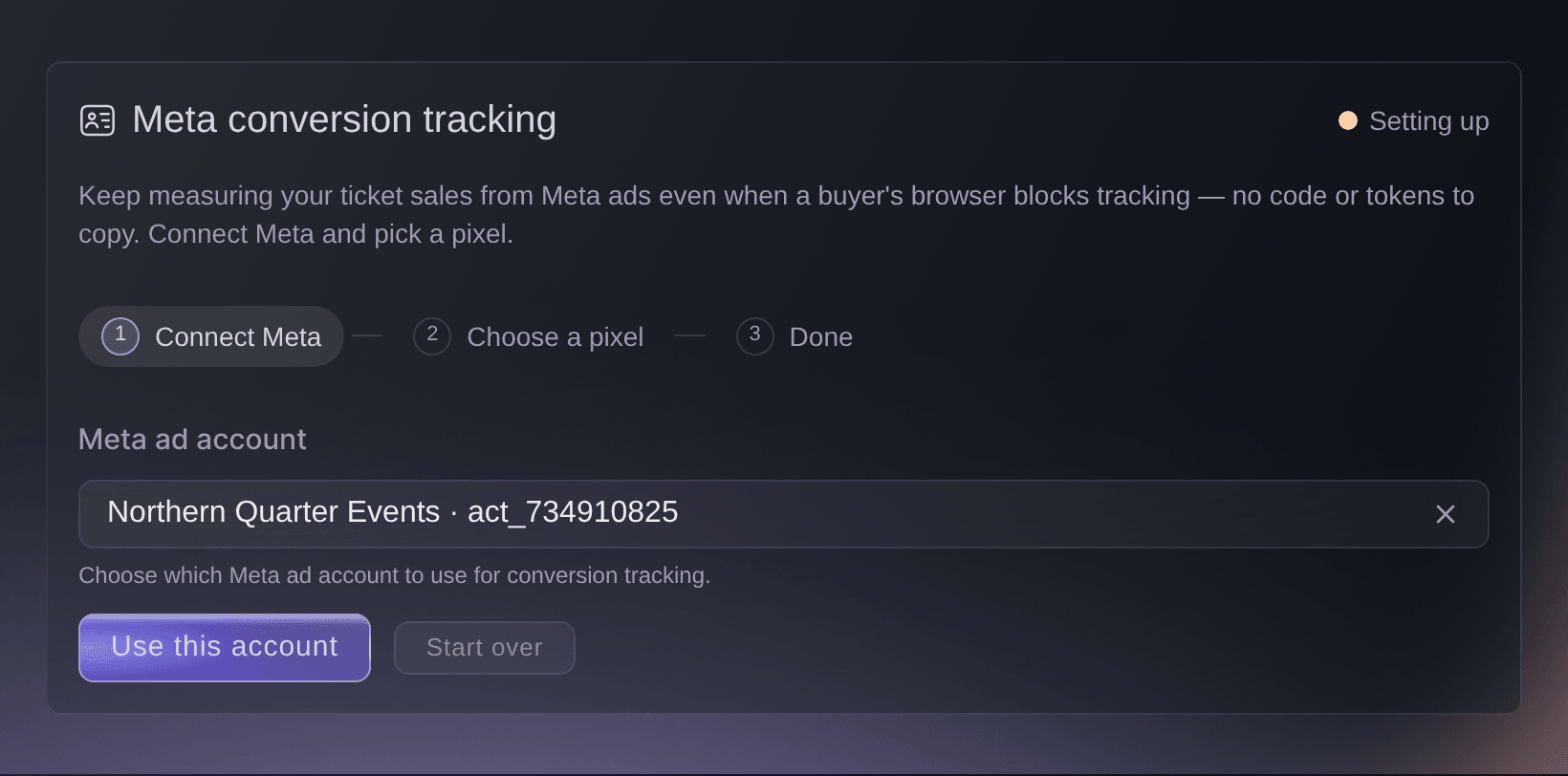
Brand settings, Integrations, Meta conversion tracking. -
Choose the pixel that records your sales
Pick the pixel used by the ad account and campaigns you want to measure, or create a new one and name it.
-
Turn tracking on
Select Turn on tracking.
Note: Ticket Fairy now sends each sale to that pixel from our servers as well as from the browser, which helps preserve campaign attribution when browser tracking is unavailable.
-
Confirm Meta records a sale
Buy a ticket on your own event, or use a test order. The purchase then appears in Meta Events Manager with a value that matches the order.
Note: In the browser your pixel runs fbq('track', 'PageView') when it loads. Ticket Fairy then sends ViewContent on your event page, InitiateCheckout when a buyer starts checkout, and Purchase when the sale completes.


Try these steps on your own event
Create a free account, build your event and follow the steps above in your own dashboard. It takes a few minutes and you do not need to book a sales call.
No setup fees. No required monthly ticketing fee. No credit card required.
Or have it done for you
Fai, the assistant inside your dashboard, can do this for you, and stops to ask you before she changes anything. Complete the Meta sign-in in your browser, then let Fai take it from there. You can also add the pixel in the dashboard.
In your dashboard, with Fai
I have connected Meta and want to see the pixels on our ad account, then turn conversion tracking on for the one we advertise with
Let Fai do it for you
Fai works inside your Ticket Fairy dashboard. Create your account, open Fai and paste the prompt above.
No setup fees. No required monthly ticketing fee. No credit card required.
Questions you might have
- How do I add a Meta pixel to my Ticket Fairy event page?
- Open your brand, go to Integrations, and find Meta conversion tracking. Select Connect Meta, sign in, choose the ad account you buy on, then choose the pixel you want to track ticket sales with. Tracking then runs on every event page under that brand and through checkout, so you do this once rather than per event.
- Can I add a Meta pixel to one event only?
- Yes. Open the event's Settings page and select Import Meta Pixel in the Meta Pixels card, above Advanced Options. Sign in to Facebook and pick the pixel from your Meta ad accounts. You can also enter an access token so that sales are reported from our servers too. A pixel the brand already has tracks this event already, so the event does not take it a second time.
- Do I need my Meta pixel ID or an access token?
- No. The guided setup loads your pixels from Meta once you sign in, so you pick one from a list instead of copying an ID. Ticket Fairy keeps the connection credential on our side, so you never paste a token into the dashboard.
- What if I do not have a Meta pixel yet?
- Create one in the same step. Choose "Create a new pixel", give it a name, and Ticket Fairy creates it in the ad account you connected and selects it for you.
- Can I still enter a Meta pixel ID by hand?
- Yes. Below the guided setup there is a manual option for accounts that already have a pixel ID and an access token to enter. Use the guided setup unless you have a reason not to, and do not add the same pixel in both places.
- How does server-side reporting help?
- Ticket Fairy reports completed sales from our servers as well as from the browser. This gives Meta another reliable signal and helps preserve campaign attribution when browser tracking is unavailable.
- Will my Meta pixel record sales if buyers check out on my own website?
- Yes. The embedded checkout sends the same events at the same points as the hosted checkout, so Meta attributes a sale on your own site the same way.
Still have a question?
Book a demo and we will answer it on a call, on your kind of event. Or create your account and see it for yourself.
No setup fees. No required monthly ticketing fee. No credit card required.
Related guides
Do this on your own event
Create your account, build your event and follow the steps in your own dashboard. You do not need to book a sales call.