
Running the production
Share a power sheet with your event electrician
Electricians and site crews plan cable runs and water points at your event from the traders' power needs, and a spreadsheet emailed a week early is out of date by build day. A power sheet link shows each zone's pitches, amps and water as they stand now, with no trader's contact details on it.
Send your electrician a link to a sheet of every trader's pitch, the power they need in amps and whether they need water, for one zone of your event site map or the whole site. The sheet needs no sign-in, always shows the latest pitches, and you can stop the link at any time.
- For
- Giving your electrician and site crew the traders' power and water needs
- Takes
- 4 minutes
Before you start
- You need an owner, admin or producer role on the event.
- Each trader has their power and water needs in their panel, and a pitch. For a sheet of one zone, the traders are placed on pitches on the site map, inside an area you drew for the zone.
-
Open Pitches
Open the event, select Operations, select Traders in the list of sections, then select Pitches.
Note: Power sheets is at the top, above every trading trader's pitch, amps and water. If Traders is not in the list, select More sections and open it there.
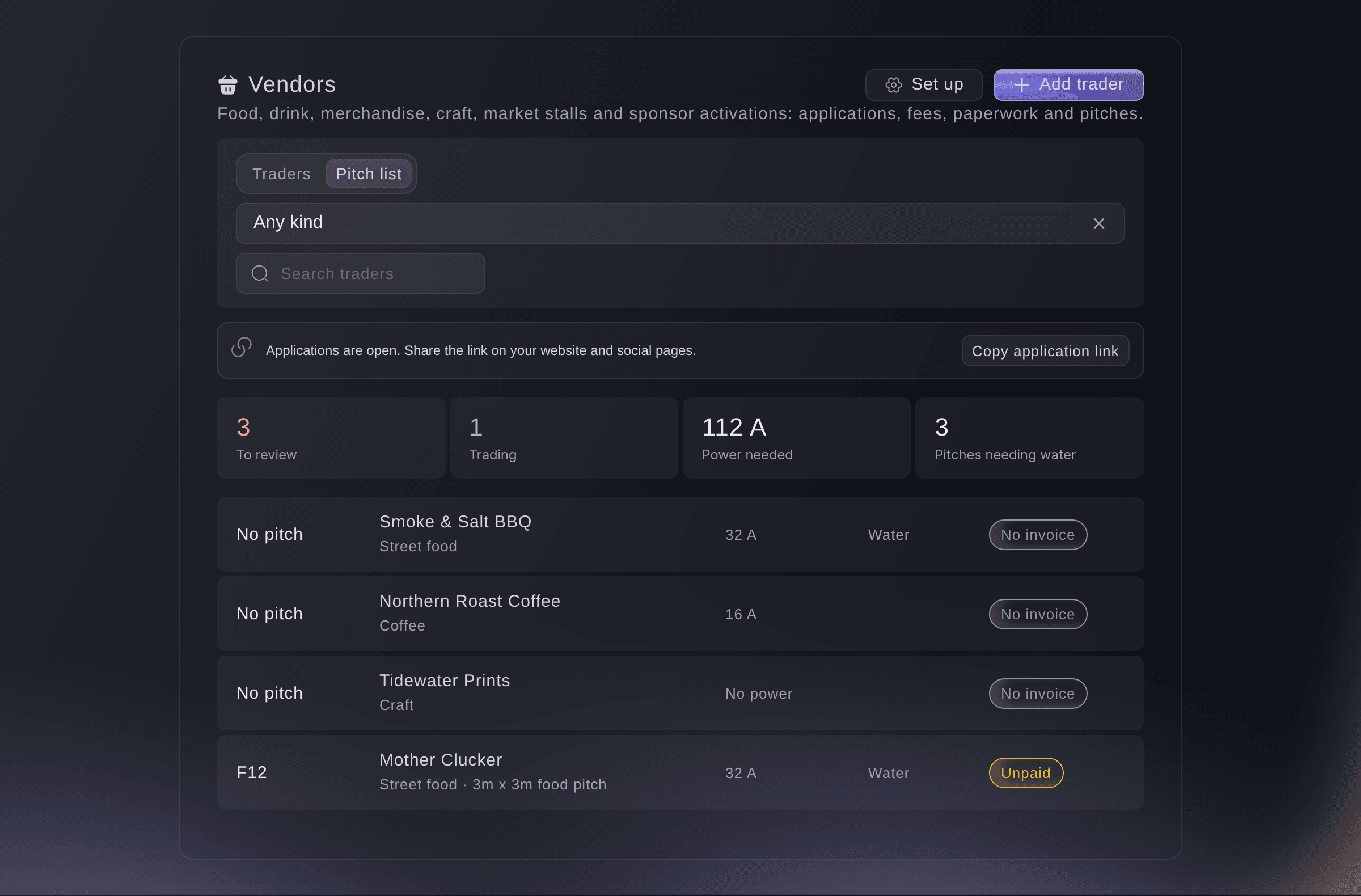
Traders, Pitches, with Power sheets. -
Choose the zone and how long the link works
Choose the Zone, or Every zone for the whole site, then choose how many days the Link works for.
Note: Each zone shows how many traders are in it. A link works for 3, 7, 14, 30 or 60 days, and 14 days is chosen first.
-
Make the link and copy it
Select Make link, then select Copy link and send it to your electrician.
Warning: The address shows only once. If you did not copy it, stop the link and make a new one.

What your electrician sees
The power sheet lists each pitch with its trader, the amps they need and whether they need water, grouped by zone with the totals at the top. It needs no sign-in and never shows a trader's contact details.
Note: The sheet always shows the pitches and power needs as they are now, so a trader you move or add shows the next time it opens.

-
Check the link was opened
Look at the link under Power sheets. It shows Working until its end date, and how many times it was opened.
Try these steps on your own event
Create a free account, build your event and follow the steps above in your own dashboard. It takes a few minutes and you do not need to book a sales call.
No setup fees. No required monthly ticketing fee. No credit card required.
Or have it done for you
Fai makes a power sheet link for one zone or the whole site, lists the links you have made and stops one. She waits for your yes before she makes or stops a link. The address of a new link shows once, in the dashboard.
In your dashboard, with Fai
Make a power sheet link for the food court at <EVENT NAME> that works for 14 days
Let Fai do it for you
Fai works inside your Ticket Fairy dashboard. Create your account, open Fai and paste the prompt above.
No setup fees. No required monthly ticketing fee. No credit card required.
Stop a power sheet link
-
Stop the link
Select Stop link beside the link, then select Stop link again to confirm.
Note: Anyone with the link can no longer open the sheet. Make a new link for your electrician if they still need one.
Fai stops a power sheet link after you confirm.
In your dashboard, with Fai
Stop the power sheet link for the food court at <EVENT NAME>
Questions you might have
- Why is there no zone to choose?
- Your site map has no areas around your pitches yet. Draw an area around each group of pitches on the site map, such as the food court, then place the traders on their pitches.
- Why is a trader missing from a zone's sheet?
- The trader is not placed on a pitch inside that zone on the site map. Place them on the map, or make a sheet for Every zone, which lists them as not on the site map.
- What does my electrician see when the link has ended?
- A page saying the link no longer works and to ask you for a new one. Make a new link and send it to them.
Still have a question?
Book a demo and we will answer it on a call, on your kind of event. Or create your account and see it for yourself.
No setup fees. No required monthly ticketing fee. No credit card required.
Related guides
Do this on your own event
Create your account, build your event and follow the steps in your own dashboard. You do not need to book a sales call.