
Invitations and guest lists
Share one invitation link to your event
Promoters handing a sponsor's staff, a members' group chat or a partner's newsletter access to tickets often have no list of names and email addresses. One invitation link lets everyone in that group buy through the same link, and the limits you set stop it selling more than the group's share of your event.
Create one invitation link for a group, such as a sponsor's staff or a members' chat, choose the hidden tickets it unlocks and cap the tickets and orders the whole group can buy through it, then copy it and share it yourself.
- For
- Sharing ticket access with a group through one link
- Takes
- 5 minutes
- Open the Links tab
- When to share one link
- Select Create Invitation Link
- Enter who the link is for
- Choose the hidden tickets the link unlocks
- Choose a held allocation
- Set the limits for the whole group
- Example: a sponsor's staff
- Select Create
- Copy the link and share it
- Open the link in a private window
Before you start
- You have an owner, administrator, curator or customer support role on the event.
- Your brand is verified. If your brand is new or you don't know whether it is verified, contact Ticket Fairy Support before creating an invitation link.
- If the group should buy a ticket type nobody else can see, that ticket type is already set up and hidden.
-
Open the Links tab
Open your event, select Interact, then Invitations, and select the Links tab.
Note: The Email tab beside it sends a personal invitation to each named guest.
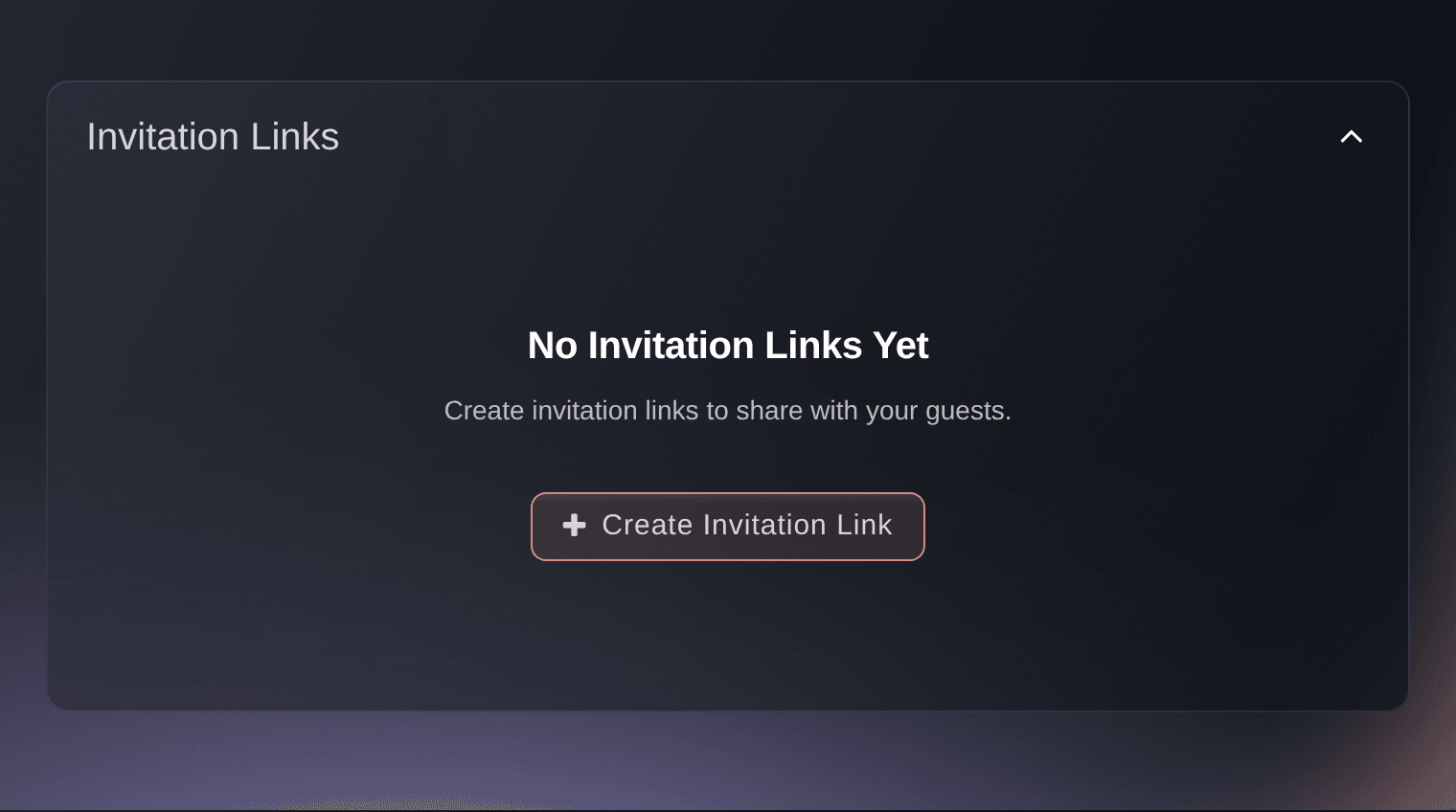
Interact, Invitations, Links.

When to share one link
One invitation link is shared by everyone who opens it, and its ticket and transaction limits are one allowance for the whole group. It suits a sponsor, a partner or a members' chat whose email addresses you don't have. Personal invitations from the Email tab suit a guest list where each guest needs their own limit, their own status and a link you can resend or cancel.
-
Select Create Invitation Link
Select Create Invitation Link.
Note: Once the event has links, the button sits above the table of links.
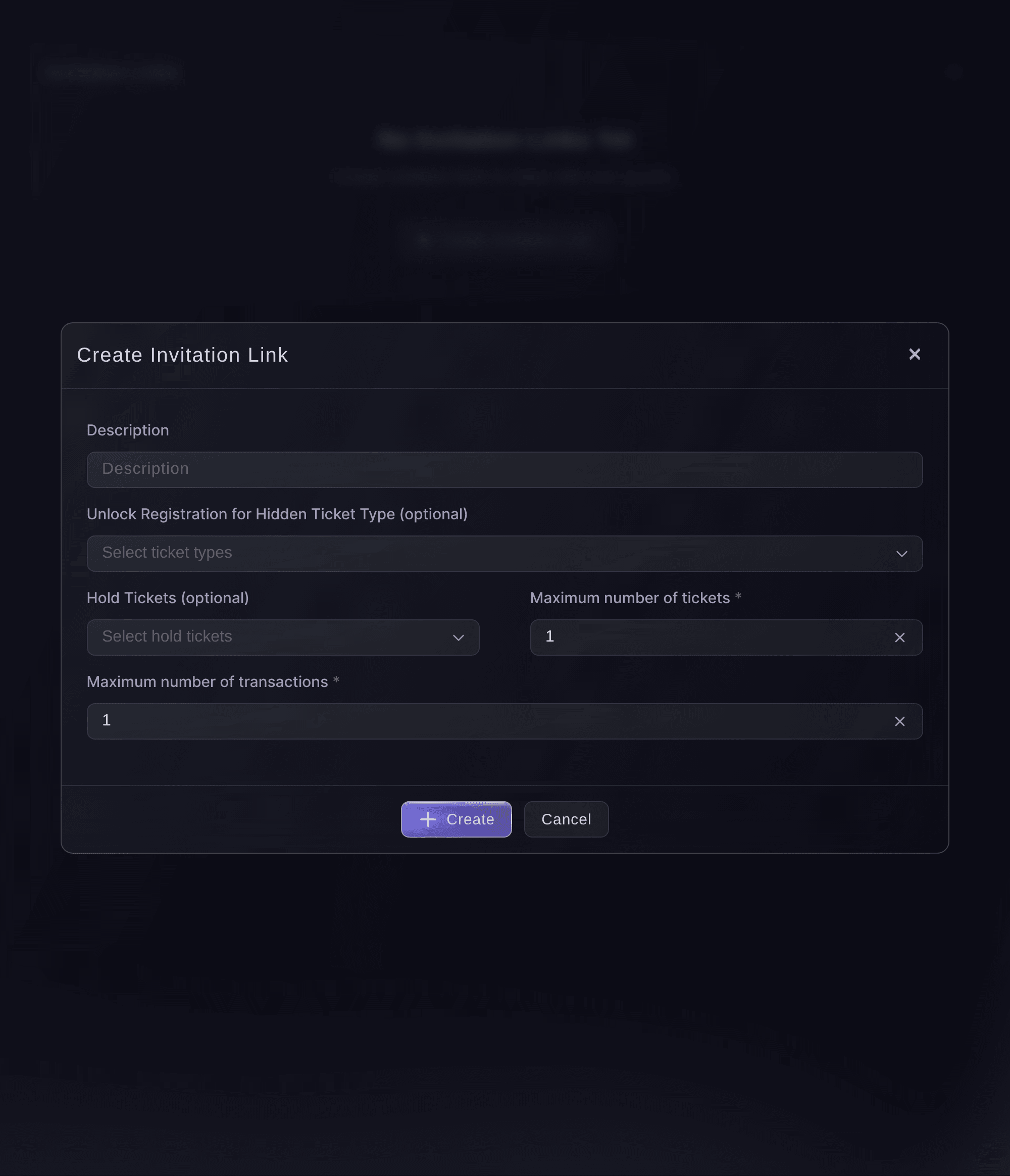
Interact, Invitations, Links, Create Invitation Link. -
Enter who the link is for
Optional: Enter the group's name in Description, such as the sponsor or the chat the link is going to.
Note: Your team sees the description in the table of links, so it tells the links apart. Buyers never see it.
-
Choose the hidden tickets the link unlocks
Optional: If the group should buy a ticket type that is hidden from everyone else, choose it under Unlock Registration for Hidden Ticket Type (optional).
Note: Anyone who opens the link sees the hidden ticket types you choose. Leave the field empty when the group should buy from the tickets everyone can see.
-
Choose a held allocation
Optional: If you set tickets aside for this group, choose that allocation under Hold Tickets (optional).
Note: Each choice reads as the ticket type, then the hold's description. You can choose one held allocation for each ticket type.
-
Set the limits for the whole group
Choose the Maximum number of tickets, then the Maximum number of transactions, each from 1 to 50.
Note: Both limits count every purchase made through this link, whoever makes it. Choosing the ticket limit sets the transaction limit to the same number, so choose the transaction limit second.

Example: a sponsor's staff
A sponsor with 20 staff who each bring a guest needs 40 tickets across up to 20 orders, so set 40 tickets and 20 transactions. Once the group has bought 40 tickets or placed 20 orders, however the staff share them out, the link stops offering tickets. When the sponsor asks for more, a second link with its own limits keeps the two allowances apart.
-
Select Create
Select Create. Ticket Fairy shows
Successfully created!
and adds the link to the table a few seconds later. -
Copy the link and share it
Select Copy Link on the new row, then paste the link wherever the group will see it.
Note: In the table, the maximum uses column holds the transaction limit and the maximum quantity column holds the ticket limit.
Tip: Share the link only with the group it is for. Anyone who has it can use what is left of its limits.
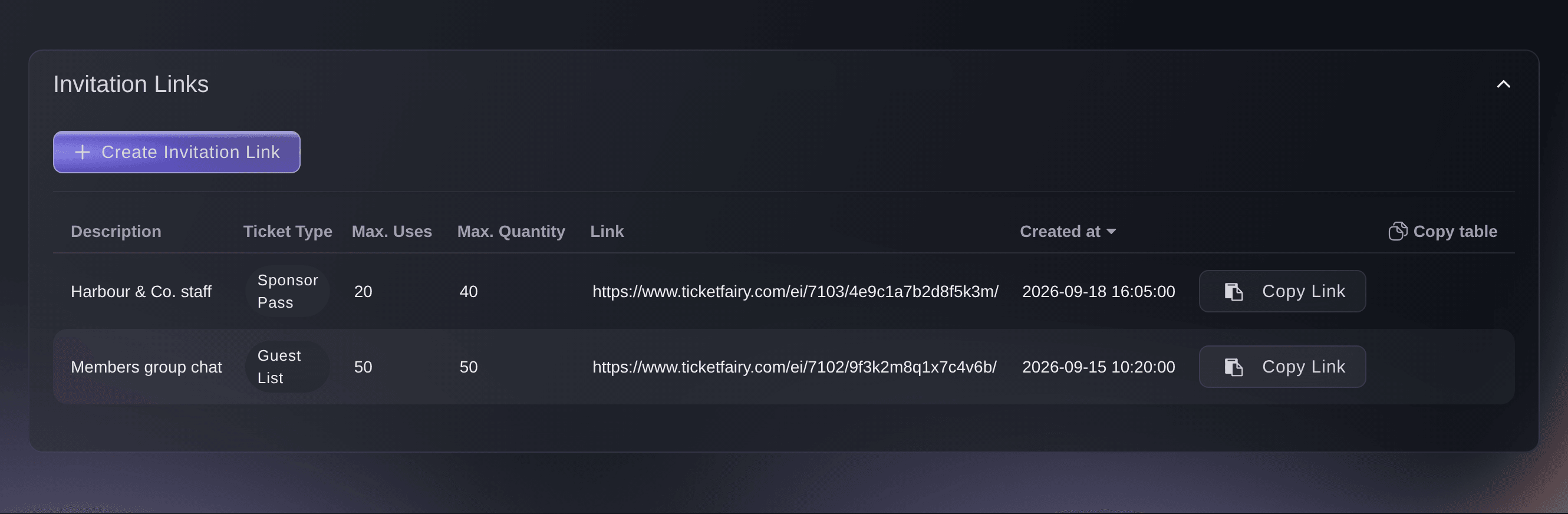
Interact, Invitations, Links. -
Open the link in a private window
Open the copied link in a private browser window and check that the event page offers the ticket types you chose.
Note: Close the window without buying. A test order counts against the link's limits like any other.
Try these steps on your own event
Create a free account, build your event and follow the steps above in your own dashboard. It takes a few minutes and you do not need to book a sales call.
No setup fees. No required monthly ticketing fee. No credit card required.
Or have it done for you
Fai, the assistant inside your dashboard, can create an invitation link with the hidden ticket types it unlocks and its ticket and transaction limits. She asks you to approve it before she creates it. Then copy the new link with Copy Link on the Links tab. To give the link a held allocation, create it in the dashboard.
In your dashboard, with Fai
Create an invitation link for <EVENT NAME> for <GROUP NAME>. It should unlock the <HIDDEN TICKET TYPE> ticket type and allow up to <TICKETS> tickets across <ORDERS> orders in total. Show me the details before you create it
Let Fai do it for you
Fai works inside your Ticket Fairy dashboard. Create your account, open Fai and paste the prompt above.
No setup fees. No required monthly ticketing fee. No credit card required.
Questions you might have
- Can I switch an invitation link off?
- No control on the Links tab cancels or changes a link, and a link keeps working until its ticket or transaction limit is used up. Choose limits that match the group before you create it, and create a new link with its own limits when a group needs more.
- A buyer says the link has been used the maximum number of times. What does that mean?
- They saw a message that the link is not valid or has already been used the maximum number of times, which means the group has already bought the link's ticket limit or placed its transaction limit. Create a new link for the tickets they still need.
- Can a link sell more than its limits?
- Occasionally. A buyer who opened checkout before the link reached its limit can still finish that order, and buyers checking out at the same moment can each finish too. Set the limits a little below the most the group can have.
- Can one buyer use up the whole link?
- Yes. The limits belong to the link rather than to each buyer, so whoever uses it first can take the tickets and orders it allows. Send personal invitations from the Email tab when each guest needs a limit of their own.
- Does an invitation link work on an event that requires an invitation?
- Yes. With Invitation required to attend on, anyone who opens a valid invitation link can buy, while visitors without one can't add a ticket.
Still have a question?
Book a demo and we will answer it on a call, on your kind of event. Or create your account and see it for yourself.
No setup fees. No required monthly ticketing fee. No credit card required.
Related guides
Do this on your own event
Create your account, build your event and follow the steps in your own dashboard. You do not need to book a sales call.