
Fai, your co-pilot
Teach your concierge from your event FAQ pages and Google Docs
Festival, club and venue teams already keep the answers buyers want on an FAQ page, a bag policy or a shared doc. Adding those pages to your concierge means it answers door times, entry rules and refunds in your words, and it keeps up when you change the page.
Point your ticket concierge at the event FAQ, policy and venue pages you already keep, a Google Doc or your whole website, and it answers buyers from them and picks up your changes on a schedule you choose.
- For
- Giving your concierge the answers you already keep on your website and in documents
- Takes
- 8 minutes
- Open the Reference pages tab
- When to use a reference page instead of a topic
- Select Add reference page
- Enter the page's address
- Share a Google Doc with anyone who has the link
- Enter a label
- Choose which widgets answer from it
- Choose how often we check it
- Select Add reference page
- Read what the concierge took from it
- Ask the concierge a question the page answers
Before you start
- You need an owner or an admin login on the brand to add reference pages.
- The concierge is on your brand's plan. If you can't find Concierge under Intelligence, ask your Ticket Fairy account manager to turn it on.
- The pages are on the public web, or in a Google Doc you can share, and they hold only what a buyer may read.
-
Open the Reference pages tab
Open your brand, select Concierge under Intelligence, then select the Reference pages tab.
Note: The line above the list counts your active sources against your plan's limit. Reference pages, whole websites and events on other platforms all count towards it.
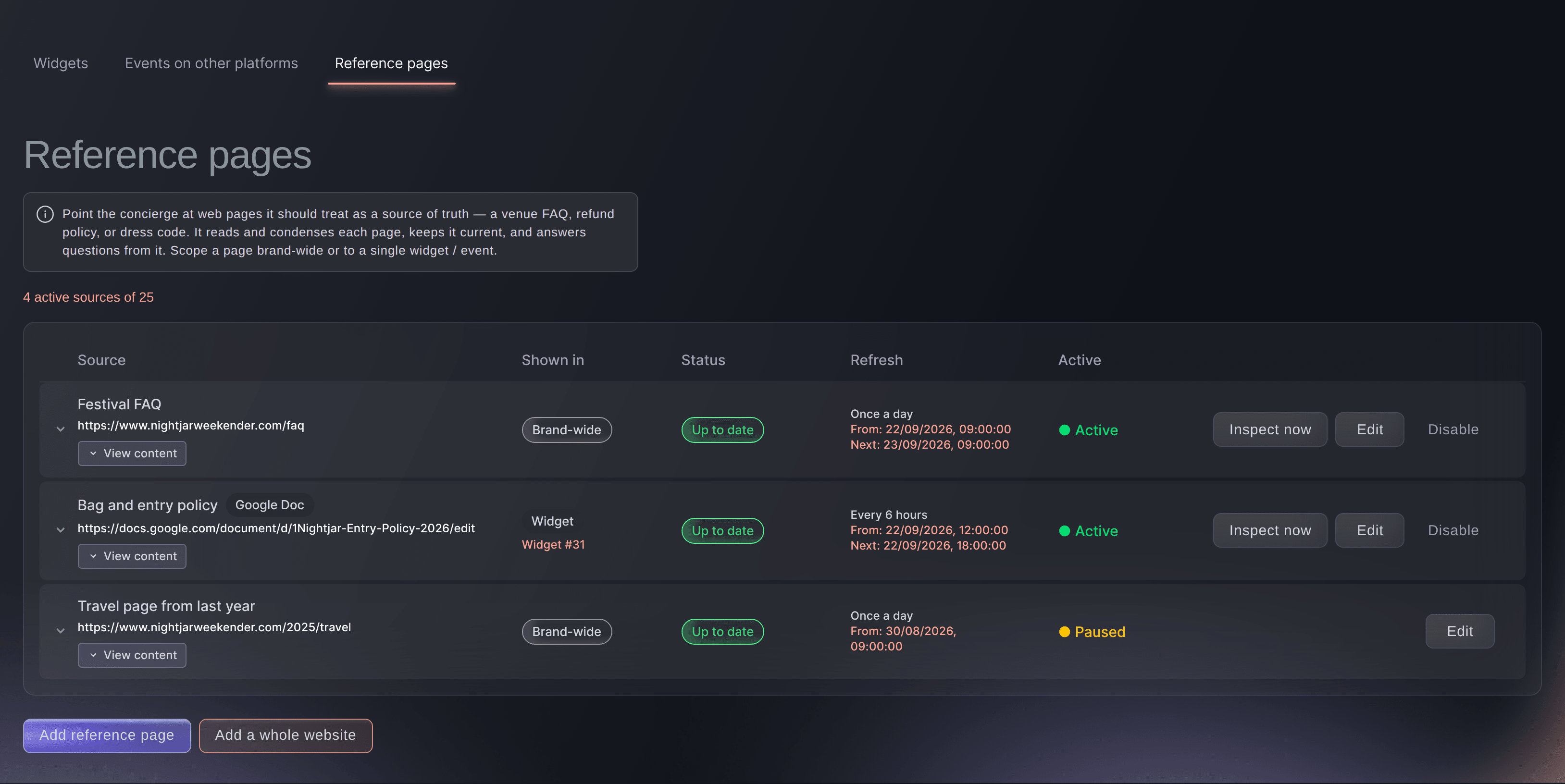
Concierge, Reference pages tab.
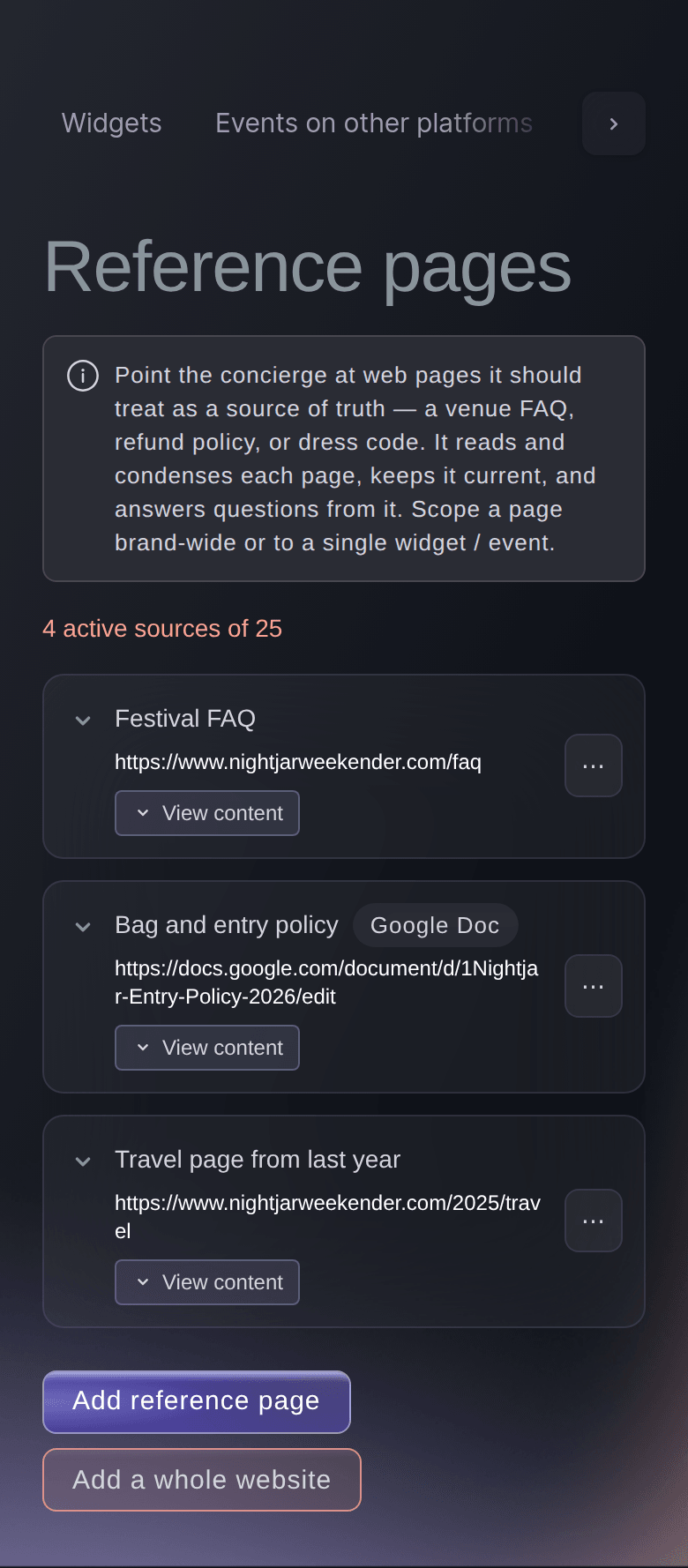
When to use a reference page instead of a topic
A topic you enter in the knowledge base goes with every reply, so it suits the short answers buyers ask every day. A page or Google Doc suits longer material: the concierge carries a short summary of it and looks up the full text when a question needs it.
-
Select Add reference page
Select Add reference page under the list.
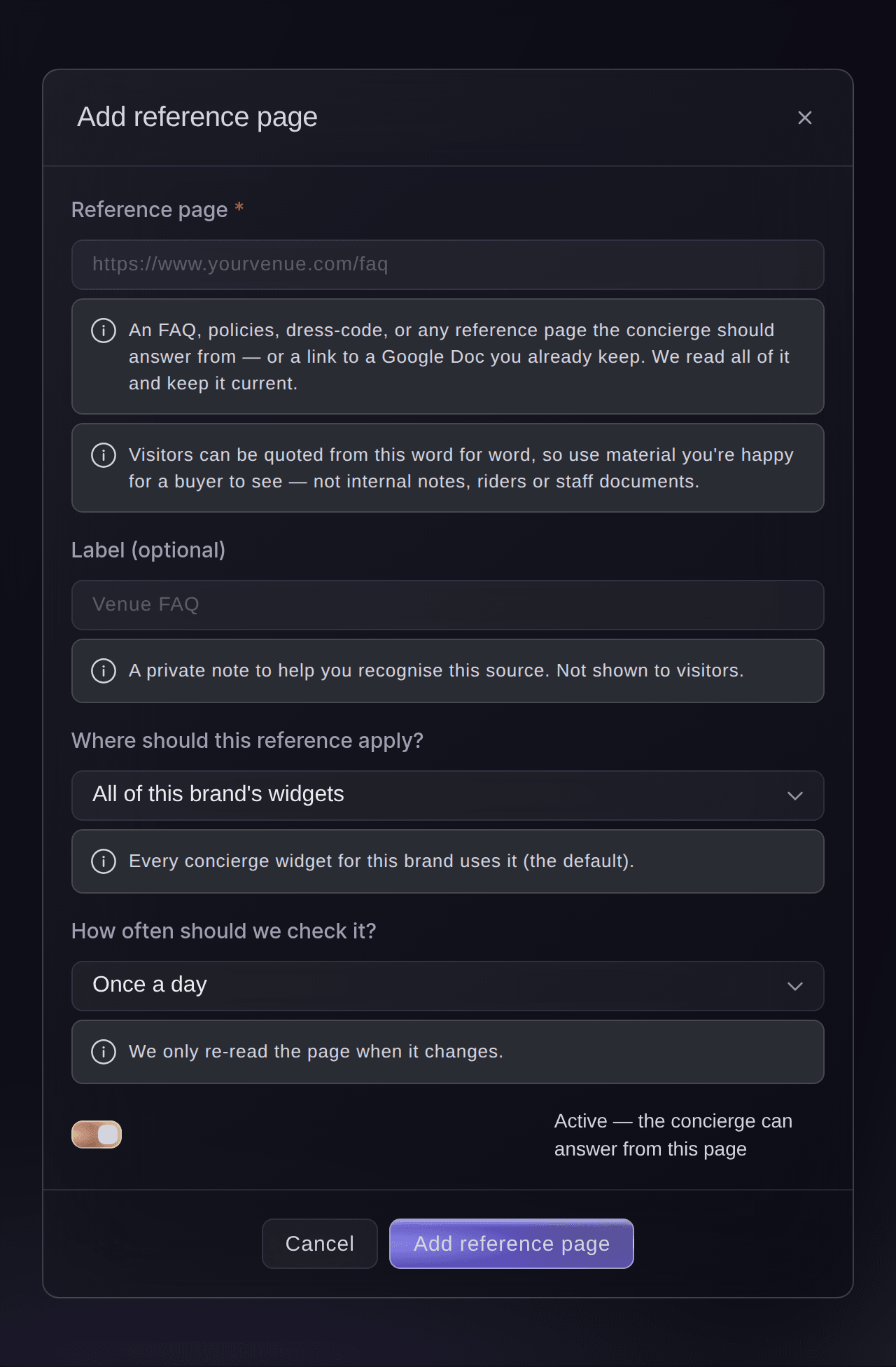
The Add reference page dialog. -
Enter the page's address
Enter the address of the page in Reference page, such as your event FAQ, bag policy or dress code page.
Warning: A buyer can be told anything on the page, word for word. Add only what a buyer may read, never internal notes, riders or staff documents.
-
Share a Google Doc with anyone who has the link
If the page is a Google Doc, choose Share in Google Docs and set General access to Anyone with the link as a viewer.
Note: The concierge answers from the doc's facts and follows the guidance in it, such as "never quote a discount" or "send pricing questions to us". Anyone who can edit the doc changes how your concierge answers, so keep editing to your team.
-
Enter a label
Optional: Enter a Label (optional) your team will recognise, such as Venue FAQ.
Note: Buyers never see the label.
-
Choose which widgets answer from it
Choose which of your widgets use the page in Where should this reference apply?.
-
Choose how often we check it
Choose how often we read the page again in How often should we check it?, from every hour to once a month.
Note: Once a day is the default. We update what the concierge knows only when the page has changed.
-
Select Add reference page
Select Add reference page at the bottom of the dialog. The page joins the list as Pending first check, and we read it straight away.
-
Read what the concierge took from it
When the status reads Up to date, select View content on the row to read the summary the concierge carries.
Tip: If the summary misses something buyers ask, change the page itself, then select Inspect now on the row.
-
Ask the concierge a question the page answers
Open your widget, select Open preview and ask something only the new page answers.

Try these steps on your own event
Create a free account, build your event and follow the steps above in your own dashboard. It takes a few minutes and you do not need to book a sales call.
No setup fees. No required monthly ticketing fee. No credit card required.
Or have it done for you
Fai can open your concierge's reference pages for you. Add a page, a Google Doc or a website, and choose which widgets answer from it, in the dashboard.
In your dashboard, with Fai
Open the concierge reference pages for <BRAND NAME>
Let Fai do it for you
Fai works inside your Ticket Fairy dashboard. Create your account, open Fai and paste the prompt above.
No setup fees. No required monthly ticketing fee. No credit card required.
Read a whole website instead of one page
-
Select Add a whole website
On the Reference pages tab, select Add a whole website.
Note: Fai reads across the site from its home page, keeps the pages worth answering from and shows you her choices.
-
Enter your home page
Enter your site's home page in Website address.
-
Choose how much of the site to read
Choose an answer in How much of the site should we read?.
Tip: The first choice in the list reads only your home page and the pages it links to, which is the fastest. Advanced sets Most pages to read, 50 by default and up to 300.
-
Choose the widgets and how often we read the site
Choose them in Where should this reference apply? and How often should we check it?, the same way as for one page.
-
Select Add website
Select Add website at the bottom of the dialog.
-
Select Review pages
Select Review pages on the website's row.
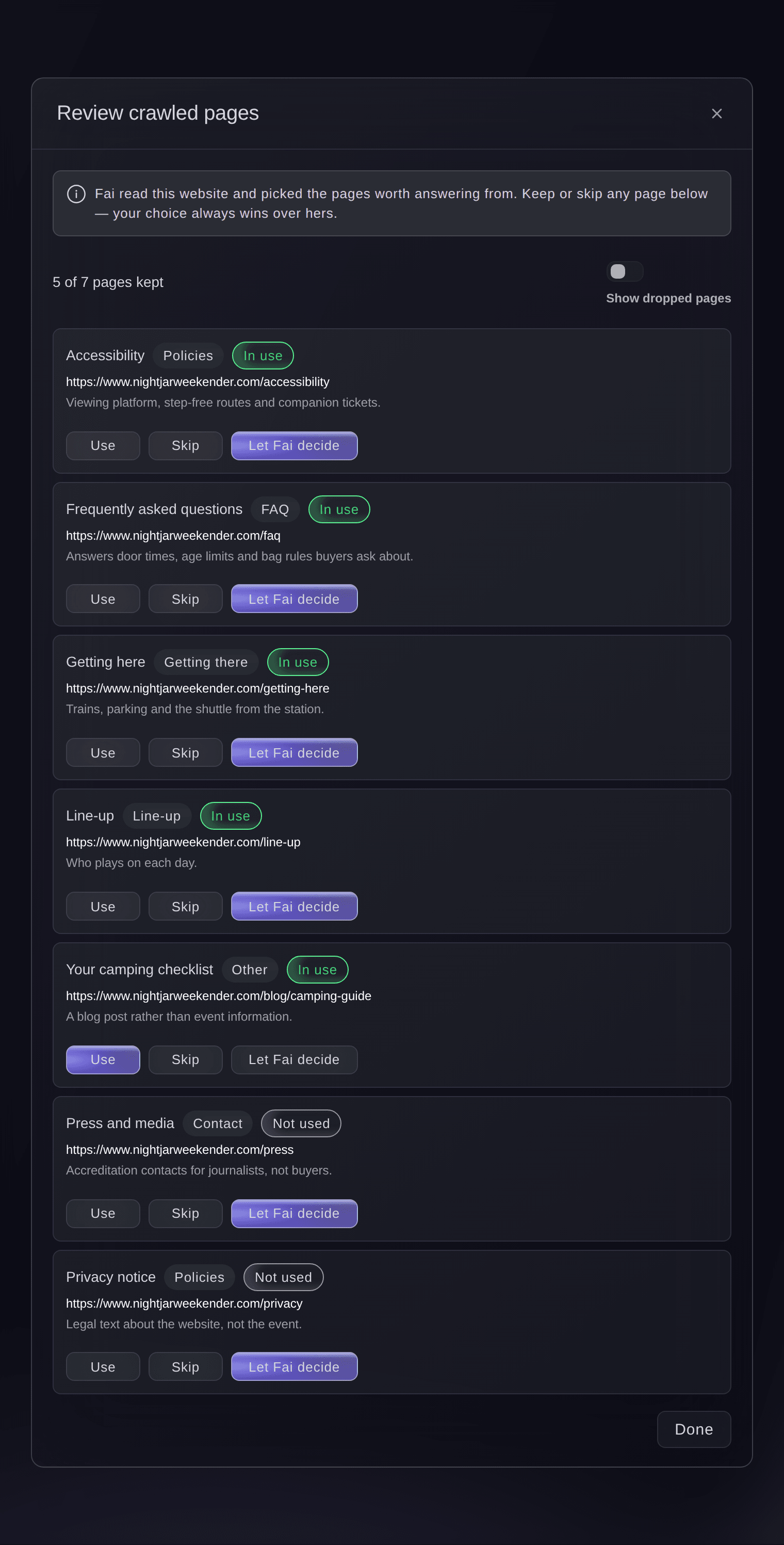
The Review crawled pages dialog. -
Keep or skip a page
Choose what the concierge does with a page.
Tip: Turn on Show dropped pages to see the pages Fai set aside, then select Done.

Fai can open the reference pages for you. Adding the website and reviewing the pages she kept are done in the dashboard.
In your dashboard, with Fai
Open the concierge reference pages for <BRAND NAME> so I can add our website
Give one widget a page of its own
-
Open the widget's reference pages
Open your widget, select the Voice & knowledge tab, then scroll to Reference pages.
Note: The list shows the brand-wide pages this widget uses and the pages that belong to it alone.
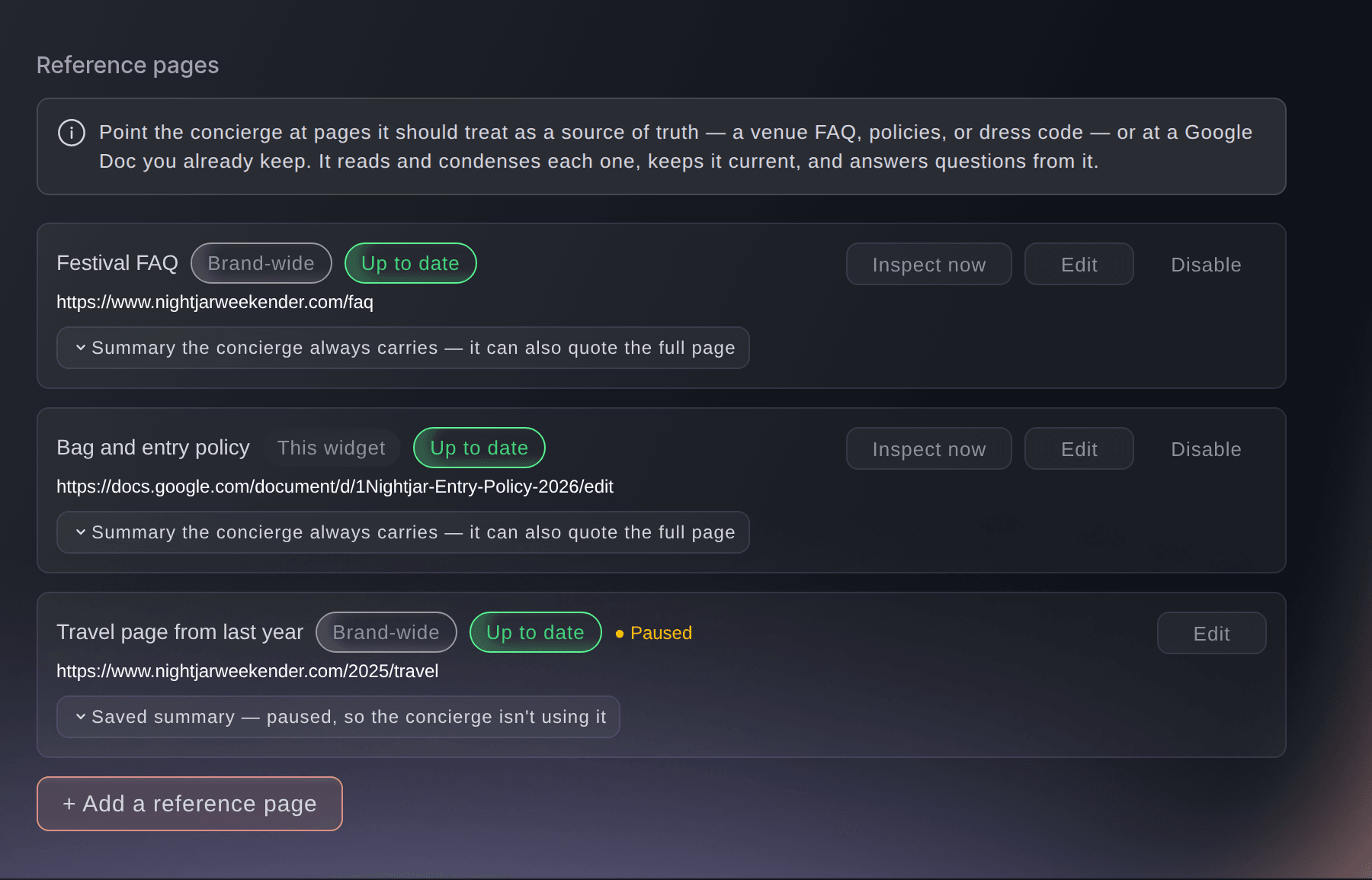
A widget's Reference pages section. -
Select Add a reference page
Select + Add a reference page under the list.
Tip: + Attach a Google Doc under the knowledge base opens the same dialog, already set to this widget.
-
Enter the page's address
Enter the address of the page in Reference page.
-
Keep the page to this widget
Turn on the switch under Where should this reference apply?.
Note: Leave the switch off and every widget on your brand can answer from the page.
-
Select Add reference page
Select Add reference page at the bottom of the dialog.
-
Turn off the brand's shared pages
Optional: Turn off Also use this brand's shared reference pages, then select Save changes.
Note: The widget then answers only from its own pages and ignores the brand-wide ones.
Fai can open your concierge widgets for you. A widget's own reference pages are added in the dashboard.
In your dashboard, with Fai
Open the concierge widgets for <BRAND NAME>
Let the concierge mention events you sell elsewhere
-
Open Events on other platforms
Select the Events on other platforms tab beside Reference pages.
Note: The concierge tells buyers about events on the pages you add here, such as a venue's listings, with a link out.
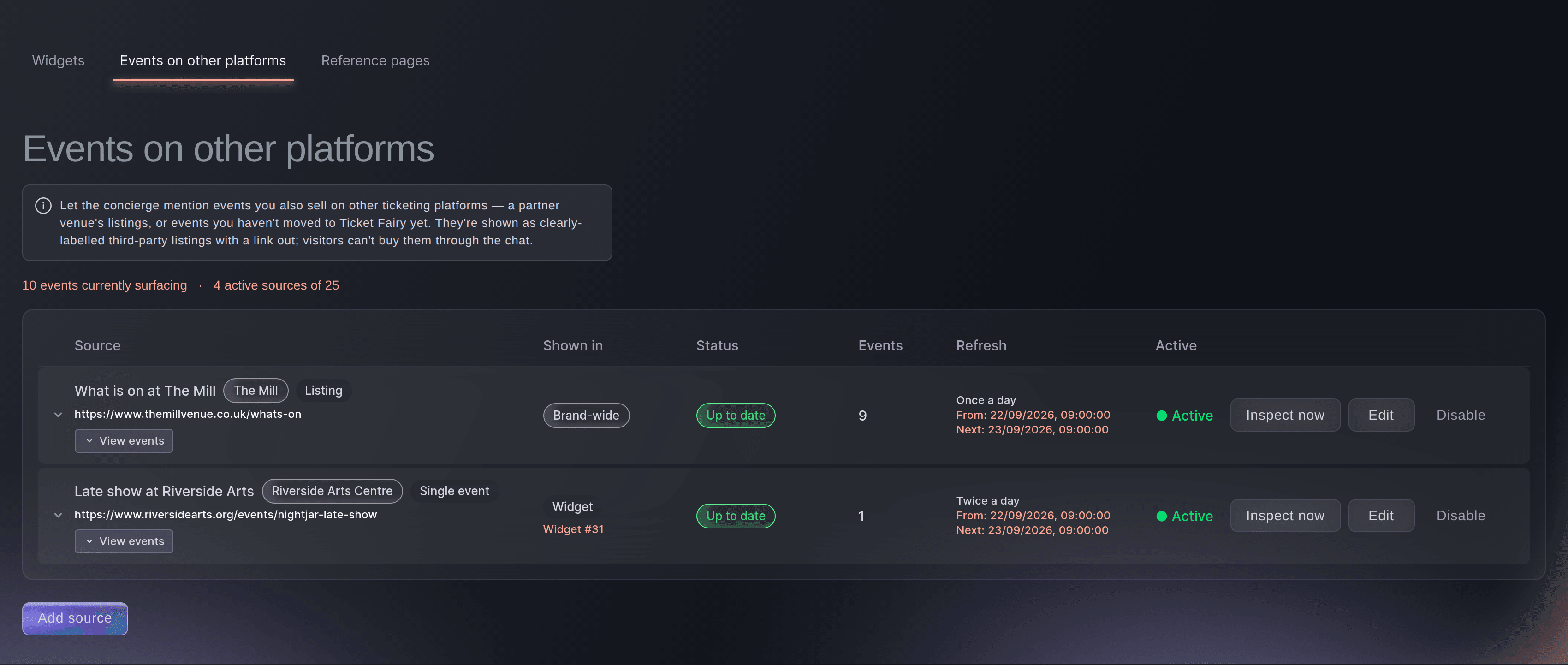
Concierge, Events on other platforms tab. -
Select Add source
Select Add source under the list.
-
Enter the page to watch
Enter the listings page or event page in Page to watch.
-
Choose what kind of page it is
Choose an answer in What kind of page is it?.
-
Enter the name buyers see
Optional: Enter a Platform name (optional), such as the venue's name.
Note: Buyers see this name when the concierge mentions one of the events.
-
Choose which widgets mention the events
Choose them in Which widgets should mention these events?.
-
Save the source
Select Add source at the bottom of the dialog.
Note: Buyers see these as another site's listings with a link out, and can't buy them in the chat.
Fai can open the concierge's events on other platforms for you. Adding a page to watch is done in the dashboard.
In your dashboard, with Fai
Open the concierge external event sources for <BRAND NAME>
Questions you might have
- How many reference pages can I add?
- Your plan sets how many sources can be active at once, counting reference pages, whole websites and events on other platforms together. The line above the list shows how many you use. At the limit, select Disable on a page you no longer need, or add the new one paused.
- Can the concierge read a Google Sheet or a Slides deck?
- No, only Google Docs. In Google, choose File, Share, then Publish to the web, and add the published link as a reference page instead.
- How soon does the concierge pick up a change to my page?
- At the next check on the schedule you chose. To pick it up now, select Inspect now on the page's row.
- Does the concierge send buyers to my reference pages?
- No. It answers in its own words and never gives a buyer the page's address. Anything on the page can still reach a buyer in an answer.
- What does Needs attention mean on a page?
- The last check failed, and holding the pointer over the status says why. If a page is gone or a Google Doc isn't shared, the concierge stops answering from it after three failed checks in a row, until we can read it again.
- How do I stop the concierge using a page?
- Select Disable on its row. The page stays in the list as paused with its summary, and you can turn it back on from Edit.
Still have a question?
Book a demo and we will answer it on a call, on your kind of event. Or create your account and see it for yourself.
No setup fees. No required monthly ticketing fee. No credit card required.
Related guides
Do this on your own event
Create your account, build your event and follow the steps in your own dashboard. You do not need to book a sales call.