
Email, SMS and marketing
Translate your event website
Festivals that draw an international crowd and venues in tourist cities sell more tickets when visitors read the event website in their own language. Fai does the translating, and your team checks each text before ticket buyers see it.
Fai translates your event website into the languages your ticket buyers read, you check her texts, and you put each language live when it is ready, with a language menu for visitors.
- For
- Offering your website in more languages
- Takes
- 8 minutes
Before you start
- You are an owner or an admin of the brand, and you have a website in the dashboard, as in the guide to building a website for your events.
- Translating with Fai is part of some plans. Without it, Add languages is unavailable and Languages says your plan does not include it yet; contact us to add it.
-
Open Languages
Open the website in the editor, then select Languages. Each language you added shows how many texts wait for review and whether it is Live.
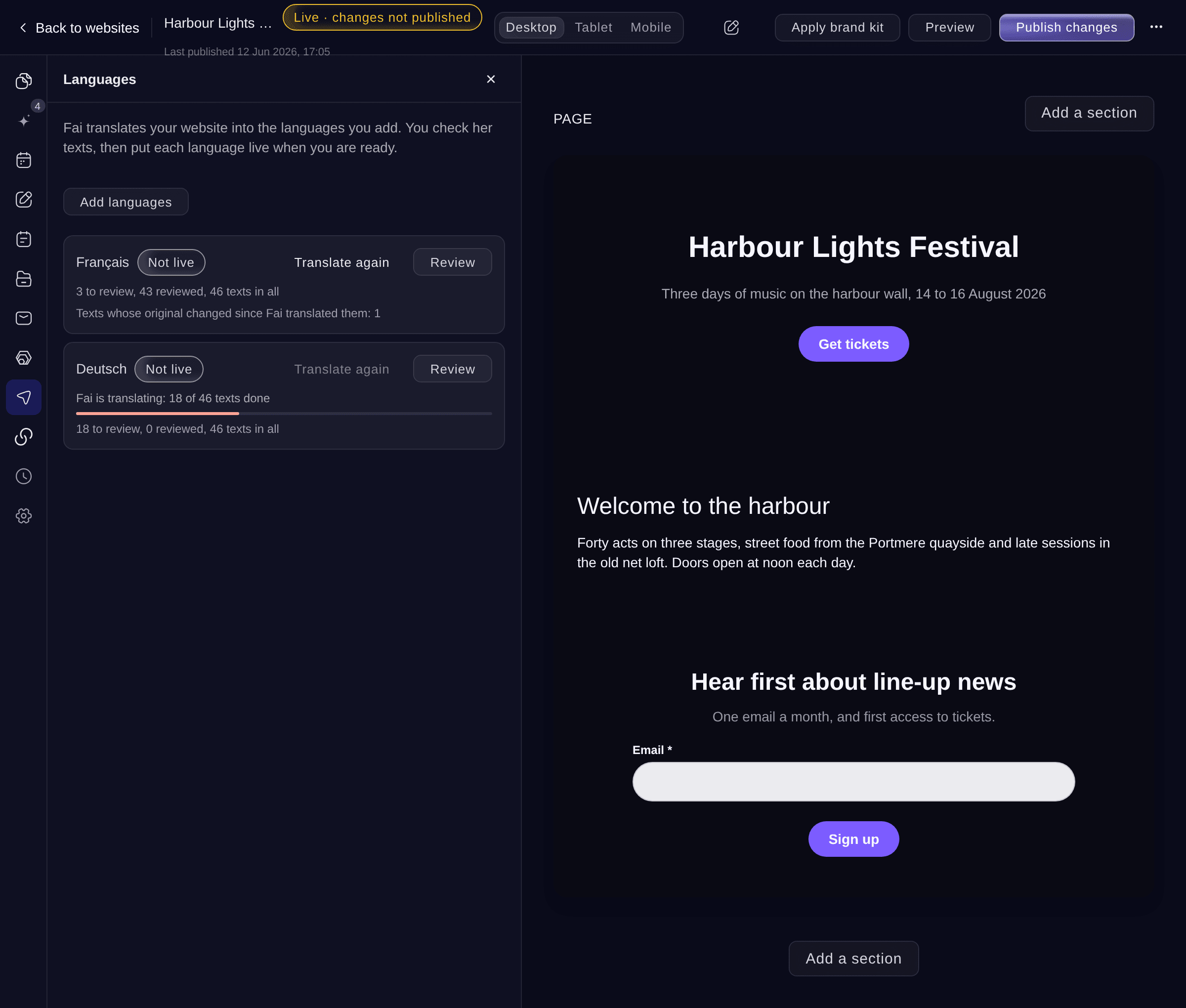
Languages. -
Add the languages
Select Add languages, tick each language under Choose the languages to add, then select Translate.
Note: Fai can translate into Spanish, French, German, Indonesian, Russian, Danish, Norwegian, Swedish and Finnish, and English when your website is in another language.
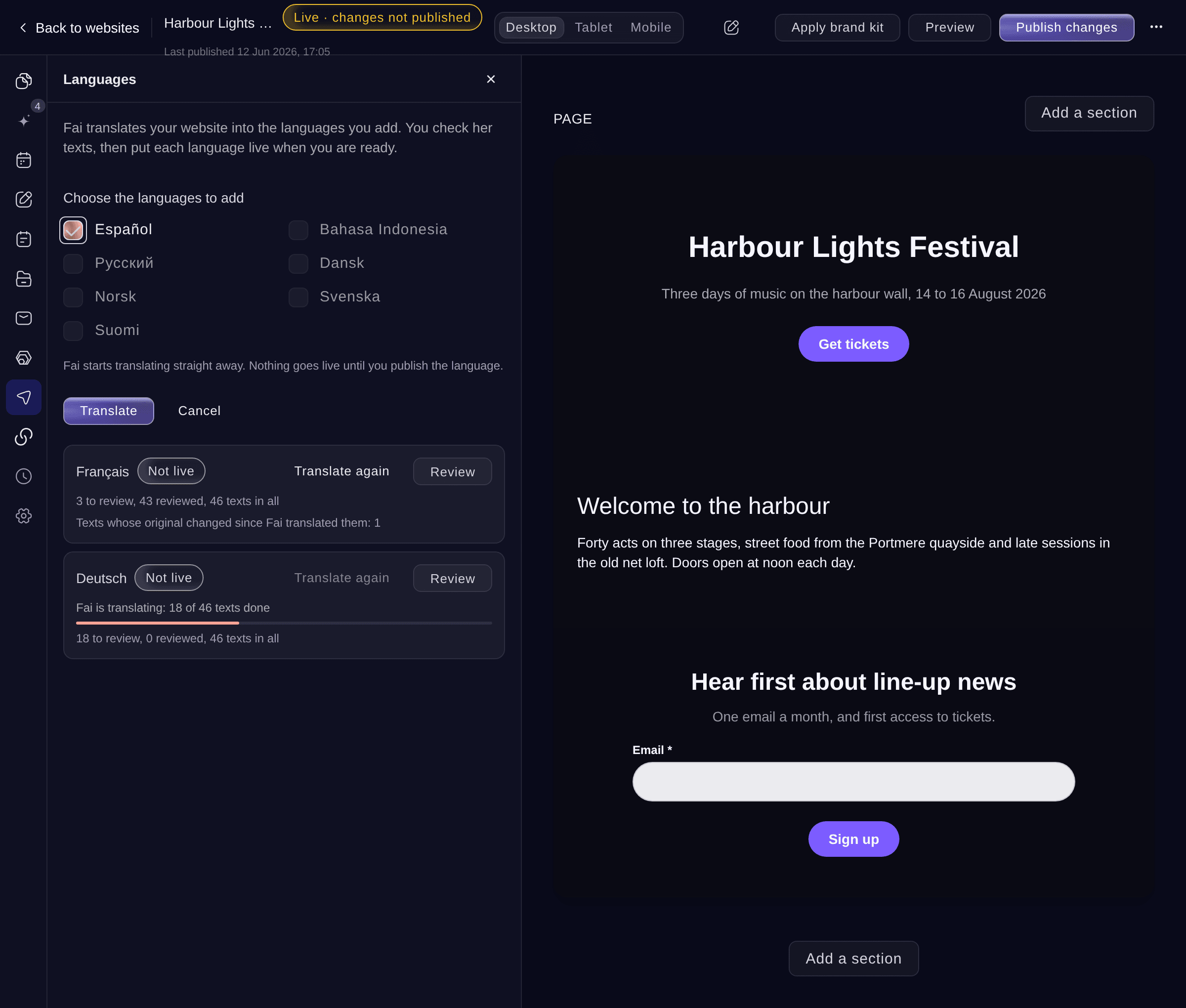
Add languages. -
Wait for Fai to translate
Fai translates your pages, sections and lists in the background and shows how many texts she has done. You can keep editing, or leave the editor, while she works.
-
Review Fai’s texts
Select Review on the language. Each text shows where it is on your website, the Original and Fai's Translation.
Tip: Accept all accepts every text waiting for review at once.
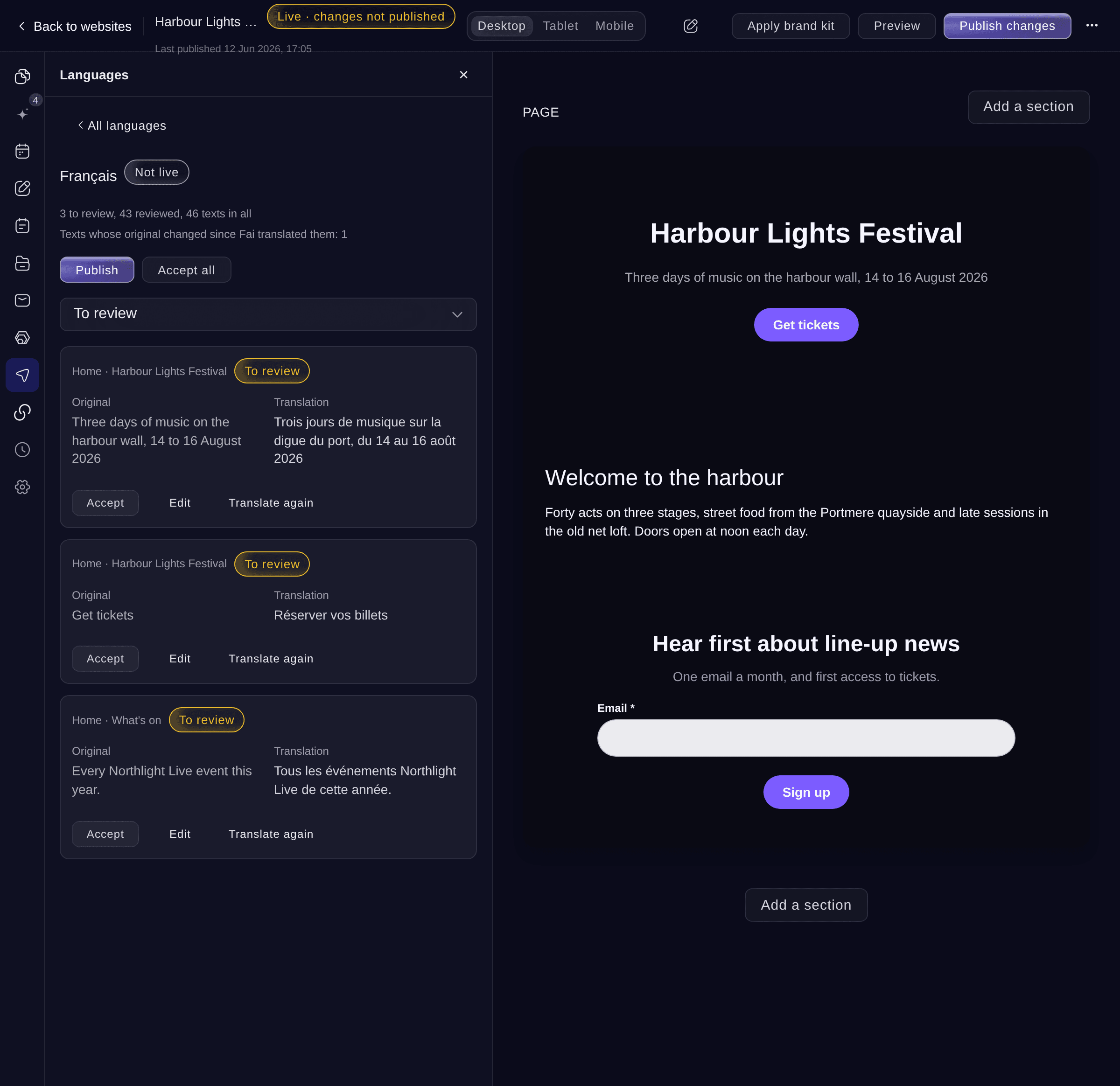
Review a language. -
Put the language live
Select Publish, read the confirmation, then select Publish again.
Note: The confirmation says how many of Fai's texts nobody has reviewed yet; they go live too. A text Fai has not translated yet shows in your website's own language.
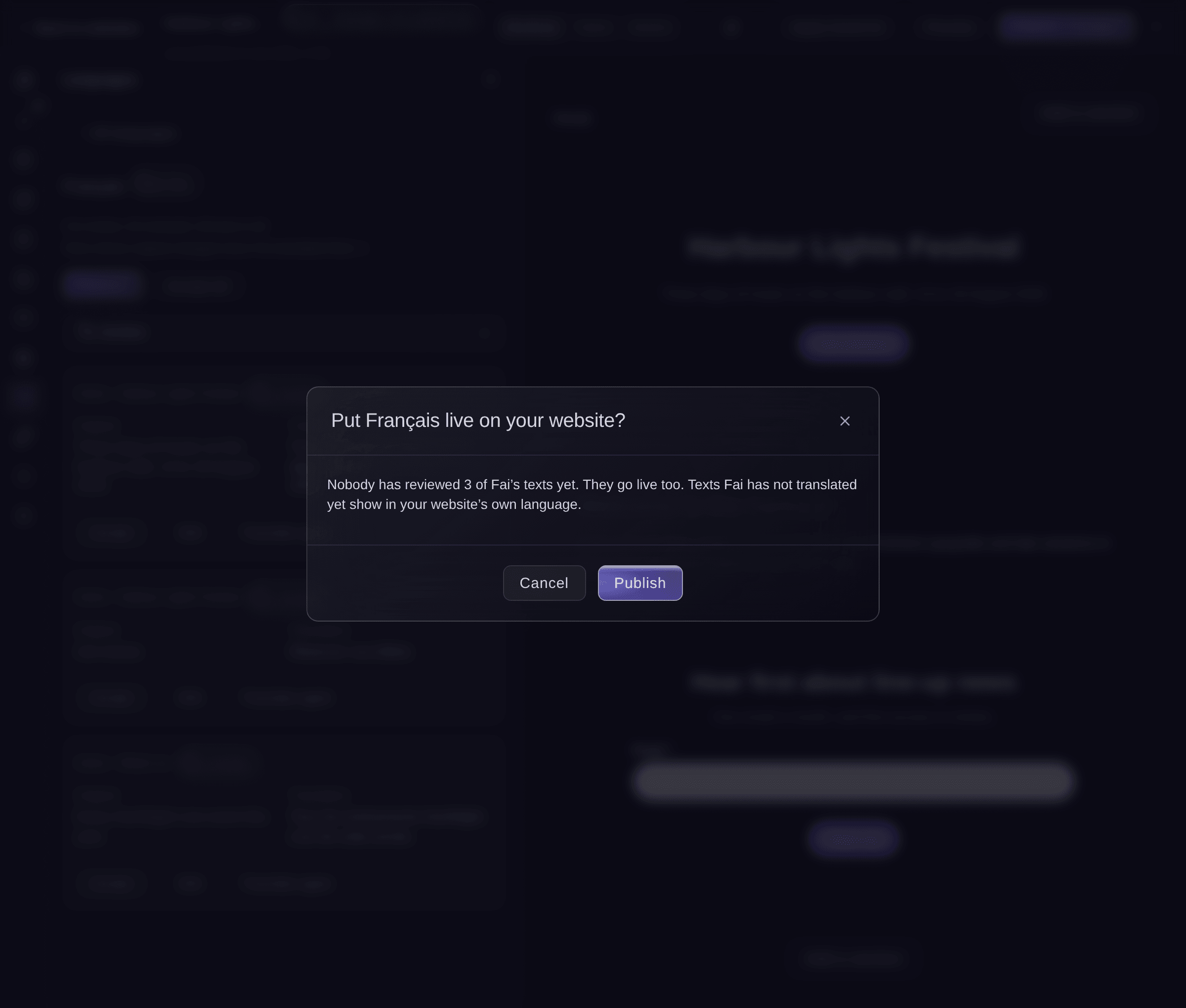
Put a language live. -
Check the language on your website
Open your live website and choose the language in the language menu at the top. Each page, menu and footer shows in that language.


Try these steps on your own event
Create a free account, build your event and follow the steps above in your own dashboard. It takes a few minutes and you do not need to book a sales call.
No setup fees. No required monthly ticketing fee. No credit card required.
Or have it done for you
Fai can translate your website into the languages you name, show how far she has got, accept, edit or translate a text again, and publish or take off a language. She asks before each change.
In your dashboard, with Fai
Translate my <WEBSITE NAME> website into French and German and tell me when the texts are ready to check
Let Fai do it for you
Fai works inside your Ticket Fairy dashboard. Create your account, open Fai and paste the prompt above.
No setup fees. No required monthly ticketing fee. No credit card required.
Take a language off your website
-
Take it off
In the language's review, select Take off the website, then confirm.
Note: Visitors no longer see the language. Your translations are kept, so you can publish it again at any time.
Fai takes a language off your website after you confirm.
In your dashboard, with Fai
Take German off my <WEBSITE NAME> website
Questions you might have
- What happens when I change a text after Fai translated it?
- The translated text is marked The original changed, and visitors see your new text in your website's own language until the translation is updated. Choose Original changed under Show texts to find them, then select Translate again or edit them.
- Why does a language say Fai couldn't finish?
- Fai stopped before translating every text. Select Translate again on the language, and she carries on with the texts that are left.
- Do I need to publish my website again after a language goes live?
- No. Publishing the language puts it live on its own.
- What if a teammate edits the same translation?
- The dashboard shows their text and asks whether to Use their text or Save mine instead, so neither of you loses work.
Still have a question?
Book a demo and we will answer it on a call, on your kind of event. Or create your account and see it for yourself.
No setup fees. No required monthly ticketing fee. No credit card required.
Related guides
Do this on your own event
Create your account, build your event and follow the steps in your own dashboard. You do not need to book a sales call.