
Styr produksjonen
Balance your event team's workload
Event producers and operations leads hand out hundreds of tasks in the weeks before an event, and the same two people end up with most of them. The workload view adds up each person's tasks and shifts day by day, so you can spread the work before anyone burns out.
See how many hours each person on your event team has day by day, from their tasks and their rota shifts, spot anyone over the limit before the week of the event, and move a task to the teammate with the most room in one step when Fai suggests it.
- For
- Spreading the work across your event team
- Tar
- 6 minutter
Før du starter
- You are an owner, admin or producer on the event. The event's Operations page opens for those roles only.
- Your tasks have someone assigned and a due date, and your crew and volunteers are on the rota if you want their shifts counted.
-
Open the workload
Open the event, select Operations, then select Tasks. Workload is on the Tasks section.
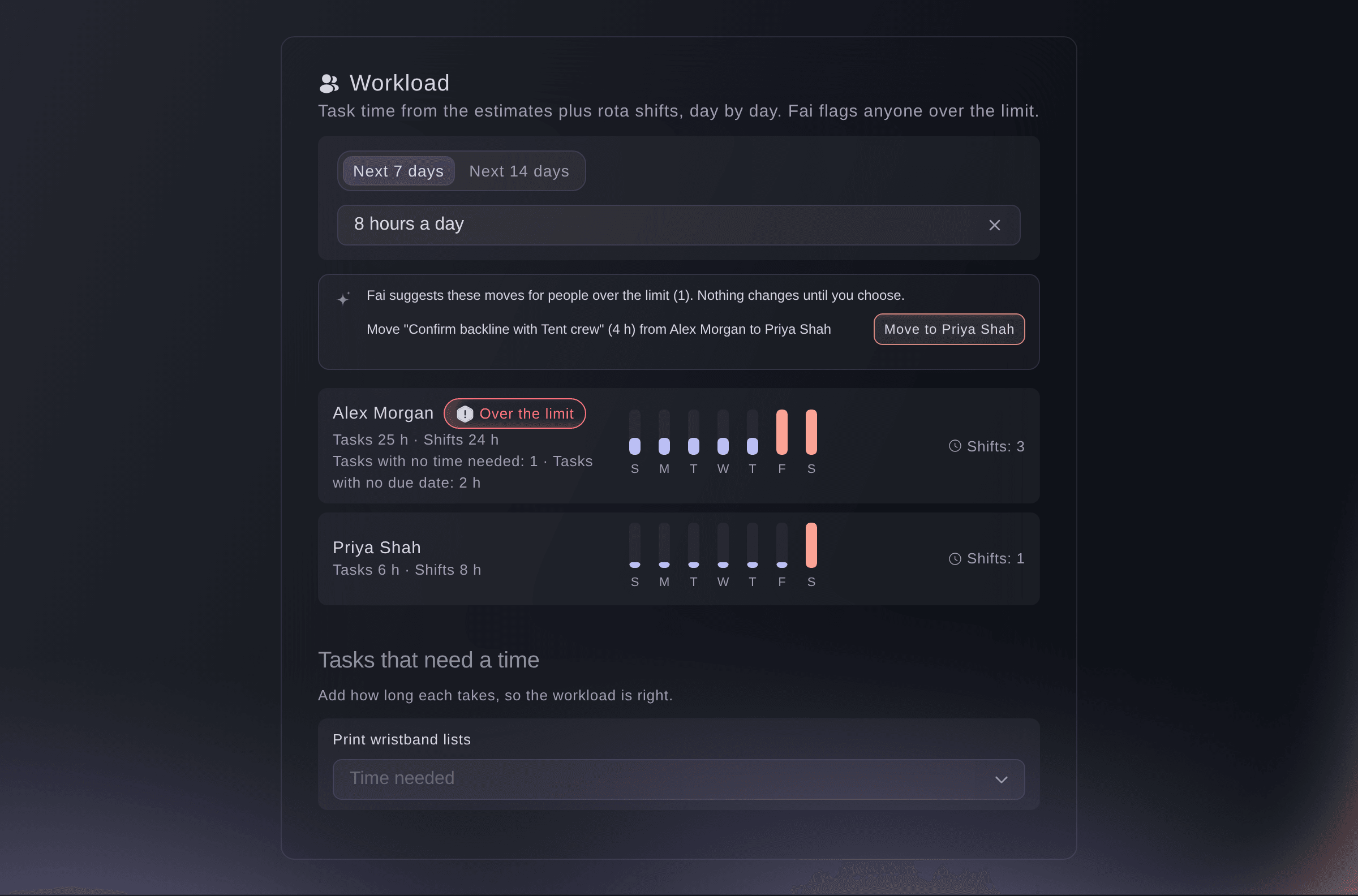
Workload for the next 7 days. -
Choose the days and the limit
Choose how far ahead to look, the next 7 or 14 days, then choose the hours a person can work in a day.
Merk: Task time is spread over the days from a task's start to its due date and shared between the people assigned to it. Rota shifts are added for anyone whose email matches.
-
Add the time each task needs
Under Tasks that need a time, choose the Time needed for each task.
Merk: You can also set Time needed when you open a task. A task with no time needed or no due date is listed separately, so the totals stay right.
-
Move work from someone over the limit
Find the person marked Over the limit, select the move button on Fai's suggestion, then confirm.
Merk: Fai suggests the teammate with the least work on those days. The new person is added to the task first, then the first person is taken off it.

Prøv disse trinnene på ditt eget arrangement
Opprett en gratis konto, bygg arrangementet ditt og følg trinnene over i ditt eget dashbord. Det tar noen minutter, og du trenger ikke å booke en salgssamtale.
Ingen oppstartsgebyr. Ingen obligatorisk månedsavgift. Ingen kredittkort nødvendig.
Eller få det gjort for deg
Fai reads each person's task time and rota hours for the next 7 or 14 days, says who is over the daily limit and suggests which tasks to move. Move the task in the dashboard when you agree with her.
I dashbordet ditt, med Fai
Who on the <EVENT NAME> team is over 8 hours a day in the next two weeks, and which tasks should move?
La Fai gjøre det for deg
Fai jobber inne i Ticket Fairy-dashbordet ditt. Opprett kontoen din, åpne Fai og lim inn instruksjonen over.
Ingen oppstartsgebyr. Ingen obligatorisk månedsavgift. Ingen kredittkort nødvendig.
Spørsmål du kanskje har
- Why are someone's rota shifts not counted?
- Shifts are matched to a team member by email address. Check that their crew or volunteer record has the same email as their Ticket Fairy login.
- Is this the same as the hours limit in Rota rules?
- No. Workload adds up your event team's tasks and shifts for the days you choose. Most hours in 7 days in Rota rules limits shifts across all your brand's events, and Fai leaves out anyone it would take over the limit when offering a shift.
- Does Fai move tasks by herself?
- No. Fai only suggests moves. A task moves when you confirm it.
Har du fortsatt et spørsmål?
Book en demo, så svarer vi på det i en samtale, tilpasset din type arrangement. Eller opprett kontoen din og se selv.
Ingen oppstartsgebyr. Ingen obligatorisk månedsavgift. Ingen kredittkort nødvendig.
Relaterte guider
Gjør dette på ditt eget arrangement
Opprett kontoen din, bygg arrangementet og følg trinnene i ditt eget dashbord. Du trenger ikke bestille en salgssamtale.