
Styr produksjonen
Find any performer, stage or day on your event
Production managers and promoters get asked the same questions all day: when is this act on, what is still missing for them, what is happening on that stage on Saturday? Find anything and the performer, stage and day pages answer each one in a click, without working through every section of the event.
Search your whole event from any part of its Management page, and open one page for a performer, a stage or a show day with their set times, advance, travel, hotel, crew and tasks together.
- For
- Finding everything about one act, one stage or one show day
- Tar
- 6 minutter
Før du starter
- You are an owner, admin or producer on the event. The event's Operations page opens for those roles only.
-
Open Find anything
On any part of the event's Management page, select Find anything at the top, or press Ctrl K (⌘K on a Mac).
Merk: The shortcut does nothing while you are typing in a field, so it never takes over a form you are filling in.
-
Enter a name
Enter at least two letters of a performer, a stage, a person, a task, a file or a section, then use the arrow keys and Enter, or select a result.
Merk: Results are grouped under Performers, Stages, People, Tasks, Files and the event's own Sections, and everyday words work too, such as "hotels" for Accommodation or "shifts" for the Rota. A task opens in its own panel over the page.
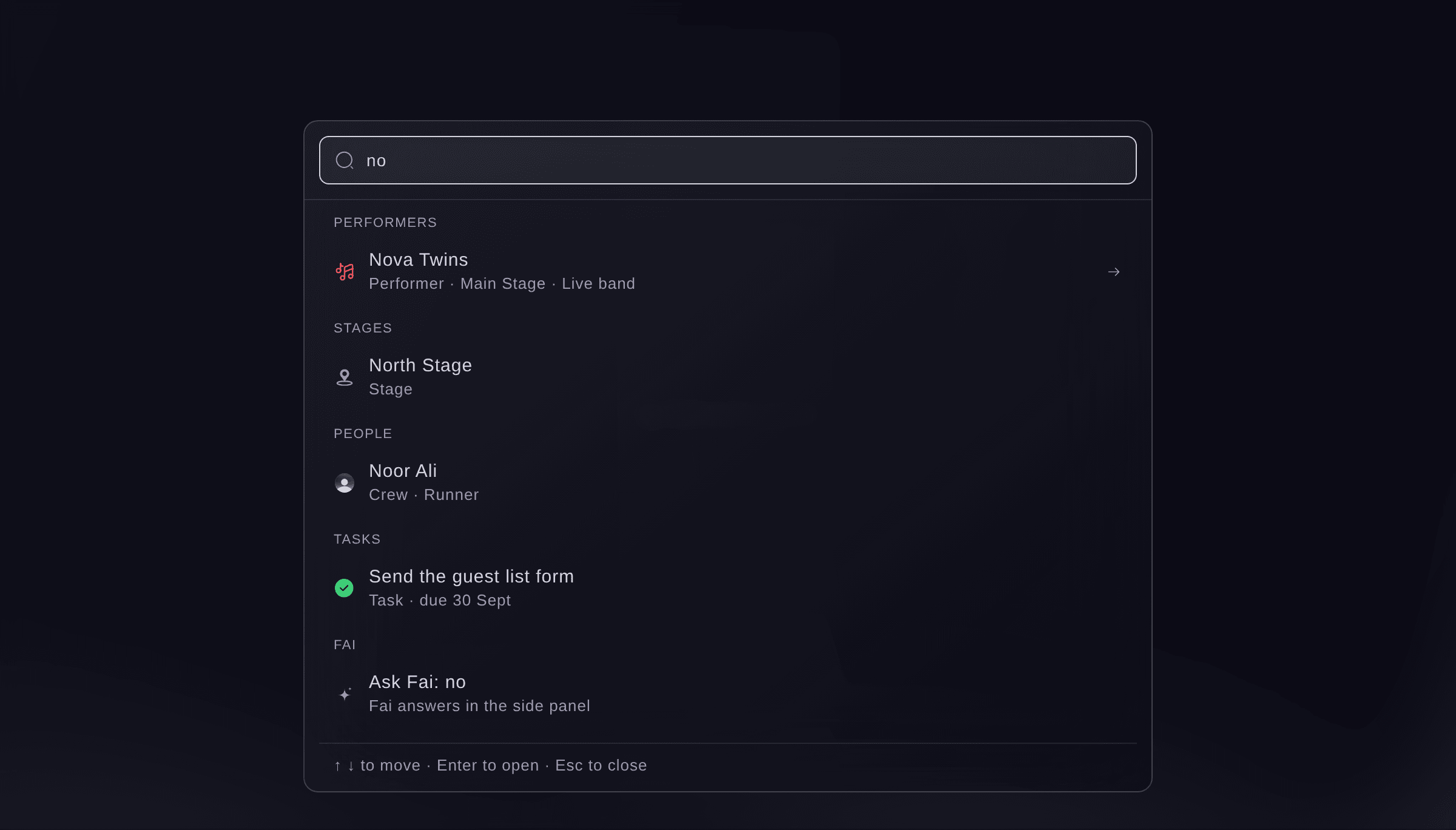
Find anything, with a search entered. -
Ask Fai when nothing fits
Optional: select the last result, which starts "Ask Fai:", to send what you entered to Fai as a question.
Merk: Fai answers in the side panel beside the page. The choice appears only when Fai is switched on for you.
-
Open a performer's page
Select a performer's name in Find anything, or wherever it is underlined, such as in Advancing, the schedule, the run of show or Now and next.
Merk: The top of their page shows when and where they play, how much of their advance is confirmed, their flights, pickups and hotel, their contacts and open tasks, and what is still missing. Deal and payments and All-in cost show to owners, admins and producers only.
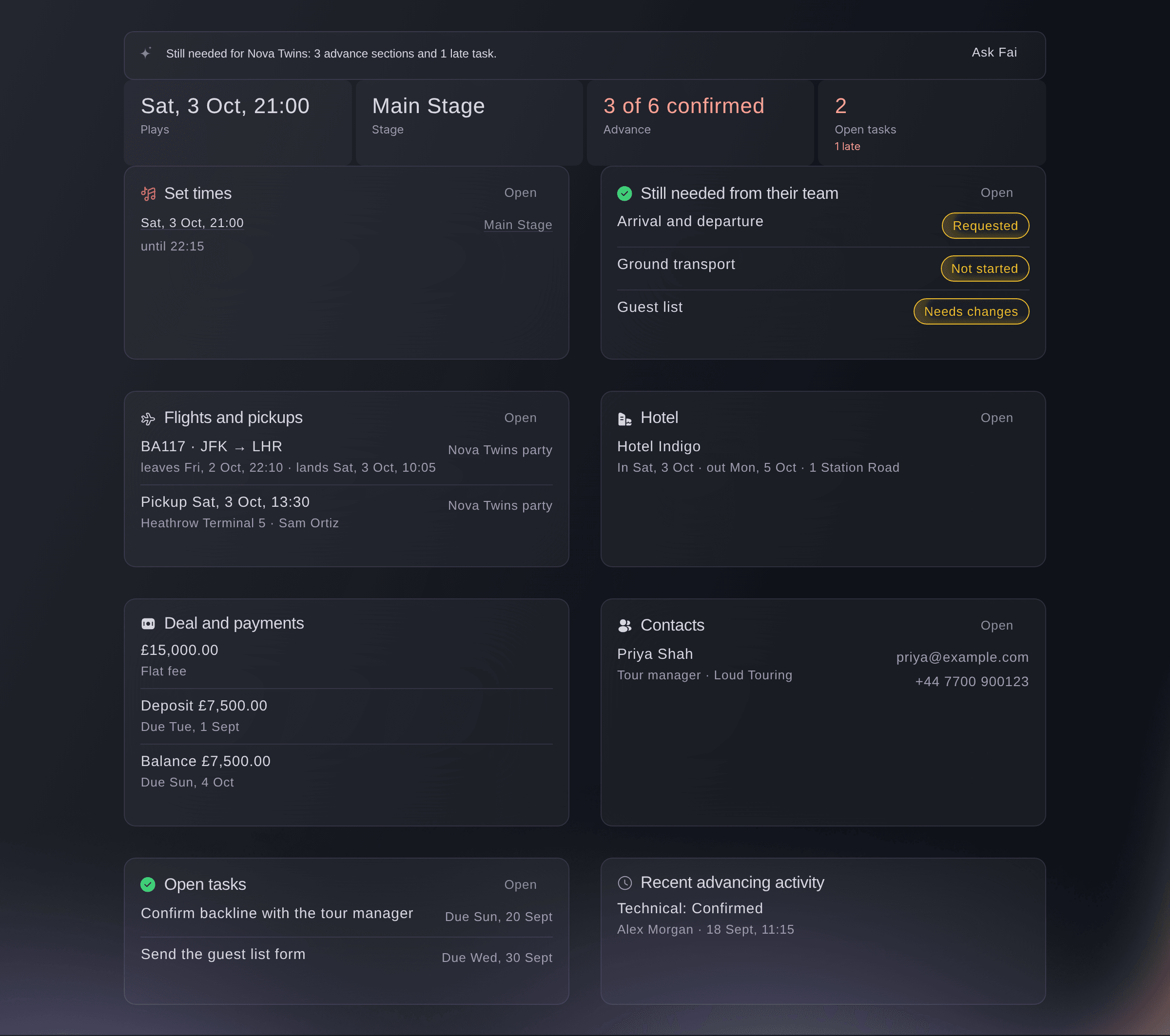
Everything about one performer. -
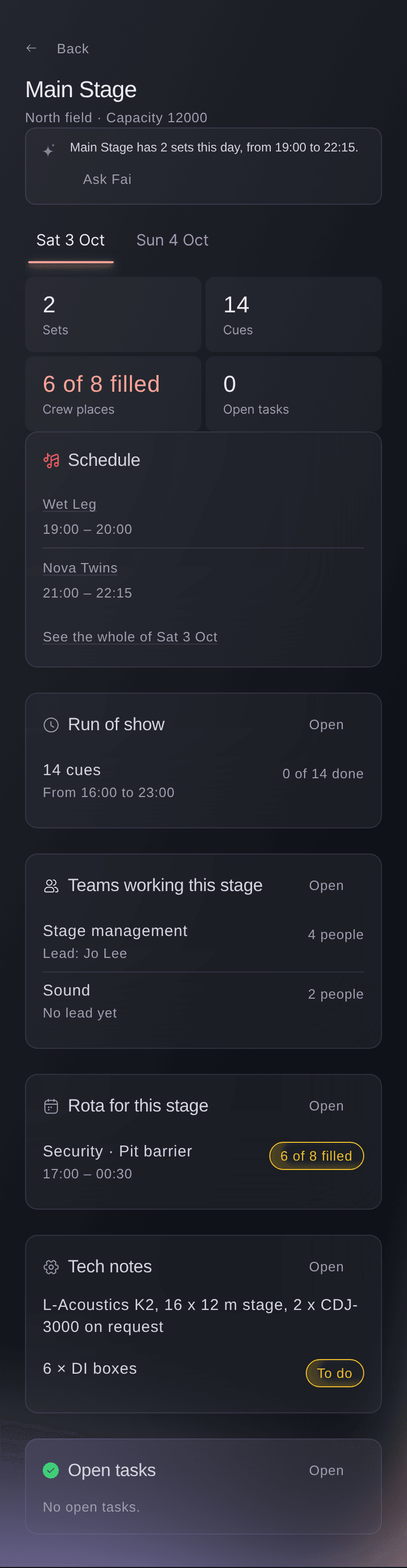
Open a stage's page
Select a stage's name in Find anything, the run of show, the schedule or Now and next, then select the day you want at the top of its page.
Merk: The page lists that stage's sets, run of show, the teams working it, its rota and its tech notes for the day. Select Open on a card to go to the full section.
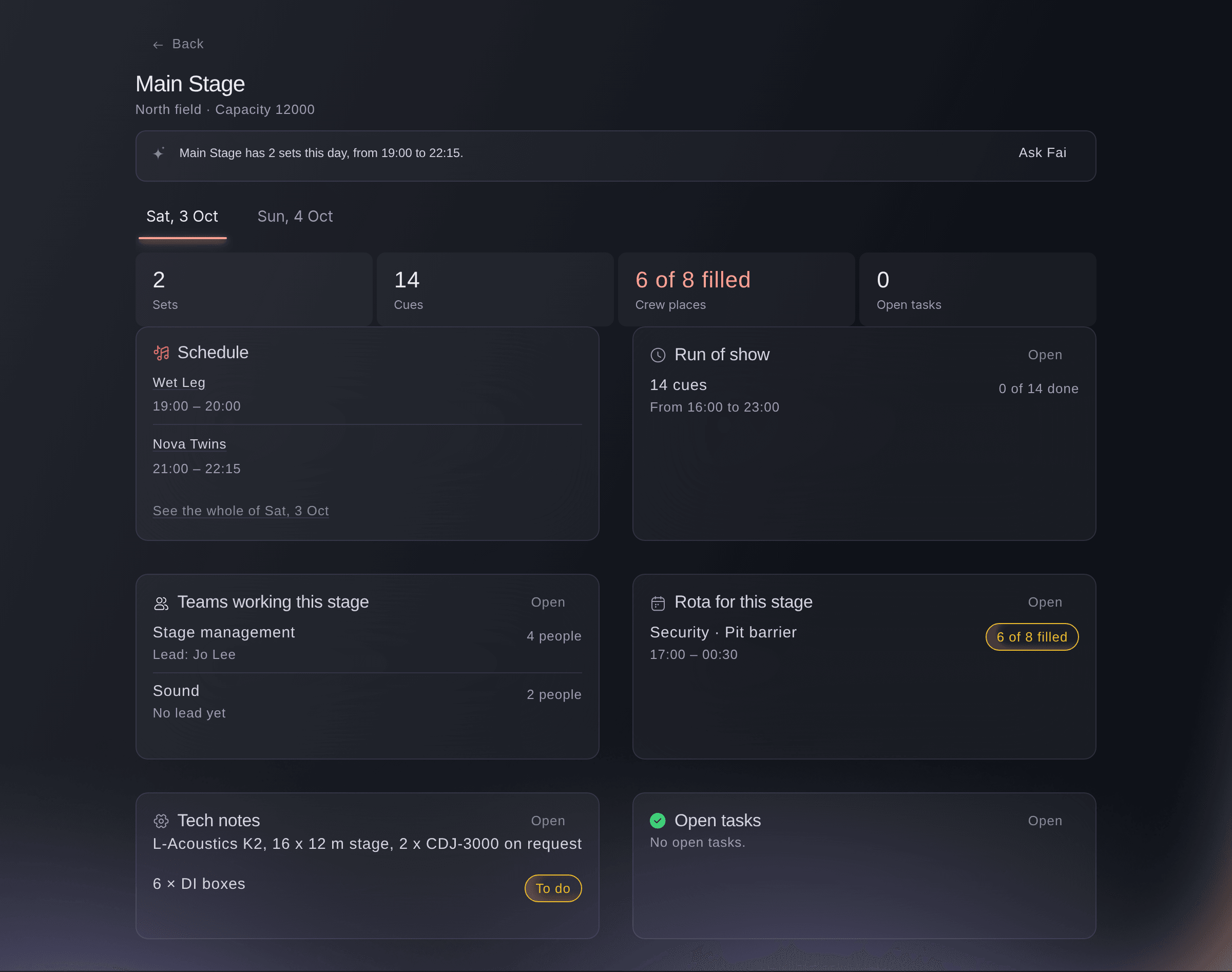
Everything about one stage on one day. -
Open a day at a glance
On a stage's page, select See the whole of the day, or select Day at a glance beside the day on the run of show.
Merk: The page lists every set by stage, the run of show, arrivals, pickups and departures, hotel check-ins and check-outs, shifts by team, tasks due and incidents for that day. Use Day before and Day after to move between days, and Print for a paper copy.
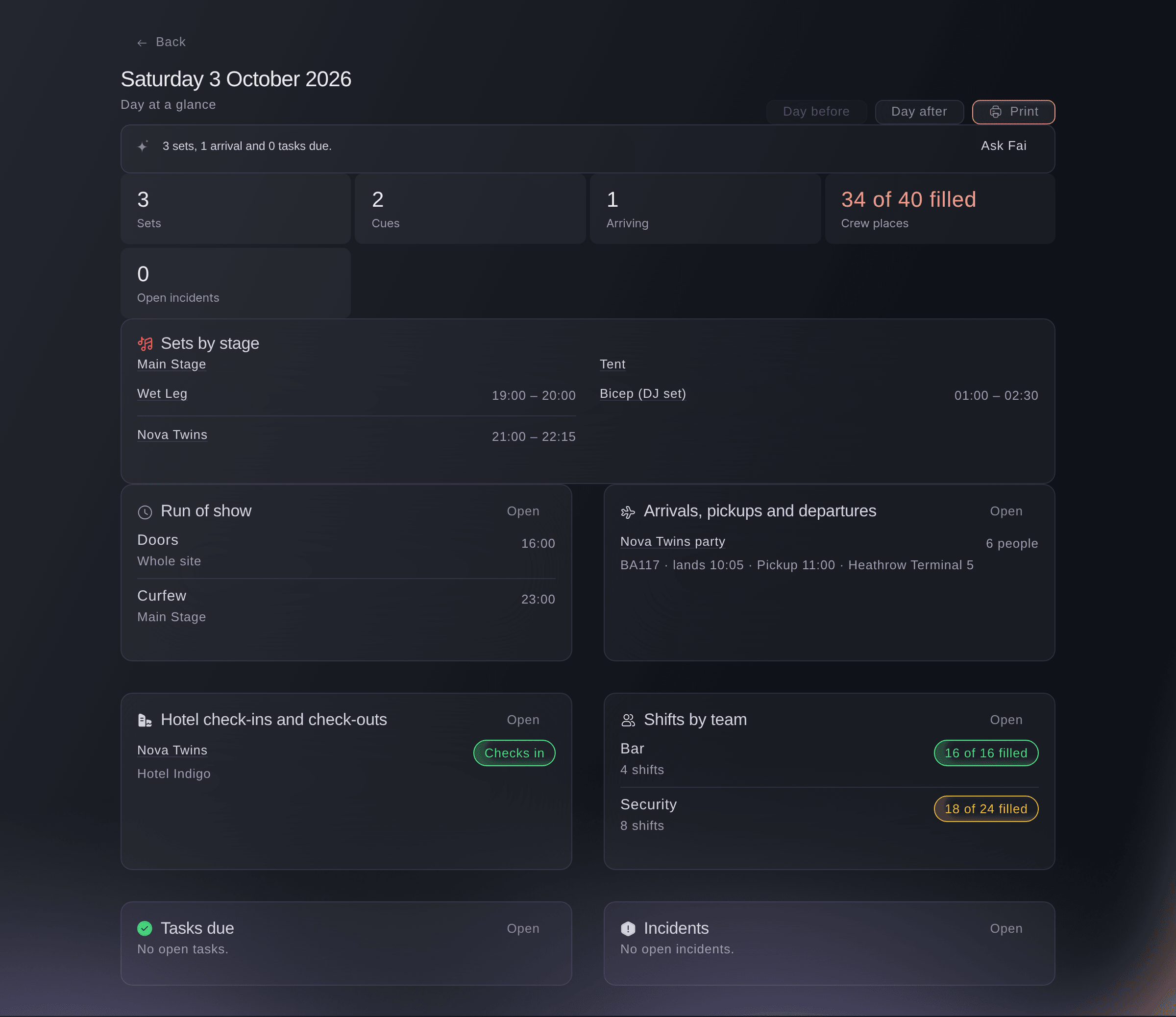
One show day at a glance.



Prøv disse trinnene på ditt eget arrangement
Opprett en gratis konto, bygg arrangementet ditt og følg trinnene over i ditt eget dashbord. Det tar noen minutter, og du trenger ikke å booke en salgssamtale.
Ingen oppstartsgebyr. Ingen obligatorisk månedsavgift. Ingen kredittkort nødvendig.
Eller få det gjort for deg
Fai finds anything on the event by name and reads you the same performer, stage and day pages, so you can ask about an act, a stage or a show day without opening them. She only reads here and changes nothing.
I dashbordet ditt, med Fai
What is happening on the Main Stage at <EVENT NAME> on Saturday, and what is still missing?
La Fai gjøre det for deg
Fai jobber inne i Ticket Fairy-dashbordet ditt. Opprett kontoen din, åpne Fai og lim inn instruksjonen over.
Ingen oppstartsgebyr. Ingen obligatorisk månedsavgift. Ingen kredittkort nødvendig.
Spørsmål du kanskje har
- Why does Find anything show no people for my teammate?
- People, sponsors and files from the finance side of the event show only to team roles that can see them. Owners, admins and producers see every result.
- Why is a shift missing from a stage's page?
- The stage's rota lists shifts set to that stage, and shifts whose place on site is the stage's name. Edit the shift in Shifts and choose the stage under More details.
- Can I send someone a link to a stage or a day?
- Yes, for teammates who can open the event's Management page: each page has its own address. For crew without a login, share a day sheet instead.
Har du fortsatt et spørsmål?
Book en demo, så svarer vi på det i en samtale, tilpasset din type arrangement. Eller opprett kontoen din og se selv.
Ingen oppstartsgebyr. Ingen obligatorisk månedsavgift. Ingen kredittkort nødvendig.
Relaterte guider
Gjør dette på ditt eget arrangement
Opprett kontoen din, bygg arrangementet og følg trinnene i ditt eget dashbord. Du trenger ikke bestille en salgssamtale.