
Styr produksjonen
Give exhibitors a lead scanner for their booth at your event
Expos, trade shows and conferences sell booths on the promise of leads, and exhibitors judge the event by how many useful conversations they take home. A lead scanner link on each booth phone or tablet turns every badge scan into a named lead with a rating and notes, and shows you and the exhibitor how the booth did.
Give each exhibitor's booth staff a lead scanner link that works on their own phone or tablet with no sign-in. Staff scan a visitor's ticket or badge with a USB or Bluetooth scanner, or enter its code, rate the visitor and add notes, and the exhibitor gets the visitor's name, email address and phone number under your event's terms. You see every exhibitor's leads and results, record when a visitor no longer wants contact, and download the leads.
- For
- Capturing leads at the exhibitor booths at your conference or expo
- Tar
- 9 minutter
Før du starter
- You need an owner, admin or producer role on the event.
- Your event has the Exhibitors section, as a conference, convention or expo does, and the exhibitors are added there.
- Visitors have a ticket or badge with its code, from this event.
- Each booth has a USB or Bluetooth barcode scanner connected to the phone or tablet, or staff enter the code printed on the ticket or badge.
-
Open the leads
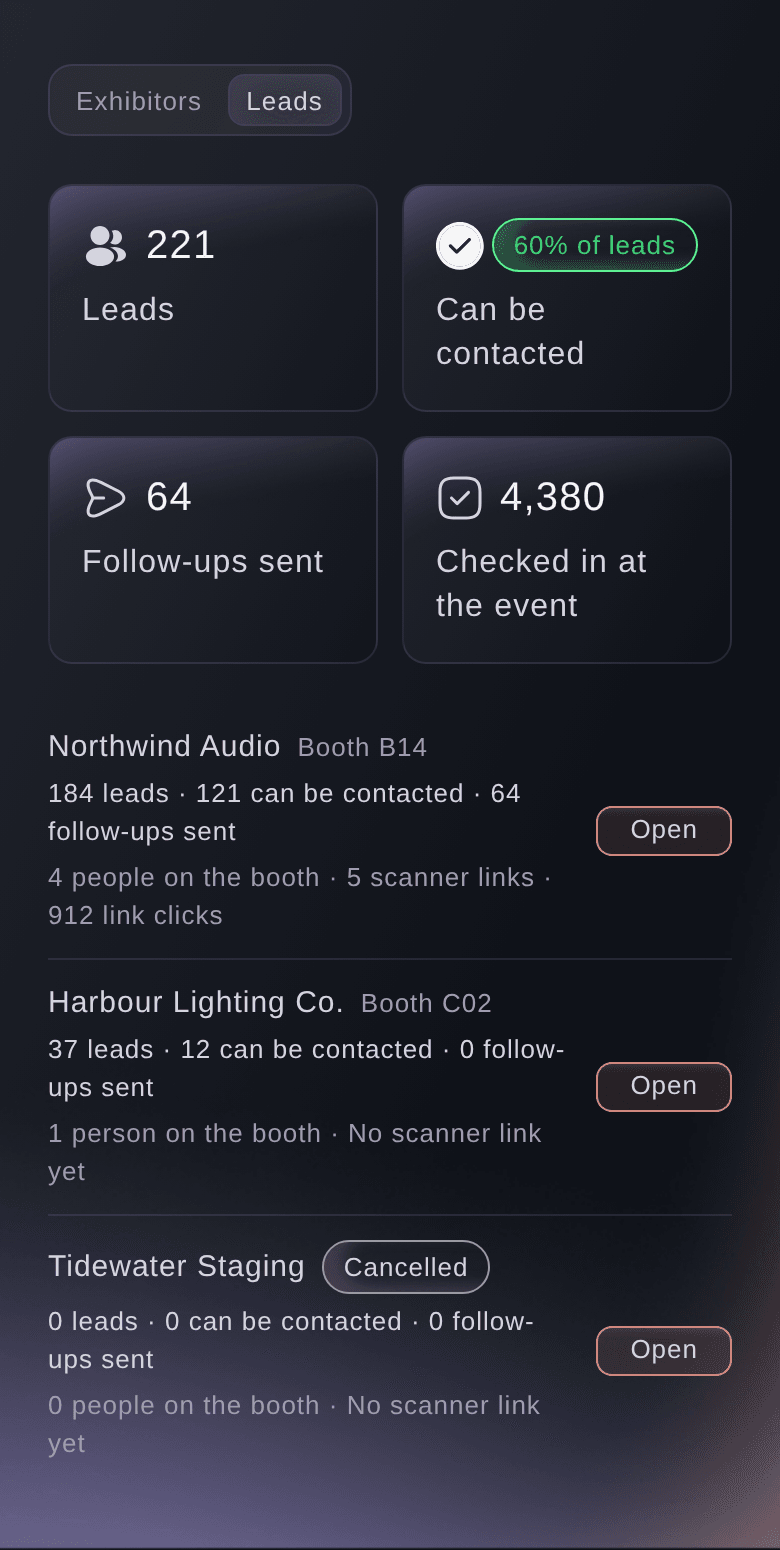
Open the event, select Operations, select Exhibitors in the list of sections, then select Leads.
Merk: Each exhibitor shows its leads, how many can be contacted, the follow-ups sent and its scanner links, with the event's totals at the top. If Exhibitors is not in the list, select More sections and open it there.

Exhibitors, Leads. -
Open an exhibitor
Select Open beside the exhibitor, then select Booth staff.

An exhibitor's booth staff. -
Add the booth staff
Select Add staff, enter the Name and Email, then select Add staff.
Merk: Nothing is sent to the email address. A booth can have up to 100 staff.
-
Give each person a scanner link
Select Give a scanner link beside the person, then select Copy link and send it to them, or let their phone scan the QR code.
Merk: Each lead then shows who met the visitor. For a tablet on the stand, select Make a shared booth link instead.
Advarsel: The link shows only once. If it gets lost, get a new link: the old one stops working.

A new scanner link, shown once.


Scanning at the booth
Booth staff open the link on their phone or tablet and scan a visitor's ticket or badge with a USB or Bluetooth scanner, or enter its code in Scan a ticket or badge. The visitor is added to the exhibitor's leads, and staff tap a Rating, add Notes, then select Save.
Merk: Staff see names, ratings and notes only, never an email address or phone number. With no connection, the phone keeps each scan and sends it when the connection is back.

Visitor contact details
A scan gives the exhibitor the visitor's name, email address and phone number under your event's terms. If a visitor says they do not want that, staff turn on Doesn't want to be contacted before they save, and the exhibitor no longer sees the email address or phone number.
Merk: Buyers who order while the event has a working scanner link read this in their order confirmation. Every follow-up email an exhibitor sends through the event has a link the visitor can use to stop their emails.
-
Choose the rating words and tracking link
Optional: select Lead setup, change the rating words, choose the exhibitor's Tracking link, then select Save.
Merk: Staff tap one to five rating words, best first, such as Ready to buy and Follow up. Clicks and sales through the tracking link count as this exhibitor's results.

Lead setup for one exhibitor. -
Check the exhibitor's leads
Select Leads in the exhibitor's panel. Each lead shows the visitor, the rating, the notes, who met them and whether they Can be contacted.
Merk: Email and phone show only for visitors who can be contacted. Filter by Rating or Contact, or search names and notes.

One exhibitor's leads. -
Check the exhibitor's results
Select Results. You see the leads by rating, how many can be contacted, who met the most visitors, the follow-ups sent and the clicks and sales through the tracking link.
Merk: Sales through the tracking link are shown in each currency on its own. People at the event met is the share of checked-in people the booth scanned.

One exhibitor's results.


Prøv disse trinnene på ditt eget arrangement
Opprett en gratis konto, bygg arrangementet ditt og følg trinnene over i ditt eget dashbord. Det tar noen minutter, og du trenger ikke å booke en salgssamtale.
Ingen oppstartsgebyr. Ingen obligatorisk månedsavgift. Ingen kredittkort nødvendig.
Eller få det gjort for deg
Fai reads every exhibitor's leads and results, adds or removes booth staff, sets an exhibitor's rating words and tracking link, records that a visitor no longer wants contact and removes a lead. She makes a scanner link for you, and its address shows in the dashboard. She waits for your yes before every change.
I dashbordet ditt, med Fai
How many leads has each exhibitor at <EVENT NAME> captured so far, and which booths have no scanner link yet
La Fai gjøre det for deg
Fai jobber inne i Ticket Fairy-dashbordet ditt. Opprett kontoen din, åpne Fai og lim inn instruksjonen over.
Ingen oppstartsgebyr. Ingen obligatorisk månedsavgift. Ingen kredittkort nødvendig.
Record that a visitor no longer wants contact
-
Hide their contact details
In the exhibitor's leads, select No longer wants contact beside the visitor, then select Hide contact details.
Merk: The exhibitor no longer sees their email address or phone number, and any follow-up not yet sent is stopped. Booth staff cannot turn this back.
Fai records that a visitor no longer wants contact after you confirm.
I dashbordet ditt, med Fai
<VISITOR NAME> asked Northwind Audio at <EVENT NAME> not to contact them, record it
Download an exhibitor's leads
-
Download the leads
In the exhibitor's leads, turn on Include email and phone if you need them, then select Download leads.
Merk: Email and phone are in the file only for visitors who can be contacted. Every download is recorded with who made it.
Download the leads from the exhibitor's panel in the dashboard, where the download is recorded with your name.
Stop a scanner link
-
Stop the link
In Booth staff, select Stop link beside the link, then confirm.
Merk: The link stops working at once, and the leads it captured stay. Removing a person from the booth also stops their links.
Fai stops a scanner link after you confirm.
I dashbordet ditt, med Fai
Stop Lena Brandt's lead scanner link for Northwind Audio at <EVENT NAME>
Spørsmål du kanskje har
- Which tickets can booth staff scan?
- A ticket or badge for this event that lets its holder in, including one already checked in. A refunded or cancelled ticket, or a code from another event, is not added.
- What if a visitor is scanned twice?
- They stay one lead. The scanner says staff met the visitor before, and the lead counts the scans, so staff can add to the notes.
- Can a visitor stop an exhibitor's emails?
- Yes. Every follow-up email has a link to stop that exhibitor's emails. Their email address and phone number then disappear from that exhibitor's leads, and the exhibitor cannot email them through the event again.
- Are buyers told that exhibitors can scan them?
- Yes, in the Important Information of the order confirmation, once your event has a working scanner link. People who ordered before the first scanner link was made are not told by email, so tell them another way, for example in a pre-event email.
- Can I make a scanner link in the Desks section?
- Yes. Choose Lead scanner as the kind and the Exhibitor. The link captures leads for that exhibitor only.
- How long does a scanner link work?
- Until the day after your event ends, unless you stop it first. The link opens one exhibitor's scanner at this event, and nothing else.
Har du fortsatt et spørsmål?
Book en demo, så svarer vi på det i en samtale, tilpasset din type arrangement. Eller opprett kontoen din og se selv.
Ingen oppstartsgebyr. Ingen obligatorisk månedsavgift. Ingen kredittkort nødvendig.
Relaterte guider
Gjør dette på ditt eget arrangement
Opprett kontoen din, bygg arrangementet og følg trinnene i ditt eget dashbord. Du trenger ikke bestille en salgssamtale.