
Styr produksjonen
Plan your artists' pickups with drivers and vehicles for your event
Artist liaison and transport managers at festivals juggle a handful of drivers and vans against dozens of flights, and one late landing can knock out the rest of the event day. Planning each pickup against the same drivers, vehicles and shift rules shows the clash before it happens, and gives every driver one page that says where to be.
Give each airport and hotel pickup for your event a driver, a vehicle, a drive time and room for the bags, with a warning before you save when a driver is double booked, on a shift, short of rest or the vehicle is too small. When a flight is late, the pickup moves and Fai suggests a new plan, and each driver gets a day sheet on their phone.
- For
- Getting every artist from the airport to your event on time
- Tar
- 9 minutter
Før du starter
- You are an owner, admin or producer on the event. The event's Operations page opens for those roles only.
- The artists' flights or trains that need a pickup are in the event's Travel section.
- Optional: your crew and volunteers are in the event's Shifts, so you can choose them as drivers and have their shifts checked.
-
Open pickups for a day
Open the event, select Operations, select Travel in the list of sections, then choose the Day under Pickups and shuttles.
Merk: Each pickup shows the people, the route, its plan and whether it needs checking. Pickups to check above them lists every warning for the day.
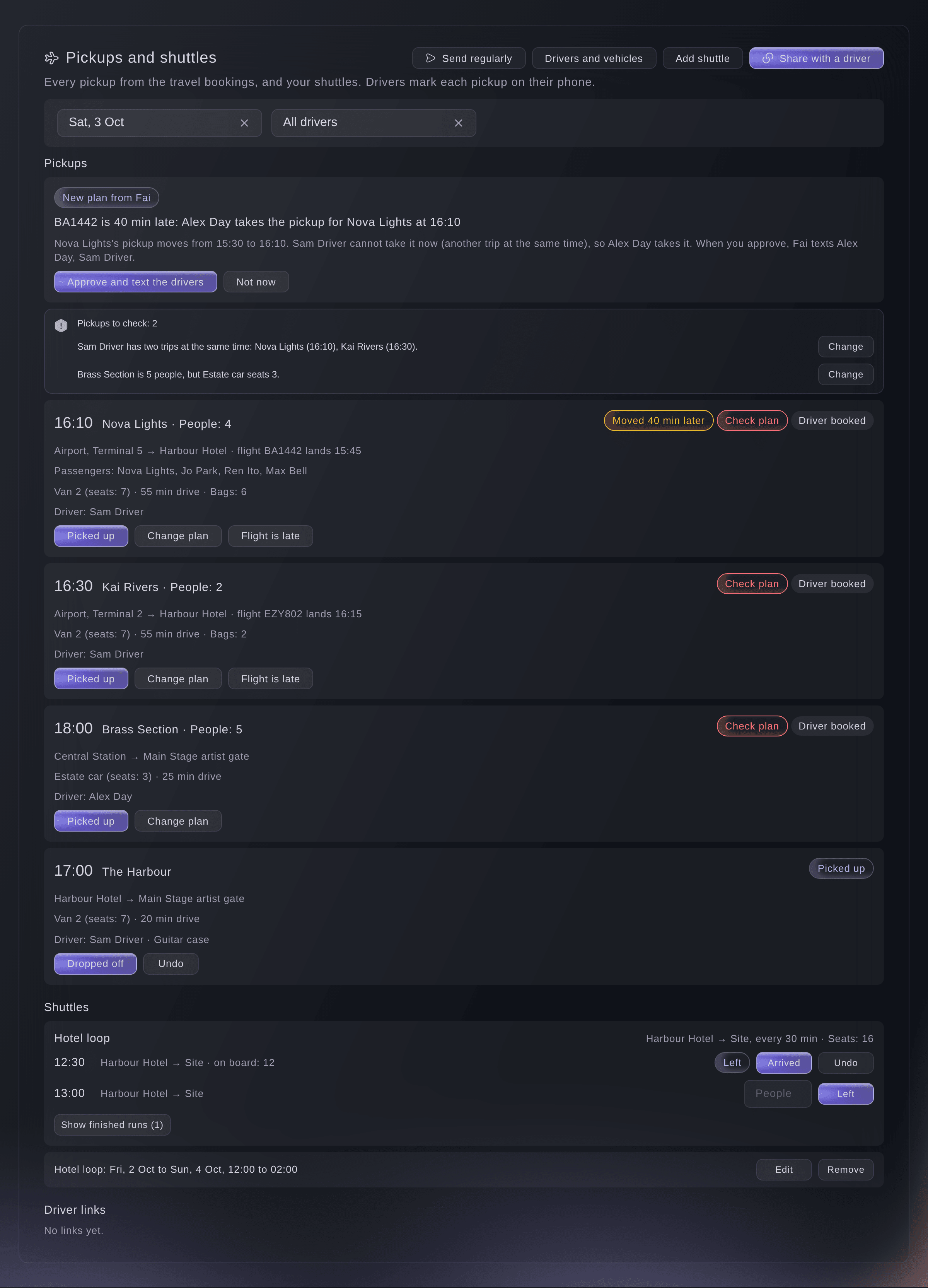
A day of pickups and their plans. -
Add your drivers and vehicles
Select Drivers and vehicles, then add each driver under Drivers and each vehicle under Vehicles.
Merk: Choose Add someone from your team to pick crew or volunteers by name, or Add a hired driver with a name and phone. Give each vehicle its Passenger seats and the Large bags that fit.
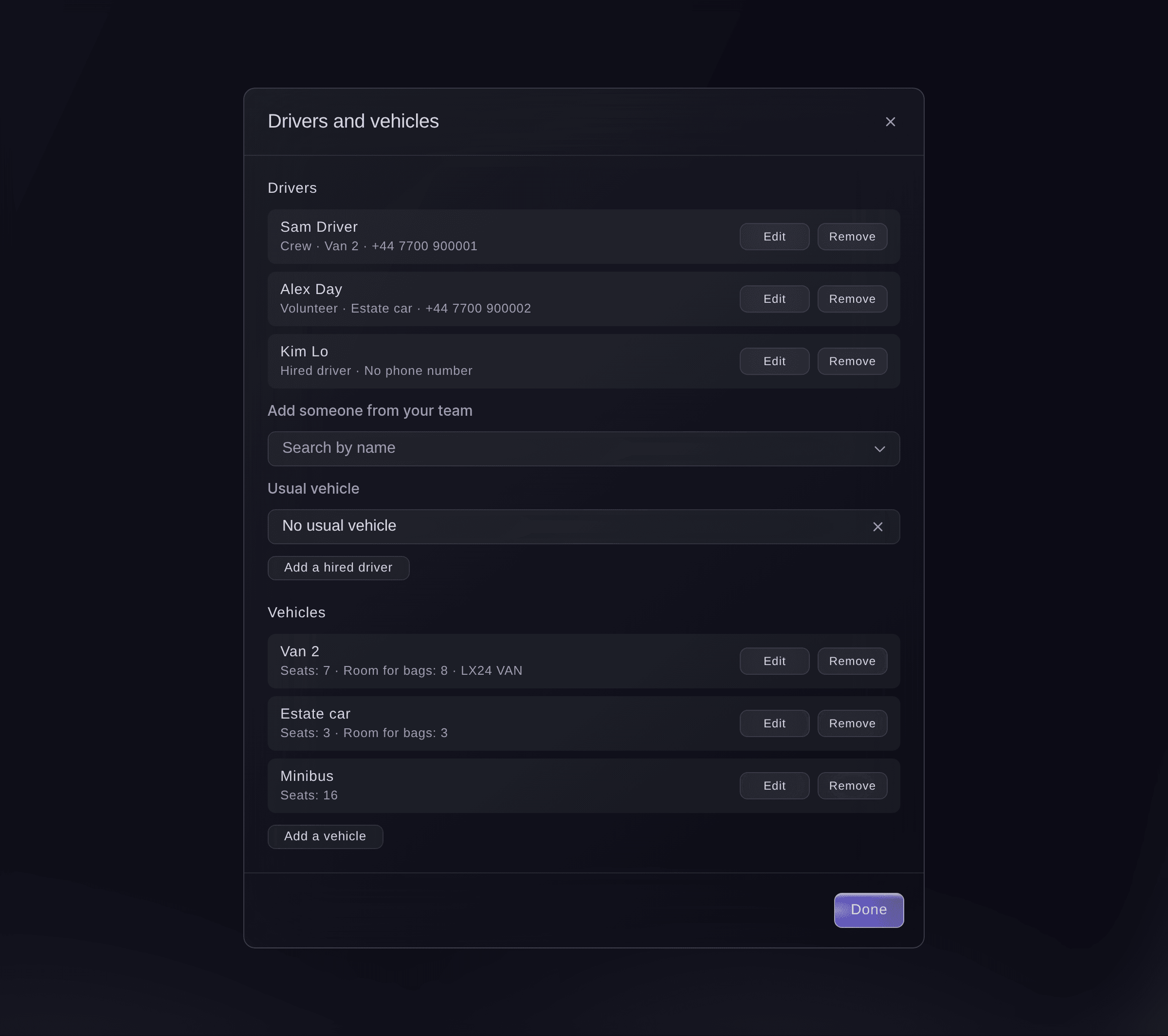
Your drivers and vehicles. -
Plan a pickup
Select Plan on a pickup, choose the Driver and Vehicle, and enter the Drive time (minutes) and Large bags.
Merk: The drive time is filled in from another pickup between the same places, or from your shuttle, when there is one, and says so. A drive time from 1 to 720 minutes and up to 200 bags are accepted.
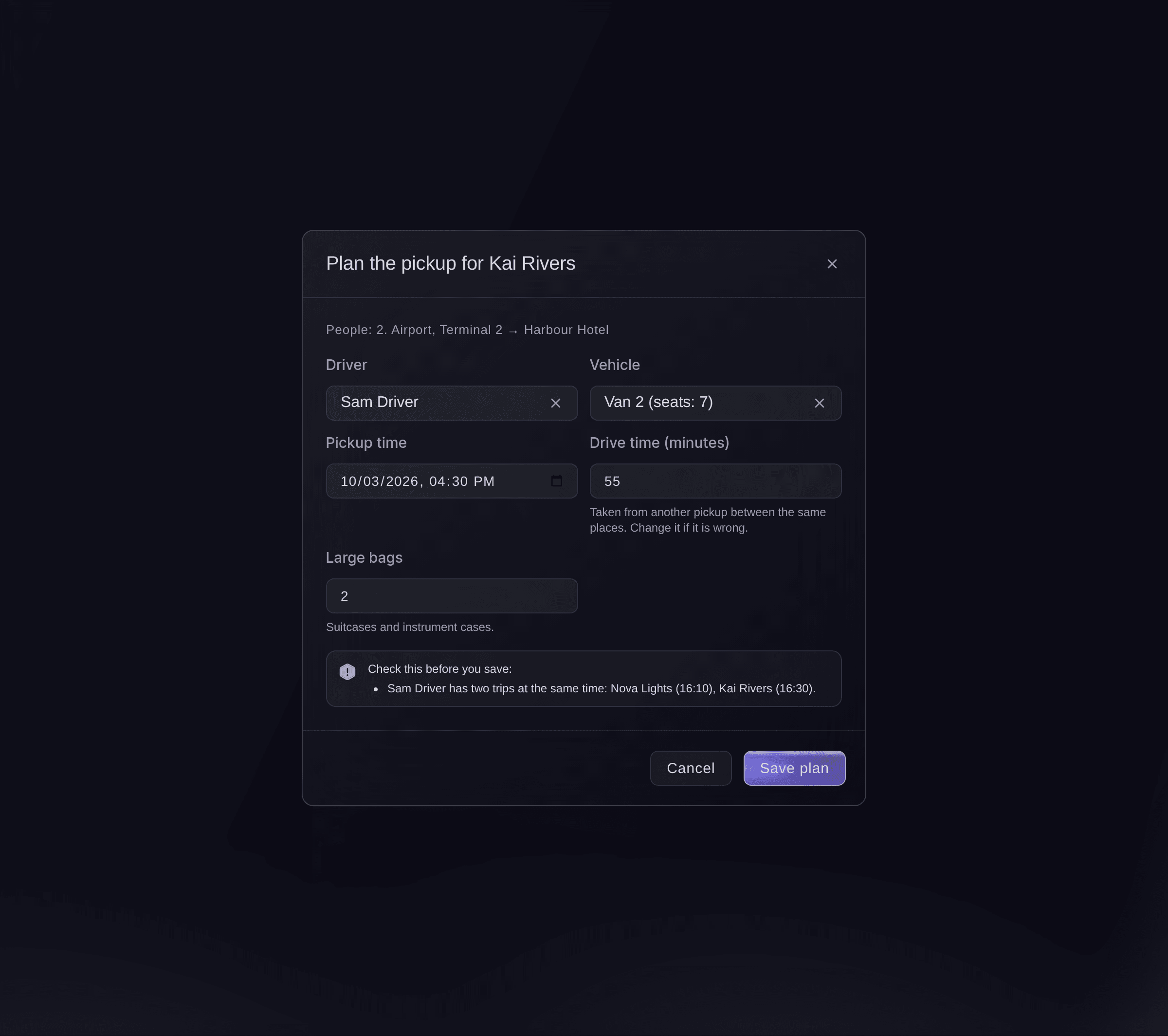
Plan a pickup. -
Check the warnings and save
Read the list under Check this before you save:, then select Save plan.
Merk: You are warned when the driver or vehicle is on two trips at once, the driver has a shift, gets too little rest or works too long a day under your shift rules, or there are more people or bags than the vehicle takes. If you have sorted a warning out another way, select Plan anyway.
-
Move a pickup when a flight is late
Select Flight is late on the pickup, enter the Minutes late against the timetable, then select Move the pickup.
Merk: A flight we track moves its pickup by itself. When a planned pickup moves by 15 minutes or more, Fai checks the driver's day and suggests a new plan.
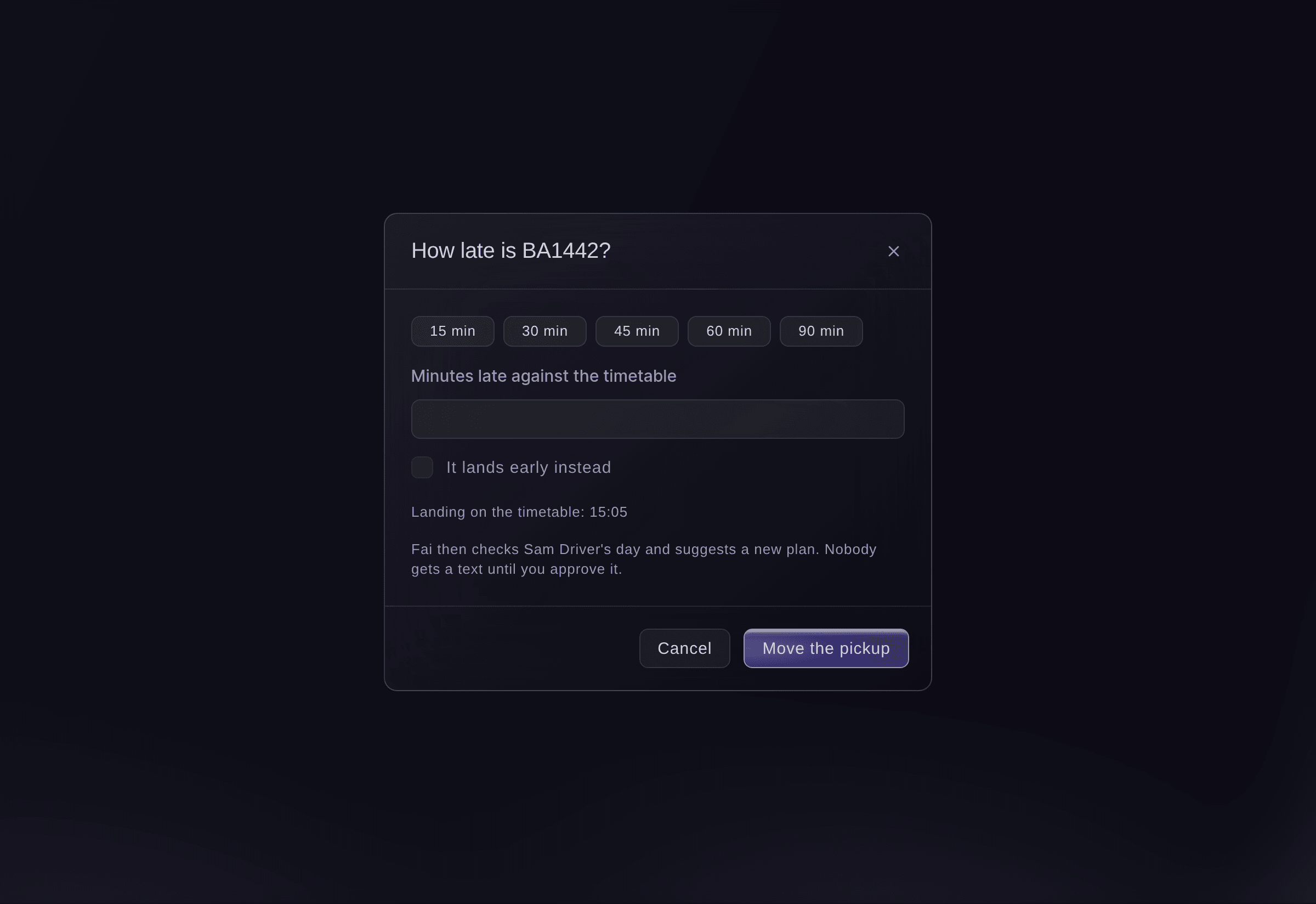
A flight is late. -
Approve Fai's new plan
Under New plans from Fai, read the new plan and select Approve and text the drivers.
Merk: Fai keeps the same driver when they are free, or picks the least busy free driver and a vehicle that fits. The drivers with a phone number get a text only after you approve, and the same plan waits on Today.
-
Share each driver's day
Select Share with a driver, choose the Driver, then select Make link and copy the link for them.
Merk: The link opens with no sign-in and shows the driver only their own pickups and shuttle runs.
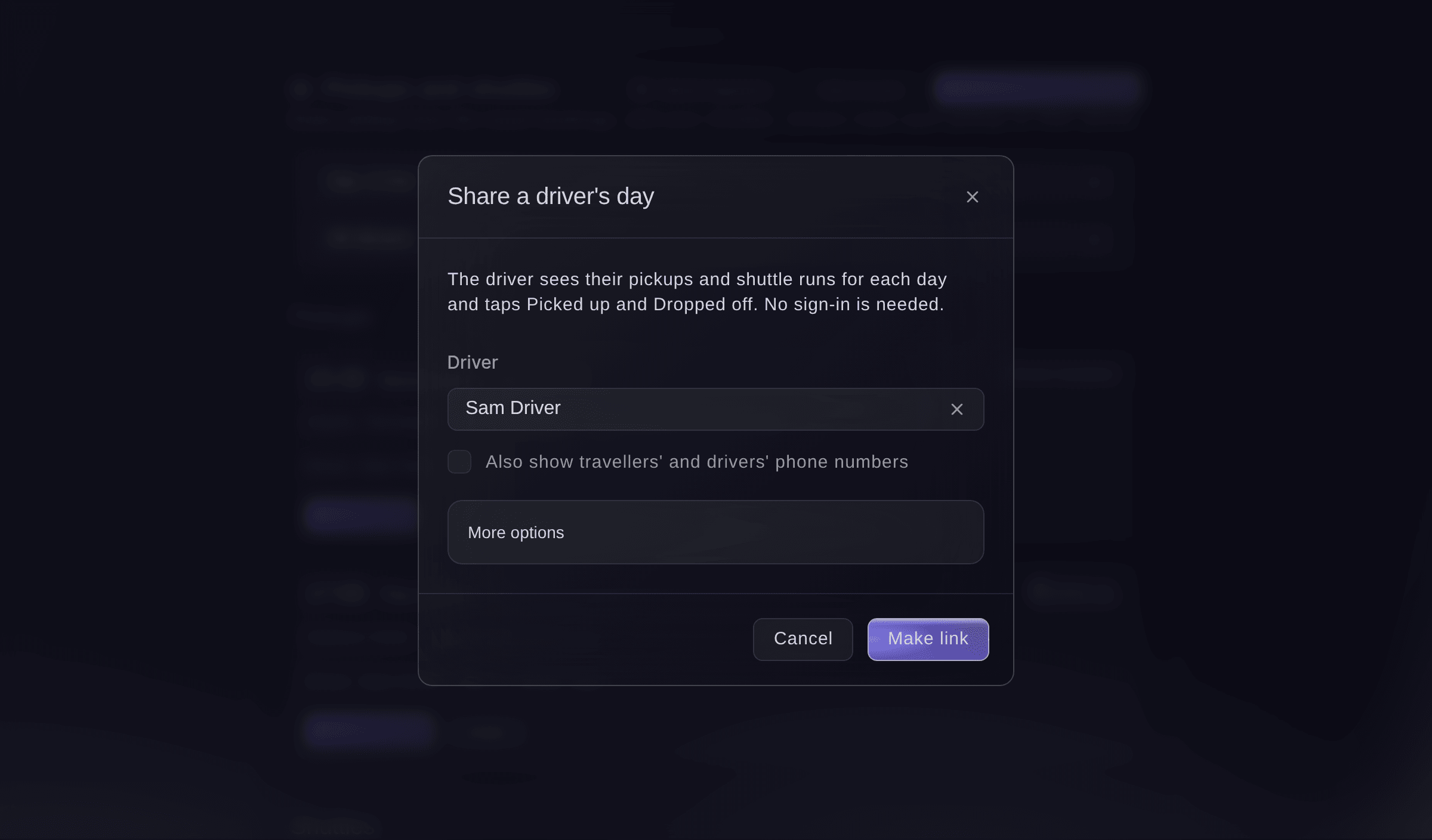
Share a driver's day.



The driver's day sheet
The driver opens the link on their phone and sees how many pickups they have that day and when the first one is. Each pickup shows the passengers, the bags, the vehicle and the drop-off address, and says when it moved later or earlier. They tap Picked up and Dropped off as they go.

Prøv disse trinnene på ditt eget arrangement
Opprett en gratis konto, bygg arrangementet ditt og følg trinnene over i ditt eget dashbord. Det tar noen minutter, og du trenger ikke å booke en salgssamtale.
Ingen oppstartsgebyr. Ingen obligatorisk månedsavgift. Ingen kredittkort nødvendig.
Eller få det gjort for deg
Fai reads each day's pickups with their plans and warnings, adds, changes or removes a driver or vehicle, plans a pickup, checks a plan before it is saved, marks a flight as late and asks for a new plan. She shows you each change first and waits for your yes, and she texts drivers only when you approve a new plan.
I dashbordet ditt, med Fai
Plan Kai Rivers' airport pickup at <EVENT NAME> with Sam in Van 2, a 55 minute drive and 3 bags, and tell me if anything clashes
La Fai gjøre det for deg
Fai jobber inne i Ticket Fairy-dashbordet ditt. Opprett kontoen din, åpne Fai og lim inn instruksjonen over.
Ingen oppstartsgebyr. Ingen obligatorisk månedsavgift. Ingen kredittkort nødvendig.
Take a driver or vehicle off the list
-
Remove them
In Drivers and vehicles, select Remove beside the driver or vehicle, then confirm.
Merk: Their pickups keep the name until you plan them again, so change the plan on each one.
Fai removes a driver or vehicle when you ask, after you confirm.
I dashbordet ditt, med Fai
Take the minibus off the vehicles list for <EVENT NAME>, it has broken down
Spørsmål du kanskje har
- Does the planner look up drive times on a map?
- No. You enter each drive time once, and the planner offers it again for the next pickup between the same places. With none entered, the checks count 60 minutes.
- Where do the shift rules come from?
- From the rest and hours rules in Shifts. A driver from your crew or volunteers is checked against their own shifts too; a hired driver has no shifts to check.
- How does the planner know how many people are travelling?
- From the act's travel party on their advance, or from the number on the travel booking when there is no travel party.
- Can I change the plan once the artist is picked up?
- No. A pickup the driver has marked as picked up stays as it is. Plan the return trip on its own pickup.
- What if a teammate changes the same pickup at the same time?
- The second save does not overwrite the first. The dialog shows the pickup as it is now, and you save your change again on it.
Har du fortsatt et spørsmål?
Book en demo, så svarer vi på det i en samtale, tilpasset din type arrangement. Eller opprett kontoen din og se selv.
Ingen oppstartsgebyr. Ingen obligatorisk månedsavgift. Ingen kredittkort nødvendig.
Relaterte guider
Gjør dette på ditt eget arrangement
Opprett kontoen din, bygg arrangementet og følg trinnene i ditt eget dashbord. Du trenger ikke bestille en salgssamtale.