
Styr produksjonen
Read your event's email in one inbox
A festival or tour inbox mixes agents, suppliers, venues and licensing officers across every event you run. The event's Inbox keeps the conversations about this event in one list, summarised, so anyone on the team can pick one up.
See every email conversation about one event together, with Fai's summary of each, turn the follow-ups she finds into tasks, reply from your own email app and keep spam out.
- For
- Keeping up with the email about one event
- Tar
- 6 minutter
Før du starter
- You are an owner, admin or producer on the event. The event's Management page opens for those roles only.
- At least one Gmail or Outlook mailbox is connected to your brand. Ticket Fairy support connects it for you.
-
Open the event's Inbox
Open the event, select Operations, then select Inbox in the list of sections.
Merk: The conversations about this event are listed newest first, with the first one open beside them. If a section is not in the list, select More sections and open it there.
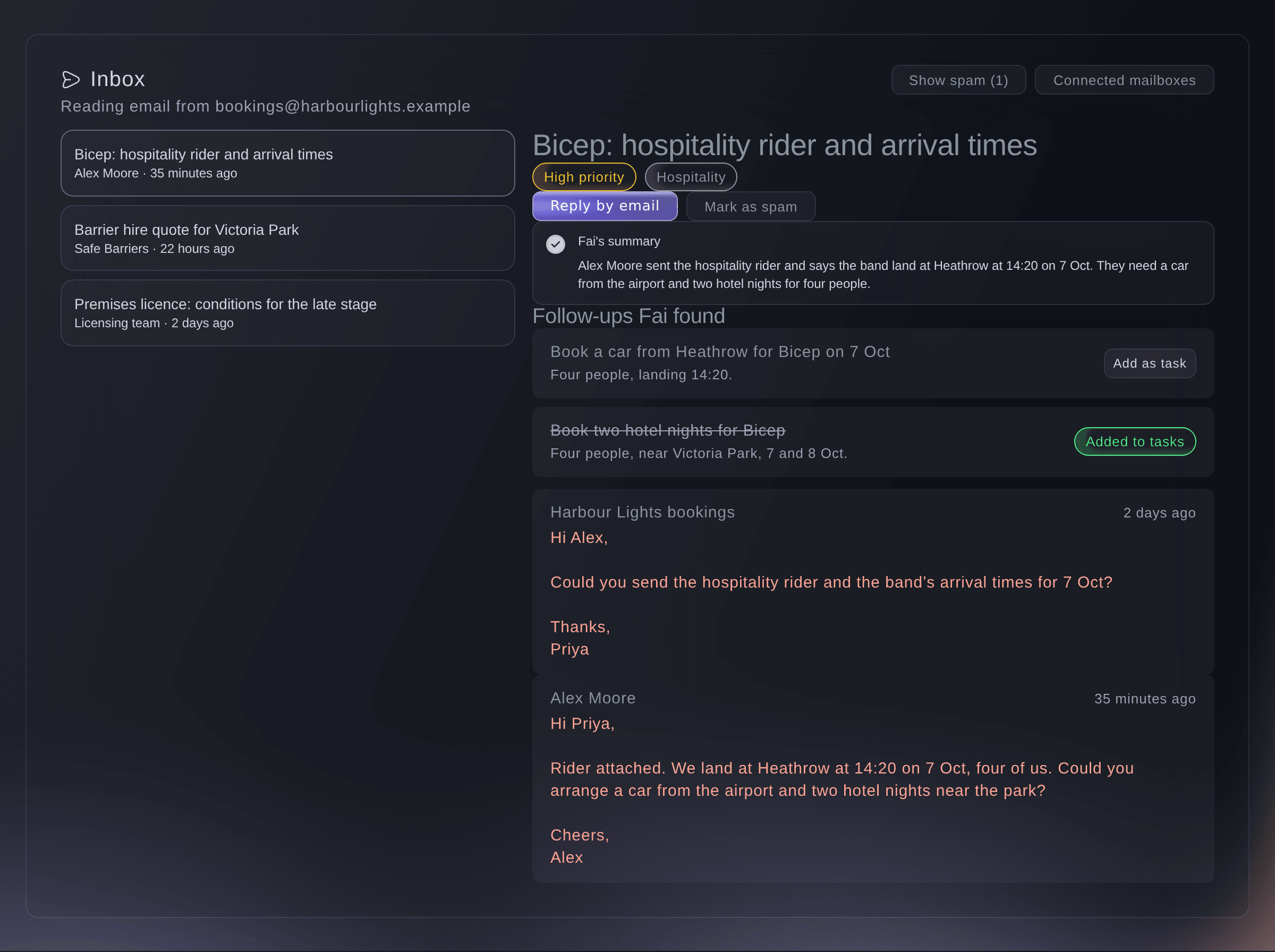
The Inbox, with one conversation open. -
Open a conversation
Select a conversation in the list to read Fai's summary and the messages under it.
Merk: The labels under the subject show how urgent Fai thinks it is and what it is about, such as Hospitality, Permits or Payment.
-
Turn a follow-up into a task
Under Follow-ups Fai found, select Add as task beside the job you want on the task board.
Merk: The task goes on the event's task board with the email it came from, and the follow-up then reads Added to tasks.
-
Reply from your own email app
Select Reply by email to start a reply in your email app.
Merk: The reply is addressed to the last person who emailed you in the conversation, with the same subject, and it is sent from your own mailbox so the conversation stays there. The button appears once someone outside your connected mailboxes has sent a message in the conversation.
-
Mark junk as spam
Open the conversation and select Mark as spam.
Merk: It leaves the list and does not come back. Select Show spam to see it again, then Not spam if it was a mistake.
-
Check which mailboxes Fai reads
Select Connected mailboxes at the top of the Inbox.
Merk: Each mailbox shows Connected, Paused, Needs attention or Disconnected, and when Fai last checked it. The list is your brand's mailboxes, so every event of the brand reads from the same ones.

Prøv disse trinnene på ditt eget arrangement
Opprett en gratis konto, bygg arrangementet ditt og følg trinnene over i ditt eget dashbord. Det tar noen minutter, og du trenger ikke å booke en salgssamtale.
Ingen oppstartsgebyr. Ingen obligatorisk månedsavgift. Ingen kredittkort nødvendig.
Eller få det gjort for deg
Fai searches the conversations in your connected mailboxes, reads one in full and lists the follow-ups she found, so you can ask about the event's email without opening it.
I dashbordet ditt, med Fai
What has come in by email about <EVENT NAME> this week, and what do we still need to do about it?
La Fai gjøre det for deg
Fai jobber inne i Ticket Fairy-dashbordet ditt. Opprett kontoen din, åpne Fai og lim inn instruksjonen over.
Ingen oppstartsgebyr. Ingen obligatorisk månedsavgift. Ingen kredittkort nødvendig.
Connect your first mailbox
-
Ask support to connect your mailbox
When the Inbox says No mailbox is connected, contact Ticket Fairy support and name the Gmail or Outlook mailbox you use for this event.
Merk: Once it is connected, Fai starts filing the event's email in the Inbox a few minutes after each email arrives.
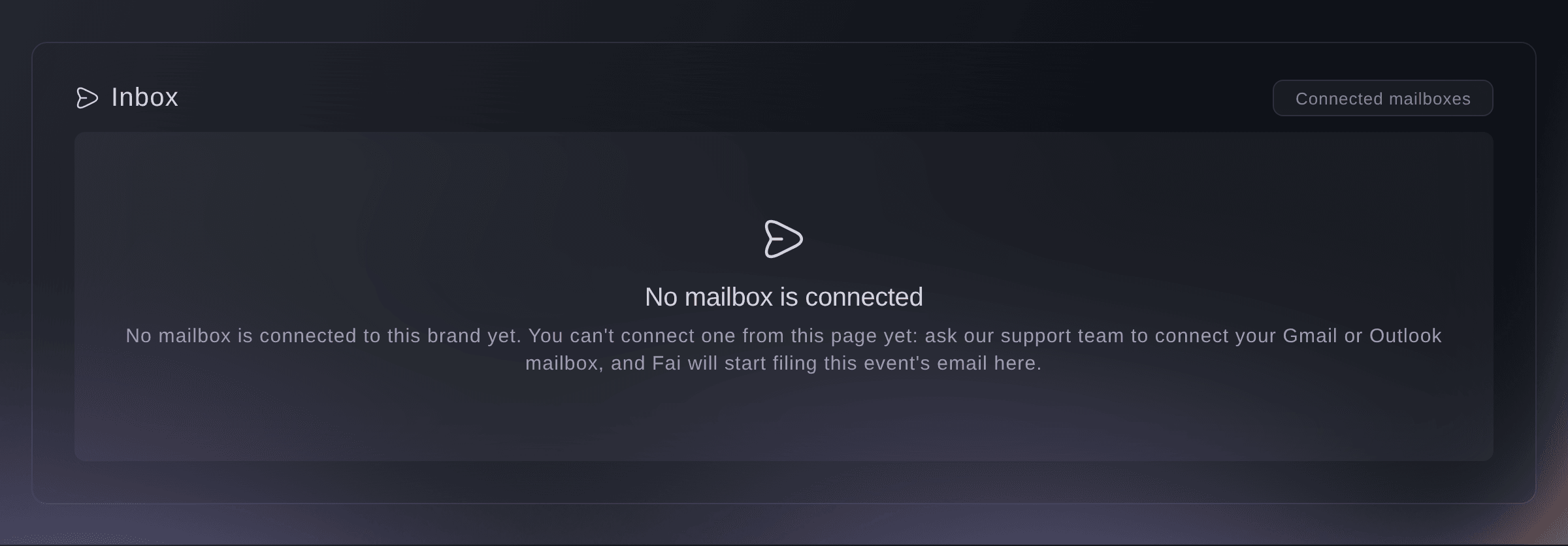
The Inbox before a mailbox is connected.

Fai tells you which mailboxes your brand has connected and whether each one is working.
I dashbordet ditt, med Fai
Which mailboxes does Fai read for <EVENT NAME>?
Spørsmål du kanskje har
- Why is an email I sent about the event not in the Inbox?
- Fai files a conversation under the event it is about. One that does not name the event clearly may be filed under another event or none, and email to a mailbox your brand has not connected never reaches the Inbox.
- Can I reply from the dashboard?
- No. Reply by email opens your own email app, so the reply goes from your mailbox and stays in its sent mail.
- Does marking spam affect my real mailbox?
- No. It only takes the conversation out of the event's Inbox. The email stays in your mailbox as it was.
- Who else sees the Inbox?
- The owners, admins and producers on the event. Everyone reads the same conversations and summaries.
Har du fortsatt et spørsmål?
Book en demo, så svarer vi på det i en samtale, tilpasset din type arrangement. Eller opprett kontoen din og se selv.
Ingen oppstartsgebyr. Ingen obligatorisk månedsavgift. Ingen kredittkort nødvendig.
Relaterte guider
Gjør dette på ditt eget arrangement
Opprett kontoen din, bygg arrangementet og følg trinnene i ditt eget dashbord. Du trenger ikke bestille en salgssamtale.