
Styr produksjonen
Send your event lists to your team on a schedule
Production managers send the same spreadsheets to the same people every Monday in the run-up to an event: the rota to the security lead, the rooming list to the travel team. A scheduled export sends the latest version for you, and keeps lists with people's names to the team members allowed to see them.
Email your rota, run of show, advancing status, rooming list or pickups to the right people on your event team every day or every week, as a file they download after signing in. Every file and every download is recorded, and you can make a file now whenever you need one.
- For
- Keeping your team up to date with the latest lists
- Tar
- 5 minutter
Før du starter
- You are an owner, admin or producer on the event. The event's Operations page opens for those roles only.
- To send the rota, rooming list or pickups, you are an owner or admin, because they hold people's names.
-
Open the list you want to send
Open the event, select Operations, open the section with the list, then select Send regularly.
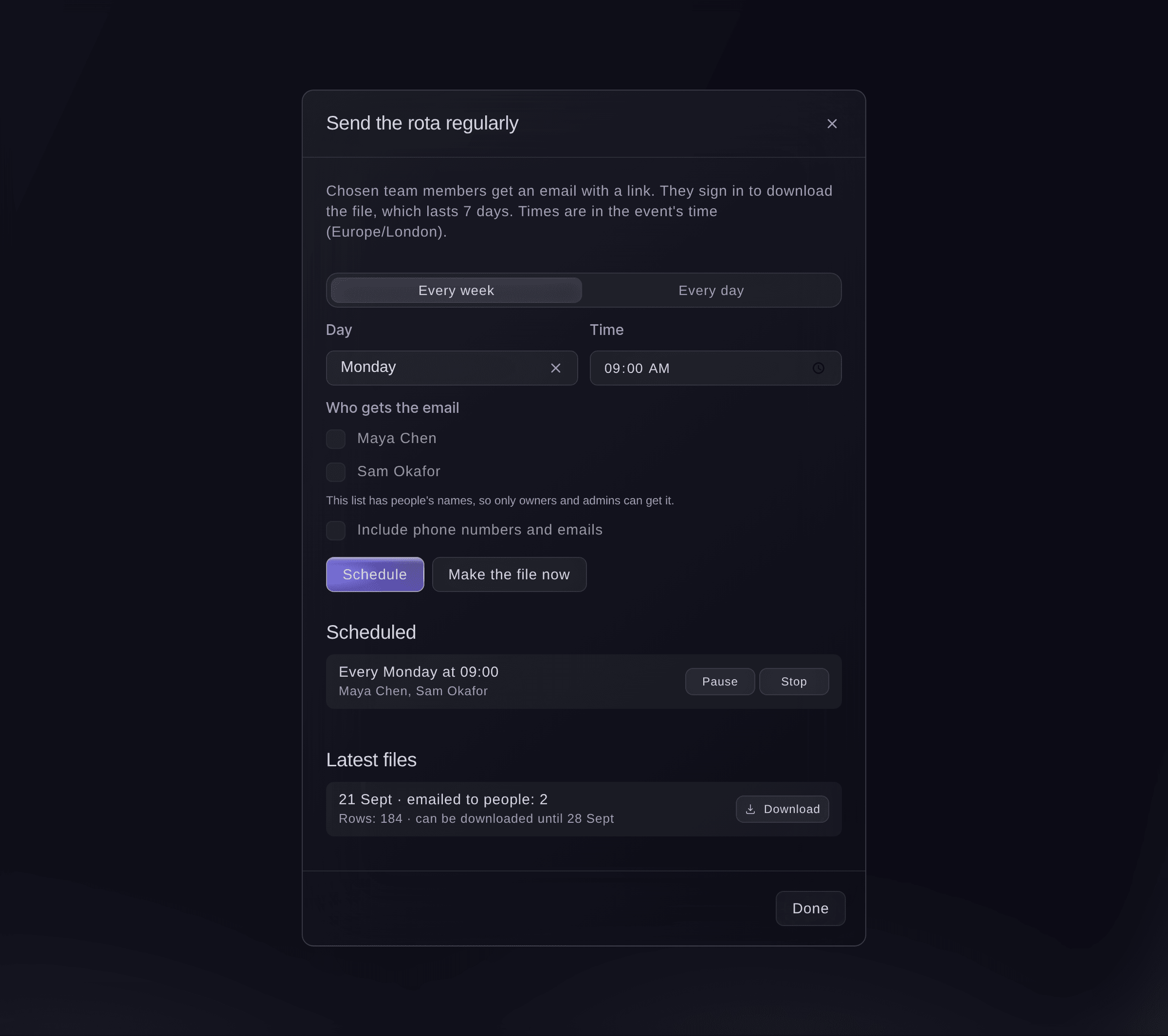
Send the rota regularly. -
Choose when it goes
Choose Every week or Every day, then the Day and Time.
Merk: Times are in the event's own time zone, which the dialog names.
-
Choose who gets it
Under Who gets the email, choose up to 10 people from your event team, then select Schedule.
Merk: For a list with people's names, only owners and admins can be chosen. Tick Include phone numbers and emails only if they need them.

What arrives
At the time you chose, each person gets an email with a link to the dashboard. They sign in to download the file, which lasts 7 days, and each download is recorded against their name. The file is always made from the list as it is at that moment.
Prøv disse trinnene på ditt eget arrangement
Opprett en gratis konto, bygg arrangementet ditt og følg trinnene over i ditt eget dashbord. Det tar noen minutter, og du trenger ikke å booke en salgssamtale.
Ingen oppstartsgebyr. Ingen obligatorisk månedsavgift. Ingen kredittkort nødvendig.
Eller få det gjort for deg
Fai reads your scheduled exports, their latest files and who can receive each list, schedules a list every day or week, changes, pauses, turns back on or stops a schedule, and makes a file now. She shows you each change and waits for your yes first.
I dashbordet ditt, med Fai
Email the rota for <EVENT NAME> to me and Sam every Monday at 9am
La Fai gjøre det for deg
Fai jobber inne i Ticket Fairy-dashbordet ditt. Opprett kontoen din, åpne Fai og lim inn instruksjonen over.
Ingen oppstartsgebyr. Ingen obligatorisk månedsavgift. Ingen kredittkort nødvendig.
Pause or stop a schedule
-
Pause it
Open Send regularly, then select Pause on the schedule.
Merk: Select Turn back on to start it again, or Stop to end it. Files already made can still be downloaded until they expire.
Fai pauses, turns back on or stops a scheduled export when you ask, after you confirm.
I dashbordet ditt, med Fai
Stop sending the rota for <EVENT NAME> every week
Make a file now
-
Make it
Open Send regularly, select Make the file now, then select Download under Latest files.
Fai makes a file of the list now when you ask, after you confirm, and you download it in the dashboard.
I dashbordet ditt, med Fai
Make a file of the run of show for <EVENT NAME> now
Spørsmål du kanskje har
- Why does a schedule say Paused when I did not pause it?
- Ticket Fairy pauses a schedule when nobody chosen can still see the list, or when the file could not be made, and emails the event's owners and admins once. Choose who gets it again, then select Turn back on.
- Is the file attached to the email?
- No. The email carries a link, and the person signs in to download the file, so only your team can open it.
- Why can I not see Send regularly on Rota, Accommodation or Travel?
- The rota, rooming list and pickups hold people's names and contact details, so only owners and admins see Send regularly there.
Har du fortsatt et spørsmål?
Book en demo, så svarer vi på det i en samtale, tilpasset din type arrangement. Eller opprett kontoen din og se selv.
Ingen oppstartsgebyr. Ingen obligatorisk månedsavgift. Ingen kredittkort nødvendig.
Relaterte guider
Gjør dette på ditt eget arrangement
Opprett kontoen din, bygg arrangementet og følg trinnene i ditt eget dashbord. Du trenger ikke bestille en salgssamtale.