
Annonsere arrangementet ditt
Set up a Microsoft Bing pixel to track your ticket sales
Put your Microsoft Bing tag on your Ticket Fairy event pages and checkout, so Microsoft Bing can see which ticket sales came from which campaign.
- For
- Anyone running Microsoft Bing ads for an event
- Tar
- 5 minutter
Dette trenger du før du starter
- You're an owner, an admin or on the marketing team for this brand. If you can't open Integrations, ask an owner or an admin to do this part or to give you access.
- You have your Microsoft Bing pixel ID, or the tracking snippet Microsoft Bing gave you.
-
Copy your Microsoft Bing pixel ID
Get it from your Microsoft Bing ads account.
Either the ID on its own or the whole snippet works, so take whichever Microsoft Bing puts in front of you.
-
Add it in your brand settings
Open the Microsoft Bing tab in Network Conversion Tracking Pixels and paste the pixel ID.
Add one. The tab accepts more, but only the first is put on your pages, so a second account would sit in the list receiving nothing.
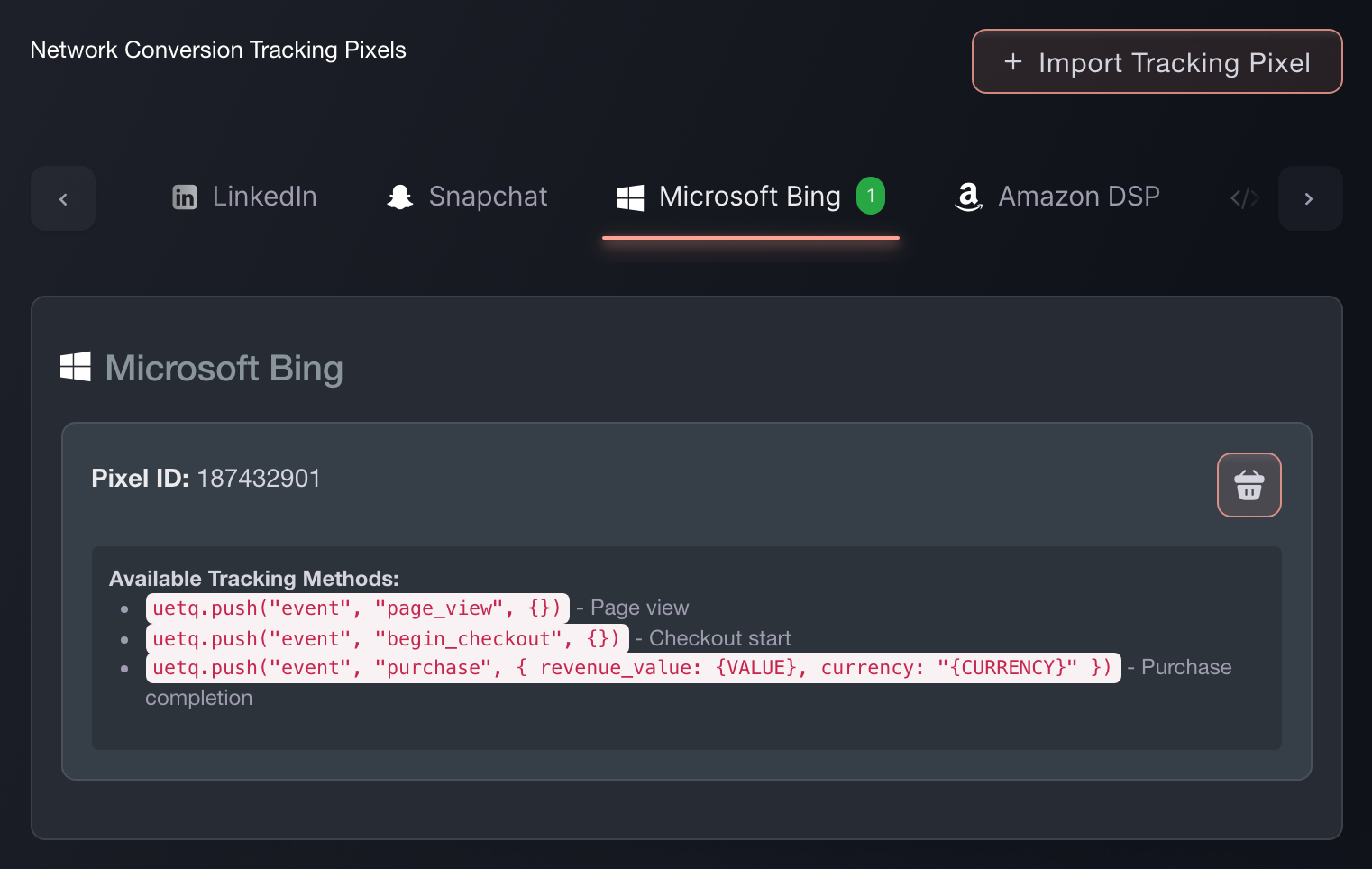
Brand settings, Integrations, Tracking pixels. -
Paste the snippet instead, if that's what you have
(Optional) Import Tracking Pixel takes the snippet exactly as Microsoft Bing gave it to you, recognises the network, and pulls the ID out. It's the faster route when you have the code in front of you rather than the number.
-
Check a sale reports back
Buy a ticket on your own event, or use a test order. Look for the purchase event in Microsoft Bing.
If it arrives with the order value on it, the pixel is wired correctly and your campaign reporting will match your ticket sales.

Eller få det gjort for deg
Fai, the assistant inside your dashboard, can add this pixel for you, and asks you to approve the change before it makes it. You still need the pixel ID from Microsoft Bing. Your own AI assistant over our MCP server cannot add one: that server has no pixel tool, so this is Fai's work or your own on this screen.
I dashbordet ditt, med Fai
Add a Microsoft Bing tracking pixel to this brand. The ID is <your Microsoft Bing pixel ID>.
Spørsmål du kanskje har
- How do I add a Microsoft Bing pixel to my event page?
- Open the Microsoft Bing tab in Network Conversion Tracking Pixels and paste the pixel ID. It then fires on every event page under that brand and through checkout, so you set it up once rather than per event.
- Which Microsoft Bing events does Ticket Fairy fire?
- Your Microsoft Bing tag runs uetq.push('event', '', { ... }) when it loads. Ticket Fairy then sends ViewContent when someone opens your event page, InitiateCheckout when they begin buying, and Purchase when the sale completes. That last one carries the order value and currency, so your Microsoft Bing reporting matches your ticket sales.
- Can I paste the whole Microsoft Bing snippet instead of finding the ID?
- Yes. Use Import Tracking Pixel and paste the snippet as Microsoft Bing gave it to you. Ticket Fairy works out which network it belongs to and pulls the ID out.
- Will my Microsoft Bing pixel fire if buyers check out on my own website?
- Yes. The embedded checkout fires the same events at the same points as the hosted checkout, so Microsoft Bing attributes a sale on your own site the same way.
Veien videre
Gjør dette på ditt eget arrangement
Opprett kontoen din, bygg arrangementet ditt, og følg disse trinnene i ditt eget dashbord. Uten salgssamtale først.