
Driv produktionen
Advance your performers before the show
Promoters, bookers and production managers advance every act on the line-up, chasing agents and tour managers for flights, input lists and riders across weeks of email. Advancing keeps each performer's details in one sheet that Fai starts for you and their team fills in, so you can see at a glance who is ready for show day.
Collect each performer's travel, hotel, schedule, technical and hospitality needs for your event, let their agent or tour manager fill in their part from a link with no sign-in, and sign each advance off when everything is confirmed.
- För
- Getting every performer's details agreed before show day
- Tar
- 10 minuter
- Open Advancing
- Filter to the performers who need you
- Open a performer's advance
- Set the due date
- Choose the sections this act needs
- Check Fai's answers
- Check the answers Fai found
- Set their allowances and travel party
- Add a contact from their team
- Ask their team to fill in their part
- What their team sees
- Confirm each section
- Sign off the advance
Innan du börjar
- You are an owner, admin or producer on the event. The event's Operations page opens for those roles only.
- Your performers are on the event's line-up. Each one gets an advance when you open Advancing.
-
Open Advancing
Open the event, select Operations, then select Advancing in the list of sections.
Obs: Each row shows how many sections are confirmed, what is still needed and how many days are left before the show. If Advancing is not in the list, select More sections and open it there.
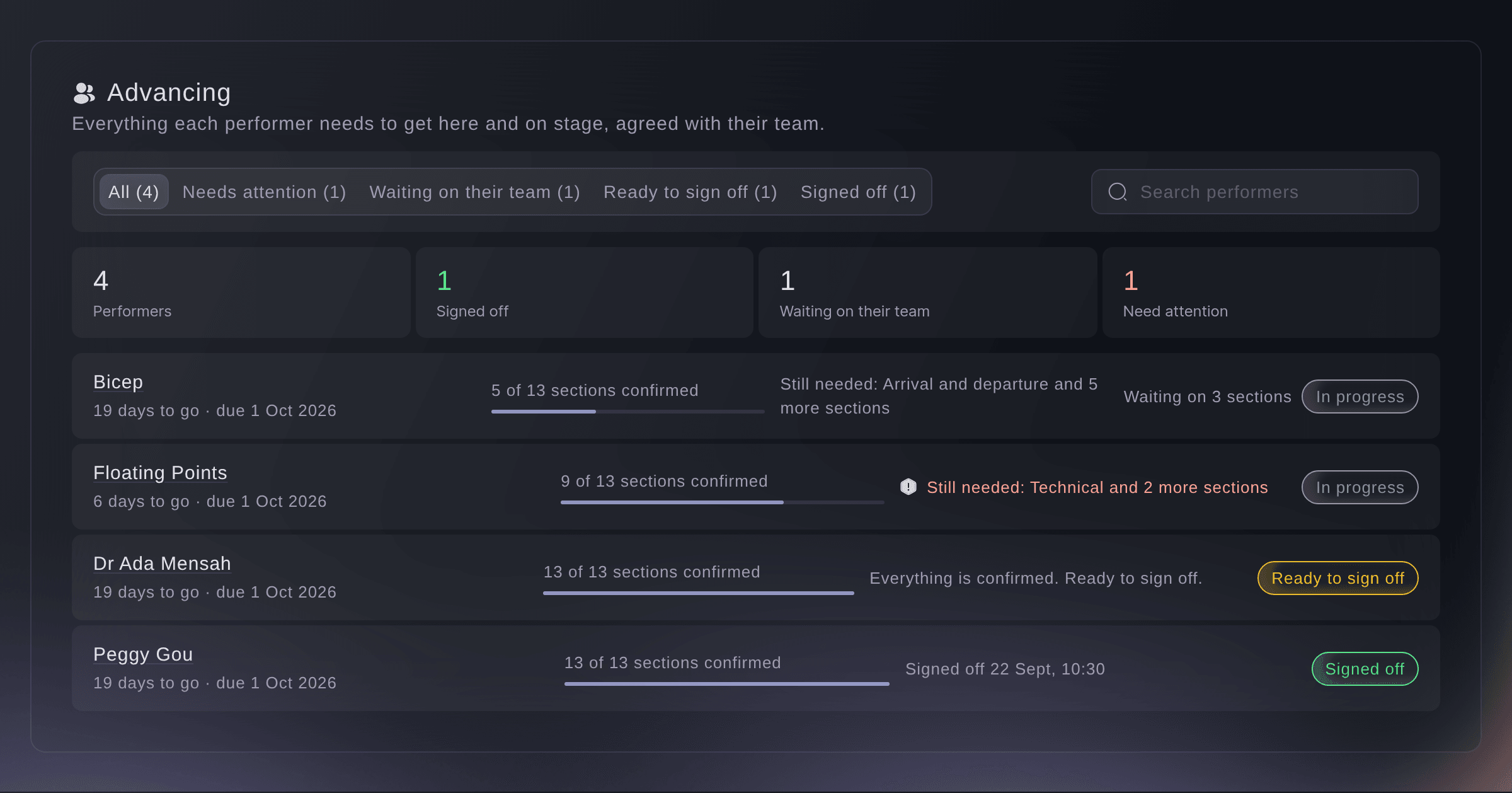
Every performer's advance. -
Filter to the performers who need you
Choose a filter above the list.
-
Open a performer's advance
Select a performer's row to open their advance.
Obs: The first time anyone opens it, Fai fills in the empty answers she finds in the booking, travel, hotel, schedule and documents, and marks each one Filled by Fai with where it came from. She never replaces an answer a person gave.
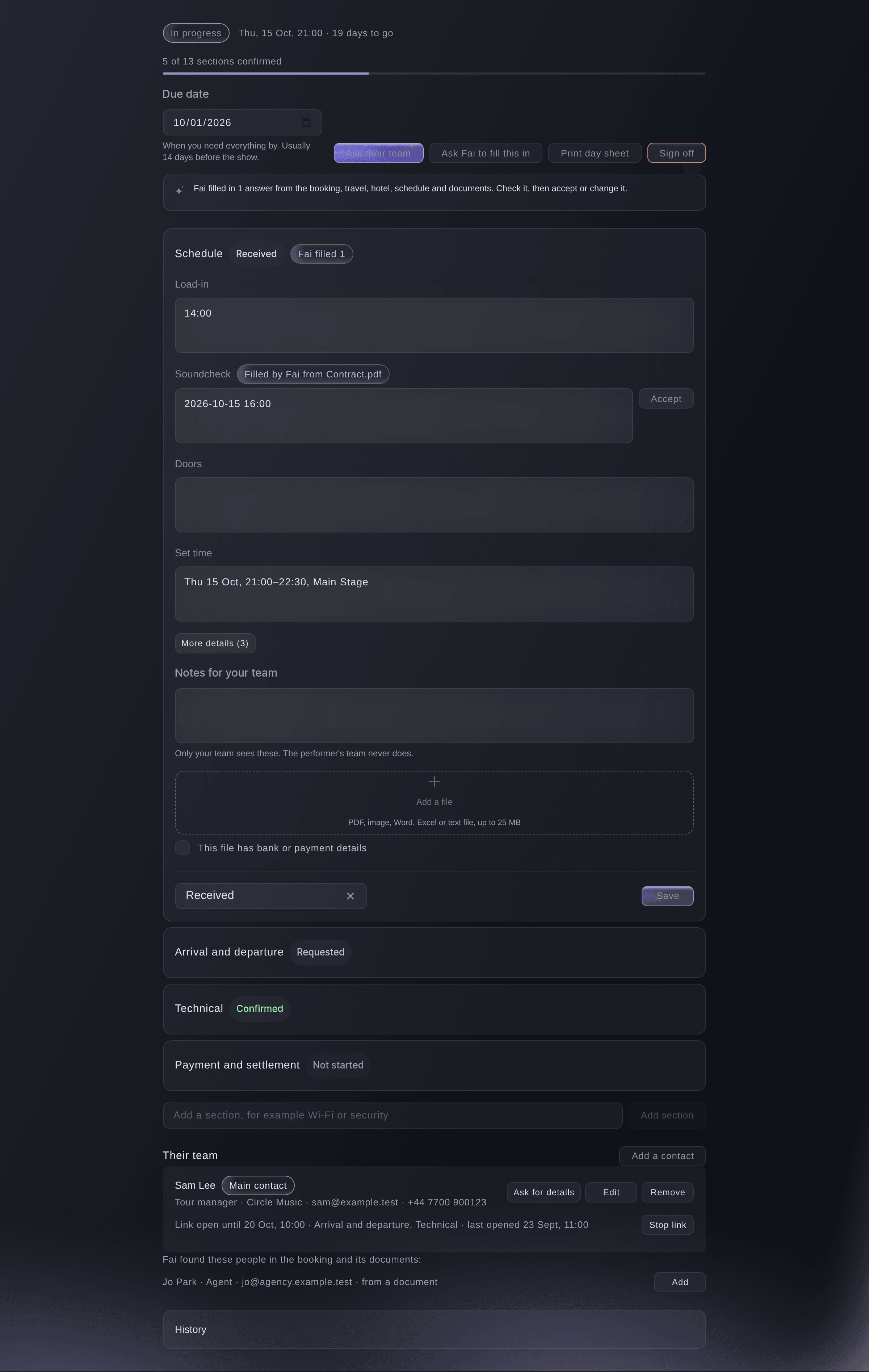
One performer's advance. -
Set the due date
Optional: change Due date to when you need everything by.
Obs: It starts at 14 days before the performance. Once it passes, the performer shows under Needs attention.
-
Choose the sections this act needs
Optional: select Sections for this act, untick the sections the act does not need and set a due date beside each one, then select Done.
Obs: A section you untick keeps its answers and leaves the advance, their team's link and Fai's chasing; select Add back beside its name to return it. Select Save these sections as a set and describe the acts it suits, and Fai starts matching acts from that set.
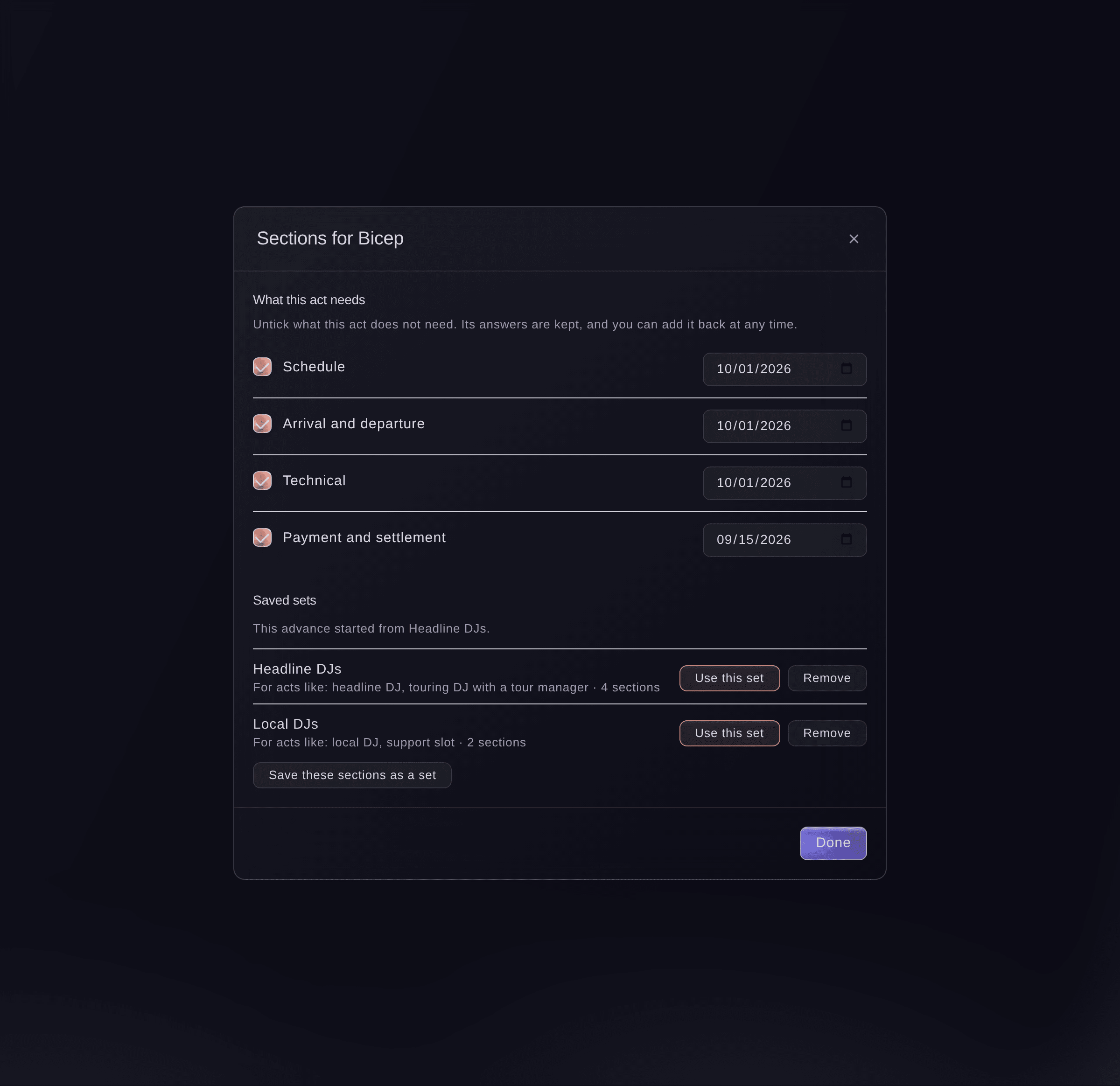
The sections this act needs. -
Check Fai's answers
In each section Fai filled, select Accept beside an answer that is right, or change it and select Save.
Obs: Select Accept all of Fai's answers to accept a whole section at once. A section opens by itself when it needs you: sent back for changes, answered by their team, or filled by Fai.
-
Check the answers Fai found
If the advance shows Answers to check, select Accept beside each answer that is right, or Reject beside one that is not.
Obs: Fai finds these in the tour books and riders you or their team add, their replies to your emails and their last advance, with the words she found each one in.
Fill in each performer's advance for your event from tour books, riders and emails
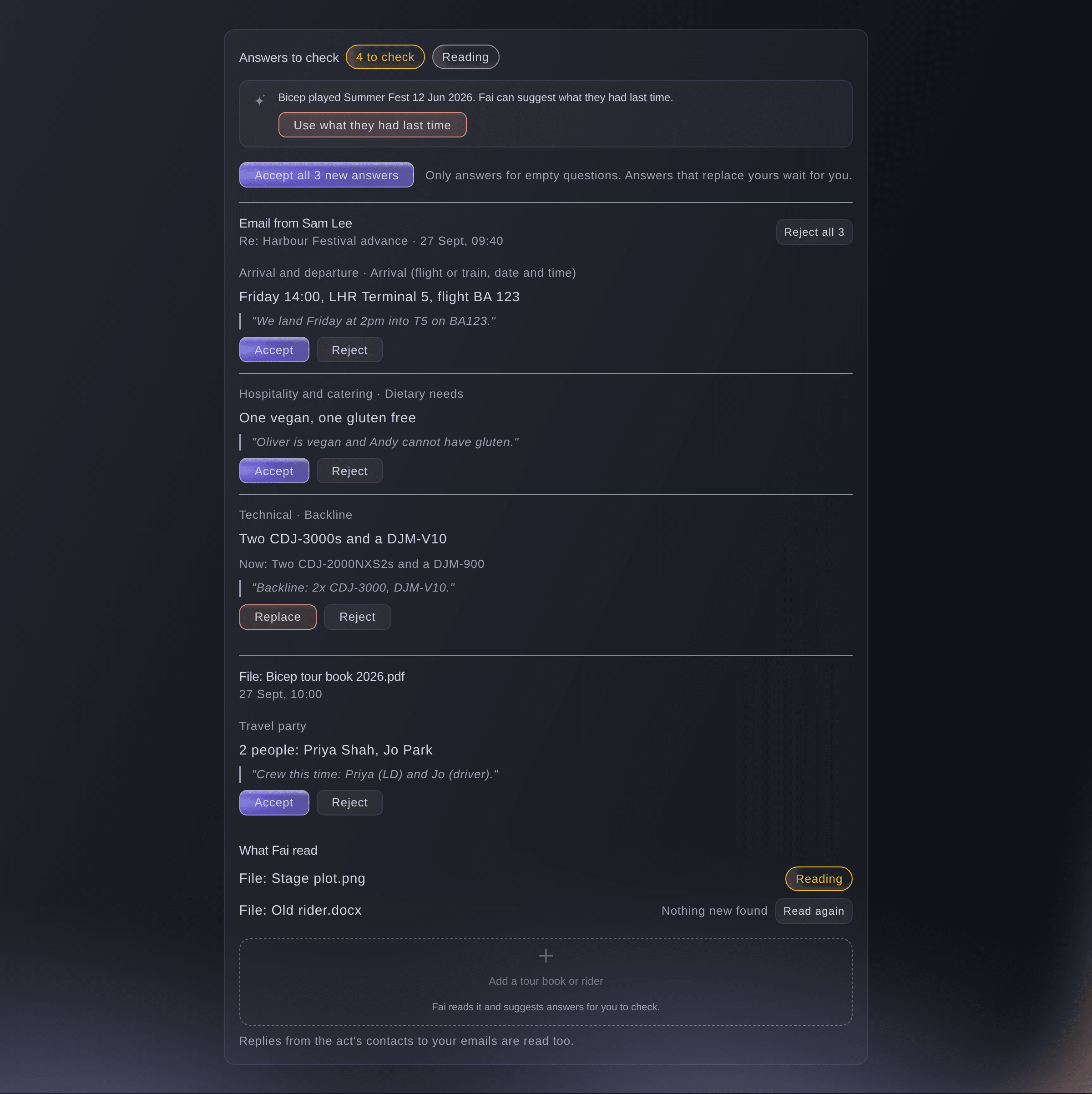
Answers Fai found, to check. -
Set their allowances and travel party
Optional: under Allowances, select Use these numbers to take the guest list, rooms, nights, meals and drinks from the accepted offer.
Obs: Under Travel party, add the people travelling with the act; passes, the rooming list, pickups and the kitchen use that list.
Set each performer's guest list, hotel and meal allowances for your event
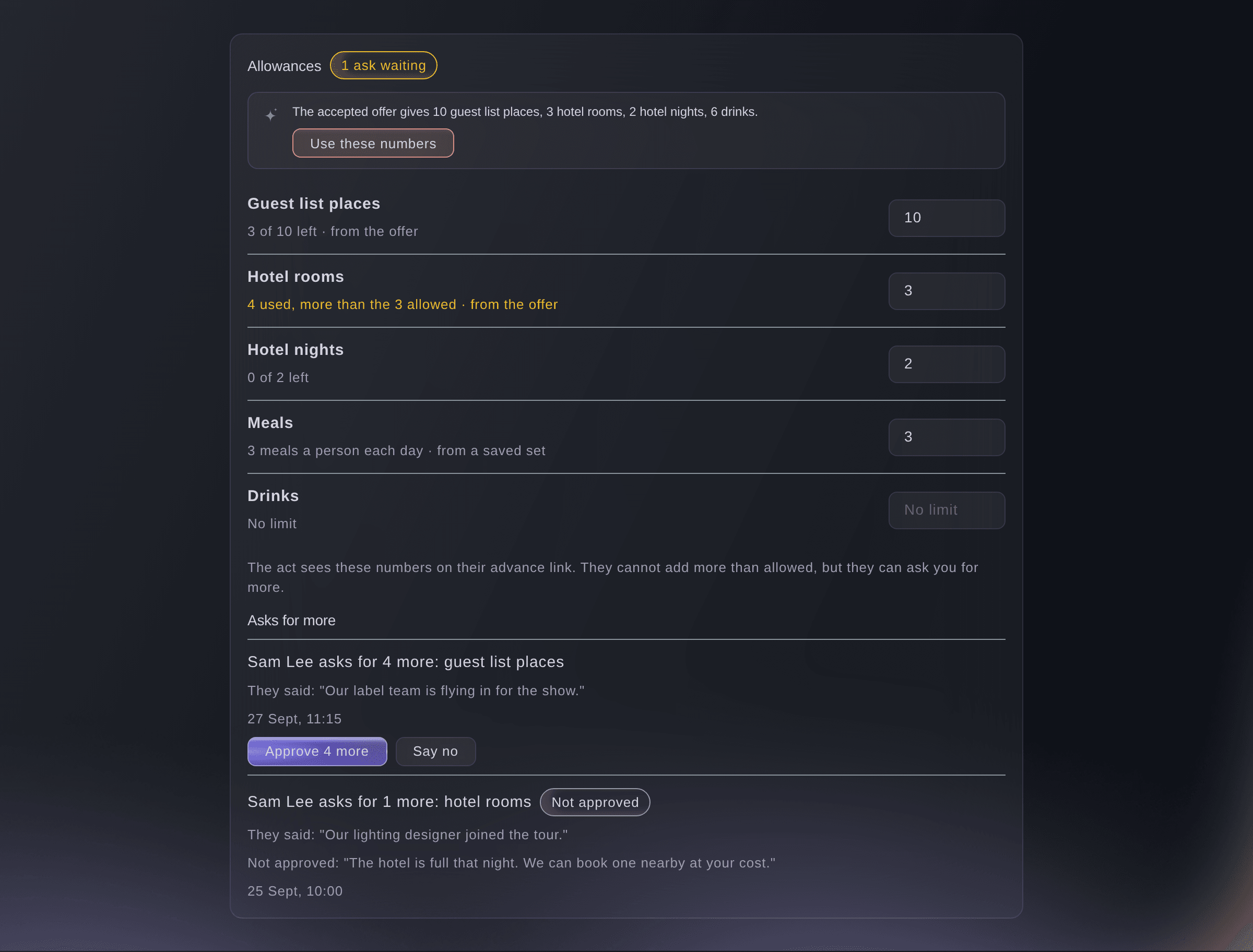
The act's allowances. -
Add a contact from their team
Under Their team, select Add a contact, enter their Name, Role and Email, then select Add a contact.
Obs: Enter the role in your own words or choose one such as Tour manager. When Fai found people in the booking or its documents, select Add beside one to start from their details.
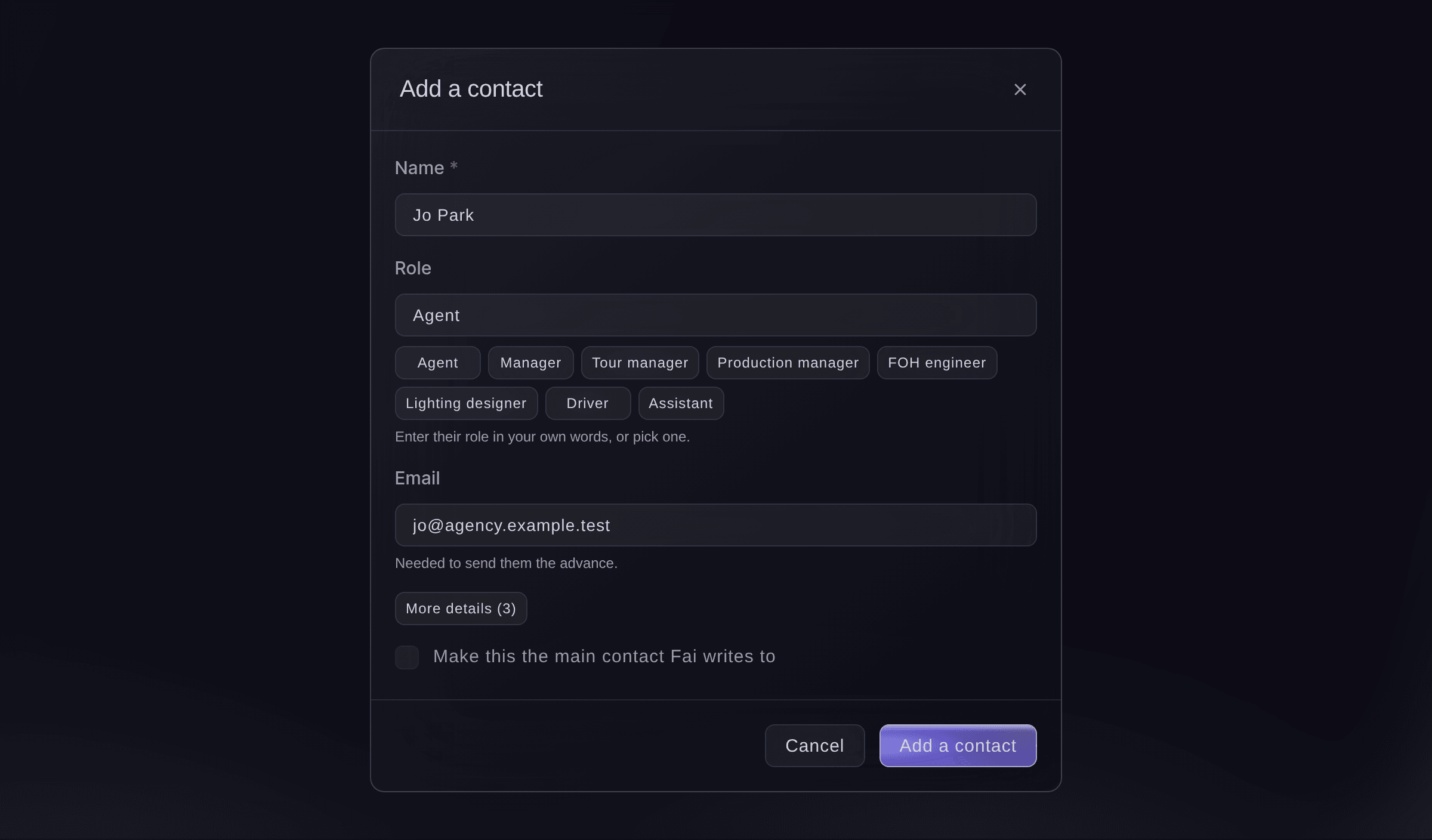
Add a contact, started from one Fai found. -
Ask their team to fill in their part
Select Ask their team, choose who it goes to in Send to and the sections under What they can see and fill in, then select Send.
Obs: Payment and settlement is left out unless you add it. Under More details you can change the subject and how long the link works, from 7 to 90 days, 30 by default.
Varning: The email goes as soon as you select Send. Select Copy a link instead to send the link yourself.
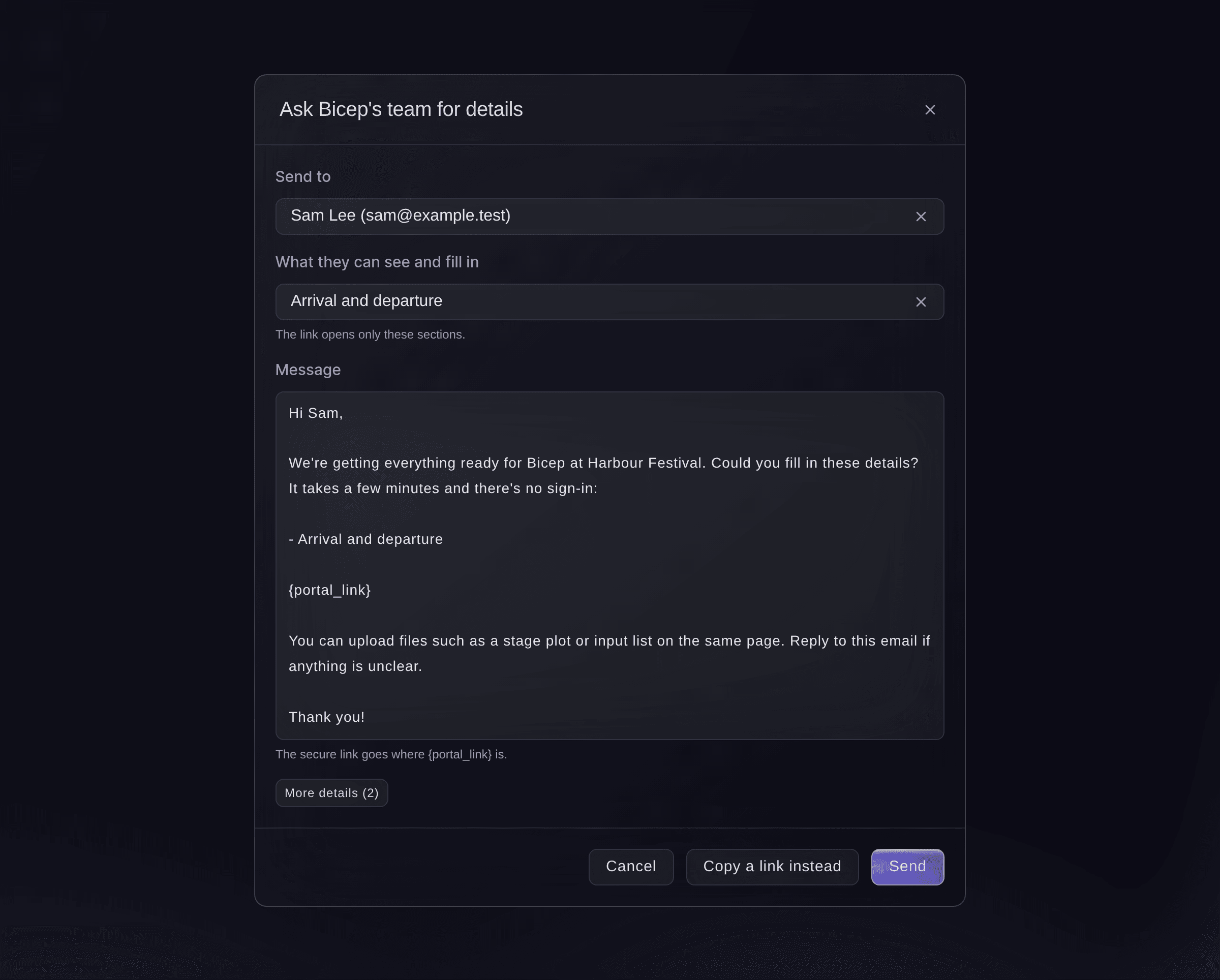
Ask their team for details.




What their team sees
The contact opens the link on any phone or computer with no sign-in, and sees only the sections you chose, with what is still needed at the top, plus what the act is allowed, who is travelling and a place to send their tour book. When they save an answer, that section shows as Received on your advance; when they select Mark this section complete, it shows that their team says it is complete, and it stays yours to confirm. Once you sign the advance off, their page shows it read only.

-
Confirm each section
Check their answers and files, then choose Confirmed in the section's status.
Obs: Choose Needs changes to send it back, then ask their team again. Use Notes for your team for anything the performer's team must not see.
-
Sign off the advance
Select Sign off, then confirm.
Obs: When every section is confirmed the performer shows as Ready to sign off. If some are not, the dialog says how many and you can sign off anyway.
Prova de här stegen på ditt eget evenemang
Skapa ett gratis konto, bygg ditt evenemang och följ stegen ovan i din egen instrumentpanel. Det tar några minuter och du behöver inte boka något säljsamtal.
Inga startavgifter. Ingen obligatorisk månadsavgift. Inget kreditkort krävs.
Eller låt det göras åt dig
Fai reads every advance, fills in empty answers from the booking and documents, changes a section's answers or status, leaves out a section the act does not need or sets its due date, adds contacts, emails a contact the link to their part and signs an advance off or reopens it. She shows you each change or email and waits for your yes first, and she never shows the link itself in the conversation.
I din instrumentpanel, med Fai
Which performers at <EVENT NAME> still have their advance open, and send Bicep's tour manager a link to fill in their travel and technical sections
Låt Fai göra det åt dig
Fai arbetar inuti din Ticket Fairy-instrumentpanel. Skapa ditt konto, öppna Fai och klistra in instruktionen ovan.
Inga startavgifter. Ingen obligatorisk månadsavgift. Inget kreditkort krävs.
Reopen a signed-off advance
-
Reopen it
Open the performer's advance, select Reopen, then confirm.
Obs: Your team and the performer's team can change it again until you sign it off. You cannot ask their team for more while it is signed off.
Fai reopens a signed-off advance when you ask, after you confirm.
I din instrumentpanel, med Fai
Reopen Bicep's advance for <EVENT NAME>, their flights have changed
Stop a link
-
Stop the link
Under Their team, select Stop link beside the link, then confirm.
Obs: It stops working straight away and what they already filled in stays. Removing a contact, or changing their email address, stops their links too.
Fai stops a contact's link when you ask, after you confirm.
I din instrumentpanel, med Fai
Stop the advancing link we sent Bicep's agent for <EVENT NAME>
Frågor du kanske har
- Does the performer's team need a Ticket Fairy account?
- No. They open the link from the email on any phone or computer, with no sign-in, and see only the sections you shared.
- What happens when the link expires?
- Their page says the link has expired and asks them to contact you. Select Ask their team again to send a new link.
- Does Fai read the files their team uploads?
- Yes, to fill in answers, unless the person uploading ticks "This file has bank or payment details". Fai never reads a file ticked that way, and a file in Payment and settlement is always treated as one.
- What if a teammate changes the same section at the same time?
- The second save does not overwrite the first. The advance reloads with your teammate's version, and you make your change again on it.
- Can I add a section the advance does not have?
- Yes. At the foot of the sections, enter a name such as Wi-Fi or security, then select Add section.
Har du fortfarande en fråga?
Boka en demo så svarar vi på den i ett samtal, utifrån din typ av evenemang. Eller skapa ditt konto och se själv.
Inga startavgifter. Ingen obligatorisk månadsavgift. Inget kreditkort krävs.
Relaterade guider
Gör det på ditt eget evenemang
Skapa ditt konto, bygg evenemanget och följ stegen i din egen kontrollpanel. Du behöver inte boka ett säljsamtal.