
Driv produktionen
Message the crew, volunteers and traders working on your event
On show day, a gate change or a weather hold has to reach every steward, bar volunteer and trader in minutes, not after a round of phone calls. One message to the right groups, with a count of who gets it before you press send, keeps the whole site working from the same information.
Email or text the people working on your event: a department, one day's rota, your volunteers, performers' teams, traders, press or sponsors in one go, start from a show-day template or let Fai draft it, check exactly who gets it before it goes, and see who it reached.
- För
- Telling the people working on your event what they need to know
- Tar
- 7 minuter
Innan du börjar
- You need an owner, admin or producer role on the event, and your brand and account need to be verified.
- Text messages need texting turned on for the event. Ask Ticket Fairy support to turn it on.
-
Open Messages
Open the event, select Operations, then select Messages in the list of sections. Each message shows who it went to and how many it reached.
Obs: If Messages is not in the list, select More sections and open it there. On show day, Message people is also at the top of the show-day view.
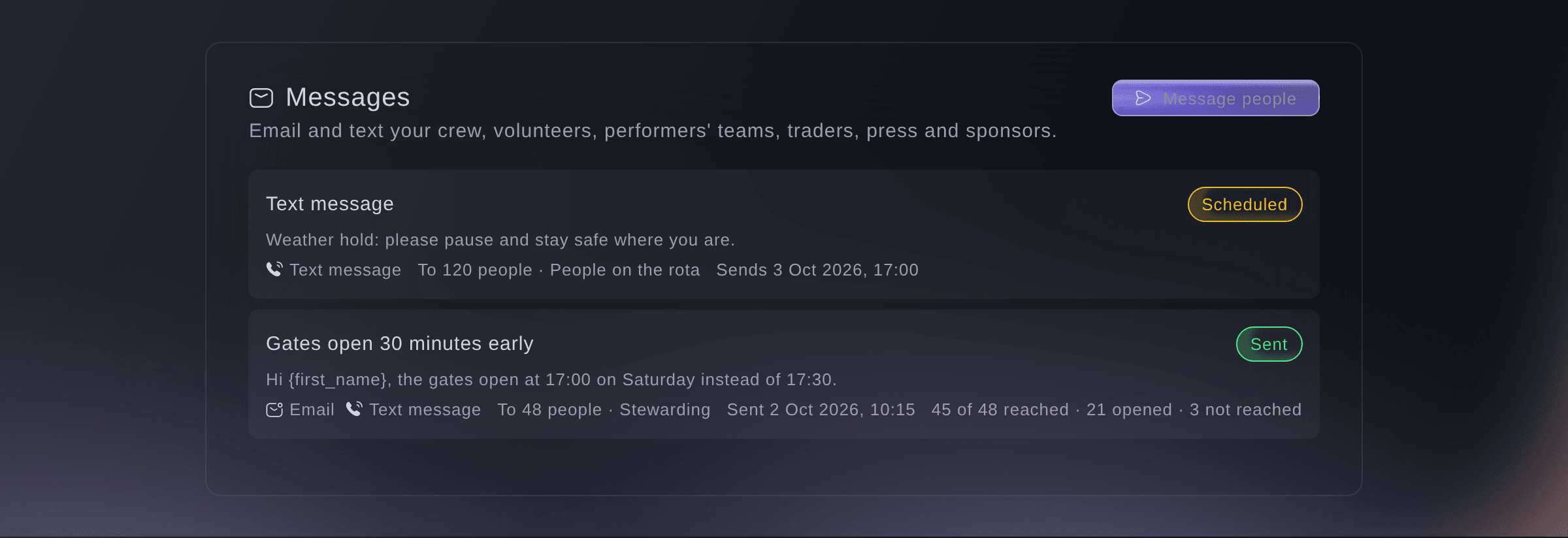
Management, Messages. -
Start a message
Select Message people.
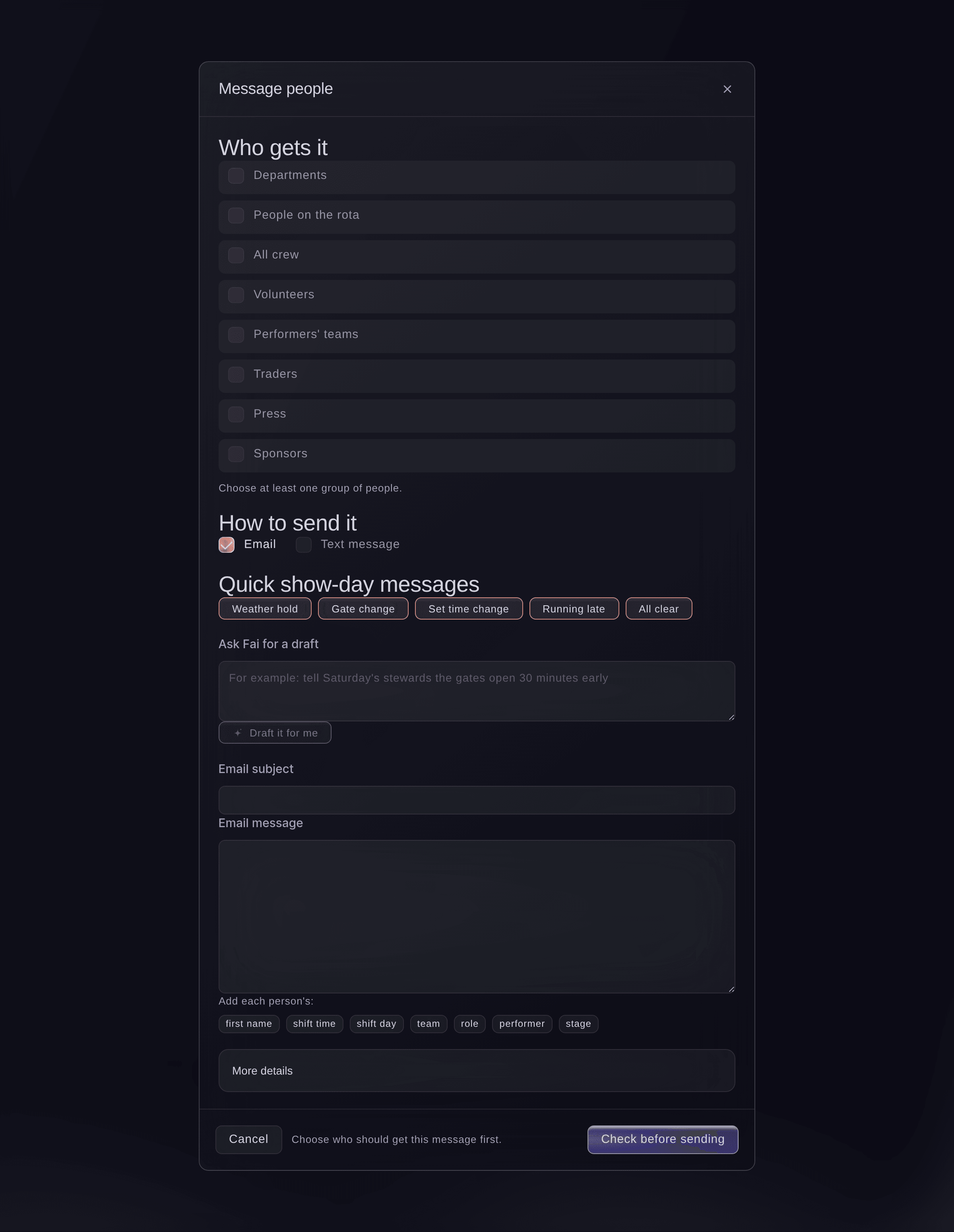
Message people. -
Choose who gets it
Under Who gets it, tick each group, then narrow a group by its status, role, day, team or shift where it offers one.
Obs: The groups are departments, people on the rota, all crew, volunteers, performers' teams, traders, press, sponsors and People who answered a form, which you narrow by your decision or by one answer. Someone in two groups gets the message once.
-
Choose how to send it
Under How to send it, tick Email, Text message or both.
Obs: If a channel isn't available for the event, a note under the channels says why. A text runs to 480 characters, and the counter under it shows how many parts each text takes.
-
Enter the message
Select a quick show-day message such as Weather hold, or enter what you want to say under Ask Fai for a draft and select Draft it for me, then check the subject and message.
Obs: Replace the words in square brackets in a template. Select a word beside Add each person's:, such as first name, shift time or, with a form's group ticked, their answer to one of its questions, to fill it in for each person.
-
Choose when it goes
Optional: Select More details, turn on Send later and choose the time.
Obs: The time is in the event's time zone, at least 5 minutes and at most 60 days from now. You can cancel a scheduled message until it goes.
-
Check who gets it, then send
Select Check before sending, read who gets it by email and by text, then select Send to with the number of people.
Obs: The check lists anyone left out, such as someone with no mobile number or a number that replied STOP. If the group changed since you checked, you see the new count and check again.
Varning: A message can't be taken back once it's sent.
-
See who it reached
Select the message in the list. Each person shows Sent, Opened, On the way or Not sent.
Obs: Sent means the email or text left us, and opened shows when the person's email app loads images. Select Not reached to see who it missed.
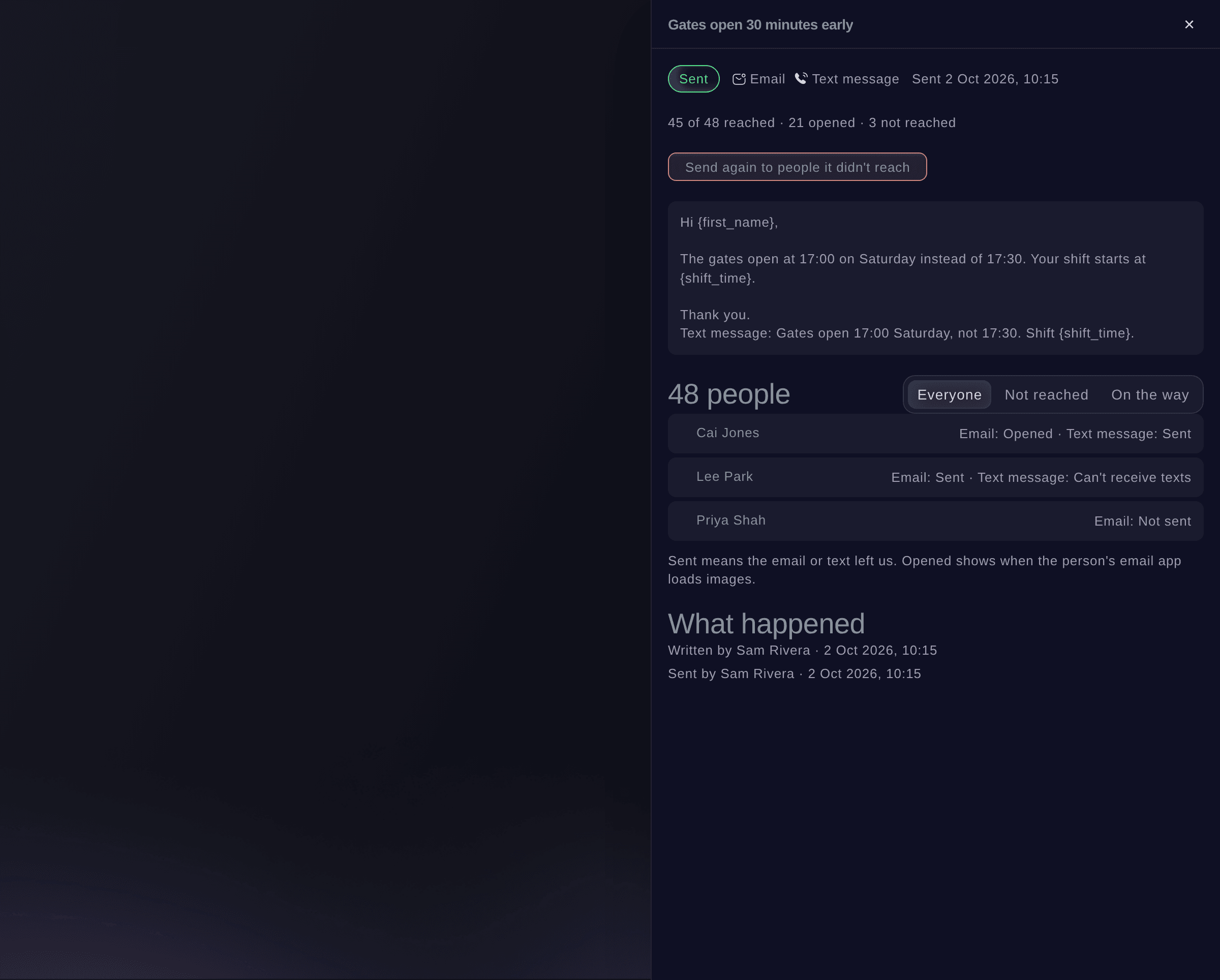
One message, who it reached.


Prova de här stegen på ditt eget evenemang
Skapa ett gratis konto, bygg ditt evenemang och följ stegen ovan i din egen instrumentpanel. Det tar några minuter och du behöver inte boka något säljsamtal.
Inga startavgifter. Ingen obligatorisk månadsavgift. Inget kreditkort krävs.
Eller låt det göras åt dig
Fai drafts a message in your brand's voice, counts who it will reach and sends it after you confirm the count and the channels. She never sends without your yes.
I din instrumentpanel, med Fai
Email Saturday's stewards and bar volunteers on <EVENT NAME> that the gates open 30 minutes early, and show me who gets it before you send
Från din egen assistent, via MCP
Anslut assistenten till vår MCP-server och be den:
MCP-konfigurationen du kopierar innehåller --read-only. Ta bara bort --read-only när du vill att assistenten ska göra ändringar. Vanliga ändringar körs när du ber om dem. Destruktiva åtgärder ber om ditt godkännande i en kompatibel klient. Om klienten inte kan fråga gör du ändringen i kontrollpanelen.
Find my event <EVENT NAME>, count how many volunteers a message would reach by email, draft a message saying the gates open 30 minutes early, and ask me before you send it
Från din terminal
Installera CLI:t från vår CLI-sida, logga in med ticketfairy auth login och välj varumärket du arbetar med via ticketfairy brand use <BRAND_ID>. ticketfairy brand list och ticketfairy event list visar de ID:n som de andra kommandona använder.
Use the CLI to see which groups and channels an event can message, count an audience, have Fai draft the text, send it and list what was sent. Sending needs --expected-count, the count you checked, and asks you first unless you add --force. You need an owner, admin or producer login on the event.
List the groups, statuses and channels this event can message.
ticketfairy event-os messages options <EVENT_ID>
Count who a message to every volunteer would reach by email.
ticketfairy event-os messages audience <EVENT_ID> --audience '{"groups":[{"source":"volunteers"}]}'
Have Fai draft the message from your words. Nothing is sent.
ticketfairy event-os messages draft <EVENT_ID> --request "Gates open 30 minutes early on Saturday"
Email every volunteer. This sends and asks you first; the count must match the one you checked.
ticketfairy event-os messages send <EVENT_ID> --audience '{"groups":[{"source":"volunteers"}]}' --subject "<SUBJECT>" --message "<MESSAGE>" --expected-count <COUNT>
List the messages sent and scheduled on the event.
ticketfairy event-os messages list <EVENT_ID>
Låt Fai göra det åt dig
Fai arbetar inuti din Ticket Fairy-instrumentpanel. Skapa ditt konto, öppna Fai och klistra in instruktionen ovan.
Inga startavgifter. Ingen obligatorisk månadsavgift. Inget kreditkort krävs.
Send a message again to the people it missed
-
Send it again
Open the message, select Send again to people it didn't reach, then Send again.
Obs: Numbers that replied STOP or can't receive texts are left out. The button appears once the message has finished sending.
Send a message again from its panel in the dashboard.
Cancel a scheduled message
-
Cancel it
Open the scheduled message, select Cancel this message, then Cancel message.
Obs: It is not sent to anyone, and it stays in the list as Cancelled.
Cancel a scheduled message from its panel in the dashboard.
See every message one person was sent
-
Open their messages
Select a person's name in a message, or Messages beside a contact on a performer's page, to see every message they were sent about the event.
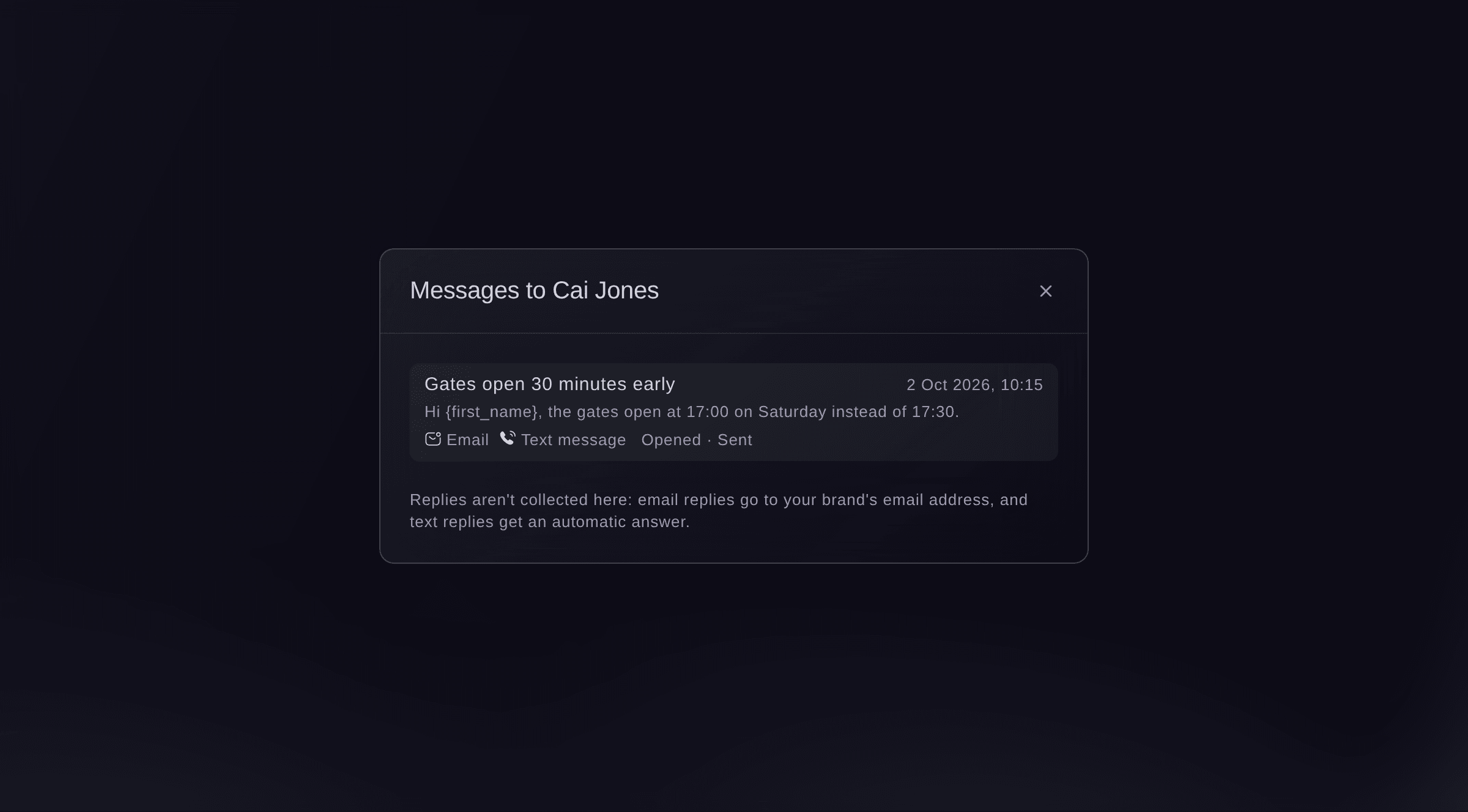
Messages to one person.

Fai lists the messages sent on the event and who each one reached.
I din instrumentpanel, med Fai
Which messages did we send about <EVENT NAME> today, and who did they not reach?
Frågor du kanske har
- Where do replies go?
- Replies to the email go to your brand's email address. Replies to a text get an automatic answer and are not collected, so ask people to reply by email or phone.
- How many people can I message?
- One message can go to up to 2,000 people, and your team can message up to 10,000 people a day and send 20 messages an hour.
- Does Fai send messages on her own?
- Not from Messages. When a set time on the run of show moves by 15 minutes or more, Fai suggests an email to the teams it affects on the event's Today page, and nothing goes until someone approves it. Fai emails shift offers and the still coming question by itself only if you turn that on in Rota rules.
- Can I message ticket holders here?
- No. This section is for the people working on the event. Email ticket buyers from the event's Messaging page.
Har du fortfarande en fråga?
Boka en demo så svarar vi på den i ett samtal, utifrån din typ av evenemang. Eller skapa ditt konto och se själv.
Inga startavgifter. Ingen obligatorisk månadsavgift. Inget kreditkort krävs.
Relaterade guider
Gör det på ditt eget evenemang
Skapa ditt konto, bygg evenemanget och följ stegen i din egen kontrollpanel. Du behöver inte boka ett säljsamtal.