
Driv produktionen
Take food, drink and market trader applications for your event
At a festival or market you pick your traders from dozens or hundreds of applications, balancing the food mix, pitch sizes and power. One application page, one list ranked against your mix and an invoice raised as you approve means nobody retypes a trader's details into a spreadsheet.
Open an application page for food, drink, merchandise and market traders, set your pitch fees and how they are taxed, let Fai rank the applications against the mix you want, then approve, waitlist or decline each trader for your event and invoice the ones you approve.
- För
- Choosing and invoicing the traders who sell at your event
- Tar
- 11 minuter
- Open Traders
- Set up the application page
- Offer several market dates on one application
- Add your pitch fees and extras
- Choose how trader invoices are taxed
- Open applications and share the link
- Rank the applications with Fai
- Open an application
- Choose the pitch and extras before you approve
- Approve, waitlist or decline
- Check the trader is trading
Innan du börjar
- You need an owner, admin or producer role on the event to set up and decide. Other roles on the event can read the list through Fai or the Ticket Fairy CLI.
- Card payments must be working on the event for traders to pay their invoices by card.
-
Open Traders
Open the event, select Operations, then select Traders in the list of sections.
Obs: If Traders is not in the list, select More sections and open it there. Traders opens on Applications, with the applications waiting for you under To review.
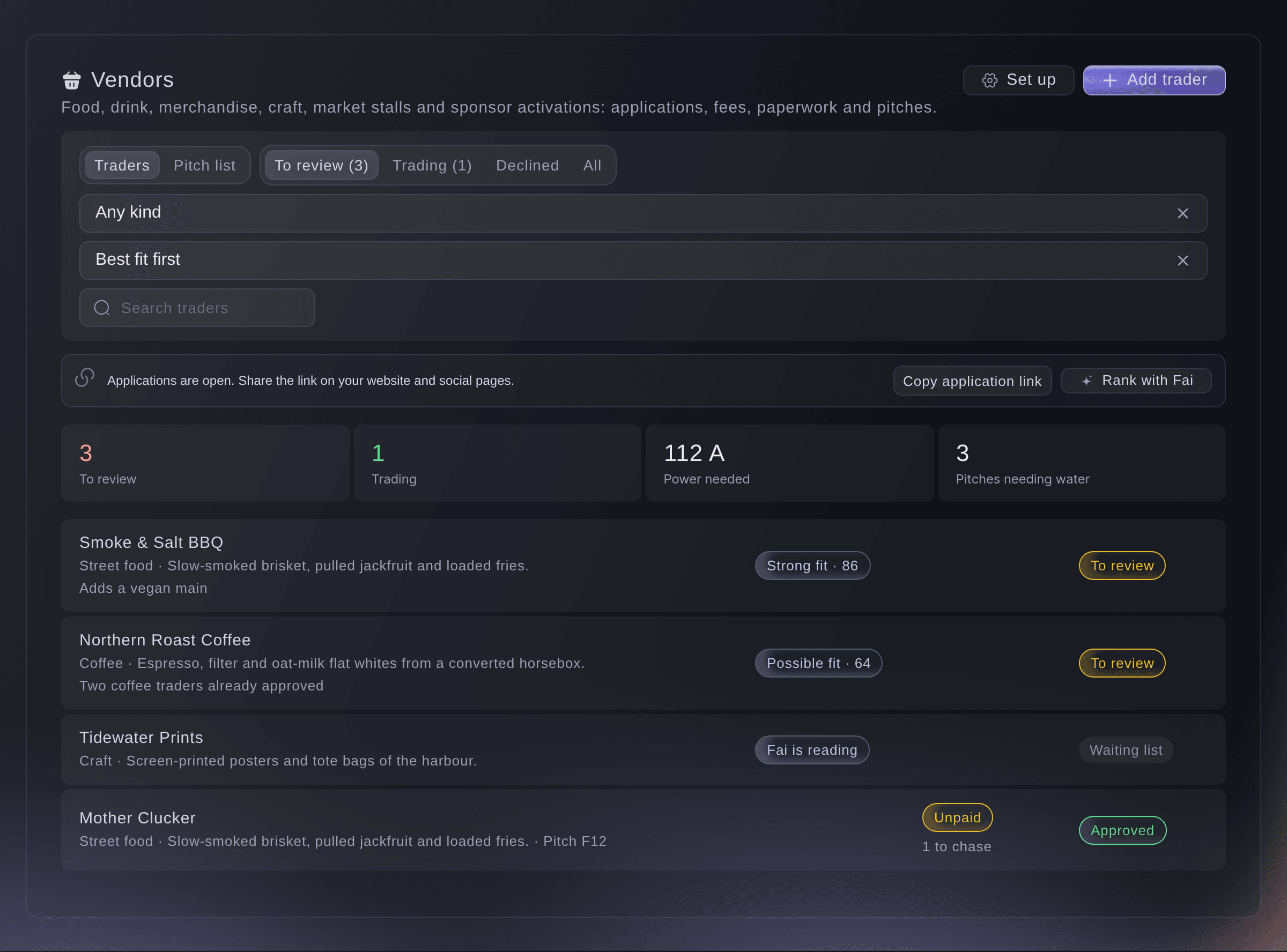
Operations, Traders. -
Set up the application page
Select Set up. On Application page, enter your Welcome text and The mix you want, then list the Certificates every trader must upload.
Obs: The page already asks for the business, contact, what they sell, pitch, power, water and photos. Add anything else under Your own questions, and set Close applications on (optional) for a closing date.
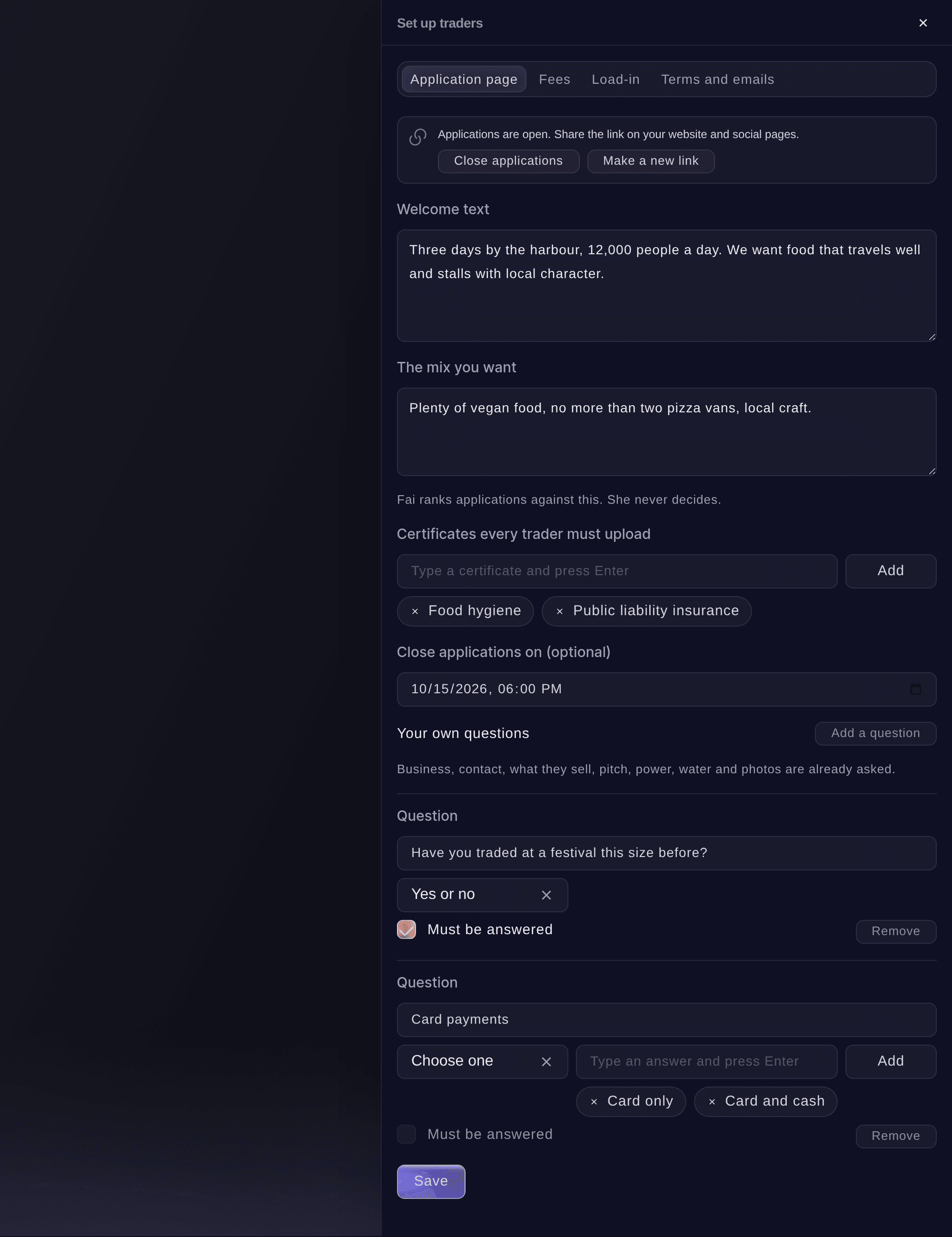
Set up traders, Application page. -
Offer several market dates on one application
Optional: for a market that runs on several dates, tick the other dates under Market dates on Application page, then select Save dates.
Obs: The application page then asks Which dates do you want to trade?, and each date the trader chooses becomes an application on that date's event, decided on its own. The dates are your brand's other upcoming events.

Market dates on the application page. -
Add your pitch fees and extras
Select Fees, then Add a pitch fee for each pitch size and Add an extra for power, water, passes or parking.
Obs: A pitch fee can also take a share of sales with a minimum and maximum, a deposit charged when you approve the trader, and the Staff passes included. Traders see the fees, in the event's currency, on the application page and choose their pitch there.
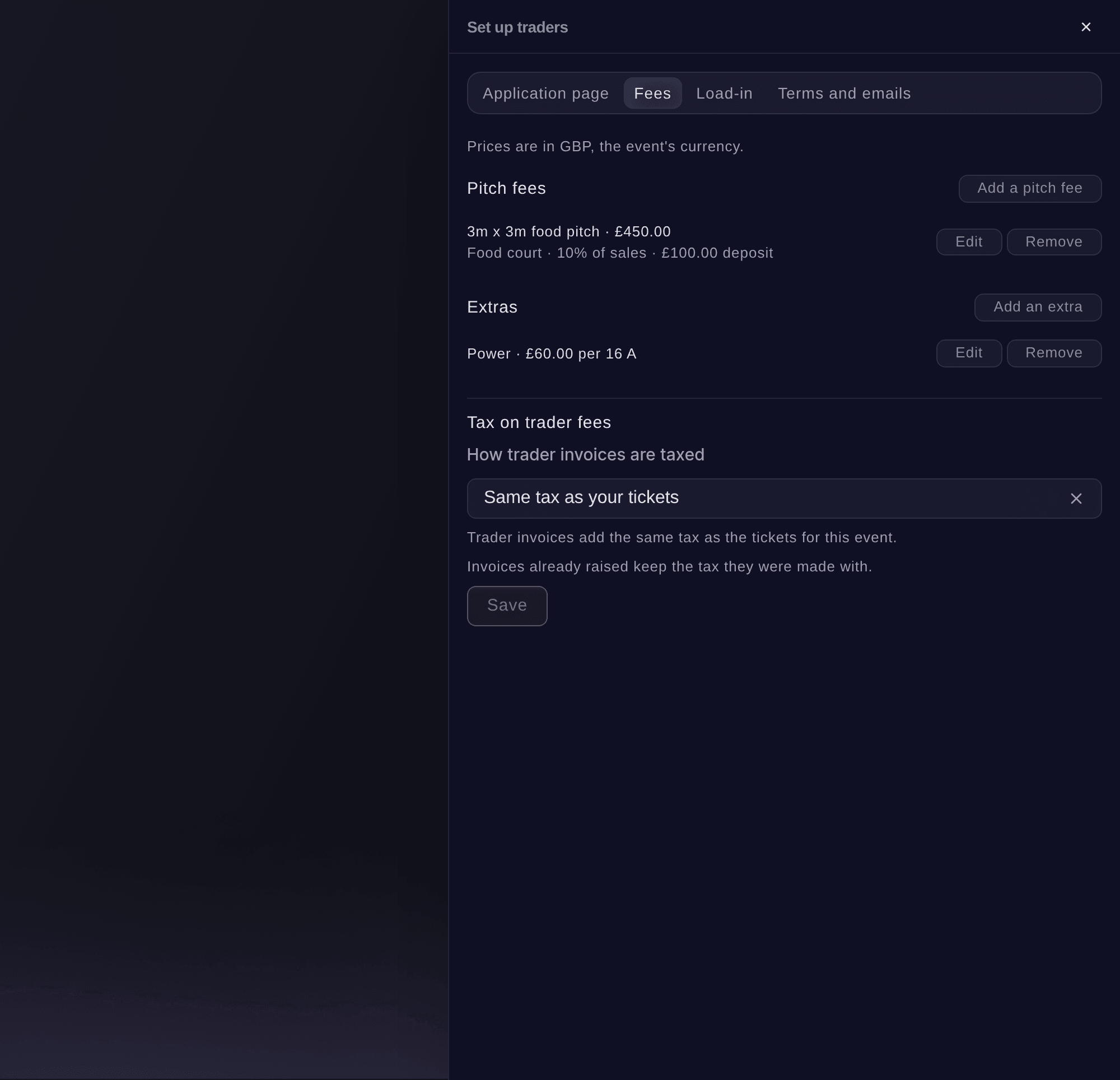
Set up traders, Fees. -
Choose how trader invoices are taxed
Under Tax on trader fees, choose how trader invoices are taxed.
Obs: Invoices already raised keep the tax they were made with.
-
Open applications and share the link
Close the panel, select Open applications, then select Copy application link and share it on your website and social pages.
Obs: Traders apply from their phone with no account, and each gets an email with a link to their own trader page. Close applications stops new applications and keeps the ones you have.
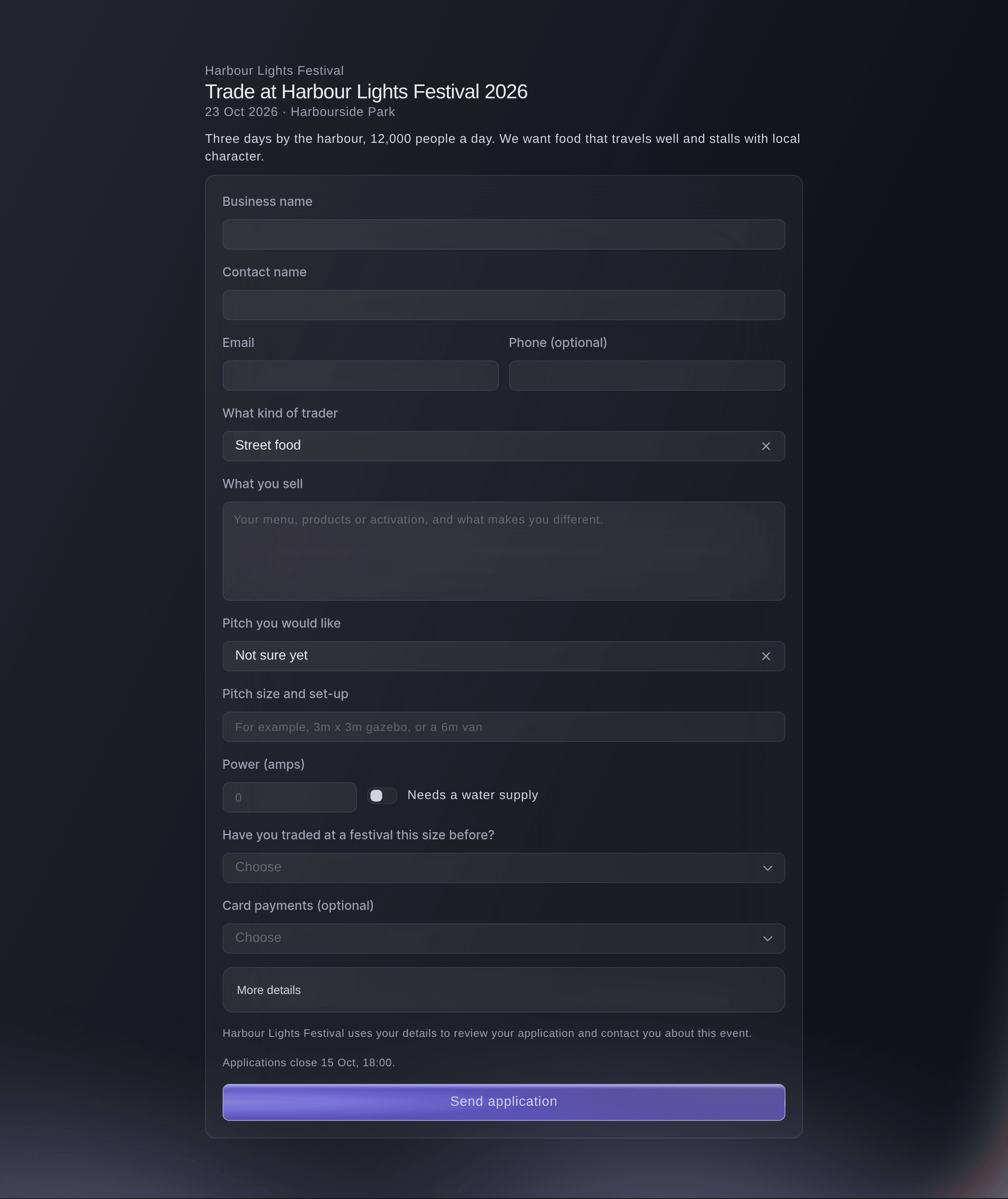
The application page a trader fills in. -
Rank the applications with Fai
Select Rank with Fai. Fai reads each application against the mix you want and marks it Strong fit, Possible fit or Weak fit with her reasons.
Obs: Fai never decides; you do. Best fit first puts the strongest fits at the top of the list.
-
Open an application
Select a trader to open their panel with what they sell, their pitch, power and water, their answers, photos and Fai's reasons.
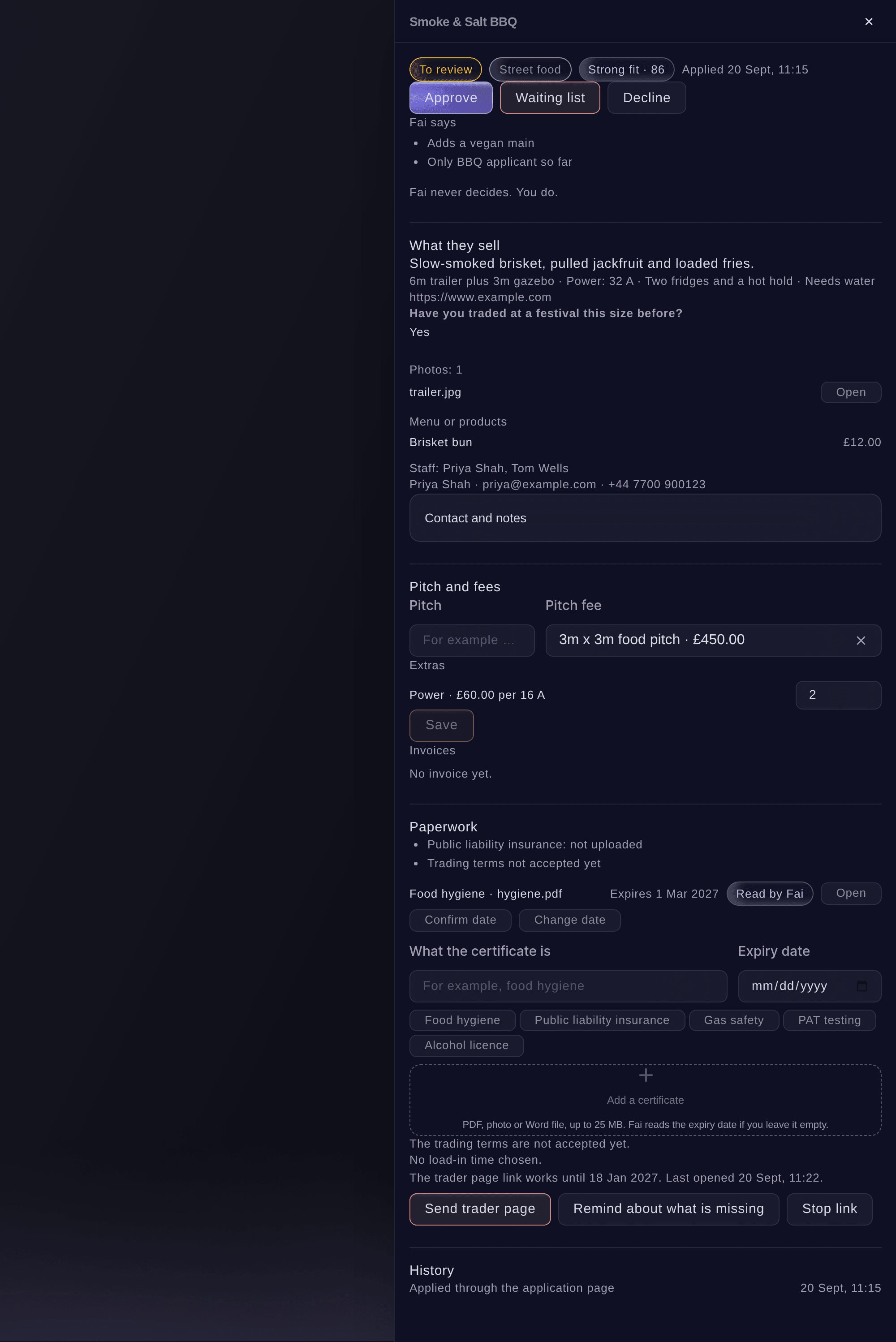
One trader's application. -
Choose the pitch and extras before you approve
Under Pitch and fees, enter the Pitch, choose the Pitch fee and set how many of each extra they need.
Obs: The invoice is made from these, so an approval with no pitch fee raises no invoice.
-
Approve, waitlist or decline
Select Approve, Waiting list or Decline, check the email and invoice the dialog lists, then confirm.
Obs: Turn off Email the trader to decide without emailing. When you approve, Raise the invoice makes it from the pitch fee and extras, or the deposit when the pitch has one, and Send the invoice now emails it with a link to pay by card.
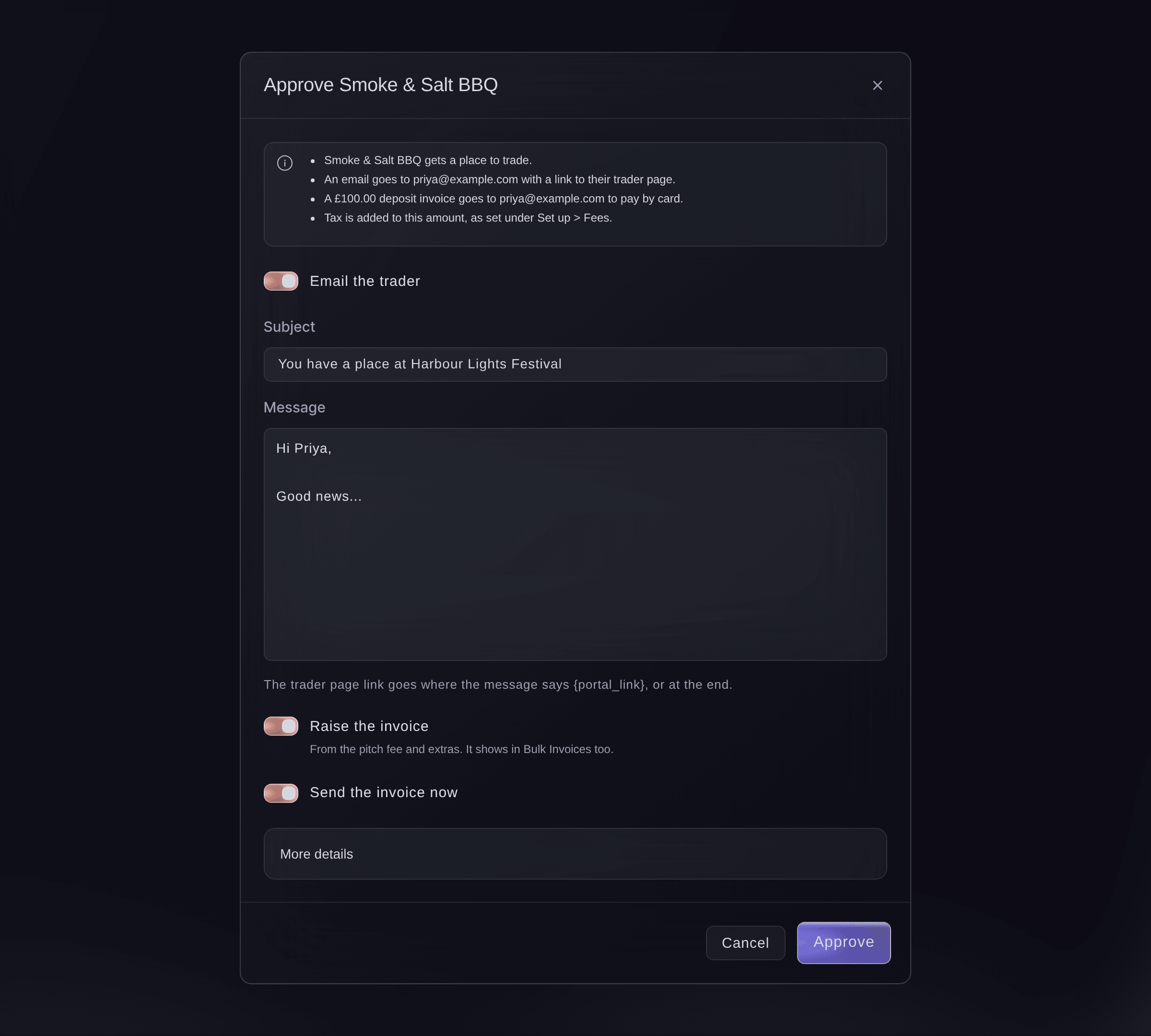
Approve a trader. -
Check the trader is trading
Select Trading. The trader is listed with their pitch, and their invoice shows Unpaid until they pay it, then Paid.
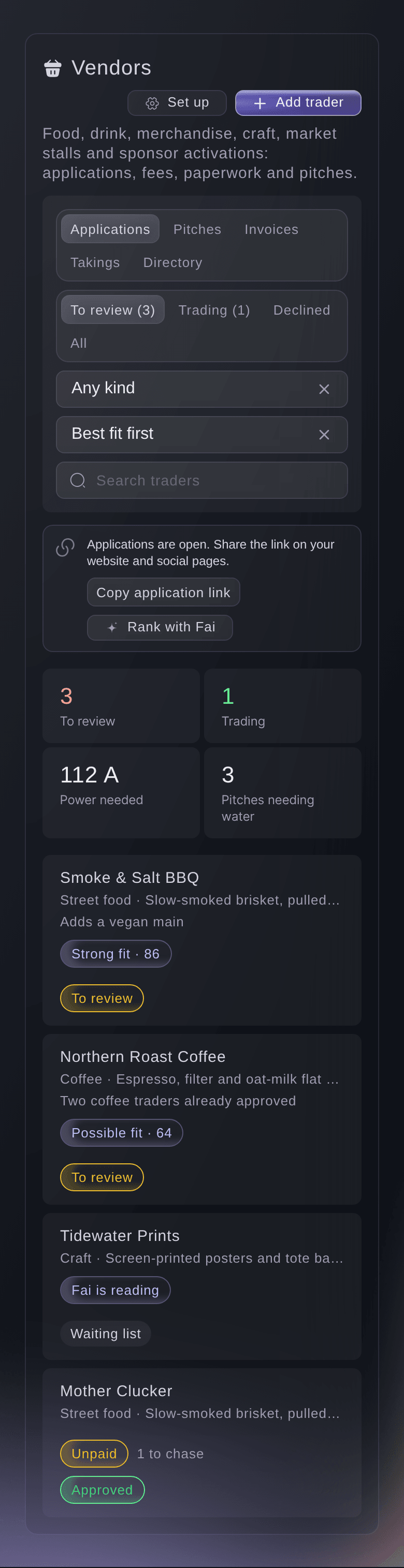


Prova de här stegen på ditt eget evenemang
Skapa ett gratis konto, bygg ditt evenemang och följ stegen ovan i din egen instrumentpanel. Det tar några minuter och du behöver inte boka något säljsamtal.
Inga startavgifter. Ingen obligatorisk månadsavgift. Inget kreditkort krävs.
Eller låt det göras åt dig
Fai lists your traders and applications with her reading of each, sets up the application page, fees and tax, adds a trader you already know, and approves, waitlists or declines an application. She shows you the email and invoice first and waits for your yes.
I din instrumentpanel, med Fai
Show me the trader applications for <EVENT NAME> that best fit our food mix, and approve Smoke & Salt BBQ on the 6m pitch with the invoice
Från din egen assistent, via MCP
Anslut assistenten till vår MCP-server och be den:
MCP-konfigurationen du kopierar innehåller --read-only. Ta bara bort --read-only när du vill att assistenten ska göra ändringar. Vanliga ändringar körs när du ber om dem. Destruktiva åtgärder ber om ditt godkännande i en kompatibel klient. Om klienten inte kan fråga gör du ändringen i kontrollpanelen.
Find my event <EVENT NAME>, list the trader applications still to review with Fai's reading of each, and ask me before you decide any of them
Från din terminal
Installera CLI:t från vår CLI-sida, logga in med ticketfairy auth login och välj varumärket du arbetar med via ticketfairy brand use <BRAND_ID>. ticketfairy brand list och ticketfairy event list visar de ID:n som de andra kommandona använder.
Use the CLI to list an event's traders, read one application and approve, waitlist, decline or cancel a trader. The application page, fees and invoices are set up in the dashboard or through Fai. You need an owner, admin or producer login on the event to decide.
List the traders and applications on the event.
ticketfairy event-os traders list <EVENT_ID> --view to_review --sort fai
Show one trader's application, fees, paperwork and history.
ticketfairy event-os traders show <EVENT_ID> <VENDOR_ID>
Approve a trader, email them and raise and send their pitch invoice. This asks you first unless you add --force.
ticketfairy event-os traders decide <EVENT_ID> <VENDOR_ID> --decision approve --raise-invoice --send-invoice
Låt Fai göra det åt dig
Fai arbetar inuti din Ticket Fairy-instrumentpanel. Skapa ditt konto, öppna Fai och klistra in instruktionen ovan.
Inga startavgifter. Ingen obligatorisk månadsavgift. Inget kreditkort krävs.
Add a trader you already know
-
Add them without an application
Select Add trader, enter the business and contact, then select Add trader.
Obs: Tick Already agreed to add them as approved. Nothing is emailed or invoiced until you choose.
Fai adds a trader to the event from the details you give her, after you confirm.
I din instrumentpanel, med Fai
Add <BUSINESS NAME> to the traders on <EVENT NAME> as already agreed, contact <NAME> at <EMAIL>
Raise or send an invoice later
-
Raise the invoice from the trader's panel
Open the trader and, under Pitch and fees, select Raise and send invoice, or Raise invoice without sending to send it later with Send invoice.
Obs: Each trader has one live invoice of each kind, and it also shows in Bulk Invoices. Cancel an invoice in Bulk Invoices before you raise another.
Fai raises a trader's invoice and sends it after you confirm.
I din instrumentpanel, med Fai
Raise and send the pitch invoice for <BUSINESS NAME> on <EVENT NAME>
Cancel an approved trader
-
Cancel them
Open the trader, select Cancel this trader, then select Cancel trader.
Obs: They lose their place and their load-in time. No email is sent, so tell them yourself; invoices stay as they are in Bulk Invoices.
Fai cancels an approved trader after you confirm.
I din instrumentpanel, med Fai
Cancel <BUSINESS NAME> as a trader at <EVENT NAME>
Från din egen assistent, via MCP
MCP-konfigurationen du kopierar innehåller --read-only. Ta bara bort --read-only när du vill att assistenten ska göra ändringar. Vanliga ändringar körs när du ber om dem. Destruktiva åtgärder ber om ditt godkännande i en kompatibel klient. Om klienten inte kan fråga gör du ändringen i kontrollpanelen.
Find my event <EVENT NAME> and the trader <BUSINESS NAME>, show me their status and ask me before you cancel them
Frågor du kanske har
- Can I change my mind after declining a trader?
- Yes. A declined trader can be approved or put on the waiting list, and a cancelled or withdrawn trader can be approved again. An approved trader can only be cancelled.
- What does a trader see after they apply?
- A thank-you page, and an email with a link to their trader page, where they add certificates, their menu and staff. Once you approve them, the same page shows their pitch, their invoice, your trading terms and the load-in times.
- Why did an approval raise no invoice?
- The trader had no pitch fee chosen. Choose one under Pitch and fees, then raise the invoice from their panel.
- How do I decide a trader who applied for several market dates?
- Open the trader. Other dates lists each date with Approve and Decline, and the trader gets an email for each date you decide. On their trader page they can say they cannot trade on a date, which releases their pitch for it.
- Can a trader apply twice?
- No. A second application from the same email address on the same event is refused, and the trader is told you will be in touch.
- Can I send applicants through my own event form instead?
- Yes. A form on the event can add each person who sends it to your traders as a new application.
Har du fortfarande en fråga?
Boka en demo så svarar vi på den i ett samtal, utifrån din typ av evenemang. Eller skapa ditt konto och se själv.
Inga startavgifter. Ingen obligatorisk månadsavgift. Inget kreditkort krävs.
Relaterade guider
Gör det på ditt eget evenemang
Skapa ditt konto, bygg evenemanget och följ stegen i din egen kontrollpanel. Du behöver inte boka ett säljsamtal.